

If you search around for floor plan software for Mac, one name that keeps popping up is Magicplan.
This is a bit weird because Magicplan isn’t actually designed for Macs – it’s an iPhone and iPad app that allows you to scan a room and instantly turn it into a floor plan.
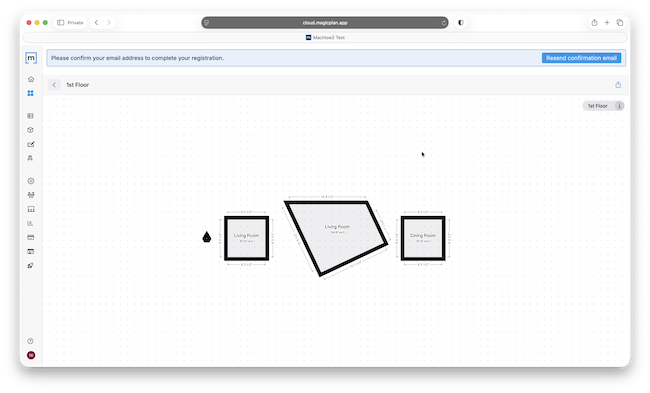
You can then transfer it it to your Mac for further editing but only by using another home design software to enhance or develop the design. The cloud version of Magicplan won’t let you edit designs on your Mac.
I took a closer look at it to see whether it really can create floor plans magically armed with just an iPhone and a Mac.
Table of Contents
What Is Magicplan?
Magicplan is a mobile app (iPhone/iPad) that lets you scan rooms using your device’s camera and, if available, LiDAR (basically any iPhone 12 or later).
It automatically builds a floor plan for you, including walls, openings and room dimensions. You can then add furniture, create 3D models, export plans and generate estimates.
Well that’s the theory anyway…
Although Magicplan is mobile-only for editing, it can be useful for Mac users because:
- you scan on iPhone/iPad,
- your projects sync via Magicplan Cloud although you can’t edit these on your Mac
- you can export the finished floor plan on your Mac and edit it in another floor planning or home design app.
My Experience Using It
Once you’ve downloaded the app, simply sign-up with your email address, set a password and you can try the Starter Plan for free.
The Starter Plan supports two free plans only but other than that, you get access to most features.
Room Scanning on iPhone: Frustrating
I’d read some glowing reviews of how easy Magicplan’s LiDAR technology was at room scanning and then automatically creating floor plans. I found it a really frustrating experience though.
It seems I’m not the only one either according the Magicplan community forum and appears that the LiDAR technology has actually complicated things for many users rather than made it easier.
Once you’ve signed-up click on “New Project”:
You need to give your project a name and add any other details such as a description, address and any forms that may be relevant.

I did find it tricky to work out where to start scanning rooms (as it doesn’t make it very obvious) but you have to tap on the “Insert” button at the bottom and select what kind of area you are going to scan.

When I did this, the app asked me to move the iPhone across the room and I did extensively (several times) but nothing seemed to happen. The LiDAR scanner also darkens the screen for some reason which also makes it a bit trickier to see what you are doing.

After much scanning, eventually I got it to recognize one of the corners and then clicked to line-up the scanner with it and clicked OK.
Next it asked me to measure the height of the room by pointing the camera at the roof. I did this and again…nothing. Eventually, it did start to show some numbers on the screen but without ever reaching a conclusion so I was unable to get a proper measurement.
Next I tried a Window and after selecting the type (a Hung Window) tried to get Magicplan to recognize it but all I ended up with was a mess of green and red annotations.
With some practice, I did start to measure out walls by effectively walking along side the skirting boards and tracing them out but it was a frustrating task (also requiring a steadier hand than mine).

Reading around, I read of other users with similar experiences and one of the issues seems to be the size of the room.
If you’re scanning a wide, empty room, Magicplan finds it easier to map out the floor plan. If you’re in smaller room such as bathrooms, it seems to have a hard time understanding the space that its in.
Once I’d finally captured a room the best I could, I could then add interior details, and insert furniture from a large object library – but only on the iPhone, not my Mac.
The 3D view is also a nice touch – not photo-realistic, but useful for visualizing layouts.
Using Magicplan With a Mac
From here, the best you can do to use the Magicplan on a Mac is to either log into Magicplan in a browser of export your design.
For exporting, Magicplan gives you lots of options including PDF, JPG, SVG, or even 3D formats.

Another option is to simply log into the browser version of Magicplan.

However, the frustrating thing is that you can’t edit the floor plans in the browser version on your Mac.
You can add price lists and objects but you can’t edit or tweak the floor plans you have imported which either seems like a massive oversight or a purposeful limitation to force most of the designing to be done on iPhone or iPad.
Magicplan Pricing
Magicplan offers two types of plan:
- Free version – The “Starter Plan” lets you create up to two projects for free and test features
- Paid plans – required for multiple projects, export formats, and professional use
Pricing is subscription-based and aimed at contractors, remodelers, and pros, though it may also appeal to homeowners for one-off projects.
Is the Starter Plan completely free?
Yes, you can use the Starter Plan for as long you want without being charged a subscription. It allows you to:
- Create two projects
- Use up to two mobile or tablet devices
- Create and edit floor plans in the floor plan editor
- Full access to the Magicplan object library
- Ability to add photos & notes to floor plans
- Calculator for for materials and labor (note that estimates don’t work on iPhone, only iPad at the moment)
- Export all of this to your Mac
The main limitations of the Starter Plan are:
- You can only create two projects.
- You can’t use Workspaces & Teams.
- You can’t access Magicplan’s API & Integrations.
The paid plans are divided into single user and business plans.
Single user subscription Plans are:
- Sketch – Create and export professional 2D & 3D interior floor plans.
- Report – Create structured reports that include photos, notes, markups & more.
Business Subscription plans are:
- PRO Plans – A usage-based pricing structure aimed at teams.
- PRO Estimator Add-On – Allows you to build price lists and create project estimates.
Note that if you cancel a Magicplan subscription, you will automatically return to the Starter Plan and be given the option of saving two of the plans you have created.
Who Magicplan Is Best For?
My experience wasn’t great with Magicplan but I can see how those professionals that invest in the time to learn how to use the Lidar technology might love it.
When it works right, it’s particularly good for
- creating fast floor plans
- accurate room measurements without manual tools
- those that prefer using their iPhone/iPad and then exporting to a Mac
- don’t need full desktop editing or CAD-level control.
I’d say it’s ideal for:
- homeowners planning renovations that are prepared to have patience getting the LiDAR scanning to work
- interior designers
- real-estate agents
- contractors
- anyone documenting space dimensions quickly
What I would say is that it’s not ideal for Mac users given the limited amount of editing your can do on Mac desktops with it.
Alternatives to Magicplan
There are some much better floor planners for Mac than Magicplan that actually allow you to edit and design on your desktop. Some of the best ones are SmartDraw, LiveHome 3D, Live Home 3D and Planner 5D.
Here’s a comparison of how they compare in terms of what they excel at and pricing.
| Software | Best suited for / Strengths | Pricing |
|---|---|---|
| Magicplan | Fast room capture via iPhone/iPad (camera / LiDAR or manual), ideal for real-world measurement, renovations, real-estate documentation, home-improvement. Doesn’t support editing on Macs though. | Basic paid plans start from roughly $9.99/month (Sketch plan on iOS). Pro-style project-based pricing: from US $25/project under a long-term plan (or higher per-project with shorter or no commitment). |
| Live Home 3D | Full home/interior design – draw or import floor plans manually (or via scan on iOS), then do 2D + 3D layouts, roofs/terrain, lighting, renders, realistic 3D walkthroughs – good for conceptualizing, designing, and visualizing entire homes. | Free version available (limited). One-time “Standard” license US $29.99–59.99, or “Pro” lifetime license US $74.99–149.99 depending on edition. There are also subscription-based tiers (monthly or annual) on iOS. |
| Sweet Home 3D | Quick, free or low-cost 2D floor plans and basic 3D interior layouts – ideal for simple layouts, furniture arrangement, quick drafts, or if you want a free/open-source tool. | Free/Open-source. |
| Planner 5D | Easy-to-use, cross-platform (web, macOS, mobile) interior and home layout in 2D & 3D; good for hobbyist home design, furnishing, quick layout ideas without needing CAD experience. | Free tier available. Paid plans: Premium ~ US $4.99/month (or US $59.99/year), Professional ~ US $33.33/month (annual) or US $49.99/month (month-to-month). |
| SmartDraw | Precise 2D floor plans, facility layouts, office / building diagrams, or technical diagrams – good when 3D rendering isn’t needed, but you need accurate scaled drawings, plan documents, or architectural-style layouts. | Cloud-based plan around US $7.95/month (billed annually) for single-user. No fully free version (aside from trial). |