

Need to capture an entire webpage, chat conversation or long document on your Mac?
Unfortunately, macOS doesn’t include a built-in scrolling screenshot tool like you’ll find on many Windows PCs, Android phones or iPhones. The macOS Screenshot app (⌘⇧5) only captures what’s currently visible on your screen.
The good news is there are several easy ways to capture scrolling content depending on what you’re trying to save.
After testing the most popular methods, here’s what I recommend:
| If you want to capture… | Best Method | Free? |
|---|---|---|
| Any scrolling window or app | Shottr | ✅ |
| A webpage in Safari | Safari Export as PDF | ✅ |
| A webpage in Firefox | Firefox Full Page Screenshot | ✅ |
| A webpage in Chrome | GoFullPage Extension | ✅ |
| Professional screenshots | CleanShot X | ❌ |
| Business documentation | Snagit | ❌ |
If you’re looking for a standard screenshot instead, check out our guide on How to Take a Screenshot on a Mac.
Can Macs Take Scrolling Screenshots?
Not natively. The Screenshot toolbar and keyboard shortcuts only capture the visible portion of your display.
Capturing a scrolling screenshot requires software to either:
- automatically scroll through a webpage while stitching images together, or
- access the full document directly before saving it.
That’s why different methods work better for different types of content.
Method 1: Use Shottr (Best Free Option)
For most Mac users, Shottr is now the easiest way to capture scrolling screenshots.
It’s by far the quickest and easiest way to take rolling screenshots as you can see in our demo video above.
Unlike browser extensions, it isn’t limited to webpages. It can capture long documents, chat conversations and many scrollable windows across macOS.
How to use Shottr
- Download and install Shottr.
- Grant Accessibility permission when prompted. This is crucial and you must allow Shottr permissions to record your screen.

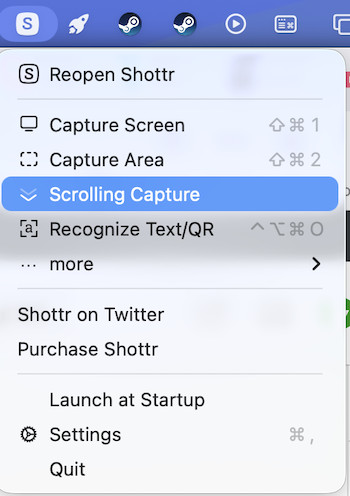
- Go the Shottr logo in your Menu Bar and select “Scrolling Capture”. Alternatively, press Control + Shift + 7 (the default shortcut for scrolling screenshots).
- Select the scrollable area.
- When you release the crosshair, Shottr will automatically scroll down the page taking the scrollable screenshot as it does. Shottr then automatically stitches everything together into a single image.

Why I like Shottr
- It’s completely free
- Lightweight
- Designed specifically for macOS
- Excellent image quality
- Built-in annotation tools
- Ideal for websites, chats and documents
If you regularly take screenshots on your Mac, it’s well worth installing even if you continue using Apple’s built-in Screenshot app for everyday captures.
Method 2: Save an Entire Webpage in Safari
If you’re browsing in Safari, you may not need a scrolling screenshot at all.
Safari can export an entire webpage as a PDF without requiring any extensions.
Here’s how to do it
- Open the webpage.
- (Optional) Enable Reader mode for a cleaner version.
- Choose File → Export as PDF.
- Save the PDF.

Although the result is a PDF rather than a PNG image, it’s often the fastest and highest-quality way to preserve an entire webpage.
Best for
- Articles
- Online receipts
- Documentation
- Research
- Recipes
Method 3: Capture a Full Page in Firefox
Firefox includes one of the best built-in screenshot tools available.
Unlike Safari or Chrome, you don’t need to install anything.
To capture a full webpage
- Open the page in Firefox.
- Right-click on the page.
- Select Take Screenshot.
- Click Save Full Page.
- Firefox saves the page instantly.
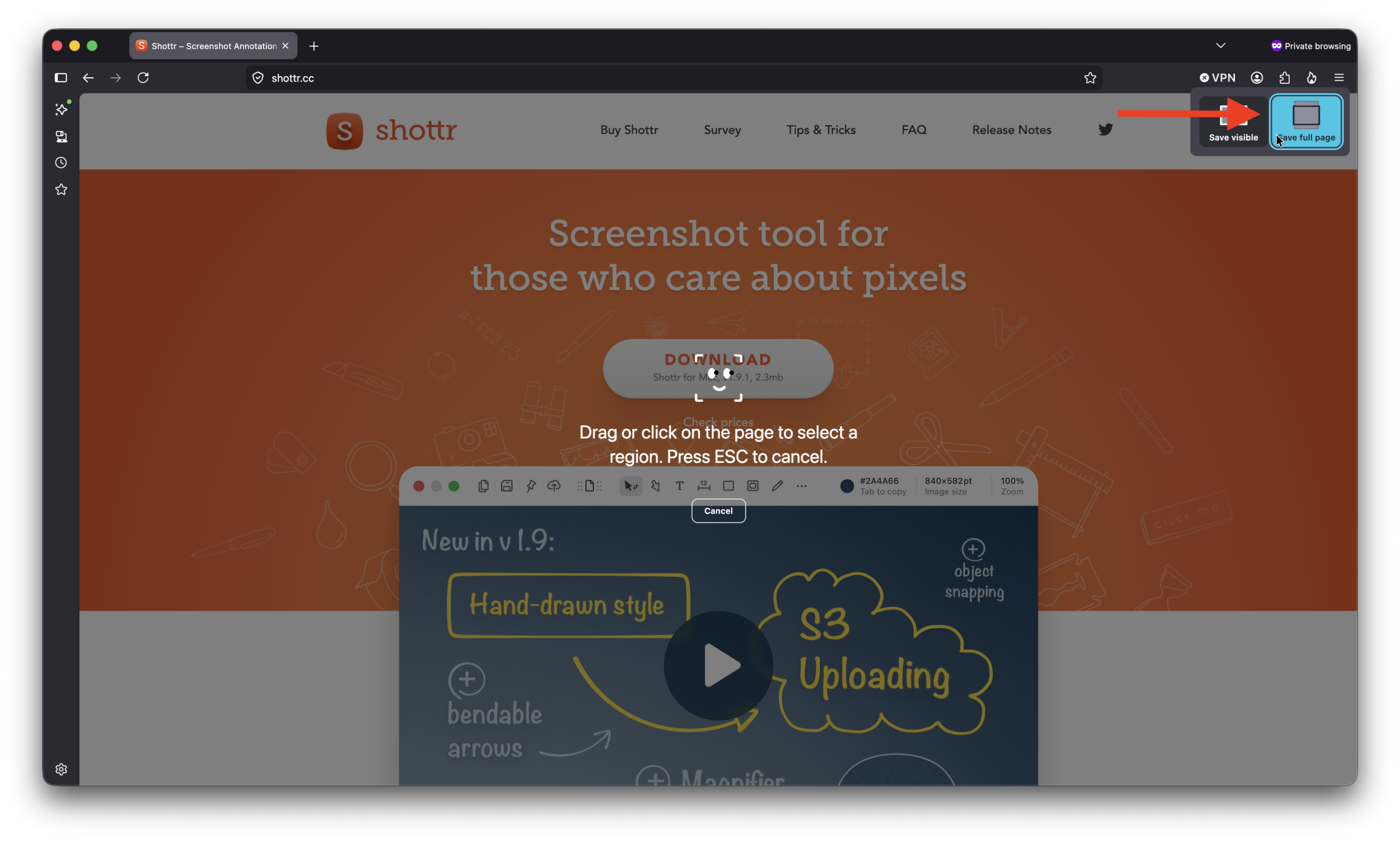
Firefox automatically scrolls through the page and creates one continuous screenshot.
What I like about these feature in Firefox is that it saves the entire page instantly – it’s even quicker than Shottr but you must be using Firefox of course.
Method 4: Capture Full Pages in Chrome with GoFullPage

Google Chrome doesn’t include its own scrolling screenshot feature, but the free GoFullPage extension works exceptionally well.
After installing it from the Chrome Web Store:
- Open the webpage.
- Click the GoFullPage icon.
- Wait while it scrolls through the page automatically.
- Save as PNG or PDF.
It’s one of the simplest solutions for Chrome users and works with most websites.
Method 5: CleanShot X (Best Premium App)

If you create tutorials, documentation or product reviews, CleanShot X is my favourite premium screenshot utility for Mac.
In addition to scrolling screenshots, it offers:
- Screen recording
- Instant annotations
- Blur sensitive information
- OCR text recognition
- Cloud sharing
- Beautiful floating previews
Although it’s a paid app, it’s well worth the investment if you capture screenshots regularly.
Method 6: Snagit (Best for Professionals)

Snagit has long been one of the most popular screenshot tools for professionals.
It can automatically detect scrollable windows, stitch captures together and includes one of the best image editors available.
It’s particularly useful for:
- Technical writers
- Support teams
- Trainers
- Bloggers
- Businesses creating documentation
If screenshots are part of your daily workflow, Snagit remains an excellent choice.
Which Method Should You Use?
Here’s my recommendation based on what you’re trying to capture.
| Content | Recommended Method |
|---|---|
| Long webpage in Safari | Safari Export as PDF |
| Long webpage in Firefox | Firefox Screenshot |
| Long webpage in Chrome | GoFullPage |
| Chat conversations | Shottr |
| Slack or Discord | Shottr |
| Long PDF | Preview or Safari PDF |
| Tutorials | CleanShot X |
| Business documentation | Snagit |
Why Doesn’t Apple Include Scrolling Screenshots?
Apple’s Screenshot utility captures the current contents of your display.
Creating a scrolling screenshot is much more complex because software needs to automatically move through the page while combining multiple captures into one seamless image.
Browsers such as Firefox can do this because they have direct access to the webpage, while dedicated screenshot apps use Accessibility permissions to automate scrolling and stitch the results together.
Hopefully Apple adds this capability in a future version of macOS, but for now a third-party app is still the easiest solution.
FAQ
Can I take a scrolling screenshot with macOS Screenshot?
No. Apple’s Screenshot app only captures the visible part of your display.
What’s the best free scrolling screenshot app for Mac?
For most users, I’d recommend Shottr because it’s free, lightweight and works beyond just webpages.
Can Safari take scrolling screenshots?
Not as image files. However, Safari can export an entire webpage as a PDF, which is often an even better solution if you simply want to save the page.
Can Chrome take scrolling screenshots?
Not on its own. You’ll need a browser extension such as GoFullPage.
Can Firefox take scrolling screenshots?
Yes. Firefox includes a built-in Save Full Page feature that captures an entire webpage without installing any extensions.
Can I capture scrolling screenshots in Slack or Discord?
Yes, but you’ll need a dedicated screenshot app such as Shottr or CleanShot X because browser-based solutions only work on webpages.