


Microsoft Teams now works natively on all Apple Silicon Macs as well as older Intel Macs.
Microsoft provides a single universal Mac installer, so there is no need to choose an M-series version, install Rosetta or use a browser workaround. The same download works on an M1 MacBook Air, newer Apple Silicon Macs and Intel-based models.
For regular meetings, calls and collaboration, we recommend installing the desktop app. If you only need to join an occasional meeting, you can also use Teams in Safari, Microsoft Edge, Chrome or Firefox without installing anything.
In this guide, we show you how to install Microsoft Teams on a Mac, configure the permissions it needs and fix the most common problems.
You May Also Like:
- Skype for Business on Mac: Is It Still Available?
- Microsoft Office For Mac vs Microsoft 365
- How To Get Microsoft Office For Free on a Mac
Does Microsoft Teams Work on Apple Silicon Macs?
Yes. Microsoft Teams runs natively on Apple Silicon, including M1 and later M-series Macs.
The current Teams app is supplied as a universal installer containing support for both Apple Silicon and Intel processors. It automatically installs the correct version for your Mac.
This means you no longer need:
- Rosetta 2 to translate the old Intel app.
- A separate Apple Silicon download.
- Microsoft Edge simply to make Teams run.
- Windows or a virtual machine.
The version Microsoft previously called new Teams or Teams 2 is now simply called Microsoft Teams. The classic client reached the end of support in July 2024 and stopped working on July 1, 2025.
If your Mac still shows an application named Microsoft Teams classic or Microsoft Teams (work or school), remove it and download a fresh copy of the current client from Microsoft.
Microsoft Teams for Mac System Requirements
Microsoft officially supports the Teams desktop app on the three most recent major versions of macOS.
The minimum hardware requirements listed by Microsoft are:
- A dual-core processor
- 4GB of RAM
- 1.5GB of available storage
- A display resolution of at least 1200 × 800
- A compatible microphone, speakers and webcam for calls
These are minimum requirements rather than an ideal specification. Meetings with many participants, virtual backgrounds, screen sharing and other effects will run more smoothly on a newer Mac with more memory.
Because Microsoft changes its supported versions whenever Apple releases a major macOS update, check the current Teams system requirements if you are using an older Mac.
1. Download and Install Microsoft Teams on a Mac
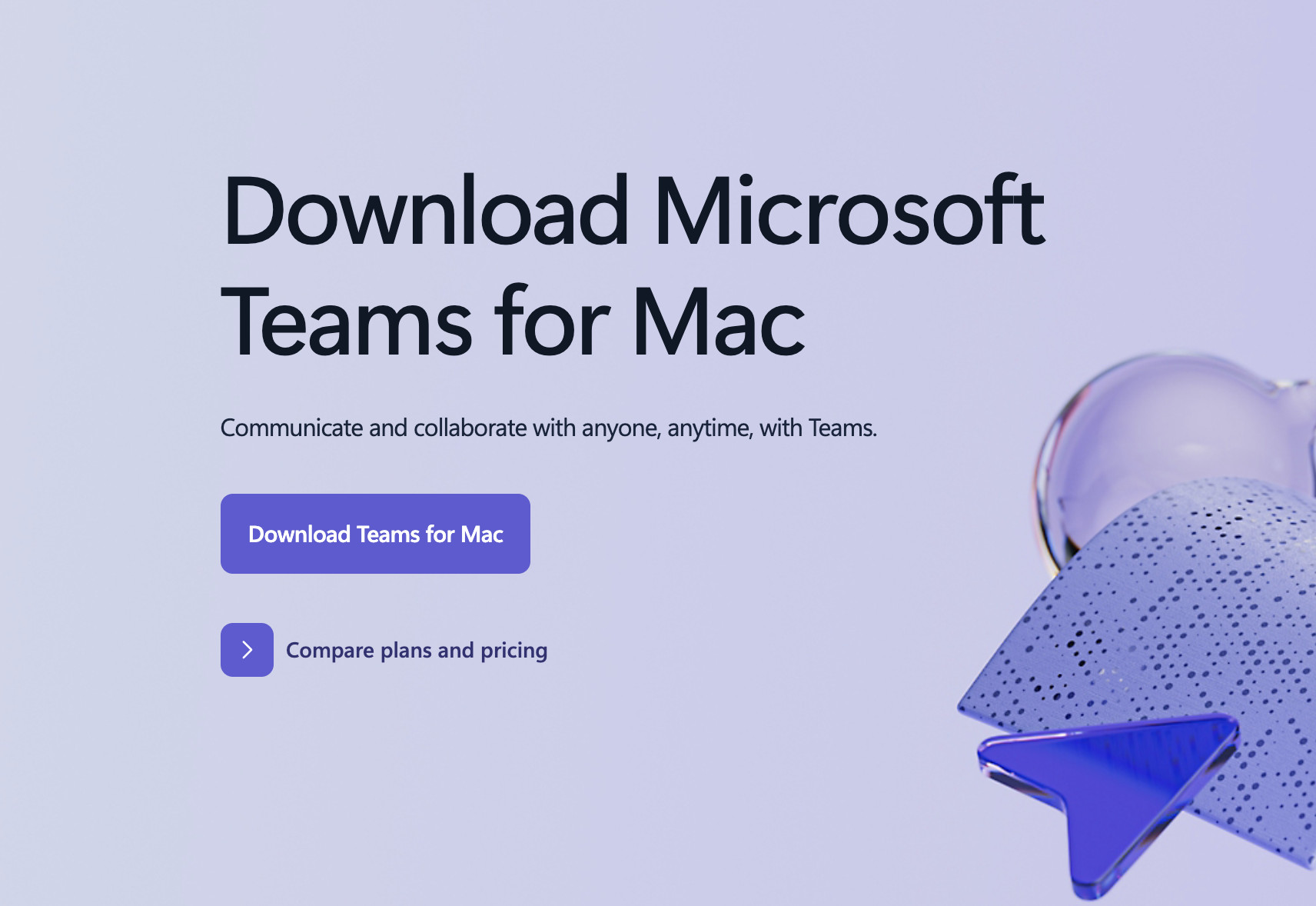
The desktop client gives you the most complete Teams experience and is the best option for everyday use.
To install it:
- Go to the official Microsoft Teams download page.
- Select Download Teams for Mac.
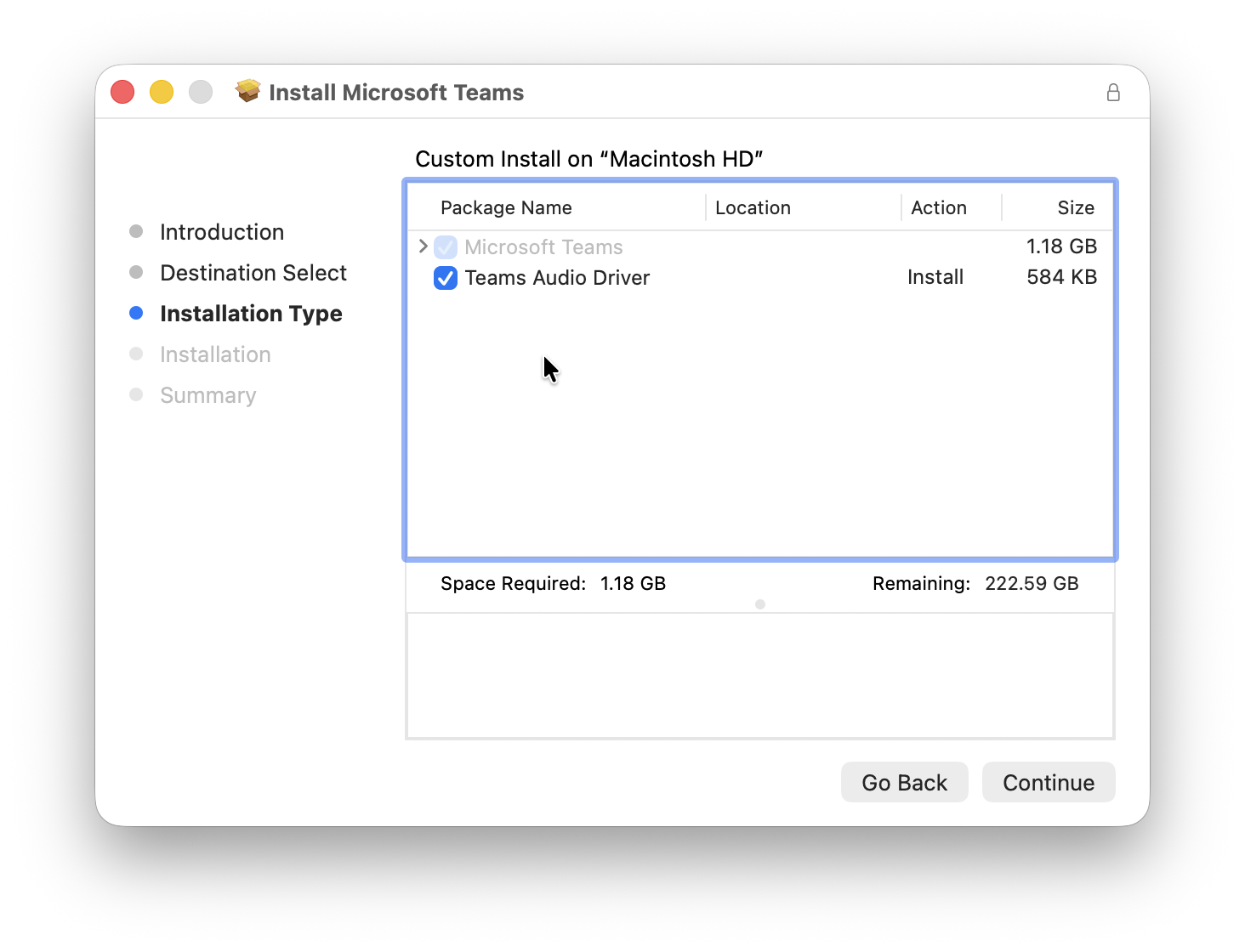
- Open the downloaded PKG installer.
- Follow the installation instructions and enter your Mac administrator password if requested.
- Open Microsoft Teams from the Applications folder.
- Sign in with your personal Microsoft account or the work or school account supplied by your organization.
You do not need to identify whether your Mac has an Intel, M1 or later Apple Silicon processor. Microsoft’s universal installer handles this automatically.
Teams updates itself in the background, so you should not normally need to download new versions manually.
2. Allow Teams To Use Your Camera, Microphone and Screen
The first time you make a call or share your screen, macOS will ask whether Teams can access the required hardware.
Allow access when prompted. If you previously selected Don’t Allow, you can change the permissions manually:
- Open the Apple menu > System Settings.
- Select Privacy & Security.
- Open Camera and enable Microsoft Teams.
- Return to Privacy & Security, open Microphone and enable Microsoft Teams.
- To share your display, open Screen & System Audio Recording and enable Microsoft Teams.
- Quit and reopen Teams if the permission does not take effect immediately.
If you use Teams through a browser, grant these permissions to Safari, Edge, Chrome or Firefox instead of the Teams app.
You should also allow Teams notifications when macOS asks. If you miss the prompt, go to System Settings > Notifications > Microsoft Teams and turn on Allow notifications.
3. Check Your Camera, Microphone and Speakers
It is worth checking your audio and video setup before an important meeting, especially if your Mac is connected to an external monitor, webcam, dock or headset.
In Teams:
- Select the three dots next to your profile picture.
- Open Settings.
- Select Devices.
- Choose the speaker, microphone and camera you want Teams to use.
- Make a test call if the option is available for your account.
Teams can otherwise select an external display’s speakers or a closed MacBook’s microphone when you intended to use a headset.
You can also change devices from the pre-join screen before entering a meeting.
4. Use Microsoft Teams in a Browser on a Mac
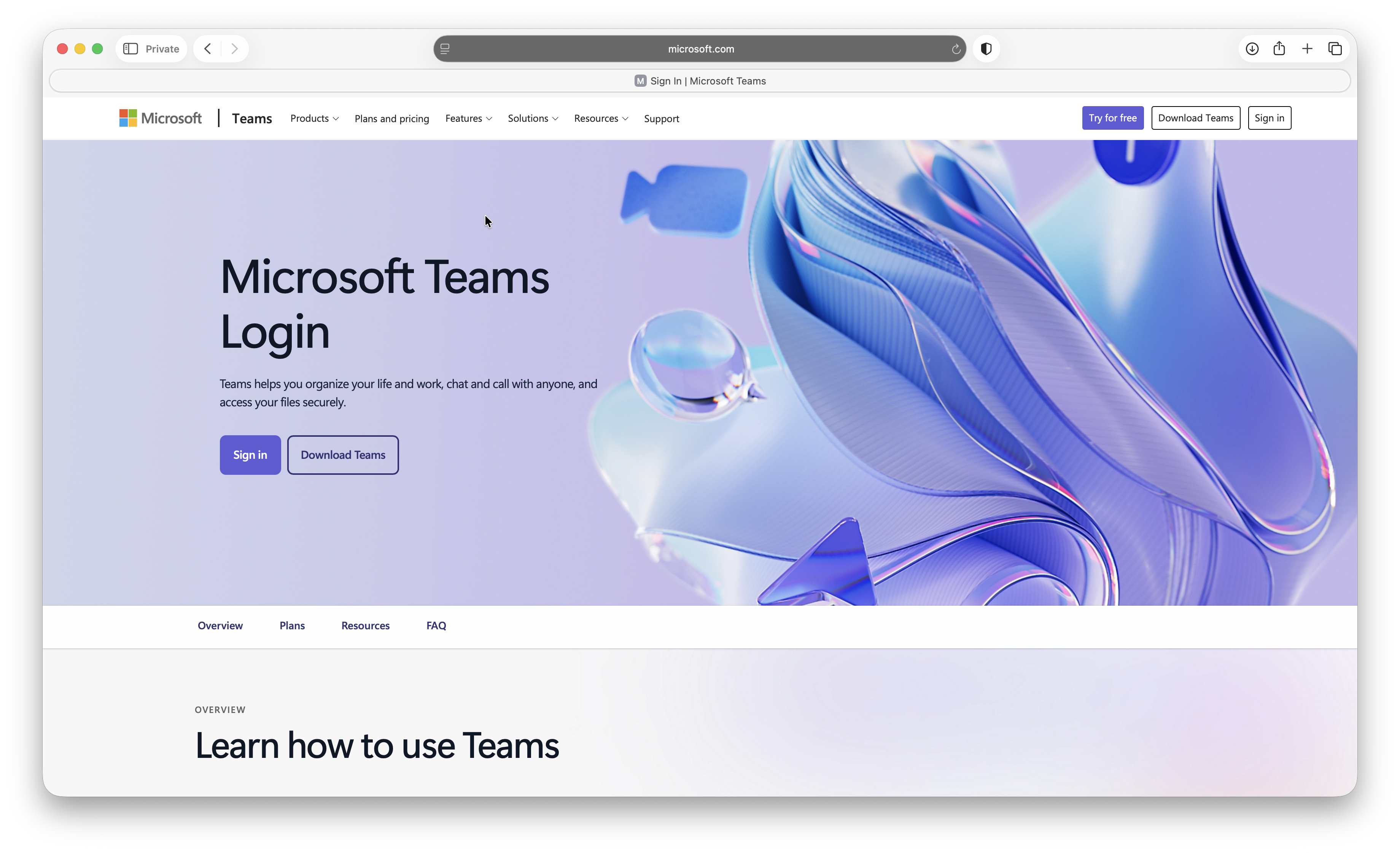
You can use Teams at teams.microsoft.com without installing the desktop app.
Microsoft currently supports Teams for the web in:
- Microsoft Edge
- Google Chrome
- Mozilla Firefox
- Safari
Microsoft supports the latest three versions of Edge, Chrome and Firefox and the latest two versions of Safari. Keep your browser updated and allow third-party cookies if an organization uses Teams apps that require them.
The web version is useful when:
- You are using a shared or temporary Mac.
- Your employer prevents you from installing applications.
- You only need to join an occasional meeting.
- The desktop app is not opening or signing in correctly.
- Your version of macOS is too old for the current desktop client.
To use it, open the Teams website and sign in. If you click a meeting invitation, select Continue on this browser when asked whether to open the app.
Teams Desktop App vs Web App
| Feature | Teams desktop app | Teams in a browser |
|---|---|---|
| Installation required | Yes | No |
| Intel and Apple Silicon support | Yes | Yes |
| Chat, channels and meetings | Yes | Yes |
| Background notifications | Most reliable | Browser-dependent |
| Camera, microphone and screen sharing | Yes | Yes, with browser permissions |
| Give or take control of shared content | Yes | Not supported |
| Large meeting galleries | Best support | More limited |
| Best for | Regular work and meetings | Occasional access or troubleshooting |
The severe Safari and Firefox restrictions that once prevented Mac users from using their microphones, cameras or screen sharing are no longer accurate. Both browsers now support Teams, although some advanced desktop features remain unavailable in the web client.
For example, Microsoft’s current documentation says that web meetings are limited to a single incoming video or screen-sharing stream. Browser users also cannot give or take control of shared content. Edge and Chrome can show galleries of up to nine people, while Safari and Firefox are limited to four.
For this reason, we still recommend the desktop app for presentations, frequent meetings and day-to-day work.
Can You Join a Teams Meeting Without an Account?
Yes. You can usually join a Teams meeting on a Mac without creating an account or installing the app.
- Click the meeting link in the invitation.
- Select Continue on this browser or Join on the Teams app.
- Allow access to your camera and microphone if requested.
- Enter your name or verify your email address if the organizer requires it.
- Select Join now.
You may be placed in a lobby until the organizer admits you. Some companies block anonymous or unverified participants, in which case you must sign in with the account to which the invitation was sent.
Microsoft specifically recommends Edge or Chrome for joining a work or school meeting without an account, although ordinary Teams Free meetings can also be joined through Safari and Firefox.
Microsoft Teams Free vs Work or School Accounts
The same Mac application now supports both personal and organization-managed accounts.
- Microsoft Teams Free uses a personal Microsoft account and is intended for individuals, families and small groups.
- Teams for work or school uses an account and licence managed by an employer, school or other organization.
You can sign in to multiple personal, work and school accounts in the desktop app. Select your profile picture and choose Add another account. You can then switch accounts without repeatedly signing out.
If you previously used consumer Skype, Microsoft allows you to sign in to Teams Free using the Microsoft account associated with Skype. Skype itself was retired in May 2025, whereas Skype for Business is a separate enterprise product.
Is Microsoft Teams Free on a Mac?
The Teams Mac app is free to download.
You can use Teams Free with a personal Microsoft account for chats, calls and meetings. Businesses and schools may provide a paid Microsoft 365 or Teams licence with additional administration, storage, meeting and collaboration features.
You do not need to buy Microsoft Office simply to join somebody else’s Teams meeting.
How To Fix Microsoft Teams Not Working on a Mac
If Teams will not open, sign in or detect your devices, work through the following fixes.
1. Check Your Version of macOS
The current desktop app supports the three most recent major macOS releases. If your Mac cannot run one of them, use Teams in a supported browser instead.
2. Quit and Reopen Teams
Closing the meeting window does not always quit the application.
Control-click the Teams icon in the Dock and select Quit, then reopen it from the Applications folder. If it is unresponsive, press Command + Option + Esc, select Microsoft Teams and choose Force Quit.
3. Download a Fresh Installer
If Teams will not install or immediately closes, delete the application from the Applications folder and download a new copy directly from Microsoft. Do not reinstall an old PKG file saved in your Downloads folder.
4. Check macOS Privacy Permissions
If other people cannot hear or see you, check System Settings > Privacy & Security > Microphone and Camera.
If screen sharing displays a blank screen or does not start, enable Teams under Screen & System Audio Recording, then quit and reopen the app.
5. Confirm the Selected Devices
Open Teams > Settings > Devices and make sure Teams has not selected an external monitor, AirPods or another disconnected device for its microphone or speakers.
6. Try Teams on the Web
Sign in at teams.microsoft.com. If the web app works, the account and Teams service are probably functioning and the problem is local to the desktop installation.
7. Check Which Account You Are Using
Meeting access and missing teams are often account problems rather than Mac problems. Select your profile picture and confirm that you are using the correct personal, work or school account and organization.
8. Clear the Teams Cache
Use this only if restarting and reinstalling have not worked, as it signs you out and resets local Teams data.
- Quit Microsoft Teams completely.
- In Finder, select Go > Go to Folder.
- Enter
~/Library/Group Containers/UBF8T346G9.com.microsoft.teamsand move that folder to the Trash. - Use Go to Folder again and enter
~/Library/Containers/com.microsoft.teams2. - Move that folder to the Trash.
- Reopen Teams and sign in again.
Your cloud-based chats, teams and files are not deleted, but local preferences and cached account information will be recreated.
On a company-managed Mac, contact your IT administrator before deleting Teams data or reinstalling the app.
How To Uninstall Microsoft Teams From a Mac
To remove Teams:
- Quit Microsoft Teams.
- Open Finder and select Applications.
- Drag Microsoft Teams to the Trash.
- Empty the Trash.
If you are uninstalling Teams to fix a problem, restart your Mac before downloading a fresh installer.
Frequently Asked Questions
Does Microsoft Teams run natively on M1 Macs?
Yes. The current universal Teams installer runs natively on Apple Silicon and also supports Intel Macs.
Does Teams need Rosetta 2?
No. Rosetta was required by the old Intel-only client, but it is not needed for the current universal Teams app.
Is there a separate M1 or Apple Silicon download?
No. Download Teams for Mac from Microsoft and the universal installer will install the correct code for your processor.
Can I use Teams in Safari?
Yes. Teams supports the latest two versions of Safari. Meetings, chat, camera, microphone and screen sharing are available, but the browser client has some limitations compared with the desktop app.
Do I need a Microsoft account to join a meeting?
Usually not. Most meeting invitations allow you to join through a browser without an account, although the organizer’s security policies may require email verification or a specific work or school account.
Can I use personal and work Teams accounts on the same Mac?
Yes. The desktop app supports multiple personal, work and school accounts and lets you switch between them from your profile menu.
Is Microsoft Teams included with Office for Mac?
Teams is a separate application. Some Microsoft 365 business and education plans include a Teams licence, but the app can also be downloaded independently and used with Teams Free.
Conclusion
Microsoft Teams now offers full native support for Apple Silicon Macs. The old Rosetta, Edge PWA and browser workarounds are no longer necessary.
For the best experience, download Microsoft’s universal Teams desktop app and grant it access to your camera, microphone and screen. The browser version remains a useful alternative for occasional meetings, older Macs and troubleshooting, but it does not provide every desktop feature.