

AI image generators have moved well beyond the strange, blurry pictures and garbled lettering of the first wave of AI art tools. The best ones can now create convincing product scenes, illustrations, social graphics, concept art and useful photo edits from a prompt, sketch or reference image.
For most Mac users, Adobe Firefly is the best overall choice because it fits naturally into Photoshop, Illustrator and Adobe Express, and Adobe has designed its own Firefly models around licensed and public-domain material. ChatGPT Images is the easiest option for developing an idea through a conversation and making iterative edits. Midjourney remains the best choice when the priority is a striking, art-directed image rather than a literal representation.
There is no single “best” AI image generator for every job, though. A tool that makes a terrific cinematic blog header may be a poor fit for a logo, a social graphic containing exact text, or confidential client imagery. This guide focuses on what each service is genuinely best at on a Mac.
For more AI tools, check out our guide to the best AI software for Mac.
Quick Picks
- Best overall for Mac designers: Adobe Firefly
- Best for conversational generation and edits: ChatGPT Images
- Best for artistic and cinematic images: Midjourney
- Best for natural-language photo edits: Google Gemini
- Best for social graphics and marketing: Canva Dream Lab
- Best for vectors, icons and brand assets: Recraft
- Best for images containing readable text: Ideogram
- Best for game assets and advanced style controls: Leonardo AI
- Best free native Mac option: Apple Image Playground
- Best private local option for Apple silicon: Draw Things
Best AI Art & Image Generators for Mac Compared
| AI image generator | Best for | How it works on a Mac | Free option |
|---|---|---|---|
| Adobe Firefly | Adobe-based design and commercially minded workflows | Browser, Adobe Express and Creative Cloud apps | Yes, with limited generative credits |
| ChatGPT Images | Conversational creation and targeted image changes | Browser on any current Mac; ChatGPT app on supported Macs | Yes, with usage limits |
| Midjourney | Stylised, cinematic and imaginative artwork | Browser; Discord is optional | No regular free plan |
| Google Gemini | Photo transformations and follow-up edits | Browser | Yes, with limits that vary by region and plan |
| Canva Dream Lab | Social posts, presentations and marketing designs | Native Canva Mac app and browser | Yes, with limited AI usage |
| Recraft | Vectors, icons, mock-ups and graphic assets | Browser | Yes, but check free-plan ownership and privacy terms |
| Ideogram | Posters, thumbnails and images with short readable text | Browser | Yes, with weekly credits and slower generation |
| Leonardo AI | Game art, concept art and model/style exploration | Browser | Yes, with a daily token allowance |
| Apple Image Playground | Simple images made within Apple Intelligence | Native Mac app on Apple Intelligence-compatible Macs | Yes, at no separate subscription cost |
| Draw Things | Private, local image generation and open models | Native Apple-silicon Mac app | Yes |
What To Look For in an AI Image Generator for Mac
Most AI image generators are cloud services, so they work in Safari, Chrome or another current browser. That means an older Intel Mac can still use Firefly, ChatGPT Images, Midjourney, Gemini, Canva, Recraft, Ideogram and Leonardo AI.
The difference for Mac users is whether the tool fits the way you create. We assessed the following:
- Image quality and prompt following: Does it understand composition, lighting, materials and the important constraints in a brief?
- Editing and consistency: Can you change one part of an image without the rest changing, or keep a product, person or character recognisable across a series?
- Mac workflow: Can you export to Photoshop, Illustrator, Canva or another Mac design app without unnecessary friction?
- Controls: Reference images, aspect ratios, masking, upscaling, vector output and style controls matter more than one impressive first generation.
- Pricing and privacy: A free tier can be useful for experimentation, but credits, public galleries, upload handling and commercial terms differ substantially.
- Rights and transparency: Training practices, default-public creations and rules for uploaded reference photos matter for professional work.
1. Adobe Firefly – Best Overall AI Image Generator for Mac Designers
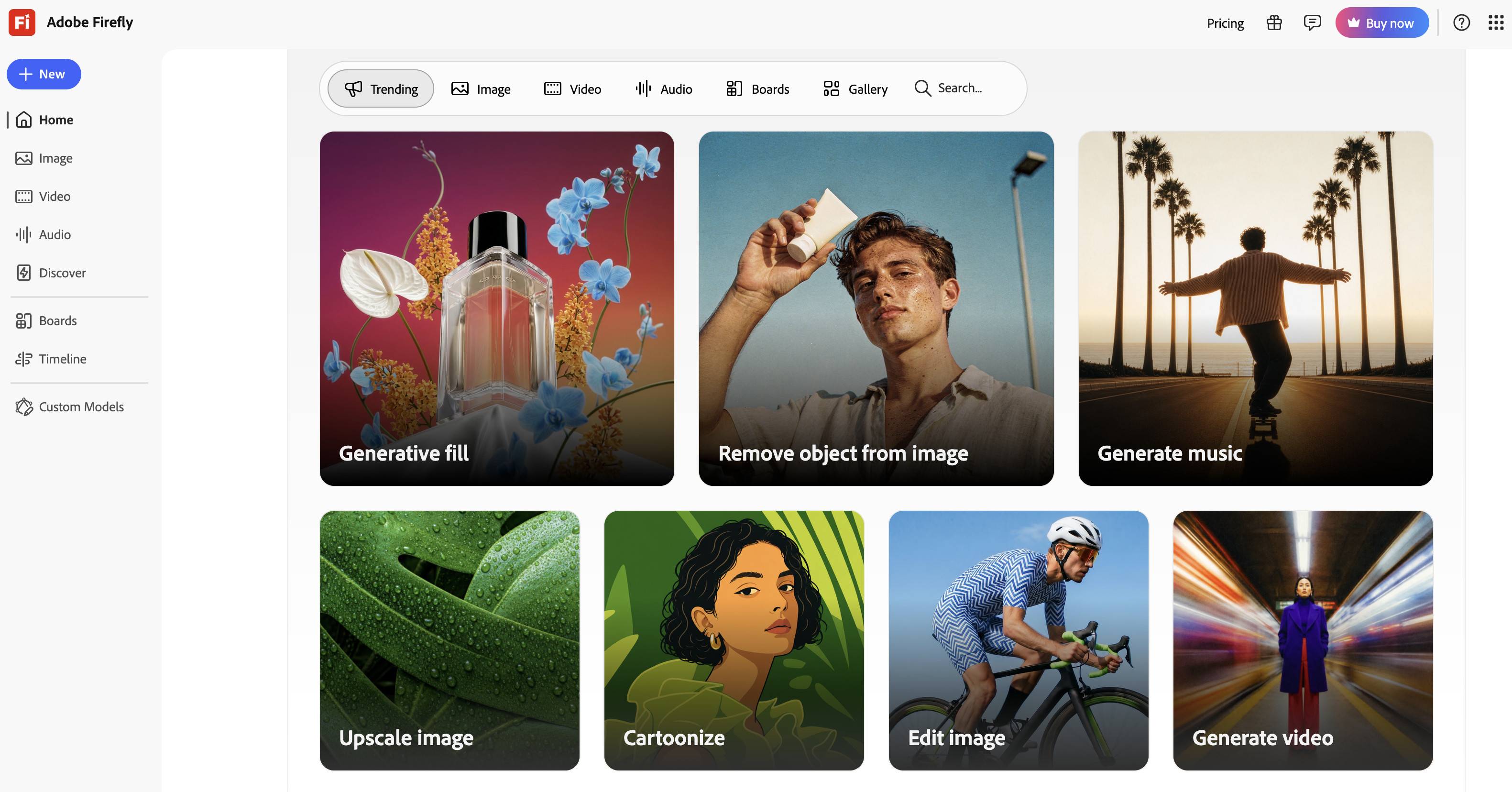
Adobe Firefly is the best all-round AI image generator for Mac users who already work with Adobe software. It is not just a prompt box: you can generate an image, adjust it with natural-language instructions and continue refining it inside Photoshop, Illustrator, Adobe Express and other Creative Cloud apps.
That makes Firefly much more useful than a stand-alone generator when the image is only one part of a finished design. You can use Generative Fill to remove or replace an object, Generative Expand to change a crop, Generate Image for a fresh concept and text-to-vector tools when you need scalable artwork rather than a flat bitmap.
Adobe says its own Firefly models are trained on licensed content, including Adobe Stock, plus public-domain material where copyright has expired. That does not remove the need to check trademarks, third-party reference images or the intended use of the finished work, but it makes Firefly the most comfortable starting point for many commercial design jobs. Adobe also supports Content Credentials, which can help show how an asset was made.
Firefly can offer partner models alongside Adobe’s own models. That is useful for comparing visual styles in one workspace, but do not assume every partner model has the same training source, rights position or output terms as an Adobe Firefly model.
Best for: Designers, marketers and Creative Cloud subscribers who need an image that can move straight into a real Mac design workflow.
Mac support: Firefly works in a browser and in supported Creative Cloud apps on a Mac, including Photoshop, Illustrator and Adobe Express.
Price: A free plan includes limited generative credits. Paid Firefly and Creative Cloud plans include monthly credit allowances; the exact allowance and price vary by plan and country.
Key Features
- Text-to-image generation and image-to-image guidance
- Generative Fill and Generative Expand in Photoshop
- Text-to-vector graphics for Illustrator-based work
- Direct links with Adobe Creative Cloud, Adobe Express and Adobe Stock
- Content Credentials and a commercially focused workflow for Adobe’s own Firefly models
Pros
- The smoothest option if you already use Adobe apps on a Mac
- Excellent for generating an asset and then editing it properly
- Strong choice for brand, marketing and client-facing work
- Clearer commercial-use position than many general AI-art services
Cons
- Generative-credit rules can make the best plan confusing
- Adobe’s own models can be less adventurous than Midjourney for highly stylised art
- Partner models have their own terms, so choose the model deliberately
2. ChatGPT Images – Best for Conversational Image Editing
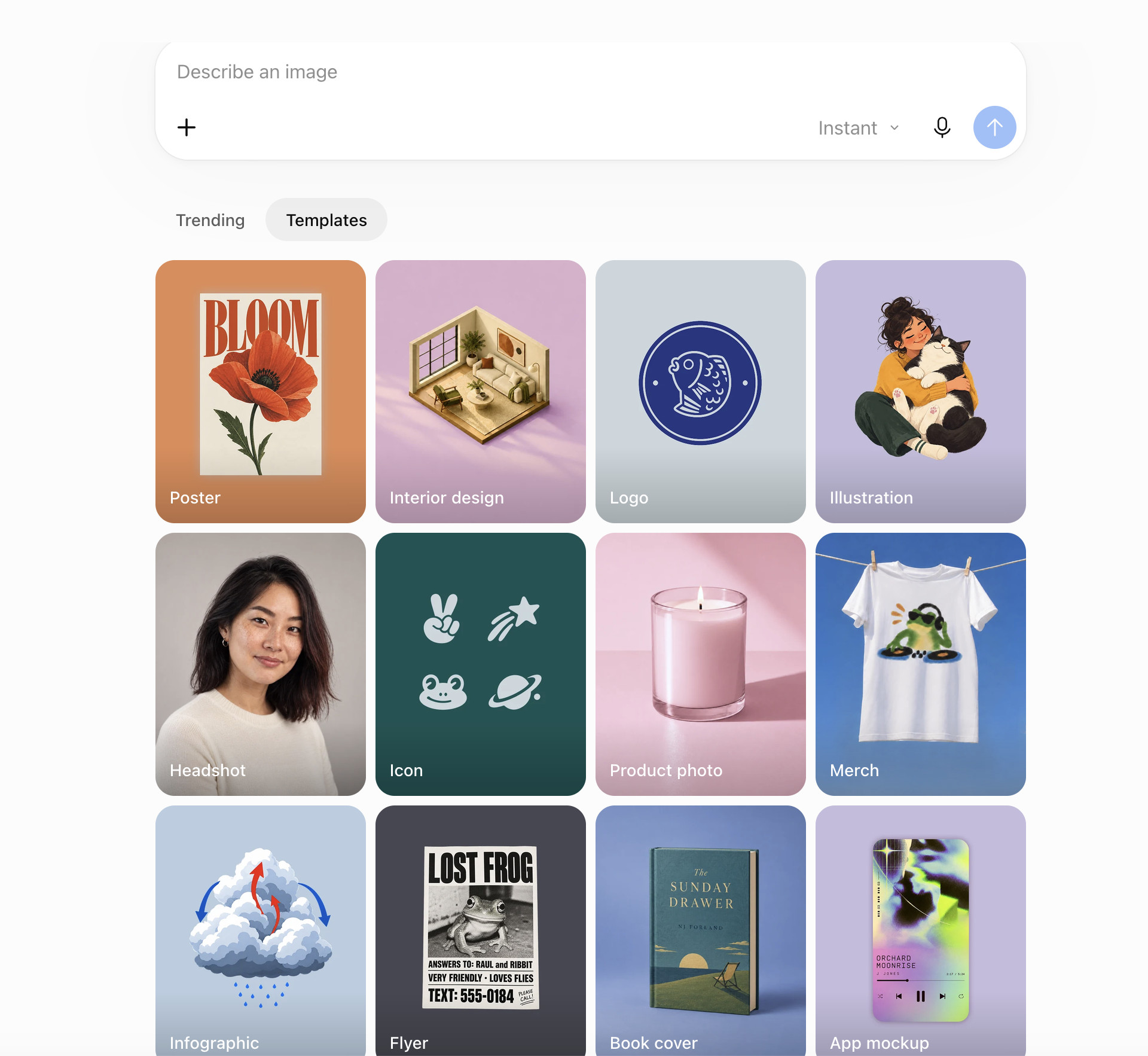
ChatGPT Images is the easiest AI image generator to use when you have an idea but not yet a perfect prompt. Instead of repeatedly starting over, you can describe the image, upload a reference, ask for a change and keep refining it in the same conversation.
It is especially good for complicated briefs because you can explain what you want in normal language. For example, you can ask it to retain a product, subject or overall composition while changing the background, colours, outfit, framing or headline. You can also start from a rough sketch or a screenshot and refine it step by step.
That makes ChatGPT Images particularly useful for blog illustrations, thumbnail concepts, product mock-ups, presentation graphics and exploring several creative directions quickly. It also creates transparent-background images and supports several aspect ratios, which is helpful when an image needs to fit a specific layout.
Best for: Fast iteration, reference-led edits, concepts, mock-ups and anyone who prefers a conversation to a specialist image-generation interface.
Mac support: Use ChatGPT Images in a browser on any current Mac. The ChatGPT Mac app is an Apple-silicon app; see our guide to using ChatGPT on a Mac for more.
Price: Available on ChatGPT tiers including Free, subject to usage limits. Paid plans provide higher limits and may offer access to additional creative features.
Key Features
- Create and edit images in a conversational thread
- Upload reference images and refine them over several steps
- Generate in different aspect ratios and with transparent backgrounds
- Selection-based edits for a specific part of an image
- Strong instruction following for multi-element briefs and short text
Pros
- Exceptionally approachable for beginners
- Very good at understanding a detailed brief and follow-up changes
- Useful for turning a rough idea or sketch into a finished visual
- Fits naturally alongside copywriting, brainstorming and research
Cons
- It is not a layer-based graphics editor
- Always proofread generated text and inspect small details
- Usage limits vary by plan and can change
3. Midjourney – Best for Artistic, Cinematic and Stylised Images
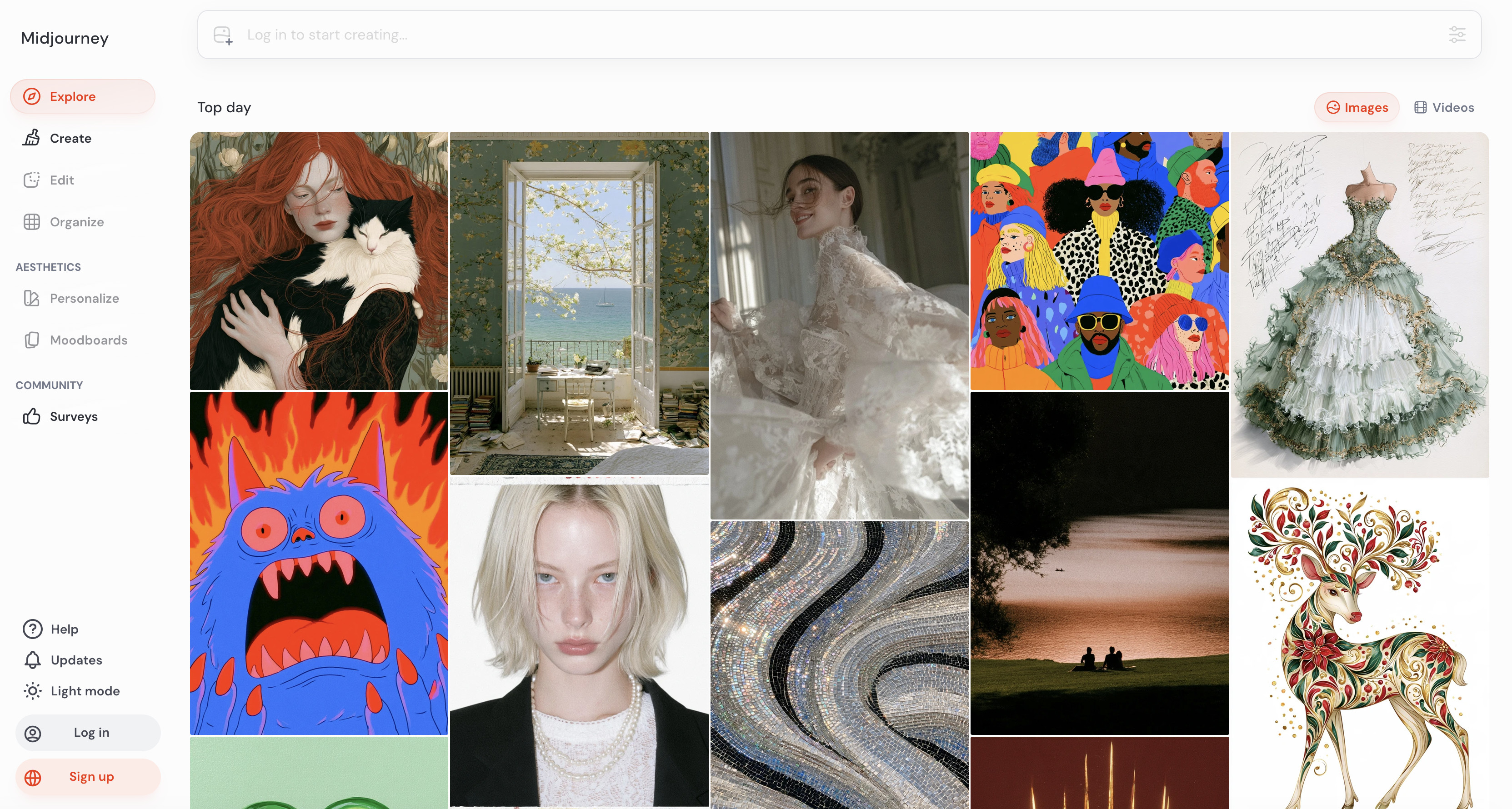
Midjourney remains one of the most creative image generators for artwork that needs atmosphere, strong art direction or an instantly distinctive look. It is excellent for editorial illustrations, fantasy scenes, fashion concepts, cinematic landscapes, mood boards and visual experimentation.
The old advice that Midjourney requires Discord is out of date. You can create directly on the Midjourney website in its browser-based interface. Discord remains available for the community and some workflows, but it is not necessary for normal Mac use.
Midjourney also offers far more control than the early prompt-only version. Image prompts, style references, personalisation, variations, upscaling and the Editor make it possible to continue developing a result rather than accepting the first image. It also includes video-related creative tools, although its greatest strength remains image generation.
Best for: Art-directed images, concepts, mood boards and visually striking illustrations where a polished, literal product photo is not the only goal.
Mac support: Browser-based. There is no dedicated Mac desktop app.
Price: Midjourney has four paid subscription tiers: Basic, Standard, Pro and Mega. The Basic plan starts at US$10 per month; annual billing reduces the effective monthly price.
Key Features
- Excellent stylisation and strong visual taste
- Image prompts, style references and personalisation
- Variations, upscaling, zooming, panning and editing tools
- Full web-based creation workflow, so Discord is optional
- Image-to-video features for selected workflows
Pros
- Among the best options for evocative, original-looking artwork
- Much easier to use than the old Discord-only workflow
- Powerful controls once you move beyond a basic prompt
- Strong choice for mood, atmosphere and visual exploration
Cons
- No normal free plan
- Images are public by default; Stealth Mode requires a qualifying higher-tier plan
- It can interpret a prompt artistically rather than literally
- It is not the best option for confidential client material on a lower plan
4. Google Gemini – Best for Natural-Language Photo Editing
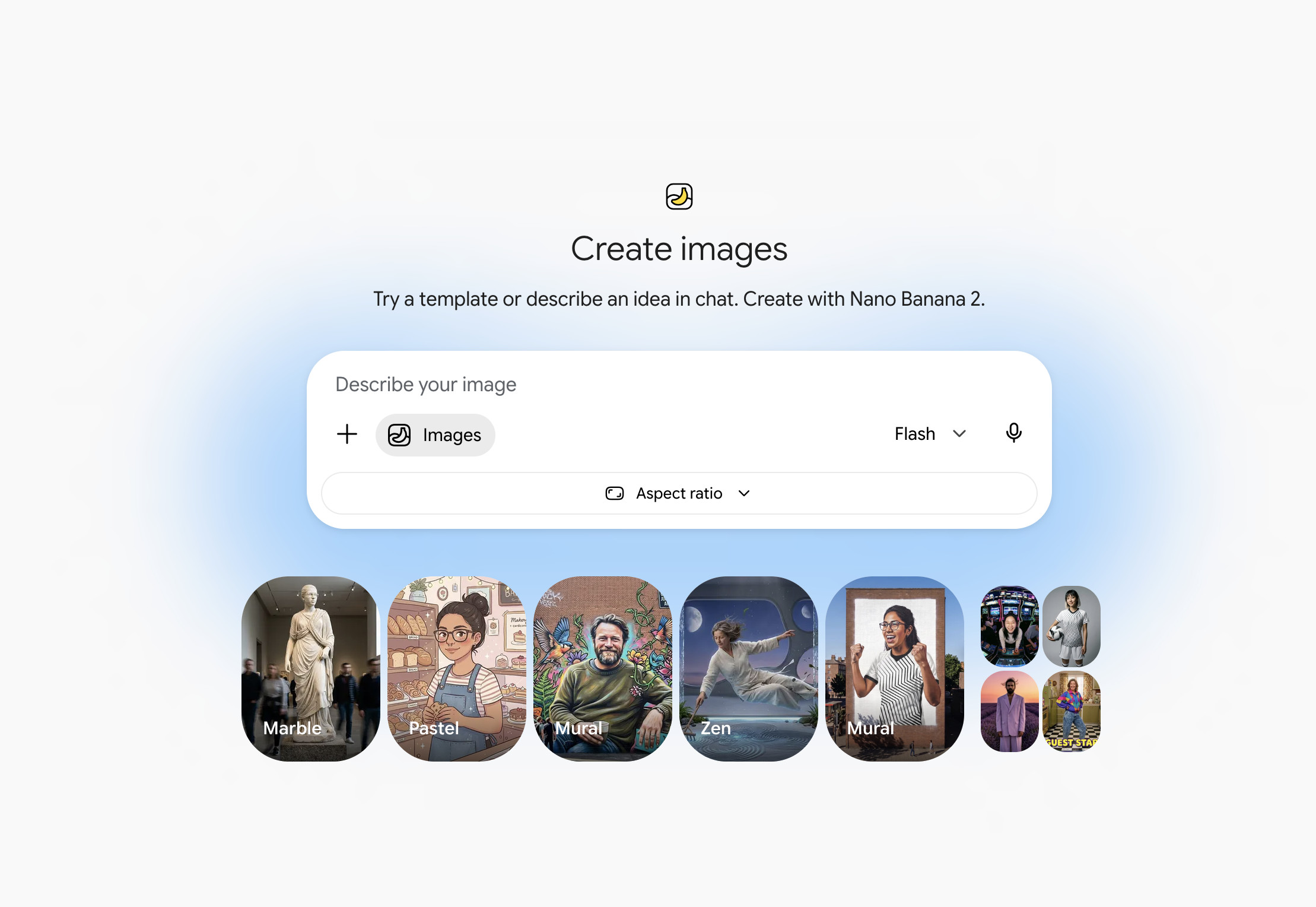
Google Gemini is one of the strongest alternatives to ChatGPT Images when the main task is changing a real photo or making a series of connected edits without losing the original subject. You can upload an image, describe the changes and continue the conversation until the result is close to what you need.
Google’s current Gemini image tools are particularly useful for practical transformations that would otherwise take several steps in an editor: change a background, alter clothing, combine reference images, add or remove an object, restyle a room or make a quick snapshot into a more polished visual concept.
It is not a substitute for careful retouching or exact product photography. However, it is one of the better choices when you want realistic-looking variations and need the service to retain a person, pet, room or object through several changes. Google applies SynthID provenance information to images created or edited in Gemini.
Best for: Editing existing images, creating believable lifestyle or product variations and making a realistic image through a short back-and-forth conversation.
Mac support: Browser-based and straightforward to use in a current Mac browser.
Price: Free access is available with limits. Higher allowances and capabilities depend on region and Google AI subscription level.
Key Features
- Conversational image generation and editing
- Strong subject preservation across follow-up edits
- Can combine text and multiple images as input
- Good for photo transformations and composite concepts
- SynthID provenance information on generated and edited images
Pros
- One of the easiest options for changing an existing picture
- Strong at realistic scenes and everyday photo edits
- Useful free option for occasional generation
- Good alternative if you already use Google’s other services
Cons
- Availability and generation limits can vary by country and subscription
- It is a browser workflow rather than a full Mac image editor
- Do not rely on it alone for exact logos, tiny type or legal clearance
5. Canva Dream Lab – Best for Social Graphics and Marketing Assets
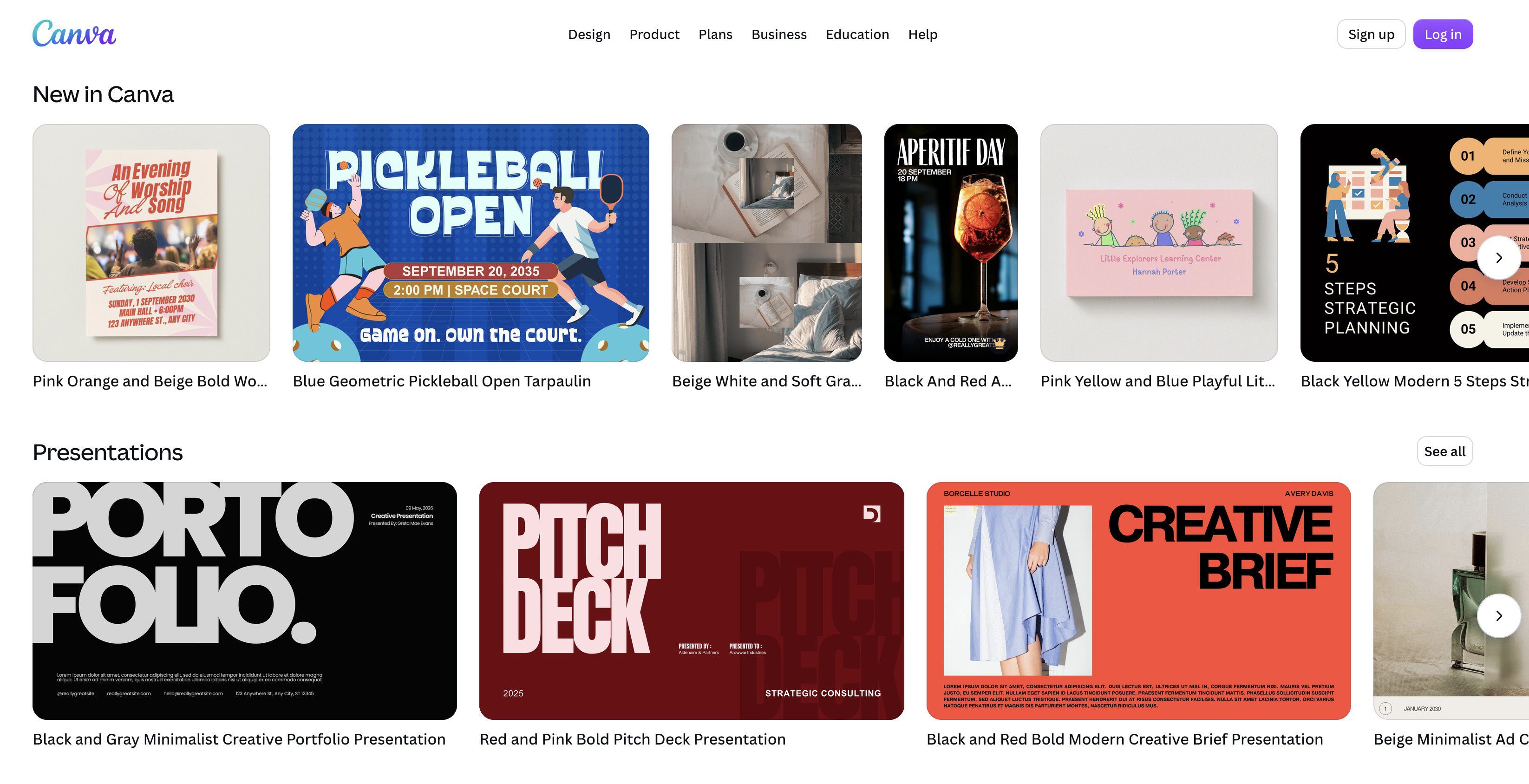
Canva Dream Lab is a better choice than a specialist art generator when the finished result is a social post, presentation, poster, advert or simple marketing graphic. Its advantage is not just the image it generates; it is the ability to place that image in a Canva design, add brand elements and finish the asset without exporting between several apps.
Canva’s AI image tools include Dream Lab and Magic Media. They can create an image from a prompt, work from a reference image and feed straight into Canva’s templates, text controls, background tools and export presets. That is a faster end-to-end workflow for a newsletter graphic, Instagram post or presentation slide than creating an image elsewhere and then rebuilding it in Canva.
For a stand-alone hero image, Firefly, ChatGPT Images or Midjourney may offer more creative control. But when the task is the finished social post or marketing asset rather than a single generated picture, Canva is often the fastest route.
Best for: Social media graphics, presentations, ads, posters, thumbnails and quick branded marketing assets.
Mac support: Native Canva Mac app and browser.
Price: Canva Free includes limited AI usage. Paid Canva plans provide a larger allowance, but image generation shares that allowance with other AI features.
Key Features
- Text-to-image generation directly alongside Canva’s design tools
- Reference images and follow-up edits
- Templates, brand kits and standard social/export formats
- Magic Edit for adding, replacing and modifying parts of a photo
- Multiple AI image tools in the same Mac app or browser workspace
Pros
- The quickest route from an idea to a usable social or marketing design
- Very approachable if you do not use professional design software
- Good for templates, standard content sizes and brand consistency
- Available in the Mac app as well as a browser
Cons
- AI allowances are shared across Canva features
- Less specialist control than Midjourney, Recraft or local models
- Check Canva’s current output labels and commercial-use guidance for an important campaign
6. Recraft – Best AI Vector Generator for Branding
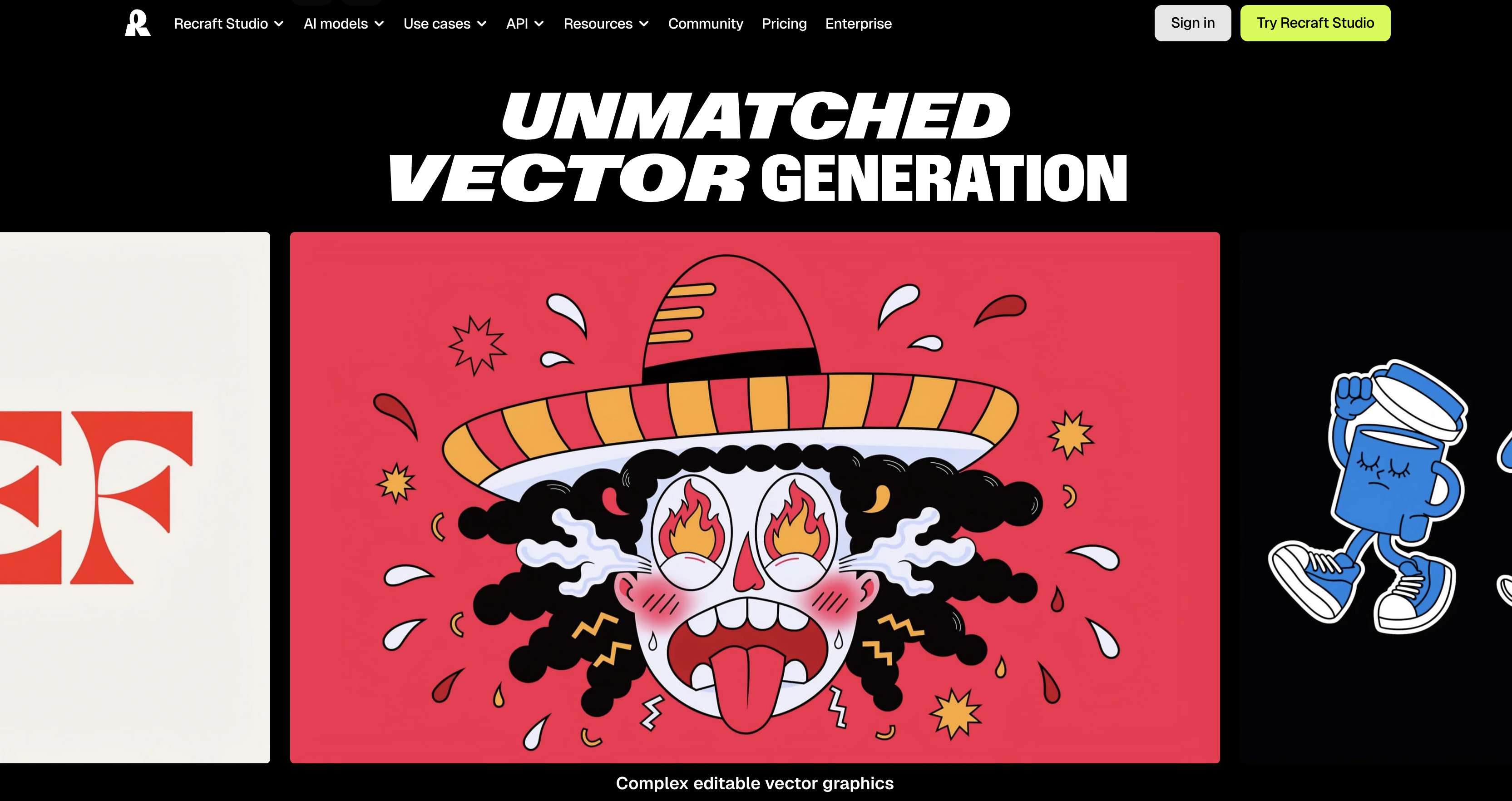
Recraft stands out because it is not limited to generating flat raster images. It can create vector artwork, icons, illustrations, mock-ups and graphic assets that are more useful for branding, web design and print work than a single JPG.
This is important when you need to scale an illustration without losing quality, edit shapes later or build a set of visually consistent assets. Recraft also includes image generation, editing, background removal, upscaling and vectorisation, so it can cover a larger part of a design workflow than a one-shot text-to-image service.
Do not treat it as a magic logo generator. Any AI-created brand mark still needs careful checking for originality, legibility and trademark conflicts. It is nonetheless one of the best ways to use AI for genuinely useful visual-system work: icons, sticker-like assets, simple illustrations and branded graphics.
Best for: Vector graphics, icons, illustrations, simple logos, product mock-ups and brand-friendly asset production.
Mac support: Browser-based.
Price: The Free plan has daily credits. Paid plans add higher limits, additional tools and private-generation options. Recraft indicates that images made on its Free plan are owned by Recraft, so use a paid plan and review the current terms before creating client or commercial assets.
Key Features
- Native AI vector generation
- Image generation, editing and vectorisation
- Custom styles for repeatable graphic looks
- Mock-up, background-removal and upscaling tools
- Exports including vector-friendly formats for a professional workflow
Pros
- Best option here for vectors and scalable graphic assets
- More practical than a general AI-art service for icons and illustrations
- Good range of design tools in one browser workspace
- Free plan makes it easy to test the interface and model quality
Cons
- The interface is more design-focused than conversational
- Free-plan ownership terms make it unsuitable for important commercial work
- Complex logo work still needs a designer’s judgement and final editing
7. Ideogram – Best AI Image Generator for Readable Text
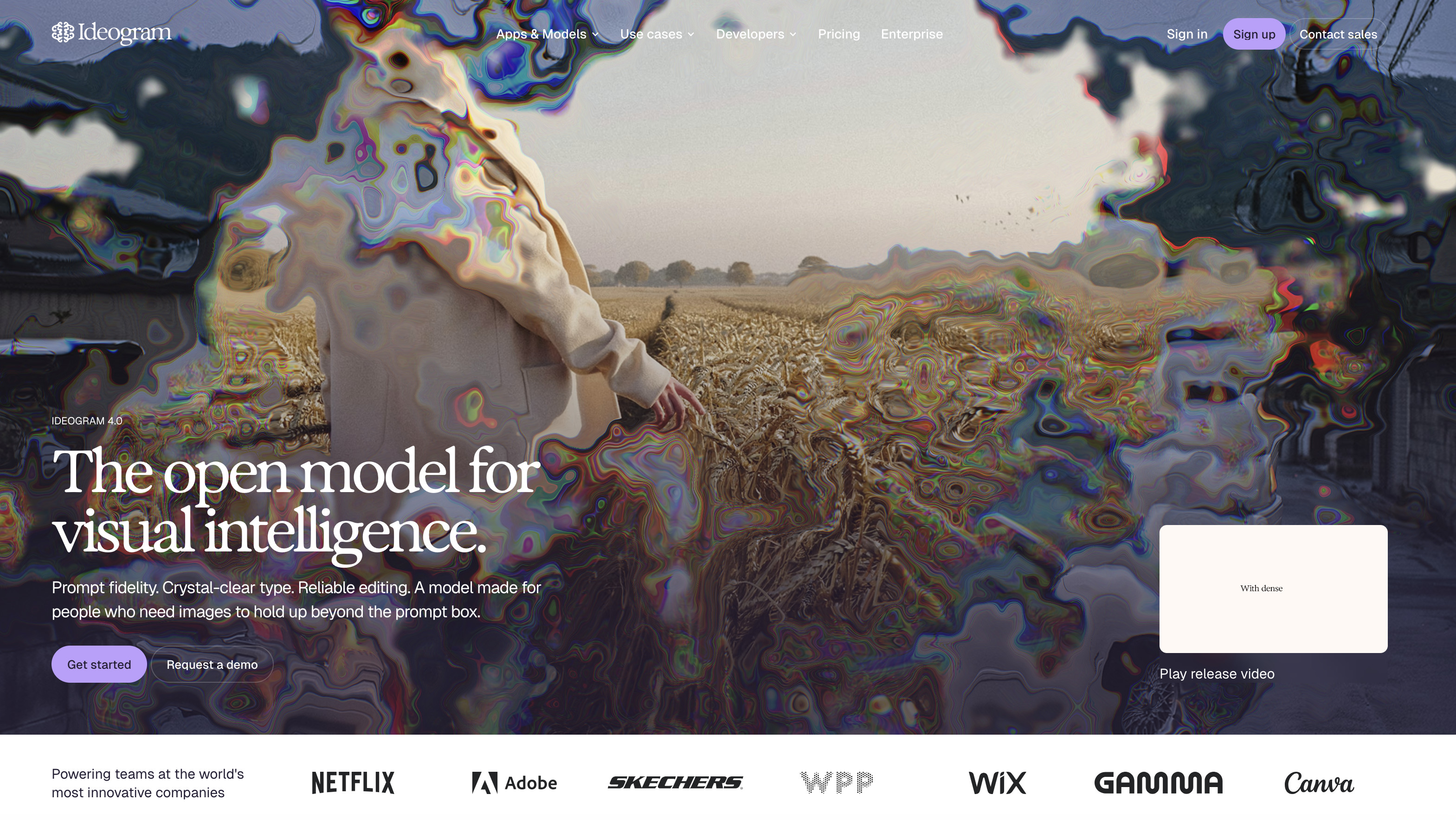
Ideogram is the AI image generator to try first when the picture must contain legible words. Most image models have improved dramatically, but posters, labels, book covers and thumbnails can still fail because one misspelt word makes an otherwise strong result unusable.
Ideogram puts more emphasis on text rendering, which makes it a particularly good choice for poster concepts, presentation visuals, YouTube thumbnails, invitations and social graphics. It also offers image generation and editing more generally, but readable short type is the reason it earns a place on this list.
Even here, do not assume a long paragraph, complex table or legal copy will be perfect. Keep the wording short, use a clear instruction such as “the exact headline must read…” and proofread the final image at full size. For the final version of a commercial design, it is still usually safer to add important text in Canva, Photoshop or Illustrator afterwards.
Best for: Posters, cover concepts, ads, thumbnails and visual ideas where short readable text is central.
Mac support: Browser-based.
Price: The Free plan provides limited weekly credits. Paid plans add faster generation, more credits and private-generation features.
Key Features
- Unusually strong focus on text rendered inside an image
- Text-to-image generation and editing
- Useful for printable-looking graphics, thumbnails and posters
- Image uploads and editing on appropriate paid plans
- Quick way to validate a visual idea before recreating it in a conventional design app
Pros
- Better than many competitors at short, readable words in an image
- Strong for quick poster and thumbnail concepts
- Straightforward browser interface
- A useful companion to Canva or Adobe software
Cons
- Still proofread every word
- Not a replacement for professional typography or layout
- Free-plan speed, credits and privacy are limited
8. Leonardo AI – Best for Game Assets and Style Exploration
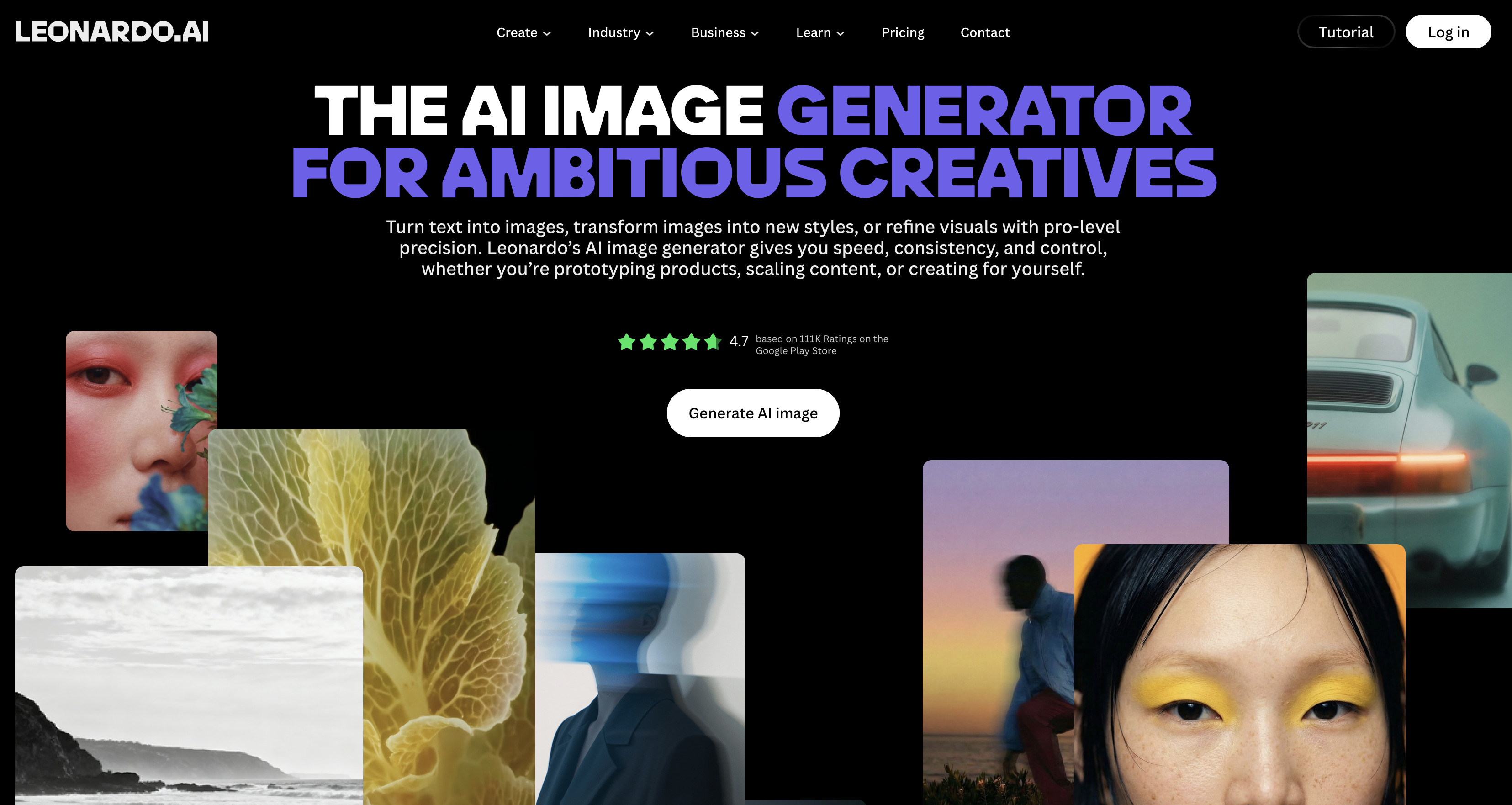
Leonardo AI is a flexible visual-generation platform for creators who want more model choices, style controls and asset-production features than a simple chatbot can offer. It is particularly good for game concepts, character art, product visuals, textures and repeatable styles.
The service has a daily free token allowance, making it easy to experiment before committing to a subscription. Paid plans add a larger token budget and additional workflow features. Leonardo also offers tools for image generation, photo editing, upscaling and customised visual styles.
It is more involved than ChatGPT or Canva, but that is why it suits people who want more control without setting up a local model on their Mac.
Best for: Game art, characters, concept art, textures, custom styles and creators who want more generation controls.
Mac support: Browser-based.
Price: Free daily tokens are available. Paid plans increase the allowance and add feature and privacy options; check the current plan terms before using it for client work.
Key Features
- Multiple image models and creative controls
- Image-to-image generation and reference-guided results
- Custom model and style options
- Tools for asset production, upscaling and image editing
- Daily free tokens for experimentation
Pros
- Broad creative toolkit for serious visual exploration
- Better control than many entry-level generators
- Free allowance makes it easy to try
- Useful for building a consistent asset library
Cons
- More settings can make it feel less immediate for beginners
- The token system needs a little learning
- Plan and model terms should be checked before commercial use
9. Apple Image Playground – Best Free Native AI Image Generator for Mac
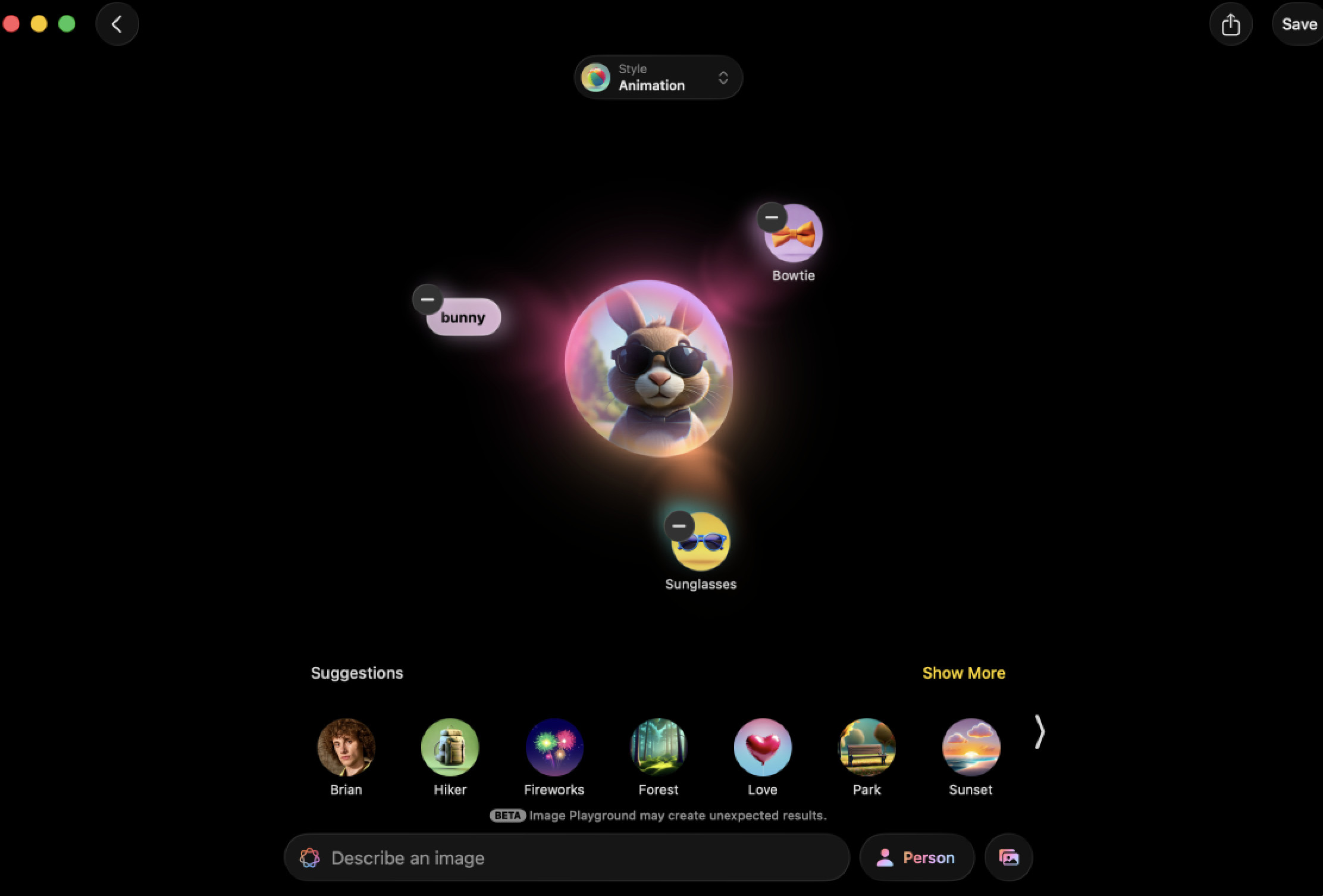
Apple Image Playground is an important addition for Mac users because it is a dedicated image-generation app built into Apple Intelligence. On a compatible Mac, it gives you a quick way to create images from a description, concepts and people or photos from your library without a separate image-generation subscription.
Image Playground works best for invitations, presentations, personal illustrations, mood boards and lightweight creative work. It is intentionally simple rather than a specialist design tool: you can combine concepts, text descriptions and photos, then generate variations directly within the Apple ecosystem.
It is not a replacement for Firefly, ChatGPT Images or Midjourney when you need detailed art direction, professional output controls or a large volume of generations. But it is free to try on a recent Mac and is far more relevant to Mac users in 2026 than the old list’s casual browser-only tools.
Best for: Quick personal images, illustrations and lightweight creative work on a recent Mac.
Mac support: Native Image Playground app on a Mac with Apple Intelligence support: in practice, a Mac with M1 or later running a current compatible version of macOS. Intel Macs are not supported. Some Apple Intelligence image features can have daily usage limits.
Price: Included at no separate cost on a compatible Mac.
Key Features
- Built-in image-generation app for Apple Intelligence
- Combine descriptions, concepts and people or photos from your library
- Simple ways to remix and refine images
- Integrates with Apple apps and workflows
- No credit packs or separate image-generator subscription
Pros
- The best free native starting point for Apple-silicon Mac owners
- Very easy to use
- Convenient for personal and lightweight creative work
- Keeps the workflow inside macOS and Apple apps
Cons
- Requires an Apple Intelligence-compatible Mac
- Less control and fewer specialist design features than paid tools
- Not the best option for exact brand, product or illustration work
10. Draw Things – Best for Private, Local AI Image Generation on Apple Silicon
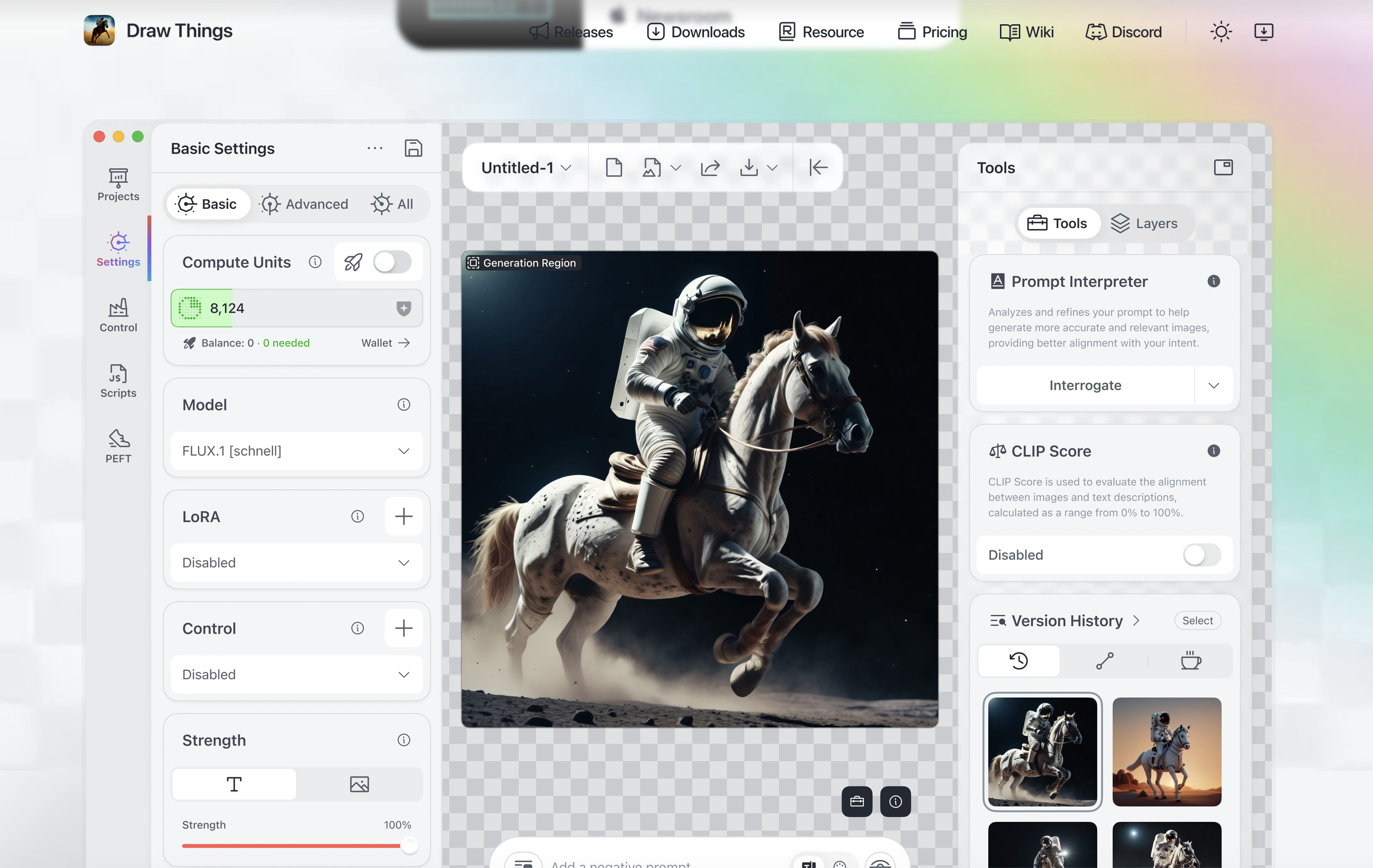
Draw Things is the best choice when you want to create images locally on an Apple-silicon Mac instead of sending prompts and pictures to a cloud service. You download the models you want to use, then generate images on your own device using your Mac’s hardware.
That local approach has two clear advantages: privacy and freedom from per-image cloud credits. It also gives you access to open models and LoRAs, which are small add-ons that can help create a specific subject, character or visual style.
Draw Things is much more capable than the earlier wave of simple local-Mac image apps. It is still more technical than Firefly or ChatGPT Images, and a model can take up several gigabytes of storage and a lot of unified memory. But it is an excellent option if you have a capable M-series Mac and want control over your images and models.
Best for: Privacy-sensitive projects, offline work, open models, LoRAs and people who want to run image generation directly on a Mac.
Mac support: Native macOS app for Apple silicon. Intel Macs are not supported.
Price: Free for local use. Optional cloud or community features are separate, and individual model licences still apply.
Key Features
- Local image generation using downloadable models
- Private workflow: generation can take place on your own Mac
- Support for inpainting, upscaling and advanced model workflows
- Model downloads, LoRAs and local training options
- Optimised specifically for Apple silicon
Pros
- No cloud queue or per-image credits for local generation
- Best choice here for privacy and control
- Lets you explore a wider open-model ecosystem
- Free to get started
Cons
- Apple silicon is required
- Model downloads use substantial disk space, and the best models need plenty of unified memory
- More technical than cloud generators
- Individual model licences still matter, especially for commercial use
What Happened to DALL-E 2, Stable Diffusion and DiffusionBee?
DALL-E 2, Stable Diffusion and DiffusionBee were reasonable inclusions when this guide was first published, but they should not be the centre of a 2026 buying guide.
- DALL-E 2: The useful modern OpenAI recommendation is ChatGPT Images, not a separate DALL-E 2 product. It offers a far better consumer experience for creating, editing and refining an image.
- Stable Diffusion: This is a family of models rather than one beginner-friendly Mac app. If you want to run open models locally, start with Draw Things. More technical users can also explore ComfyUI.
- DiffusionBee: It helped make local Mac image generation accessible, but Draw Things is now the more capable Apple-silicon-focused choice.
- OpenArt: It is not an open-source Mac application, despite being described that way in the previous version of this article. It is a browser service and is not a stronger recommendation than the products above.
- Playground, Craiyon and WOMBO Dream: They can still be fun to experiment with, but Canva, Recraft and the tools above are clearer recommendations for the main Mac use cases in this guide.
How To Write Better AI Image Prompts
The quality of the first image matters, but the ability to improve it matters more. A good prompt is not necessarily long; it is specific about the decisions that affect the finished picture.
Include these details where they matter:
- Subject: What is in the image?
- Setting and composition: Close-up, wide shot, top-down flat lay, side profile, room interior or empty space for text.
- Style: Editorial photography, hand-drawn ink, clean 3D render, watercolour, vintage travel poster or product catalogue.
- Lighting and colour: Soft window light, high-key studio, dusk, warm neutral palette or bold primary colours.
- Format: Square social post, 16:9 header, vertical story or transparent-background product asset.
- Constraints: “No logos”, “leave space on the left for a headline”, “single subject”, “no visible text” or “use this exact short phrase”.
For example, instead of asking for “a MacBook on a desk”, try:
Editorial product photograph of a silver MacBook on a light oak desk, viewed from a 45-degree angle, soft morning window light, deep green plant in the background, clean uncluttered workspace, wide 16:9 composition, empty space on the right for a headline, no logos or text.
If the first result is nearly right, upload it or continue the same conversation and make one clear change at a time. “Keep the desk, camera angle and lighting exactly the same, but make the monitor a 27-inch 5K display” is usually much more effective than beginning again from scratch.
How Do AI Art and Image Generators Work?
Modern image generators are trained to recognise relationships between words, images, shapes, textures and visual styles. When you enter a prompt, the model creates a new image by repeatedly turning visual noise into something that matches the description and any reference image you provide.
Different services use different models and training approaches, which is why the same prompt can produce a very different result in Firefly, ChatGPT Images, Midjourney or Gemini. Some are better at photorealism, some at graphic design, some at readable text and some at retaining a reference subject through multiple edits.
For practical work, the most useful capabilities are no longer just text-to-image generation:
- Image-to-image: Use a photo, sketch or existing generation as a guide.
- Inpainting: Change a selected area while retaining the rest of the picture.
- Outpainting or expansion: Add canvas around an image or change its crop.
- Reference and style controls: Keep the same subject, composition or visual treatment.
- Upscaling: Increase apparent detail and prepare an image for a larger format.
- Vector generation: Produce editable, scalable artwork rather than a fixed-pixel image.
Can You Use AI-Generated Images Commercially?
Often, yes, but it is not as simple as clicking “generate”.
The service’s terms determine what you are allowed to do with its output. Your plan can affect whether generations are public by default, whether you can use them commercially and how uploads are handled. Copyright law around AI-created works is still evolving and differs between countries.
For commercial work, follow these common-sense rules:
- Read the current terms for the specific service and plan you use.
- Do not use somebody else’s photograph, logo, character, artwork or private client material as a reference without permission.
- Avoid prompts requesting a living artist’s exact style or a recognisable protected character or brand.
- Inspect the final image for accidental trademarks, distorted hands, false product details and unreadable text.
- Keep records of prompts, source images and edits for important work.
- Add a disclosure or provenance label where an employer, client, platform or law requires it.
Adobe Firefly is a sensible starting point if commercial safety is a major priority because Adobe has designed its own Firefly models around licensed and public-domain material. That is helpful, but it is not a legal guarantee. For high-value campaigns, packaging, paid advertising or anything involving people and brands, obtain appropriate professional clearance.
FAQ
What is the best free AI image generator for Mac?
If you have an Apple Intelligence-compatible Mac, Apple Image Playground is the simplest free native option. For more control and privacy on Apple silicon, Draw Things is the best free local option. For cloud generation, ChatGPT Images, Google Gemini, Canva, Ideogram and Leonardo all have a free level with changing limits. Recraft has a free tier too, but its free-plan ownership terms make it unsuitable for significant commercial work.
What is the best AI art generator for Mac overall?
Adobe Firefly is our best overall pick for Mac users because it combines useful image generation with the most practical route into real design tools such as Photoshop, Illustrator and Adobe Express. Choose ChatGPT Images for a conversational editing workflow, Midjourney for artistic visuals and Recraft for vectors.
Can I use Midjourney on a Mac without Discord?
Yes. Midjourney has a full browser-based workflow at midjourney.com. Discord remains optional for community and alternative creation workflows, not a requirement.
Is DALL-E 2 still the best OpenAI image generator?
No. A guide that recommends DALL-E 2 as a leading current tool is out of date. Use ChatGPT Images instead, which is OpenAI’s current consumer image-generation and editing experience.
Can I generate AI images locally on a Mac?
Yes, provided you have Apple silicon. Draw Things lets you download compatible models and generate images locally on your Mac. It requires more storage, memory and setup than a cloud service, but it is the best option when privacy and model choice matter.
Do AI image generators work on Intel Macs?
Web-based services such as Firefly, ChatGPT Images, Midjourney, Gemini, Canva, Recraft, Ideogram and Leonardo work through a current browser on Intel Macs. Apple Image Playground and Draw Things require Apple silicon.
Final Verdict
For a polished Mac design workflow, Adobe Firefly is the best place to start. It has the strongest connection to the apps most designers actually use, and its approach to training data makes it a more comfortable choice for many commercial projects.
Use ChatGPT Images when you want to develop a visual idea through a conversation or make focused edits to an existing image. Choose Midjourney for the most distinctive creative artwork, Gemini for natural-language photo editing, Canva Dream Lab for finished social graphics, Recraft for vectors and Ideogram when the image has to include readable words.
Finally, do not overlook the Mac-specific options. Apple Image Playground is a good free starting point on a recent Mac, while Draw Things gives Apple-silicon users a powerful local and private alternative to credit-based cloud services.