

If you want to live stream from a Mac, you no longer need a complicated broadcast rig or a Windows PC. The best software can turn a webcam, iPhone, camcorder or mirrorless camera into a polished live show with scenes, graphics, guest interviews, screen sharing and simultaneous streams to YouTube, Facebook, LinkedIn, Twitch and more.
The right choice depends less on whether you use a Mac and more on the kind of show you want to make. For most Mac-based creators, Ecamm is the easiest all-round recommendation. OBS Studio remains the best free option, while StreamYard and Restream are better if your priority is remote guests or broadcasting to several platforms at once.
If you are buying a camera as well as the software, see our guide to the best camcorders for Mac. For help using a DSLR, mirrorless camera or camcorder as a video source, see how to use a digital camera as a webcam on a Mac.
The Best Live Streaming Software for Mac
| Software | Best for | Works on | Starting price | Key reason to choose it |
|---|---|---|---|---|
| Ecamm | Most Mac creators | Native Mac app | From $16/month billed annually | The most polished Mac-first all-in-one studio |
| OBS Studio | Free, flexible productions | Native Mac app | Free | Powerful scenes, audio controls and plugins |
| StreamYard | Remote guest shows | Browser | Free; paid from $35.99/month billed annually | The simplest way to invite guests and go live |
| Restream | Multistreaming | Browser and encoder integrations | Free; paid from $19/month | Send one stream to several destinations without overloading your Mac |
| mimoLive | Mac-based events and broadcast-style shows | Native Mac app | Free with a watermark; paid from €79/month | Deep production tools designed exclusively for macOS |
| Wirecast | Demanding multi-camera productions | Mac and Windows app | From $34/month billed annually | Serious input, routing, recording and production options |
| Be.Live | Simple browser-based social streams | Browser | From $14.16/month billed annually | A low-friction way to make branded broadcasts |
1. Ecamm
Best Overall Live Streaming Software for Mac
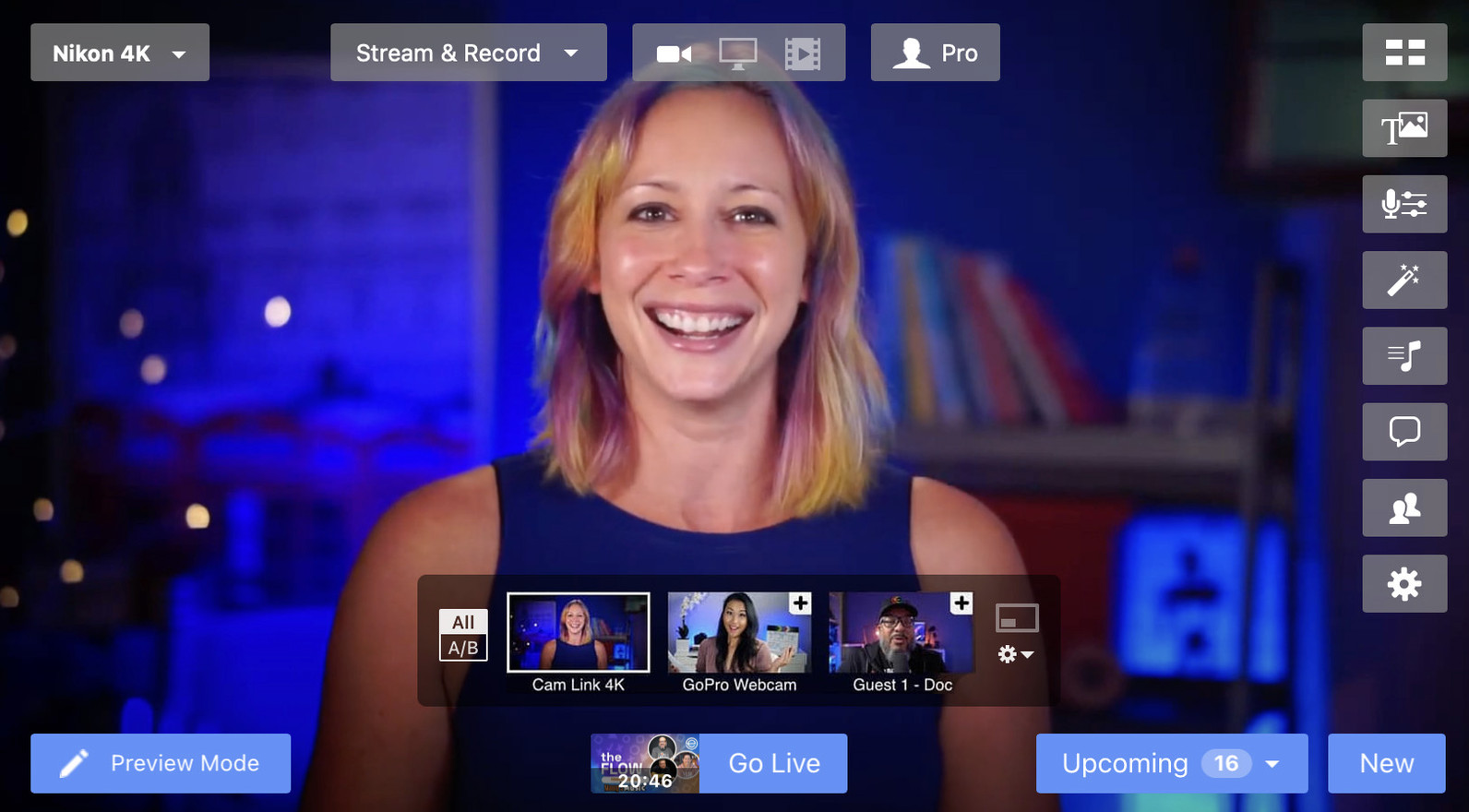
Formerly called Ecamm Live, Ecamm is our top choice for most people who want professional-looking live video without turning their Mac into a broadcast engineering project.
It is designed only for Macs and is far more approachable than OBS Studio, Wirecast or mimoLive. You can build scenes, switch between cameras, share your screen with system audio, add titles and overlays, show viewer comments, play pre-recorded clips and record a local copy of your show from one clean interface.
It is especially well suited to YouTubers, podcasters, coaches, online teachers, small businesses and anyone who wants a polished live show without a separate producer. Ecamm also works well with USB webcams, capture cards, HDMI cameras, iPhones, NDI sources and Blackmagic capture hardware.
The Pro plan adds some of the features that make it particularly compelling for a Mac-based studio, including Interview mode for browser-based remote guests, virtual camera and microphone output, isolated recording, 4K video and the new Dual Mode. Dual Mode lets you create horizontal and vertical layouts at the same time, which is genuinely useful if you publish to YouTube as well as TikTok, Instagram or LinkedIn.
Ecamm requires macOS 11.2 or later. It can run on Intel Macs, but an Apple Silicon Mac is the better choice for demanding shows, multiple guests, 4K, separate recordings or Dual Mode.
Best for: creators who want the most capable and intuitive Mac-native production studio.
Pricing: 14-day free trial. Standard starts at $20/month or $16/month when billed annually. Pro starts at $40/month or $32/month when billed annually.
Pros
- Designed specifically for Mac users
- Excellent scenes, overlays, camera switching and screen sharing
- Works with cameras, capture cards, NDI and iPhones
- Strong support for viewer comments, scheduling and Stream Deck
- Browser-based remote guests do not need to install the app
- Excellent choice for recording as well as streaming
Cons
- Subscription-only
- Several of the most useful advanced features require Pro
- More demanding shows are best on Apple Silicon rather than an older Intel Mac
2. OBS Studio
Best Free Live Streaming Software for Mac
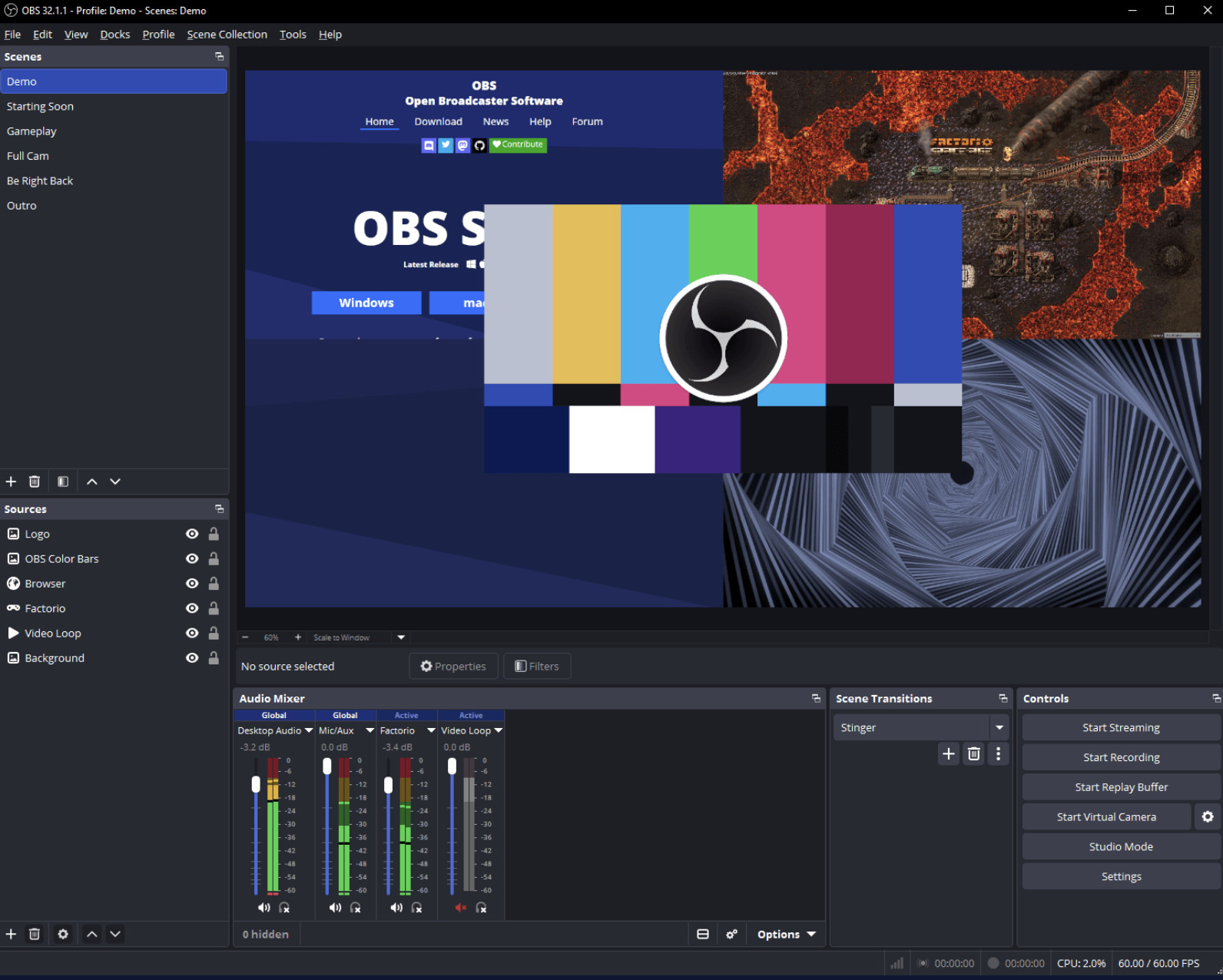
OBS Studio is the best free live streaming software for Mac and remains the right answer if you need deep control over scenes, audio and sources without a subscription.
It is free, open source and available in separate Apple Silicon and Intel Mac versions. OBS can mix camera feeds, capture your screen, add videos, browser sources, images and text, apply audio filters, switch scenes with hotkeys and stream to virtually any platform that accepts an RTMP feed.
It is particularly popular with gamers, educators, churches, developers and technically confident creators because it gives you exceptional flexibility. Its plugin ecosystem is also a major advantage: you can add chat tools, advanced transitions, virtual cameras, control surfaces and specialised broadcast features as your needs grow.
The compromise is time. OBS is not difficult once you understand scenes and sources, but it is less guided than Ecamm or StreamYard. You should budget time to configure your audio, camera, screen-capture permissions and stream settings before doing a real event.
Best for: anyone who wants a capable free desktop studio and is happy to learn it.
Pricing: Free.
Pros
- Completely free and open source
- Native downloads for Apple Silicon and Intel Macs
- Unlimited scenes, sources and custom transitions
- Excellent audio mixer with filters and VST plugin support
- Huge ecosystem of plugins and tutorials
- Works well for gaming, screen sharing and custom broadcast layouts
Cons
- Steeper learning curve than the paid alternatives
- No built-in guest studio as simple as StreamYard or Ecamm Interview
- You are responsible for setting up and testing the setup
3. StreamYard
Best Browser-Based Live Streaming Software for Remote Guests
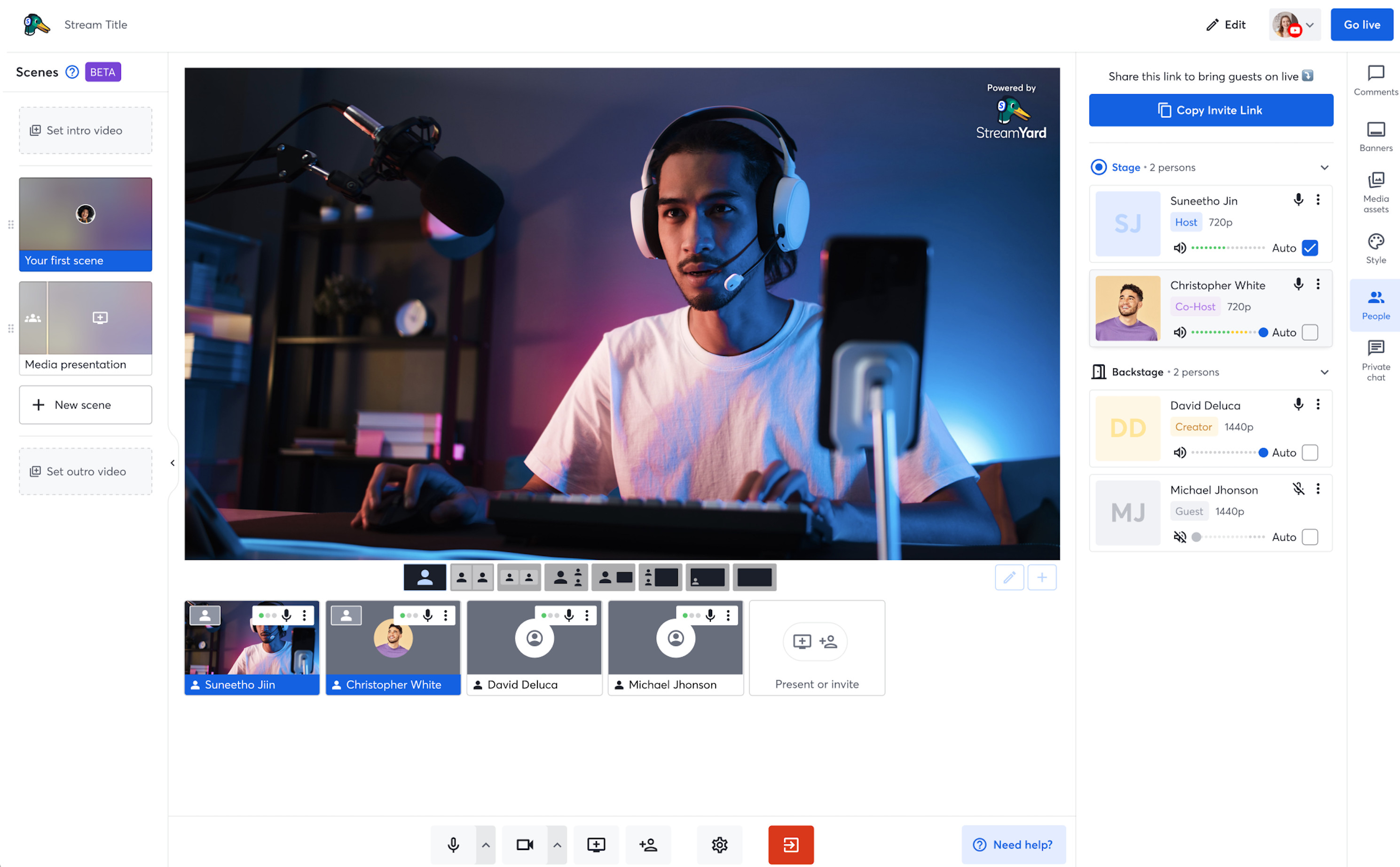
StreamYard is the easiest choice when the show revolves around interviews, panels, webinars or remote co-hosts. Everything runs in a browser, so you do not need to install a Mac app and guests simply join with an invitation link.
That simplicity is its biggest strength. You can bring people into a green room, choose branded layouts, show comments on screen, share a screen, play pre-recorded clips and broadcast to major social platforms from one browser tab. It is a particularly practical option if guests use a mixture of Macs, Windows PCs, iPads and phones.
The free plan is useful for trying it out, but it includes StreamYard branding and limits some features. The Core plan removes the logo, adds 1080p, allows up to three simultaneous destinations and supports up to ten on-screen participants. The higher Advanced plan adds more destinations, 4K local recordings and a larger backstage area.
Because StreamYard is browser based, it is not the best option for a complex multi-camera event with several capture cards, custom audio buses or local video routing. For interview-led programming, however, it removes an enormous amount of friction.
Best for: podcasts, interviews, live panel shows, webinars and teams with non-technical remote guests.
Pricing: Free plan available. Core is $44.99/month or $35.99/month billed annually; Advanced is $88.99/month or $68.99/month billed annually.
Pros
- Guests join from a browser without downloading software
- Fast setup for interviews, panels and webinars
- Strong branding, comments, layouts and screen-sharing tools
- Multistreaming available on paid plans
- Very little local setup required
Cons
- Browser gives you less low-level control than desktop software
- Free plan has branding and limits
- Not ideal for complex camera, capture-card or advanced audio needs
4. Restream
Best Live Streaming Software for Multistreaming
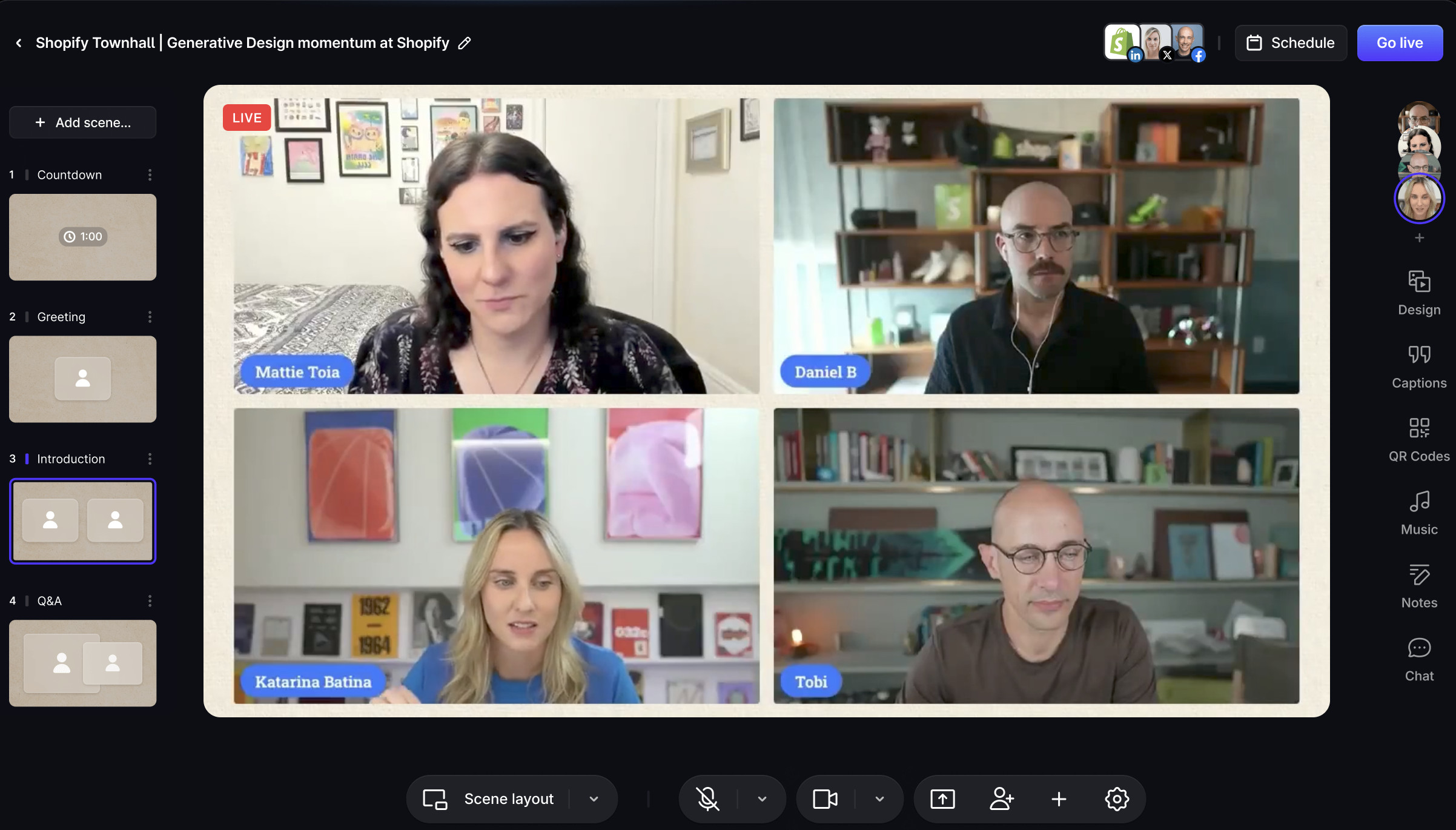
Restream is the best option if your main goal is to broadcast the same programme to several platforms at once.
You can use Restream Studio as a browser-based production tool for interviews, panels and branded shows. More importantly, you can send a stream from OBS, Ecamm, Wirecast or another encoder to Restream, which then distributes it to your chosen destinations. That means your Mac sends one outgoing stream instead of trying to send a separate stream to YouTube, Facebook, LinkedIn, Twitch and other services itself.
This is useful for creators, churches, businesses and event organisers that want to reach viewers wherever they already follow them. Restream also brings comments from different platforms together in one place and supports guest channels, so a guest can add their own audience destination to the same live show.
The free plan allows two channels at once but includes Restream branding. Paid plans remove the branding and increase the number of simultaneous destinations. The Professional plan also adds Full HD Studio streaming, 4K recording and dual-format streaming for horizontal and vertical platforms.
Best for: sending one programme to several platforms, whether you produce it in Restream Studio or another Mac app.
Pricing: Free plan available. Standard starts at $19/month and Professional at $49/month, with annual billing discounts available.
Pros
- Excellent multistreaming without placing as much load on your Mac or connection
- Works with Restream Studio, OBS, Ecamm, Wirecast and other encoders
- Unified chat and stream monitoring
- Useful guest-channel feature for shared audiences
- Browser studio is straightforward for simple shows
Cons
- It is more of a distribution layer than a full local broadcast suite
- Advanced production still benefits from Ecamm, OBS, mimoLive or Wirecast
- Some features, such as higher-quality Studio output and more destinations, require paid plans
5. mimoLive
Best Mac Broadcast Software for Events, Sports and Community Shows
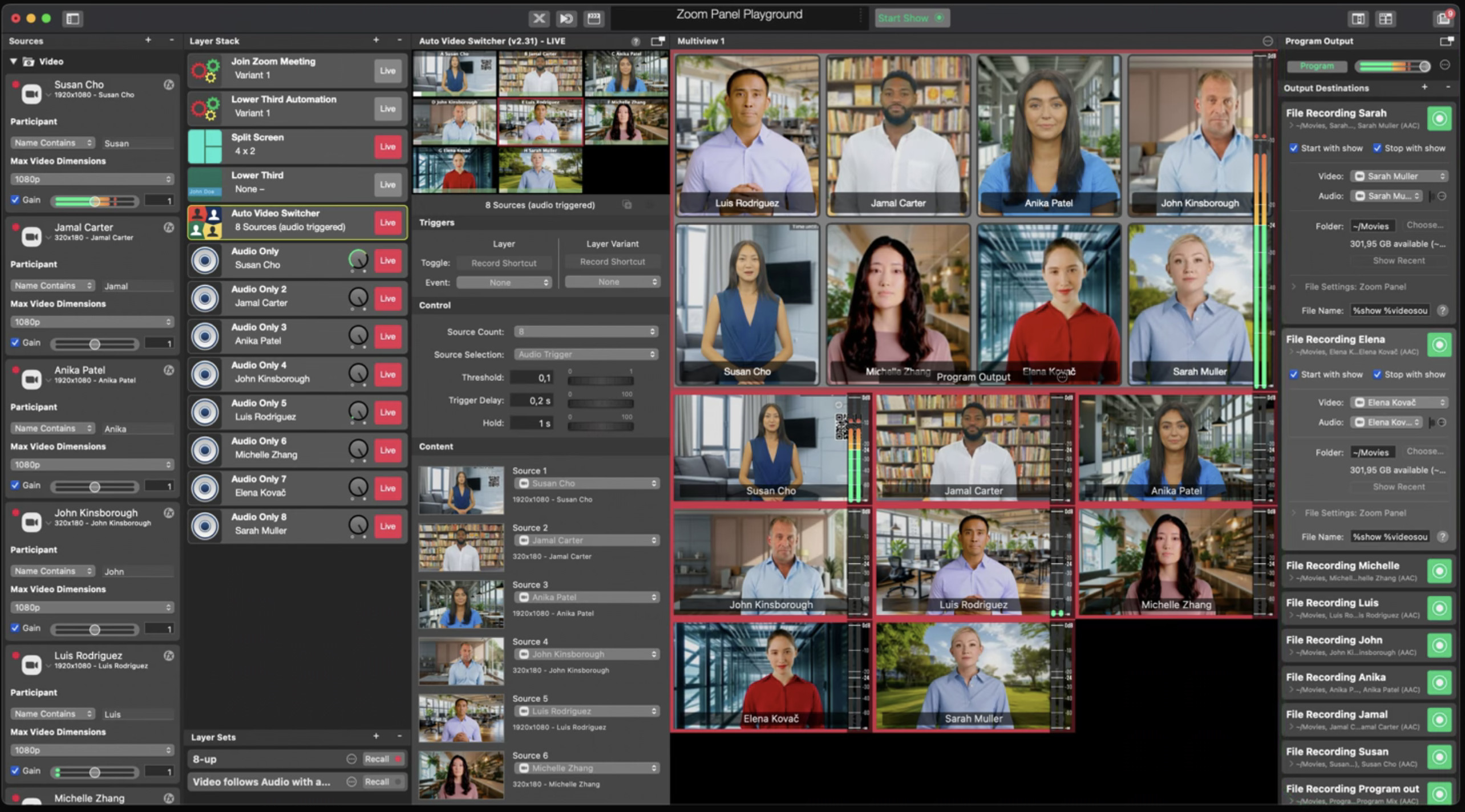
mimoLive is the closest thing to a full broadcast-production environment built specifically for macOS. It is more specialised than Ecamm and more approachable for Mac users than trying to recreate a television control room in a Windows-only app.
It is a strong choice for schools, churches, sports coverage, conferences, local media, corporate communications and live events where you need more than a webcam, a logo and a few comments. mimoLive supports multiple camera sources, NDI, PTZ control, graphics layers, scoreboards, replay, multi-output setups, remote guests through mimoCall and Zoom as a proper source rather than a screen capture.
This is powerful software, but its price reflects that. The free edition has the full feature set but puts a watermark on the output. The paid Studio and Broadcast plans remove it and add support levels appropriate to professional work.
mimoLive currently requires macOS 13 or later. For multi-camera shows, graphics-heavy layouts and simultaneous outputs, use a recent Apple Silicon Mac with plenty of memory and test the complete setup before the event.
Best for: organisations that want a genuinely capable Mac-based control room for live events, sports, school media and broadcast-style shows.
Pricing: Free with a watermark. Studio is €79/month or €790/year; Broadcast is €225/month or €2,250/year.
Pros
- Built exclusively for macOS
- Exceptional graphics, layers, NDI, PTZ and multi-output tools
- Strong support for sports, events, community media and education
- Good remote-guest and Zoom support
- Free version lets you test the full application first
Cons
- Much more expensive than Ecamm or OBS
- More complex than browser-based tools
- Overkill for a straightforward interview or social live stream
6. Wirecast
Best Professional Cross-Platform Live Production Software
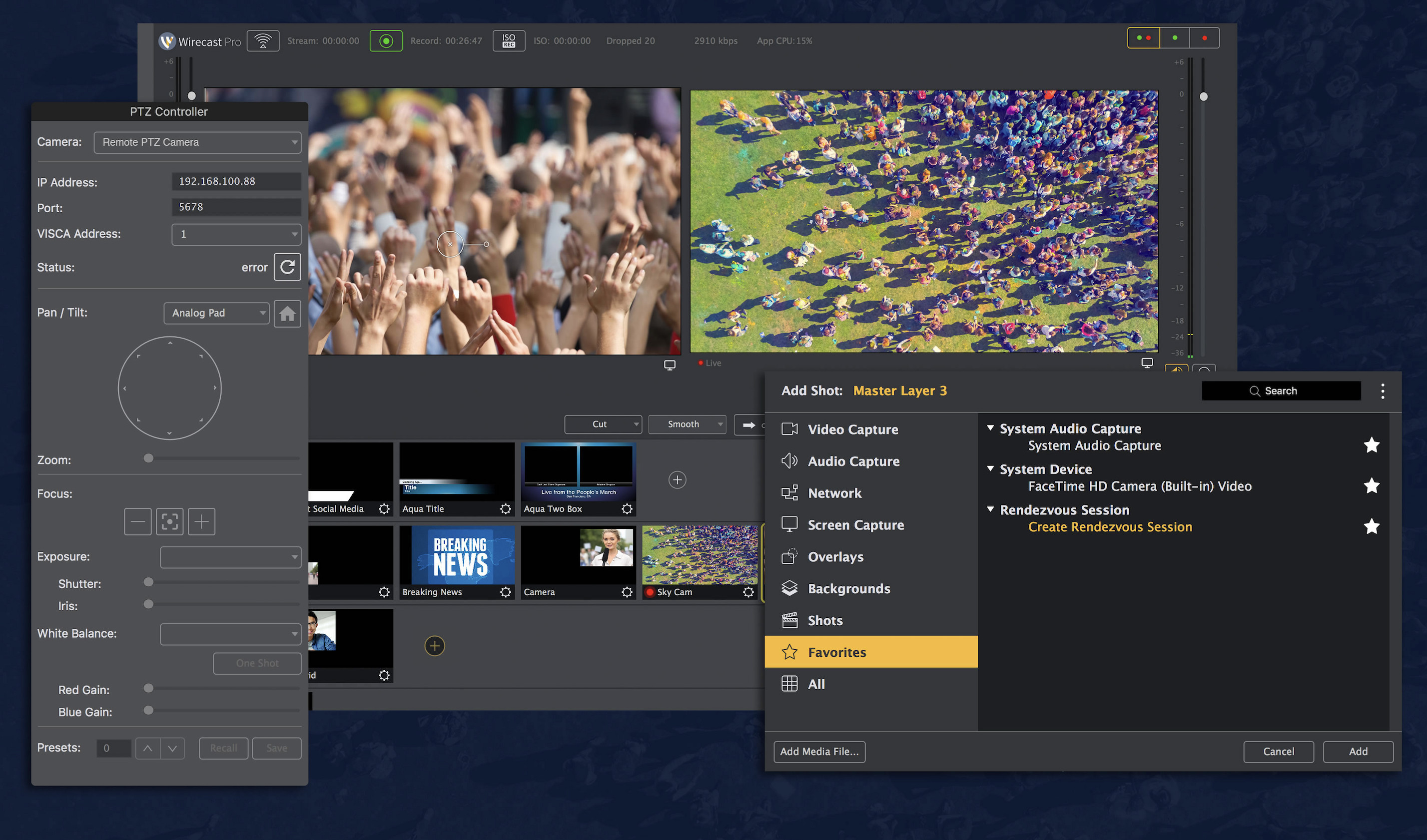
Wirecast remains one of the most capable traditional live-production applications available for Mac. It is not Mac-only, but it runs on Apple Silicon and is a good choice when a production team works across macOS and Windows.
Wirecast is designed for serious multi-camera programmes. It can mix live cameras, IP cameras, NDI sources, audio, presentations, screen captures and pre-recorded media, then record and stream the result. Its Mac version supports Apple Silicon, and the current subscription plans include technical support and a stock-media library.
Wirecast Studio is sufficient for many multi-camera events and includes two remote Rendezvous guests. Wirecast Pro is the better fit when you need NDI output, cloud multistreaming, up to seven guests, ISO recording of individual feeds, PTZ control, sports-production features or multi-track audio recording.
It is a strong alternative to vMix for Mac users, but be realistic about the hardware and setup it needs. A business-critical show should use a recent Mac, wired Ethernet where possible, compatible capture hardware and a complete rehearsal rather than a first attempt ten minutes before going live.
Best for: production teams, larger events, sports, conferences and anyone who needs professional cross-platform support.
Pricing: Studio is $59/month or $34/month billed annually. Pro is $79/month or $42/month billed annually.
Pros
- Deep multi-camera and production capabilities
- Strong support for NDI, IP cameras, capture cards and remote guests
- Runs on both Mac and Windows
- Pro adds ISO recording, PTZ, cloud multistreaming and more advanced outputs
- Suitable for large, demanding shows
Cons
- More expensive and more complex than Ecamm or StreamYard
- A modest Mac is not a sensible choice for ambitious productions
- It will be excessive for most solo creators
7. Be.Live
Best for Straightforward Social Media Live Streams
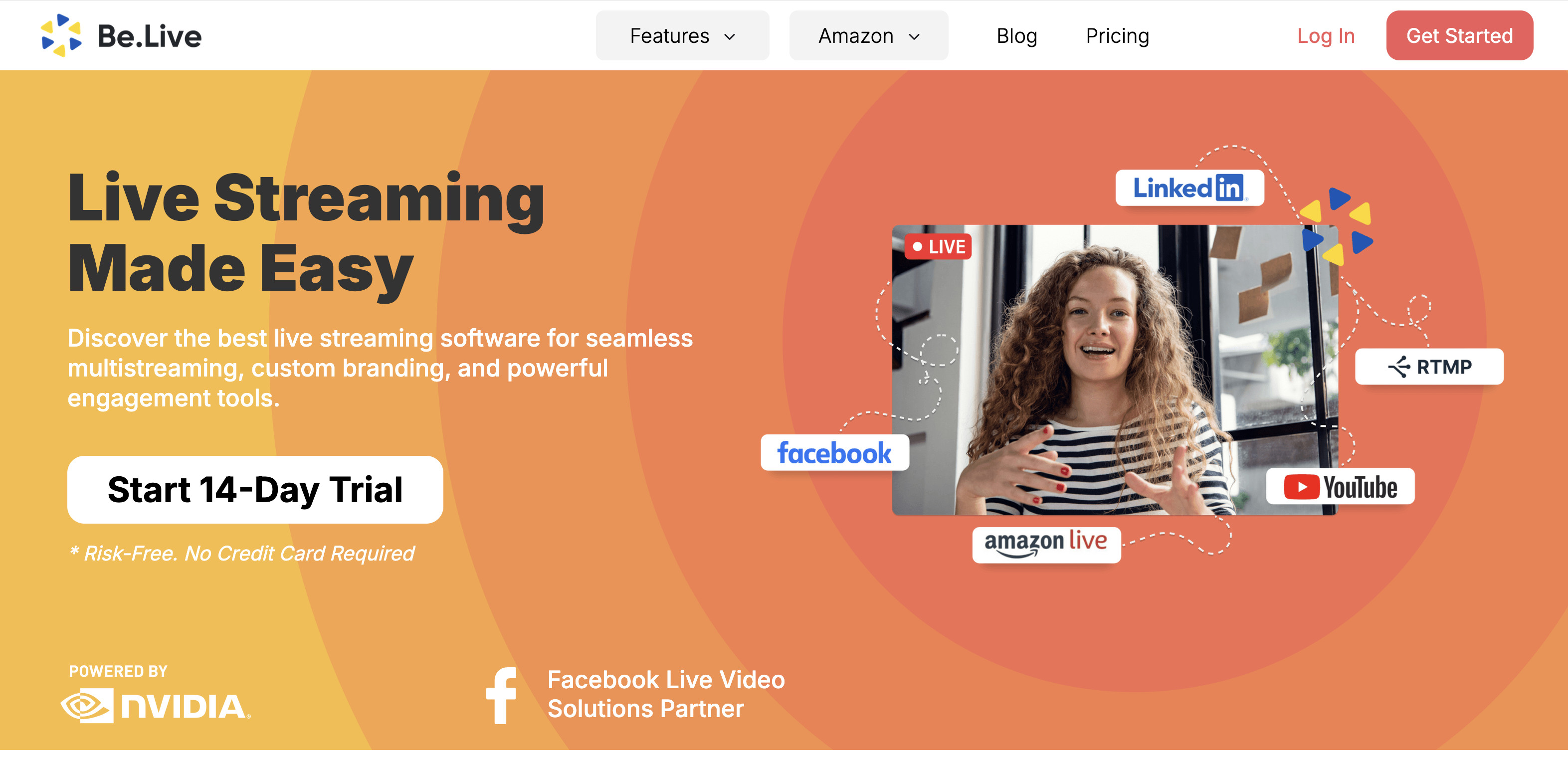
Be.Live is a good option if you want to create a branded live stream from a browser without learning desktop broadcasting software.
It is deliberately simple. You can invite guests, choose layouts, add branding, show comments and broadcast to platforms such as YouTube, Facebook and LinkedIn. It also supports custom RTMP destinations for broader distribution.
Be.Live does not have the production depth of Ecamm, OBS, mimoLive or Wirecast, and StreamYard is usually the better option for a more involved guest show. However, it is a sensible choice for a solo host, a small business or anyone who wants a professional-looking social stream with the minimum amount of technical setup.
Best for: simple branded social shows, interviews and small business broadcasts.
Pricing: 14-day trial available. Starter starts at $14.16/month billed annually and Pro at $24.16/month billed annually.
Pros
- Easy browser-based setup
- Good for simple social broadcasts and branded shows
- Guests can join remotely
- Supports multistreaming and custom RTMP on suitable plans
- Lower starting cost than most paid alternatives
Cons
- Less flexible than StreamYard for larger guest shows
- Not a replacement for a full desktop broadcast suite
- Paid plan limits matter, so check the current plan before committing
Other Live Streaming Apps Worth Knowing About
Streamlabs Desktop
Streamlabs Desktop still works on both Apple Silicon and Intel Macs. It is a friendlier, creator-focused alternative to OBS, with alerts, widgets, themes and tipping tools built in.
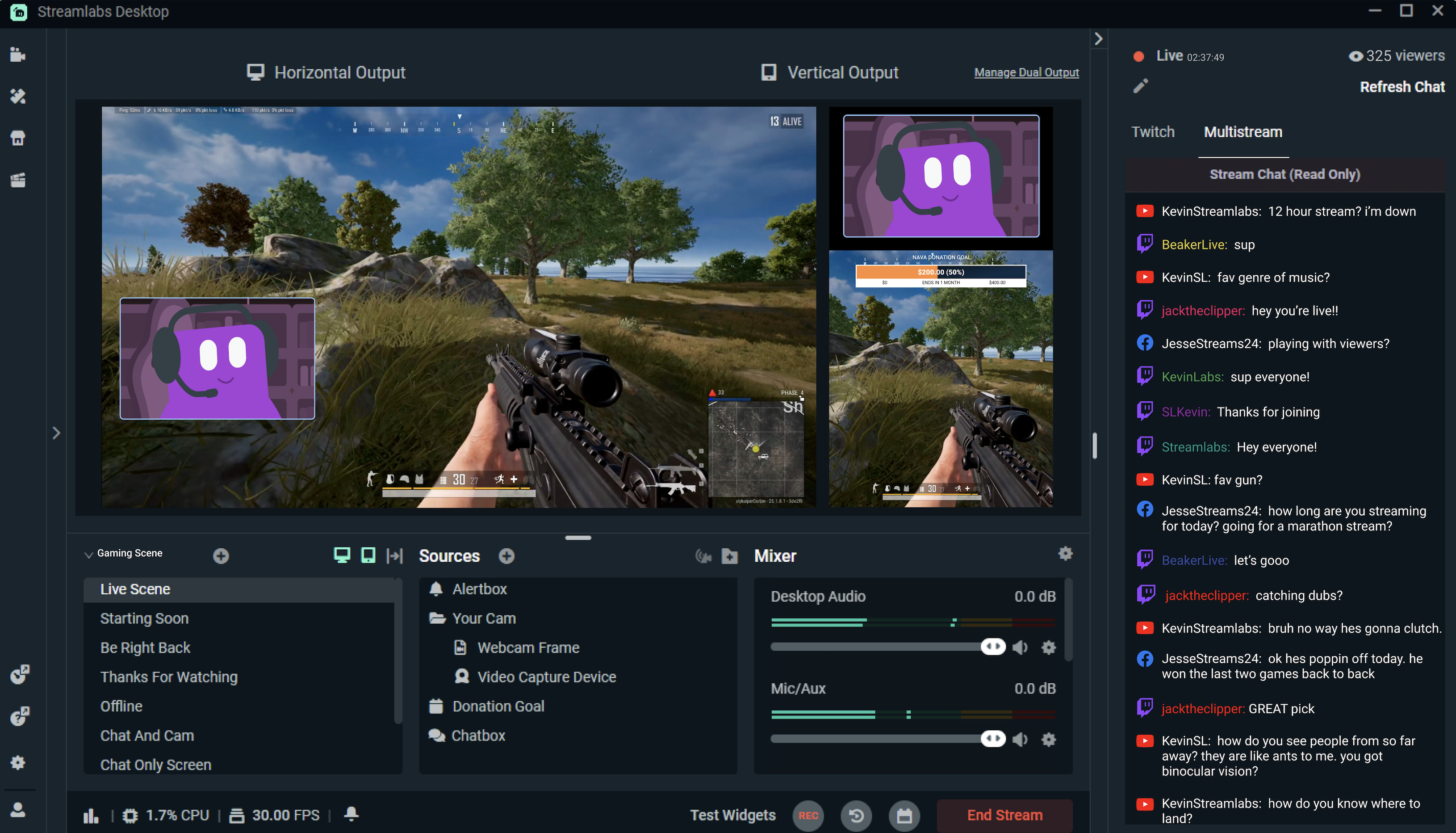
We would still choose OBS Studio first if you want maximum free flexibility and Ecamm first if you want a polished Mac-native studio. Streamlabs is worth a look for gaming and creator projects that rely heavily on alerts, overlays and its wider premium toolset.
How To Choose Live Streaming Software for Your Mac
Before paying for anything, decide which of these jobs you actually need the software to do:
- You want the best all-round Mac studio: Choose Ecamm.
- You want a capable free desktop broadcaster: Choose OBS Studio.
- You host remote interviews, panels or webinars: Choose StreamYard.
- You need to be live on several platforms at once: Use Restream, either on its own or with Ecamm, OBS or Wirecast.
- You run events, sports, services or community television: Choose mimoLive or Wirecast.
- You want a quick branded Facebook, YouTube or LinkedIn stream: Choose Be.Live.
- You only need an ordinary video meeting: Use Zoom, Teams or Google Meet instead. They are simpler and cheaper than a live-production suite.
What You Need To Stream From a Mac
The software is only one part of a reliable live setup. These are the things that make the biggest difference.
1. A Good Video Source
For a basic stream, the webcam built into a modern MacBook, an external webcam or an iPhone using Continuity Camera is enough.
If you want a more polished image, use a mirrorless camera, digital camera or camcorder. Do not choose it simply because it has USB-C or Thunderbolt: those ports do not automatically make it a webcam. You need either:
- A camera that supports UVC webcam mode over USB, or
- A clean HDMI output connected through a compatible USB capture device.
For more help choosing the camera and connection method, see our guide to the best camcorders for Mac and how to use a digital camera as a webcam.
2. Clear Audio
Viewers are usually more forgiving of imperfect video than poor audio. A USB microphone, wired lavalier microphone, audio interface or a camera with a proper external microphone will make a bigger difference than jumping from 1080p to 4K.
Always monitor the audio in headphones during a test broadcast. Check for echo, delayed sound, clipping and whether your camera sends audio through HDMI or USB as expected.
3. Enough Upload Speed
Your download speed is not what matters when you go live: it is your stable upload speed. Use wired Ethernet if practical, avoid relying on a busy home Wi-Fi network and test at the same time of day as the real event.
As a simple rule, leave plenty of headroom above your chosen stream bitrate. If you plan to stream at 1080p, do not treat a barely adequate connection as reliable just because a single speed test looks good. A local recording is also wise if the stream is important.
4. A Mac With Enough Headroom
Any recent Apple Silicon Mac can handle a straightforward 1080p webcam stream. A more demanding production with several cameras, browser guests, NDI, graphics, screen capture, multistreaming and local recording needs considerably more headroom.
For that kind of work, a MacBook Pro, Mac mini or Mac Studio with Apple Silicon and at least 16GB of unified memory is a much safer starting point than an older Intel Mac. Close unnecessary apps, keep enough free SSD space for recordings and test the actual show rather than an empty project.
5. A Complete Rehearsal
Run a private or unlisted stream before a real event. Test each camera, microphone, capture card, guest connection, scene, lower third, screen share and destination. This is the fastest way to find a missing macOS permission, echo problem, capture-card limitation or unreliable connection before viewers see it.
Is vMix Available for Mac?
No. vMix is Windows-only, and there is no native macOS version. Older Intel Macs could run it through Windows and Boot Camp, but that is not an option on Apple Silicon Macs and is not a sensible route for a production-critical show.
For a Mac alternative to vMix, use:
- Ecamm for a polished all-round Mac studio
- OBS Studio for free flexibility
- mimoLive for a Mac-first broadcast environment
- Wirecast for advanced cross-platform production
FAQ
What is the best free live streaming software for Mac?
OBS Studio is the best free option for most people. It is powerful, supports Apple Silicon and Intel Macs, and can handle scenes, cameras, screen capture, audio filters and streaming platforms without a subscription.
Can I use a camcorder as a webcam for live streaming on a Mac?
Yes, but it depends on the camcorder. Models with UVC webcam support can connect directly by USB. Otherwise, use a clean HDMI output and a compatible capture device. A camcorder is often better for longer recordings, optical zoom and stabilised event footage, but it is not automatically a webcam just because it connects via USB-C.
Do I need a Thunderbolt capture device?
No. A good USB capture device is usually sufficient for a single HDMI camera feed. Thunderbolt can be useful in more specialised multi-input or high-bandwidth projects, but it should not be the deciding factor for an ordinary live-streaming setup.
Which app is best for streaming to YouTube, Facebook and LinkedIn at the same time?
Restream is the most straightforward option because it distributes one incoming stream to several destinations. Ecamm, StreamYard, Wirecast Pro and Be.Live can also multistream on suitable plans, but Restream is especially useful alongside a local production app such as Ecamm or OBS Studio.
Do I need 4K live streaming?
Usually not. A well-lit, well-framed 1080p stream with clear audio is more valuable than a poorly configured 4K stream. Choose 4K only if your platform, connection, Mac and audience all benefit from it, and keep a local high-quality recording if you want a 4K version for editing later.
Conclusion
For most Mac users, Ecamm is the best balance of ease, polished production tools and Mac-native performance. If your budget is zero, choose OBS Studio. If your show depends on remote guests, choose StreamYard; if reaching several platforms is the priority, add Restream.
For demanding live events, sports, schools, churches and production teams, mimoLive and Wirecast provide the higher-end tools that simpler browser studios cannot. The important thing is to choose software that matches your actual needs, then test it with your real cameras, audio and internet connection before the first public broadcast.