

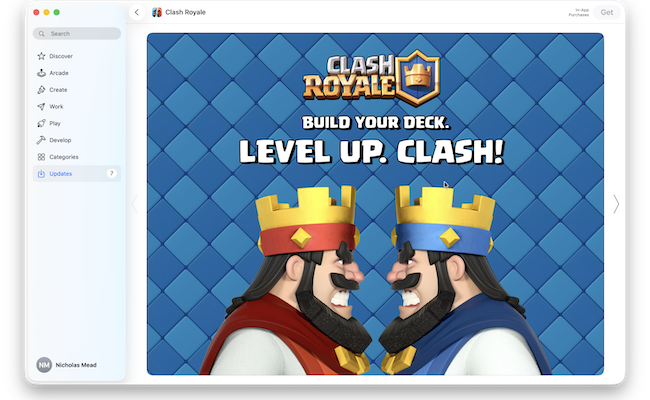
Clash Royale is officially available only on iOS and Android, and the developer Supercell does not offer a native macOS version. That means you can’t download Clash Royale directly from the Mac App Store, on either Intel or Apple Silicon Macs.
However, there are still some free and reliable ways to play Clash Royale on a Mac, in 2026, either by running the Android version through an emulator or by playing on an iPhone or iPad and viewing it on your Mac.
This guide explains all the realistic options that actually work, including whether you can play Clash Royale on a Mac without BlueStacks and whether offline play is possible.
Contents
- Can You Play Clash Royale Natively on macOS?
- Method 1: Play Clash Royale on Mac Using BlueStacks
- Method 2: Play Clash Royale on Mac Using MuMuPlayer
- Method 3: Play Clash Royale on Mac Using Your iPhone or iPad (Screen Mirroring)
- Does Clash Royale Work on a Mac with NoxPlayer?
- Does Clash Royale Work on a Mac with Genymotion?
- Can You Play Clash Royale on a Mac with Android Studio Emulator?
- Can You Play Clash Royale Offline on a Mac?
- FAQ
Can You Play Clash Royale Natively on macOS?
No. There is currently no native macOS app for Clash Royale, and Supercell has not announced plans to release one.
All Mac-based solutions rely on either:
- Running the Android version of the game using an emulator, or
- Playing on an iPhone or iPad and mirroring the screen to a Mac
The good news however is, all of these methods are free and here we’ll show you how to do all of them.
| Method | Best for | Price |
|---|---|---|
| BlueStacks | Most users who want the easiest setup | Free (optional paid upgrade) |
| MuMuPlayer | Users who want a BlueStacks alternative | Free |
| iPhone / iPad Screen Mirroring | Those that have access to an iPad or iPhone and just want to use their Mac as a screen for Clash Royale | Free |
Method 1: Play Clash Royale on Mac Using BlueStacks
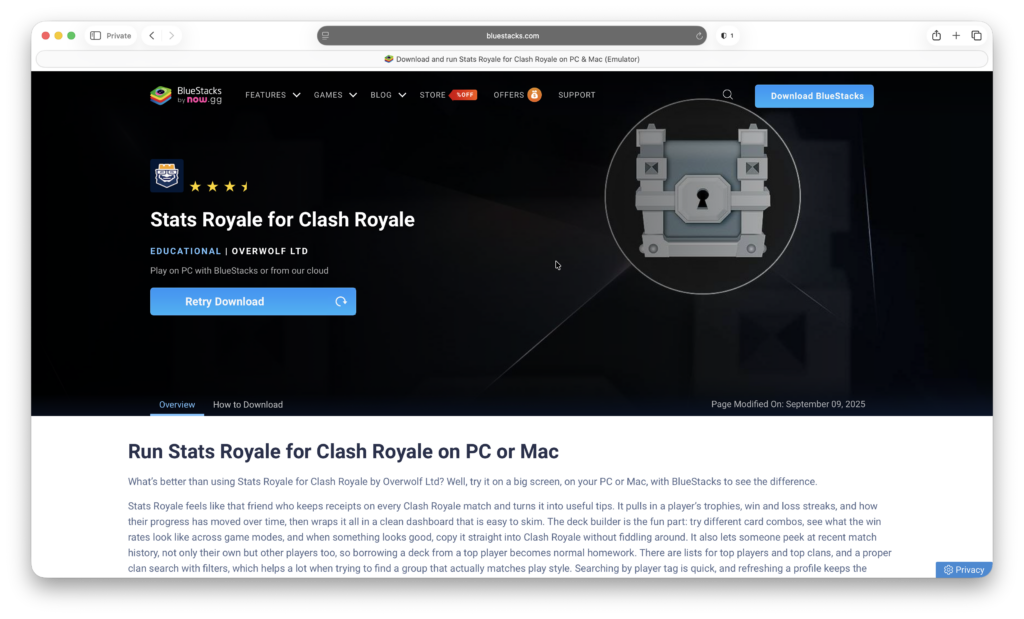
BlueStacks is the most popular Android emulator and the easiest way for most users to play Clash Royale on a Mac.
It provides a full Android environment on your Mac, complete with access to the Google Play Store, keyboard and mouse support, and game-specific optimizations.
For most users, BlueStacks is the easiest and most reliable way to play Clash Royale on a Mac.
How to Play Clash Royale With BlueStacks
- Download BlueStacks for macOS
- Install and launch the emulator
- Sign in to your Google account
- Open the Google Play Store
- Search for Clash Royale and install it
- Launch the game and sign in with your Supercell ID
Pros
- Easiest setup for beginners
- Designed specifically for gaming
- Keyboard and mouse support
- Works on Intel and Apple Silicon Macs
Cons
- Uses significant system resources
- Ads shown unless upgraded
- Not ideal for older Macs
Method 2: Play Clash Royale on Mac Using MuMuPlayer
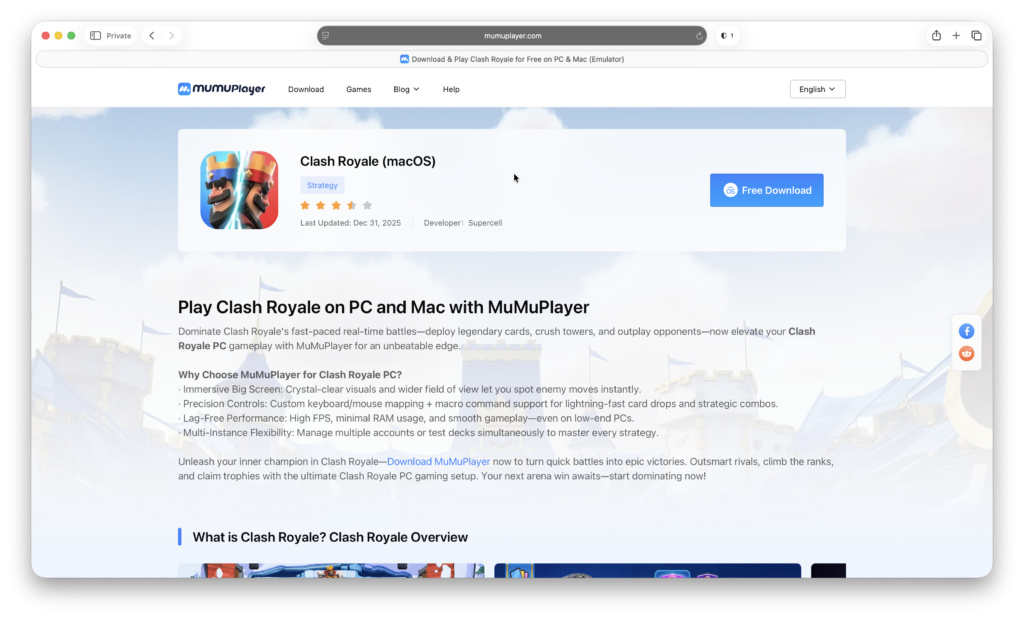
MuMuPlayer, developed by NetEase, is a lightweight alternative to BlueStacks that can also run Android games like Clash Royale on macOS.
It supports Apple Silicon Macs, includes keyboard and mouse controls, and is designed with gaming performance in mind.
While less widely used than BlueStacks, MuMuPlayer is a good choice for those who want a simpler, lighter Android emulator on their Mac.
How to Play Clash Royale With MuMuPlayer
- Download MuMuPlayer for macOS
- Install and open the emulator
- Sign in to the Google Play Store
- Search for Clash Royale and install it
- Launch the game and sign in with your Supercell ID
Pros
- Does not require BlueStacks
- Keyboard and mouse support
- Gaming-focused emulator
- Supports Apple Silicon Macs
Cons
- macOS version is less mature
- Occasional stability issues reported
- Updates can lag behind Windows version
Method 3: Play Clash Royale on Mac Using Your iPhone or iPad (Screen Mirroring)
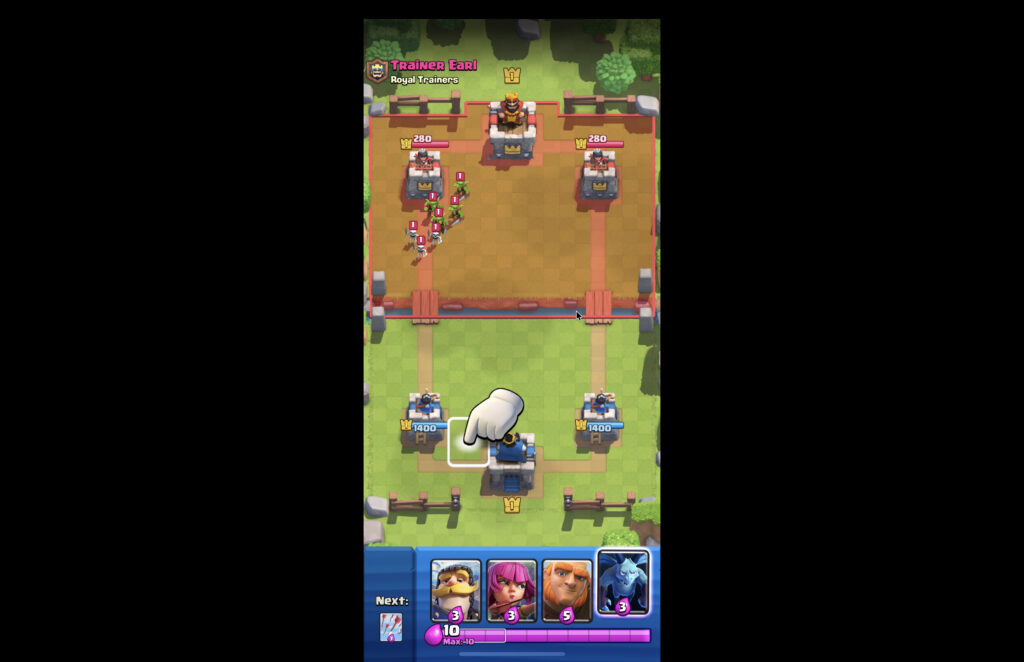
Although it requires access to an iPhone or iPad, you can mirror your iPhone or iPad screen so you can play the game on your Mac’s display. Using AirPlay (wireless) or QuickTime Player (USB) are the best methods to do this.
It’s important to be aware that with this method, the game still requires an iPhone/iPad. Your Mac is only a display; keyboard or mouse controls do not work.
Option 1: AirPlay (Wireless)
- Ensure your Mac and iPhone/iPad are on the same Wi-Fi network and logged into the same Apple ID. This last bit is crucial as screen mirroring won’t work if you’re not on the same Apple ID.
- Open Control Centre on iOS
- Tap Screen Mirroring
- Select your Mac
- Open Clash Royale on your iPhone/iPad
Pros
- No cable required
- Convenient setup
- Free with macOS iPhone mirroring
Cons
- Can be slight latency
- Controls remain on the iPhone/iPad
Optional Third-Party Apps
Apps like AirServer or Reflector can also mirror iOS screens. These are mostly useful for extra features like recording or multiple devices but are unnecessary for standard gameplay.
Option 2: QuickTime Player (Wired)
Another way of doing this is to use a wired connection instead of using wireless iPhone mirroring. Here’s how to do it.
- Connect your iPhone or iPad to your Mac via USB
- Open QuickTime Player
- Click File > New Movie Recording
- Select your iPhone/iPad as the camera source
- Launch Clash Royale on your device
Pros
- Free and built into macOS
- Extremely stable
- Minimal lag
Cons
- Controls remain on the iPhone/iPad
- Requires a USB cable
Does Clash Royale Work on a Mac with NoxPlayer?
NoxPlayer (Mac build) may run Clash Royale, but results can vary. While the emulator does support Android apps on macOS, some users report crashes or graphical issues when running Clash Royale specifically. For a more reliable experience on Mac, BlueStacks or MuMuPlayer are documented to work better with mobile games like Clash Royale.
Does Clash Royale Work on a Mac with Genymotion?
Genymotion is primarily a developer tool and is not designed for gaming. According to the official support documentation, many games (including Clash Royale) do not install or run reliably due to architecture and compatibility limitations. While the emulator can run Android apps for testing, it’s not a recommended option for playing Clash Royale on a Mac.
Can You Play Clash Royale on a Mac with Android Studio Emulator?
Like Genymotion, Android Studio Emulator (Mac build) is primarily a development tool designed for building and testing apps, not for gaming. While it can run Android system images, the emulator isn’t optimized for performance or compatibility with many modern mobile games – including Clash Royale. Most desktop AVD configurations struggle with installing or running graphically intensive or ARM‑only games, and users commonly report poor performance or instability when trying to use Android Studio as a game player. For these reasons, it’s not a recommended option for playing Clash Royale on a Mac compared to dedicated gaming emulators like BlueStacks or MuMuPlayer.
Can You Play Clash Royale Offline on a Mac?
No. Clash Royale is an online-only multiplayer game and requires a constant internet connection on all platforms, including macOS, iOS, Android, and emulators.
FAQ
Can I legally play Clash Royale on a Mac?
Yes. While Supercell doesn’t provide a native Mac app, you can play Clash Royale on a Mac using third‑party Android emulators such as BlueStacks or MuMuPlayer, which are legitimate tools for running Android apps on macOS. Supercell does not ban accounts for using standard emulators as long as you don’t use cheats or modified clients.
What’s the best way to play Clash Royale on a Mac?
For most users, MuMuPlayer and BlueStacks are the most reliable options. MuMuPlayer offers big‑screen visuals, keyboard/mouse controls, customizable key mapping, and high FPS support for smoother gameplay.
Do I need an internet connection to play?
Yes, Clash Royale is an online‑only multiplayer game. You must be connected to the internet at all times to play, including via emulators or screen mirroring.
Can I sync my progress between mobile and Mac?
Yes. If you link your game to a Supercell ID on your phone and log in with the same ID on the emulator, your progress will sync. This lets you switch between mobile and Mac/play on multiple devices.
Is Clash Royale free to play on Mac?
Yes. Like on mobile devices, Clash Royale is free to download and play. In‑game purchases function the same way and are optional. MuMuPlayer itself is also free to use.
Why use MuMuPlayer instead of just mirroring my iPhone screen?
Screen mirroring (QuickTime or AirPlay) lets you see the game on a Mac but still relies entirely on your iPhone or iPad for controls. MuMuPlayer runs the Android version directly on your Mac, letting you use keyboard and mouse controls and even custom key mapping, which many players find more responsive for competitive play.
Can I manage multiple Clash Royale accounts on a Mac?
Yes, MuMuPlayer offers a multi‑instance feature that lets you run multiple separate emulator sessions at once. This makes it possible to manage more than one Clash Royale account simultaneously if desired.
Will I get banned for using an emulator like MuMuPlayer?
No. Simply using an emulator to run the official Clash Royale app will not get your account banned, so long as you don’t use cheats, hacks, bots, or modified game files. Playing normally through an emulator is considered acceptable by Supercell.
Is performance better on an emulator than on a mobile device?
Many players find that playing on an emulator like MuMuPlayer offers advantages such as large‑screen visuals, stable high FPS, and precise keyboard/mouse controls, which can feel more comfortable and responsive than touchscreen input.
Can I “sideload” Clash Royale on a Mac?
No, Clash Royale cannot be sideloaded to run natively on macOS. While macOS can run some iPhone and iPad apps on Apple Silicon Macs, Supercell has not made Clash Royale available as a Mac-compatible iOS app, so it won’t install via the App Store or through manual sideloading. Android APK sideloading also isn’t possible on macOS without an emulator, and even developer tools like Android Studio or Genymotion aren’t reliable for running the game.