

Microsoft Project is a Windows only desktop product; Mac users have to rely on the far more limited browser version, third-party viewers or virtualization to run the full desktop client.
This creates extra cost, extra setup (such as using a virtual machine) and compromises compared to using a native Mac app.
Smartsheet not only has a Mac desktop app but also works in any browser giving you a much better experience on macOS.
We voted it one of the best alternatives to Microsoft Project on a Mac and one of the best project management software for Mac so here we take an in-depth look at how it compares with Microsoft’s product.
Smartsheet vs Microsoft Project: Quick Comparison
| Smartsheet | Microsoft Project (Desktop / Project for Web) | |
|---|---|---|
| macOS native | Mac desktop app. Also works well in Safari/Chrome. | No native desktop app for macOS – Project for the Web runs in browser; full desktop client is Windows-only. (learn.microsoft.com) |
| Best for | Collaborative teams, cross-functional work, templates, automation | Advanced schedule modelling, complex resource leveling, heavy Microsoft product users |
| Ease of learning | Low-to-moderate; spreadsheet-like UI shortens ramp-up | Steeper for non-power users; desktop client has deep features |
| Collaboration & sharing | Real-time, shareable sheets, dashboards, comments, automated alerts | Strong for scheduled tasks and internal PM; collaboration better in Project for Web |
| Pricing (typical) | Subscription tiers (Pro/Business/Enterprise) — per-user or enterprise pricing. See Smartsheet pricing. Free trial available. | Project Online / Project for the Web included in some Microsoft 365 plans; desktop client licensed separately |
| Offline / advanced scheduling | Limited offline; automation and integrations are strong | Desktop client is powerful offline scheduling tool; advanced baselining and resource tools |
| Integrations | Strong (Slack, Google Workspace, Microsoft ecosystem, Zapier, APIs) | Fully integrated with Microsoft 365, Teams, SharePoint – best if you’re fully invested in MS products |
Deep Dive: Smartsheet vs Microsoft Project
1. Installation & daily usage
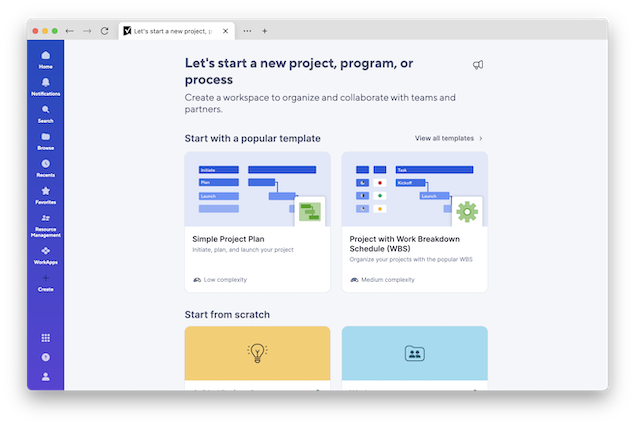
- Smartsheet: Has a Mac desktop app but also works in Safari on macOS. No virtual machine required. Good mobile apps. Simple access model for remote teams.
- Microsoft Project: There is no native Microsoft Project desktop for Mac; Mac users must use Project for the Web/Microsoft Planner in the browser or run the desktop client in a Windows VM (Parallels, Boot Camp, remote desktop) to access full functionality. That extra step adds cost and complexity.
Verdict: If you want a natural, native-feeling workflow on macOS, Smartsheet avoids virtualization and file-compatibility headaches.
2. Scheduling, dependencies, and resource management
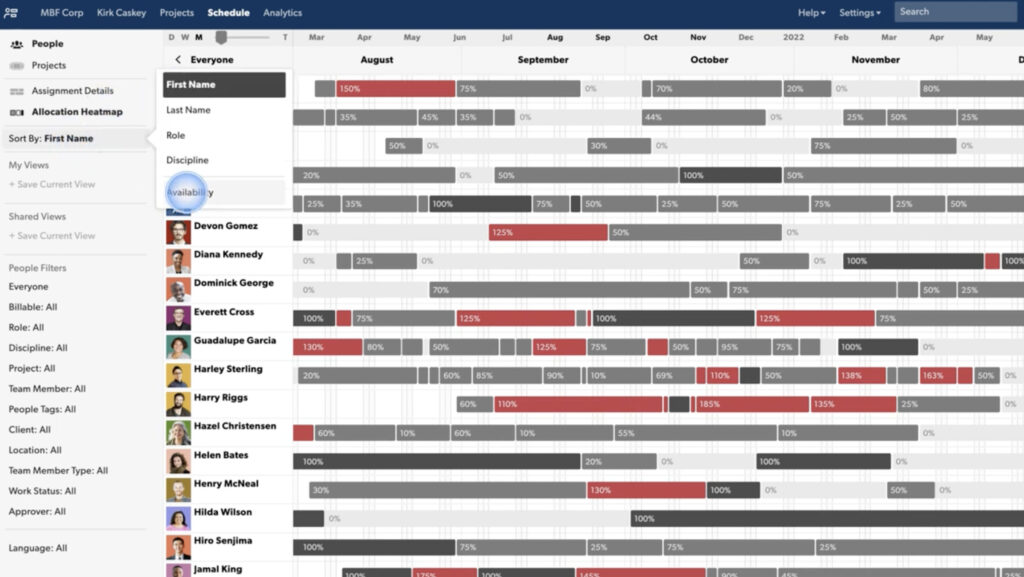
- Microsoft Project: Industry-standard for Gantt charts, detailed dependencies, critical path analysis, baselining and resource leveling. If your projects require complex earned value, multi-mode resource leveling or advanced schedule diagnostics, Project Desktop is still the best option.
- Smartsheet: Excellent Gantt views and dependency support for most use cases, plus dashboards and reporting. It favors practical scheduling over ultra-detailed modeling.
Verdict: Advanced schedulers on macOS who require enterprise-level modeling often keep MS Project via virtualization or remote desktop servers. For teams who prioritize collaboration and dashboards, Smartsheet is simpler.
3. Collaboration, visibility & automation

- Smartsheet: Built for collaboration – comments, cell-level sharing, automated workflows (alerts, approvals), cross-sheet reporting and dashboards aimed at non-PM stakeholders. Smartsheet’s user interface will be familiar to any spreadsheet user.
- Microsoft Project: Collaboration improved with Project for the Web and Microsoft 365, but complex interactions with team members are better done in other Microsoft tools such as Teams, SharePoint and Planner.
Verdict: Remote Mac teams will benefit from Smartsheet’s lightweight collaboration features without having to resort to Teams and other Windows apps.
4. Integrations & ecosystem
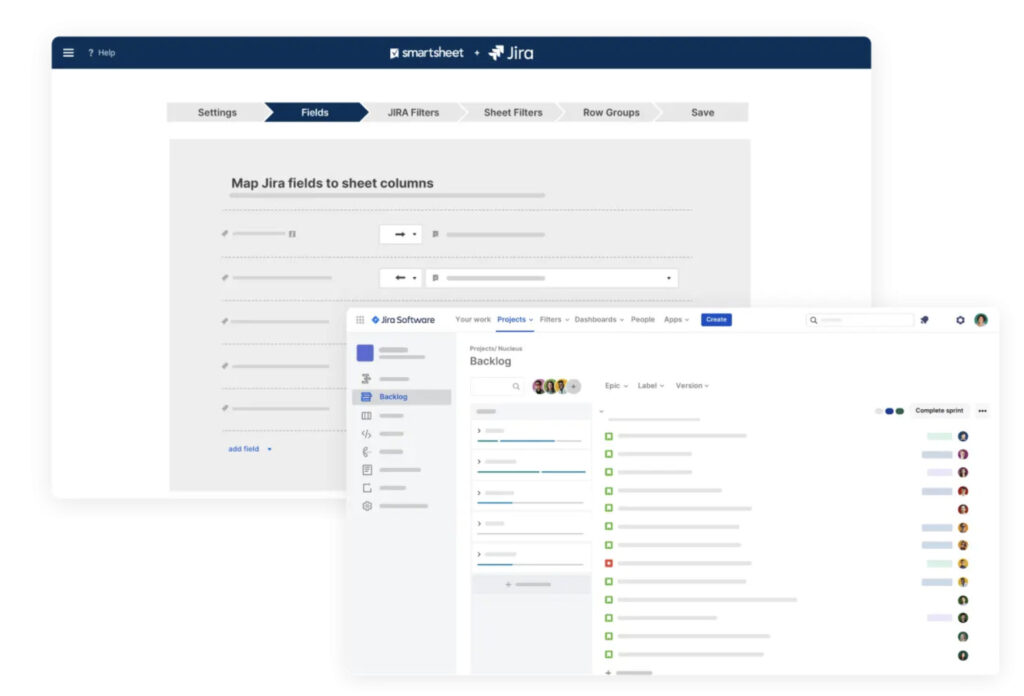
- Smartsheet: Strong integrations (Slack, Google Workspace, MS 365, cloud storage, Zapier), API for custom automation. Smartsheet has broad third-party connectors and templates.
- Microsoft Project: Best when your organization uses Microsoft 365 tools heavily — single-sign-on, Teams, SharePoint and Azure AD are strong pluses.
Verdict: if your company uses Google Workspace or a mixed environment, Smartsheet generally plugs in more smoothly for Mac users.
5. Pricing & Enterprise Suitability
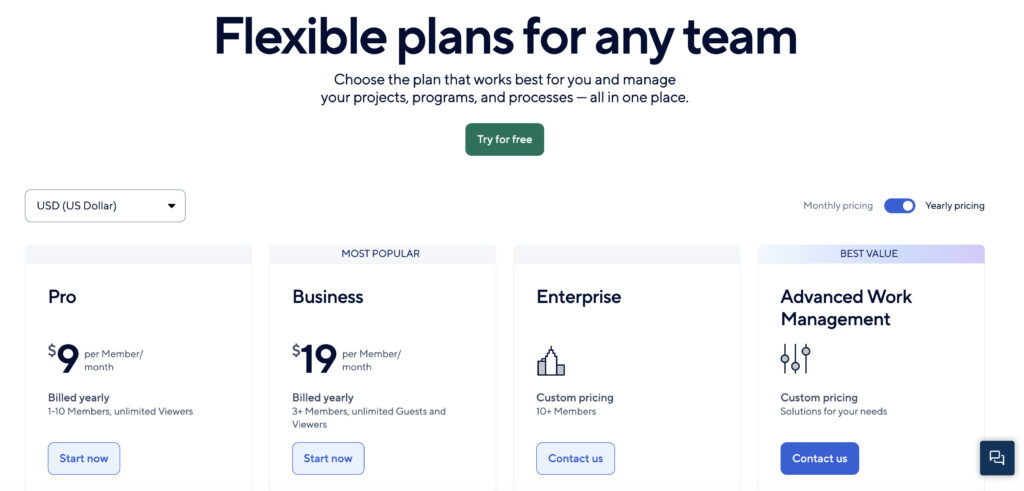
- Smartsheet: Subscription plans starting at $9 (Pro, Business, Enterprise, Advanced Work Mgmt). Licensing is per user and can scale to enterprise pricing models. See official Smartsheet pricing for details.
- Microsoft Project: Licensing is complex (Project Plan 1/3/5, M365 bundles, desktop license). The full desktop experience usually increases cost due to Windows licenses/VMs.
Note: Smartsheet has been the subject of ownership changes and acquisition activity in recent years – changes like these can affect the product’s roadmap and pricing so bear this in mind if you subscribe.
Which Should You Pick?
Choose Smartsheet if you:
- Want a Mac native or work in a mixed-OS team and want zero virtualization.
- Need fast onboarding, lots of templates, dashboards and approvals.
- Prioritize collaboration, reporting and automations over ultra-fine scheduling.
- Want a tool that non-PMs can use easily (marketing, operations, HR).
Choose Microsoft Project if you:
- Need advanced scheduling (baselines, earned value, multi-mode resource leveling).
- Work inside a Microsoft 365/Teams/SharePoint enterprise.
- Have experienced project schedulers who rely on desktop-only features.
- Are prepared to run Windows virtualization on Macs for the full desktop client.
Migrating From Project to Smartsheet Checklist
We have some general tips for anyone wanting to migrate from Microsoft Project on a Mac.
There are some specific tips when migrating to Smartsheet from MS Project thoiugh:
- Inventory MPP files & features used
- List critical plans, custom fields, baselines, macros and reports.
- Map feature parity
- Gantt & dependencies → Smartsheet supports Gantt; verify baselining needs.
- Resource leveling → Smartsheet has resource views but not identical advanced leveling.
- Export from MS Project
- Export MPP to CSV/Excel where needed. Consider MPP viewers or Project Online exports.
- Import into Smartsheet
- Use Smartsheet’s import (Excel/CSV) or third-party converters for complex MPPs.
- Rebuild or map custom fields and formulas.
- Recreate baselines & custom reports
- Smartsheet reports/dashboards replace many Project reports. Rebuild executive dashboards.
- Test automations
- Move approvals, notifications and reminders to Smartsheet workflows.
- Train users
- Run short “hands-on” sessions in with Smartdraw for macOS. Emphasize templates and sheet sharing.
- Integrate with macOS tools
- Connect cloud storage (OneDrive/Google Drive), calendar exports and Slack/Teams integrations.
- Pilot & iterate
- Start 1–2 projects, collect feedback, then expand.
Migration Issues
- Baselines & advanced earned-value metrics don’t translate 1:1 – if you rely on those, keep Project for complex work.
- MPP fidelity: complex custom fields and macros rarely import perfectly – you’ll need to do some manual cleanup.
- Licensing audits: make sure to consider costs of Project desktop + Windows VM vs Smartsheet subscriptions.
Final verdict
- Most Mac teams will get faster wins with Smartsheet: less friction, better collaboration and easier integrations without a Windows VM. You can check out our full Smartsheet review for more.
- If your organization demands advanced schedule modeling and your PMO is Windows-centric, Microsoft Project (desktop) is still best-in-class — but expect extra complexity to run it on macOS.
FAQs
Can I open .mpp files in Smartsheet?
Not directly with perfect fidelity. Export from Project to Excel/CSV or use a converter/viewer, then import to Smartsheet and rebuild custom fields. Consider retaining a Project viewer for legacy plans.
Is Microsoft Project available for Mac?
There’s no native Microsoft Project desktop for macOS. You can use Project for the Web in a browser; for the full desktop client, you’ll need Windows virtualization or a remote Windows machine.
Which is cheaper for small Mac teams?
Pricing depends on features and user count. Smartsheet’s per-user subscription can be more predictable for collaboration; Project’s licensing (plus Windows VM cost for Macs) can push total cost higher.