

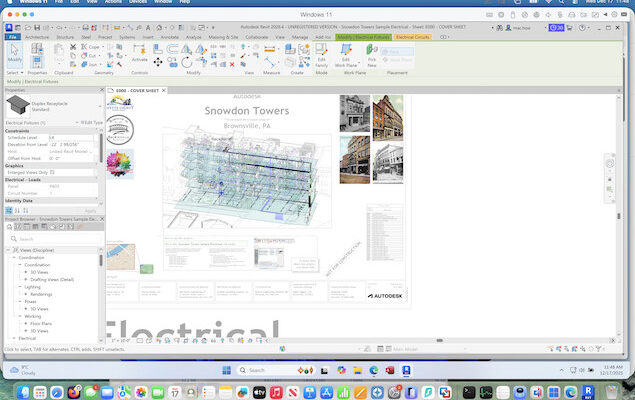
Revit is a Building Information Modelling tool (BIM) that’s often used alongside CAD software such as Autodesk’s industry standard AutoCAD and also with 3D modelling software.
However, Autodesk Revit for Mac doesn’t exist leaving many architects, engineers, and construction professionals using macOS out in the cold.
The good news is, there are some ways to install and run Revit 2026 on a Mac that anyone can use.
My preferred choice is using a virtual machine as it works really well on Apple Silicon Macs (M1-M5 chips) but I’ll also cover some other options available.
Here then are the best ways to run Revit on a Mac.
Contents
1. Using a Virtual Machine
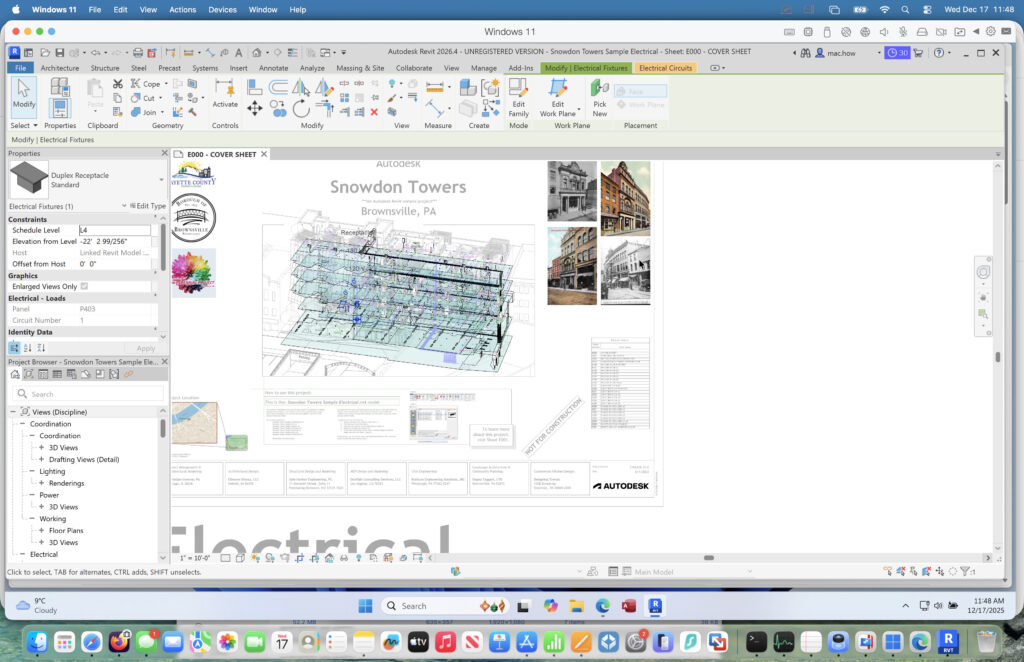
A virtual machine allows you to run Windows on a Mac within macOS.
There are several virtual machines available for Macs but the most polished (and most effective at running Revit) is Parallels.
Parallels is by far the easiest virtual machine to setup and install Windows and works on both Intel Macs and the latest Apple Silicon Macs.
There is also VMware Fusion which is free to use but is more complicated to setup and less reliable than Parallels at running Revit.
On Apple Silicon Macs (M1-M5 chips), virtual machines can only run Windows ARM but Revit is fully compatible with it.
Using Parallels means you don’t have to restart your Mac when you want to use Revit – you can just switch to macOS as you do when you want to use any other application.
Just follow these instructions to install Revit using Parallels:
- Download a free trial of Parallels and then follow the setup instructions to install Windows 11. If you have any problems with it, you can check out our instructions how to setup Parallels.
- Purchase Revit or download a free trial to try it first. If you’re a student or educator you can also use Revit for free with an Autodesk Education Plan but this is strictly for non-commercial use and you’ll need to prove your student status.
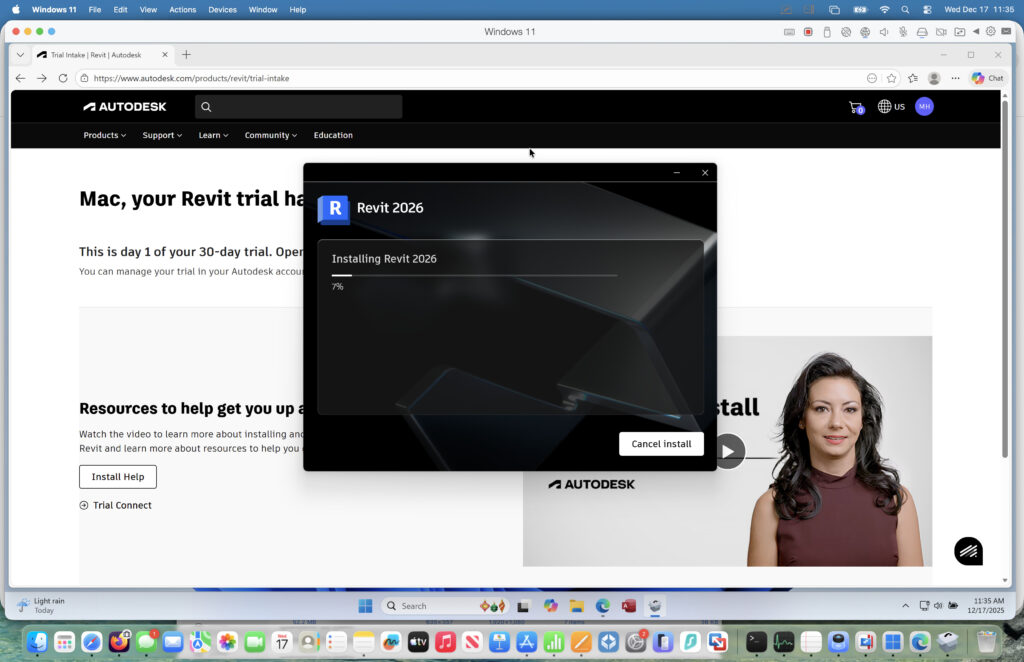
- Run the Revit installer within Windows on your Mac. This can take up to 10-15 minutes to complete as it downloads the installer, packages and updates required to run Revit.
I strongly recommend dedicating at least 30GB of RAM to Parallels on your Mac when running any kind of CAD software, especially if you’re dealing with 3D objects. The recommended settings in Parallels are simply not enough to handle it well and it was painfully sluggish to use when I first tried.
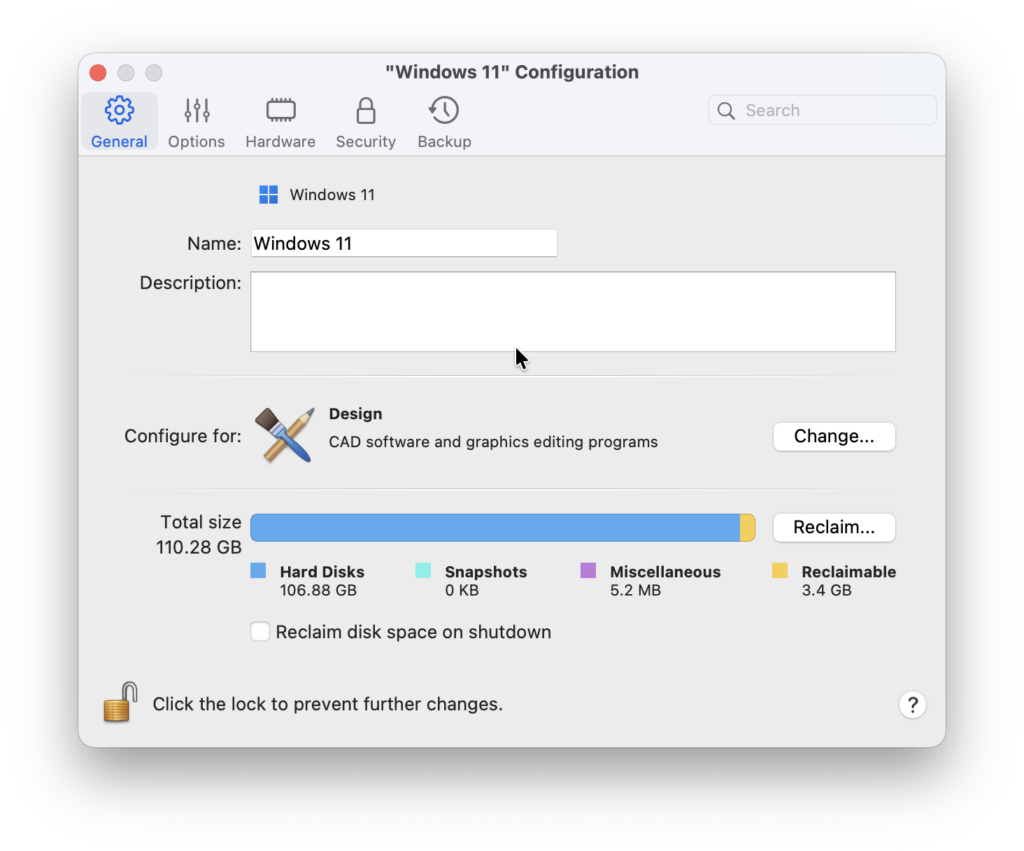
To change this, make sure that Windows is shut down in Parallels and go to Actions > Configure select the Hardware tab > CPU and Memory and change the Memory and CPU settings manually.
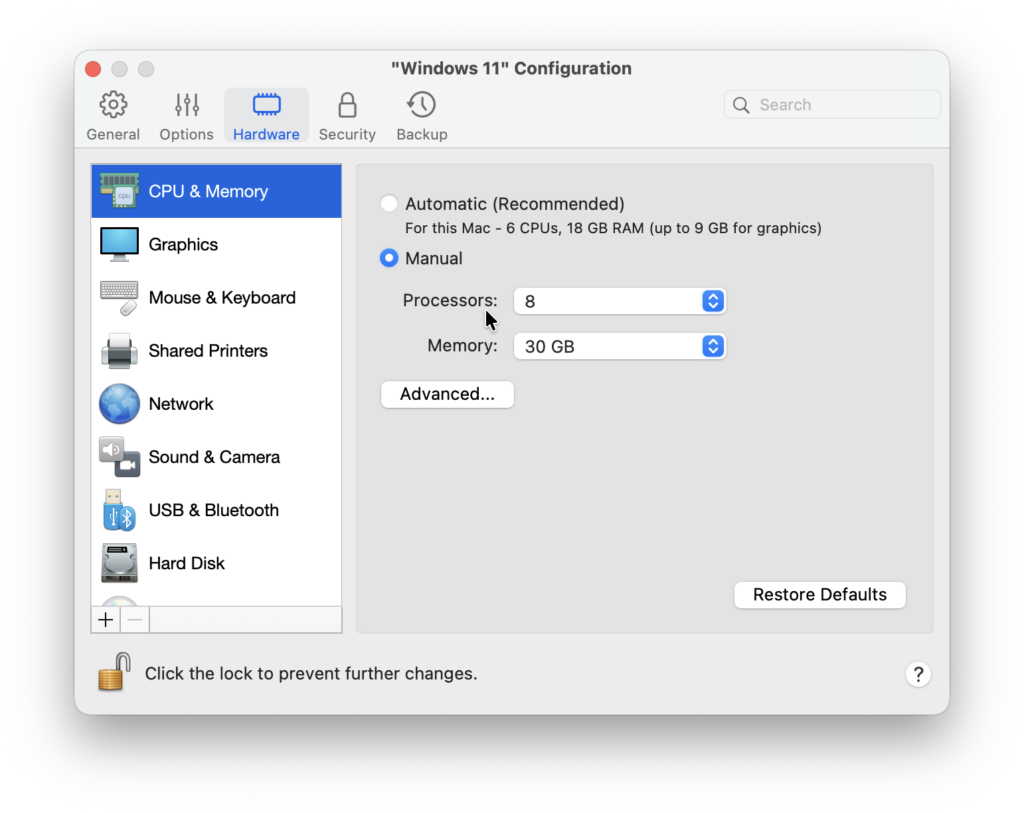
Once I’d increased it to 30GB of RAM and 8 Processors, I noticed a big improvement although there is still some lag which is unavoidable with CPU intensive apps like Revit.
Apart from allocating as much RAM and CPU power as possible to Parallels, I’d also recommend optimizing it for CAD work by going to Actions > Configure and in the General tab, select “Design”.
You can watch me running Revit in Parallels below with these settings. As you see, it runs pretty well although even with a lot of Memory and CPUs dedicated to Parallels, it still gets laggy when trying to manipulate 3D graphics.
2. Using Remote Access Software
Another way to use Revit on a Mac is through remote access software, which lets you connect to and control a PC with Revit installed on it from your Mac.
Remote access tools enable you to run applications on a different computer as if they were on your own machine. Some of these tools are free, while others may require a subscription or a one-time purchase.
To remotely run Revit on your Mac, you’ll need:
- Remote access software on your Mac, such as the free Windows App (formerly Microsoft Remote Desktop). There are other options such as RemotePC however that you can use instead.
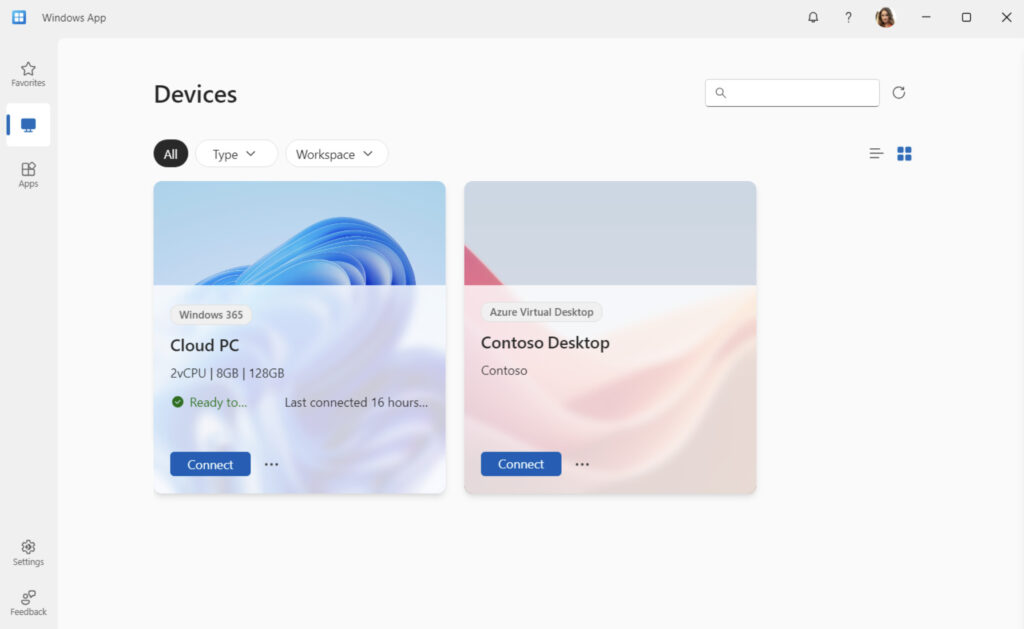
- A remote Windows PC with Revit installed.
Using Revit remotely isn’t as effective as using a virtual machine. The performance is heavily dependent on the stability and speed of your internet connection, which can lead to significant lag and delays.
Additionally, remote access may limit your ability to do things such as drag and drop files from your Mac or access files on an external device.
For more options, you can explore our guide on the best remote desktop software for Mac to find the right tool for your needs and budget.
3. Using Boot Camp (Free, Intel Macs Only)
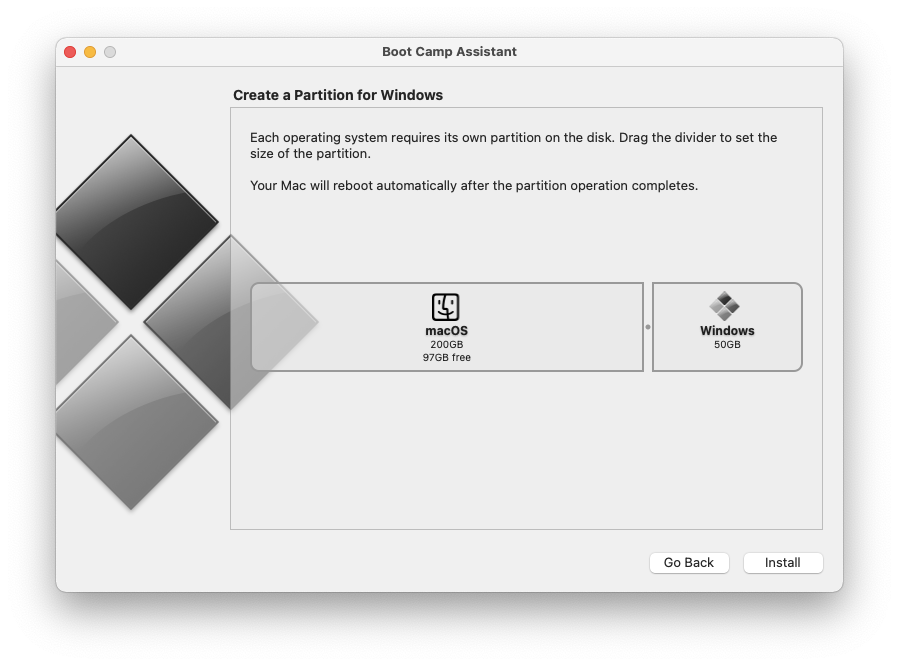
Boot Camp is a built-in utility in macOS that allows you to run either macOS or Windows on your Mac by dual-booting.
Unlike a virtual machine like Parallels, which lets you operate macOS and Windows simultaneously, Boot Camp requires you to boot into one operating system at a time. Switching between macOS and Windows involves restarting your Mac and selecting the desired OS.
It’s important to note that Boot Camp is only available on Intel-based Macs. It is not compatible with the latest Apple Silicon Macs (M1-M5 chips).
If you have an Intel Mac, you can install Revit by following these steps:
- Install Windows on your Mac using Boot Camp by following these instructions. When setting up, make sure to allocate as much space as possible for the Windows partition, as Revit requires significant disk space. If your internal storage is limited, consider using an external hard drive – preferably a Thunderbolt drive – for installing Windows and running Revit.
- After installing Windows through Boot Camp, download and install a free trial or a purchased version of Revit within the Windows environment on your Mac.
FAQ
Does Revit work on Apple Silicon Macs?
Yes. Revit runs on Apple Silicon Macs using virtual machines, the best ones being:
Windows ARM includes x64 emulation, which allows Revit to run reliably. Performance is generally very good with sufficient RAM, ideally 30GB or more.
Why is there still no Revit for Mac?
Autodesk has never officially explained this, but likely reasons include:
- High development and maintenance costs
- Smaller Mac market share in AEC industries
- Heavy reliance on Windows-specific APIs
Which method is best for running Revit on a Mac?
- Parallels Desktop: Best overall experience and Apple Silicon support
- VMware Fusion: Best free option although I haven’t tested this
- Remote Desktop: Best if you already have a Windows PC with Revit installed
- Boot Camp: Best performance (but Intel Macs only)
Will running Revit on a Mac hurt performance?
- Virtualization is slower than native Windows
- Boot Camp delivers near-native performance
- Apple Silicon Macs with enough RAM perform extremely well in Parallels
For most needs, the performance difference is no longer a deal-breaker in 2025.
Can I use an external GPU (eGPU) with Revit?
- eGPUs only work with Intel Macs
- eGPUs do NOT work with Apple Silicon Macs
- eGPUs do not accelerate Windows virtual machines effectively
As a result, eGPUs are not recommended for Revit on modern Macs.
How can I transfer files between macOS and Windows?
Both Parallels and VMware Fusion support:
- Shared folders
- Drag-and-drop
- Cloud storage syncing
Note that I find setting-up shared folders and exchanging files easier in Parallels than VMware Fusion.
Are there any free ways to run Revit on a Mac?
- Boot Camp (Intel Macs)
- VMware Fusion (free for personal use)
- Autodesk Education Plan (students and educators)
- Remote Desktop (if you already own a Windows PC)
Can you get Revit for free?
There is no free commercial version of Revit. However, students and educators can use Revit for free via the Autodesk Education Plan (non-commercial use only) but you must prove your student status to access this.