


Microsoft has never released a native macOS version of Microsoft Access, but you can run Access on a Mac – reliably and with full database functionality – using a few easy methods.
You can also view Microsoft Access files on a Mac for free using Microsoft 365 Access Runtime.
In this guide, we’ll walk you through the best ways to use Access on any Mac, including Apple Silicon models with the M1, M2, M3, M4 and M5 chips.
Whether you’re a student, an administrator maintaining legacy Access databases, or an analyst who depends on .ACCDB files at work, here’s everything you need to know.
If you’re looking for an alternative to Microsoft Access, we also recommend checking our look at the best Microsoft Access for Mac alternatives for more permanent solutions.
Why Microsoft Access Doesn’t Work on macOS
Microsoft Access is built only for Windows with and requires specific Windows components such as:
- JET/ACE database engine
- VBA for Access
- DAO/ADO drivers
- ActiveX controls
Since none of these frameworks exist on macOS, Access must be run through a Windows environment – either virtualized or streamed remotely.
The Best Ways To Run Microsoft Access on a Mac
There are four reliable methods that work in 2026:
- Virtual Machine (Parallels Desktop) – Best for Most Users
- CrossOver (CodeWeavers) – Lightest Solution, But Not 100% Compatible
- Windows 365 Cloud PC – Best for Corporate Use
- Remote Desktop to a Windows PC – Good for Occasional Users
Let’s break each option down with steps, pros/cons, and what works best.
| Method | Best For | Pricing (Approx.) |
|---|---|---|
| Parallels Desktop + Windows | Most reliable full-featured Access on Mac | Parallels Desktop Standard: $99.99/year subscription or $219.99 one-time license (perpetual) for the app; plus Windows 11 license ($199.99, if you need a full license). |
| CrossOver (CodeWeavers) | Lightweight way to run some Windows apps without full Windows but Access support is flaky | CrossOver+ annual: $74.00/year (subscription) or one-time CrossOver Lifetime license ($494 for long-term updates; support period applies). |
| Windows 365 Cloud PC | Corporate / cloud streaming of full Windows + Access | Cloud PC subscriptions start around £24.30–£35.60 per user/month (£292–£427/year depending on config & RAM/CPU). |
| Remote Access to Windows PC | Cheapest for occasional users but less control over what you can do | Free using Microsoft Remote Desktop / Chrome Remote Desktop (but requires an existing Windows PC with Access installed) – no new cost for remote tools themselves. |
1. Run Microsoft Access on a Mac Using Parallels (Recommended)
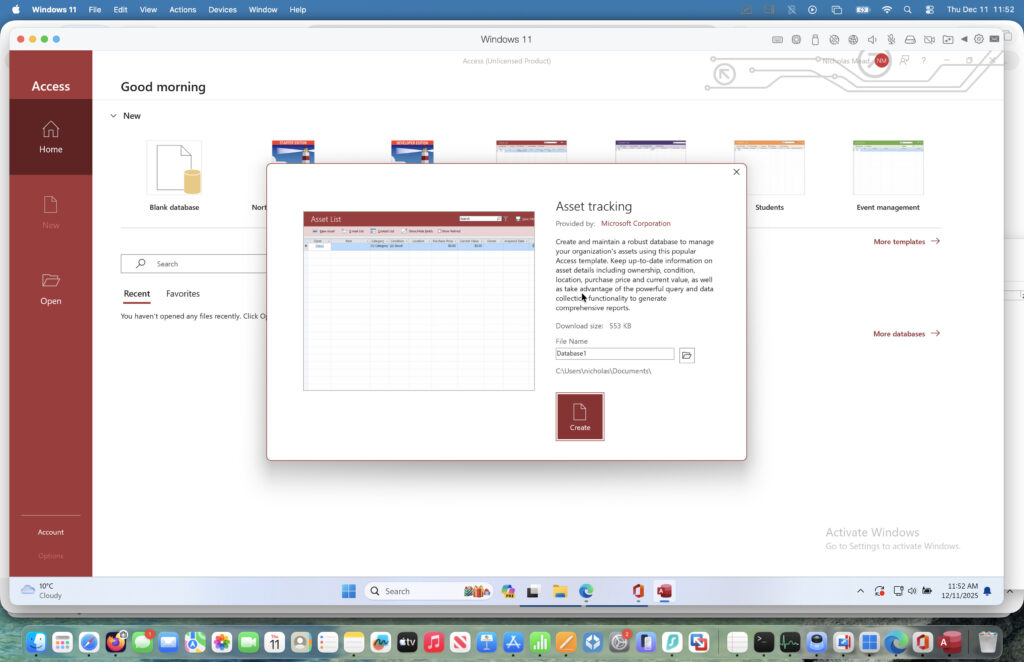
- Works on Intel & Apple Silicon Macs
- Runs full Windows 11 ARM with x86 emulation
- Compatible with Microsoft 365 Access and standalone Access versions.
Parallels remains the easiest and most reliable way to run Access on an M-series Mac. Windows 11 ARM now includes Microsoft’s built-in x86 and x64 emulation, so Access installs and runs as if you were on a Windows PC.
If you don’t want to pay for Parallels, you could also use VMware Fusion to install Windows although it’s not as good as Parallels and I haven’t tried running Access in it. For more, check out our comparison of Parallels vs VMware Fusion.
What You Need
- Parallels Desktop Standard/Pro
- A Windows 11 ARM license
- Microsoft 365 Business Standard subscription or Microsoft 365 Access Runtime installer if you just want to view Access files.
Steps
1. Install Parallels Desktop
Download Parallels from their official site and install it on your Mac. You can try a free trial first. You can watch how to install Parallels on a Mac below.
2. Install Windows 11 ARM
Parallels will download and install Windows 11 ARM automatically with one click. Once complete, Windows boots in a resizable window or full-screen mode.
3. Install Microsoft Access
You can then install Access in two ways:
- Sign in to your Microsoft 365 account and choose Access during Office installation. Note that you will need a Microsoft 365 Business Standard subscription or higher – Access is not included in non-business Microsoft 365 subscriptions. You can subscribe monthly or annually and there’s a 30 day free trial before you get charged.

- OR alternatively you can install Microsoft 365 Access runtime which allows you to view Microsoft Access files via the Microsoft installer
You can now use Access on your Mac – even large ACCDB files, VBA macros, and ODBC connections will work.

Performance Notes
- Runs smoothly on M1/M2/M3/M4/M5 processors
- Supports USB devices (e.g., printers and scanners)
- Works with Access front-ends that connect to SQL Server databases
Pros
✔ Best compatibility
✔ Fastest performance
✔ Supports full Windows ecosystem
✔ Easy setup
Cons
✘ Requires a Windows license
✘ Parallels requires a subcription
Other Ways To Run Access on a Mac
There are other ways to use Access on a Mac but these either won’t be as effective as a virtual machine or won’t give you as much control over what you can do.
2. Run Microsoft Access on a Mac Using CrossOver
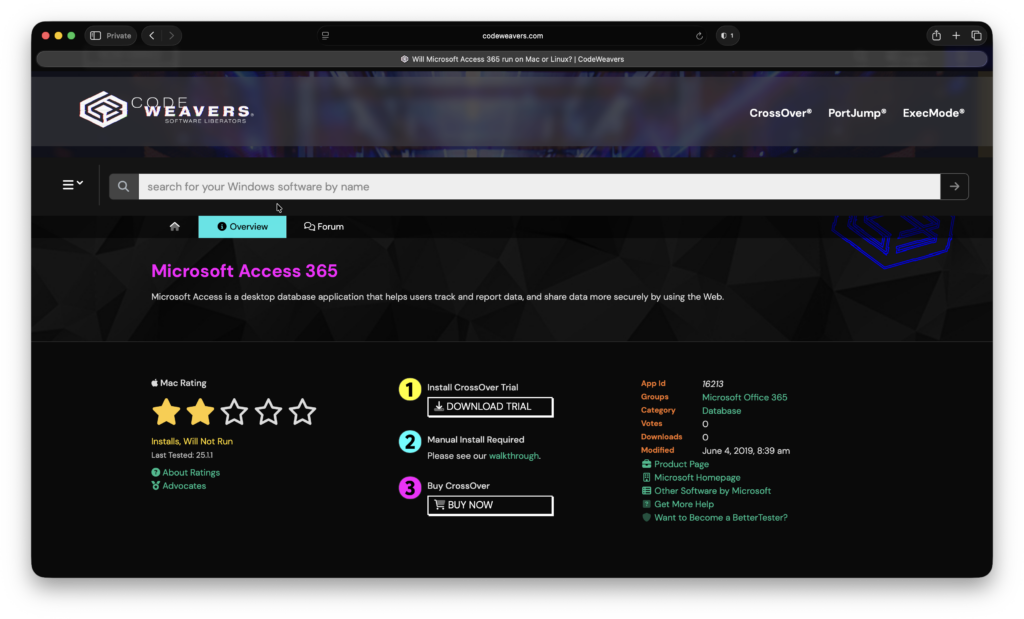
CrossOver uses a Wine-based compatibility layer to run Windows applications without installing Windows. It is lightweight and cheap, but Access compatibility is mixed.
Crossover is generally better for gaming than running applications but if you already have a Crossover subscription or don’t want the hassle of a virtual machine, it’s worth a try.
You can try Crossover for free and also get 15% off if you subscribe.
For more check out our full Crossover review.
Important for 2026
- Access 2010 may launch
- Access 2016/2019/2021/365 usually fails due to required Windows frameworks
- ACE drivers and ODBC connectors are inconsistent
- Database corruption is possible
Who Should Use CrossOver?
Only if:
- You only need Access for very basic viewing
- You want to avoid installing Windows
- Your database is older and doesn’t rely on VBA or ODBC
For serious work, Parallels is strongly recommended instead.
3. Run Access on a Mac Using Windows 365 (Cloud PC)
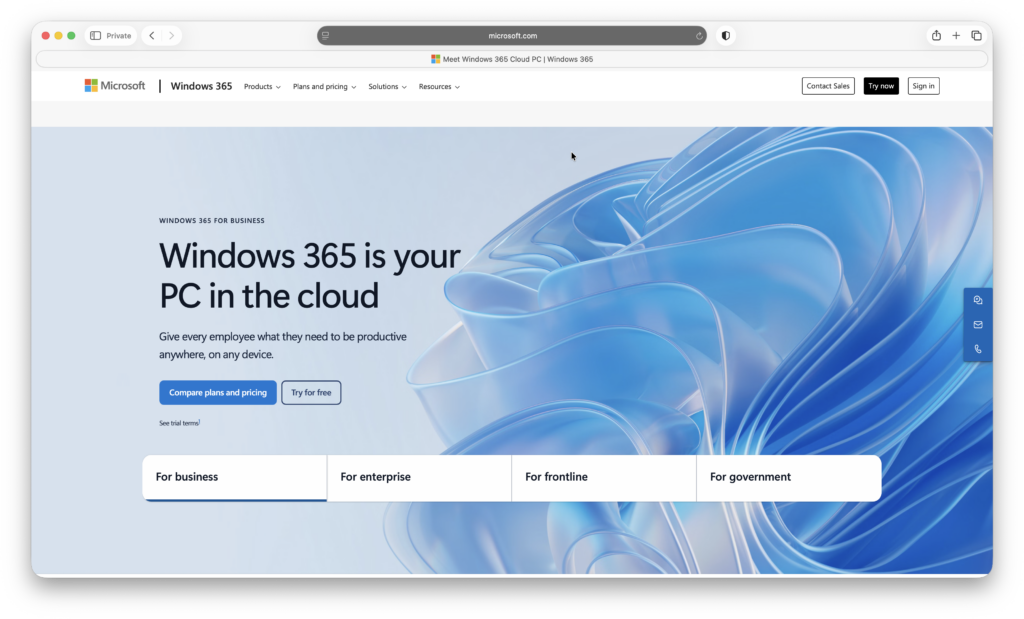
Windows 365 is Microsoft’s cloud-based Windows desktop. It streams a full Windows PC to your Mac. There’s no installation required although we recommend connecting it using Windows App (formerly Microsoft Remote desktop) which is free from the Mac App Store.
How It Works
- Subscribe to Windows 365 Business/Enterprise
- Launch Windows via your browser or Windows app
- Install Microsoft Access inside the cloud PC
- Your Access databases live either in OneDrive, SharePoint, or your Mac’s synced folders
Who Is This Best For?
- Corporate users with IT controls
- Teams who need consistent Access environments
- Macs with limited storage or older hardware
Pros
✔ No need to manage Windows
✔ Works instantly on any Mac
✔ Corporate-grade reliability
Cons
✘ Subscription required
✘ Requires stable internet
✘ Can feel slightly laggy for large tables
4. Run Access on a Mac by Remote Access to a Windows PC
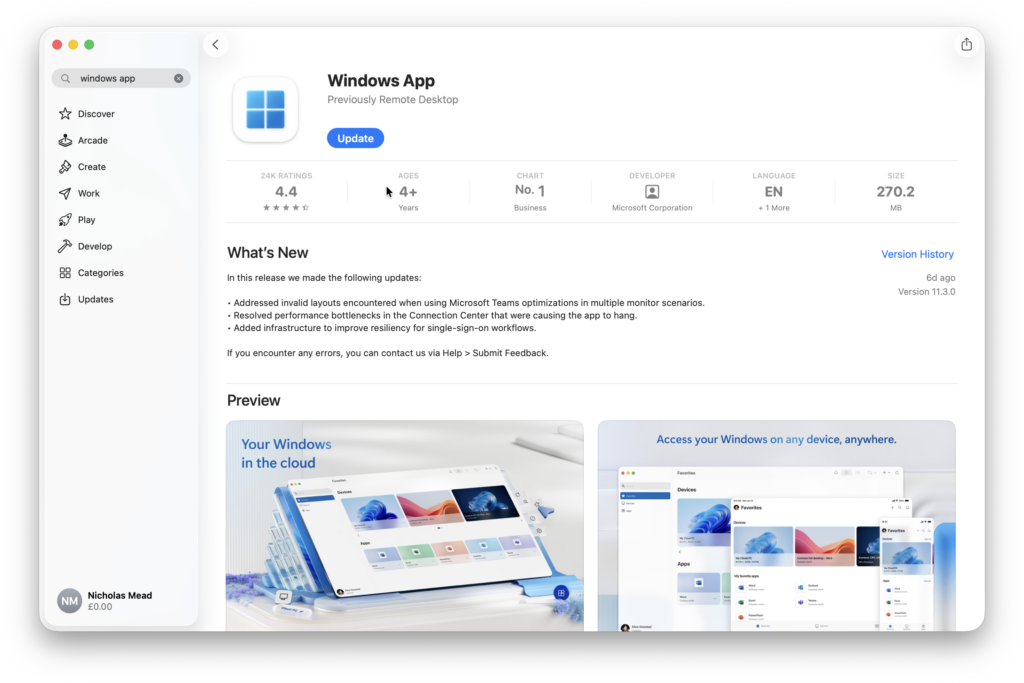
If you have a Windows computer somewhere – a home PC or office machine – you can access it from your Mac using remote desktop software.
Examples include:
- Windows App (formerly Microsoft Remote Desktop)
- Chrome Remote Desktop
- AnyViewer / TeamViewer / AnyDesk
Steps
- Install the remote-desktop software on the Windows PC
- Leave the PC powered on
- Connect from your Mac
- Run Microsoft Access normally
Pros
✔ Free (RDP/Chrome Remote Desktop)
✔ No installation on your Mac
✔ Access uses full native Windows performance
Cons
✘ Requires a Windows machine running at all times
✘ Lag if your connection is slow
✘ Not ideal for travel
FAQ
Can You Open ACCDB or MDB Files on macOS Natively?
Native macOS apps like LibreOffice Base, MDB ACCDB Viewer (paid), or OpenOffice Base can view or export Access databases, but they do not support:
- Forms
- Reports
- VBA
- Macros
- Linked tables
- Access applications (front-end/back-end solutions)
If you need full Access functionality, you must use Windows. For more, check out our guide on how to open Access files on Mac.
Tips for Running Access on Apple Silicon Macs
- Avoid excessively large ACCDB files (>2GB); split them into front-end/back-end
- Use SQL Server, MySQL, or PostgreSQL if you need multi-user access
- Keep database backups in OneDrive or Time Machine
- Disable hardware-accelerated display in some VMs if Access renders oddly
Conclusion
Even though Microsoft refuses to bring Access to macOS, running it on a Mac is easier than ever thanks to virtualization, cloud PCs, and compatibility layers. For most users, Parallels + Windows 11 ARM provides the smoothest, most reliable experience and is nearly indistinguishable from using a native Windows machine.