

Whether you’re automating repetitive tasks, increasing efficiency, testing software, or keeping games like Roblox active while AFK, a simple auto clicker for your Mac can solve your problem instantly.
However, macOS is more locked down than most operating systems and finding safe and effective auto-clickers is a little tricky.
We’ve found there are quite a few auto-clickers out there (such as iMouseClick) that don’t have an official website or are only available via third party download websites – which we definitely don’t recommend downloading onto a Mac!
Others such as “iAutoClicker” and “Autoclicker” have terrible reviews on the Mac App Store and clearly don’t do what they claim.
However, fear not as we’ve done the research and testing to see which are the best and most reliable auto clicker apps for macOS in 2026.
Contents
- Why Use an Auto Clicker on a Mac?
- Using AutoClickers with Roblox & Minecraft
- Best AutoClickers For Mac
- 1. AutoClicker by MurGaa
- 2. OP Auto Clicker
- 3. MT Auto Clicker
- 4. MaClicker
- 5. Othyn Auto Clicker
- 6. Automator + AppleScript
- Why Are iMouseTrick, iAutoClicker, Autoclicker and Auto Clicker Mac Not On This List?
- Safety & macOS Permissions
- FAQ
Why Use an Auto Clicker on a Mac?
Auto clickers aren’t just for gamers – they serve a variety of practical purposes:
Stay Logged Into Games While AFK
Many users use auto clickers to prevent games like Roblox and Minecraft from logging them out when inactive. An auto clicker can simulate harmless clicks to keep your session active, whether you’re farming in-game resources or waiting in a lobby.
Reduce Repetitive Strain
If your work involves repeated clicking – moderating content, QA testing, or dashboards for example – an auto clicker can help prevent repetitive strain injuries.
Software Testing & QA
Developers often use auto clickers to stress-test apps, simulate repeated input, and identify UI or functionality issues efficiently.
Automate Mundane Tasks
Auto clickers can handle repetitive tasks like:
- Clicking through dialogs
- Refreshing dashboards
- Triggering timed actions in apps
This makes them a simpler alternative to full scripting with Automator or AppleScript (which we’ll also show you how to do here).
Accessibility & Assistive Use
Some users rely on auto clickers as an accessibility aid, helping those with limited motor control or temporary injuries interact with apps more easily.
Using AutoClickers with Roblox & Minecraft
Auto clickers can make repetitive tasks easier in Roblox and Minecraft, but they come with risks. Some games consider automation cheating, which could lead to being kicked, losing progress, or account restrictions.
Some tips we’d recommend for safer use of these auto clickers with games such as Roblox and Minecraft are:
- Check each game’s rules before using an auto clicker.
- Avoid extremely fast, consistent clicks – randomized intervals are safer.
- Only download from trusted sources to protect your Mac.
Use auto clickers responsibly, ideally for non-competitive or casual gameplay like staying AFK or collecting resources.
Best AutoClickers For Mac
Before diving into detailed reviews, here’s a quick comparison of the top auto clickers for Mac in 2026. You’ll see that all of these are free, although a few also offer more advanced paid versions.
| Tool | Best For | Price |
|---|---|---|
| AutoClicker by MurGaa | All-round use | Free / Paid Pro version |
| OP Auto Clicker | Simplicity and Roblox and Minecraft usage | Free |
| MT Auto Clicker | Customized automation | Free / Paid Pro version |
| MaClicker | Those that like open source apps | Free |
| Othyn Auto Clicker | Modern UI & ease of use | Free |
| Automator + Applescript | DIY Mac users that understand Applescript | Free |
1. AutoClicker by MurGaa
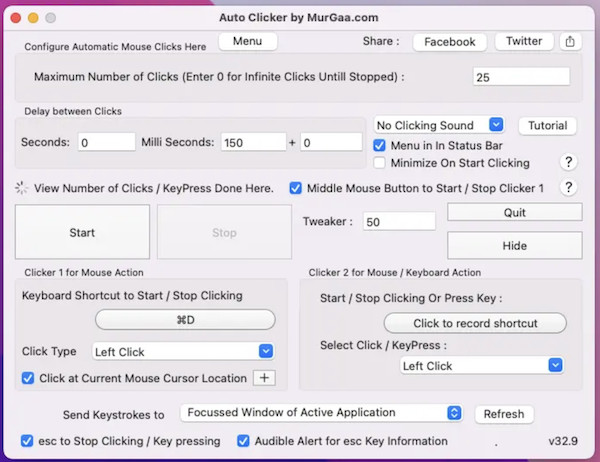
A well established choice for Mac users, MurGaa AutoClicker offers lots of customization and precision, supporting both Intel and Apple Silicon Macs. It lets you customize click intervals, frequency, and schedules, and includes reliable hotkey start/stop options. Many people use it for productivity tasks, QA testing, and gaming automation. While the interface may feel dated, it’s highly reliable and versatile for all types of user.
Pros:
- Customizable click intervals, frequency, schedule
- Reliable hotkey start/stop
- Works across macOS versions
Cons:
- UI feels outdated
- May overwhelm beginners at first
Best for: Users who want precision and advanced control.
2. OP Auto Clicker
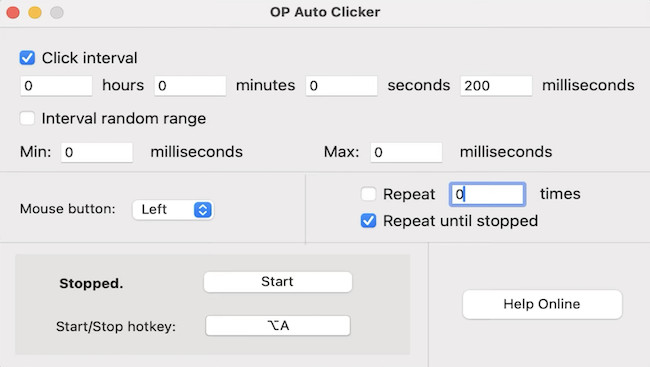
OP Auto Clicker is ideal for beginners or anyone needing a simple auto clicker for repetitive tasks. It’s also popular with Roblox and Minecraft users on Mac that need a solution when they are AFK. It supports rapid clicking at user-defined intervals and basic hotkey control. While some macOS users report occasional glitches, it remains popular for casual gaming and productivity automation. Its lightweight design makes it fast to install and run without affecting system performance.
Pros:
- Simple and intuitive
- Fast setup for beginners
- Popular with Roblox users
Cons:
- Occasional hotkey or stability issues
Best for: Casual users or basic automation.
3. MT Auto Clicker
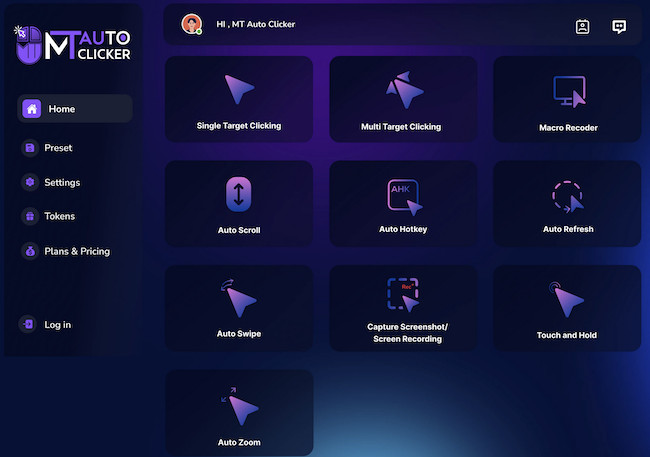
MT Auto Clicker is designed for users needing high-speed automation and multi-target clicking. It supports sequences, timers, and even built-in screen recording, making it perfect for developers and testers performing repetitive QA tasks. While it’s a newer tool than the others, it’s the slickest auto-clicker we’ve seen and offers advanced features that go beyond simple click simulation.
Pros:
- Clicks as fast as 1 ms
- Multi-target and sequence automation
- Built-in recording tools
- Slick interface
Cons:
- New app, may not be reliable
Best for: Developers, testers, and power users.
4. MaClicker
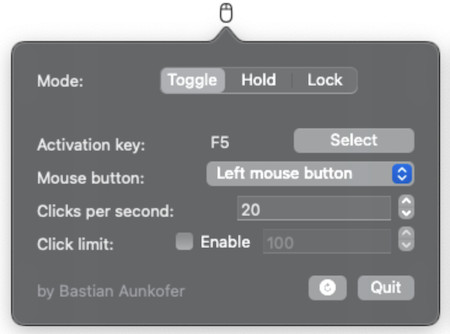
MaClicker is a transparent, free, and highly configurable auto-clicker. It supports adjustable click speeds and activation modes and can be adapted for simple or slightly complex tasks. The lack of professional support and manual setup required for macOS permissions may put-off beginners, but advanced users often prefer it for its flexibility and safety.
Pros:
- Free and open-source
- Configurable click speed and activation modes
Cons:
- No professional support
- Requires manual permission setup
Best for: Users who value transparency and control.
5. Othyn Auto Clicker

Othyn Auto Clicker features a clean SwiftUI-based interface with modern macOS design. It supports global hotkeys, multi-click sequences, and works well on macOS Big Sur and later. Many users highlight its ease of use and reliability, although it’s not officially notarized for downloading from the Mac App Store. It’s ideal for Mac users who want both simplicity and advanced customization.
Pros:
- Clean UI, easy to use
- Global hotkey support
- Works on all versions of macOS Big Sur or later
Cons:
- Not officially notarized
Best for: Mac power users who want a modern interface.
6. Automator + AppleScript
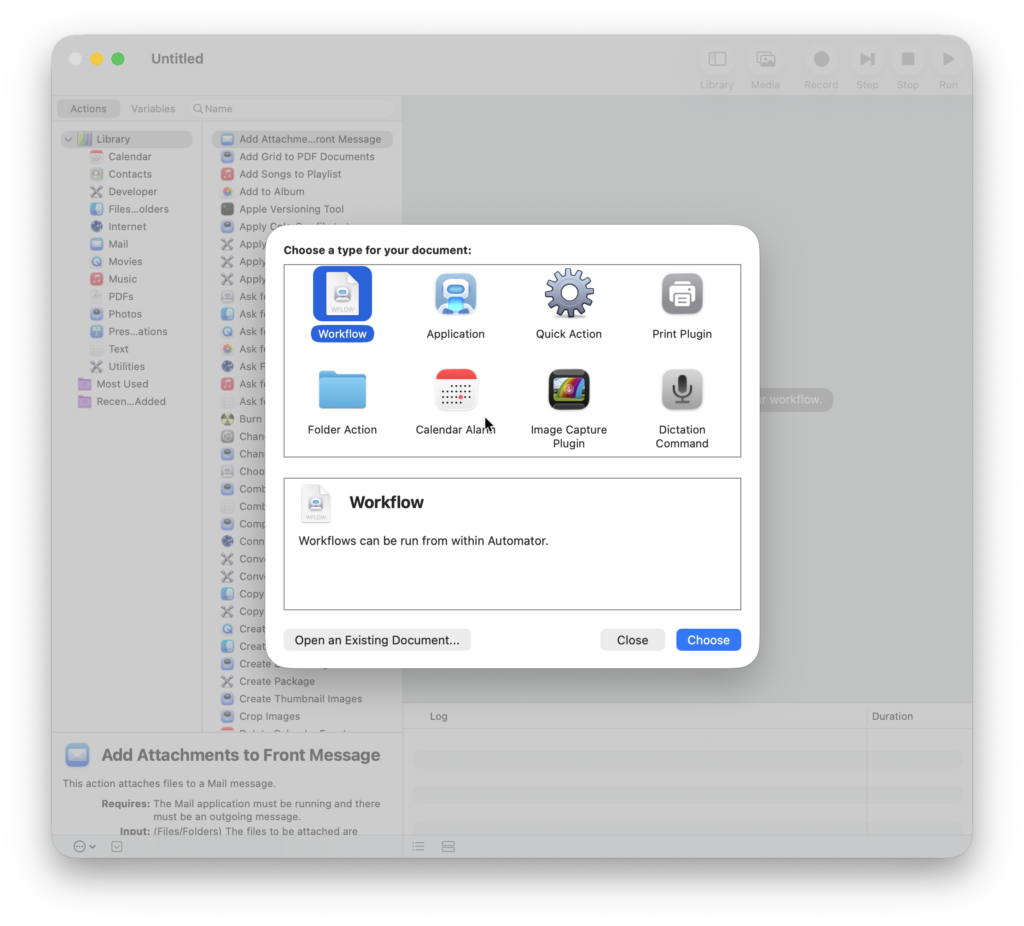
Automator and AppleScript are free tools in macOS that let you create fully custom click automation without third-party software. They’re free, macOS native, and secure, though they require scripting knowledge or some setup time. Users can automate anything from simple repetitive clicks to complex sequences, making it ideal for developers or anyone who wants a fully integrated auto-click solution without installing extra apps.
Here an example of AppleScript you can use to create an auto clicker:
repeat 100
delay 0.5
tell application “System Events”
click at {500, 500}
end tell
end repeat
If you’re unfamiliar with both AppleScript and Automator, you can get help from Apple on how to use them together.
Best for: Developers or enthusiasts comfortable with scripting who want a free, native solution.
Why Are iMouseTrick, iAutoClicker, Autoclicker and Auto Clicker Mac Not On This List?
“iMouseTrick” auto clicker does not have an official site and is only available via third party download sites which we would not recommend downloading from.
“iAutoClicker” and “Autoclicker” are available on the Mac App Store still but have atrocious reviews so our advice is to stay well away from these.
“Auto Clicker Mac” seems to have been discontinued since around 2022 (when it was last updated) and the domain macautoclicker.com also gets a low score of 31.9/100 from Scam Detector so again, our advice is stay away from this one.
Safety & macOS Permissions
There’s a few safety tips we’d recommend when installing these apps, especially since they are effectively controlling how your Mac behaves:
- Download from trusted sources such as the developer website or Github for open source software
- Enable Accessibility permissions only when needed
- Keep macOS updated to ensure that it is secure against malicious software
FAQ
What is an auto clicker for Mac?
Auto clickers are software that automatically simulate mouse clicks at chosen intervals, reducing repetitive work or keeping apps active while away.
Is using an auto clicker safe on a Mac?
Yes, if you use trusted software and grant Accessibility permissions. We recommend avoiding apps that can’t be downloaded directly from the developer or that are only hosted on third party download sites.
Can I use an auto clicker for games like Roblox?
Yes, to prevent AFK logouts or automate repetitive tasks. You must check game/app terms first though to prevent violations.
Will an auto clicker work on Apple Silicon Macs?
Most modern auto clickers, including MurGaa, MT Auto Clicker and AutoClicker support Apple Silicon Macs.
Are there free auto clickers for Mac?
Yes – OP Auto Clicker, MaClicker, Othyn and trial versions of MurGaa or MT Auto Clicker.
Can I automate clicks without installing software?
Yes – use macOS Automator or AppleScript. Setup is more technical but native to macOS and free.
Can auto clickers help with productivity?
Absolutely – they can reduce repetitive strain, automate mundane tasks, or test software efficiently.
Are there any risks of using an auto clicker?
Potential risks include malware, accidental misclicks, or violating app/game terms so they must be used responsibly.