

Quick Answer:
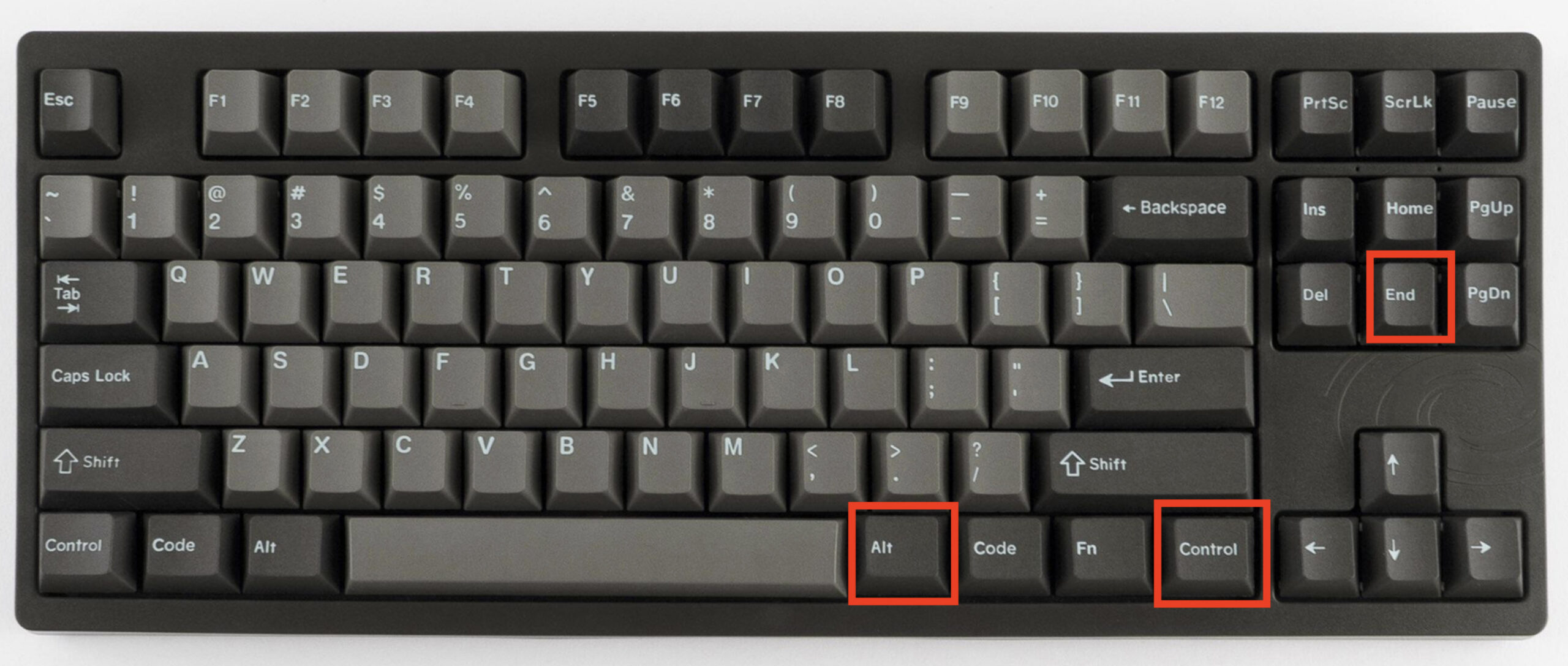
- Windows > Ctrl + Alt + End
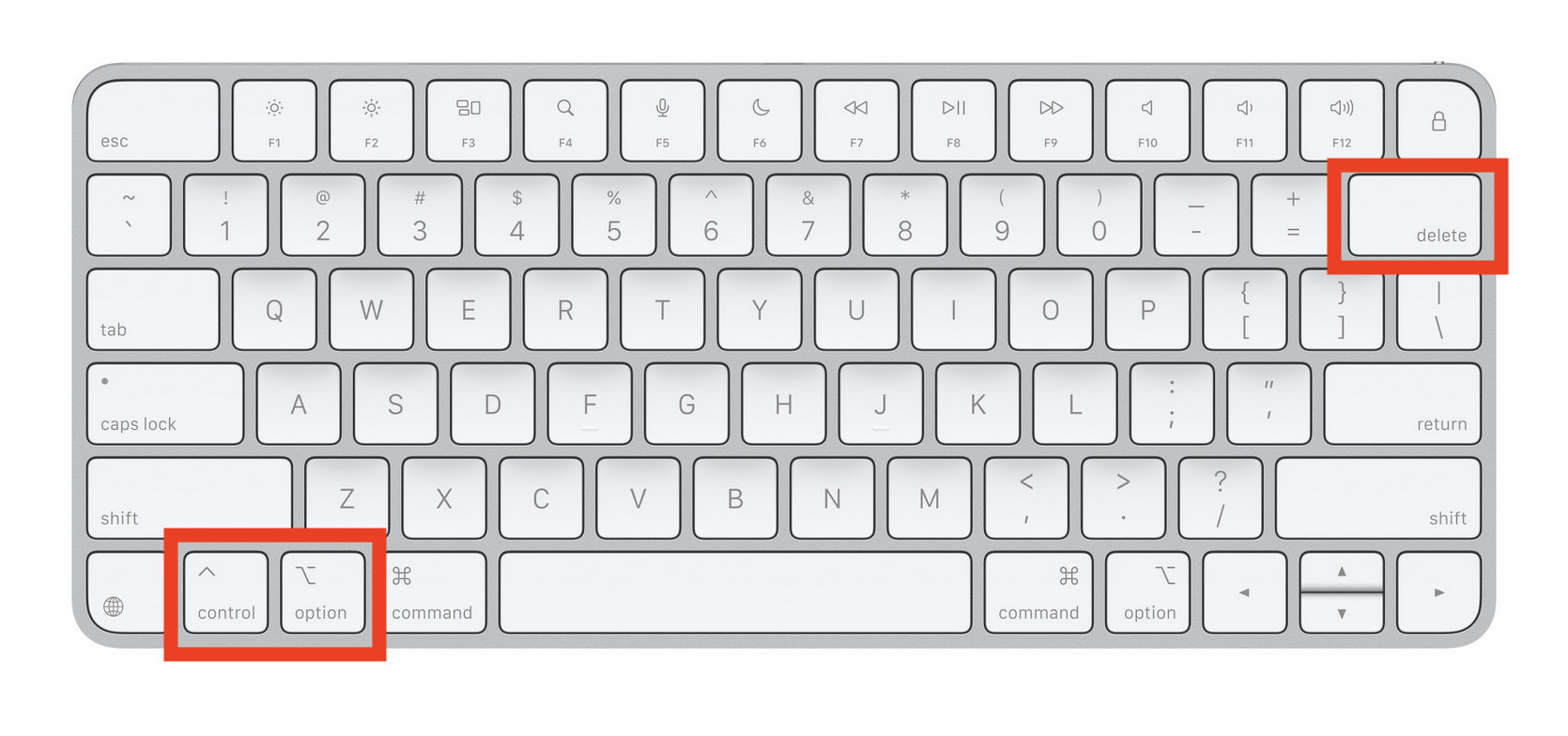
- Mac > Control + Option + Delete
- Any device > Use the app menu
If you’ve ever tried pressing Ctrl + Alt + Delete to Force Quit an application when using remote desktop software, you’ve probably noticed… nothing happens on the remote PC.
That’s because your local computer intercepts the keyboard shortcut, not the remote machine.
This is a very common issue – especially for Mac users connecting to Windows PCs – but there’s a very easy solution to it.
Quick Answer: Ctrl Alt Delete Remote Desktop
Here’s how to send Ctrl + Alt + Delete in Remote Desktop:
- Windows: Press Ctrl + Alt + End
- Mac: Press Control + Option + Delete
- Any device: Use the Remote Desktop menu → Send Ctrl Alt Delete
These shortcuts send the command to the remote PC instead of your local machine.
Why Ctrl Alt Delete Doesn’t Work In Remote Desktop
Ctrl + Alt + Delete is a secure system command (Secure Attention Sequence).
This means:
- Your operating system always intercepts it first
- It cannot be passed through normally to a remote session
So when you press it:
- Your local device responds
- The remote PC never receives it
Here’s a look at each method in more detail.
Method 1: Ctrl + Alt + End (Windows PCs)
This is the standard shortcut on Windows.
Steps:
- Open your Remote Desktop session
- Click inside the remote window
- Press:
Ctrl + Alt + End
On some laptops you may require:
- Use Ctrl + Alt + Fn + End
Method 2: Control + Option + Delete (Mac)
If you’re using a Mac with the Microsoft Remote Desktop app, use:
Control + Option + Delete
Notes:
- Option = Alt (Windows equivalent)
- Works in most Remote Desktop apps on macOS
On some Macs, you may need to press:
- Fn + Control + Option + Delete
Method 3: Use The Remote Desktop Menu (Works Everywhere)
Most remote desktop tools include a built-in option.
Look for:
- Menu bar > Actions
- Toolbar > Send Ctrl Alt Delete
This works in:
- Microsoft Remote Desktop
- TeamViewer
- AnyDesk
This is the most reliable method if shortcuts don’t work.
Method 4: Use The On-Screen Keyboard
If nothing else works:
- Open On-Screen Keyboard on the remote PC
- Click Ctrl and Alt using your mouse
- Press Delete on your keyboard
This triggers Ctrl + Alt + Delete inside the remote session.
When You Need Ctrl Alt Delete In Remote Desktop
You’ll typically use it to:
- Log into a Windows PC
- Open Task Manager
- Change your password
- Lock or sign out
Common Problems (And Fixes)
Shortcut Not Working
- Click inside the Remote Desktop window
- Try full screen mode
No End Key On Keyboard
- Use Fn + Right Arrow (common on Mac keyboards)
- Or use the menu method
Mac Delete Key Not Working
- Try Fn + Delete (forward delete)
- Then use the full shortcut again
FAQ
How do I send Ctrl Alt Delete in Remote Desktop on a Mac?
Use Control + Option + Delete in Microsoft Remote Desktop.
What is the RDP shortcut for Ctrl Alt Delete?
Use Ctrl + Alt + End on Windows.
Why doesn’t Ctrl Alt Delete work in Remote Desktop?
Because it’s handled by your local operating system first, not the remote PC.
Can I send Ctrl Alt Delete from a browser?
Yes – use the Remote Desktop toolbar and click Send Ctrl Alt Delete.