

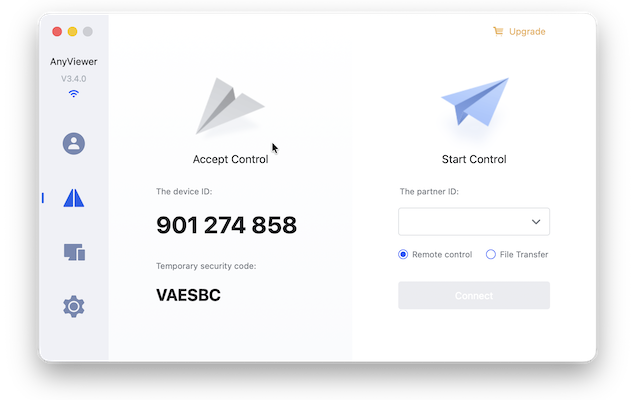
After testing a long list of remote desktop tools on my Mac – such as RemotePC, TeamViewer, Chrome Remote Desktop, Splashtop, Jump Desktop, and the built-in macOS Screen Sharing tool – I spent the past few weeks using AnyViewer to remotely access both Macs and Windows PCs.
Going in, I honestly wasn’t expecting much. AnyViewer doesn’t have the same name recognition as some of the bigger remote access brands. But after using it for real work tasks, remote troubleshooting, and even a bit of casual file management, I was surprised by how well it performed at remote desktop management on my Mac.
Here I take a closer look at what it can do and whether its worth getting over some of the more established remote desktop apps.
Contents
Setup & Getting Started
Setting-up AnyViewer is very straightforward. On my M3 MacBook Pro Mac installation took under a minute. There were no weird permission requests beyond the usual macOS screen recording + accessibility permissions.

A few things stood out:
- The login/registration process is unusually fast for a remote desktop app – no email confirmations or multi-step onboarding faff.
- Device pairing is automatic once you’re logged into the same account on each device.
- It recognized my Windows test machine instantly and displayed it in the “My Devices” panel without needing IP addresses or network tweaks.
Compared to some remote desktop tools I’ve used which often require extra configuration at this stage, this was refreshingly smooth.
Connection Quality & Performance
Performance is where AnyViewer surprised me most.
In my tests:
- Latency was low, even over a standard home broadband connection.
- Cursor movements were responsive and didn’t lag as much as I expected.
- Text remained readable during movement – there’s compression, but not the kind that turns everything into a blur.
- When connected to a Windows machine from my MacBook, the experience was close to native.
I also tried it on a weaker Wi-Fi network just to see how it would hold up. It did drop the frame rate, but it never became unusable – AnyViewer automatically lowered quality to maintain control responsiveness, which is exactly what you want from remote desktop apps.
You can also manually change the image quality if you’re having latency issues although the Ultra High Quality and High Quality settings are only available in the Pro version.

For everyday tasks like editing documents, moving files, or managing apps, it felt genuinely smooth.
Features I Found Most Useful
1. Unattended Access
Once devices are assigned to your account, you can connect without approval from the remote side.
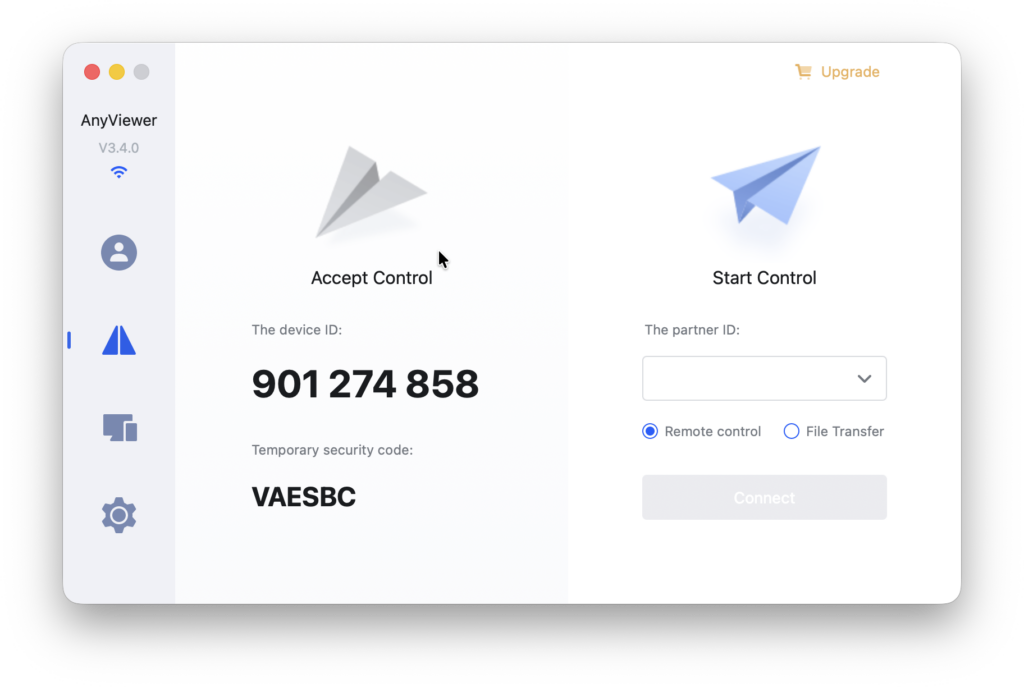
This is especially convenient when supporting family members or checking something on my office Mac when away from the house. Simply ask them to download the AnyViewer client, enter their Partner ID, make sure Remote Control is selected and click “Connect”.
2. Easy to Switch Between Functions
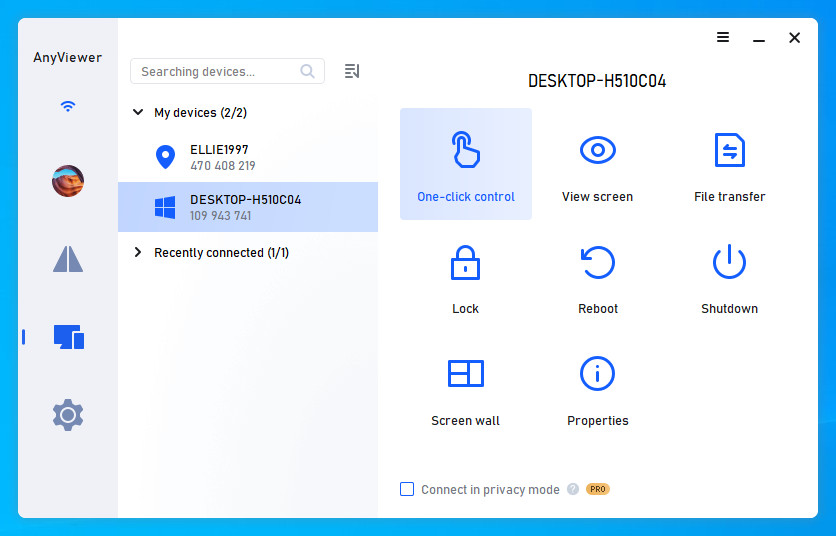
Once you’ve connected to a device, you can easily select what you want to do with it namely:
- One-click control
- View screen
- File Transfer
- Lock
- Reboot
- Shutdown
- Screen Wall (this allows an IT admin for example to view team devices together so that they can detect and fix remote device errors instantly).
- Properties
Be careful because the free version does not support privacy mode – you have to upgrade to a Pro plan for this – meaning your connections may not be 100% secure.
3. Multi-Monitor Support
AnyViewer also recognized multiple monitors and let me switch between them or view them simultaneously. This isn’t quite as polished as TeamViewer’s, but it works reliably.
4. File Transfer
File transfer was fast and easy by selecting files via the built-in file manager. However, drag-and-drop file transfers do not work on Macs using AnyViewer – only Windows to Windows file transfers support drag and drop unfortunately.
Note that if you just want to do a File Transfer and not remotely control another machine, you can select this method from the connection setup screen.

The documentation for AnyViewer claims transfers support “unlimited file quantity and format,” and individual files up to 1 TB which is very generous although I imagine would take absolutely ages to transfer a file that size.
5. Security

From a safety perspective use, sessions felt stable and are encrypted. Two-factor authentication and device binding options made me feel confident that no one else could access my machines.
You can also set the app to lock after 10 minutes of inactivity and and Lock AnyViewer if your Mac is locked.
6. Mobile to Mac & Mac to Windows
Using the iPhone app to control my Mac actually worked better than I expected. The touch controls felt natural which is an area where many remote desktop app struggle.
7. Configuring AnyViewer

The AnyViewer settings are neatly divided into Recipient, Controller, Keyboard, Security, and Basic, which makes it easy to tweak it how you want.
I set it to start on boot and prevent my Mac from sleeping so I could access it anytime without interruptions.
I also renamed my device for easier identification and chose a default folder for file transfers.
During sessions, I could adjust display quality, frame rate, and switch between monitors, while privacy and input controls let me hide the remote screen or block keyboard/mouse input.
Reliability
Over several weeks using it on-and-off, I found AnyViewer to be reliable most of the time. The most important things were:
- I didn’t experience random disconnections
- CPU usage stayed low on my M3 MacBook Pro
- The Mac didn’t run hot during sessions
- Long sessions (1–2 hours) remained stable without any crashing
There was a certain amount of latency at times but I have yet to test a remote desktop app that doesn’t suffer from this.
Downsides
There were areas where AnyViewer felt limited, mainly relating the the limitations imposed by the free plan and some things lacking compared to the Windows version of the app.
Free Plan Restrictions
The free plan is generous but definitely not enough for heavy or professional use (which is fair enough really). The free version is limited by:
- Slower connection speed during long sessions
- Limits on file transfer size
- No advanced session management
- No ability to view the webcam of remote devices (although this is coming soon apparently)
Although I was using the paid version to test it, these limitations could become annoying if you’re planning on using it for free.
Mac Version Still Lags Behind Windows
Annoyingly, the Mac version of AnyViewer lacks some of the features available in the Windows version.
For example:
- Some advanced settings aren’t available on macOS.
- Keyboard mapping and keyboard shortcuts on the Mac don’t seem to be reliable and I found sometimes they worked, sometimes they didn’t for some reason.

- No full drag-and-drop file transfer on Mac.
UI Design Feels a Bit Basic
The AnyViewer interface is functional but not very polished. Tools like Jump Desktop and Screens have a much better macOS look and feel.
Is AnyViewer Safe?
In short: yes AnyViewer is safe with reasonable precautions, AnyViewer offers solid security, but as with all remote-access tools, much depends on how you use it.
In terms of ownership, AnyViewer is owned by AOMEI which is a China based software company.
The main security features of AnyViewer are:
- End-to-end encryption: AnyViewer uses ECC 256-bit encryption for remote sessions, meaning the data transmitted between your devices is encrypted before leaving your computer – making interception much harder.
- Peer-to-peer connections (so no unnecessary servers): Connections are peer-to-peer, so your data doesn’t have to pass through AnyViewer’s servers – reducing exposure to third-party interception.
- Optional two-factor authentication (2FA): You can enable a second layer of login security, which helps prevent unauthorized access even if someone gets hold of your password.
- Privacy & access controls: AnyViewer supports “privacy mode” (blackening the remote screen, disabling remote input) – useful if you work on sensitive content and don’t want anyone at the remote location to see or interfere. Role-based permissions and allow/block lists give more granular control over who can access what.
- GDPR compliance and data-handling transparency: For users in the EU / UK, AnyViewer states compliance with data-protection regulations, meaning that personal data should be handled appropriately, and only data necessary for operation is processed.
Risks & What to Be Aware Of
- User responsibility: As with all remote-access tools, the biggest risk often isn’t the product itself – it’s the user behind it. If you grant remote access to someone untrusted (or respond to a phishing request), encryption and permissions won’t help.
- Software updates: As with any remote-access software, if you run an outdated version of AnyViewer, you may miss security patches. Regular updates for both the app and macOS are important.
- Account/device linking: Since remote access via AnyDesk relies on account-based device binding or one-click access once devices are assigned, it’s essential that account credentials remain secure, and that logged-in devices are only your own (or trusted ones). Otherwise, if someone gains access to your account, they may gain access to all linked machines.
Pricing
AnyViewer’s paid tiers are noticeably cheaper than tools such as TeamViewer and Splashtop, and for personal or small business use, it’s very good value.
AnyViewer offers a tiered pricing structure, from a limited free plan up to full-featured business/enterprise plans.
- Free – $0/month:
The free plan lets a single user log in and manage a small number of devices. You get basic remote access, file transfer (though file-transfer speed and concurrent limits apply), and mobile-device remote control. - Solo / Professional (for individuals / small-scale users) – from US $3.58/month (billed annually at US $42.96) for the “Professional Yearly” plan.
- Allows more login devices (e.g. up to 10), and larger numbers of managed devices compared to Free.
- Offers faster file-transfer speeds (rather than the slower rate under the free tier), unlimited simultaneous sessions and channels, higher-quality image / display settings, and extra features such as privacy mode, better remote-control responsiveness, and 24/7 support.
- Team / Enterprise (for businesses / multi-user or large-device environments) – pricing scales depending on size and usage needs. For example, the “Enterprise” plan is listed at around US $16.58/month (billed annually at US $199) under some plans.
- Enterprise plans support more licensed users, a large number of login/managed devices, unlimited concurrent sessions, advanced deployment options (e.g. mass deployment via MSI, group and role management), and support for high file-transfer throughput, large file sizes (up to 1 TB per file, multiple files at once) among other enterprise-oriented capabilities.
Value & What You Get for the Price
- For casual or occasional remote access – e.g. checking on a home PC, helping family/friends remotely, occasional file transfer – the Free plan is often enough.
- If you rely on remote access regularly (multiple devices, frequent sessions, larger file transfers, multi-device control), the Professional plan offers a substantial upgrade – yet remains quite affordable compared to many competitors.
- For small teams, freelancers supporting many clients, or small business needs – with many devices or remote users – the Enterprise-level plans provide scalability, flexibility, and features needed for stable remote-management infrastructure.
What to Check Before Paying
- File-transfer speed and session performance are noticeably better on paid plans compared to Free.
- If you only need to access a couple of devices sporadically, Free may suffice – but long sessions, many devices, or high-volume transfers benefit significantly from upgrading.
- For business / enterprise use, you’ll want to weigh licensing costs vs number of devices/users to get the right plan tier (Team, Enterprise).
Who Is AnyViewer is Best For?
Based on my experience with it, I’d recommend AnyViewer to:
- Mac users who need to regularly access Windows PCs
- People who want simple, hassle-free remote access without complex networking
- Anyone who needs occasional family/IT support capabilities
- Users who want good performance without paying TeamViewer-level pricing
If you require enterprise-grade features or a more Mac-native interface, it may not be the best fit. But for 90% of everyday use cases, it’s a genuinely good choice.
Alternatives to AnyViewer
There are many excellent remote desktop apps for Macs nowadays which you might want to consider instead of AnyViewer.
Below is a comparison of just five of them but check out our guide to the best remote desktop software for Mac for others.
| Software | Best Suited For | Pricing (approx.) | Key Strengths / Notes |
|---|---|---|---|
| AnyViewer | Mac users needing simple, affordable remote access | Free; paid tier (modest pricing) | Fast, stable, easy setup; multi‑monitor; decent performance; good value for money |
| TeamViewer | Enterprise or heavy professional use | Free for personal; paid for business (higher cost) | Extensive features, polished UI, broad cross‑platform support |
| Jump Desktop | Mac users wanting a polished, mac‑native remote experience | One‑time license (moderate cost) | Mac‑native interface, smooth performance, good for long‑term users |
| Chrome Remote Desktop | Casual users needing occasional remote access without installs | Free | Simple, browser‑based, minimal setup & hassle |
| RemotePC | Individuals, freelancers, small teams or businesses seeking budget-friendly remote access | From US $29.50/year (for 1 computer) for “Consumer” plan, up to business plans for more devices | Cross‑platform (Mac, Windows, Linux, mobile, web); always‑on access; file transfer, remote printing, multi‑monitor, remote reboot, session recording, remote chat, web‑based access; 24/7 support |