

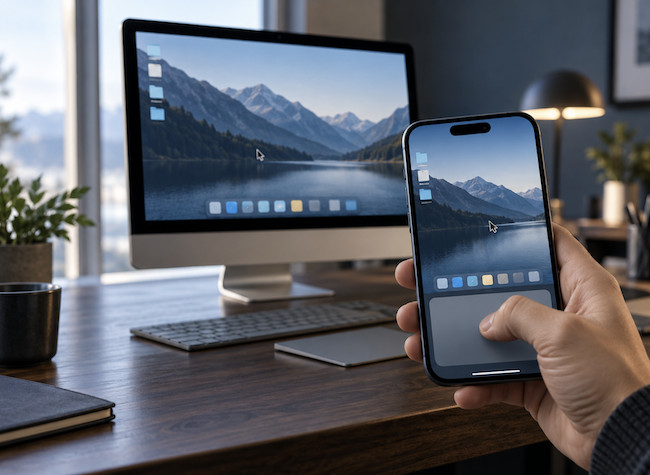
You can control a Mac from an iPhone, including seeing its desktop, opening apps, moving the pointer, typing and accessing files. For most people, the simplest way is to install a remote desktop app on both devices before leaving home.
For full control from anywhere, we recommend a dedicated remote desktop service such as RemotePC or Chrome Remote Desktop. macOS Screen Sharing can also work with an iPhone VNC app, but it is best kept to a trusted local network unless you already know how to use a VPN or another secure connection method.
This is an iPhone-specific guide. If you also need to connect from a Windows PC, another Mac, an iPad or a browser, see our complete guide to how to remotely access and control a Mac.
Quick answer: Use RemotePC for the easiest paid option or Chrome Remote Desktop for a free option when you need to see and control your Mac from an iPhone away from home. Apple’s Switch Control is useful for accessibility, but it is not a normal remote-desktop tool and does not show your Mac’s screen on the iPhone.
The Best Ways to Control a Mac From an iPhone
| Method | See and control the Mac desktop? | Works away from home? | Best for |
|---|---|---|---|
| RemotePC | Yes | Yes | Simple, regular remote access |
| Chrome Remote Desktop | Yes | Yes | Free occasional access |
| macOS Screen Sharing with a VNC app | Yes | Locally by default | A trusted home or office network |
| Switch Control | No | No | Accessibility users who already use Switch Control |
| Control Nearby Devices | No | No | Basic nearby-device and media controls |
For a wider comparison of services, features and pricing, see our best remote desktop software for Mac.
Before You Start
Set up and test your chosen method while you are in front of the Mac. You will normally need to:
- Install the host component or enable Screen Sharing on the Mac.
- Install the companion app on your iPhone.
- Approve macOS permissions when prompted. Remote-control apps commonly need Screen Recording and Accessibility permission to display and control the Mac properly.
- Keep the Mac connected to power and the internet if you want access while away.
- Use a strong, unique password and enable two-factor authentication when the service offers it.
If your Mac sleeps, Wake for network access can help it remain available to trusted network services, although results vary by Mac, network and remote-access app. A Mac that is shut down cannot be reached until it is powered on again.
1. Use RemotePC for Full Mac Control From Anywhere
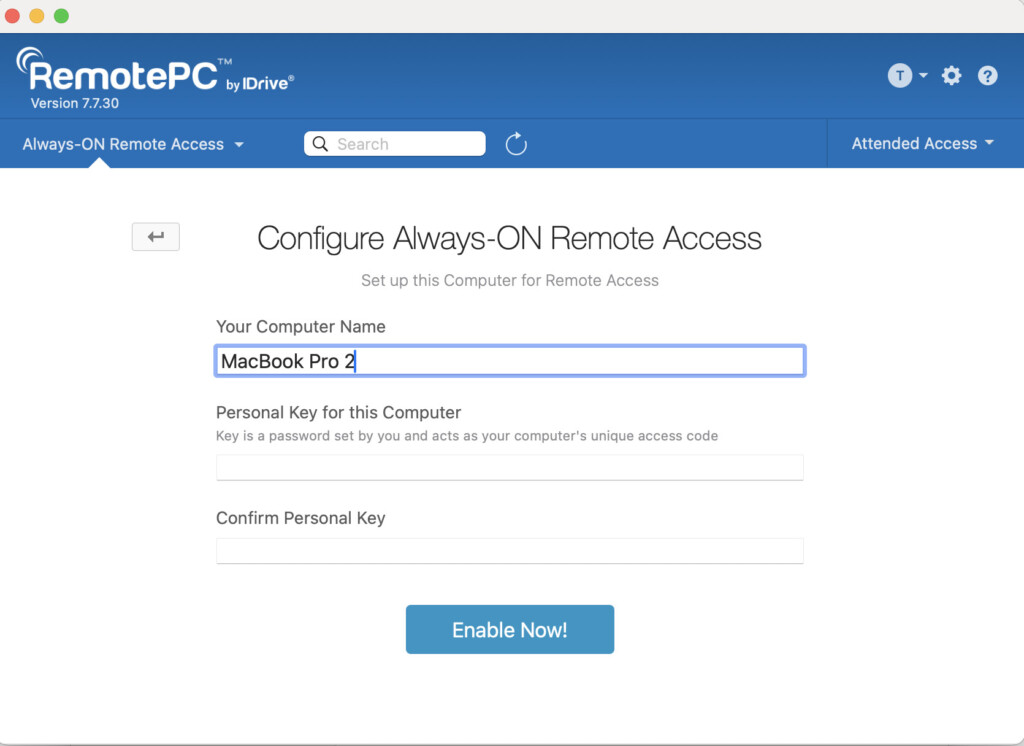
RemotePC is our preferred all-round option when you want to use an iPhone to access a Mac regularly. It uses its own secure connection service, so you do not have to expose your Mac directly to the internet or configure router port forwarding.
Once connected, you can view the Mac’s desktop, tap to click, drag items, type with the iPhone keyboard and use the app’s on-screen shortcuts. It is far more practical than trying to use an iPhone as a full workstation, but it is excellent for checking a file, starting a download, fixing a small problem or using an app you left open on the Mac.
How to Set Up RemotePC on an iPhone
- Install RemotePC on the Mac you want to access and create or sign in to your account.
- Give the Mac a recognisable name and complete its unattended-access setup.
- Approve the macOS permissions requested by RemotePC.
- Install the RemotePC app on your iPhone and sign in to the same account.
- Select your Mac from the device list, authenticate and start the connection.
For a closer look at its features, limitations and current plans, read our full RemotePC review.
2. Use Chrome Remote Desktop for Free iPhone Access
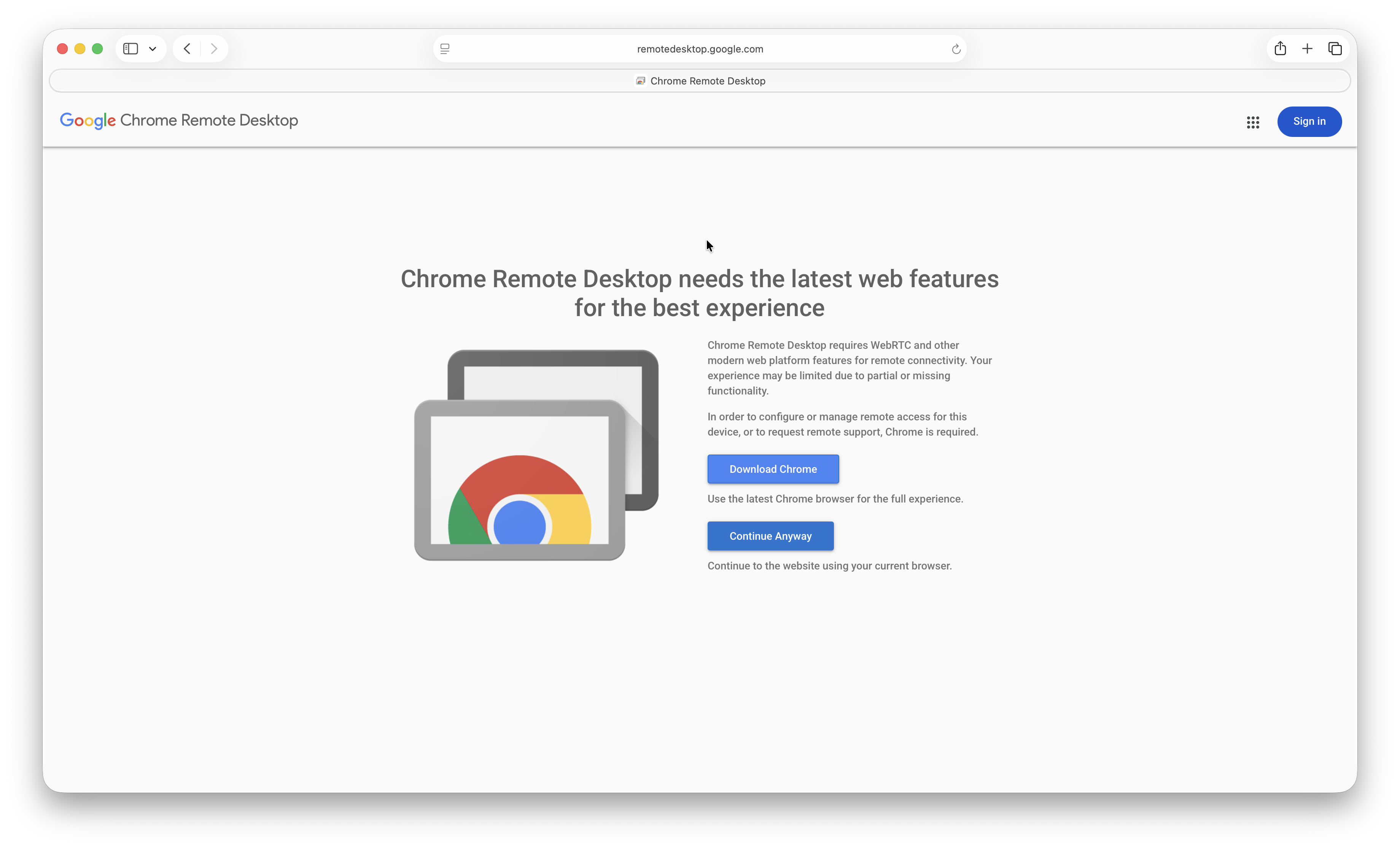
Chrome Remote Desktop is the best free choice for straightforward personal access. It works through your Google account and is designed to connect over the internet without manually opening ports on your router.
On the Mac, open Chrome Remote Desktop in Chrome, enable Remote Access and choose a secure PIN. Then install Chrome Remote Desktop on the iPhone, sign in with the same Google account and select the Mac.
The iPhone interface is more basic than the best paid apps, but it is easy to use for occasional tasks and works well across macOS, Windows, iPhone and iPad. For other no-cost options, see our guide to the best free remote desktop software for Mac.
3. Use macOS Screen Sharing With a VNC App on iPhone
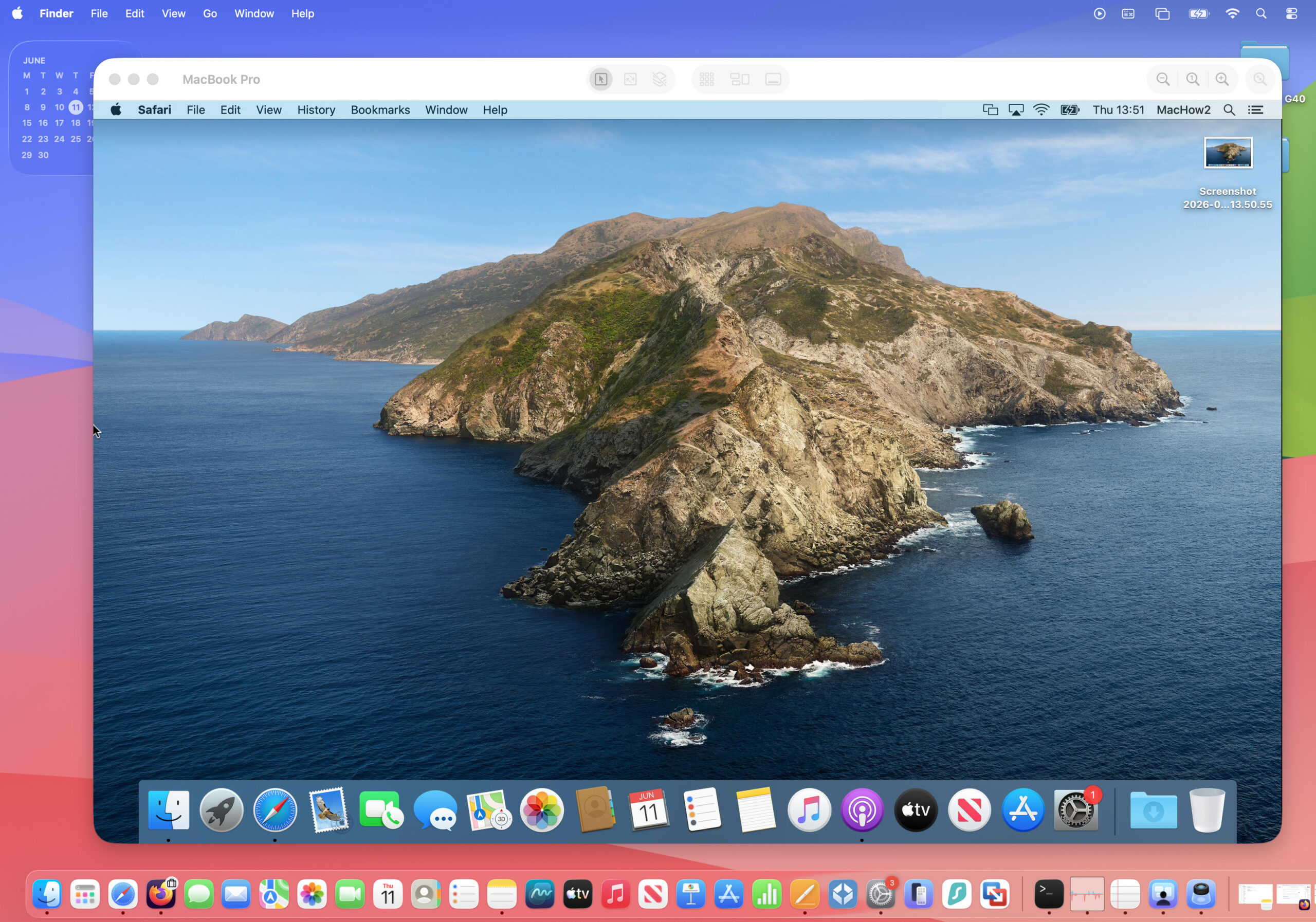
macOS includes Screen Sharing, which lets another device view and control your Mac. It is compatible with VNC, so you can connect from an iPhone using a VNC client such as Screens 5, Jump Desktop or RealVNC Viewer.
This is a good solution on the same Wi-Fi network at home or in a small office. It is not the best option for beginners who need access while travelling, because reaching a home Mac over the internet needs an extra secure route, such as a VPN, Tailscale or a service built into the VNC app.
Set Up Screen Sharing and VNC Access
- On the Mac you want to control, go to Apple menu > System Settings > General > Sharing.
- Turn on Screen Sharing and use the information button to choose which users are allowed to connect.
- If your chosen iPhone app requires standard VNC authentication, enable VNC viewers may control screen with password and create a long, unique password.
- Install a VNC app on the iPhone and add the Mac using its local IP address or local network name.
- Connect while both devices are on the same Wi-Fi network and test the controls before relying on it.
Do not simply forward VNC port 5900 on your router to make this work over the internet. A remote desktop service, VPN or secure mesh network is much safer for most people.
Screen Sharing and Remote Management cannot be enabled at the same time in macOS. If you need step-by-step help with Apple’s built-in feature, see our guide on how to screen share on a Mac.
4. Use Switch Control Only for Accessibility
Switch Control is often mistaken for an iPhone remote-desktop feature. It is not.
It is an Apple accessibility feature that lets a person use the same configured switch input to control another Apple device. It does not send a live image of the Mac desktop to the iPhone, and it does not turn the iPhone touchscreen into a normal trackpad or mouse.
To use it, you need Switch Control set up on the iPhone with at least one configured input. That could be an accessibility switch, a compatible controller or another input configured as a switch. The iPhone and Mac must also use the same Apple Account and be connected to the same Wi-Fi network.
How to Use Switch Control With a Mac
- On the Mac, go to Apple menu > System Settings > Accessibility > Switch Control.
- Turn on Allow platform switching to control your computer.
- On the iPhone, go to Settings > Accessibility > Switch Control and turn it on after configuring your input.
- Use the Switch Control Scanner menu and choose Device > Use Other Device.
- Select the Mac, then choose Connect.
Use this only if Switch Control is already part of your accessibility setup. For ordinary remote access, use one of the desktop-viewing methods above instead.
What About Control Nearby Devices?
The iPhone also has Settings > Accessibility > Control Nearby Devices. It can present simple controls for a nearby Mac that uses the same Apple Account and Wi-Fi network, including device and media controls.
It is useful for those simple actions, but it is not a substitute for remote desktop software: you cannot view the Mac desktop, move a pointer around it or work inside Mac apps from this screen.
Is an iPhone or iPad Better for Controlling a Mac?
An iPhone is perfectly adequate for quick tasks, but an iPad is much better for anything more involved. Its larger display makes it easier to see windows and use gestures accurately, and it is more comfortable with an external keyboard or trackpad.
Use an iPhone for things such as:
- Checking or downloading a file.
- Restarting an app or dealing with a small issue.
- Starting a long task on a Mac at home.
- Helping a family member or colleague with a quick fix.
Use an iPad or another Mac if you need to spend more than a few minutes editing documents, moving files around or working across several windows.
Security Tips for iPhone-to-Mac Remote Access
- Set up access before you travel, then test it over mobile data as well as your home Wi-Fi.
- Use a unique account password and two-factor authentication where available.
- In Screen Sharing, allow only the specific Mac users who need access rather than choosing everyone.
- Do not expose Screen Sharing, Remote Management or VNC directly to the public internet unless you know how to secure it properly.
- Turn off Screen Sharing or Remote Management if you no longer need it.
- Keep macOS, your remote-access app and your iPhone up to date.
FAQ
Can I control my Mac from an iPhone for free?
Yes. Chrome Remote Desktop is a straightforward free option for remote access, and a VNC app can control a Mac locally after you enable Screen Sharing. Paid apps are usually easier when you need dependable access from anywhere.
Can I control my Mac from an iPhone on a different Wi-Fi network?
Yes, but use a remote desktop service such as RemotePC or Chrome Remote Desktop, or connect securely through a VPN or mesh network. Avoid opening VNC directly to the internet.
Can I use my iPhone as a trackpad for my Mac?
Not as a built-in, general-purpose remote desktop feature. Remote desktop apps give you a touch-based pointer and keyboard while showing your Mac’s screen. Switch Control is different: it is an accessibility feature based on switch inputs and scanning.
Can I wake my Mac from my iPhone?
Sometimes. The Mac must have power, be connected to the network and support the wake method used by the remote-access app. Enabling Wake for network access in macOS can help, but it does not let you access a Mac that has been fully shut down.
The Bottom Line
The best way to control a Mac from an iPhone in 2026 is a remote desktop app. Use RemotePC if you want an easy, full-featured solution or Chrome Remote Desktop if you want a free option. Use macOS Screen Sharing with a VNC app when you are on a trusted local network, and keep Switch Control for its intended accessibility purpose.
For every other device and use case, including Windows PCs and browser-based access, see our full guide to remotely accessing and controlling a Mac.