

If you’ve been going mad trying to work out why your AirDrop has suddenly stopped working after updating to iOS 26.2 or 26.3, you’re not alone.
I had exactly the same problem and of course, it always happens at a time when you desperately need to get some photos or other data from your iPhone to your Mac (or vice versa). Searching around it seems there are many other users that have had the same problem too.
After following a lot of generic solutions that didn’t work (rebooting both devices, switching bluetooth on and off, ensuring firewalls weren’t blocking anything, making sure the Mac/iPhone were discoverable etc etc) I finally found the solution is the following.
- On your iPhone, go to Settings > General
- Scroll down to the bottom to Transfer or Reset iPhone

- Select Reset (don’t worry nothing will reset at this stage)
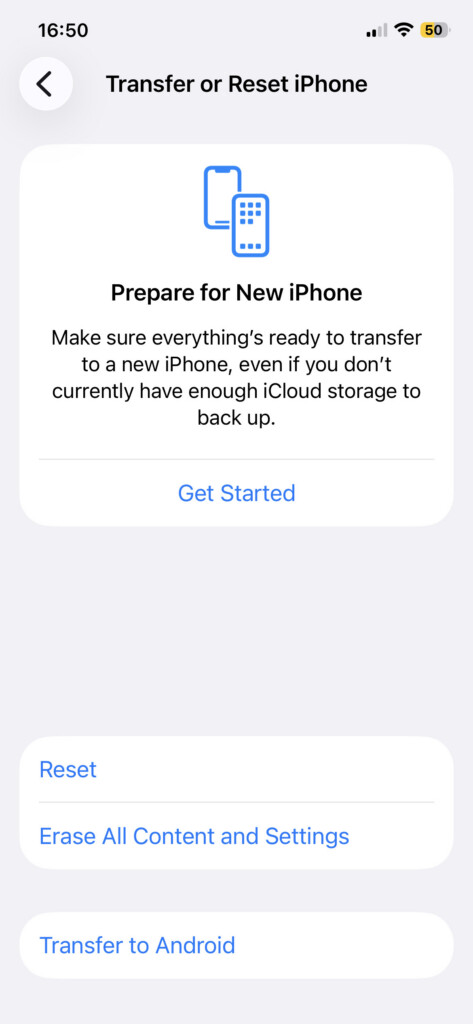
- Then select “Reset Network Settings“
You’ll see the Apple logo and a progress bar appear as it resets your Network settings. Your phone will then restart and the whole process should take no longer than a minute or so.
You should now find that AirDrop works again. The first time I sent something from my iPhone to Mac it asked me to enter the confirmation code it had given me but after that, it worked as usual.
Hope this helps anyone else stuck with this annoying problem! Hopefully Apple will issue an update for this bug soon.