

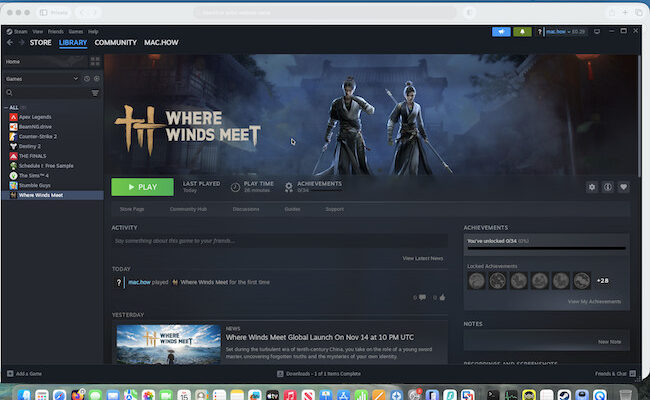
Where Winds Meet is one of the most visually stunning open-world RPGs in years – a martial arts epic set in ancient China that blends swordplay, stealth, and exploration. Unfortunately, it’s officially only available for Windows PC and consoles but here I’ll show you how I installed and played it on a Mac using Crossover.
Contents
- What Is Where Winds Meet?
- Can You Play Where Winds Meet on a Mac?
- How To Play Where Winds Meet on a Mac With Crossover
- Why Does It Say Where Winds Meet Doesn’t Work on The Crossover Compatibility Page?
- Can You Play Where Winds Meet With Parallels or a Virtual Machine on a Mac?
- Possible Other Option: Play the Mobile Version via BlueStacks
What Is Where Winds Meet?
Developed by Everstone Studio, Where Winds Meet drops you into a vast wuxia-inspired world full of martial arts duels, open-world freedom, and story-driven choices that shape your character’s destiny.
Players can roam cities, fight bandits, practice swordsmanship, hunt, heal villagers, or even become a wandering scholar. Think Ghost of Tsushima meets Assassin’s Creed, but in a dynamic Chinese setting.
Can You Play Where Winds Meet on a Mac?
Currently, Where Winds Meet doesn’t have a native macOS version. It’s only been released on Windows, PS5 and mobile with no official Mac port yet.
There is no official announcement from the developer Everstone Studio or publisher NetEase Games stating that a version of Where Winds Meet for Mac will be released.
During the pre-release stage, the game was released on servers in China that could be accessed on a Mac which is why you’ll find some users reporting they tested it on a Mac prior to the official release on 14th of November.
However, those servers are now shutdown and the only official way to play the game is on Windows, PS5 or mobile.
How To Play Where Winds Meet on a Mac With Crossover
The good news is there is a workaround to play Where Winds Meet on a Mac using CrossOver. I’ve tried it and it works really well.
Crossover uses a lightweight compatibility layer to run Windows games on macOS without needing a full Windows installation.
In fact its my preferred solution for playing Windows only Games on a Mac and you can check out why in my full Crossover review.
Here’s how to play Where Winds Meet in a Mac with the Preview version of Crossover for Mac.
- Make sure you are running the latest version of macOS Tahoe. Note this method will not work with any other version of macOS.
- Download and install the preview version of CrossOver for Mac. Note that Where Winds Meet only works with the preview version of Crossover. The only way to get preview versions of Crossover is if you are an existing Crossover subscriber so unless you’ve got a subscription, you’re out of luck.
- Search for “Steam” in Crossover and install it.
- Once Steam is installed, make sure that the Steam Bottle settings are exactly as below with D3DMetal, DLSS, MSync and Crossover Preview selected. The game will not work without these selected.
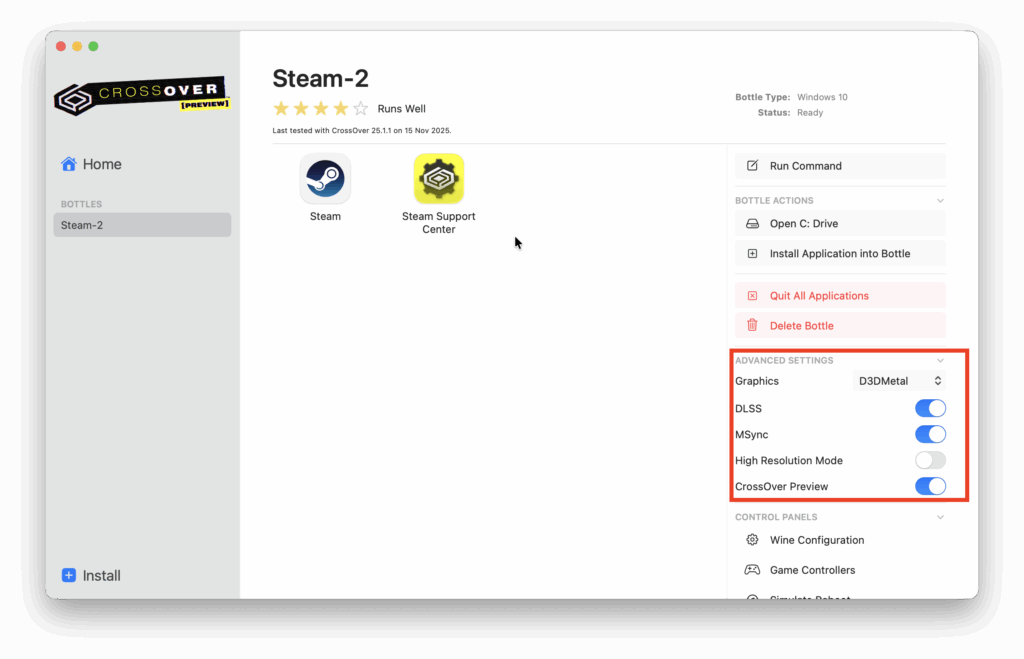
- Open Steam and log into your account
- Search for “Where Winds Meet” and download it. The game is almost 100GB so it takes quite a long time to download.
- When it has downloaded, simply hit “Play” and select the “DirectX 12 version”.
- Where Winds Meet will launch on your Mac – enjoy! As you can see in the video below, it runs pretty well on Apple Silicon Macs, with very little lag.
Why Does It Say Where Winds Meet Doesn’t Work on The Crossover Compatibility Page?
The official stable version of Crossover does not support Where Winds Meet yet. If you check the game’s Crossover compatibility page, it says that Where The Winds Meet “Installs but won’t run”.

That’s why you have to use the Preview version (basically a beta version) of Crossover to play it.
Can You Play Where Winds Meet With Parallels or a Virtual Machine on a Mac?
As you can see in my attempt below, you can’t run Where Winds Meet on a Mac in Parallels as it doesn’t support DirectX 11 or DirectX 12.
I was able to download the game launcher but when I tried to launch it, nothing happens.
There are in fact no virtual machines that support DirectX 11 or 12 on a Mac so they’re not suitable for running this game.
Possible Other Option: Play the Mobile Version via BlueStacks
BlueStacks is an Android emulator that runs games and apps on macOS, including Where Winds Meet’s mobile version.
However, this only allows you to play the mobile version on a Mac and has the same controls – which don’t work well on a Mac.
If you want to give it a go though, follow the instructions below.

- Go to bluestacks.com
- Install and open the app, then sign in with your Google account.
- Search for Where Winds Meet in the Google Play Store within BlueStacks.
- Install the game and let it load.
- Configure performance settings (CPU, RAM, and resolution) in BlueStacks preferences for smoother gameplay.