

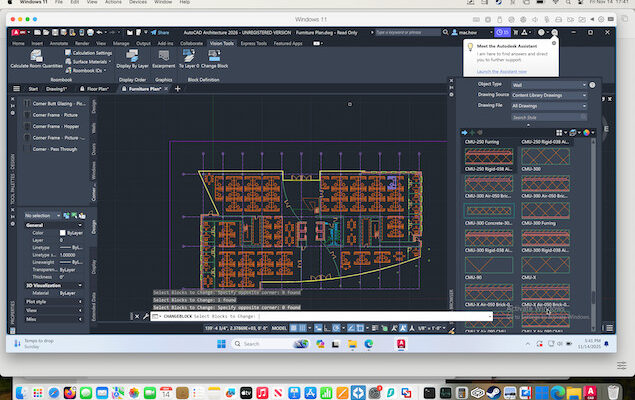
While AutoCAD for Mac is available, it’s not as complete as the Windows version of AutoCAD.
There are two options around this: either use one of the many excellent alternatives to AutoCAD for Mac or the most common solution – run the Windows version of AutoCAD in macOS using a virtual machine.
This is not only useful to get the full functionality of AutoCAD, but also to use variations of AutoCAD such as AutoCAD Architecture which provide more specific toolsets for professional architects, and aren’t available for Mac.
For more on the differences between the two products, check out my guide to AutoCAD for Mac vs Windows and also AutoCAD vs AutoCAD Architecture.
Contents
How To Run AutoCAD Windows Software on a Mac
In this demonstration, I used Parallels to install Windows on my Mac and then run AutoCAD Architecture 2026 inside of it.
Parallels creates a virtual Windows PC on your Mac, allowing you to install and use AutoCAD Architecture just as you would on a real Windows machine – without rebooting.
There are other virtual machines available – most notably VMware Fusion which is free – but I don’t recommend them for running the demands of AutoCAD on a Mac.
As you can see in the video below, Parallels works really well at running AutoCAD Architecture within Windows on my M3 MacBook Pro (although there is a little bit of lag at times).
For more on Parallels, check out my full Parallels review.
Here then is how to install AutoCAD Architecture on a Mac with it.
What You Need Before You Start
Make sure you have:
- Ideally an Apple Silicon Mac (M1-M5) or an older Intel Mac but note the performance on Intel Macs may not be great.
- A free trial of Parallels Desktop
- An AutoCAD Architecture subscription or free trial of it
1. Install Parallels Desktop on Your Mac
- Download Parallels Desktop for Mac.
- Open the DMG file and install it like any Mac app.
- Launch Parallels – it will guide you through the setup. On Apple Silicon Macs it will automatically install Windows ARM which is compatible with AutoCAD Architecture.
2. Install Windows 11 in Parallels
- When Parallels starts, choose Install Windows.
- Parallels downloads Windows automatically (no ISO is needed).
- Follow the on-screen steps until you reach the Windows desktop.
Your Mac now has a working Windows PC running in a window.
3. Optimize Windows for AutoCAD Architecture
Before installing AutoCAD, make these quick adjustments to Parallels so that it runs as smoothly as possible.
- Speed Mode
Go to: Parallels → Settings → General → Performance Mode → “Design” or “Productivity”

- Allocate More RAM & CPU (optional but recommended)
Parallels → Settings → Hardware → CPU & Memory
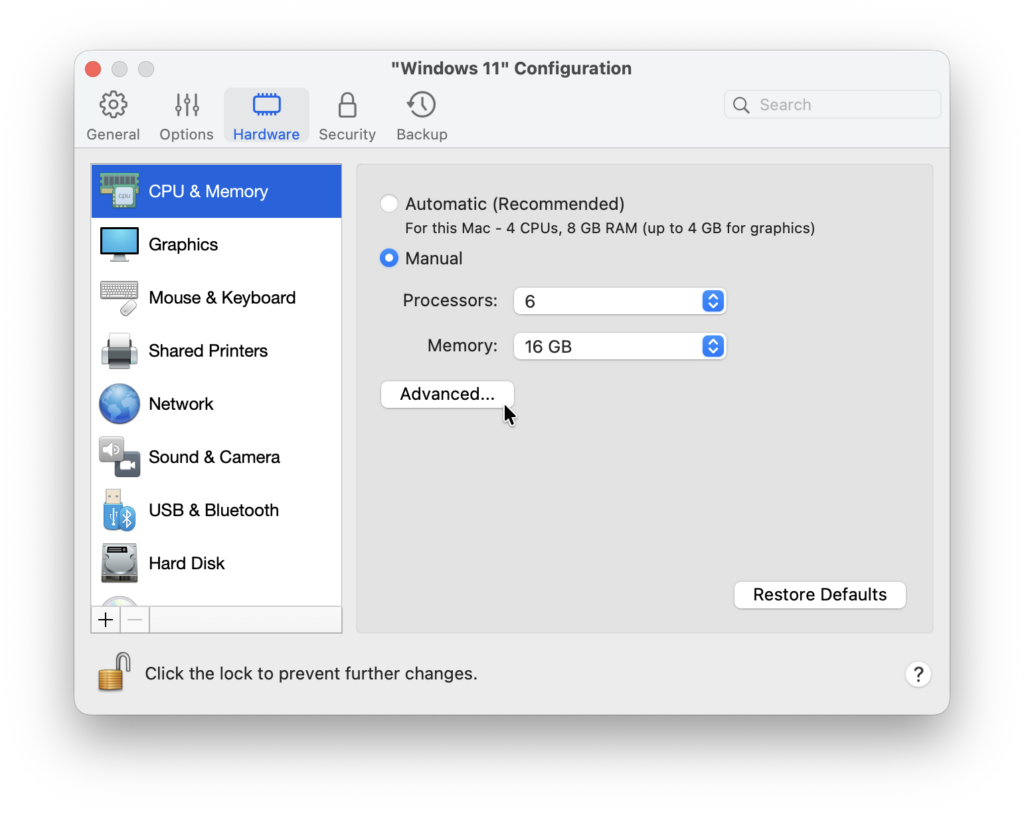
For CAD work I recommend allocating:
- RAM: 8–16 GB
- CPU Cores: 4–8
4. Install AutoCAD Architecture
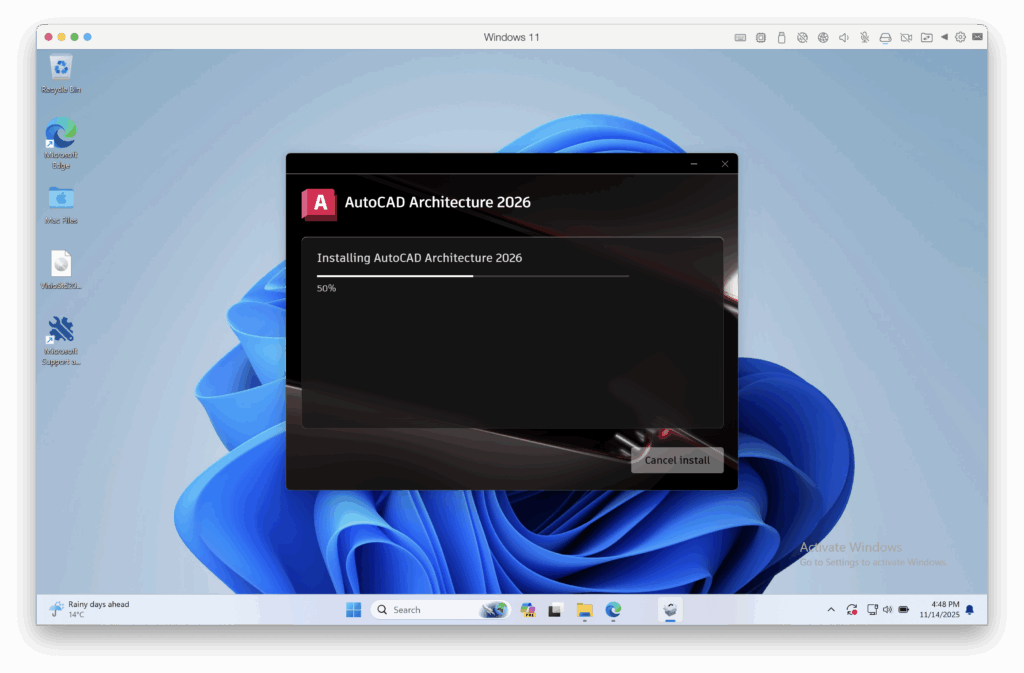
Now install AutoCAD Architecture inside Windows, not on macOS.
- Open the Windows browser inside Parallels.
- Sign into your Autodesk account.
- Download AutoCAD Architecture (from the AutoCAD “Architecture Toolset” section).
- Run the installer
.exefile. - Complete the standard Windows installation steps.
- Sign in to activate your Autodesk license when prompted.
You can now launch AutoCAD Architecture from the Windows Start Menu.
5. Improve Performance & Smoothness
As you can see in the video, AutoCAD Architecture will run well in Parallels, but there are some optional tweaks I recommend:
- Enable Hardware Acceleration
In AutoCAD: Options → System → Graphics Performance → Enable Hardware Acceleration
- Make Parallels Use Your Dedicated Resources
Parallels → Settings → Graphics → Best For Retina Displays

- Use a Mouse
Most Architects prefer a real mouse with a middle scroll wheel. Pan/zoom also improves massively compared to using the Trackpad to pinch and focus. However, the Magic Mouse works terribly with AutoCAD and I’d recommend using
Your Mac and Windows can share folders automatically in Parallels although you have to give it permission to access your folders on macOS.
Inside Windows, AutoCAD can save directly into your macOS Documents/Desktop.
To enable/confirm: Parallels → Settings → Sharing → Share Mac Home Folder

And that’s basically it! If you have any questions or issues running any Windows version of AutoCAD on a Mac, let me know in the comments below.