

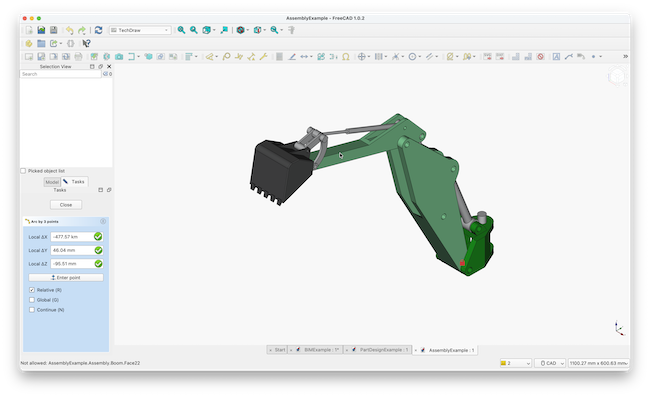
Professional CAD software is not cheap with the best Mac compatible CAD software costing hundreds of dollars in subscriptions per year. So when an app like FreeCAD comes along offering a lot of the features you get in AutoCAD for Mac for free, it definitely peaked my curiosity.
FreeCAD is definitely one of the best free CAD apps available for macOS and is particularly good for 3D modelling and printing.
However, as I soon found it, it can also be one of the most complex and inaccessible.
After spending time using it as a first-time user on a Mac, here’s my thoughts on what it does well, where it struggles, and what you should expect.
Table of Contents
What Is FreeCAD?
FreeCAD is a completely free, open-source parametric CAD application that you can download on macOS, Windows, and Linux.
Parametric design is a modelling approach where your 3D object is defined by parameters – things like dimensions, constraints, relationships, and rules.
Instead of drawing a shape and leaving it as-is, you create a smart model that knows how it was built.
In other words, you tell the software how the geometry should behave, not just what it looks like.
FreeCAD is therefore no lightweight tool and shouldn’t be approached lightly. It effectively offers advanced, professional-level modelling features for free making it especially popular with hobbyists, students, and anyone exploring 3D modelling or mechanical CAD design on a Mac.
It definitely isn’t the easiest tool to get to grips with if you’re a beginner however, as you’ll see.
Installation on Macs
Downloading FreeCAD on macOS straightforward but because it’s not on the Mac App Store, you may be warned by Gatekeeper when you try to open it.
Gatekeeper may block the app with “developer cannot be verified” but you can simply Ctrl-click and select “Open” to bypass the warning.
FreeCAD is available as a download for both Apple Silicon and Intel Macs so it works natively on both.
For more on which Macs work best with CAD apps, check out our guide to the best Macs for CAD.
Using FreeCAD
When you open FreeCAD for the first time, you can choose from either a Light or Dark theme, select language, measurement units and navigation style.
To be honest, this choice of light or dark theme is about as “macOS” as FreeCAD gets but for those CAD designers that like the “dark side”, it’s nice to have the choice.
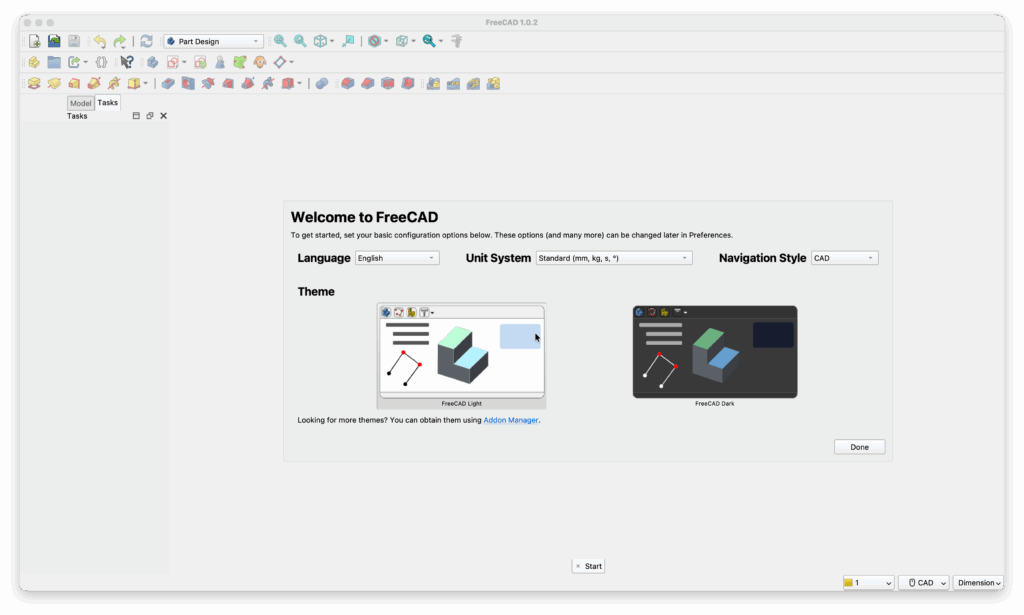
The Navigation Style option by the way allows you to choose a style similar to other listed CAD apps such as AutoCAD, Revit, Blender and even Maya.
You’re then presented with a choice of designs:
- Parametric Part
- Assembly
- 2D Draft
- BIM/Architecture
- Open an Existing File
- Start a fresh new CAD design
There’s a wide range of modules including Part Design, Sketcher, FEM, BIM, Path/CAM, and more.
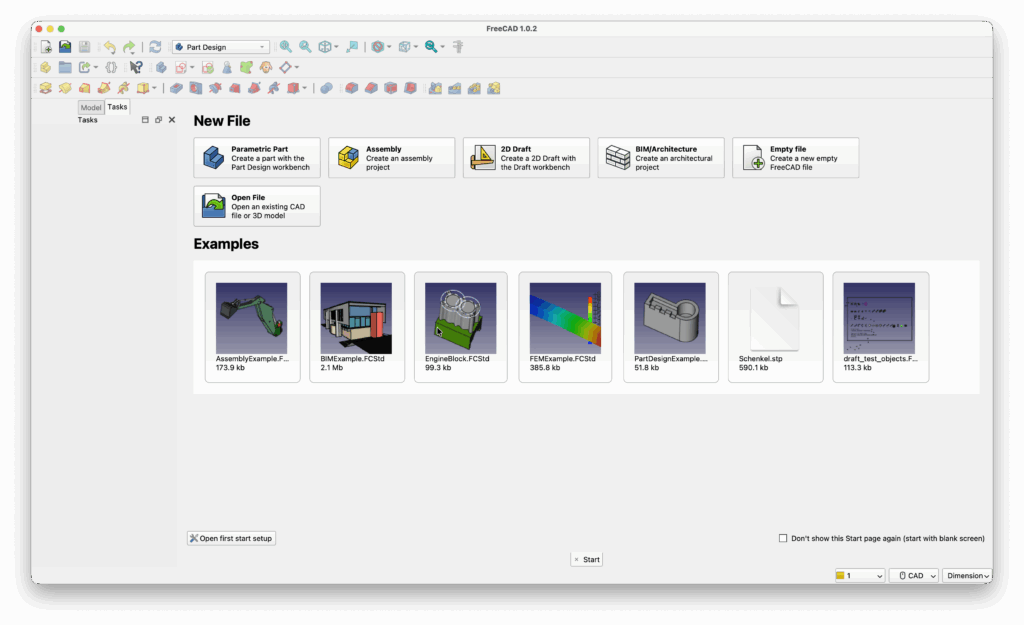
There are also a number of examples you can choose from such as an Engine Block design, BIM Example and other mechanical parts.
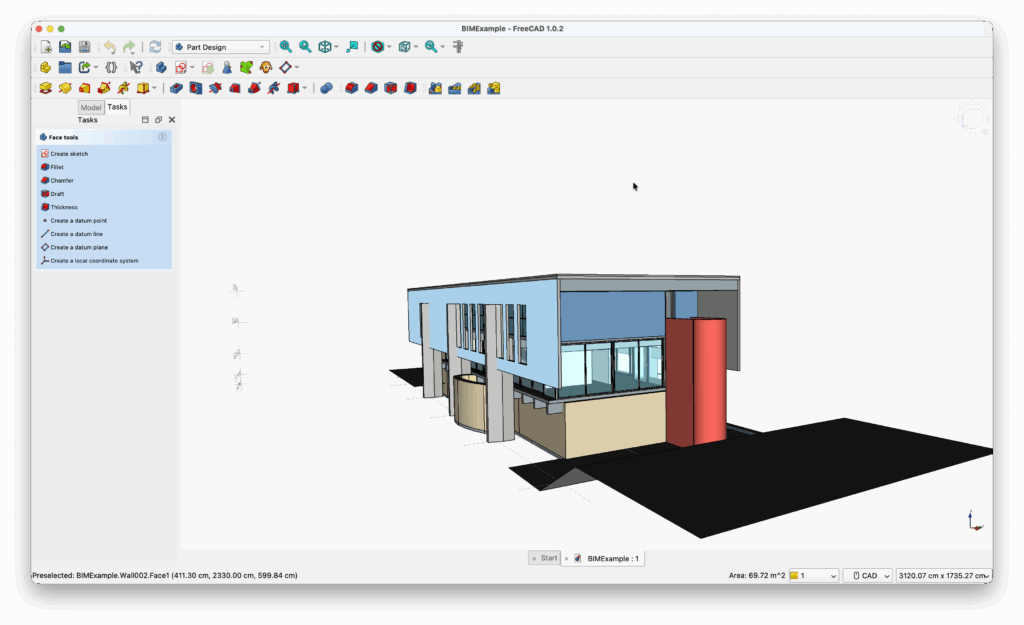
FreeCAD has a very busy toolbar with lots of actions, dropdowns, and “workbenches” – which are essentially separate modules for different tasks.
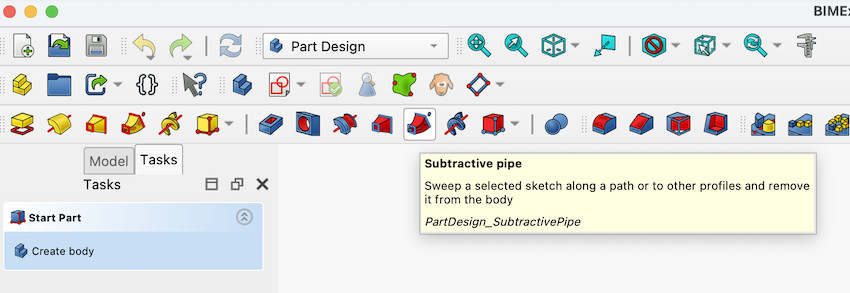
The UI isn’t exactly modern and feels quite dated and Windows inspired but experienced CAD users will recognize all the essential tools.
Unless you’ve used professional CAD software before, you’ll soon find yourself lost in FreeCAD. I found myself spending a lot of time working out things like:
- What each workbench does
- How to draw and constrain 2D sketches
- How features (pads, pockets, lofts) build up in a model history
- Why constraints are essential
- How objects relate to one another parametrically
It’s not the easy drag-and-drop style experience of 2D apps like SmartDraw or SketchUp for example.
If you’ve used tools like Fusion, SolidWorks, or Onshape however the concepts in FreeCAD will feel familiar – just less polished.
Once you grasp the basics, FreeCAD designs generally follow the following format:
- Create a sketch
- Apply constraints (dimensions, symmetry, tangency, etc.)
- Pad or extrude into 3D
- Add fillets, chamfers, booleans, lofts, revolves
- Adjust any parameter later and the model updates automatically
This parametric approach is one of the things FreeCAD does best – it allows precise, repeatable designs that remain editable long after you create them.
3D Modelling Support
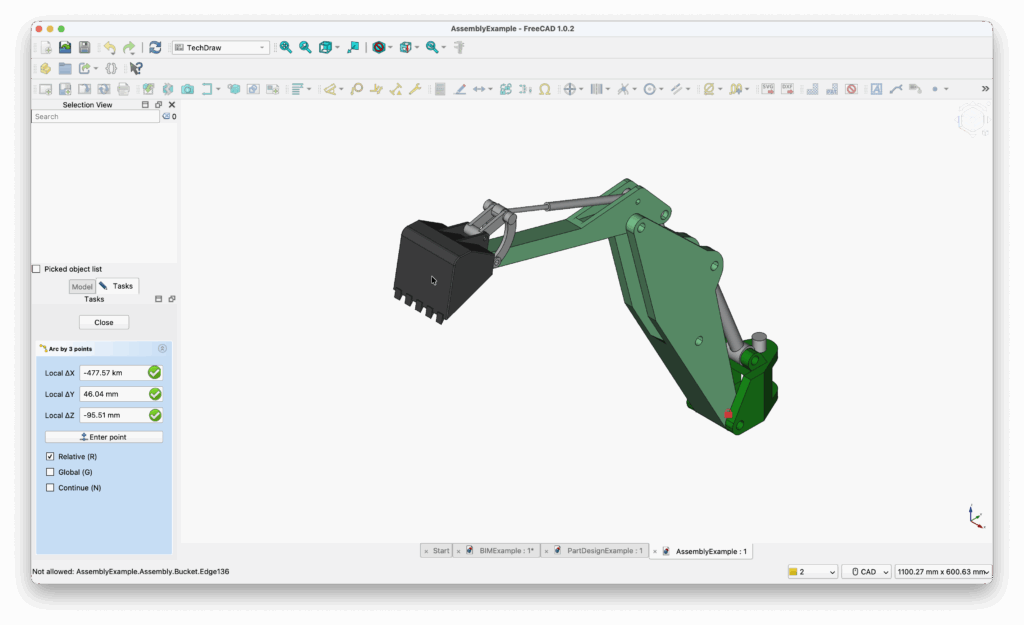
FreeCAD supports Boundary Representation objects (BRep) and Non-Uniform Rational Basis Spline curves and surfaces (NURBS).
These enable you to carry out Boolean operations, shape cleaning and other things that you normally can in advanced 3D modelling software such as Solidworks and Autodesk Fusion.
You start by creating 2D sketches with constraints, then turn them into 3D features using tools such as Pad, Pocket, Revolve, Loft, Sweep, Fillet, and Chamfer.
The Part Design and Part workbenches are excellent solid-modelling foundations but if you really know what you’re doing, you can use tools like Surface, Sheet Metal, Draft, and Curves for specialized geometry.
Again, the interface isn’t as polished as commercial CAD software and some modules can feel experimental, FreeCAD’s 3D modelling tools are surprisingly powerful, precise, and flexible – particularly for 3D printing, mechanical design, and engineering.
File Support
If you want to import existing designs from other CAD applications such as AutoCAD, FreeCAD supports:
- STEP/IGES (engineering)
- STL/OBJ (3D printing)
- DXF/SVG (2D drawing export)
- IFC (architecture/BIM)
This is pretty decent for a free tool although it would be nice to see support for apps such as Solidworks, NX, Inventor and Revit added to the list.
If the format you want isn’t supported, you can always try exporting in STEP/IGES and then importing it into FreeCAD.
Customization
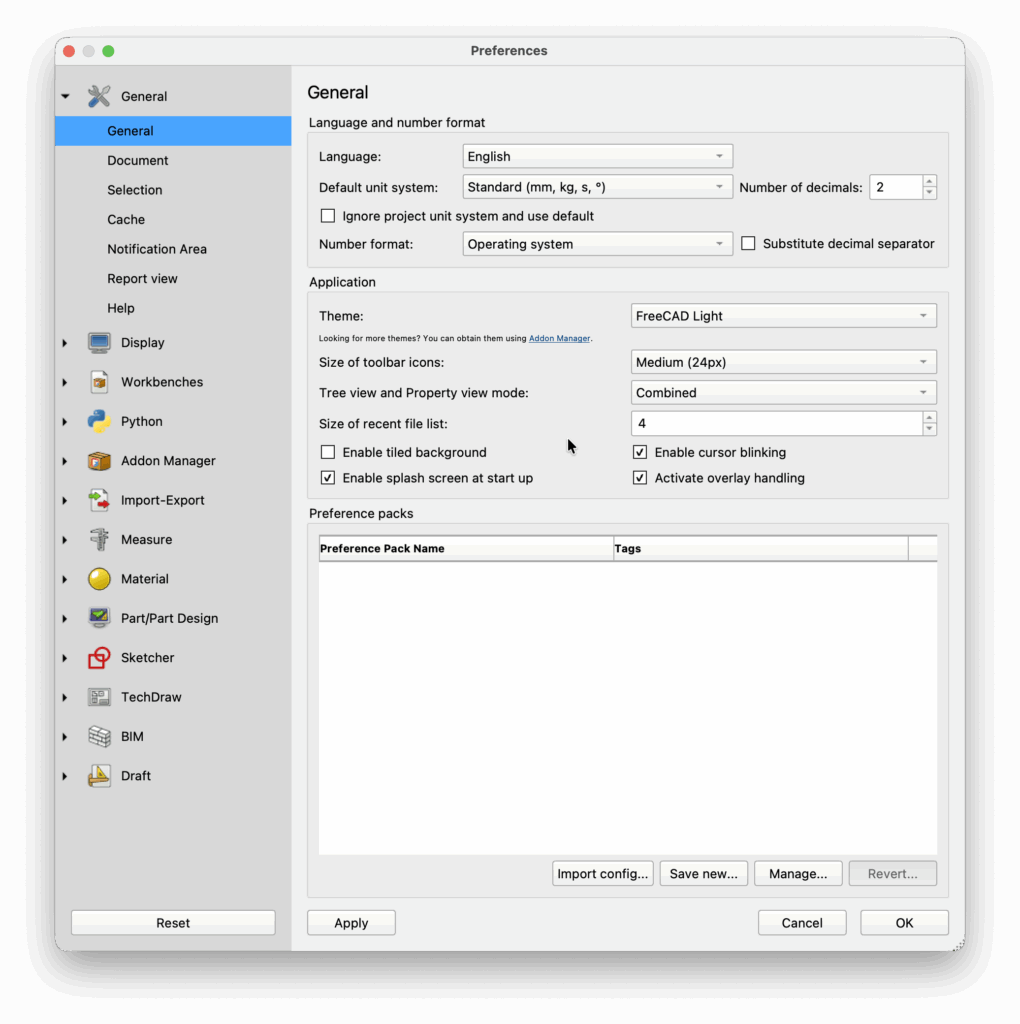
There’s an absolute ton of preferences you can customize in FreeCAD.
You can rearrange toolbars, choose different workbenches, adjust keyboard shortcuts, and switch between multiple UI themes.
For more advanced users, FreeCAD includes a built-in Python console that allows you to automate tasks, create macros, or even build custom tools and workbenches.
Nearly every aspect of the workspace – from navigation style to grid settings and snapping behavior – can be configured.
FreeCAD Add-Ons
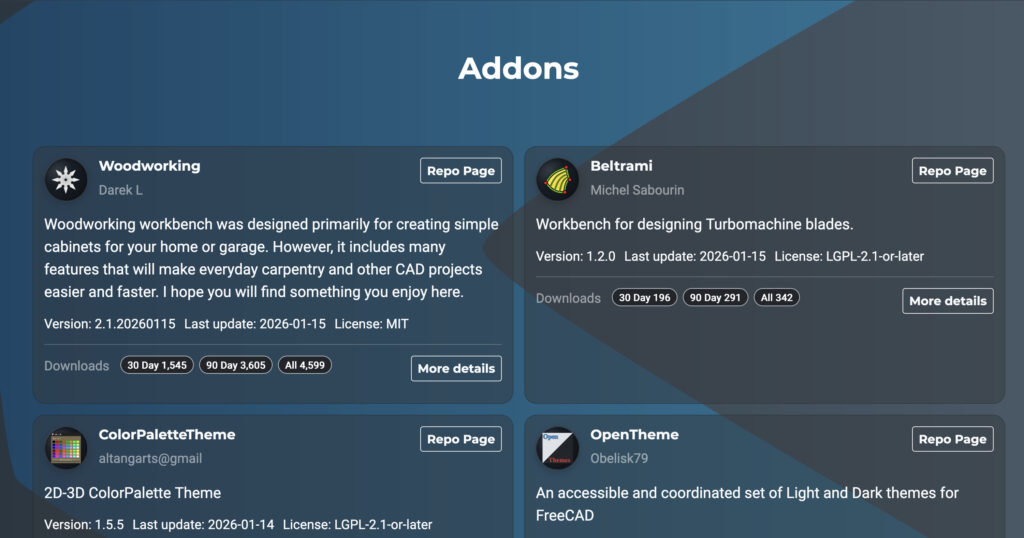
A big bonus of FreeCAD is the community-created add‑ons – optional workbenches, macros, and utilities that expand the core application.
You can browse and install them via the Addon Manager (Tools > Addon Manager), which fetches the latest community plugins.
Popular Add‑Ons Include:
- Workbenches:
- A2plus / Assembly4 — Build and constrain complex assemblies.
- Fasteners — Parametric screws, bolts, nuts, washers.
- SheetMetal — Design flanges, bends, and sheet metal parts.
- Gear/Curves — Advanced geometry and mechanical design tools.
- Woodworking — Specialized tools for cabinet, furniture, and woodworking projects.
- Macros & Utilities:
- UI tweaks, export helpers, batch operations, and BOM generation.
Note that add‑ons are community-maintained, so you’ll need to check compatibility with your FreeCAD version. Most appear in the workbench selector or as new toolbar items after installation.
Performance
In general, I found that managing and manipulating designs in AutoCAD was surprisingly responsive for a free application even when dealing with complex 3D models.
Pinching and rotating using the Trackpad on an M3 MacBook Pro worked smoothly with no lag and switching views to Isometric, Rear, Front etc was slick and snappy.
There were some freezing issues occasionally when opening designs but FreeCAD never actually crashed.
Downsides
The biggest downside of FreeCAD for those new to CAD is that it’s simply too overwhelming.
Even for experienced Pros, it would take some getting used to so my advice is, only use it if you’re prepared to put a lot of time into learning it. There is however an active forum of users and a comprehensive Wiki to help you get to grips with it.
The interface is clearly ported straight from Windows – there’s been no effort to make it fit the macOS aesthetic or even integrate with macOS in anyway.
I did experience the dreaded “spinning beach ball of death” a few times when opening projects but it was never much more than a few seconds delay.
One of the things that nagged at me while using FreeCAD was that it didn’t really feel like it was harnessing the full power of Apple Silicon Macs, especially graphically.
I’m not the only one to think this either as evidenced by other users such as this one that invested hours learning the product only to get tired of how basic and under powered it ultimately felt.
Who Is FreeCAD Aimed At?
Based on my experience using FreeCAD, I’d say it’s ideal for:
- 3D printing hobbyists
- Engineering students
- DIY builders, makers, prototypers
- Anyone that want to learn CAD seriously from scratch
- Those on a budget that need parametric modelling
- Users comfortable troubleshooting occasionally
On the flipside, I think it’s less suitable for:
- Designers needing a polished, modern UI
- Users who want close macOS integration with their CAD software
- Beginners who want simple, drag-and-drop modelling
Alternatives To FreeCAD
There are many excellent free CAD applications that are much easier to use than FreeCAD such as SmartDraw, SketchUp, LibreCAD, nanoCAD, LibreCAD and Onshape.
Here’s how FreeCAD compares to these but you’ll find many more options in our look at the best free CAD software for Mac.
| Software | Best for | Pricing |
|---|---|---|
| SmartDraw | Diagramming, flow-charts, floor plans, simple 2D layouts and business diagrams | US $7.95/month (billed annually) |
| SketchUp | 3D modelling, architectural concepts, interior design, quick 3D mockups & spatial planning | Free (web-only version) or paid plans (from US $119/year for basic tier) |
| nanoCAD | 2D CAD drafting and basic 3D, DWG-based workflows, budget CAD needs | Limited free version. From US $249/year (workstation license) for basic, higher for more advanced versions |
| LibreCAD | Lightweight and free 2D CAD drafting – floor plans, schematics, technical drawings | Free (open-source, no license cost) |
| Onshape | Cloud-based 3D parametric CAD with real-time collaboration, ideal for mechanical design, teams, remote work | Free for non-commercial/public projects; paid “Standard/Professional” plans from around US $1,500/year per user for private/commercial use |
For commercial options, check out out look at the best CAD software for Mac too.