

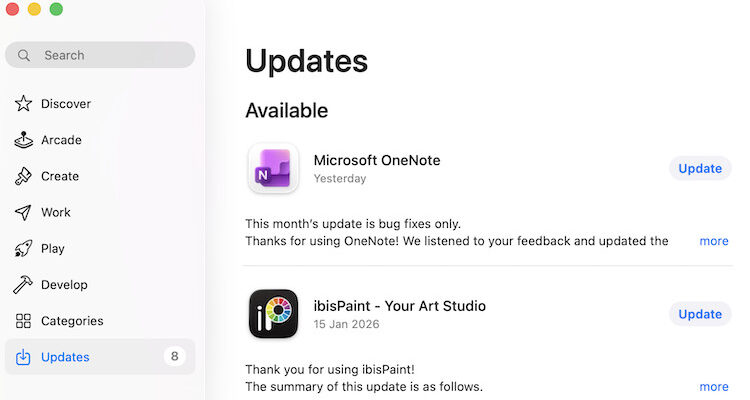
Microsoft Office for Mac is continually updated by Microsoft to deliver feature improvements, security patches, bug fixes, and new capabilities across Word, Excel, PowerPoint, Outlook, OneNote, and other apps.
This guide walks you through everything you need to know about updating the macOS version of Office in 2026 – from version history and how to update to how to check your current version and how to receive insider channel updates.
| Version History | Office for Mac has regular documented updates. |
| Latest Version (2026) | At time of writing: 16.105.1 overall. |
| How to Update | Use Help > Check for Updates or Mac App Store. |
| Checking Your Version Of Office | How to check exactly which version of Office for Mac you’re using |
| Outlook Updates | Outlook update history is tracked in the same release notes as Office 365. |
| How To Make Updates Smoother | Tips on making sure Office for Mac updates go successfully |
| What To Do If Office for Mac Won’t Update | Help if you find that you can’t update Office and Windows 365 apps on your Mac |
Contents
- 1. Microsoft Office for Mac Version History & Release History
- 2. Office for Mac Current Version (as of January 2026)
- 3. How to Update Microsoft Office on a Mac
- 4. How to Check Your Office for Mac Version
- 5. Office 365 for Mac: Update & Release History
- 6. Update History for Outlook for Mac
- 7. Tips for Successful Updates
- 8. If Office For Mac Won’t Update
- Early Access with Microsoft 365 Insider (Office for Mac)
1. Microsoft Office for Mac Version History & Release History
Microsoft tracks all updates and publishes detailed update release notes for Office for Mac. These include version numbers, build numbers, feature updates, bug fixes, and security patches for each app in the suite.
What It Includes
- Versions & builds: Each release has a version (e.g., 16.105.2) and a build (e.g., 26012530).
- Apps covered: Word, Excel, PowerPoint, Outlook, OneNote, and more.
- Release types: Feature updates, quality improvements, security updates.
- Support: Office 2019 for Mac has reached end-of-support and no longer receives updates; Microsoft 365 and Office 2021/2024 are actively updated.
Recent Example Versions
Here are some recent updates from the Office for Mac 2025–2026 release history including the most recent one.
| Version | Build | Highlights |
|---|---|---|
| 16.105.2 | 26012530 | Quality & performance updates across apps (Jan 27th 2026) |
| 16.105.1 | 26011816 | Quality & performance updates across apps (Jan 20th 2026) |
| 16.104 | 25121423 | Feature and security updates (Dec 2025) |
| 16.98 | 25060824 | New Excel side-by-side view + Outlook Copilot features (Jun 2025) |
| 16.95 | 25030928 | Office-wide enhancements (Mar 2025) |
| 16.94 | 25020927 | Dynamic watermarking, Copilot meeting scheduling (Feb 2025) |
These release notes are continually updated by Microsoft and are the official update history for Office for Mac releases.
2. Office for Mac Current Version (as of January 2026)
As of January 2026, the latest Office for Mac release reported by Microsoft was Version 16.105.2 (Build 26012530), which includes general bug fixes and quality improvements across the suite.
Microsoft updates Office for Mac regularly (usually every few weeks or months) so newer versions may appear after this guide is published (we’ll obviously try to keep it updated though!)
3. How to Update Microsoft Office on a Mac
There are two main ways to update Office on macOS:
A. Using Microsoft AutoUpdate (MAU)

- Open any Office app (Word, Excel, PowerPoint, Outlook).
- In the top macOS menu bar, go to Help > Check for Updates.
- The Microsoft AutoUpdate window opens.
- Choose Update (or select Automatically keep Microsoft apps up to date).
- Office will download and install available updates.
If you don’t see “Check for Updates,” you might need to install or update the Microsoft AutoUpdate tool itself.
B. Updating Through the Mac App Store
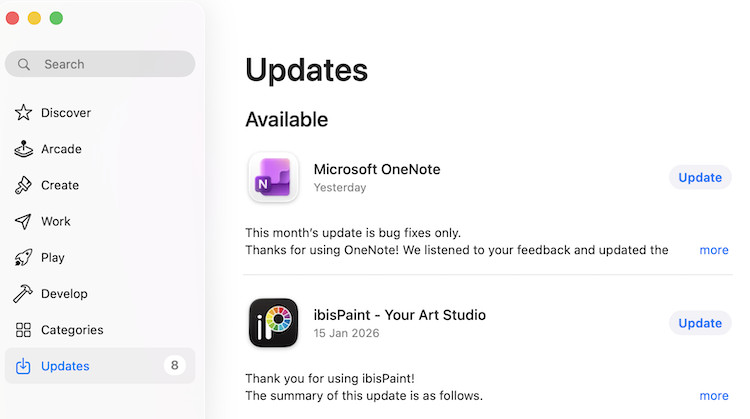
If you installed Office from the Mac App Store, then updates are delivered through the App Store:
- Open the Mac App Store.
- Click Updates in the sidebar.
- Click Update next to the Microsoft Office app you want to update or click or Update All.
C. IT Admin Alternative
IT administrators and advanced users can update via command-line using msupdate through Terminal in macOS if “Check for Updates” is missing.
For any problems updating Office on your Mac, you can go to Microsoft’s support site.
4. How to Check Your Office for Mac Version
To see what version you’re running:
- Open an Office app (e.g. Word).
- Go to the menu App Name > About Word/Excel/Outlook/OneNote…
- A window shows the version and build number installed on your Mac.
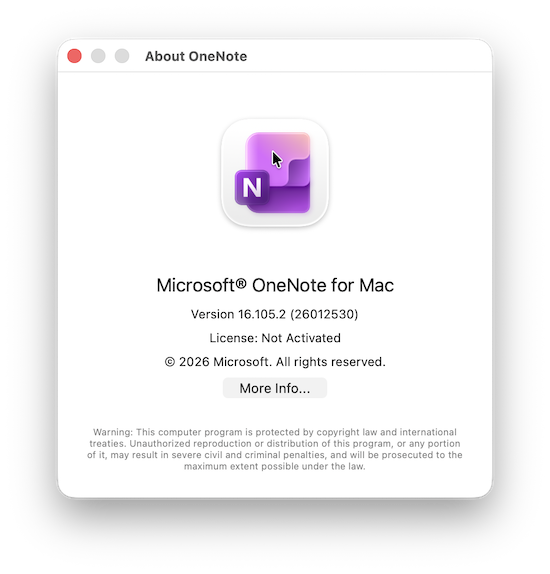
You can compare this number with the latest in the Office release notes to confirm whether you’re up to date.
5. Office 365 for Mac: Update & Release History
“Office 365 for Mac” (now generally known as Microsoft 365 for Mac) follows a continuous update model with frequent changes for subscribers. This includes:
- New features (e.g., Copilot integration).
- Security updates and fixes.
- Insider preview updates if you opt in to preview builds.
The release notes page provides history across all Microsoft 365 updates for Mac.
For more info about the transition from Microsoft Office for Mac to Microsoft 365 check our guide.
6. Update History for Outlook for Mac
Outlook is updated through the same release channel as the rest of Office for Mac. Notes from recent versions include:
- Quality & performance improvement releases 16.105 (Jan 27th 2026)
- Outlook improvements in version 16.104 (Dec 16th 2025).
- Quality and performance improvement releases (e.g., 16.94.2) dedicated to Outlook.
- Copilot and other feature enhancements in earlier 2025 builds.
All of these entries and more are visible in the core Office for Mac release notes documented by Microsoft.
7. Tips for Successful Updates
There’s a few things we suggest doing to make sure that updates go smoothly.
Keep macOS Updated
Microsoft supports Office updates only on supported versions of macOS. If your macOS is too old, you may stop receiving Office updates even though the apps still work. Make sure that macOS is updated to the latest version to prevent problems.
Use Automatic Updates
Enabling Automatic Updates ensures you get security patches and feature updates as soon as they’re released without manual steps. However, it does also mean that if there are any issues that emerge shortly after the update has been issued (such as incompatibility problems with macOS) then you can’t roll back easily.
Microsoft AutoUpdate Version
Always keep the Microsoft AutoUpdate tool up to date as it’s what manages Office updates.
8. If Office For Mac Won’t Update
Sometimes, Microsoft Office on Mac may fail to update. This can happen due to network issues, permissions problems, outdated AutoUpdate, or macOS incompatibility. Here’s how to troubleshoot:
1. Check Your Internet and Firewall
- Ensure your Mac is connected to the internet.
- Disable firewalls or VPNs temporarily, as they can block Office updates.
2. Verify macOS Compatibility
- Office updates require supported versions of macOS.
- Older macOS versions may no longer receive the latest Office updates. Check Microsoft support for this.
3. Update Microsoft AutoUpdate
- Open Help > Check for Updates in any Office app.
- If the AutoUpdate tool is outdated, download the latest version from Microsoft.
4. Restart Office and Your Mac
- Quit all Office apps and restart your Mac, then try updating again.
5. Reinstall Office (Last Resort)
- If updates still fail, uninstall Office and reinstall it using the Microsoft 365 installer instead of the Mac App Store version.
- This ensures full access to all update channels, including Insider builds.
Regularly enabling Automatic Updates helps prevent update issues before they occur.
Early Access with Microsoft 365 Insider (Office for Mac)
If you want early access to new Office features on Mac, Microsoft 365 subscribers can join the Microsoft 365 Insider program. This lets you receive preview updates for Word, Excel, PowerPoint, Outlook, and other Office apps before they’re released to everyone else.
Insider Channels Explained
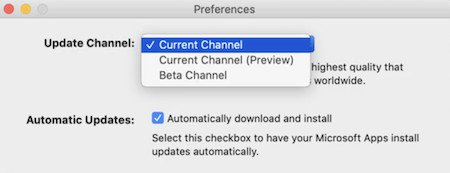
- Current Channel: Regular, fully supported updates with the latest features for all users.
- Current Channel (Preview): Early access to upcoming features with minimal risk – ideal for most users who want to see new tools first.
- Beta Channel: The earliest preview builds, released more frequently. Features may be incomplete or less stable, so this is best for testing or adventurous users.
How to Access The Microsoft 365 Insider Channel on a Mac
- Open any Office app (e.g. Word or Excel).
- Click Help > Check for Updates.
- In Microsoft AutoUpdate, select Advanced….
- Choose Current Channel (Preview) or Beta Channel. We’d recommend the Current Channel (Preview) to be on the safe side especially if Office is critical for your day-to-day work.
- Accept the terms and check for updates.
Once enabled, Microsoft AutoUpdate will deliver early builds automatically.
Things to Keep in Mind
- Insider builds may contain bugs, especially on the Beta Channel.
- We don’t recommended using the update channel if your work depends on Office as if there are issues, you may not be able to use Office on your Mac properly.
- You may also find that the Insider option does not appear if Office was installed via the Mac App Store.
The Insider channel is a good option if you want to see new Office for Mac features first, but for everyone else, we recommend continuing to receive updates on the standard release schedule.