

Yes, you can run Android apps on a Mac in 2026, but macOS cannot open Android APK files by itself. You need either an Android emulator or a physical Android device that you can control from your Mac.
For most people with an Apple Silicon Mac, BlueStacks Air is the easiest free option. MuMuPlayer for Mac, previously known as MuMuPlayer Pro, is a good paid alternative if you want features such as multiple virtual devices. For Android app development and testing, the best option is Google’s official Android Studio emulator.
The choice is more limited on Intel Macs because BlueStacks Air and MuMuPlayer for Mac are Apple Silicon-only. Intel Mac users should look at Android Studio or Genymotion instead.
Bear in mind that no Android emulator can run every app. Banking apps, streaming services and some competitive games may reject emulators or fail Google’s Play Integrity checks. Apps that require GPS, NFC, Bluetooth accessories, a camera or other phone hardware may also have limited functionality.
Best Ways To Run Android Apps On A Mac
| Method | Best For | Apple Silicon | Intel Mac | Google Play | Price |
|---|---|---|---|---|---|
| BlueStacks Air | Most users and Android gaming | Yes | No | BlueStacks Store; app availability varies | Free; optional Prime subscription |
| MuMuPlayer for Mac | Games, multiple instances and advanced controls | Yes | No | Yes, plus APK installation | Seven-day trial, then paid |
| Android Studio | App development, testing and occasional app use | Yes | Yes, although Intel support is being phased out | Yes, with a Play Store-enabled system image | Free |
| Genymotion Desktop | Professional testing and Intel Macs | Yes, with Rosetta | Yes | Optional Open GApps installation | Free for personal use; paid for commercial use |
| scrcpy | Using the apps already installed on an Android phone | Yes | Yes | Uses the apps on your phone | Free |
1. BlueStacks Air: Best For Most Apple Silicon Mac Users
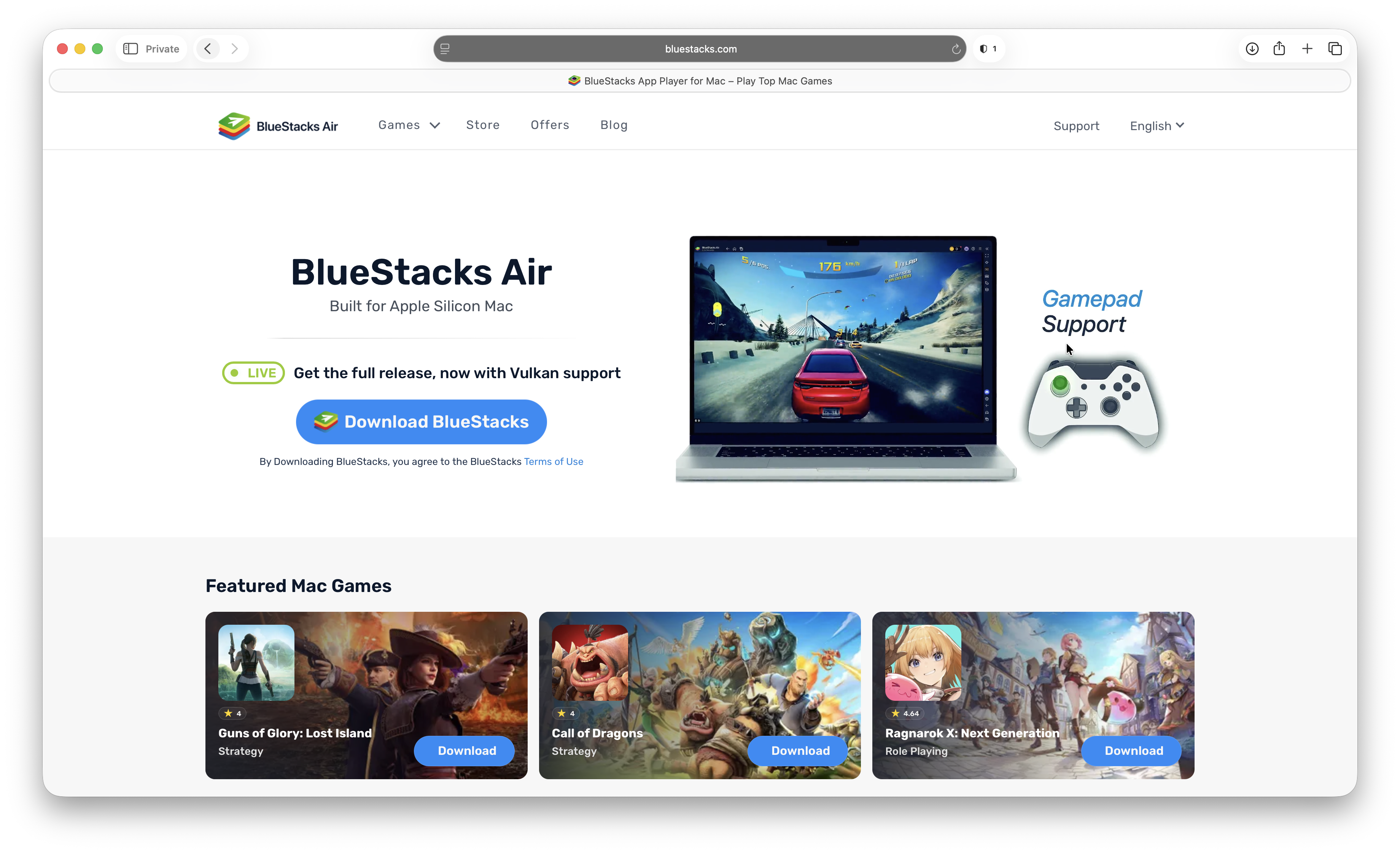
BlueStacks Air is the easiest place to start if you have an Apple Silicon Mac and mainly want to use Android games or other mainstream apps.
The old BlueStacks for Mac was unavailable or poorly supported for several years, but that changed with the release of BlueStacks Air. This is the current Mac edition and is designed specifically for Apple Silicon.
BlueStacks Air is free, although BlueStacks also offers an optional Prime subscription with benefits such as an ad-free experience. Its main focus is gaming, with a built-in store, Retina display support and preconfigured keyboard, trackpad and gamepad controls for many titles.
BlueStacks officially requires:
- macOS 11 Big Sur or later
- An Apple Silicon Mac
- At least 8GB of memory, with 16GB recommended
- At least 12GB of free storage
It does not currently support Intel Macs.
How To Install Android Apps With BlueStacks Air
- Download BlueStacks Air for Mac from the official BlueStacks website.
- Open the downloaded PKG installer and follow the instructions.
- Launch BlueStacks Air from your Applications folder.
- Open the Store and search for the app or game you want.
- Select Install, then open the app from the BlueStacks home screen when the installation has finished.
Current versions of BlueStacks Air can also handle APK installations, although an APK is not guaranteed to be compatible. Only download APKs directly from the app developer or another source you trust.
If BlueStacks requests Accessibility access, this is used for features such as capturing mouse movement in games. You can control this permission in System Settings > Privacy & Security > Accessibility.
BlueStacks Air Pros
- Free and relatively easy to set up
- Designed for Apple Silicon Macs
- Good keyboard, trackpad and gamepad support
- Optimized for many popular Android games
- Supports multiple Android instances
BlueStacks Air Cons
- No Intel Mac support
- Primarily designed around gaming rather than productivity apps
- Not every app is available or compatible
- Can use a significant amount of memory and storage
2. MuMuPlayer For Mac: Best BlueStacks Alternative
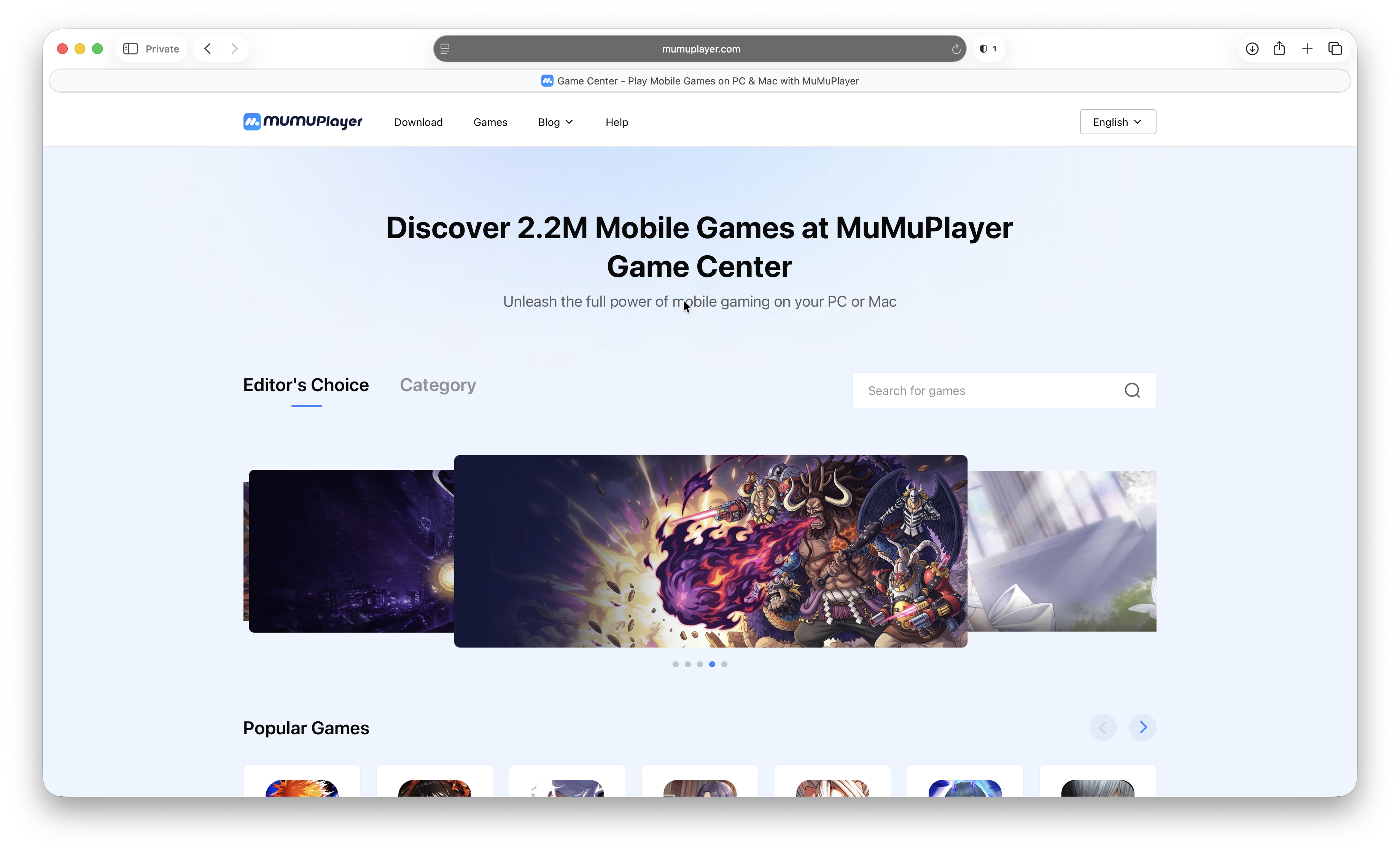
MuMuPlayer for Mac is an Android emulator from NetEase designed exclusively for Apple Silicon Macs. It was originally launched as MuMuPlayer Pro, so you may still see that name in older documentation and in some parts of the app.
MuMuPlayer includes the Google Play Store and also allows you to install an APK using Tools > Install APK. It supports multiple virtual Android devices, custom phone and tablet profiles, keyboard and mouse mapping, gamepads and Mac trackpad gestures.
It is a particularly useful alternative to BlueStacks if you want to run several Android instances at once. It also includes ADB and developer tools, although Android Studio remains the better all-round choice for serious Android development.
The main disadvantage is that MuMuPlayer for Mac is not permanently free. New devices receive a seven-day trial, after which a paid membership is required. The available 30-day, 90-day and annual options are shown from the purchase window inside the app.
MuMuPlayer does not support Intel Macs. It also supports ARM64 Android apps only, so older 32-bit Android apps will not install.
How To Install Android Apps With MuMuPlayer
- Download MuMuPlayer for macOS from the official website.
- Open the DMG file and install MuMuPlayer in your Applications folder.
- Launch the app and create or sign in to a MuMuPlayer account.
- Start the seven-day trial if this is the first time the Mac has used MuMuPlayer.
- Select Start an Android Device.
- Open the included Google Play Store and sign in to your Google account.
- Search for and install the Android app in the same way as you would on a phone or tablet.
To sideload an app instead, select Tools > Install APK and choose a legally obtained ARM64 APK file.
MuMuPlayer Pros
- Built specifically for Apple Silicon Macs
- Includes Google Play
- Supports multiple Android devices at the same time
- Good keyboard, mouse, trackpad and gamepad controls
- Can import APK files and share files with macOS
MuMuPlayer Cons
- Paid after a seven-day trial
- No Intel Mac support
- Does not support 32-bit Android apps
- Some games block emulators or may penalize accounts that use them
3. Android Studio: Best For Developers
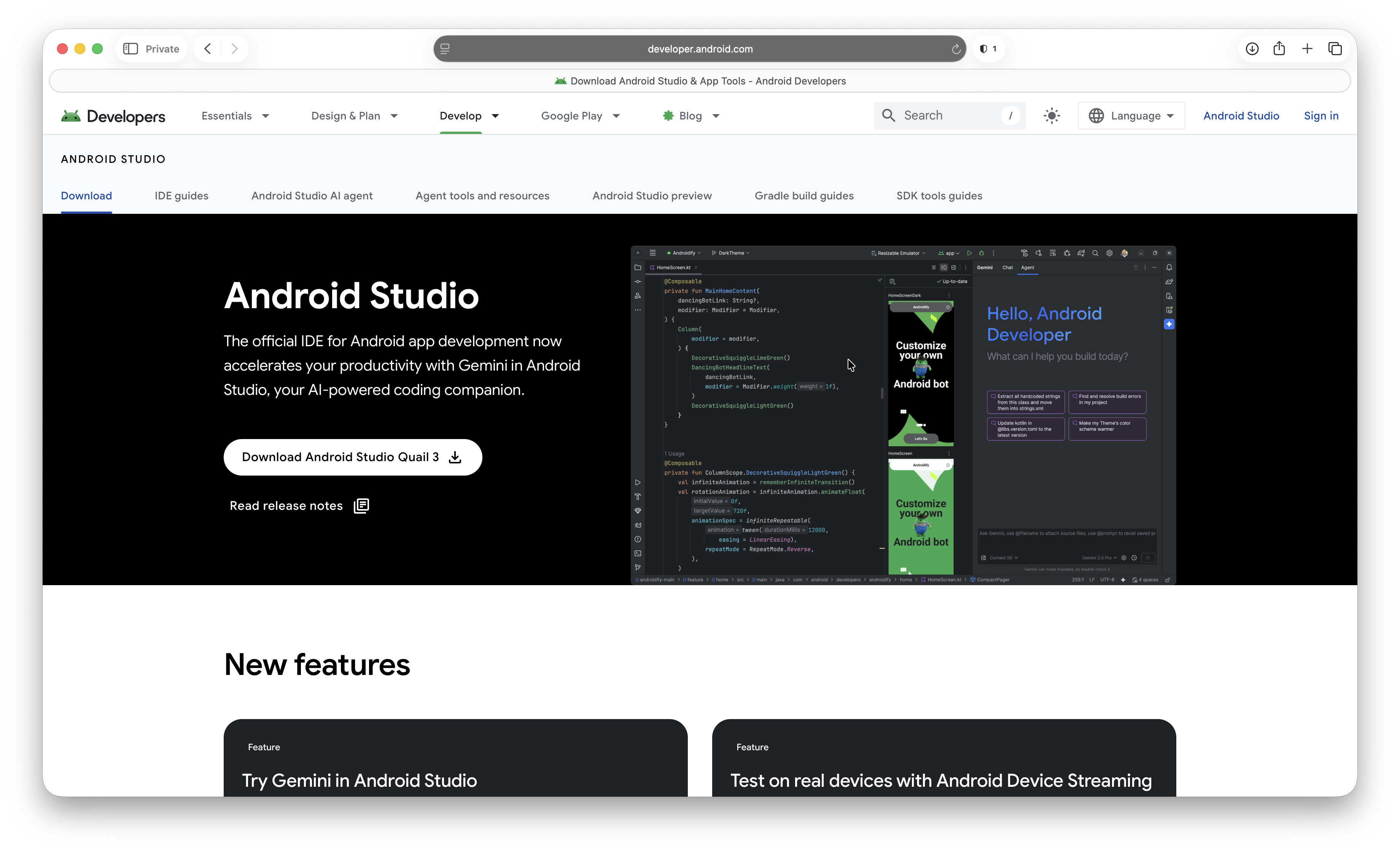
Android Studio is Google’s official development environment for Android. It includes the Android Emulator, which can create virtual phones, tablets, foldables, TVs, Wear OS watches and other Android devices on a Mac.
Android Studio is free and supports both Apple Silicon and Intel Macs, although Google says that it is phasing out Intel Mac support. Google currently lists macOS 12 or later, 16GB of memory and 16GB of free space as the minimum configuration for using Android Studio and the emulator together. It recommends the latest Apple Silicon hardware and 32GB of memory for the best performance.
This is the most trustworthy and flexible choice for developers, but it is not the easiest Android emulator for everyday users. It takes longer to install, uses more storage and lacks the gaming-focused control mapping found in BlueStacks and MuMuPlayer.
How To Run Android Apps In Android Studio
- Download Android Studio for Mac.
- Open the DMG file, drag Android Studio to your Applications folder and complete the setup wizard.
- From the Android Studio welcome screen, select More Actions > Virtual Device Manager. If you already have a project open, select View > Tool Windows > Device Manager.
- Click the + button and select Create Virtual Device.
- Choose a phone or tablet profile. If you want to use Google Play, select a device definition displaying the Google Play logo.
- Select and download a compatible Android system image. On an Apple Silicon Mac, use an ARM64 image where available.
- Finish creating the device and click the play button beside it to start the emulator.
- Open Google Play inside the virtual device, sign in and install the app you want.
You can also install an APK by dragging it directly onto the running emulator window. Android Studio displays an APK Installer message and adds the app to the virtual device.
Android Studio Pros
- Google’s official Android emulator
- Free and regularly updated
- Supports Apple Silicon and, for now, Intel Macs
- Can simulate many Android versions and device types
- Excellent debugging, networking, location and sensor testing tools
Android Studio Cons
- More complicated than a consumer Android emulator
- Requires considerable memory and storage
- Not optimized for Android gaming
- Google is phasing out Intel Mac support
4. Genymotion Desktop: Best For Advanced Testing And Intel Macs
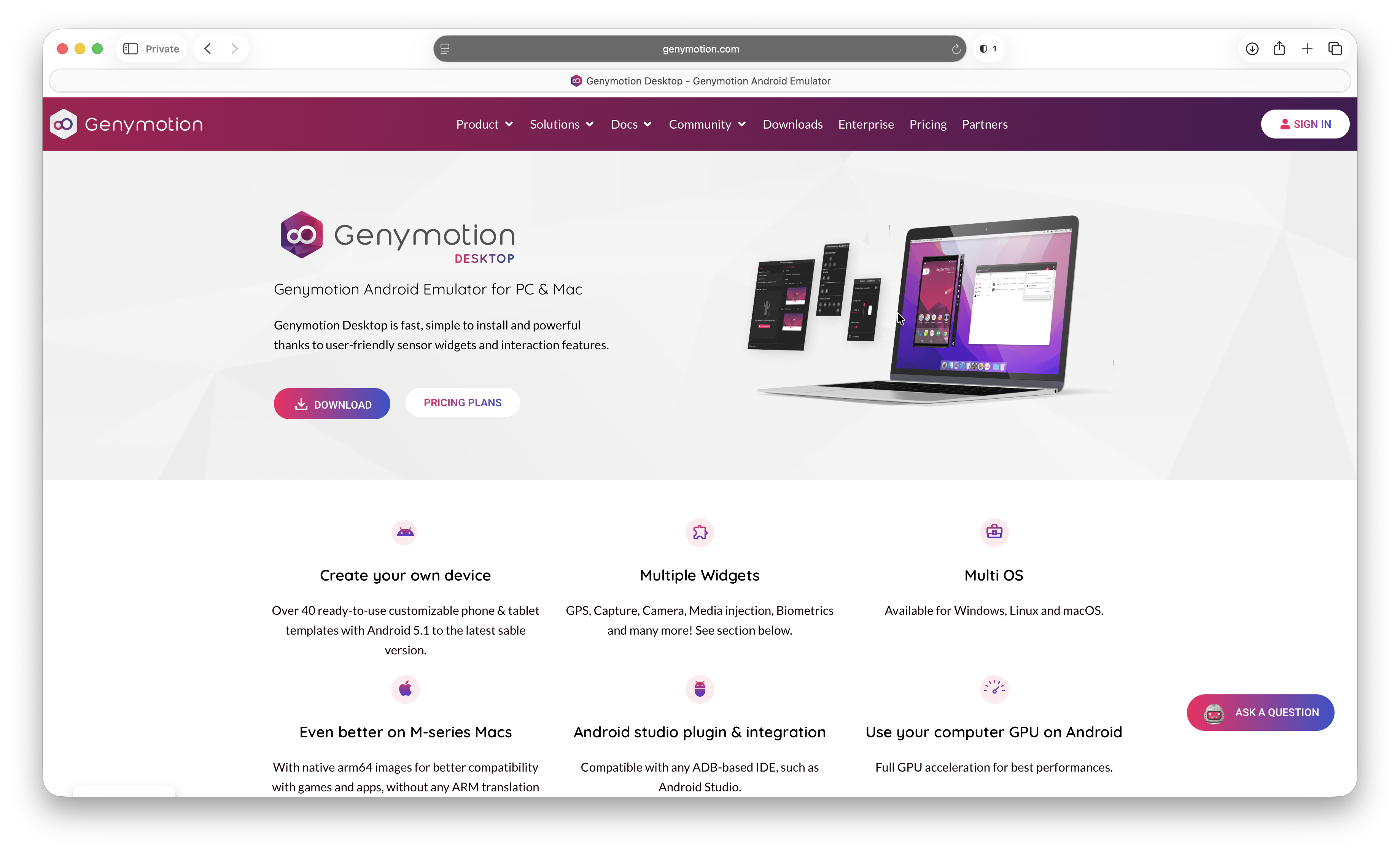
Genymotion Desktop is another Android emulator aimed mainly at developers, QA testers and businesses. It can simulate different device models, Android versions, screen sizes, network conditions, locations and sensors.
Unlike BlueStacks Air and MuMuPlayer, Genymotion still supports both 64-bit Intel and Apple Silicon Macs. Apple Silicon users must have Rosetta installed, and Genymotion recommends at least 16GB of memory.
Genymotion Desktop is free for limited personal use. At the time of writing, commercial plans start at $239.99 per year for an individual freelancer or self-employed user, while business licensing costs more.
Google Play and Google Play Services are not included in its virtual devices by default. You can add them using Genymotion’s built-in Open GApps option, but Genymotion states that this is done at your own risk. APK files can also be dragged directly onto a running virtual device.
Genymotion is a better fit for testing than entertainment. Some apps detect its virtual devices as rooted or unsupported, while games may lack the polished control mappings offered by BlueStacks and MuMuPlayer.
Genymotion Pros
- Supports Apple Silicon and Intel Macs
- Free limited edition for personal use
- Wide range of virtual device and testing options
- Uses an embedded QEMU hypervisor on current Macs
- Supports APK installation and optional Open GApps
Genymotion Cons
- Designed mainly for developers and testers
- Requires Rosetta on Apple Silicon
- Google Play is not included by default
- Commercial licensing is relatively expensive
- Not the best choice for gaming
5. scrcpy: Best If You Already Have An Android Phone
scrcpy does not emulate Android. Instead, it mirrors a real Android phone or tablet on your Mac and lets you control it with your keyboard and mouse.
This is often the most reliable way to use an Android app on a Mac because the app is still running on genuine Android hardware. It is particularly useful if an app refuses to run in BlueStacks, MuMuPlayer, Android Studio or Genymotion.
scrcpy is free, open source and works over USB or Wi-Fi. It does not require root access or leave an app installed on the Android device. Audio forwarding is supported on Android 11 and later.
The downside is that you must own an Android phone or tablet and enable USB debugging. It is also a command-line utility, so it is less beginner-friendly than BlueStacks or MuMuPlayer.
How To Use Android Apps On A Mac With scrcpy
- Install Homebrew on your Mac if you do not already have it.
- Open Terminal and install scrcpy with
brew install scrcpy. - Install the Android platform tools with
brew install --cask android-platform-tools. - On the Android device, enable Developer options and then turn on USB debugging.
- Connect the Android device to the Mac with a USB cable and approve the debugging prompt on the device.
- Type
scrcpyin Terminal and press Return.
The Android screen will appear in a window on your Mac. You can then open and control any compatible app already installed on the device.
Which Method Should You Use?
For most users with an Apple Silicon Mac, start with BlueStacks Air. It is free, easy to install and has the best balance of performance and gaming controls.
Choose MuMuPlayer for Mac if BlueStacks does not support the app or game you need, or if you want its multi-instance and developer features and do not mind paying after the trial.
Use Android Studio if you are developing or testing an Android app, need a specific Android version or prefer Google’s official emulator.
Try Genymotion Desktop if you need more advanced virtual-device testing or still use an Intel Mac.
Use scrcpy if you already own an Android device and want the widest app compatibility without trusting a third-party emulator with a sensitive app.
Before installing any emulator, also check whether the service has a web app or a native Mac version. Apple Silicon Macs can run some iPhone and iPad apps from the Mac App Store when the developer makes them available, which may provide a better experience than emulating the Android edition.
Why Some Android Apps Do Not Work On A Mac
Even the best Android emulator cannot guarantee that a particular app will work. Common reasons include:
- Emulator detection: Banking, streaming and competitive gaming apps may deliberately block virtual devices.
- Google Play Integrity: An app may require a certified physical device or a stronger integrity verdict than the emulator can provide.
- Processor architecture: Some APKs contain only 32-bit or x86 code, while Apple Silicon emulators may require ARM64 support.
- Missing hardware: NFC, GPS, Bluetooth, cameras, accelerometers and other phone features may be missing or only simulated.
- DRM and anti-cheat systems: Protected video services and multiplayer games may refuse to start.
- Touch controls: Apps designed for multi-touch gestures may be awkward to use with a mouse and trackpad.
If an app is important, check the emulator’s compatibility list before subscribing. For banking, password management and other sensitive tasks, we recommend using the official website, a native Mac app or a physical Android device instead.
Is ARC Welder Still Available?
No. ARC Welder is no longer a viable way to run Android apps on a Mac. It was an experimental Chrome app and stopped working after Google ended Chrome App support on Mac, Windows and Linux.
You should remove the old ARC Welder extension if it is still installed and avoid unofficial sites claiming to offer a working replacement. The screenshots and APK instructions in older ARC Welder tutorials are now obsolete.
Can You Install An APK Directly On A Mac?
No. An APK is an Android installation package and macOS cannot open it as a native Mac application.
You can sideload an APK into MuMuPlayer, Android Studio, Genymotion and supported versions of BlueStacks Air, but only download APKs from the developer or another source you trust. Searching the web for a random APK is risky because the file may be outdated, modified or malicious.
Can You Run Android Apps Natively On Apple Silicon?
Not directly. Although Apple Silicon and most modern Android phones both use ARM-based processors, Android apps depend on Android frameworks, Google services and APIs that macOS does not provide.
Apple Silicon Macs can run compatible iPhone and iPad apps from the Mac App Store, but those are iOS or iPadOS versions—not Android APKs—and developers can choose not to make them available on the Mac.
If you have any questions or find that a particular Android app works especially well with one of these methods, let us know in the comments below.