

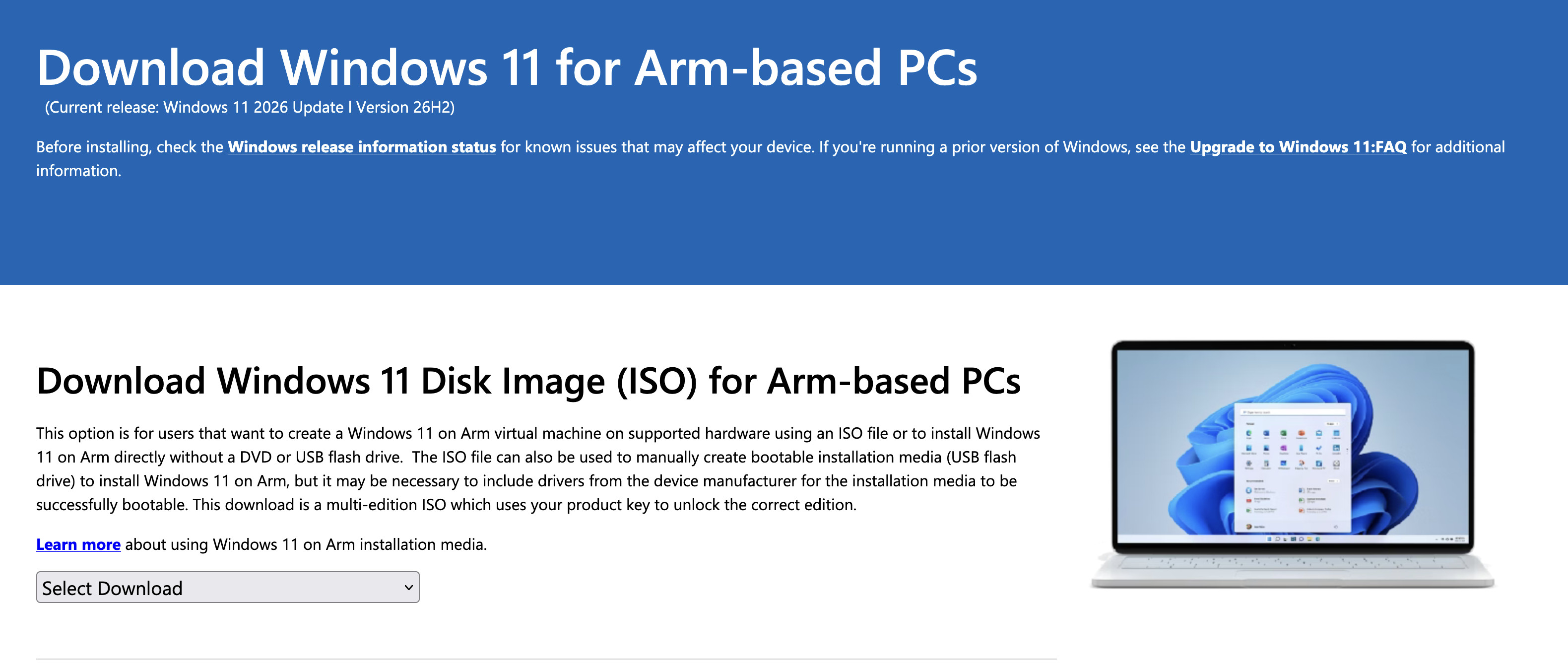
If you have an Apple Silicon Mac, you can run Windows 11 in a virtual machine. But there is one important catch: it is Windows 11 on ARM, not the standard x86 version of Windows installed on most PCs.
For many people, that difference no longer matters very much. Microsoft Office, web browsers, many business applications and plenty of traditional Windows software work well. However, Windows on ARM is still not a like-for-like replacement for a normal Windows PC when an app needs a specialist driver, advanced graphics support, kernel-level anti-cheat or nested virtualisation.
This guide explains what works on Windows 11 ARM on an M-series Mac, what commonly fails, and how to check an important app before spending money on virtualisation software or a Windows licence.
Quick Answer
Windows 11 ARM on an Apple Silicon Mac is a good option for ordinary Windows productivity software, many x86 and x64 desktop apps, browser testing and lighter development work.
It is less suitable for software that depends on a specific Windows driver, specialist USB hardware, Hyper-V, WSL2, demanding DirectX 12 graphics or kernel-level anti-cheat.
| What you need to run | Likely result on Windows 11 ARM in a Mac VM | Best approach |
|---|---|---|
| An ARM64-native Windows app | Excellent | Use Parallels Desktop, VMware Fusion or UTM |
| A standard x86 or x64 productivity app | Often works through Windows emulation | Test it in a VM before committing |
| Microsoft 365, browsers, accounting tools or general business software | Usually a good fit | A Windows 11 ARM virtual machine |
| A printer, scanner, USB dongle or specialist hardware | Depends on an ARM64 driver being available | Check the manufacturer’s Windows ARM support first |
| A recent 3D, CAD or GIS app | Depends on its graphics requirements and VM support | Check the exact app and try a trial VM |
| A competitive PC game with anti-cheat | Often unsuitable | Use cloud gaming, a remote PC or a native Mac version |
| Hyper-V, WSL2 or a VM inside Windows | Not a reliable route in Parallels on Apple Silicon | Use a remote Windows PC or a physical PC |
| A Windows-only app that needs the exact x86 PC environment | Variable | Test first, or use a remote Windows PC/Cloud PC |
The key is to identify what the app needs beyond Windows itself. An ordinary user-mode application may run well through emulation. A program that installs a low-level driver usually needs an entirely different solution.
Why Apple Silicon Macs Use Windows 11 ARM
Apple Silicon Macs use ARM-based M-series chips. They cannot run the normal Intel/AMD version of Windows directly in a virtual machine.
Instead, virtualisation software runs Windows 11 on ARM, which is Microsoft’s ARM-compatible version of Windows. Windows then includes its own built-in emulation layer for many traditional x86 and x64 Windows applications.
That means there are several layers involved when you run an older Windows app on a Mac:
- Your Apple Silicon Mac runs the virtual machine.
- The virtual machine runs Windows 11 ARM.
- Windows may emulate the x86 or x64 application.
- The application may also need graphics features, a driver, hardware access or an online anti-cheat service.
The first three layers now work surprisingly well for many applications. Problems tend to appear at the fourth layer.
Microsoft confirms that Windows 11 on ARM can emulate both x86 and x64 user-mode applications. However, emulation brings some performance overhead, so an ARM64-native version remains the best option whenever one is available. Microsoft’s Windows on ARM documentation explains the underlying emulation in more detail.
What Usually Works Well on Windows 11 ARM
ARM64-Native Windows Apps
An app with an ARM64 or Windows on ARM version is the best-case scenario. It runs natively inside Windows 11 ARM rather than being translated from x86 or x64 instructions.
Native ARM apps generally offer the best responsiveness, lowest resource use and most predictable compatibility. Check the developer’s downloads page for a version labelled ARM64, Arm, Windows on ARM or ARM-based PCs.
Standard x86 and x64 Desktop Apps
Many mainstream Windows applications are still distributed only in x86 or x64 form. In Windows 11 ARM, these can often run through Microsoft’s built-in emulation without any special configuration.
This is why applications such as Microsoft 365, browsers, many accounting packages, office utilities, older line-of-business tools and general productivity software can work well in a Windows VM on an M-series Mac.
The word often is important. An app may launch and work perfectly, work with a small performance penalty, or fail because an add-on, installer or background component depends on something Windows cannot emulate.
Apps That Only Need a Browser or Basic Windows Features
If the software is mainly a web service or a conventional desktop application without special hardware, Windows 11 ARM is usually a sensible choice. It is particularly useful for:
- Opening Windows-only documents or business portals.
- Running legacy accounting or office software.
- Testing how a website or web app behaves in Windows browsers.
- Accessing a Windows-only utility occasionally.
- Running a Windows version of Microsoft Office where the Mac version is missing a feature you need.
For a broader comparison of the available VM software, see our guide to the best virtual machines for Mac.
What Can Cause Compatibility Problems
Hardware Drivers and Specialist USB Devices
Drivers are the biggest source of genuine incompatibility.
Windows can emulate ordinary user-mode x86 and x64 applications, but it cannot emulate kernel-mode drivers. A printer driver, scanner driver, USB security key, audio interface driver, VPN component, antivirus driver or specialist engineering device driver must be built for ARM64 to work properly with Windows 11 ARM.
Before relying on a device, look for an explicit statement from its manufacturer that it supports Windows 11 on ARM or has an ARM64 driver. Do not assume that a Windows 11 driver is enough.
Microsoft highlights the same limitation: if a peripheral depends on a driver that is not built into Windows or available in ARM64 form, the hardware may not work fully or at all.
Older Apps With Low-Level Components
An old desktop program may look like a simple Windows app but install extra components in the background. These can include:
- A device driver.
- A virtual printer or PDF driver.
- A security or licensing component.
- An old browser plug-in.
- A low-level database, networking or file-system filter.
The main application may open, while one important feature fails. This is why testing the exact version matters more than simply finding a report that the app “runs on Windows ARM”.
Games and Anti-Cheat Software
Windows gaming is one of the least predictable uses for a Windows virtual machine on Apple Silicon.
Many older or lighter games may launch, but current PC games can rely on DirectX 12, advanced graphics features, Windows drivers or kernel-level anti-cheat. Anti-cheat tools are especially likely to prevent a game from running if they have not been made for Windows ARM.
For a game you care about, check the publisher’s system requirements and community reports for that exact title. Do not buy Parallels, VMware Fusion or UTM on the assumption that it will run every Windows game.
For many newer games, cloud gaming on a Mac or a remote Windows PC is a more dependable route. For games that work outside a full Windows installation, CrossOver can also be worth trying.
3D, CAD, GIS and GPU-Intensive Software
A virtual machine does not give Windows the same direct access to your Mac’s GPU that a normal Windows PC gives it to a graphics card. Instead, the virtualisation software translates graphics calls for the Mac.
This has improved substantially. Parallels Desktop 27, for example, supports hardware-accelerated OpenGL 4.3 in Windows 11 ARM virtual machines on Apple Silicon. That can make more professional apps viable, including software with modest OpenGL requirements.
However, it is not a blanket promise that every 3D app will work. Check the application’s exact minimum graphics API, its DirectX requirement, whether it needs a certified GPU, and whether it relies on a driver or USB licence dongle.
If you rely on CAD, BIM, GIS, 3D modelling or rendering software for paid work, test the real project files during a free trial before changing your setup.
Nested Virtualisation, Hyper-V and WSL2
Some developer and IT tools need Windows to create another virtual machine inside itself. This is known as nested virtualisation.
On Apple Silicon Macs, this is a major limitation. Parallels currently lists Hyper-V, Hyper-V-based technologies and WSL2 as unavailable in Windows 11 ARM virtual machines on Apple Silicon. WSL1 may be usable for simpler command-line Linux tasks, but it is not a replacement for WSL2.
If your work depends on Hyper-V, Docker setups that require WSL2, Android emulators, Windows Sandbox or a VM inside Windows, use a remote Windows PC, Windows 365, Azure Virtual Desktop or a separate Windows computer instead.
How To Check Whether an App Will Work Before You Buy Anything
Use this checklist before you commit to a virtual machine or Windows licence.
1. Find the Exact Version You Need
Do not search only for an app’s name. Record the exact version, edition, plug-ins, USB hardware and features you use.
A current release may work while an older version with a legacy plug-in does not. Equally, an app’s basic editor may run fine while its scanner, driver or hardware-licensing feature fails.
2. Check the Developer’s Download and System-Requirements Pages
Look for these terms:
| What the developer says | What it usually means |
|---|---|
| ARM64, Windows on ARM or Arm-based PCs supported | The software will definitely work in Windows 11 ARM |
| x86 or x64 desktop app, with no driver requirement | Often worth testing in Windows 11 ARM |
| Intel/AMD processor required | Treat it as a warning rather than an automatic no |
| Requires a driver, dongle, scanner, printer or specialist USB device | Confirm ARM64 driver support before proceeding |
| Requires DirectX 12, a specific GPU or a certified graphics card | Test carefully or use a real/remote Windows PC |
| Requires Hyper-V, WSL2, Windows Sandbox or nested virtualisation | Use another method |
| Requires kernel-level anti-cheat | Assume it may not work until the publisher confirms otherwise |
3. Check Whether Your Hardware Has an ARM64 Driver
If you need a printer, scanner, USB licence key, label printer, MIDI interface, audio device, medical device or engineering controller, go directly to the hardware manufacturer’s support page.
Search for Windows 11 ARM, ARM64, Windows on ARM and your exact device model. If the manufacturer does not mention ARM support, ask its support team before buying software or hardware for the Mac setup.
4. Use a Free Trial for Important Apps
Compatibility databases and forum posts are useful, but they cannot replace testing your actual files and hardware.
Parallels Desktop offers a trial, and it is the most straightforward option for testing a Windows 11 ARM virtual machine on an Apple Silicon Mac. Install the exact application, open your real files, connect the necessary hardware and try the work that matters before making a purchasing decision.
For setup help, see our guide to installing Windows 11 on a Mac.
Choose the Right Way To Run Your Windows Software
| Your main need | Best route | Why |
|---|---|---|
| General Windows apps, Office and everyday productivity | Parallels Desktop | Easiest setup and the closest macOS integration |
| A free Windows VM for lighter work | VMware Fusion or UTM | Good for occasional or more technical use, with feature trade-offs |
| One specific Windows app or game | CrossOver, where supported | Avoids installing a complete copy of Windows |
| A work app requiring full x86 Windows, drivers or managed corporate access | Remote Windows PC, Windows 365 or Azure Virtual Desktop | The Windows environment runs on a real x86 machine elsewhere |
| Demanding Windows games | Cloud gaming, a Windows PC or a supported compatibility layer | Avoids virtualised graphics and Windows ARM limits |
There is no single best answer for every task. A virtual machine is excellent when you need a full Windows desktop alongside macOS. A remote PC is the better answer when you need guaranteed x86 hardware, a corporate Windows build, specialised drivers or a GPU that a virtual machine cannot provide.
Microsoft’s Windows App for macOS can connect to Windows 365, Azure Virtual Desktop, Microsoft Dev Box, Remote Desktop Services and remote PCs when you have access to one.
How Much Mac Memory Do You Need?
Windows and macOS share the same unified memory on Apple Silicon Macs. This is why a virtual machine can feel smooth on a well-specced Mac but become frustrating when there is not enough memory for both operating systems.
As a practical guide:
- 8GB: Fine for occasional, lightweight Windows use, but keep macOS apps to a minimum.
- 16GB: A much more comfortable starting point for Office, browser testing, business software and ordinary multitasking.
- 24GB or 32GB+: Better for development, larger files, several Windows apps at once, CAD or other heavier workloads.
Storage matters too. Windows updates, applications and snapshots can quickly make a small virtual machine grow. Leave enough free internal storage for macOS as well as Windows, or store the VM on a fast external SSD if your virtualisation software supports it.
FAQ
Can every x86 Windows app run on an M-series Mac?
No. Windows 11 ARM can emulate many x86 and x64 user-mode apps, but it cannot emulate kernel-mode drivers. Compatibility also depends on graphics requirements, add-ons, USB hardware, anti-cheat and the exact version of the application.
Is Windows 11 ARM slower than normal Windows?
Native ARM64 apps should be the most efficient. x86 and x64 apps may have some performance overhead because Windows has to emulate them, although many productivity apps still feel perfectly usable on a modern M-series Mac.
Can I install the standard x86 version of Windows 11 on Apple Silicon?
Not as the normal virtual-machine route. Apple Silicon Macs should use Windows 11 ARM. Some tools may offer experimental alternatives, but Windows 11 ARM is the practical and supported choice for most users.
Do printers and USB devices work in Windows 11 ARM on a Mac?
They can, but the device must have an ARM64 driver or use a driver already included in Windows. Check the hardware manufacturer’s support information before relying on it.
Does Windows 11 ARM support x64 apps?
Yes. Windows 11 ARM can emulate both x86 and x64 user-mode applications. That does not extend to drivers and does not guarantee every app will run correctly.
Can I use WSL2 or Hyper-V in Parallels on an Apple Silicon Mac?
Not currently. Parallels lists nested virtualisation, Hyper-V and WSL2 as limitations for Windows 11 ARM virtual machines on Apple Silicon. Use WSL1 for a basic alternative where suitable, or use a remote/physical Windows PC for work that requires WSL2 or Hyper-V.
Should I use Windows 10 ARM instead?
For a new Apple Silicon virtual machine, use Windows 11 ARM. Parallels no longer supports Windows 10 ARM on M-series Macs, and Windows 11 ARM is the current practical choice.