

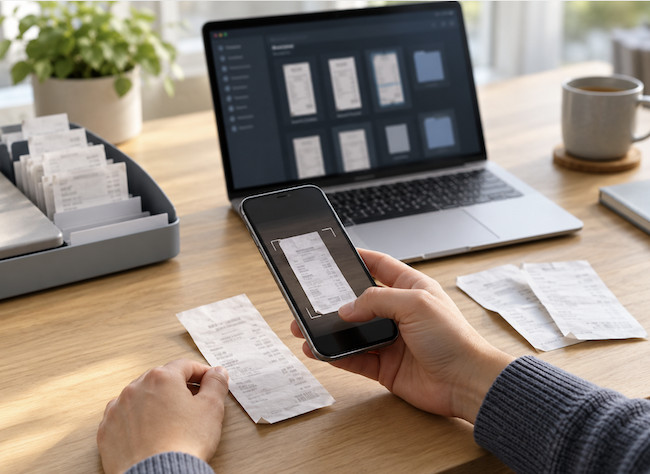
If you run a business from a Mac, paper receipts are one of those small jobs that can become a surprisingly expensive mess. They fade, pile up in drawers, get separated from the matching bank transaction and tend to reappear only when your accountant asks for them.
The best receipt scanning software for Mac fixes that by turning a photo, PDF or paper receipt into a searchable record. The best apps also pull out the merchant, date, total, currency and tax details, then attach the original image to the right expense in your accounting software.
For most people, the best solution is not a traditional Mac desktop app. You scan a receipt with an iPhone or upload a PDF, then review, categorise and reconcile it from a browser on your Mac. That is faster than feeding every coffee receipt through a document scanner and means the image reaches your accounts while the purchase is still fresh.
Our top overall choice is Dext because it is built specifically to capture, extract and publish receipts and supplier documents into accounting software. If you already use QuickBooks or Xero, however, their built-in tools are usually the more sensible starting point. For a small team that wants a genuinely useful free plan, Zoho Expense is hard to beat.
If you are looking for a broader system to scan bills, statements and household paperwork as well as receipts, see our guide to the best paperless office software for Mac.
If you want to some general tips on how to go paperless, check our wider guide on how to create a paperless office with a Mac.
The Best Receipt Scanning Software for Mac
| Software | Best for | How you capture receipts | How it works on a Mac | Price |
|---|---|---|---|---|
| Dext | Overall business and accountant-led setups | Mobile camera, email, WhatsApp and desktop upload | Browser dashboard | Paid, with a free trial |
| QuickBooks Online | Existing QuickBooks users | QuickBooks app, email and upload | Browser dashboard | Included with eligible QuickBooks subscriptions |
| Xero + Hubdoc | Existing Xero users | Xero/Hubdoc mobile apps, email, upload and compatible scanners | Browser dashboard | Hubdoc is included with some Xero plans when connected |
| Zoho Expense | Small teams and a free starting point | Mobile, email, bulk upload and cloud imports | Browser dashboard | Free for up to 3 users; paid plans add higher scan limits |
| Expensify | Employee expenses and reimbursement | Mobile camera, email and upload | Web and desktop apps | Free individual features; paid workspace plans for teams |
| ScanSnap Home | A large paper-receipt backlog | ScanSnap document scanner | Native macOS app | Software is supplied with compatible ScanSnap scanners |
| Apple Notes and Files | Free, low-volume receipt storage | iPhone/iPad document scanner and Continuity Camera | Built into macOS and iCloud | Free |
1. Dext – Best Overall Receipt Scanning Software for Mac
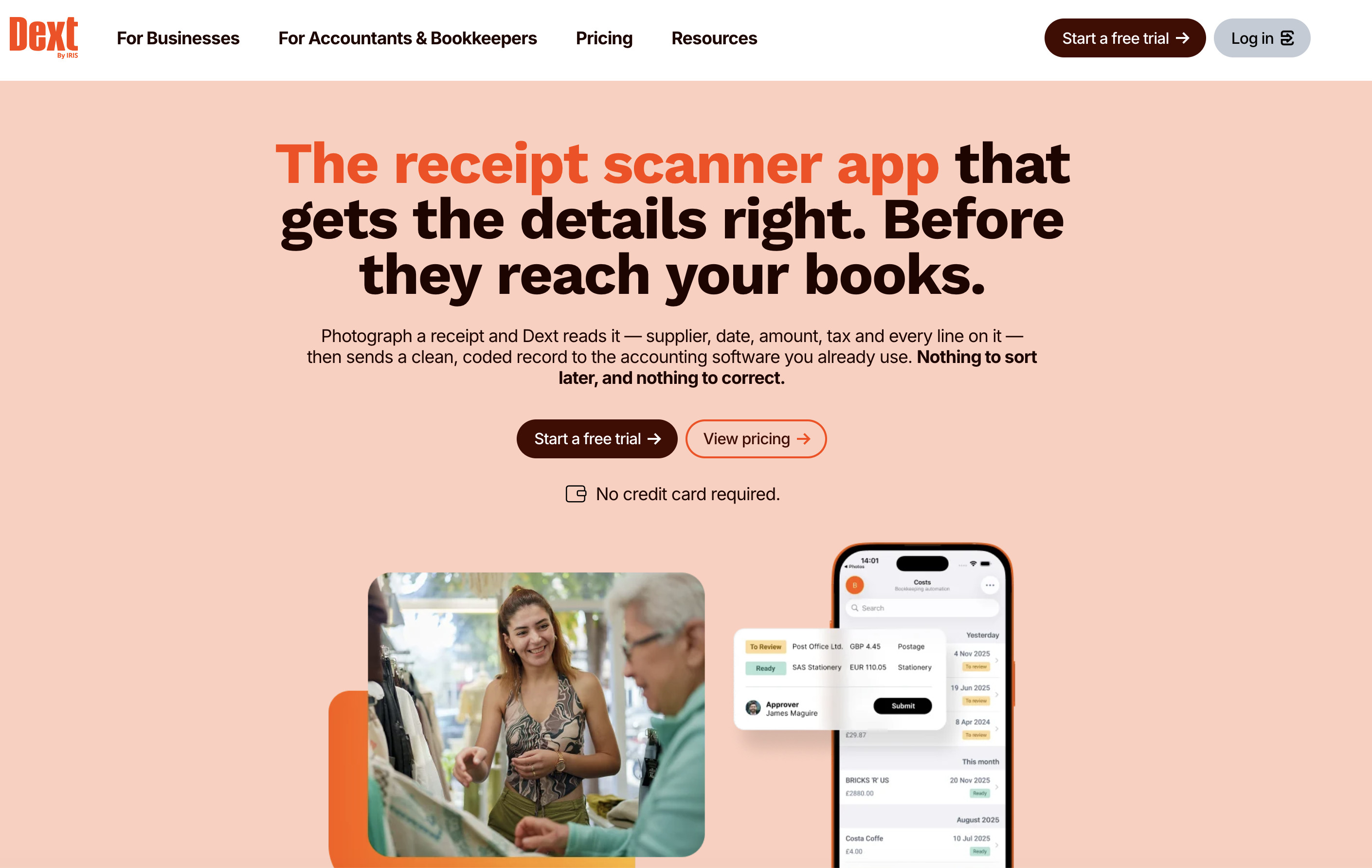
Dext is the strongest all-round choice if receipts are part of a real bookkeeping system rather than a folder of PDFs you occasionally search.
Formerly known as Receipt Bank, Dext is designed around the awkward bit of bookkeeping: getting reliable information out of receipts, bills and statements before they reach your accounts. You can capture a paper receipt with the mobile app, email a digital receipt, send one through WhatsApp or upload from your Mac. Dext then extracts the key data, lets you check it and publishes it to compatible accounting software.
That flexibility matters. A phone photo is quickest for a lunch receipt, while emailed PDFs from software subscriptions and online shops should be treated the same way without being printed and re-scanned. Dext is especially good at keeping these two sources together.
Dext says its extraction uses models trained on financial documents and can pull out supplier, date, tax, currency, total and line-item data. It also supports categorisation rules and gives accountants a way to chase missing paperwork without turning a monthly bookkeeping review into a long email thread.
Why Dext is our top pick
- Multiple capture routes: phone, email, desktop upload and WhatsApp
- Built for receipts, supplier invoices and statements rather than generic OCR
- Strong fit for Xero, QuickBooks and accountant-managed books
- Rules and approvals reduce repetitive coding
- Retains the original source document alongside extracted data
What to watch out for
- It is more software than a sole trader with five receipts a month needs
- It is a cloud service, not a standalone native Mac app
- You should still check the extracted values before publishing, especially VAT, split purchases, tips, foreign currency and faded thermal receipts
Best for: businesses with regular supplier receipts, people working with an accountant or bookkeeper, and anyone who wants a single inbox for paper and electronic documents.
Price: Dext has a 14-day free trial. Its paid price is based on document allowance and users, so check the current plan before committing.
2. QuickBooks Online – Best If You Already Use QuickBooks
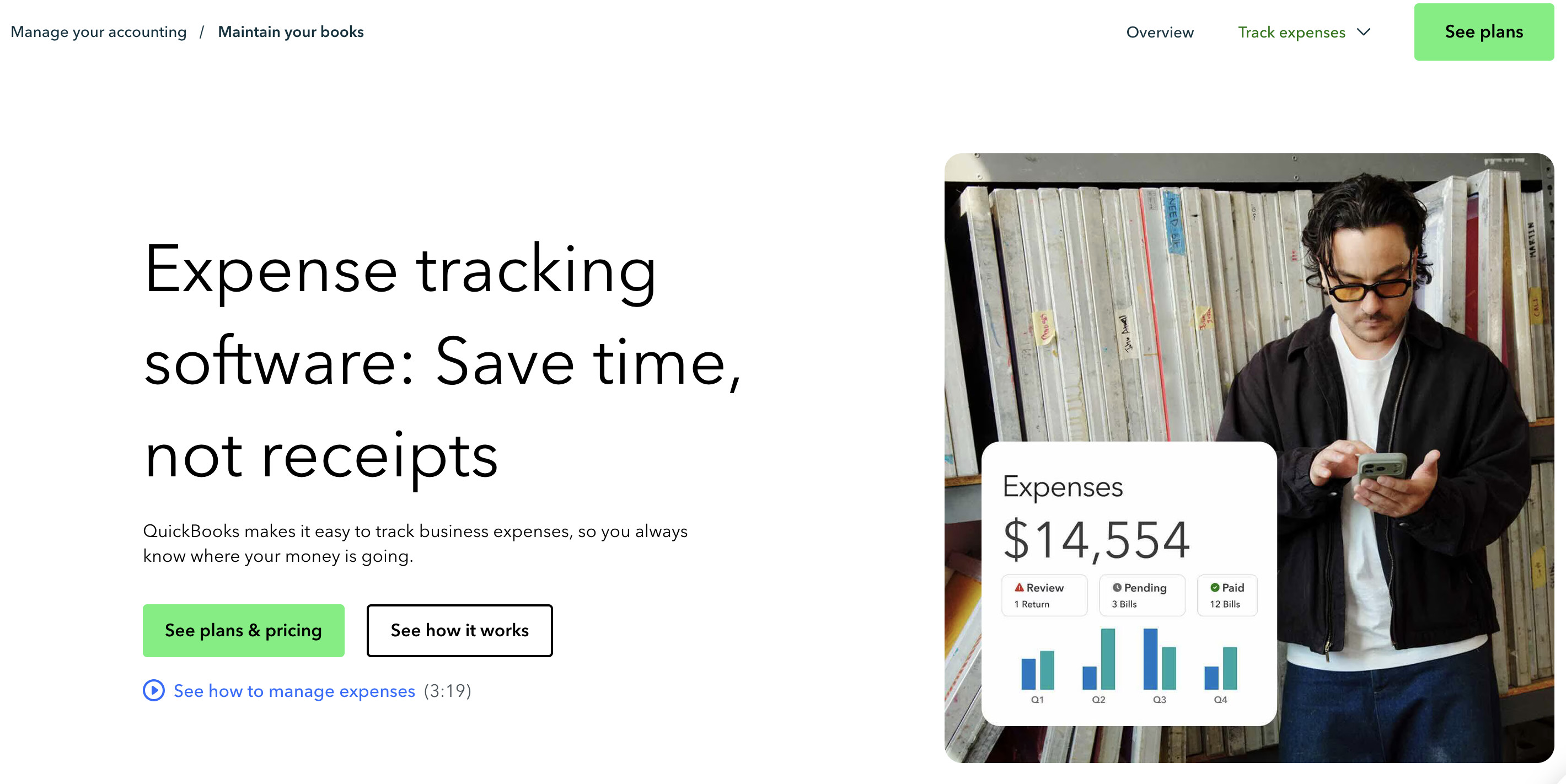
If your business already runs on QuickBooks Online, do not pay for a separate receipt scanner before trying the receipt capture tools included in your subscription.
QuickBooks lets you photograph a receipt in its mobile app, upload a file from the web or send receipts and bills by email. The receipt is then available in QuickBooks for review and can be linked to the relevant expense. This is ideal when you want the receipt image, bank transaction and accounting category to live in one place.
The way to use it is simple:
- Take a clear photo or forward an emailed PDF.
- Review the captured merchant, date and amount.
- Categorise it to the right expense account.
- Match it to the bank or card transaction when it arrives.
- Keep the image attached to the completed transaction.
The advantage is not just saving data entry. It means you do not have to remember which file folder contains proof for a transaction six months later.
Why choose QuickBooks Online
- Receipt capture and mileage tracking are included with current eligible UK subscriptions
- Capture, categorisation, bank matching and reports stay in one system
- Works well for a sole trader or limited company already using QuickBooks
- The Mac experience is excellent because it is browser-based
- Receipts and bills can also be sent in by email
What to watch out for
- It is not worth switching accounting platforms solely for receipt capture
- A general accounting system may feel less specialised than Dext for a high volume of supplier paperwork
- Receipt capture does not remove the need to review the tax treatment or business purpose
Best for: QuickBooks Online subscribers who want the shortest possible route from receipt photo to reconciled expense.
3. Xero and Hubdoc – Best for Xero Users
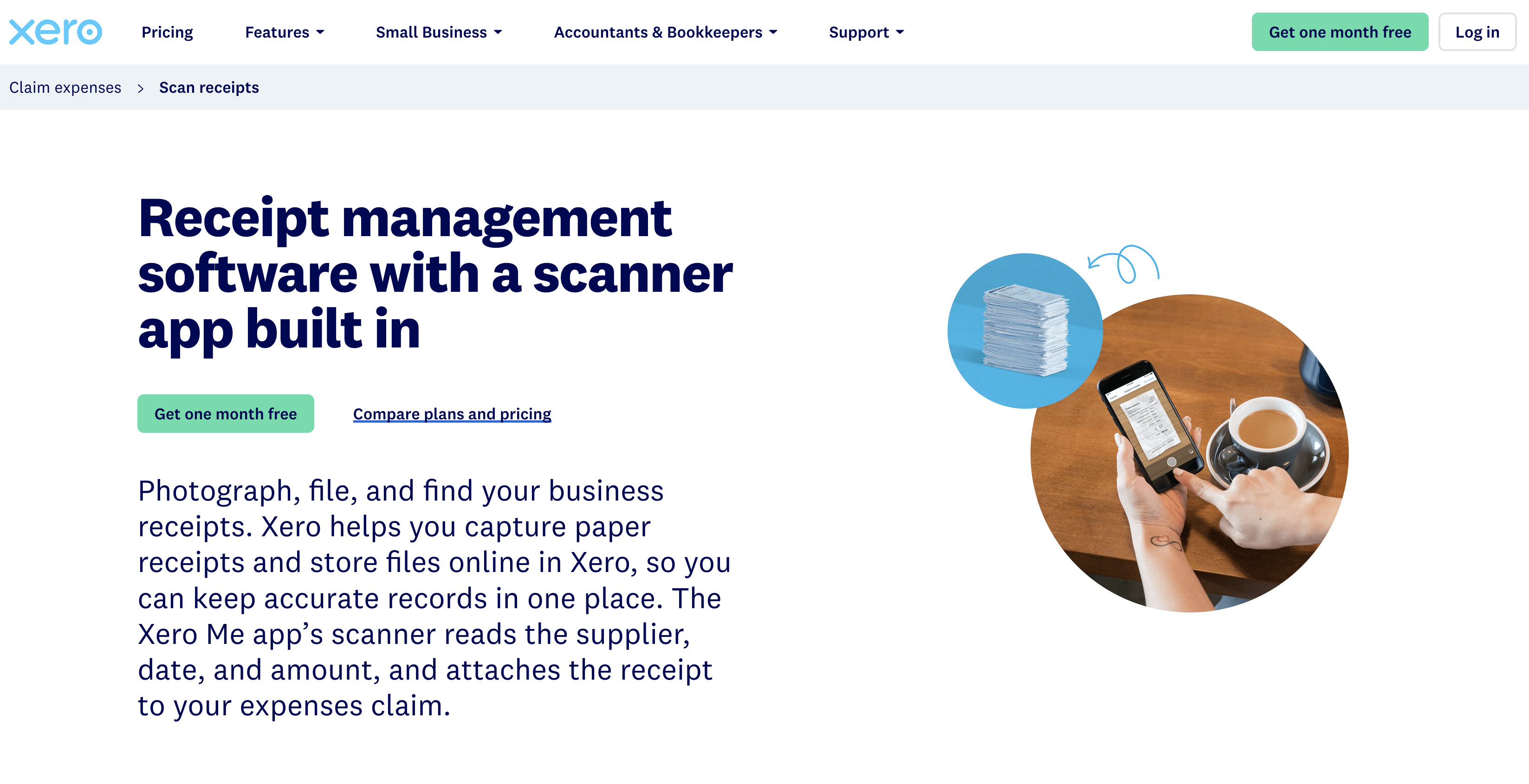
Xero users should make the most of Xero receipt capture and Hubdoc before adding another subscription.
Hubdoc is Xero’s document-capture tool. It can receive a receipt through the mobile app, email, web upload or a compatible scanner, extract key information and publish the document into Xero with the original attachment. The important benefit is that the scan is not merely stored in a separate app: it is attached where your bookkeeper is already working.
For UK readers, Hubdoc is currently included with Xero Simple, Ignite, Grow, Comprehensive and Ultimate plans when it is connected to the Xero subscription. That makes it a very good value choice for an existing Xero customer.
Use the Xero or Hubdoc app for a receipt you are holding, and use the receipt-forwarding email address for online invoices and subscriptions. If you regularly scan batches of paper, Hubdoc also integrates with ScanSnap, which can be much quicker than photographing hundreds of older receipts.
Why choose Xero and Hubdoc
- No extra receipt-capture subscription for most current UK Xero plans
- Mobile, email, upload and scanner-based capture options
- Supplier name, date and total are extracted for review
- Easy hand-off to Xero with the source file attached
- A natural fit for accountants and bookkeepers who already work in Xero
What to watch out for
- Check that Hubdoc is connected to your particular Xero organisation and plan
- Expenses and staff reimbursement features can vary by Xero plan
- If your business uses QuickBooks, use QuickBooks’ own receipt scanners instead
Best for: Xero customers who want receipt storage and data extraction without buying another dedicated product.
4. Zoho Expense – Best Free Receipt Scanner for Small Teams
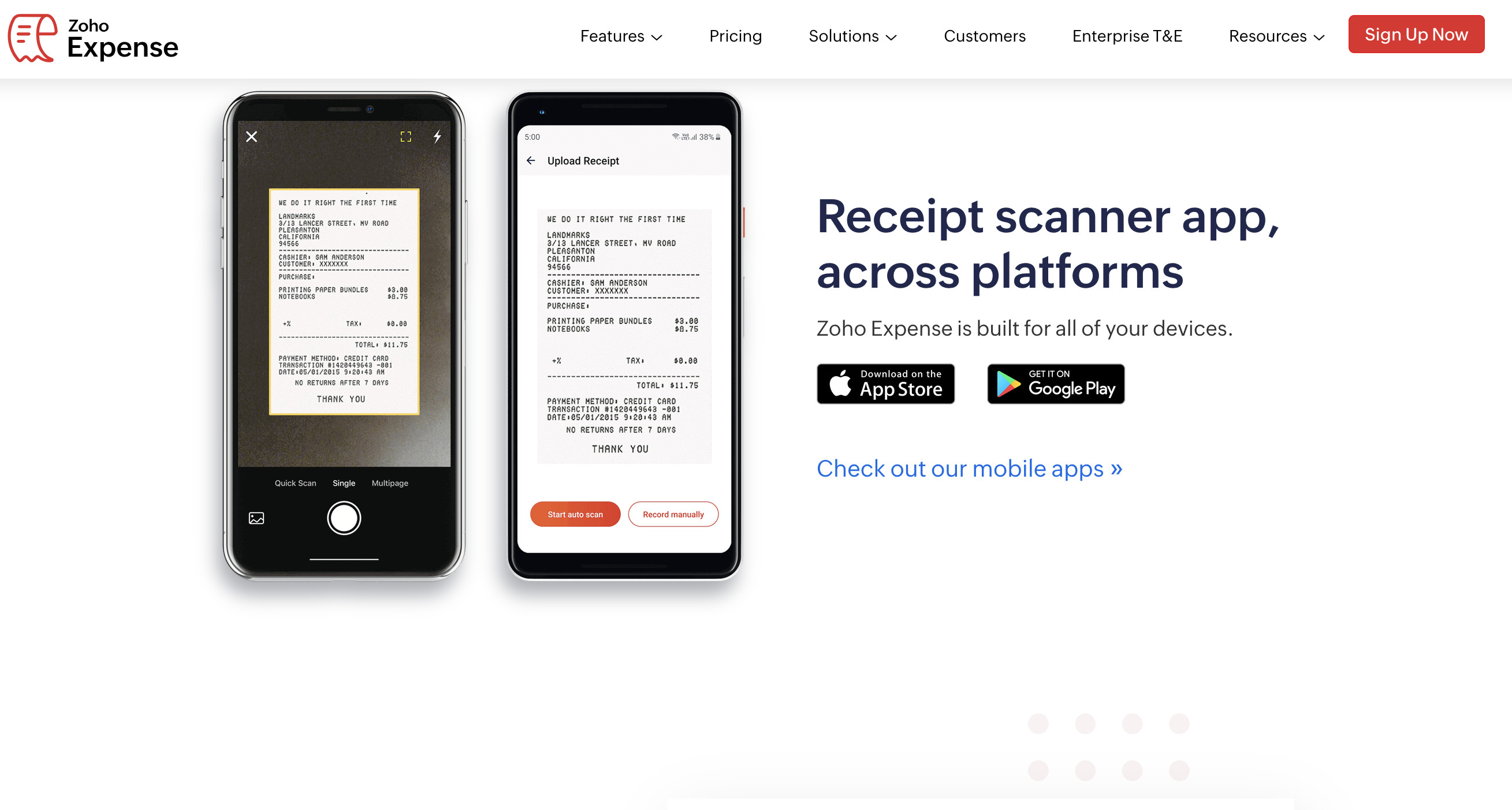
Zoho Expense is an unusually strong option for freelancers and small teams who need actual expense management rather than only a document archive.
Its Autoscan feature turns an uploaded receipt into an expense record and can recognise receipts in 38+ languages. You can capture with a phone, forward receipts from email, bulk-import files or attach documents from cloud services. It also includes the team-facing features that tend to matter once more than one person is spending company money: policies, approvals, mileage, reimbursement and reporting.
The free plan supports up to three users and includes 20 AI receipt scans per user each month, which is enough for many small businesses to test a proper system before paying. Paid plans raise the scan allowance substantially and add more advanced features.
This is not the best choice if your only priority is publishing supplier invoices directly into an accountant’s Dext setup. It is better for businesses that need employees to submit expenses and need someone to approve or reimburse them.
Why choose Zoho Expense
- Useful free plan for up to three users
- AI-powered receipt scanning is available on every plan
- Strong mileage, expense-report, approval and reimbursement tools
- Handles multiple currencies and has UK-specific tax features
- A good fit for travel, client meetings and employee-paid purchases
What to watch out for
- The free plan has a monthly scan limit, so check your real receipt volume
- It can be more setup than a solo business with no employees needs
- Decide where the final accounting record will live before you import a backlog
Best for: a small business or remote team that wants an inexpensive, structured way to collect expenses from several people.
Price: The free plan covers three users. Zoho’s paid plans start from a low per-user monthly price when billed annually, but receipt-scan allowances and pricing can change, so check the current plan comparison before buying.
5. Expensify – Best for Staff Expenses and Reimbursements

Expensify is a good choice when the central problem is not bookkeeping paperwork but getting employees to submit expenses correctly and on time.
Its SmartScan technology reads the core receipt details, including merchant, date, total and currency. Employees can photograph a receipt in the mobile app, upload it or forward an emailed receipt. From there, Expensify can turn individual receipts into expense reports, route them for approval and support reimbursement and card-based spending.
That makes it appealing for a company with sales staff, regular travel or a mix of employee-paid and company-card purchases. The receipt scan is only the first step; the product’s real value is the process around it.
Expensify also has free individual and employee features, including SmartScan in the relevant free versions. Businesses that need a managed workspace should compare the current paid plans and card requirements carefully.
Why choose Expensify
- Very fast receipt capture for people who are away from their Mac
- Strong expense-report, approval and reimbursement tools
- SmartScan extracts the main receipt fields automatically
- Suitable for employees, contractors and self-employed users
- Digital receipts can be forwarded from email instead of printed
What to watch out for
- It is aimed more at employee expense management than supplier invoice processing
- Its plan structure and card options deserve a careful read before rollout
- It may be more sophisticated than a solo user’s basic receipt archive needs
Best for: companies that want a better employee-expense process, rather than a simple place to save receipt PDFs.
6. ScanSnap Home – Best for a Paper Receipt Backlog
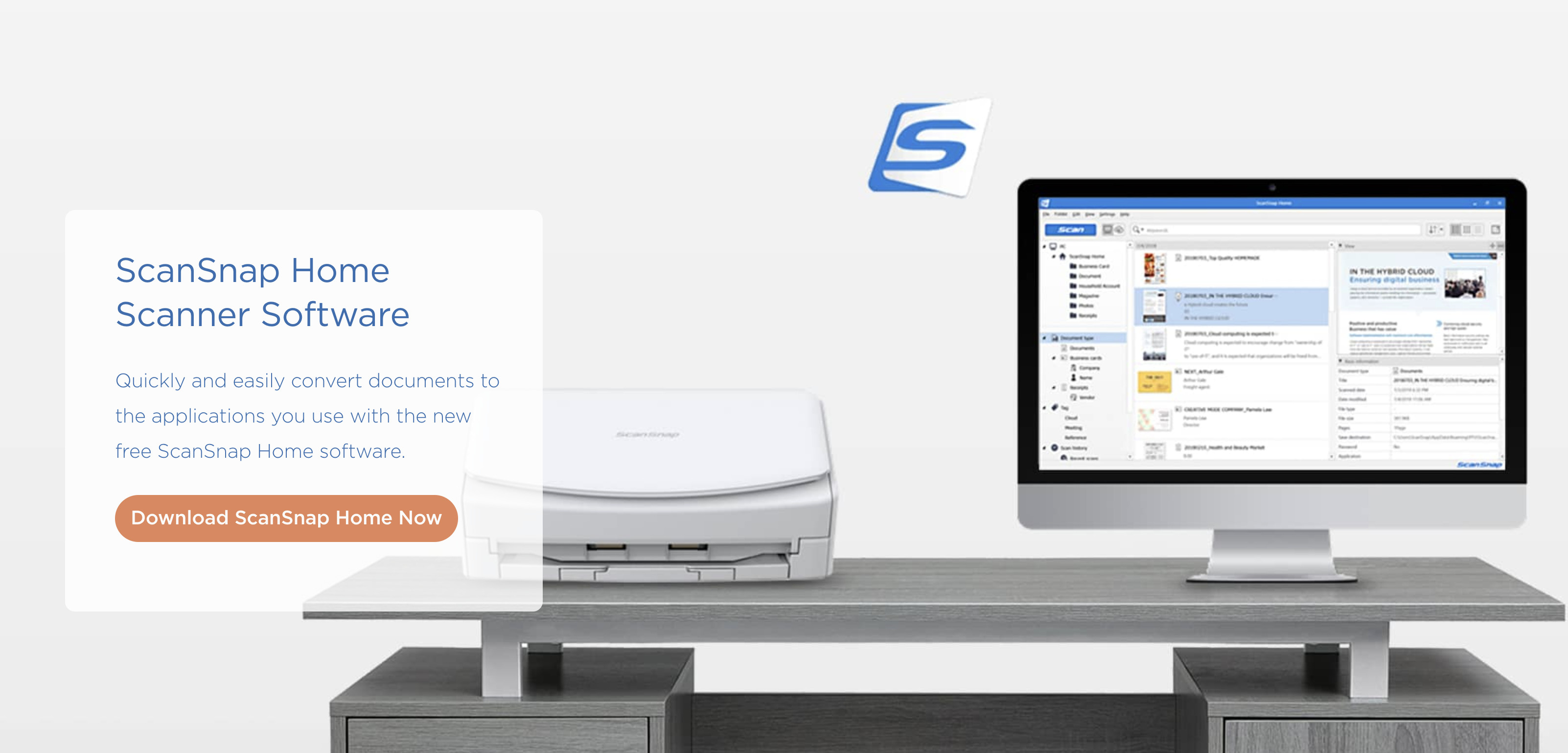
If you have years of receipts in envelopes, a phone camera is not always the fastest route. ScanSnap Home is the best Mac-focused option for working through a physical backlog with a compatible ScanSnap document scanner.
Unlike the cloud tools above, ScanSnap Home is a proper macOS application. It has native Apple silicon support and works on macOS Monterey 12 or later. With compatible ScanSnap hardware, it can scan receipts, invoices, business cards and full documents, make PDFs searchable and organise the resulting information. Some ScanSnap models include a receipt guide to handle the small, awkward paper size more reliably.
This is particularly useful for an accountant’s annual shoebox, a business that keeps a lot of original paper paperwork or anyone digitising archived records. ScanSnap Home can manage receipt information and export it, but it is not a replacement for bookkeeping software: it does not understand whether a purchase is allowable, reconcile your bank account or submit a tax return.
For high-volume paper needs, a sensible setup is to scan everything to a searchable archive, then send financial documents to Dext, Hubdoc or your accounting system for review and publishing.
Why choose ScanSnap Home
- Native Mac software with Apple silicon support
- Designed to handle documents, business cards, receipts and photos
- Searchable PDF output and receipt information management
- Much quicker than photographing a large paper archive
- ScanSnap can also be used as an input route for Hubdoc
What to watch out for
- You need compatible ScanSnap hardware
- A scanner costs more and takes more desk space than using your phone
- It is primarily document-scanning software, not an automated expense-management platform
Best for: people digitising hundreds of paper receipts or those who already own a ScanSnap.
A Mac-native alternative: ExactScan Pro
ExactScan Pro is worth a look if you already have a supported document scanner and want Mac-native scanning and OCR without buying into the ScanSnap ecosystem. It can create searchable documents and has broad scanner support on macOS. However, it is a document-scanning tool rather than a receipt-to-accounts system, so you will still need to name, file and upload the resulting PDFs yourself.
7. Apple Notes and Files – Best Free Way to Scan Receipts to a Mac
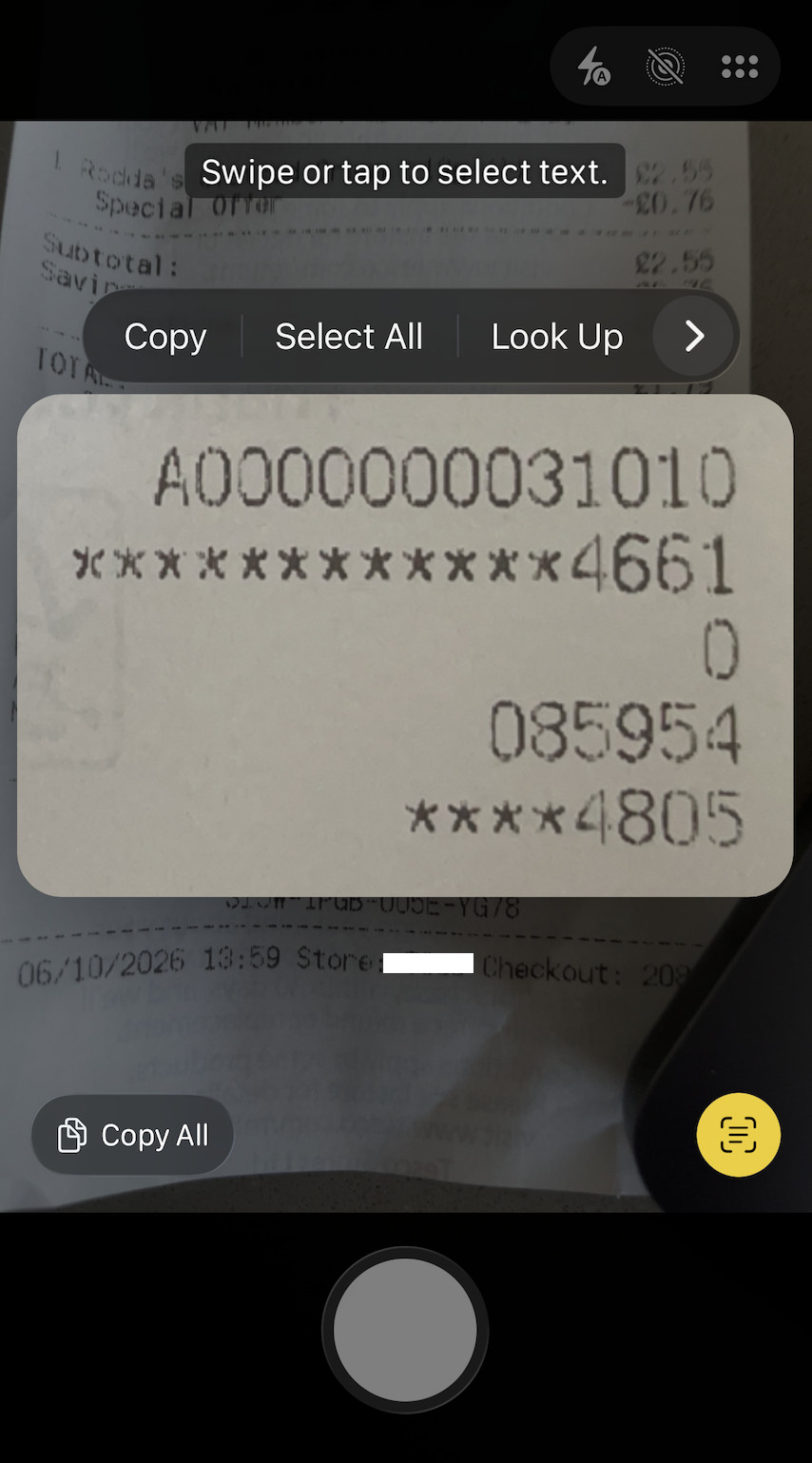
For a sole trader or occasional business expense, Apple’s built-in tools can be enough.
The Notes and Files apps on iPhone and iPad include a document scanner. Scan a receipt, save it as a PDF in a dedicated iCloud Drive folder or attach it to a note, and it will be available on your Mac. You can also start the capture from the Mac using Continuity Camera: in a compatible app or Finder location, choose Insert from iPhone or iPad and then Scan Documents.
This is the best genuinely free route if you only need a clear, searchable copy of each receipt. It is especially useful for expenses that you will enter manually into a spreadsheet or accounting tool later.
The limitation is equally important: Apple Notes and Files do not turn receipt details into a properly categorised expense, match bank transactions or create reimbursement reports. You are organising documents, not automating bookkeeping.
To make this method workable, use a consistent filename such as:
2026-10-13_Acme-Office-Supplies_42.50_Office.pdf
Keep the original scan in a consistent folder structure, for example by tax year and then month. Add a short note for anything that will not be obvious later, such as the business purpose of a client meal or which project a purchase relates to.
Why choose Apple’s built-in tools
- Free on devices you already own
- No third-party account needed for the scanning step
- Receipts can sync to your Mac through iCloud
- Excellent for low-volume, occasional receipts
- Useful alongside a spreadsheet or accountant’s requested filing system
What to watch out for
- No automatic expense coding, reconciliation or approval system
- You must create your own naming and retention discipline
- A scan alone does not decide whether an expense is tax-deductible
Best for: low-volume receipt storage, personal records and small businesses that do not yet need a full expense-management product.
What to Look For in Receipt Scanning Software for Mac
The right tool depends less on your Mac model than on where receipts need to end up. Before buying anything, consider these seven points.
1. Capture methods
At minimum, choose software that can accept phone photos and PDF uploads. If you receive lots of digital receipts, email forwarding is just as important. For a larger business, look for bulk upload, a shared inbox and a way for several employees to submit documents without sharing a password.
2. OCR versus receipt data extraction
Basic OCR makes the text inside a scanned PDF searchable. Receipt software goes further by identifying fields such as merchant, date, total, currency, VAT and sometimes individual line items.
Searchable PDFs are useful for storage. Structured extraction is useful for bookkeeping. Do not assume one automatically gives you the other.
3. Accounting integration
If you use QuickBooks, Xero, Sage, FreeAgent or another accounting package, decide whether your receipt tool will publish into it before you load a backlog. A good integration should attach the original image, create a draft transaction or bill and leave you a chance to review the categorisation before it is finalised.
4. Bank matching and reconciliation
The real time saving comes when a receipt can be matched to the corresponding card or bank transaction. QuickBooks and Xero are especially attractive for their own users because the receipt, bank feed and accounts are all in the same environment.
5. Expense claims, approvals and reimbursement
If employees buy things with their own money, choose a product such as Zoho Expense or Expensify that handles approvals, policies and reimbursement. A simple document archive will not solve the people part of expense management.
6. Paper volume
For a handful of receipts a week, use your phone. For hundreds of older receipts, a document scanner such as ScanSnap is much faster and produces more consistent images. The best approach can be a hybrid: phone capture for new purchases and a scanner for historic paperwork.
7. Storage and access
Keep the original image or PDF, not only the extracted numbers. Make sure you can search, export or retrieve documents later, and think about who should be able to see receipts that may contain card details, addresses or client information.
How to Scan and Organise Receipts on a Mac
Whatever software you choose, the way you use it should be nearly the same:
- Choose one destination for each type of document. For example, employee expenses go to Zoho Expense and supplier bills go to Xero/Hubdoc. Avoid having half your receipts in Notes and half in a random Downloads folder.
- Capture immediately. Photograph the receipt while it is legible, or forward the emailed receipt as soon as it arrives. Thermal paper fades quickly.
- Check the extracted information. Confirm the merchant, date, total, currency and tax. Correct any errors while you still remember the purchase.
- Add business context. Use a category, project, client, cost centre or note where relevant. The receipt proves a purchase; it may not explain why it was a business expense.
- Match it to the bank transaction. Do this before month-end where possible, rather than leaving a queue of unidentified payments.
- Keep the original document attached. A text entry or spreadsheet total is not as useful as the original readable receipt when you need evidence later.
- Review a monthly exception list. Look for missing receipts, duplicate uploads, uncategorised transactions and scans that need approval.
Are Scanned Receipts Acceptable for UK Tax Records?
For UK businesses, receipt scanning is primarily about creating reliable records, not a shortcut around the normal tax rules. HMRC says self-employed people need to keep records of business income and expenses, including records that can be shown if requested. VAT-registered businesses must keep the relevant VAT records, and VAT invoices are the primary evidence for recovering input tax.
HMRC guidance also allows records to be preserved electronically where the system can produce an exact, readable copy. In practice, that means retaining a clear image or PDF and making it easy to retrieve alongside the transaction. Do not rely only on manually typed totals.
The precise documents you need, how long you must retain them and whether you should keep a paper original can depend on your tax position and the type of record. Do not destroy an important original simply because it has been scanned; ask your accountant if you are unsure, particularly for VAT evidence, high-value purchases, assets and records connected with an enquiry.
Useful official references are HMRC’s guidance on business records for the self-employed, VAT record keeping and electronic invoicing.
FAQ
Does macOS have a built-in receipt scanner?
Not a full expense-management tool. However, you can scan a receipt as a PDF with the Notes or Files app on an iPhone or iPad and access it on your Mac through iCloud. Continuity Camera also lets you start a document scan from a Mac and use the nearby iPhone or iPad as the camera.
What is the best free receipt scanner for Mac?
For a small team, Zoho Expense has the best free structured option because its free plan supports up to three users and includes a limited monthly number of AI receipt scans. For a single person who simply needs digital copies, Apple Notes and Files are completely free but require manual filing and categorisation.
Is it better to scan receipts with an iPhone or a desktop scanner?
Use an iPhone for new receipts because it is quicker and means you can capture the document before it is lost or fades. Use a desktop document scanner when you have a large paper backlog or regularly scan many receipts at once.
Can I scan emailed receipts as well as paper ones?
Yes. This is one of the biggest reasons to use a dedicated product. Dext, QuickBooks, Hubdoc, Zoho Expense and Expensify can all accept receipts through email or file upload, so you do not need to print a PDF merely to scan it again.
What is the difference between a receipt scanner and an expense tracker?
A receipt scanner captures and reads the document. An expense tracker adds an extra layer around it: categories, bank matching, reimbursements, approvals, tax treatment and reports. If you have employees or need to close accounts monthly, choose an expense-management or accounting product rather than basic OCR software.
Can receipt scanning software read VAT correctly?
It can often extract a tax amount, but you must review it. A tool cannot decide whether VAT is recoverable in your particular circumstances, and it may struggle with faded receipts, tips, split payments, foreign tax or a receipt that is not a valid VAT invoice.
Which is best for an accountant: Dext or Hubdoc?
Dext is the more specialised choice for a high-volume, accountant-led document-capture setups, particularly when the business uses a mix of accounting platforms. Hubdoc is the most natural and cost-effective choice for an existing Xero customer because it is included with current Xero plans when connected to the subscription.
The Bottom Line
For most Mac users running a business, Dext is the best receipt scanning software because it handles paper and digital receipts, extracts useful data and fits naturally into accountant and accounting-software.
If you already pay for QuickBooks Online or Xero, start with their built-in receipt tools first. They are easier to maintain because the documents, bank feed and accounts are all together. Zoho Expense is the strongest free choice for a small team, while Expensify is better when employee claims and reimbursement are the main problem.
Finally, do not underestimate the free Apple option. If you only scan a few receipts each month, a well-named PDF in iCloud Drive may be all you need. Upgrade to a dedicated tool when the manual filing, chasing and matching becomes the thing taking your time.