

For the last few years, BenQ has been making some of the most Mac-friendly non-Apple monitors around.
We were impressed by the way the 4K MA270U matched a MacBook’s colours and integrated with macOS, while the newer MA270S finally delivered the 5K resolution and 218 PPI pixel density that makes a third-party screen scale perfectly with a Mac.
The new BenQ MA320UG takes a slightly different approach.
Instead of trying to be another 27-inch 5K Apple Studio Display alternative, it is a much larger 31.5-inch 4K monitor with a 120Hz refresh rate, a glossy Nano Gloss screen, Thunderbolt 4, a proper USB hub and a Smart KVM switch for anyone working between a Mac and PC.
There is one important compromise to be clear about from the start: at 32 inches, 4K works out at 140 pixels per inch. That is nowhere near the 218 PPI of a 27-inch 5K display such as the Apple Studio Display or BenQ MA270S, so it cannot offer the same perfectly matched 2x macOS Retina scaling.
What it offers instead is a much bigger physical workspace, much smoother scrolling and animation than a 60Hz monitor, and more flexibility for a mixed Mac and Windows desk setup.
I tried the MA320UG connected to an M3 MacBook Pro to see whether those strengths outweigh the lower pixel density in real-world work.
MA320UG Overview & Specs
The MA320UG is part of BenQ’s MA range, which is designed specifically for Mac users rather than designers that need the highest possible colour accuracy.
It is aimed at MacBook, Mac mini and Mac Studio owners who want their external monitor to look more like a Mac display, while also giving them far more connections than Apple normally does.
For other options, check our guide to the best monitors for the Mac Mini and best Mac Studio displays too.
The key specifications are of the MA320UG are as follows:
| Feature | Spec |
|---|---|
| Display Size | 31.5 inches |
| Resolution | 3840 × 2160 (4K UHD) |
| Pixel Density | 140 PPI |
| Panel Type | IPS with Nano Gloss coating |
| Refresh Rate | 120Hz |
| Response Time | 5ms (GtG) |
| Brightness | 450 nits typical / 450 nits HDR peak |
| Contrast Ratio | 2000:1 |
| Colour Gamut | 98% P3, 99% sRGB |
| Display Colours | 1.07 billion |
| HDR Support | HDR10 / VESA DisplayHDR 400 |
| Thunderbolt 4 | Yes — input with 96W Power Delivery and output with 15W charging |
| HDMI | 2 × HDMI 2.1 |
| USB-C | 1 × USB-C display/data input with 35W Power Delivery; 1 × downstream USB-C |
| USB Hub | 2 × USB-A and 1 × USB-C downstream ports |
| Smart KVM | Yes |
| Picture-by-Picture / Picture-in-Picture | Yes |
| Built-in Speakers | 2 × 3W |
| Webcam | No |
| Adjustable Stand | Height, tilt, swivel and pivot |
| VESA Mount | 100 × 100mm |
Why Is The MA320UG Different From The Apple Studio Display?
The MA320UG is a good alternative to the Apple Studio Display, but only if you understand that it is not trying to win on exactly the same things.
The Apple Studio Display is still much sharper. Its 27-inch 5K panel has 218 PPI, which gives you true 2x Retina scaling in macOS. Text, interface elements and icons look exceptionally crisp without any scaling compromises.
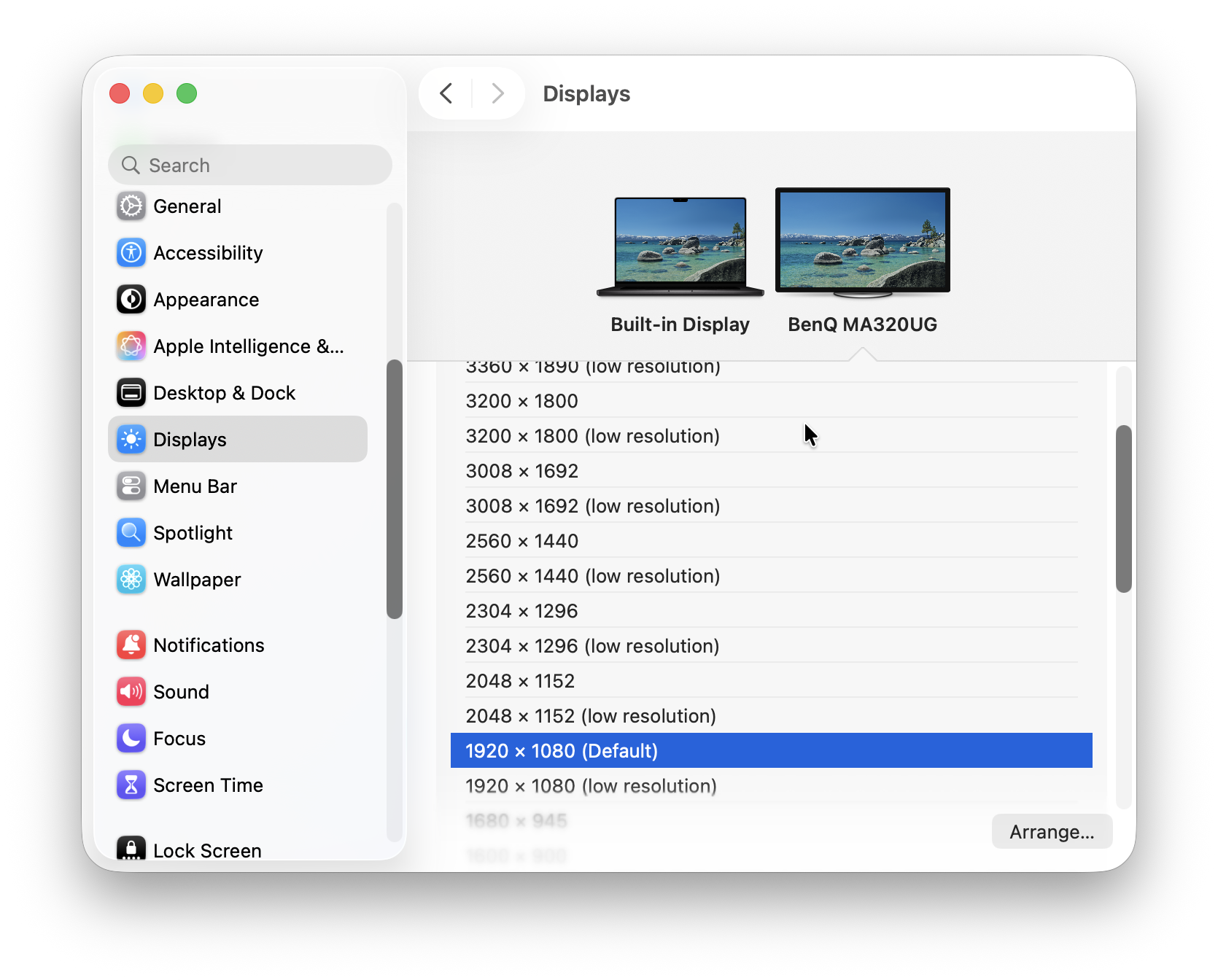
The MA320UG has a 32-inch 4K panel with 140 PPI. It gives you far more physical screen space, but it does not have the same Retina-level text clarity as a 5K display. On macOS, its true 2x setting looks like 1920 × 1080, which will feel very large on a 32-inch panel. Most people will use one of the higher scaled resolutions to make better use of the workspace.
However, the MA320UG has some advantages of its own:
- A much larger 31.5-inch screen
- 120Hz refresh rate, compared with 60Hz on the Studio Display
- Thunderbolt 4 input and output for single-cable docking and daisy chaining
- HDMI 2.1 ports for consoles, PCs or other devices
- Smart KVM for sharing a keyboard and mouse between a Mac and Windows PC
- A fully adjustable stand included as standard
- A price that is usually less than half the cost of a Studio Display
So while the Studio Display is still the better choice for pure macOS sharpness, a built-in webcam, speakers and seamless Apple integration, the MA320UG is the more flexible choice if you want a big screen, smoother motion and a proper desk hub.
For a more in-depth look at Apple’s monitor and some cheaper alternatives to it, see our comparison of the best Apple Studio Display alternatives.
What’s In The Box?
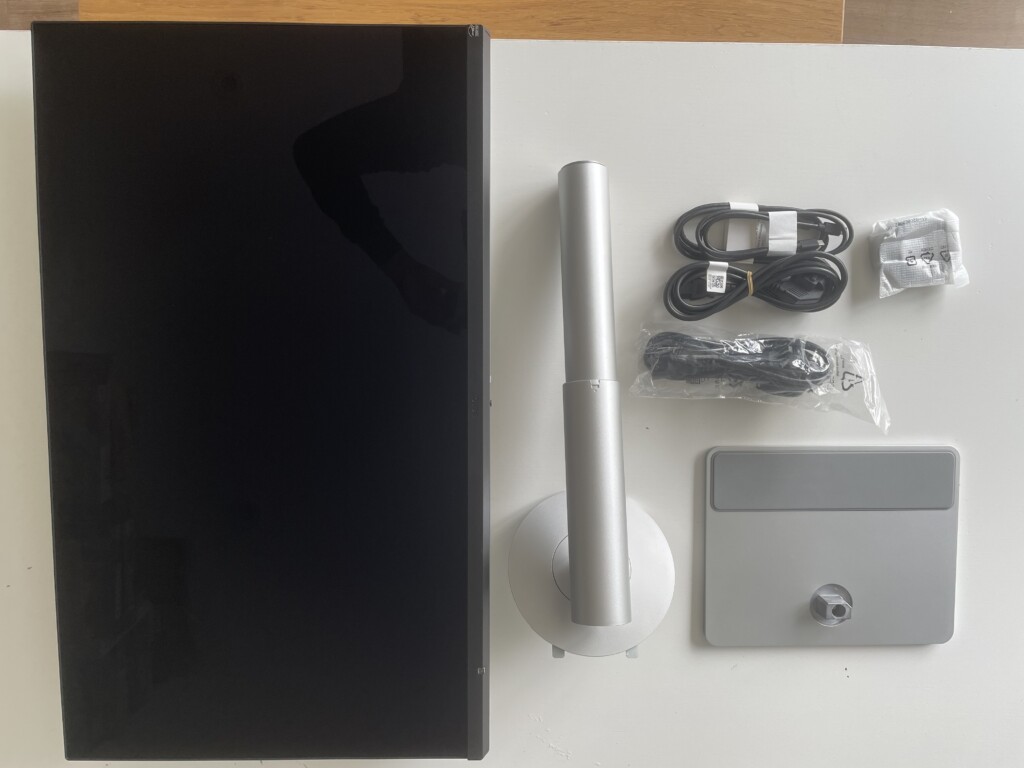
Inside the MA320UG box you should get the monitor, the stand in two parts, a power cable, a Thunderbolt 4 cable, a USB-C cable, a cleaning cloth, quick-start guide and safety information.
Unlike BenQ’s PD design monitors, there is no wireless Hotkey Puck in the box. The MA320UG is controlled either with its rear joystick or, much more conveniently, via the Display Pilot 2 software.
MA320UG Design
The MA320UG has the same clean, silver Mac-friendly design that BenQ has used across the MA series, although the 32-inch panel obviously makes much more of a statement on a desk than a 27-inch display.
At 714.7mm wide, it is noticeably broader than an Apple Studio Display or MA270S. That extra size is great for large spreadsheets, web publishing, editing timelines and running several apps side by side, but it is worth checking you have enough desk depth before buying one.
The bezels are slim enough that the screen feels modern without trying too hard to imitate Apple’s design. It is not an all-aluminium display like the Studio Display, but at this price point it does not need to be. What matters more is whether the silver finish, stand and overall build feel solid enough once it is on your desk.
The screen uses BenQ’s Nano Gloss coating rather than the Nano Matte panel on the older MA320U. This is designed to give images more depth, stronger perceived contrast and punchier colours than a conventional matte display, although glossy screens always make reflections more of a consideration.
The design in general feels like a premium monitor and less “plasticy” than some I’ve tried. The gloss finish I really like although it doesn’t have the premium glass finish of the Apple Studio Display.
Setup
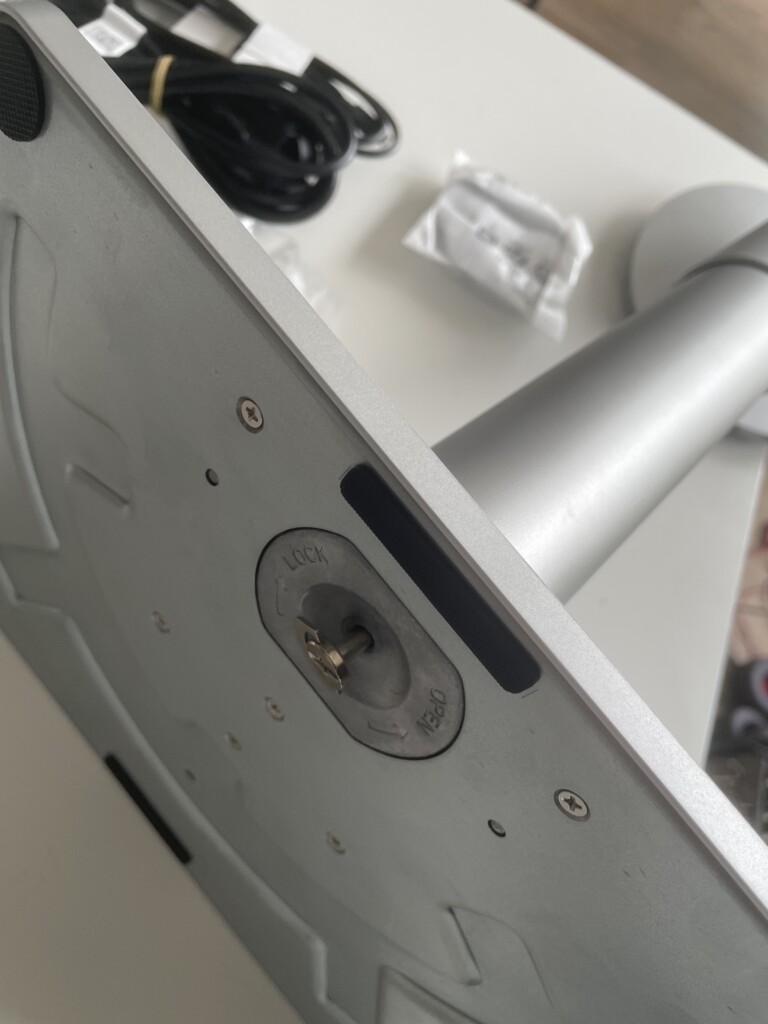
Putting the MA320UG together is straightforward. The stand clips into the rear of the monitor and the base is secured from underneath with a turnkey without needing a screwdriver.
Like the BenQ PD2730S, the power supply is built into the monitor itself, so there is no huge power brick to hide under your desk. That is especially welcome on a monitor designed to act as the centre of a MacBook setup.
The included stand is one of the MA320UG’s better features. It offers 150mm of height adjustment, -5° to 20° tilt, 15° of swivel in either direction and full 90° pivot into portrait mode.
You can also use a 100 × 100mm VESA mount if you prefer a monitor arm, although the supplied stand should be more than flexible enough for most people.
Assembly took less than a minute, the stand feels sturdy, the 229.7mm depth left me with more than enough usable desk space.
Connecting The Display
The MA320UG has a far more generous selection of ports than most Mac-focused monitors.
The big highlight is Thunderbolt 4. Connect your MacBook Pro to the monitor with the supplied Thunderbolt cable and you can carry the 4K display signal, data and up to 96W of charging power through a single cable.
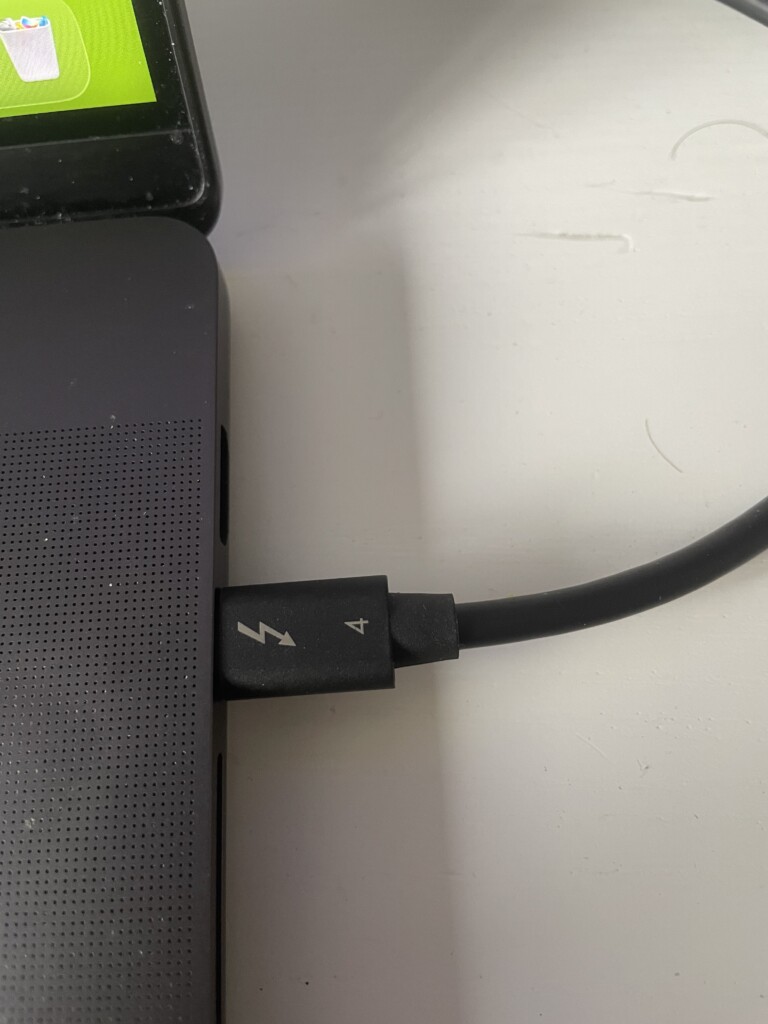
The exact connections are:
- 1 × Thunderbolt 4 input (40Gbps, DisplayPort Alt Mode, data and up to 96W Power Delivery)
- 1 × Thunderbolt 4 output (for daisy chaining or accessories, with up to 15W Power Delivery)
- 1 × USB-C input (DisplayPort Alt Mode, data and up to 35W Power Delivery)
- 2 × HDMI 2.1 inputs
- 2 × USB-A downstream ports (USB 3.2 Gen 2, 10Gbps, with 7.5W charging)
- 1 × USB-C downstream port (USB 3.2 Gen 2, 10Gbps, with 15W charging)
- 1 × 3.5mm headphone jack
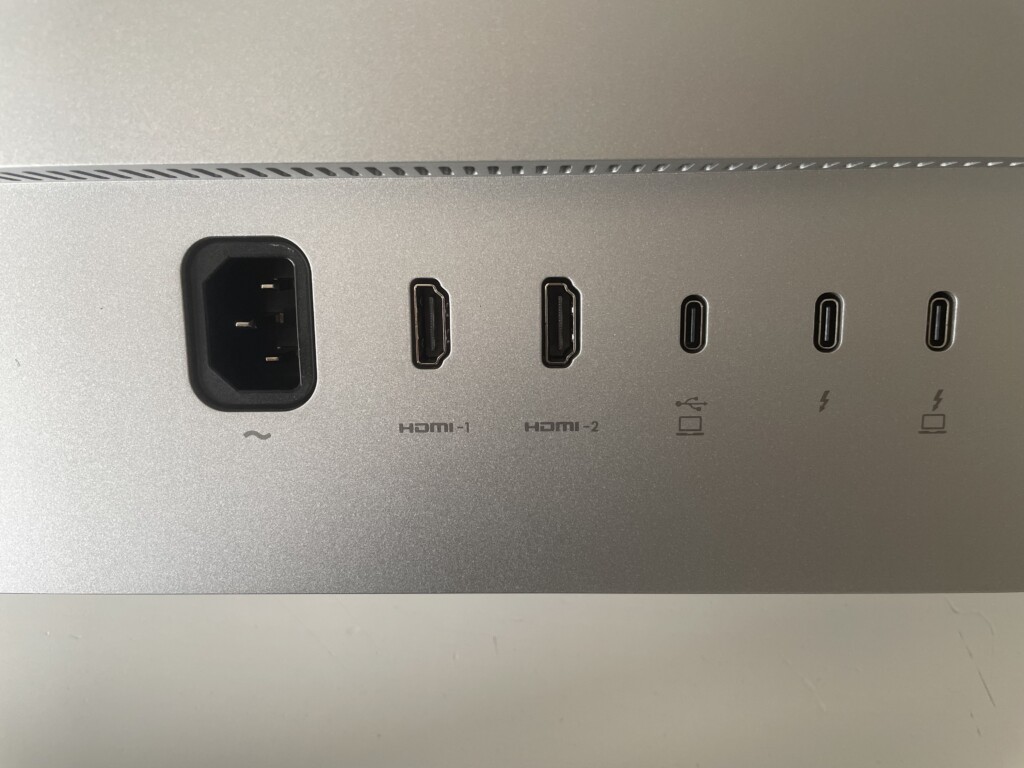
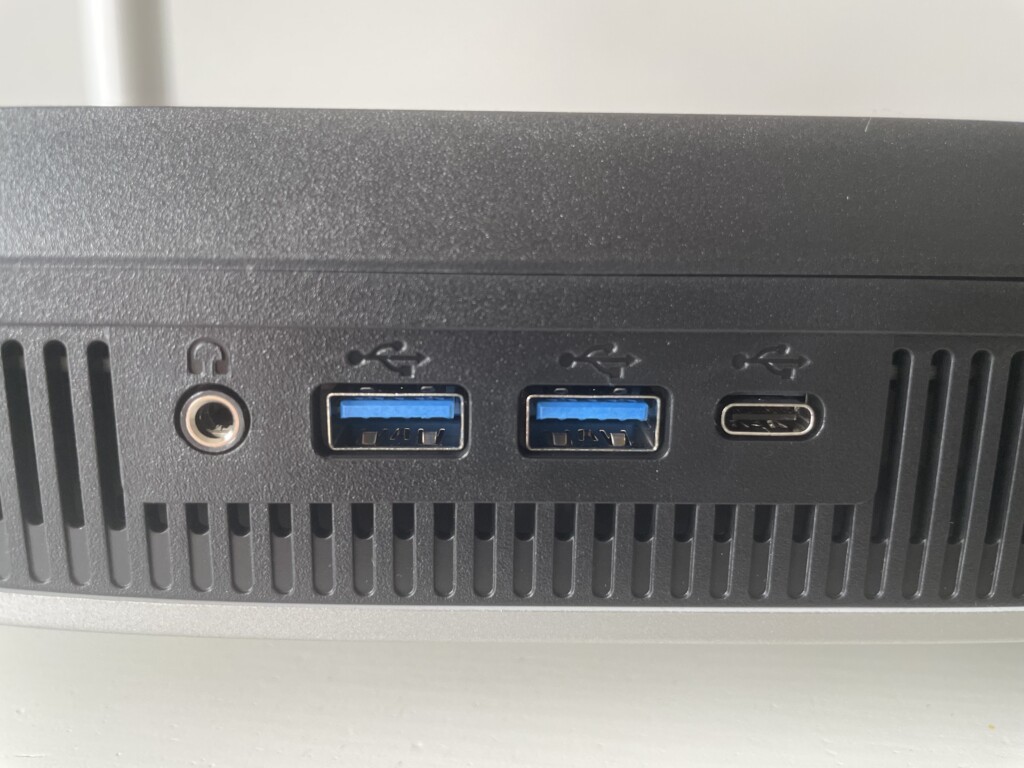
This makes it far more than just a display. You can connect a MacBook Pro over Thunderbolt, plug an external SSD, webcam, keyboard or mouse into the monitor, and still have HDMI ports free for a Windows PC, console or streaming device.
The second Thunderbolt 4 port also supports daisy chaining another compatible display. BenQ says the MA320UG can be used in a dual-4K setup at 120Hz, although exactly what will work depends on the Mac model and its external-display support.
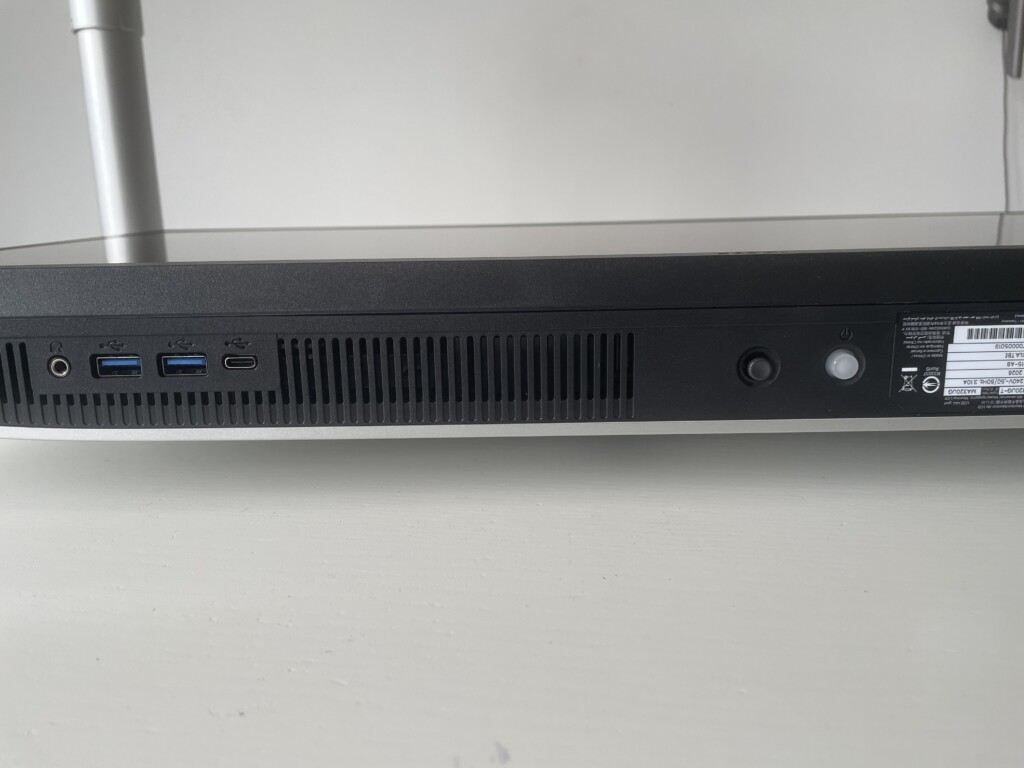
On the underside of the right-hand edge you have the power button and the on-screen display controls, but I would strongly recommend installing Display Pilot 2 rather than using the joystick for regular adjustments.
Strangely, I never received a prompt from macOS that a new device has been connected but I did hear the “pling” noise that indicated that the monitor was charging my MacBook Pro.
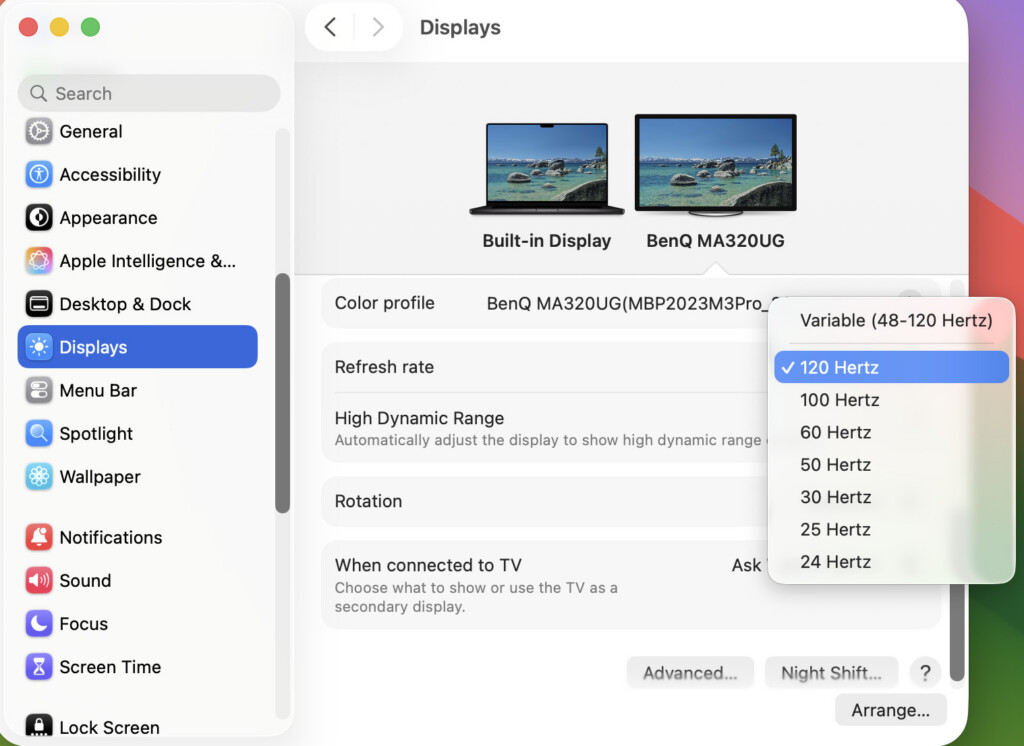
In System Settings however, macOS correctly recognised the screen as “BenQ MA320UG”, and offered the 120Hz refresh-rate option over the supplied Thunderbolt 4 cable.
Display Quality
The MA320UG uses a 31.5-inch 4K IPS panel with a 120Hz refresh rate, 450 nits of brightness, a claimed 2000:1 contrast ratio and 98% P3 colour coverage.
The most important thing to understand is that it is a 4K monitor, not a 5K one.
At 140 PPI, text is still sharp enough for normal desk use, but it will not look as crisp as the 218 PPI Liquid Retina XDR display on an M3 MacBook Pro, the 27-inch MA270S or Apple Studio Display. If you spend all day writing, coding or working with small type and you already know that you are sensitive to macOS scaling, this is the trade-off to pay closest attention to.
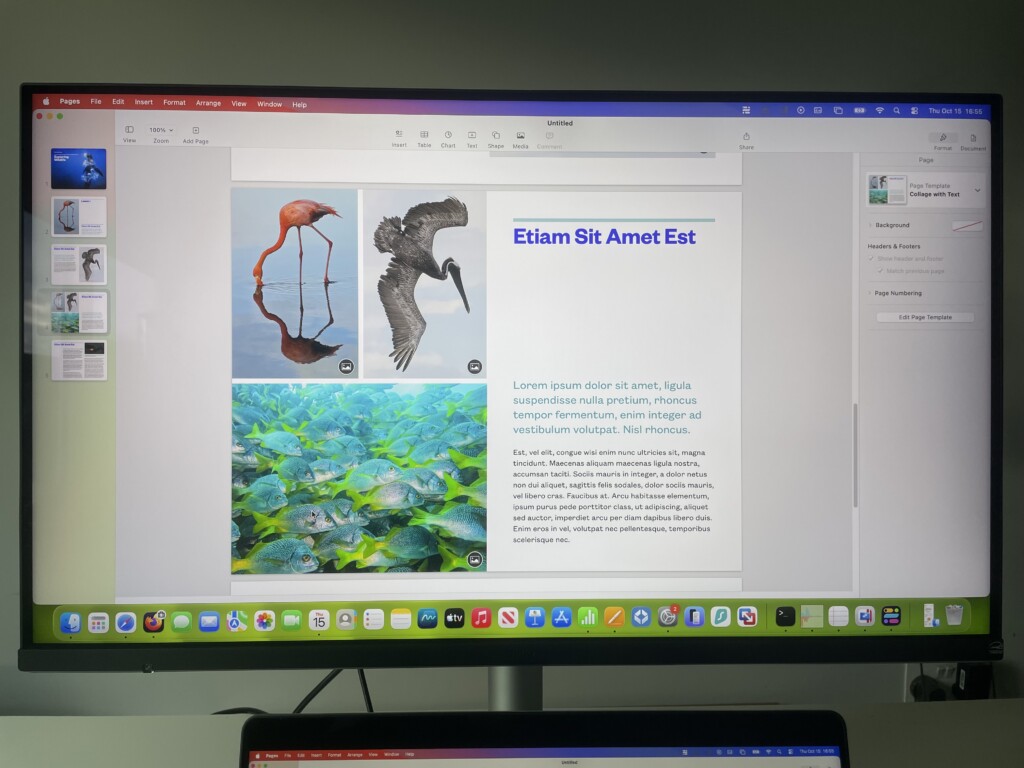
The benefit is screen size. A 32-inch panel gives you far more room for two large browser windows, a WordPress editor beside a source window, a spreadsheet and email side by side, or a video timeline without making everything feel cramped.
As with any 4K Mac monitor, the default 2x Retina-style setting gives you a “looks like 1920 × 1080” desktop. Most users will probably prefer a scaled resolution such as “looks like 2560 × 1440” or similar, which gives you a much more useful working area but is not the same perfectly matched pixel scaling as a 5K display.
The Nano Gloss coating is the other key part of the display. Compared with the older Nano Matte MA320U, it should make blacks look richer and colours appear more vivid. It also helps the monitor look closer to a MacBook display when the two are side by side.
BenQ lists HDR10 and VESA DisplayHDR 400 support. This is useful for previewing HDR content and can add a little extra punch to compatible video, but it is not the same as a Mini-LED or OLED HDR display. The MA320UG has neither the extreme peak brightness nor local dimming needed for serious HDR mastering, so I would treat HDR as a welcome extra rather than the main reason to buy it.
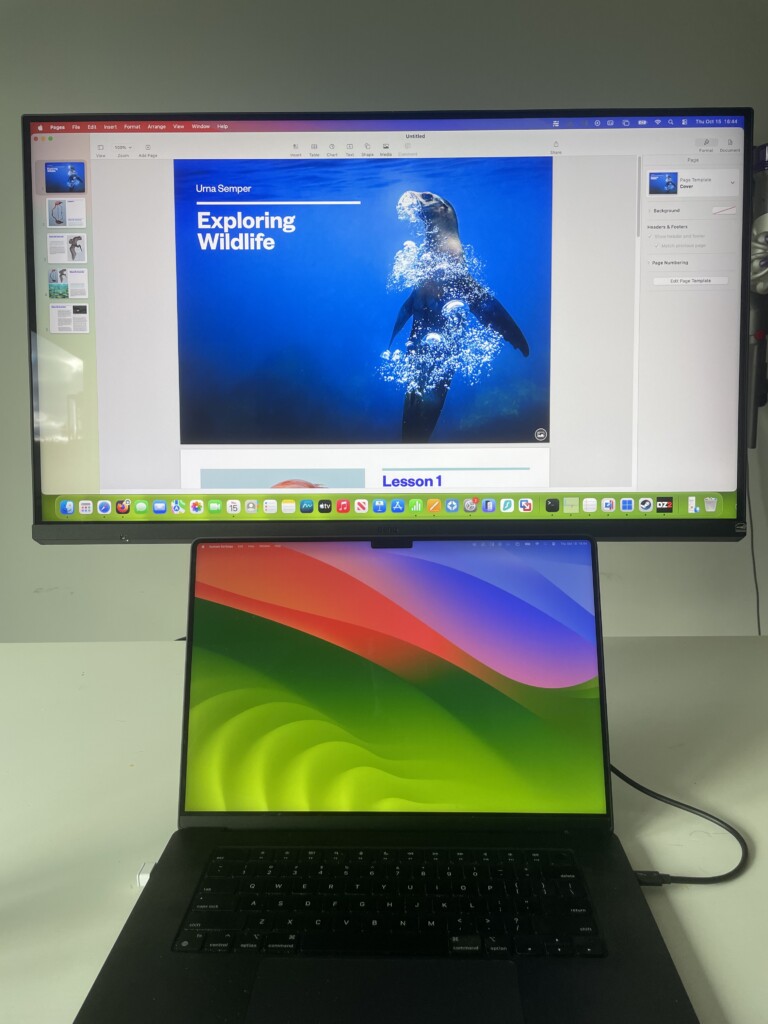
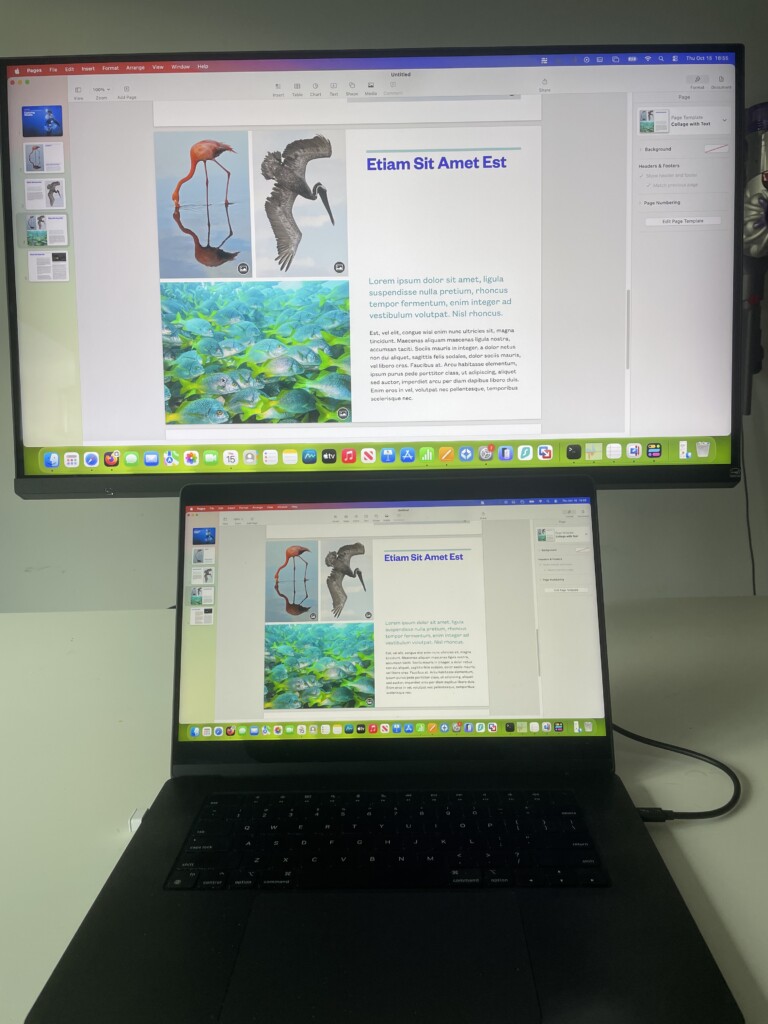
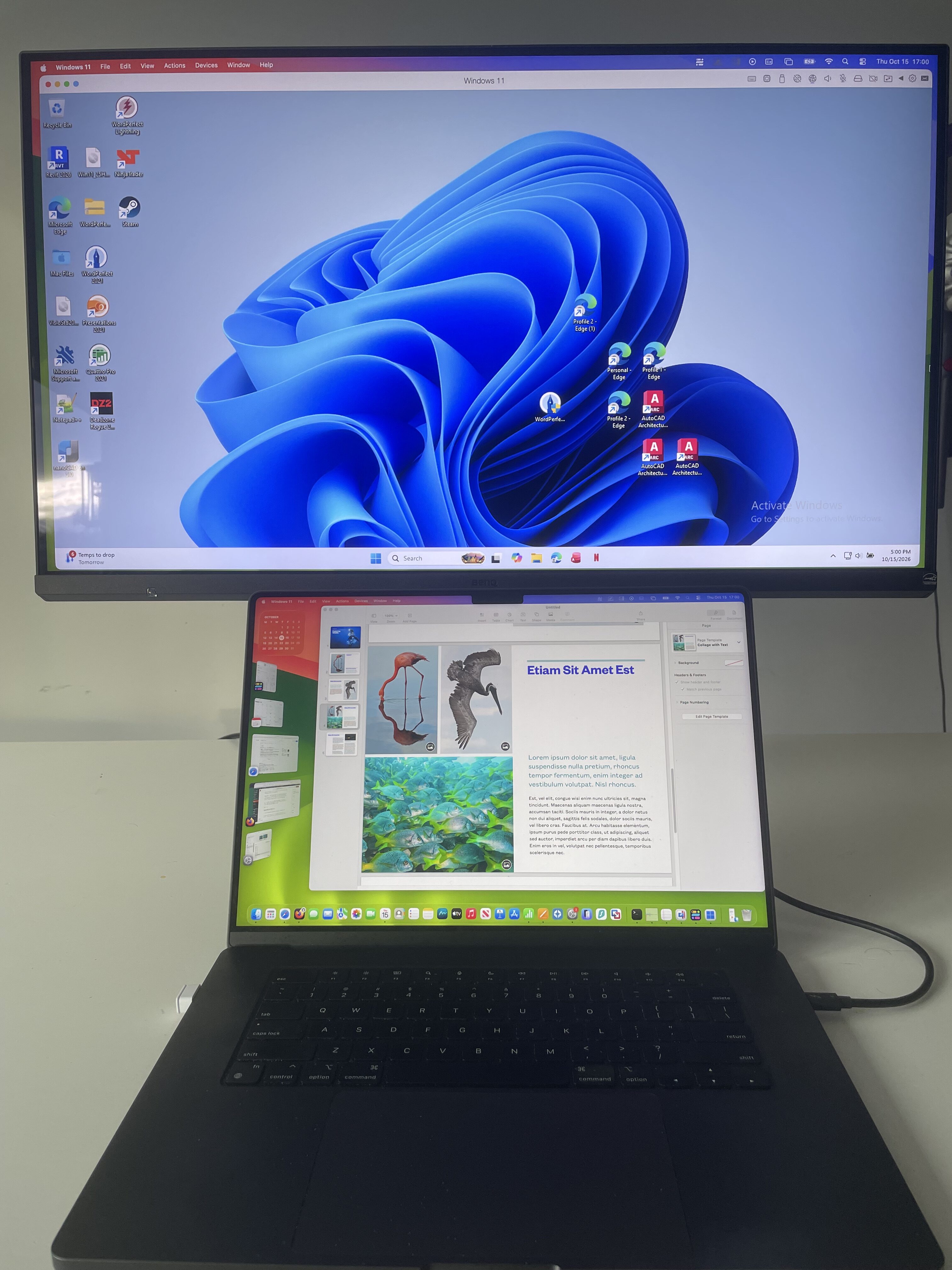
As you can see in the below view of the MA320UG mirroring the screen of my M3 MacBook Pro, the text sharpness, colours, black levels, uniformity, brightness are excellent although to a keener designer’s eye, the differences may be clearer.
Display Pilot 2 & M-Book Mode
One of the best things about using any BenQ MA monitor with a Mac is the Display Pilot 2 software.
Once installed, Display Pilot 2 allows you to control the monitor without constantly reaching for the on-screen display. It also adds several Mac-specific features that most third-party monitors simply do not have.
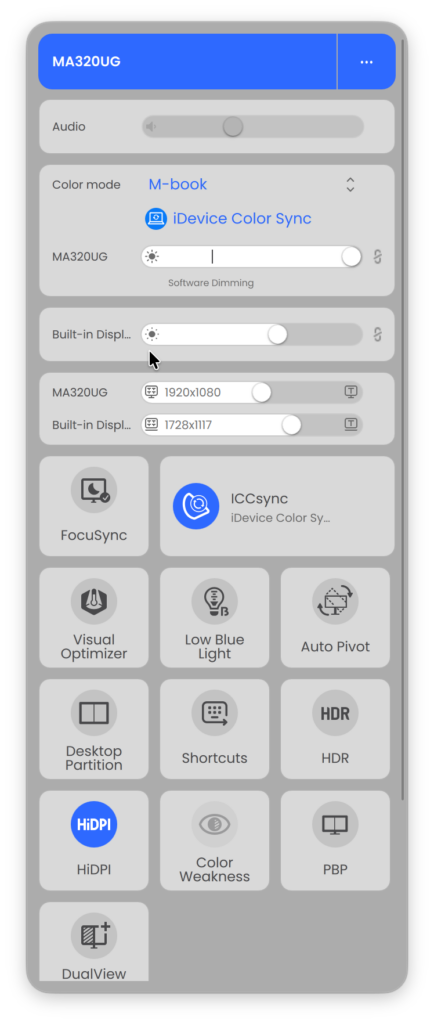
The most useful tools are:
- iKeyboard Control for adjusting monitor brightness and volume from your Mac keyboard
- M-Book Mode, which is designed to make the screen look closer to a MacBook display
- iDevice Color Sync, which can use the colour profile of your specific MacBook model
- Smart KVM for using one keyboard and mouse across a Mac and PC
- ICCsync for coordinating the monitor mode and ICC profile
- Power-off Charging, so compatible devices can keep charging from the USB ports when the monitor is asleep or off
The M-Book mode is especially important with an M3 MacBook Pro because it gives you a quick way to bring the BenQ’s white point and colour appearance closer to the built-in Liquid Retina XDR display.
BenQ’s current software specifically supports the M3 MacBook Pro profile, so you should be able to select it in iDevice Color Sync rather than relying on a generic Mac setting.
In practice, the best way to compare the two screens is to turn off automatic brightness, True Tone and Night Shift on the MacBook first. Then enable M-Book Mode, turn on iDevice Color Sync in Display Pilot 2 and compare the displays at the same approximate brightness.
As always, wide gamut coverage is not quite the same thing as perfect colour accuracy. The MA320UG is a Mac-friendly productivity monitor rather than a BenQ PD or SW model intended for calibrated professional colour work, so serious photographers and print designers should still calibrate it if colour accuracy is critical.
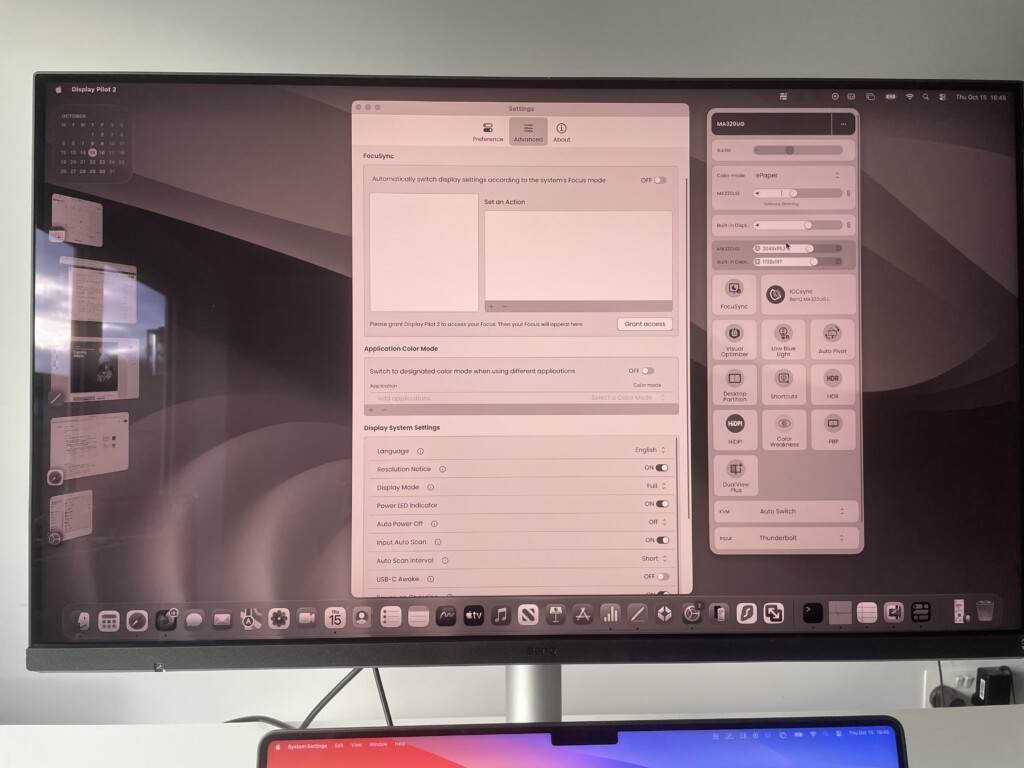
M-Book Mode works really well and saves a lot of manual configuration. There are also many presets including Default, Display P3, sRGB and even an interesting Paper mode (see below).
120Hz Performance
The 120Hz refresh rate is arguably the MA320UG’s biggest selling point.
Apple’s Studio Display, the MA270U and the older MA320U all top out at 60Hz. The MA270S is a little smoother at 70Hz, but the MA320UG can refresh almost twice as often.
That does not make a slow Mac faster, but it makes day-to-day macOS use feel far more responsive. Scrolling through long web pages, moving windows, opening Mission Control and editing timelines should all look smoother than they do on a conventional 60Hz external monitor.
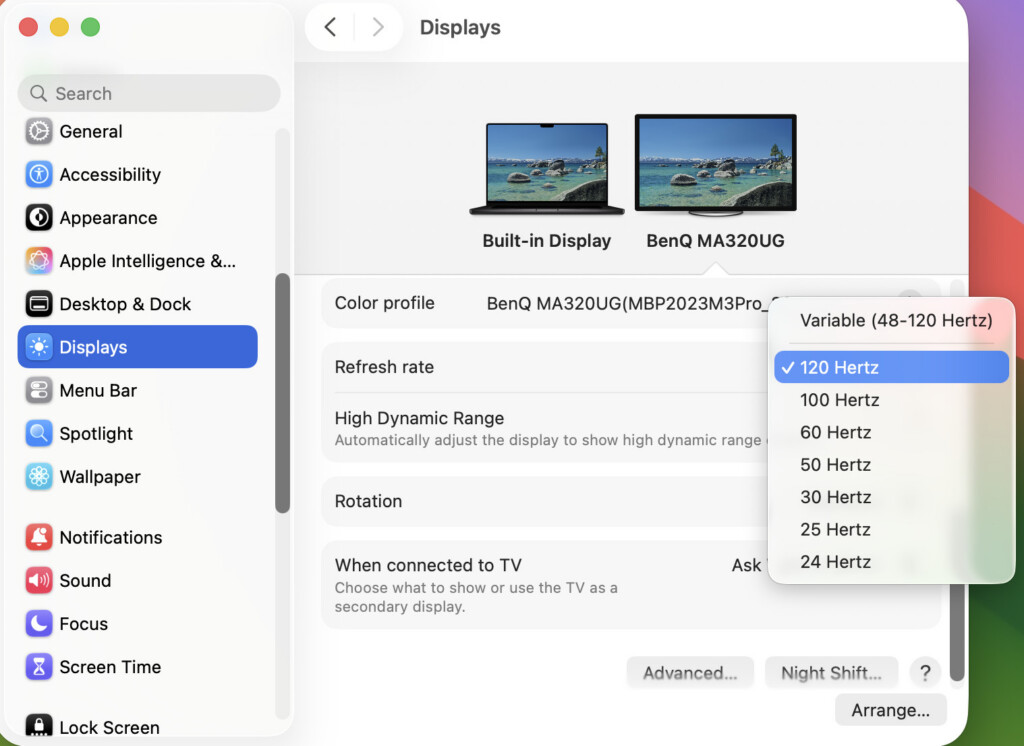
This is particularly compatible with an M3 MacBook Pro because its built-in ProMotion display already refreshes at up to 120Hz. If the MA320UG is running at 120Hz too, there is no jarring jump in smoothness every time you move the cursor or a window between the MacBook and the external display.
The monitor also supports AMD FreeSync Premium and VESA MediaSync. Those features are most useful with a capable Windows PC or console, but they help make the MA320UG more versatile than most Mac-focused screens if you do any casual gaming.
One thing worth checking carefully is how macOS handles the combination of 4K, HiDPI scaling, HDR and 120Hz. These settings use a lot of bandwidth, and the exact options that appear can vary by Mac, cable and mode. I would expect most people to prioritise sharp scaled desktop use and 120Hz for daily work, then switch HDR on only when they are watching or editing HDR video.
Nano Gloss & Reflections
BenQ calls the MA320UG’s surface Nano Gloss rather than simply glossy, and that distinction matters.
The aim is to get the clarity, deeper-looking blacks and colour punch of a glossy screen without turning the monitor into a mirror. Compared with a full matte coating, it should make photos, video and the macOS interface look more vivid.
However, no glossy screen can completely hide a bright window or lamp behind you. If you work opposite strong daylight or have overhead lighting that falls directly onto the screen, reflections will still be more visible than they are on the Nano Matte MA320U or an Apple Studio Display with optional nano-texture glass.
For most people, this comes down to the room they work in. In a reasonably controlled home office, Nano Gloss could be the more attractive option. In a conservatory, very bright office or desk directly opposite a window, the matte MA320U may still be the safer choice.
Smart KVM & Multi-Device Working
The MA320UG includes BenQ’s Smart KVM feature, which is one of the things that makes it much more useful than a simple USB-C monitor.
The idea is that you can connect a MacBook Pro through Thunderbolt 4 and a Windows PC through HDMI or USB-C, then use the same keyboard and mouse across both systems. Rather than manually moving USB cables or reaching for a hardware KVM switch, Display Pilot 2 is designed to let the mouse follow the cursor from one computer to the other.
This will not matter to everyone, but it is genuinely useful if you use Windows on a second PC, switch between a work laptop and personal MacBook, or want to connect a games console without turning the desk into a cable mess.
The MA320UG also supports Picture-by-Picture and Picture-in-Picture, so you can have two inputs visible on the screen at once.
Adjustable Stand
Like the PD2730S, the MA320UG has a fully adjustable stand rather than making you pay extra for basic ergonomics.
You can adjust it in the following ways:
- Height: up to 150mm of vertical adjustment
- Tilt: -5° down to +20° up
- Swivel: 15° left and 15° right
- Pivot: full 90° rotation into portrait mode
The height adjustment is particularly useful on a 32-inch display, since it is easy to end up sitting too low with the top of the panel above a comfortable eye level.
Portrait mode is also available, although it makes for a very tall screen. It could be useful for long documents, coding or web-page layouts, but it is probably more of a niche feature at this size.
Speakers & Headphones
The MA320UG has two built-in 3W speakers plus a 3.5mm headphone jack.
As with most non-Apple monitors, I would regard the built-in speakers as a convenience feature rather than a reason to buy the screen. They should be fine for system sounds, a quick YouTube video or a call, but they are unlikely to replace a decent pair of external speakers or AirPods.
The Apple Studio Display remains in a different league for sound, with a six-speaker Spatial Audio system and studio-quality microphones. The MA320UG does not have a built-in webcam or microphones either, so you will need a separate camera if video calls are a major part of your working day.
The speakers aren’t great on the MA320UG and I just used the speakers on my MacBook Pro which are much better.
Who’s It Aimed At?
The BenQ MA320UG is aimed at Mac users who want a larger and smoother monitor than the Apple Studio Display, rather than the sharpest possible external screen.
The key audiences are:
- MacBook Pro users who want a large 32-inch desktop workspace and single-cable charging
- Video editors, creators and multitaskers who will benefit from 120Hz motion and a spacious 4K canvas
- Anyone working between a Mac and Windows PC who wants Smart KVM and plenty of ports
- Casual gamers who want a monitor that is more responsive than the usual 60Hz Mac display
- Mac mini and Mac Studio users who want a monitor that doubles as a desktop hub
It is less suited to:
- People who prioritise the sharpest possible text and pixel-perfect macOS scaling
- Colour-critical print or photographic work that requires a calibrated professional display
- Very bright rooms where a matte or nano-texture screen would be more comfortable
- Anyone who needs an integrated webcam, microphones or genuinely good speakers
MA320UG vs MA320U vs MA270S
The most obvious alternatives within BenQ’s own Mac monitor range are the older 32-inch MA320U and the 27-inch 5K MA270S.
The MA320U is the choice for someone who wants a matte 32-inch 4K monitor with brighter HDR, but it has a conventional 60Hz refresh rate and lacks the MA320UG’s Thunderbolt 4 and Smart KVM features.
The MA270S is the choice if native 5K sharpness is your priority. Its 218 PPI panel is far better matched to macOS, but it is physically smaller and its 70Hz refresh rate is not as smooth as the MA320UG’s 120Hz.
| Feature | MA320UG | MA320U | MA270S |
|---|---|---|---|
| Screen Size | 31.5 inches | 31.5 inches | 27 inches |
| Resolution | 3840 × 2160 (4K) | 3840 × 2160 (4K) | 5120 × 2880 (5K) |
| Pixel Density | 140 PPI | 140 PPI | 218 PPI |
| Panel Finish | Nano Gloss | Nano Matte | Nano Gloss |
| Refresh Rate | 120Hz | 60Hz | 70Hz |
| Brightness | 450 nits | 550 nits typical / 600 nits HDR | 450 nits |
| HDR | DisplayHDR 400 | DisplayHDR 600 | DisplayHDR 400 |
| Colour Gamut | 98% P3 / 99% sRGB | 97% P3 / 99% sRGB | 99% P3 / 99% sRGB |
| Thunderbolt | 2 × TB4 (96W input / 15W output) | No — USB-C with 90W charging | 2 × TB4 (96W input / 15W output) |
| Smart KVM | Yes | No | Yes |
| PIP / PBP | Yes | No | Yes |
| Best For | Large 4K workspace, 120Hz and Mac/PC switching | Bright rooms and straightforward 32-inch 4K work | Retina-level sharpness on a 27-inch Mac monitor |
If you work mostly with words, spreadsheets and detailed interface elements, I would still lean towards the MA270S because of its 5K sharpness.
If you want a bigger physical screen for a little less money, use a Windows PC as well as a Mac, or simply cannot go back to 60Hz after using a ProMotion MacBook Pro, the MA320UG could be the better choice.
MA320UG vs Apple Studio Display
Of course, the other monitor many Mac users will compare the MA320UG with is Apple’s current Studio Display.
The Studio Display still has a number of clear advantages:
- A sharper 27-inch 5K Retina panel with 218 PPI
- 600 nits of brightness
- A 12MP Center Stage webcam with Desk View
- Studio-quality microphones
- A six-speaker Spatial Audio system
- True Tone and tighter native macOS integration
- A premium aluminium enclosure
- Two Thunderbolt 5 ports and two USB-C ports
The MA320UG counters with:
- A larger 31.5-inch screen
- 120Hz rather than 60Hz refresh rate
- HDMI 2.1 inputs for non-Mac devices
- Smart KVM, Picture-by-Picture and Picture-in-Picture
- Thunderbolt daisy chaining
- More ergonomic adjustment as standard, including pivot
- A much lower price
The main trade-off is still clear: the Studio Display is the better all-in-one Mac display, while the MA320UG is a better value, more flexible 32-inch desktop hub.
| Feature | BenQ MA320UG | Apple Studio Display |
|---|---|---|
| Screen Size | 31.5 inches | 27 inches |
| Resolution | 4K (3840 × 2160) | 5K (5120 × 2880) |
| Pixel Density | 140 PPI | 218 PPI |
| Refresh Rate | 120Hz | 60Hz |
| Brightness | 450 nits | 600 nits |
| Screen Finish | Nano Gloss | Anti-reflective coating; nano-texture optional |
| Colour | 98% P3 / 99% sRGB | P3 wide colour |
| Connectivity | TB4 input/output, USB-C, 2 × HDMI 2.1, USB hub | 2 × Thunderbolt 5 and 2 × USB-C |
| Webcam / Mics | No / No | 12MP Center Stage / three-mic array |
| Speakers | 2 × 3W | Six-speaker Spatial Audio system |
| Stand | Height, tilt, swivel and pivot included | Tilt included; height-adjustable stand costs extra |
| Price | Around $830 / £700 | From $1,599 / £1,499 |
If you spend all day reading and writing, want the best possible text clarity or take lots of video calls, the Apple Studio Display still makes a lot of sense despite the price.
If you want more space, smoother movement, a flexible mixed-device setup and a much lower price, the MA320UG is the more compelling proposition.
For more options, see our guide to the best Apple Studio Display alternatives.
MA320UG Pricing & Availability
At the time of writing, the BenQ MA320UG is selling for around $829.99 in the US and £699.95 in the UK, although monitor pricing can move around quickly and stock is still inconsistent at some retailers.
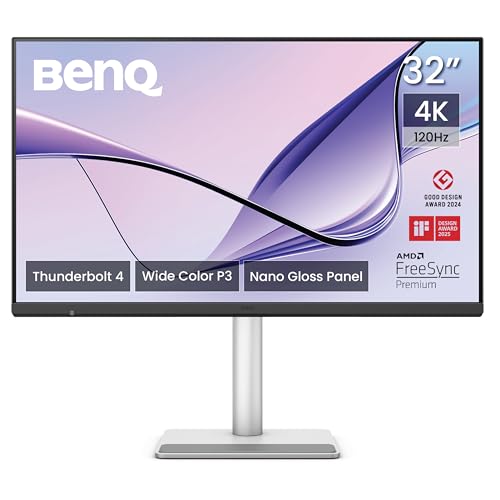
- MAC COLORS IN FLUID MOTION: Experience 4K at 120Hz for smoother motion and faster on-screen response making everything feel more precise.
- SEAMLESS SETUP: Connect via Thunderbolt 4 daisy chain to extend your Mac workspace, and switch between two computers instantly with Smart KVM for a smoother creative flow.
- VERSATILE CONNECTIVITY: Two Thunderbolt 4 ports deliver a 4K 120Hz signal, fast data, and 96W/15W power delivery, with HDMI and USB-C ports offering added flexibility.
- NANO GLOSS PANEL CLARITY: Delivers crystal-clear detail with deep blacks, bright highlights, and vibrant contrast, showing your Mac exactly as it was meant to be seen.
- ADJUSTABLE STAND: Height, tilt, swivel, and pivot adjustments let the screen follow your posture, delivering comfort and flexibility beyond a fixed stand.
That puts it at well under half the $1,599/£1,499 starting price of Apple’s Studio Display, while offering a larger panel, 120Hz refresh rate, Thunderbolt 4 docking and much broader device support.
It is also more expensive than a basic 32-inch 4K monitor, but the comparison is not really fair. The MA320UG is specifically designed around Mac colour matching, one-cable charging, Display Pilot 2, KVM switching and an unusually strong connection selection.
The main alternative to consider is BenQ’s own MA270S. It costs more, but its 5K/218-PPI display is substantially sharper for macOS. Your choice really comes down to whether you value 32 inches and 120Hz more than native 5K Retina scaling.