

Opening the Terminal on a Mac is simple once you know where to look – but there are actually multiple ways to do it, and some are much faster than others.
This guide covers every method, from beginner-friendly options to advanced shortcuts, plus troubleshooting tips.
Quick Answer (Fastest Ways)
To open Terminal on a Mac:
- Spotlight Search: Press
Command (⌘) + Space→ type Terminal → press Enter - Finder: Applications > Utilities > Terminal
- Launchpad: Search for Terminal
- Siri: Say “Open Terminal”
What Is Terminal on Mac?
If you’ve just switched from Windows to Mac, you may be confused about what Terminal is and does.
The Terminal is a built-in macOS app that gives you access to a Unix command-line interface.
It allows you to:
- Run commands
- Manage files and folders
- Troubleshoot macOS such as force quitting troublesome apps to force deleting apps which won’t uninstall normally
- Launch apps and scripts
Terminal isn’t really designed for beginners and not an essential tool to learn. However, it does provide sometimes provide solutions where other fixes have failed and isn’t that difficult to learn.
Here then are the best ways to open Terminal on a Mac.
6 Ways To Open Terminal on Mac
1. Open Terminal Using Spotlight (Best Method)
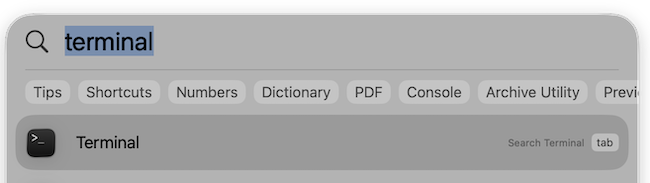
This is the fastest and most popular way.
Steps:
- Press
Command (⌘) + Space - Type Terminal
- Press Enter
This method works instantly from anywhere on your Mac.
2. Open Terminal from Finder
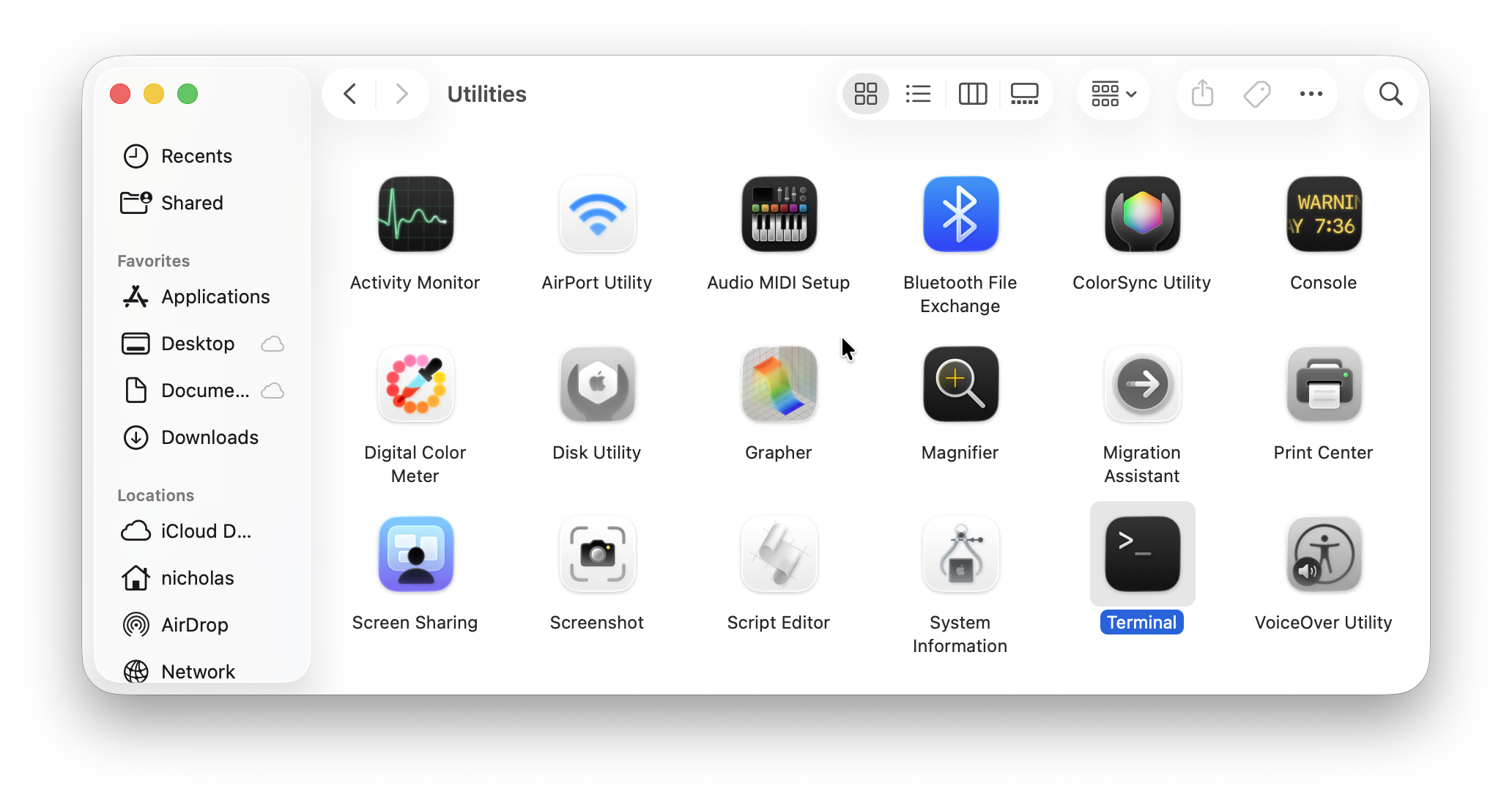
Steps:
- Open Finder
- Click Applications
- Open Utilities
- Double-click Terminal
📍 Path:
Applications → Utilities → Terminal
3. Open Terminal from Launchpad
Steps:
- Open Launchpad
- Type Terminal in the search bar
- Click the Terminal icon
4. Open Terminal Using Siri
If you use voice commands:
Steps:
- Activate Siri
- Say: “Open Terminal”
5. Open Terminal Using a Keyboard Shortcut (Advanced)
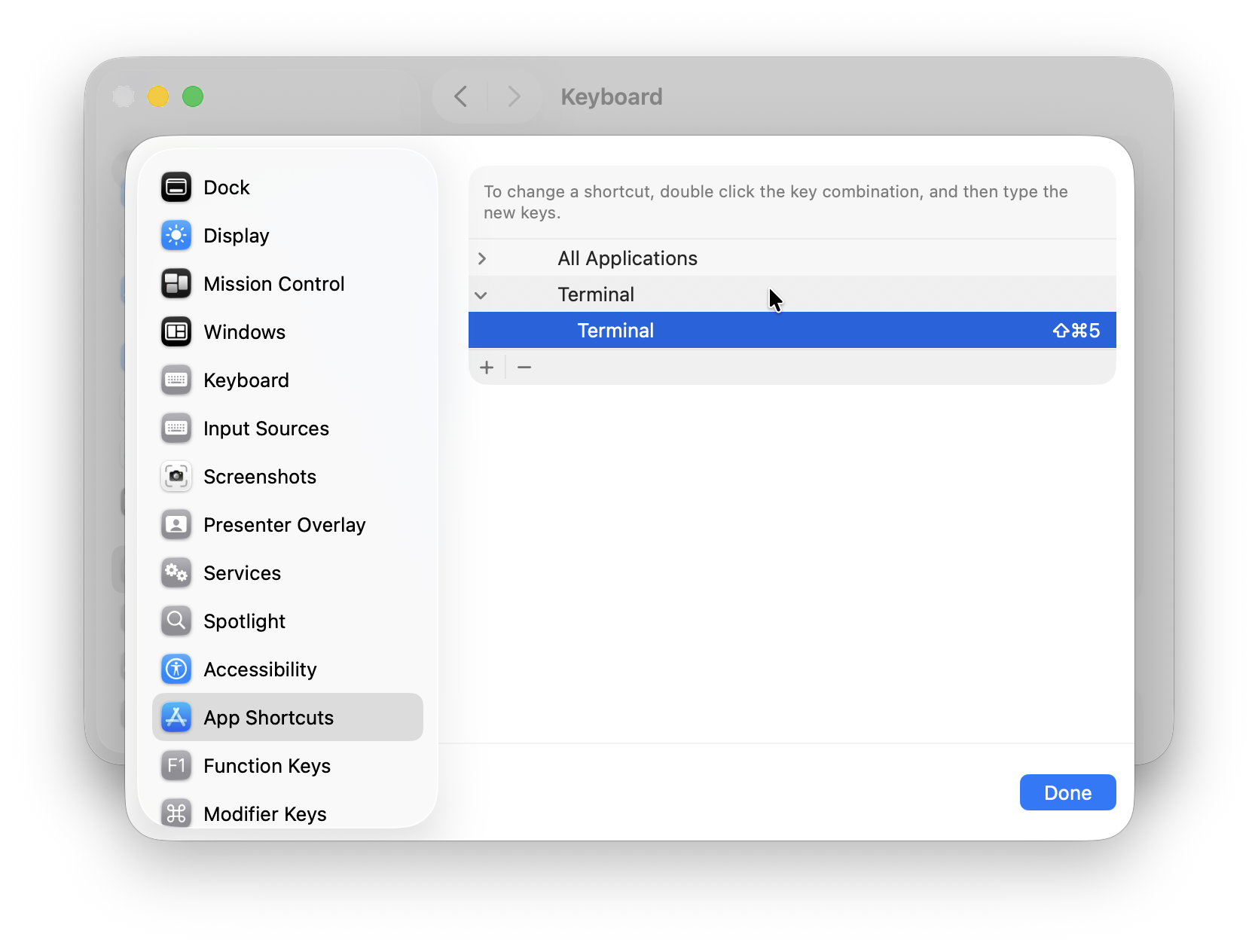
macOS doesn’t include a default shortcut – but you can create one:
Steps:
- Go to System Settings
- Click Keyboard > Keyboard Shortcuts
- Select App Shortcuts
- Click on the “+” button to add a shortcut
- Terminal may not be in the list of apps that appear so just scroll down the list to Other…
- Browse to Terminal on your Mac
- Add a new shortcut for Terminal using the keyboard shortcut of your choice
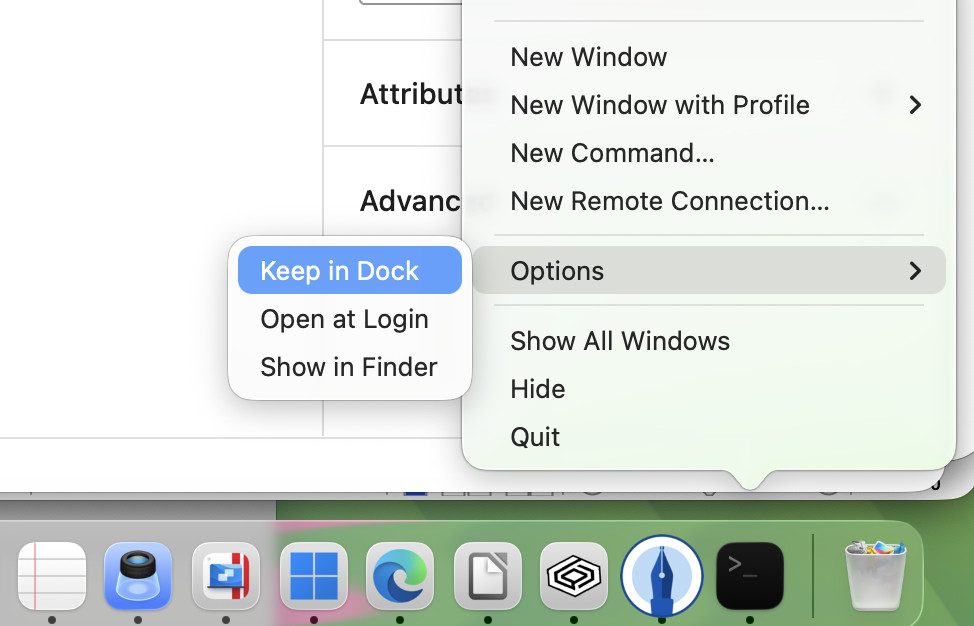
How To Keep Terminal in Your Dock (Recommended)
If you use Terminal often:
Steps:
- Open Terminal once
- Right-click its icon in the Dock
- Click: Options > Keep in Dock
How To Open Terminal in a Specific Folder
You can also make Terminal open in a specific folder on your Mac.
Method 1: Right-click Folder
Steps:
- Right-click a folder in Finder
- Select: New Terminal at Folder
If you don’t see this option:
- Enable it in System Settings > Privacy & Security > Extensions
Method 2: Drag Folder into Terminal
- Open Terminal
- Drag a folder into the window
- Press Enter
Basic Terminal Commands (For Beginners)
Terminal is generally designed for those that know what they’re doing when it comes to command line prompts.
However, there are a few easy commands you can use to feel like a pro.
Once Terminal is open, try these:
pwd     → Shows current directory
ls      → Lists files
cd      → Changes directory
open .  → Opens current folder in Finder
Troubleshooting: Terminal Won’t Open
1. Use Spotlight Instead
If Finder isn’t working, use:
Command + Space → Terminal
2. Restart Finder
- Press
Command + Option + Escape - Select Finder
- Click Relaunch
3. Check Applications Folder
Make sure Terminal exists here:
Applications → Utilities
4. Use Activity Monitor
If Terminal is frozen:
- Open Activity Monitor
- Search for Terminal
- Force quit it
Common Questions
Where is Terminal located on Mac?
Applications > Utilities > Terminal
Is Terminal safe to use?
Yes – but commands can affect your system. Only run commands you trust.
Why can’t I find Terminal?
Use Spotlight search – it will always locate it instantly.
Can I open Terminal automatically at login?
Yes:
- Open System Settings > General > Login Items
- Add Terminal
Summary
Opening Terminal on a Mac is easy – but knowing the fastest method (Spotlight) and a few productivity tricks makes a big difference.
If you’re planning to use Terminal regularly, the best setup is:
- Keep it in your Dock
- Use Spotlight for quick access
- Learn a few essential commands