

Running Windows in a virtual machine is one of the most convenient ways to use Windows-only software on a Mac. However, getting files from macOS into Windows — and back again — is not always as simple as it should be.
The best method depends on the virtual machine you use and whether you have an Intel or Apple Silicon Mac. Parallels Desktop has by far the smoothest folder integration, UTM can share a folder through its SPICE tools when using its QEMU backend, and VMware Fusion has an important limitation on Apple Silicon Macs.
This guide explains how to share folders, copy files, use drag-and-drop, access external drives and fix the most common problems in Parallels Desktop, VMware Fusion and UTM.
Quick Answer
For most people, the easiest and safest approach is to create one dedicated folder on your Mac, such as Shared Windows Folder inside Documents, and share only that folder with Windows. However, in the case of Parallels, you can also grant full access to your Mac’s files and folders.
| Virtual machine | Best way to share files | Important limitation |
|---|---|---|
| Parallels Desktop | Shared Folders or a custom shared folder | Do not mirror your whole Mac profile unless you really need to |
| VMware Fusion on an Intel Mac | Shared Folders with VMware Tools installed | Restart Windows after changing sharing settings |
| VMware Fusion on an Apple Silicon Mac | Drag-and-drop, copy and paste, OneDrive or a local network share | Current Fusion releases do not support Shared Folders for Windows on ARM guests |
| UTM using QEMU | A SPICE WebDAV shared directory | Windows Guest Tools must be installed |
| UTM using Apple Virtualization | OneDrive or a local network share | Windows shared-directory support is not currently available through VirtioFS |
If you only need to transfer the occasional document, drag-and-drop or cloud storage is usually enough. If you work with Windows every day, a dedicated shared folder is much less fiddly.
Before changing any virtual machine settings, create a folder on your Mac specifically for files that need to be available in both operating systems.
For example:
- Open Finder and go to your Documents folder or wherever you want to place it (I chose my Desktop)
- Create a new folder called
Shared Windows Folder.
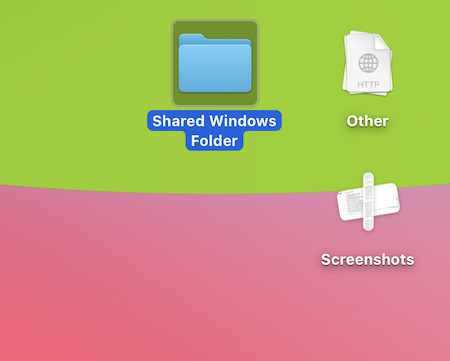
- Put copies of the files you need in that folder, rather than exposing your entire Mac home folder to Windows.
This keeps the setup tidy and reduces the chance of accidentally changing or deleting something important from inside Windows.
Avoid sharing your whole Desktop, Documents folder or internal Mac drive unless there is a good reason to do so. A shared folder is a live connection, not a duplicate copy. If you rename, overwrite or delete a file from Windows, you are changing the original Mac file too.
It is also sensible to avoid opening the same Word, Excel, Photoshop or accounting file in both macOS and Windows at once. Save and close it in one operating system before opening it in the other.
Which File-Sharing Method Should You Use?
| Method | Best for | Downsides |
|---|---|---|
| Shared folder | Frequent work, larger files and keeping a common project folder | Changes are live in both operating systems |
| Drag-and-drop | Moving a few files quickly | Not ideal for large batches or regular transfers |
| Shared clipboard | Text, screenshots and small snippets | Not suitable for folders or large files |
| OneDrive, Dropbox or Google Drive | VMware Fusion on Apple Silicon, UTM Apple Virtualization and working away from home | Uses cloud storage and can take time to sync large files |
| Mac File Sharing over the local network | Larger local transfers when a built-in shared-folder feature is unavailable | Takes a little more setup |
| USB drive passthrough | A device that must be controlled directly by Windows | Less convenient and more prone to connection issues than a shared folder |
For most Mac users, use a shared folder when it is available. Use OneDrive or a local network share when it is not.
Parallels Desktop offers the closest integration between macOS and Windows. Once Parallels Tools is installed, Windows can open selected Mac folders in File Explorer, and you can also enable drag-and-drop and clipboard sharing.
To check whether Parallels Tools is installed on your Mac, go to Actions > Reinstall Parallels Tools. If it’s already installed, you’ll get the option to reinstall it. If you find that features like drag and dropping and clipboard sharing aren’t working between Parallels and your Mac, it may be worth doing this anyway.
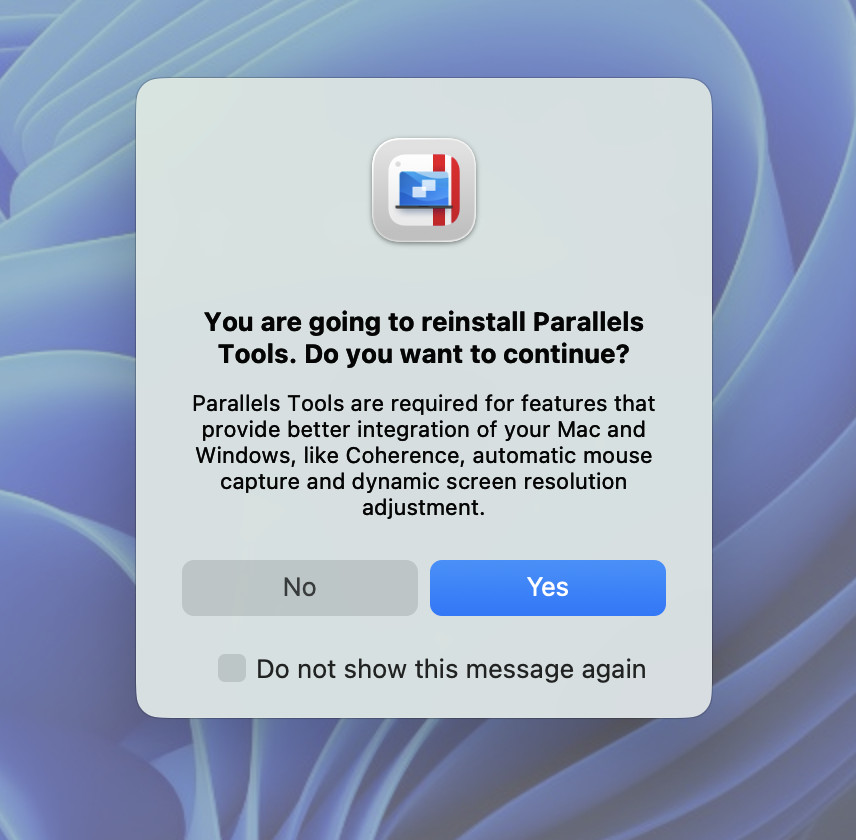
When you do this, Parallels will need to restart Windows for the changes to take effect – this is very important!
Share a Custom Mac Folder
- Shut down Windows rather than suspending it.
- Open Parallels Desktop and select your Windows virtual machine.
- Choose Actions > Configure. You can also select Configure from the Parallels Desktop menu-bar icon.
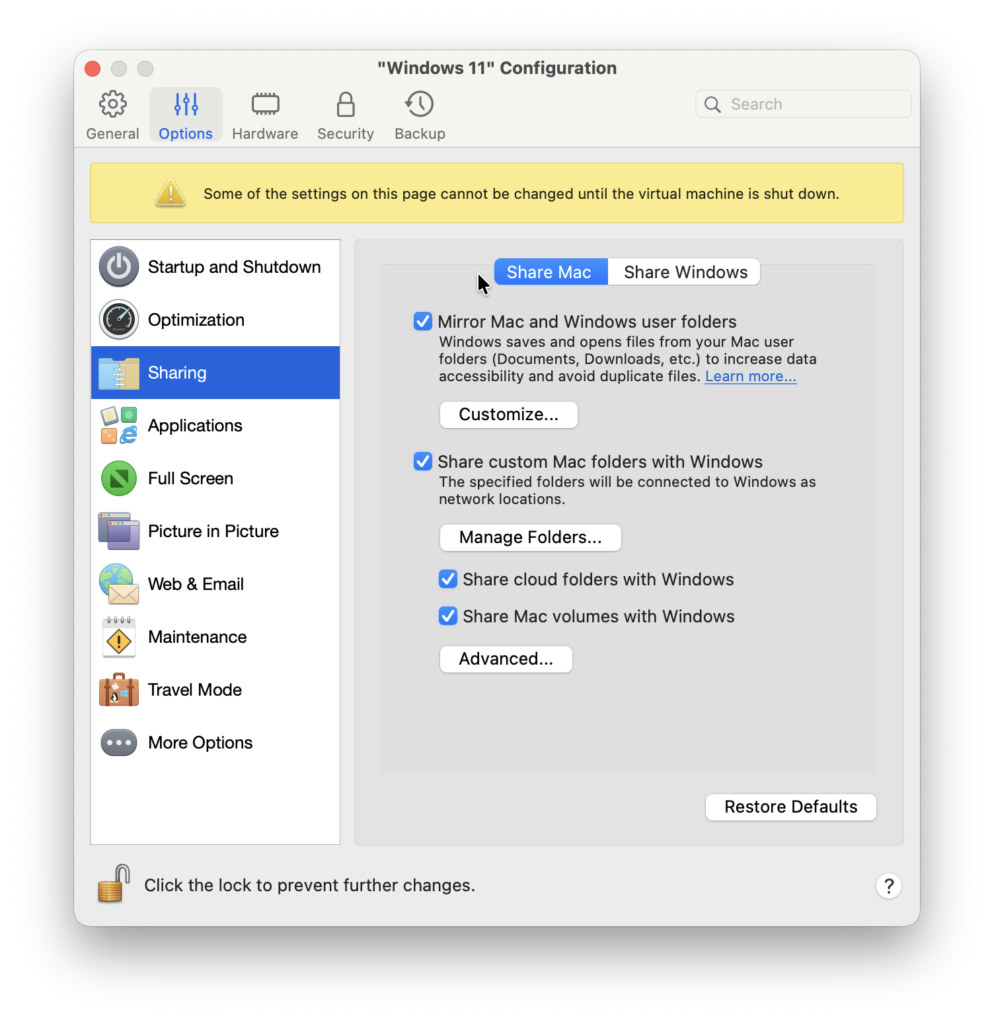
- Select Options > Sharing.
- Under Share Mac, choose the option to share custom folders or open Manage Folders.
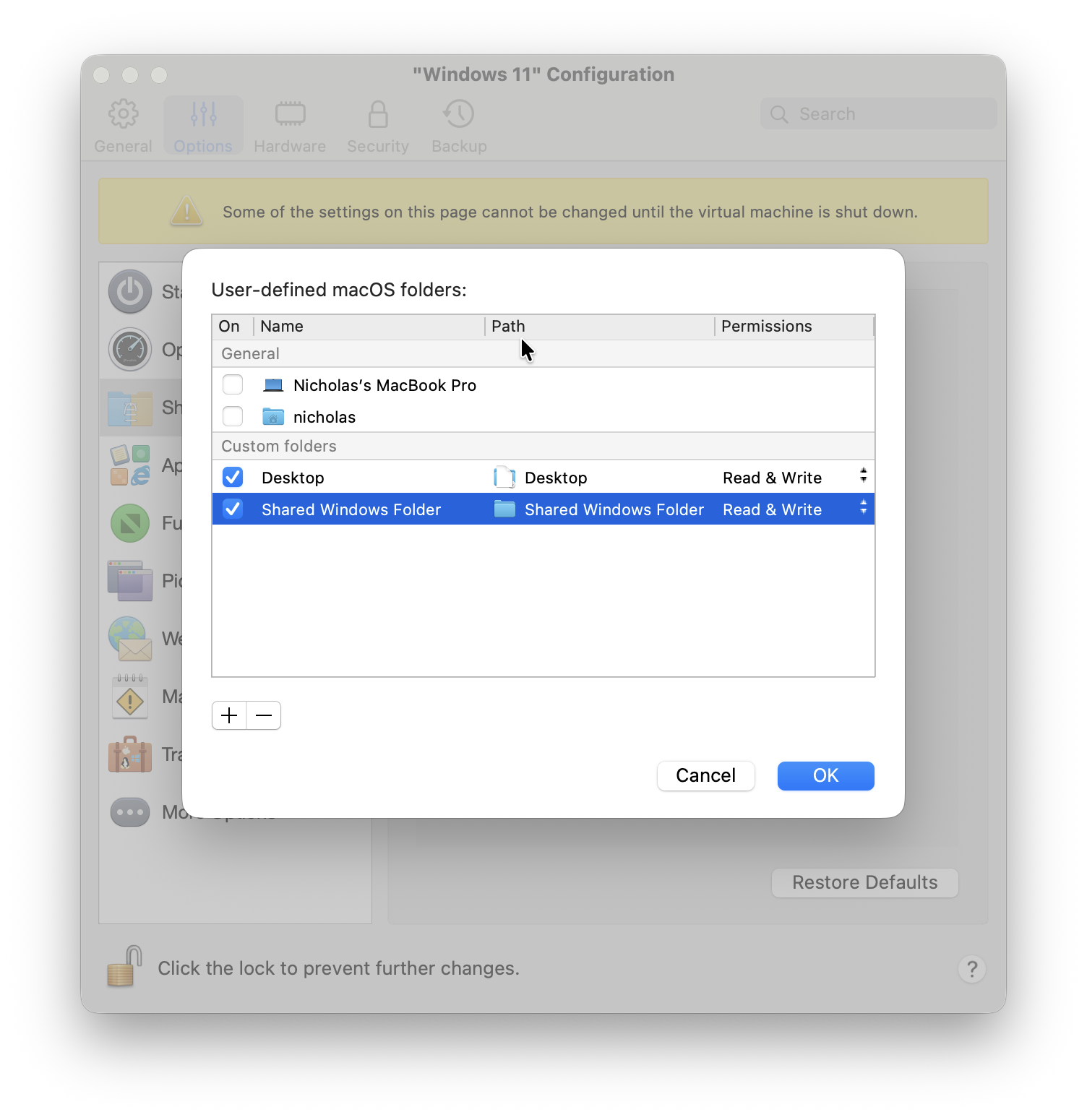
- Click the + button and select the
Shared Windows Folderyou created on your Mac.
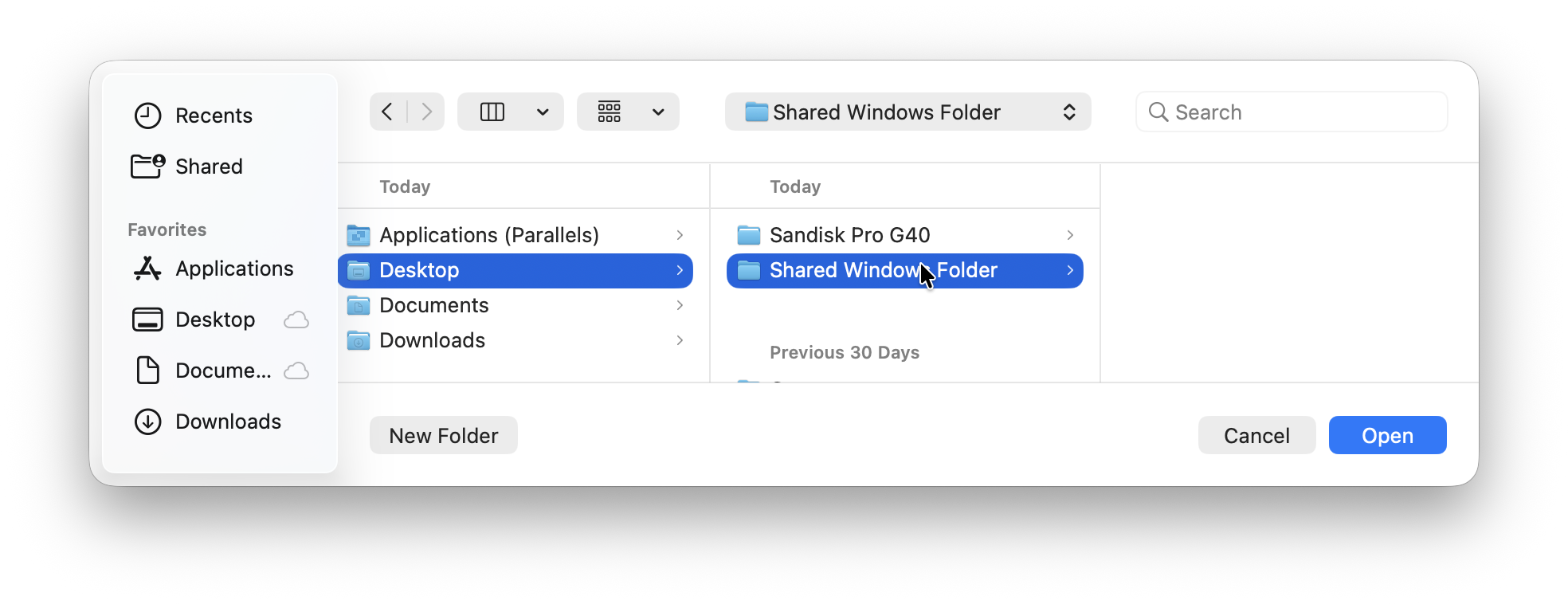
- You’ll see in Parallels that the Shared Windows Folder appears.
- Start Windows and open File Explorer.
Your shared Mac folders should appear as network locations, normally under a location labelled Mac. You can open files directly from there or save Windows files into the folder so that they immediately appear in Finder on your Mac.
Use Parallels Shared Profile Carefully
Parallels can also mirror selected macOS user folders, such as Desktop, Documents and Downloads, inside Windows. Go to Options > Sharing > Share Mac and enable Mirror Mac and Windows user folders if that is what you want.
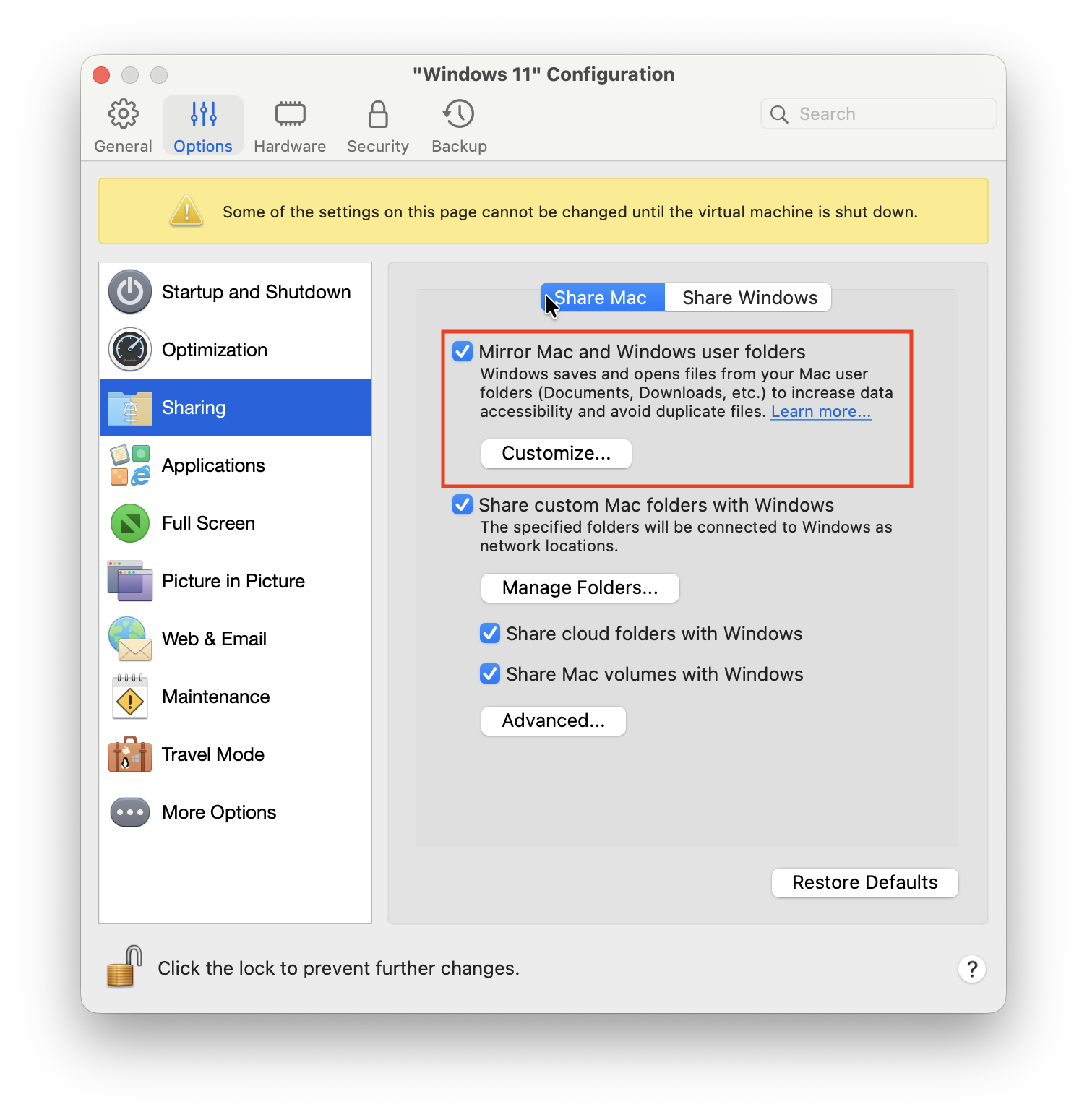
This is convenient, but it is more invasive than sharing one dedicated folder. When the feature is enabled, Windows is effectively using the matching Mac folders rather than its own separate copies.
Be particularly careful when deleting files. If you delete a Mac Desktop file from the mirrored Windows Desktop, it may not be recoverable from either the macOS Trash or Windows Recycle Bin!
Copy, Paste and Drag Files in Parallels
Parallels Tools is required for shared folders, drag-and-drop and the shared clipboard. It is normally installed when Windows is set up, but reinstall it if any of these features stop working.
In the virtual machine configuration, make sure the Mac and Windows are not isolated from each other and that Share Mac clipboard is enabled. You can then use normal keyboard shortcuts to copy text and images, or drag a file from Finder into a Windows window.
For drag-and-drop, leave full-screen mode or switch to Coherence mode if it is difficult to reach the other operating system.
Let Your Mac Access Windows Files
If you also want to browse the Windows Desktop, Documents or Downloads folder from Finder, open Options > Sharing > Share Windows and enable Access Windows folders from Mac.
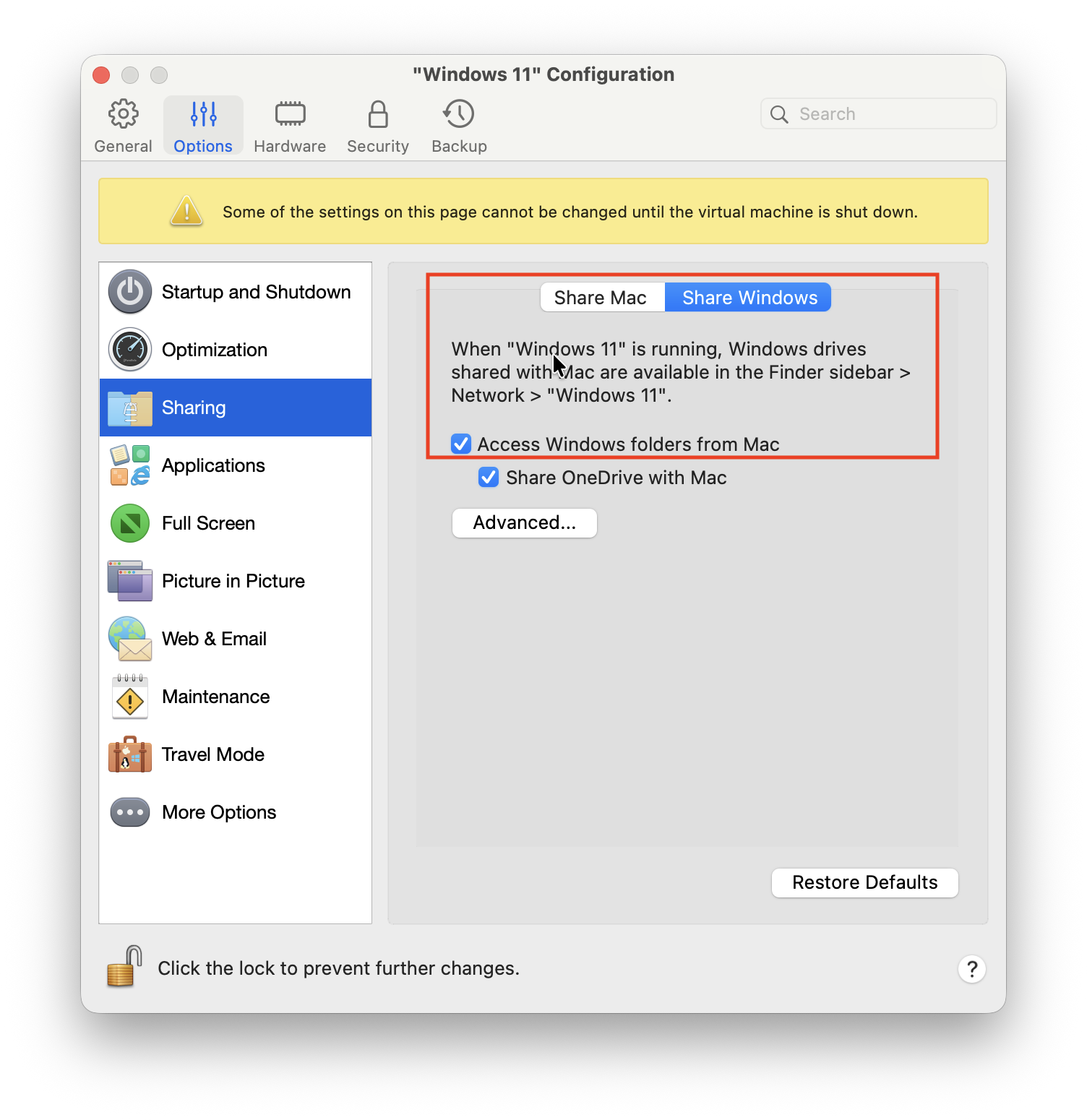
This can be useful when a Windows application saves a file to its local Windows folder rather than to the shared Mac folder.
To see Parallels in action sharing folders, watch the video below.
Other virtual machines do not make sharing folders between macOS and Windows easy. It is possible with both VMware Fusion and UTM but as you’ll see, it’s not straightforward.
VMware Fusion works differently depending on the type of Mac you have.
On an Intel Mac
VMware Fusion can use Shared Folders or mirrored folders with a Windows virtual machine on an Intel Mac. First make sure VMware Tools is installed, as it provides the integration features needed for sharing, better display handling, drag-and-drop and copy-and-paste.
- Shut down the Windows virtual machine.
- In Fusion, choose Virtual Machine > Settings.
- Open Sharing.
- Enable the folder or folders you want to mirror, or add a specific shared folder.
- Restart Windows.
Mirrored folders redirect selected Windows folders, such as Desktop and Documents, to their equivalents on the Mac. As with Parallels, a dedicated custom folder is normally safer than mirroring everything.
If the sharing options are missing or nothing appears in Windows, choose Virtual Machine > Install VMware Tools, complete the installer in Windows and restart the virtual machine.
On an Apple Silicon Mac
There is an important difference for Windows 11 ARM virtual machines on Apple Silicon Macs. In the current VMware Fusion support table, Shared Folders are not available for Windows guests on Apple Silicon. They are supported only for Linux guests on the ARM version of Fusion.
That means you should not expect a native VMware shared-folder drive to appear in Windows 11 ARM, even if you have used the feature successfully in Fusion on an Intel Mac.
For occasional transfers, VMware Fusion still supports copy-and-paste and drag-and-drop when VMware Tools is working. For regular transferring of files, use OneDrive, Dropbox, Google Drive or a local network share from your Mac, explained below.
UTM can share a selected Mac folder with Windows, but the method depends on the virtualisation backend.
For Windows, the useful option is a QEMU virtual machine with SPICE WebDAV directory sharing. It presents the selected Mac folder to Windows as a network drive.
- Shut down the UTM virtual machine.
- Select the virtual machine in UTM and open its settings or details view.
- In the Sharing section, choose the
Windows Sharedfolder on your Mac. - Enable clipboard sharing if you also want to copy text between macOS and Windows.
- Start Windows.
- Install Windows Guest Tools if you did not select Install drivers and SPICE tools during the original Windows setup.
To install the tools in an existing virtual machine, start Windows, click UTM’s CD icon in the toolbar and select Install Windows Guest Tools. Open the mounted UTM CD inside Windows and run the spice-guest-tools installer.
After installation, the shared folder should appear as a network drive in File Explorer. If it does not, run:
C:\Program Files\SPICE webdavd\map-drive.batUTM’s Apple Virtualization backend does not currently offer the same Windows shared-folder option. If your Windows virtual machine uses that backend, use OneDrive or a Mac network share instead.
Use OneDrive, Dropbox or Google Drive Instead
Cloud storage is often the simplest answer when built-in folder sharing is unavailable, especially for VMware Fusion on Apple Silicon or UTM using Apple Virtualization.
Install the cloud-storage app separately in macOS and Windows, then sign in to the same account. Each operating system will keep its own local copy and sync changes through the cloud.
This is slower than a direct shared folder for very large files, but it has some advantages:
- It works regardless of which virtual machine you use.
- Your files remain available when the virtual machine is switched off.
- Version history can help if a file is overwritten accidentally.
- You can access the same files from another computer or phone.
Do not try to make the Windows OneDrive client manage the exact same local OneDrive folder that macOS is already syncing through a shared-folder path. Let each operating system use its own normal OneDrive folder and let the cloud service handle the transfer.
Wait for files to finish syncing before opening them in the other operating system, particularly with large files or shared Office documents.
Another useful option is macOS File Sharing. This works with any virtual machine that can reach your local network, including Windows ARM in VMware Fusion.
- On your Mac, open System Settings > General > Sharing.
- Turn on File Sharing.
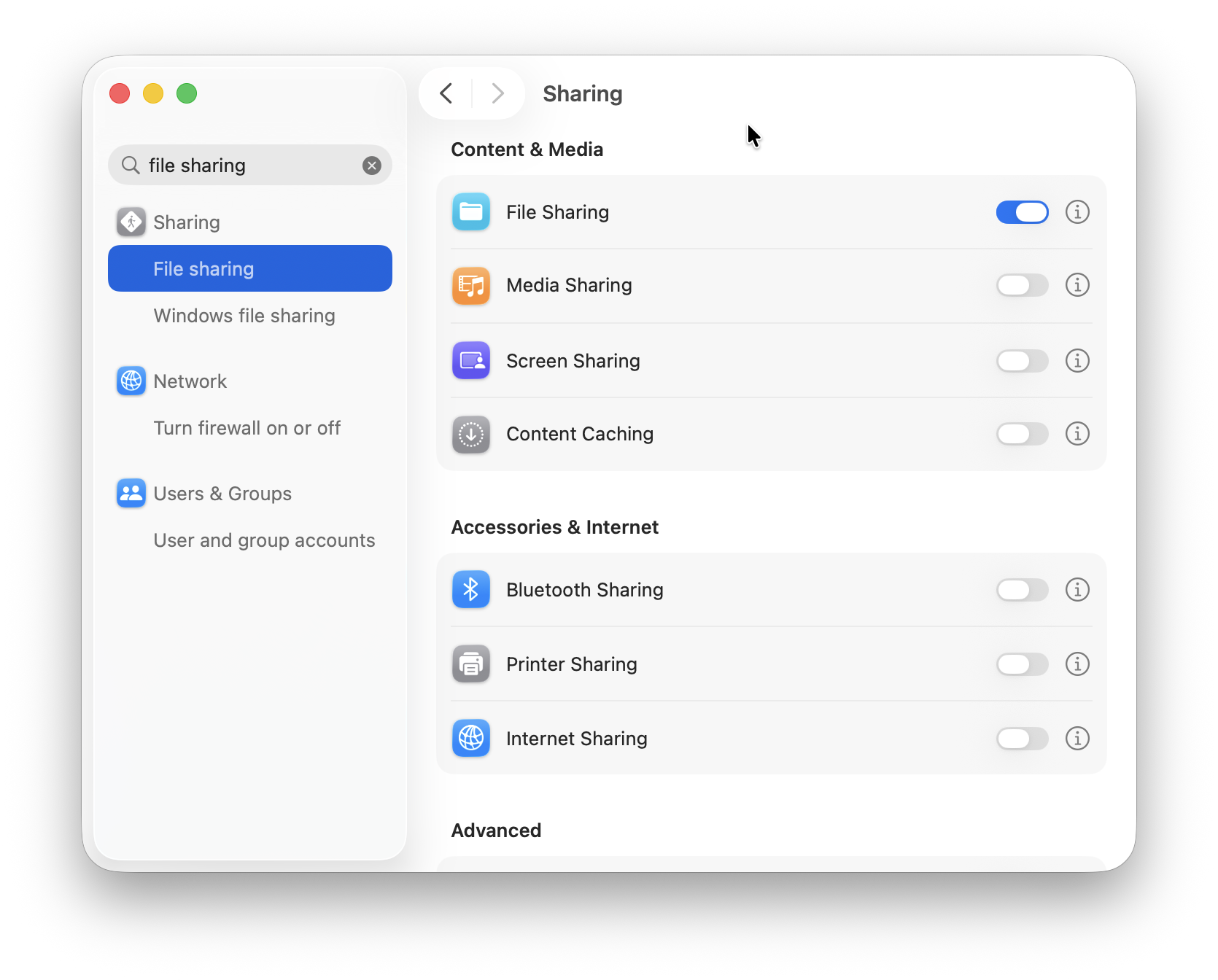
- Click the information button beside File Sharing and add your
Windows Sharedfolder to the shared folders list. - Give your Mac user account read-and-write access to the folder.
- In Windows, open File Explorer and enter
\\your-mac-name.localin the address bar.
If that does not work, use your Mac’s local IP address instead, such as \\192.168.1.20. You can find it in System Settings > Wi-Fi or Network.
When Windows asks for credentials, enter the username and password for your Mac account. This is normally your local Mac account password, not necessarily your Apple Account password.
Once connected, right-click the shared folder in File Explorer and choose Map network drive if you want it to appear with a drive letter every time Windows starts.
Use an External Drive Without Causing Problems
For ordinary file transfers, it is usually safer to keep an external SSD or USB drive connected to macOS and share a folder from it with Windows. This avoids repeatedly moving the physical drive between the Mac and the virtual machine.
Only use USB passthrough when Windows needs direct control of a device, such as a specialist USB dongle, scanner, programmer or legacy hardware. A device can only be connected to one operating system at a time.
Before returning a drive from Windows to macOS, eject it inside Windows first. Do not pull it out or try to connect it to both systems simultaneously.
UTM’s USB sharing is particularly variable with its QEMU backend, and some devices cannot be captured reliably. For a portable SSD containing ordinary files, a shared folder or cloud storage is normally the better choice.
The Shared Folder Does Not Appear in Windows
First, restart Windows. If that does not help:
- Check that the folder is still selected in the virtual machine’s sharing settings.
- Confirm that the integration tools are installed: Parallels Tools, VMware Tools or UTM Windows Guest Tools.
- Reinstall the relevant tools and restart Windows.
- Check that the Mac folder has not been moved, renamed or deleted.
- Check the folder’s macOS sharing permissions in Finder by selecting it and choosing File > Get Info.
- If you are using UTM, run the SPICE
map-drive.batcommand shown above.
On a Mac with strict privacy settings, the virtual machine app may also need permission to access folders such as Desktop, Documents or external drives. Open System Settings > Privacy & Security and check the app’s Files and Folders permissions if access is denied.
Copy and Paste Does Not Work
Make sure clipboard sharing is enabled in the virtual machine settings and reinstall the integration tools if necessary.
With Parallels, third-party antivirus software or a clipboard manager on either side can interfere with the shared clipboard. Temporarily disable these one at a time to identify the cause.
Drag-and-Drop Does Not Work
Parallels and VMware Fusion need their respective guest tools installed. Also make sure the virtual machine is not configured to isolate macOS from Windows.
Try dragging a small file first. If it works, but a larger file does not, use a shared folder or OneDrive instead.
The Folder Is Read-Only
Check the selected Mac folder’s permissions in Finder. Your Mac user should have Read & Write access.
If the folder is on an external drive, make sure the drive is mounted in macOS and is not formatted in a way that prevents writing from the Mac. Then reconnect or restart the virtual machine.
Files Keep Producing Sync Conflicts
Do not edit the same file in both operating systems at the same time. Save and close it in one place first, then wait for the shared folder or cloud service to finish updating before opening it in the other.
For important work, keep the original file in one operating system and transfer a copy for use in the other. This is especially sensible for databases, Outlook data files, virtual machine files and other files that do not cope well with simultaneous access.
FAQ
Can I share my Mac Desktop with Windows?
Yes, particularly in Parallels Desktop and VMware Fusion on Intel Macs. However, a dedicated shared folder is safer. With mirrored user folders, deleting a file in Windows can delete the original Mac file too.
Where do shared Mac folders appear in Windows?
They normally appear in File Explorer as a network location rather than as a standard C: drive. The exact label depends on the virtual machine: Parallels uses a Mac network location, UTM maps its SPICE WebDAV share as a network drive, and Fusion varies by Mac architecture and version.
Can VMware Fusion share folders with Windows 11 ARM on an M-series Mac?
Not with Fusion’s native Shared Folders feature at present. Use drag-and-drop for occasional files, or use OneDrive, Dropbox, Google Drive or macOS File Sharing for a more permanent arrangement.
Does UTM support shared folders with Windows?
Yes, when the virtual machine uses UTM’s QEMU backend and Windows Guest Tools are installed. UTM uses SPICE WebDAV to expose the chosen Mac folder as a Windows network drive. The Apple Virtualization backend does not currently offer the equivalent Windows shared-directory feature.
What is the safest way to transfer files between a Mac and Windows in a VM?
For regular work, use a dedicated shared folder rather than your whole Mac home folder. For sensitive or important files, use a cloud service with version history or copy the file instead of editing the same live shared file from both operating systems.
Can I use an external SSD in a Windows virtual machine?
Yes, but it is usually better to keep the drive attached to your Mac and share the relevant folder with Windows. Use direct USB passthrough only when Windows software needs direct access to the device.