

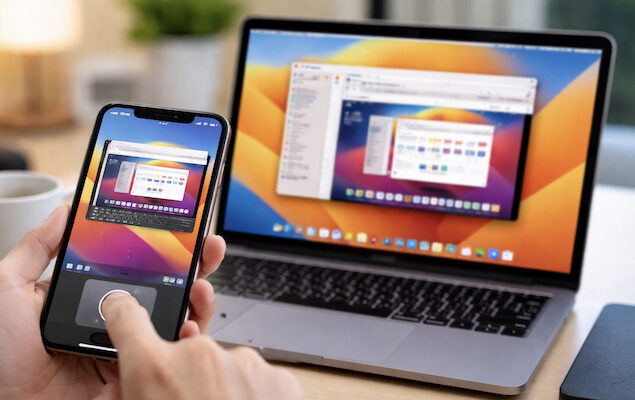
If you want to control your Mac from an iPhone, rather than just access files or access a Mac remotely from another computer, there are a few very specific tools and setups that work best for iOS.
This guide focuses only on using an iPhone to view and control a Mac’s screen – moving the mouse, clicking, typing, and managing apps – whether you’re at home or away from your Mac.
If you’re looking for all ways to remotely access a Mac from any device (Mac, Windows, iPad, browser, etc.), see our full guide on how to access and control a Mac remotely.
Contents
- What “Controlling” a Mac From an iPhone Really Means
- Local vs Remote Access Explained
- Best Ways to Control & Access a Mac From an iPhone
- 1. Control a Mac From an iPhone Using Switch Control
- 2. Use macOS Screen Sharing With a VNC App on iPhone (Best All-Round Option)
- 3. Remote Desktop Apps With Dedicated iOS Support
- Is an iPhone or iPad Better for Controlling a Mac?
- Security Tips When Controlling a Mac From an iPhone
- Summary
What “Controlling” a Mac From an iPhone Really Means
Before jumping in, it’s worth clarifying what’s possible and what is and isn’t possible from iOS in 2026.
From an iPhone, you can:
- View your Mac’s desktop in real time
- Control the mouse and keyboard
- Open apps, manage files, and change settings
- Wake or unlock your Mac remotely (with supported apps)
What you can’t do however is:
- Use macOS system features designed only for using your Mac keyboard locally
- Get a native macOS-style multitasking experience on a small screen
In short: using an iPhone to control a Mac works best for quick tasks, troubleshooting, or managing a Mac when you’re away but we really wouldn’t recommend it for extended working sessions.
Local vs Remote Access Explained
There are two ways an iPhone can connect to your Mac: locally on the same WiFi network or remotely anywhere in the world.
Local control (same Wi-Fi):
- Easiest setup
- No security configuration needed
- Ideal for controlling your Mac at home or in the office
Remotely (over the internet):
- May require port forwarding or a secure relay feature (depending on the app)
- Allows full control when away from home
- Best combined with strong passwords and encryption
Best Ways to Control & Access a Mac From an iPhone
Here then are the easiest ways to control a Mac from an iPhone, starting with the simplest and then moving on to more advanced solutions.
1. Control a Mac From an iPhone Using Switch Control
Apple includes a lesser-known way to control a Mac from an iPhone using Switch Control, an accessibility feature designed for alternative input methods.
This isn’t a traditional remote desktop solution. Instead, Switch Control allows one Apple device to act as an input controller for another – meaning your iPhone can send commands to your Mac without mirroring its screen.
How Switch Control Works Between iPhone and Mac
To use Switch Control to control a Mac from an iPhone:
- Both devices must be:
- Signed into the same Apple ID
- Connected to the same Wi-Fi network
- On the Mac:
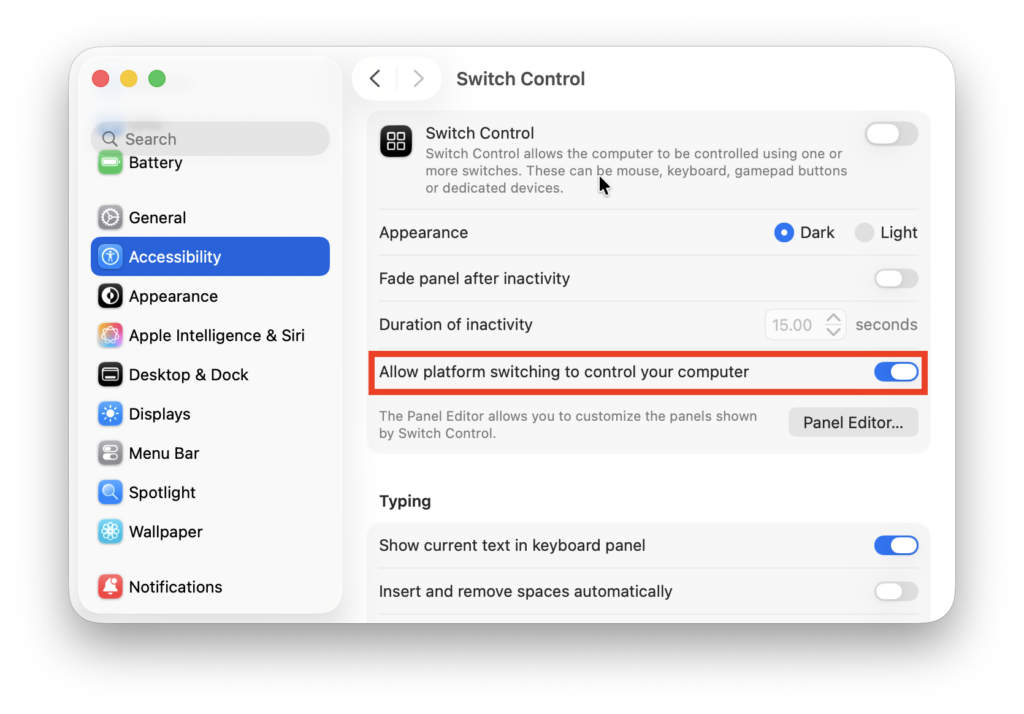
- Go to System Settings > Accessibility > Switch Control
- Enable Switch Control
- Turn on “Allow platform switching to control your computer”
- Enter your Mac admin username and password to allow the changes
- On the iPhone:
- Go to Settings > Accessibility > Switch Control
- Enable Switch Control
- Use the Switch Control menu to select your Mac as the device to control
Once connected, your iPhone sends control inputs to the Mac using scanning, selection, or custom switch actions.
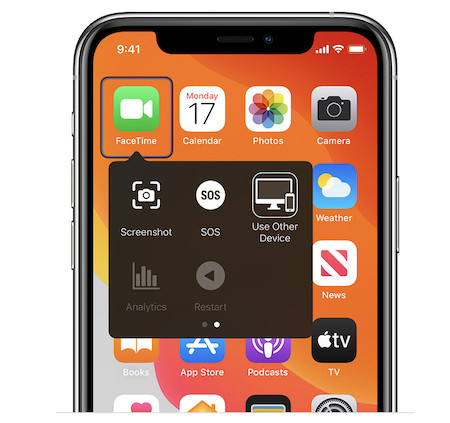
You can also open applications that are both available on your Mac and iPhone (such as FaceTime) by selecting “Use Other Device” from the switching menu.
Important Limitations to Be Aware Of
Switch Control behaves very differently from traditional VNC or remote desktop apps because:
- You don’t see the Mac’s screen on your iPhone
- It only works on the same local network
- Navigation relies on scan-and-select controls, not free mouse movement
Because of this, it’s not suitable for general remote access or controlling a Mac while away from home.
If you need to control your Mac with your iPhone away from home or the office, then you’ll need to use a VNC or remote desktop app (see methods 2 and 3 below).
2. Use macOS Screen Sharing With a VNC App on iPhone (Best All-Round Option)
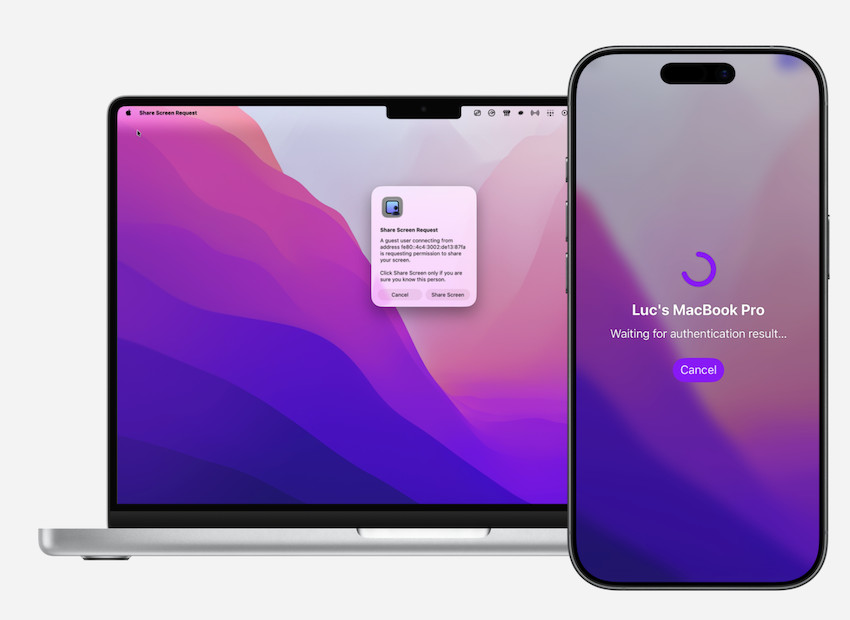
For full control of a Mac from an iPhone, by far the best option is via VNC (Virtual Network Computing) with Screen Sharing activated on your Mac. macOS includes a built-in VNC server thanks to the Screen Sharing feature, which works with several excellent iOS apps.
How This Method Works
- macOS Screen Sharing acts as the host (VNC server)
- A VNC app on your iPhone acts as the controller (VNC client)
- Together, they allow you to see your Mac’s screen and control it using touch gestures
This setup works both:
- Locally (on the same Wi-Fi network)
- Remotely over the internet (with the right network setup)
How to do it:
- Enable Screen Sharing on your Mac
- Install a VNC client on your iPhone. Some good options are RealVNC Viewer (free), Screens (fast and smooth, supporting gestures) and Jump Desktop (very smooth, supports gestures).
- Connect locally or over the internet simply by using the IP address of the Mac
- Login with your Mac’s username and password
- Control your Mac using touch gestures
This option is best for:
- Full Mac control
- Home and remote use
- One-off or occasional sessions
3. Remote Desktop Apps With Dedicated iOS Support
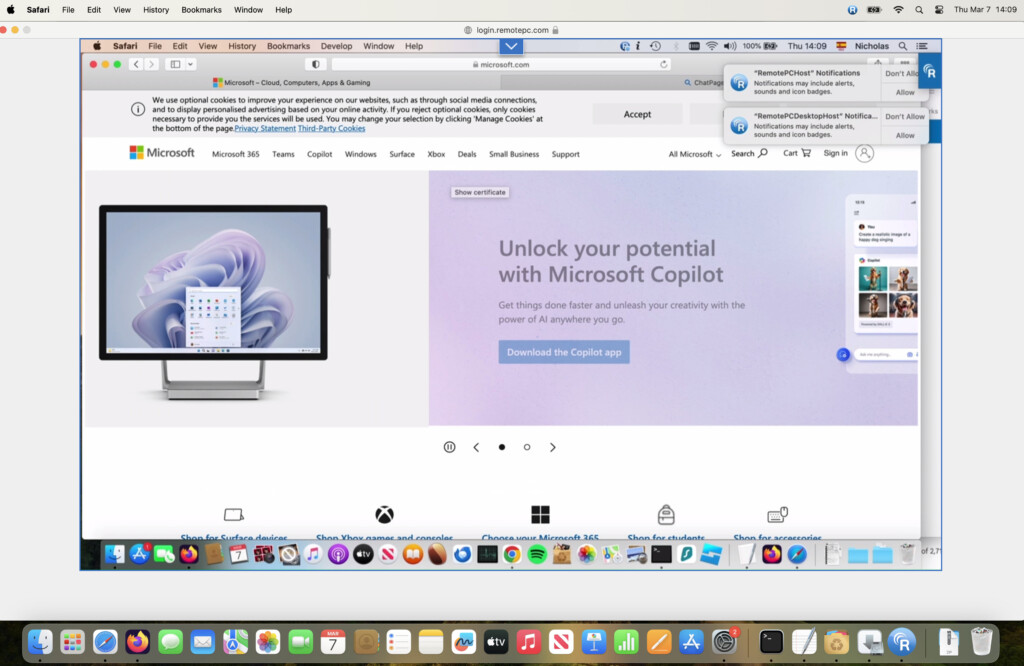
Some remote desktop software are designed specifically to work well on mobile screens.
These typically include:
- Touch-optimized mouse controls
- Virtual keyboards with Mac shortcuts
- Automatic secure connections (no port forwarding)
Examples include:
- RemotePC – Versatile and excellent value
- Chrome Remote Desktop – Simple, free remote desktop app, Google-based
- AnyDesk – Fast connections, good iOS app
These are easier to set up than VNC but often trade flexibility for convenience.
Best for:
- Quick access
- Non-technical users
- Cross-platform control
Is an iPhone or iPad Better for Controlling a Mac?
While this guide focuses on iPhone use, it’s worth pointing out that:
- An iPhone works, but the screen is small for controlling a Mac
- An iPad is far better if you’re going to working on it for a while
If you plan to regularly control your Mac remotely, an iPad offers:
- More screen space
- Better multitasking
- More precise pointer control
That’s why broader guides often group iPhone and iPad together, while this article focuses specifically on what’s realistic on an iPhone.
Security Tips When Controlling a Mac From an iPhone
If you’re controlling your Mac over the internet, always:
- Use strong Mac login passwords
- Enable macOS firewall settings
- Prefer encrypted connections (most modern VNC apps do this)
- Avoid exposing your Mac directly to the internet unless necessary
If security is a concern, cloud-mediated services (like Chrome Remote Desktop) are safer for non-technical users.
Summary
Controlling a Mac from an iPhone is absolutely possible, and surprisingly useful in the right situations.
For occasional access, a VNC-based setup or a dedicated remote desktop app works extremely well. Just don’t expect it to replace sitting in front of your Mac – it’s a convenience tool, not a full workstation.
For a broader comparison of all remote Mac access methods, including Mac-to-Mac, Windows, browser-based access, and cloud services, see our full guide on How To Access & Control a Mac Remotely.