

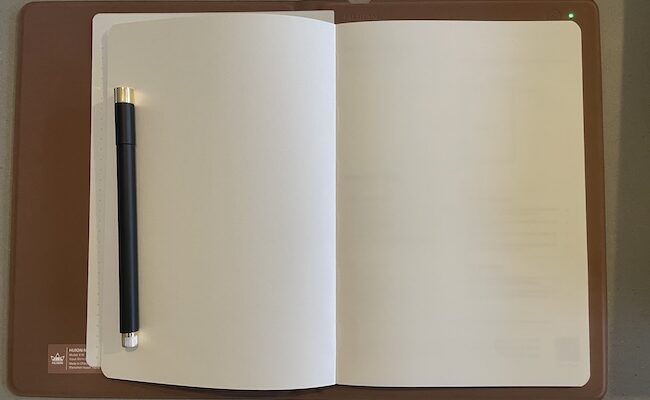
I’ve tested a lot of digital notebooks and drawing tablets over the years, but the Huion Note immediately stood out as something different.
Instead of trying to replace paper with yet another e-ink screen, Huion has taken the opposite approach – it uses real paper and adds the digital layer underneath.
As someone who does most of my work on a Mac but still relies heavily on handwritten notes for everything from mind-mapping to simple note taking, I was pretty intrigued to see how this worked in practice.
After spending my first week using the Huion Note for meetings, brainstorming sessions, sketches, and general daily scribbles, these are my initial impressions of this unusual, budget digital note taking tablet.
At the end, I’ll also look at how compares to popular digital notepad alternatives like the reMarkable 2, Supernote A5X, and Wacom tablets.
Table of Contents
What’s In The Box?
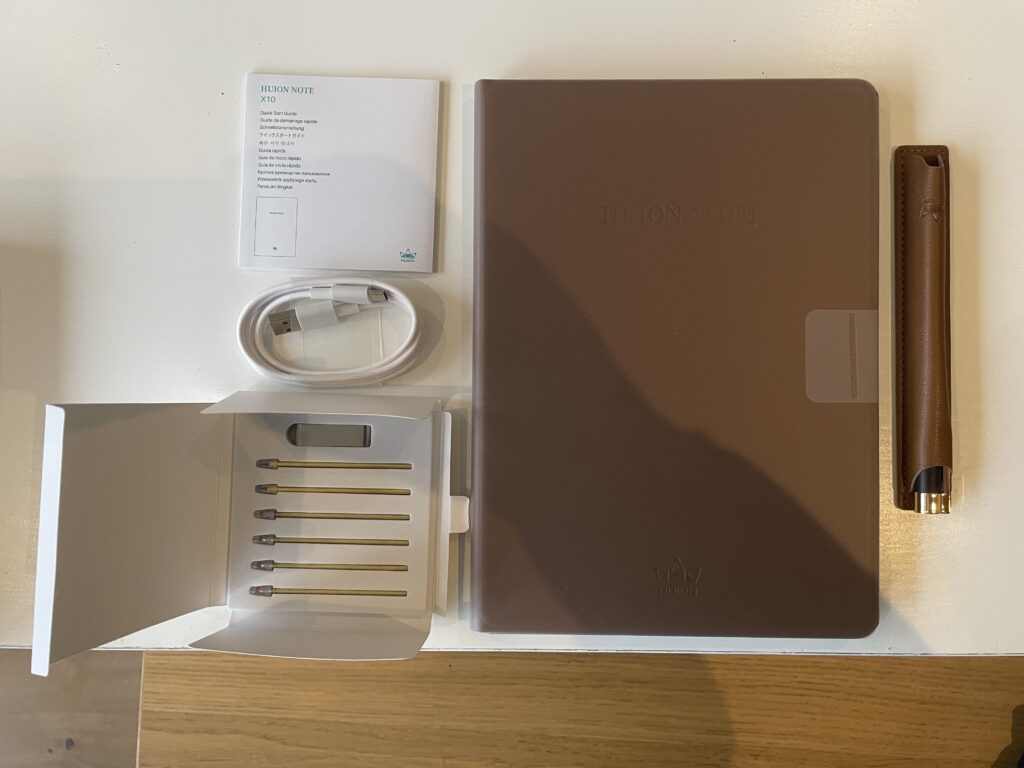
In the Huion Note box you get:
- Huion Note
- PU leather pouch with the Scribo 2 stylus pen. The pouch is magnetic and sticks to the front of the Huion Note although it’s a bit flimsy and could fall off easily.
- Six refills: 2 black and 4 red plus nib remover
- USB-C to USB-A cable for charging – this is pretty useless with Apple Silicon Macs as they only have USB-C ports so you’ll need to make sure you have a USB-C to USB-C cable available.
- Instruction booklet
First Impressions
The first thing you notice when you unbox the Huion Note is the brown leather cover (well, Polyurethane leather) with “Huion Note” embossed on the front.
Huion has clearly gone all-out for a “natural” aesthetic, to make the Huion Note look and feel like a “real” notebook rather than a digital slab.
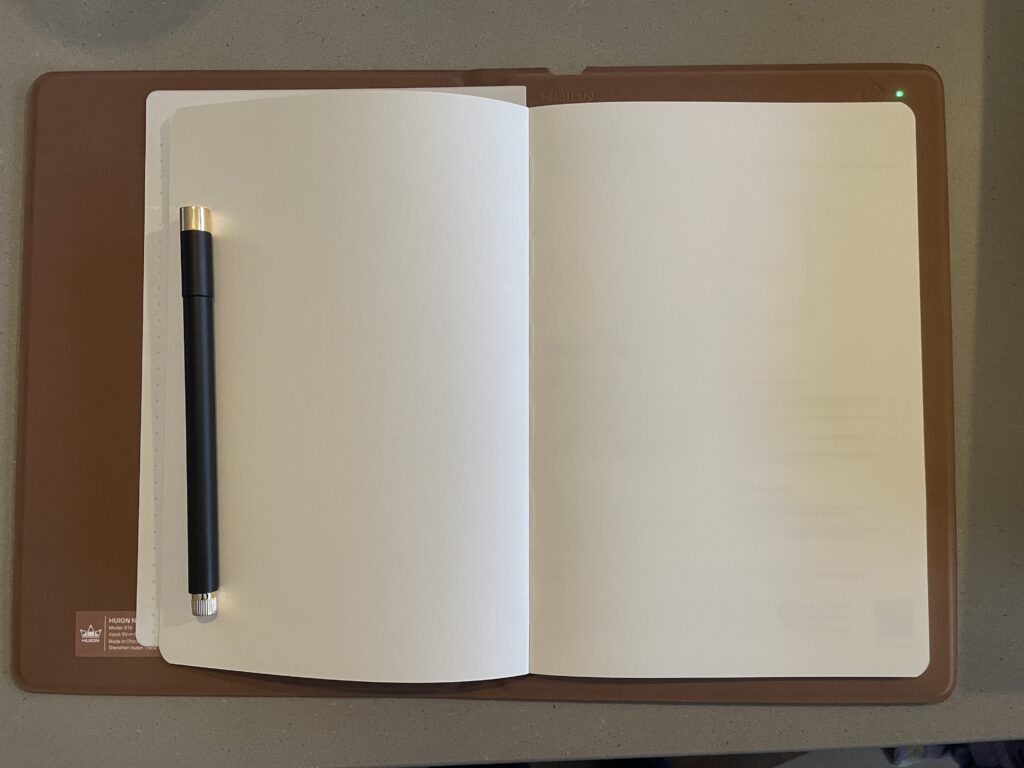
It genuinely feels like a proper notebook except for the green LED in the top right corner.
The green light indicates that the Huion Note is offline and is not connected to any device so it’s time to get to setup.
Setting-up with a Mac and iPad
The Huion Note has two different modes: Note-Taking Mode (writing on paper, capturing handwritten notes) and Pen Tablet Mode (when connected to a Mac and working as a basic graphics tablet).
Note-Taking Mode requires the Huion Note app which displays your writing on screen but annoyingly, this is not available for Macs so you can’t use it for note taking with a Mac.
Pen Tablet Mode is supposed to work with a Mac meaning using drivers and in theory, you should be able to use it to draw in graphic design applications in macOS.
After much messing around, I finally got the Huion note to connect via Bluetooth and granted it permissions in macOS.
However, unfortunately I was unable to get Pen Tablet Mode to work. I couldn’t get the Huion Note to be recognized by any graphic design applications. I also tried via USB-C cable but still no luck.
I really wouldn’t buy the Huion Note intending to use it for drawing anyway as there any many more better drawing tablets for this.
You can however charge the Huion Note by connecting it your Mac with a USB-C cable and you can transfer notes and files from it to your Mac this way too.
Note Taking Mode
Note Taking Mode simply requires you to download the Huion Note app on iPad or iPhone and connect it via Bluetooth.
Once you’ve downloaded the app, tap on the tablet symbol with the line through it at the top of the screen and it will establish a Bluetooth connection.
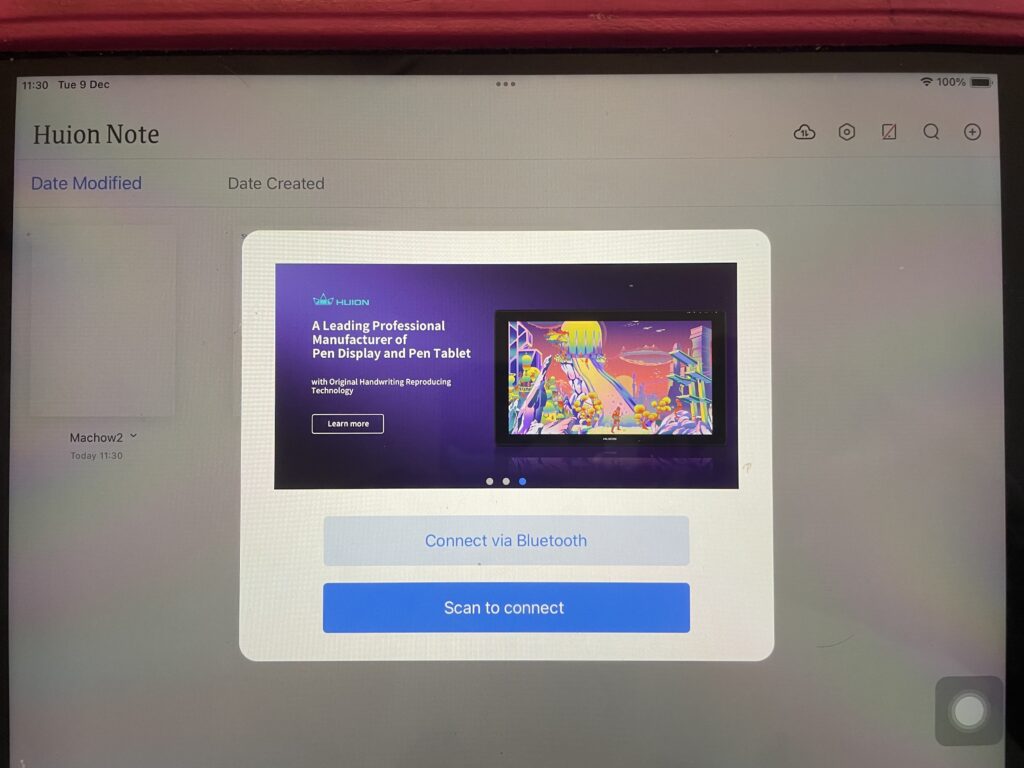
Once this is done, the Huion Note LED will turn blue.
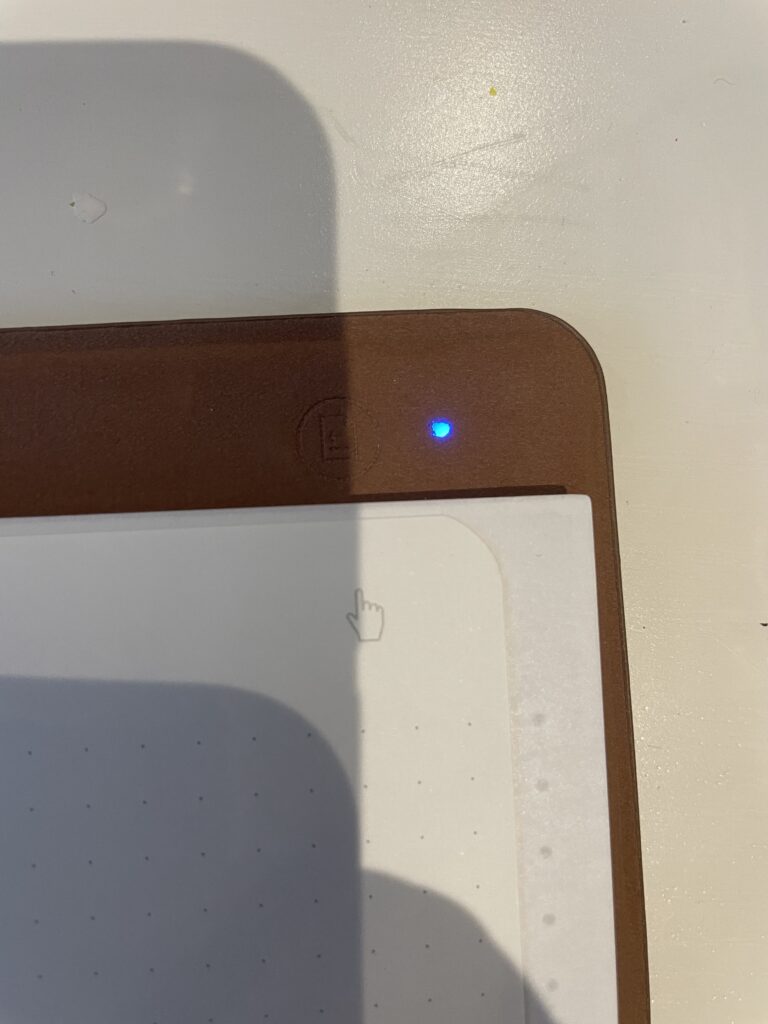
If it remains green the tablet is not connected by Bluetooth and will not work with the app.
If you have any problems or issues doing this, Huion has a useful video tutorial here:
Finally, you’ll also need to setup a Huion Note account with your email address so that you can sync notes to the app.
I started by writing a few pages like I would in a a regular notebook: bullet-point notes, some sketches, doodles etc.
The Huion Note captured these strokes digitally and instantly. I synced with the Huion Note companion app (on my iPad) and was able to see the notes in real time which was pretty cool.
Things that stood out on first use of the Huion Note were:
- Natural pen-on-paper feel: Because you’re literally writing on real paper (replaceable pages) with a “real” pen refill, it feels no different from paper notebooks.
- Vectorized strokes & export options: Once synced, my notes were neatly converted into vector format. I could export them as PDFs straight from the app which is ideal for sharing or archiving.
- Portability: A5 is an ideal size for me and the Huion Note is easy to slip into a bag or carry around the office between meetings.
For sketching diagrams and mind-maps during a brainstorming session, the pressure sensitivity of 8192 levels and tilt allowed me to adjust the thickness and style of lines accurately.
Overall, it’s a fun device even for kids who like the novelty of drawing on paper and seeing their creations magically appear on a screen.
Online vs Offline Mode
You can use the Huion Note in either Offline or Online mode.
Offline allows you to take up to 50 pages of notes (the maximum number of sheets of paper you can fit in the Note) after which you need to synchronize to clear the memory or start deleting stuff. In the top right is an icon to show you where to click to virtually flip the page.
When you sync, you have to choose a file or folder to add the notes to (such as meetings, thoughts, general notes etc) – this helps things keep neat and organized.
Online mode simply reproduces your note taking on the Note surface in real time and there’s very little noticeable lag.
Editing & Sharing Synced Notes
Once you’ve added your notes you can then enrich them by manually adding photos, color annotations, drag and drop content around the page, add audio and delete them.
Once you’re ready to share them, the highest quality way to do so is via PDF. However, you can also share in Huion Note’s own format, JPG (although these are max 1080 x 1432 pixels) and as a video.
Video sharing allows you to show all the notes that led you to creating something like a mind-map so you or the person viewing can get a better understanding of how you arrived there.
You can also sync to Google Drive or Huawei Cloud and give other users access from there.
Downsides
There were a few things that I felt the Huion Note lacked, mainly due to the lack of OCR scanning support and performance with more complex notes.
- No automatic handwriting-to-text conversion (OCR): The biggest downside of the Huion Note is the lack of OCR scanning to convert my scrawl into typed text. This is one of the most necessary features of any digital notepad for me and one of the main reasons I couldn’t use the Huion Note long term.
- No actual screen: The Huion Note does not have a screen – it only tracks the pen’s position on paper. While this is cool, it can become distracting looking up and down from page to screen.
- Page capacity: The built-in paper notebook lets you store about 50 pages before needing to sync. This is quite a lot but if you write a lot between syncs or are out in meetings all day, you might hit that sooner than you think.
- Pen nib & refills: The Huion Note stylus uses Huion’s own refills or nibs so can’t buy any cheaper generic nibs although a set of five nibs should only set you back around $20.
- Connectivity Issues with Macs: As mentioned earlier, I wanted to try using is a drawing tablet with my Mac but trying to get this to work was painful and there isn’t enough documentation to help.
- No Mac App: I really don’t understand why Huion couldn’t have made an app so that you can see your notes appear on a Mac as well as iOS devices.
What I Liked Overall
The main things I liked about the Huion Note are:
- It’s a notebook that feels exactly like a paper notebook
- It supports automatic backup and digital archiving of my notes – perfect if I want to keep organized, searchable records.
- It’s light and portable enough to carry anywhere
- The battery of the Huion Note lasts up to 18 hours which is impressive for any digital note taking tablet (probably mainly because it doesn’t have to power a screen).
Most digital notebooks and pen-tablets use screens but they can feel unnatural or too rigid (too much glare, battery drain etc) and I really like the paper approach of the Huion Note.
If you still crave the feel of paper, but want an easy way to export and organize your notes, the Huion Note gives you the best of both worlds.
As regards as using it for digital art, I wouldn’t recommend it, not least because of the frustrating connection issues I had using a Mac. i
Huion Note Alternatives
The biggest rivals to the Huion Note are the reMarkable 2, Supernote A5X, and Wacom One / Intuos Pro (the latter being more traditional pen tablets.
To get a better idea of how they compare, check the comparison table below.
| Device | Best For | Strengths | Weaknesses |
|---|---|---|---|
| Huion Note | Hybrid paper + digital notes, Mac pen tablet, students, writers | Real paper feel, digital sync, works as Mac pen tablet, inexpensive, no subscriptions | No OCR, relies on paper refills |
| reMarkable 2 | E-ink writing and document focus | OCR, great for long-form writing | No pressure sensitivity, subscription upsells, not ideal for artists |
| Supernote A5X | Premium e-ink note takers, business users | Best e-ink writing feel, great file organization | Expensive, no pressure sensitivity, not a drawing tool |
| Wacom One/Intuos Pro | Artists, illustrators, professional designers | Best digital pen performance | Not portable, no paper experience, purely digital |
FAQ
1. What is the Huion Note?
Huion Note is a hybrid smart notebook that captures your handwriting on real paper and instantly turns it into digital notes. It also doubles as a pressure-sensitive drawing tablet when connected to a Mac or PC.
2. Does Huion Note work with a Mac?
In theory yes, the Huion Note works with macOS via Bluetooth or USB-C. Once the Huion driver is installed, it should be possible to use it in Pen Tablet Mode, allowing you to draw, annotate PDFs, sign documents, and control the cursor in other apps using the included Scribo 2 pen. However, I was unable to get this to work and connectivity seems to be flaky with Macs.
3. Is there a Huion Note app for macOS?
No, unfortunately there isn’t a Huion Note app for Macs.
4. Can the Huion Note convert handwriting to text?
No. Huion Note does not offer built-in OCR handwriting-to-text conversion. It captures strokes perfectly, but the output remains handwritten unless you use a third-party OCR tool afterward.
5. How many pages can the Huion Note store offline?
Huion Note can store up to 50 pages of handwritten notes internally before you need to sync.
Once synced, the notebook clears that internal storage and continues recording.
6. What happens when I run out of paper?
The notebook uses standard A5 paper refills, not expensive proprietary ones. You can use the official Huion refills or insert any A5 pad that matches the hole alignment.
7. How long does the battery last?
Huion claims around 18 hours of continuous use. In practical everyday use – writing a few pages a day – you can expect to charge it about once every 1–2 weeks.
8. Does the Huion Note need an internet connection?
No. You can write offline, and the Note stores pages locally. When you’re back online, it syncs automatically with the app.
9. Is the Huion Note good for digital art?
It’s fine for sketching, diagrams, and annotations, but not ideal for advanced digital art. Although it supports 8,192 pressure levels and tilt, it does not have a screen. Artists needing precision should look at a proper drawing tablet.
10. How is Huion Note different from reMarkable or Supernote?
Unlike screen-based e-ink tablets, Huion Note uses real paper. You write normally, and the pen strokes are captured digitally in the background. It’s more natural for people who prefer paper and less like using a tablet.
11. What file formats can you export notes in?
You can export your pages as:
- PNG
- JPG
- Vector strokes (via the app)
12. Does Huion Note work without Bluetooth?
Yes. You can connect via USB-C for:
- Pen Tablet Mode
- Wired syncing
Bluetooth is only required for wireless syncing and wireless tablet use.
13. Is there any subscription needed?
No. All core functions – writing, syncing, exporting – are included. Unlike the reMarkable, nothing is locked behind a monthly subscription.
14. Who is the Huion Note best for?
Huion Note is ideal for:
- Students
- Writers & journalists
- Managers & meeting-heavy roles
- Sketchers, planners, and notebook lovers
- Mac users who want digital archiving without giving up paper
15. Does Huion Note support Apple Notes or iCloud?
Not directly. Your pages sync to the Huion app, where you can export them into apps like:
- Apple Notes
- Notion
- OneNote
- GoodNotes
- Evernote
…or simply save them to iCloud Drive or your Mac.
16. Can you use the Huion Note pen on other tablets?
No. The Scribo 2 pen uses Huion’s PenTech 3.0 technology and only works with supported Huion tablets.
17. Does the Huion Note work as a graphics tablet for macOS apps like Photoshop?
Yes. In Pen Tablet Mode, it behaves like a regular Huion pen tablet and if you can get it connected with your Mac, it should work with various graphic design tools including:
- Photoshop
- Illustrator
- Affinity Designer
- Clip Studio Paint
- Blender
- Preview (macOS)
- PDF editors