

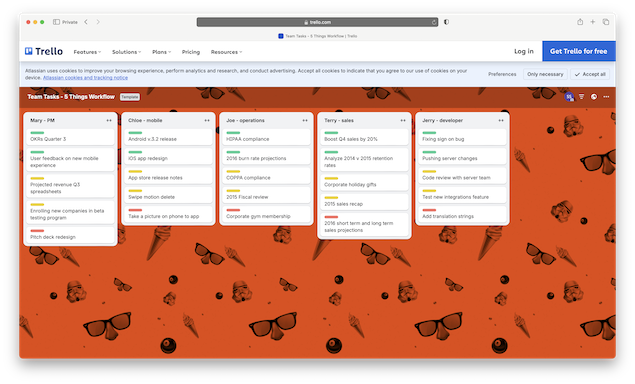
Keeping track of your daily to-dos, team responsibilities, and project deadlines can get overwhelming fast. While many Mac users use project management software for this, task management software is a more lightweight, focused alternative.
Task Management vs Project Management
Project management tools manage complex, multi-stage projects involving multiple teams and dependencies. Task management software, on the other hand, helps individuals or small teams organize and complete specific tasks efficiently – without the extra layers of dashboards, Gantt charts, and workflows.
There is some overlap between the two and you will find tools like Smartsheet and Monday often do both but in general, task management tools are more straightforward.
If you’re a Mac user, you’ll want tools that are fast, reliable, and work nicely with macOS features like Calendar, Reminders, and Apple Shortcuts.
Below, we’ve rounded up the best task management apps for Mac in 2025, ranked from most powerful to simplest – all tested on both Intel and Apple Silicon Macs.
Here’s a side-by-side comparison ordered from most “enterprise‑capable” down to more personal‑oriented followed by pros and cons of each.
| Best for | Starting Price | |
|---|---|---|
| Smartsheet | Scalable team task/work-flows | Free trial, Plans start at $9/member/month |
| monday.com | Team collaborative tasks + boards | Free version/ Plans start at $9/seat/month |
| Backlog | Best for Teams combining tasks and issue tracking | Free for up to 10 users / Paid plans from $35 per month |
| TickTick | Cross-platform, lighter teams | Free Trial / Plans start at $35.99/year |
| Things 3 | Solo Mac users, premium native app | $49.99 one-time payment |
| Todoist | Cross-platform, team & personal | Free / $4-5/user/month |
| OmniFocus | Advanced personal task management | $49.99 one-time |
| Microsoft To Do | Those that like to stick within Microsoft products on Macs | Free |
| Trello | Visual board-style task management | Free / $5/user/month |
| Notion | Tasks + notes + database combo | Free / $10/user/month |
| Apple Reminders | Built-in Apple tasks, minimal setup | Free (macOS included) |
1. Smartsheet — Best Overall for Task & Workflow Automation
Price: Free Trial, Plans from $9/user/month
Best for: Teams needing flexible task tracking and automation
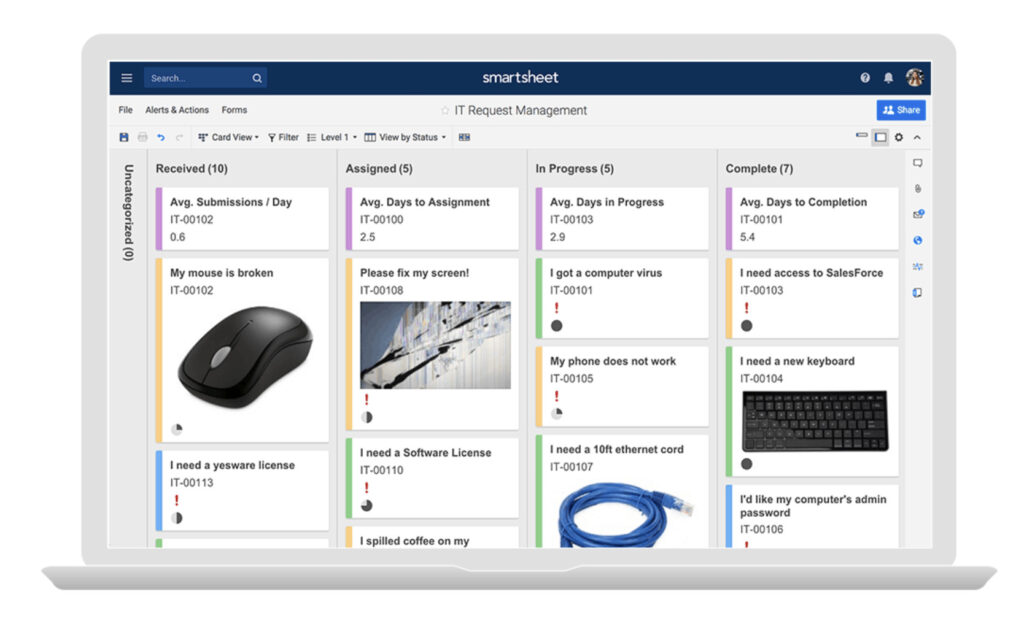
Smartsheet takes the top spot for its spreadsheet-style simplicity and enterprise-level power. It’s more flexible than traditional task tools, allowing you to build anything from a personal to-do list to a company-wide task tracker.
You can assign tasks, set dependencies, automate updates, and even integrate it with macOS tools via browser or desktop app. While it’s web-based, it performs flawlessly on Macs and supports Apple Silicon chips.
More Info: Smartsheet review
Pros:
- Spreadsheet interface that’s easy to grasp
- Strong automation and collaboration tools
- Scales from individuals to large teams
Cons:
- Overkill for basic users
2. monday.com — Best for Team Collaboration
Price: Free version, Plans from $9/seat/month (Basic plan)
Best for: Teams needing task collaboration and visual dashboards
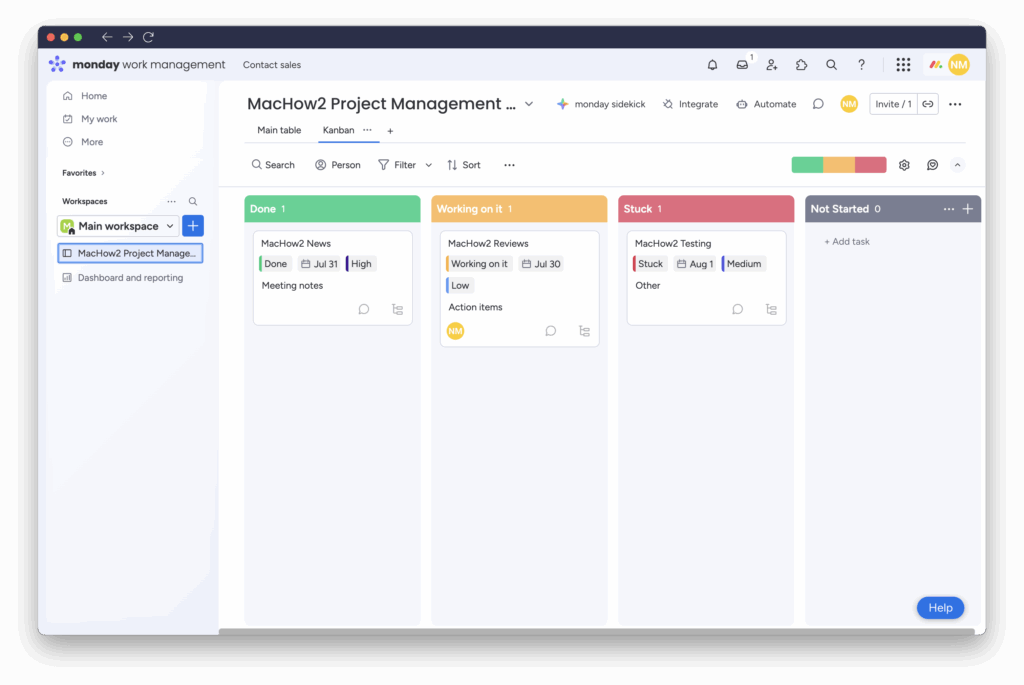
monday.com combines powerful task tracking with colorful, intuitive boards that make progress tracking clear and easy. The Mac desktop app syncs perfectly with the web version, and it integrates with Slack, Zoom, Google Drive, and Apple Calendar.
More Info: Monday.com review
Pros:
- Excellent Mac app performance
- Highly visual and customizable
- Ideal for both small and large teams
Cons:
- Can get pricey with add-ons
3. Backlog (by Nulab) — Best for Teams Combining Tasks and Issue Tracking
Price: Free (for up to 10 users) / Paid plans from $35 per month
Best for: Teams needing both task management and software issue tracking
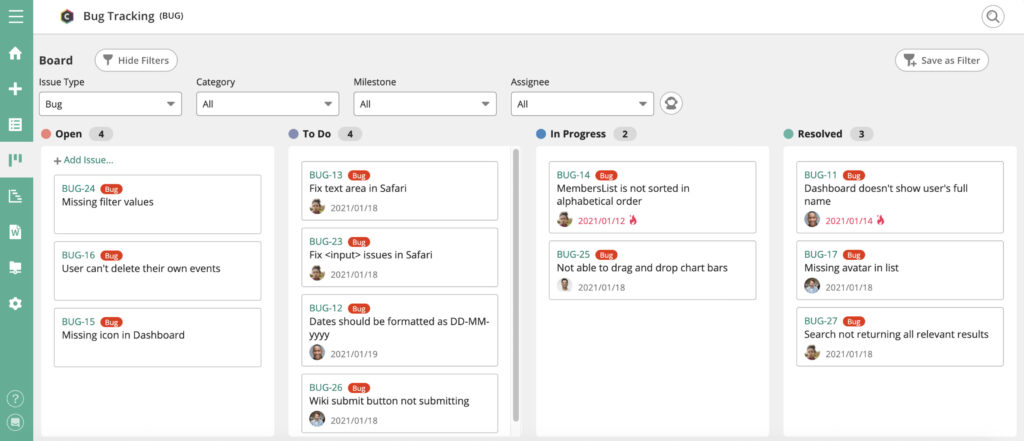
Backlog by Nulab is a versatile tool that blends traditional task management with project collaboration and issue tracking. It’s ideal for teams that handle both general tasks and technical workflows, offering features like subtasks, Kanban boards, Gantt charts, and Git or SVN integration. The web app works well on Macs, and there’s also a mobile version for iOS.
Pros:
- Combines task and issue tracking in one platform
- Kanban, list, and Gantt chart views
- Excellent for developers and cross-functional teams
Cons:
- May feel complex for simple personal use
4. TickTick — Best for Personal Productivity
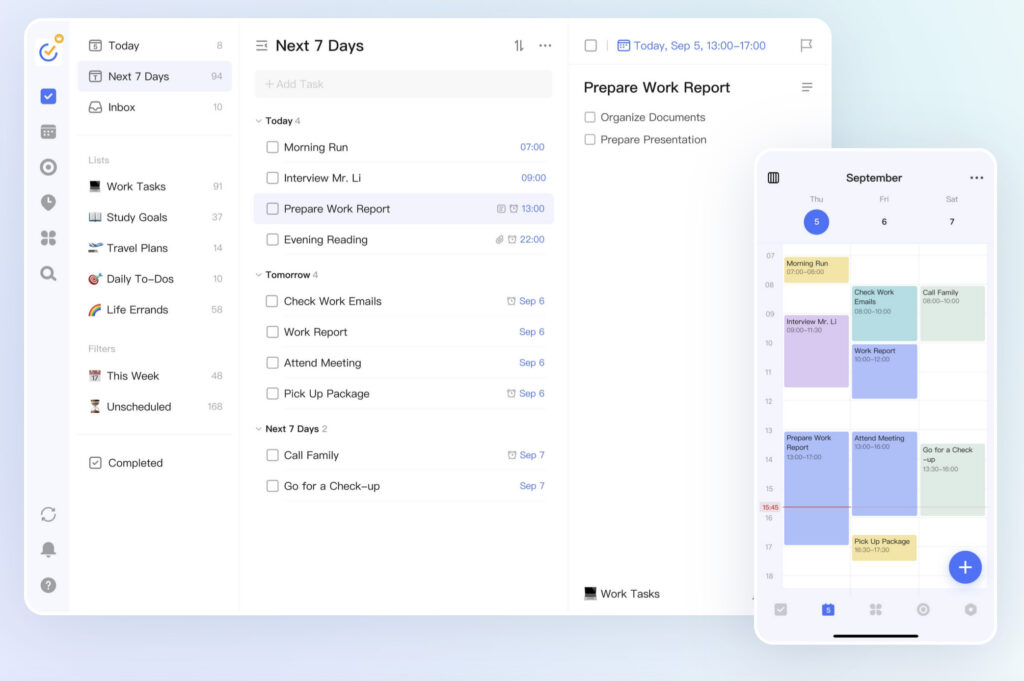
Price: Free / Premium $2.79 per month
Best for: Individuals wanting simple, reliable task lists
TickTick is one of the best-designed task apps for Mac. It supports list and calendar views, recurring tasks, Pomodoro timers, and natural language input e.g. (“Meeting tomorrow 2pm”). It syncs across macOS, iOS, and browsers so you can use it anywhere.
Pros:
- Beautiful Mac interface
- Fast, lightweight, and cross-platform
- Includes built-in timers and habits
Cons:
- Limited team collaboration
5. Things 3 — Best Native Mac Task App
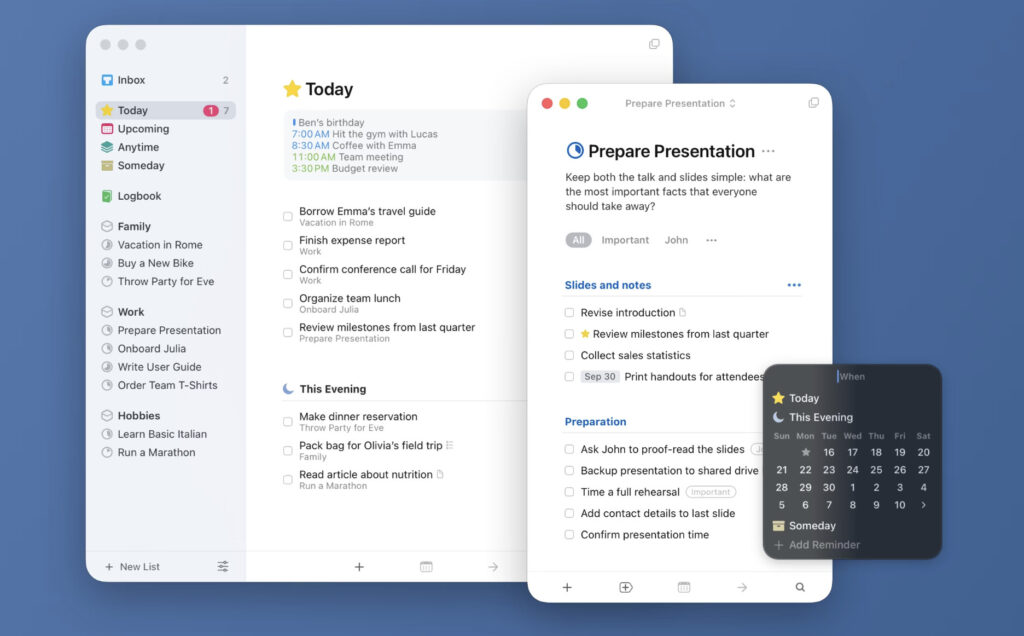
Price: One-time $49.99 for Mac, $9.99 for iPhone, $19.99 for iPad
Best for: Apple users who value design and simplicity
Things 3 is an Apple Design Award winner for a reason. It looks great, is lightning fast, and built exclusively for macOS and iOS. If you live inside the Apple ecosystem, Things 3 syncs beautifully with Reminders, Calendar, and Siri.
Pros:
- Gorgeous, Mac-native interface
- Smooth Apple ecosystem integration
- No subscription required
Cons:
- No web or Windows version
6. Todoist — Best for Cross-Platform Users
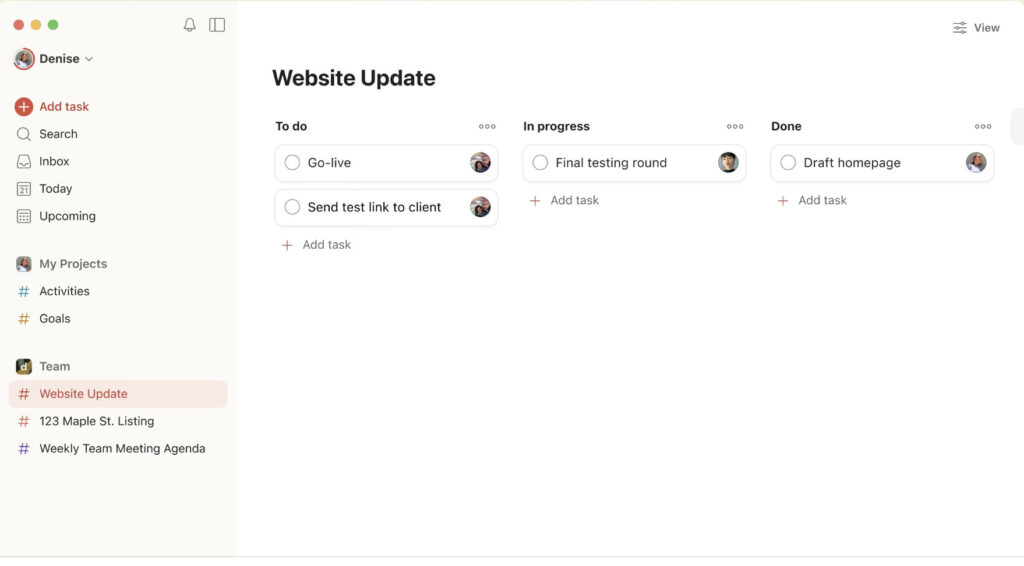
Price: Free / Premium from $4/month
Best for: Users switching between Mac, Windows, and mobile
Todoist is one of the most popular productivity apps for Mac users, known for its clean design and simplicity. The macOS app is fast, and you can even add tasks directly via email or browser extensions.
Pros:
- Works everywhere
- Powerful natural language input
- Great collaboration features
Cons:
- Limited offline functionality on Mac
7. OmniFocus — Best for Power Users (GTD Method)
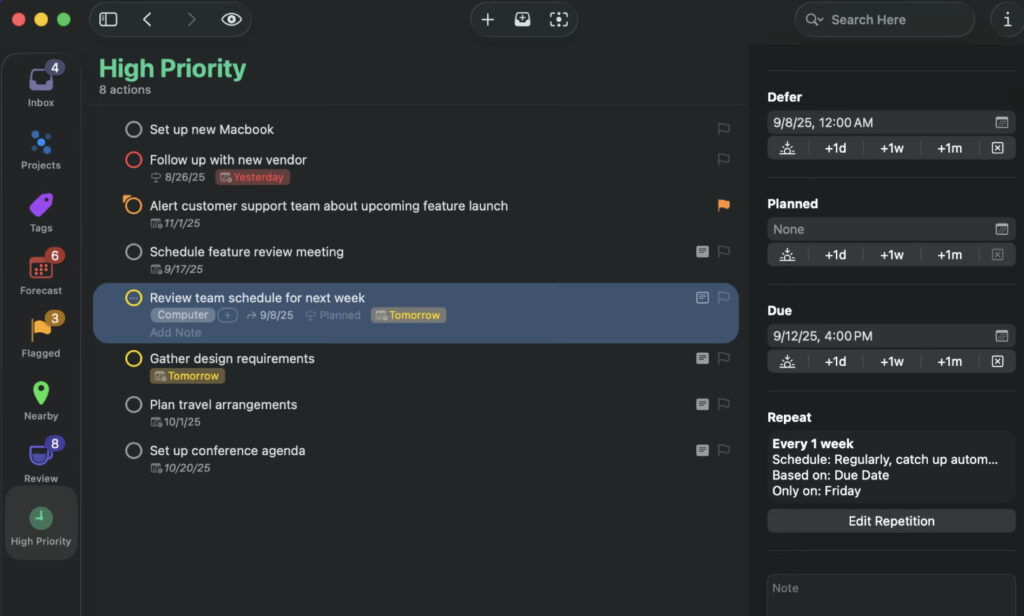
Price: From $9.99/month or $99.99/year
Best for: Advanced users and GTD (Getting Things Done) enthusiasts
OmniFocus is made for serious task managers. Built exclusively for Apple devices, it allows deep customization, custom perspectives, and automation using Apple Shortcuts. It’s ideal if you need maximum structure and control over your task lists.
Pros:
- Exclusive to Apple devices
- Extremely powerful filtering and tags
- Excellent for complex workflows
Cons:
- Steeper learning curve
8. Microsoft To Do — Best Free Task App
Price: Free
Best for: Users who already use Outlook or Microsoft 365
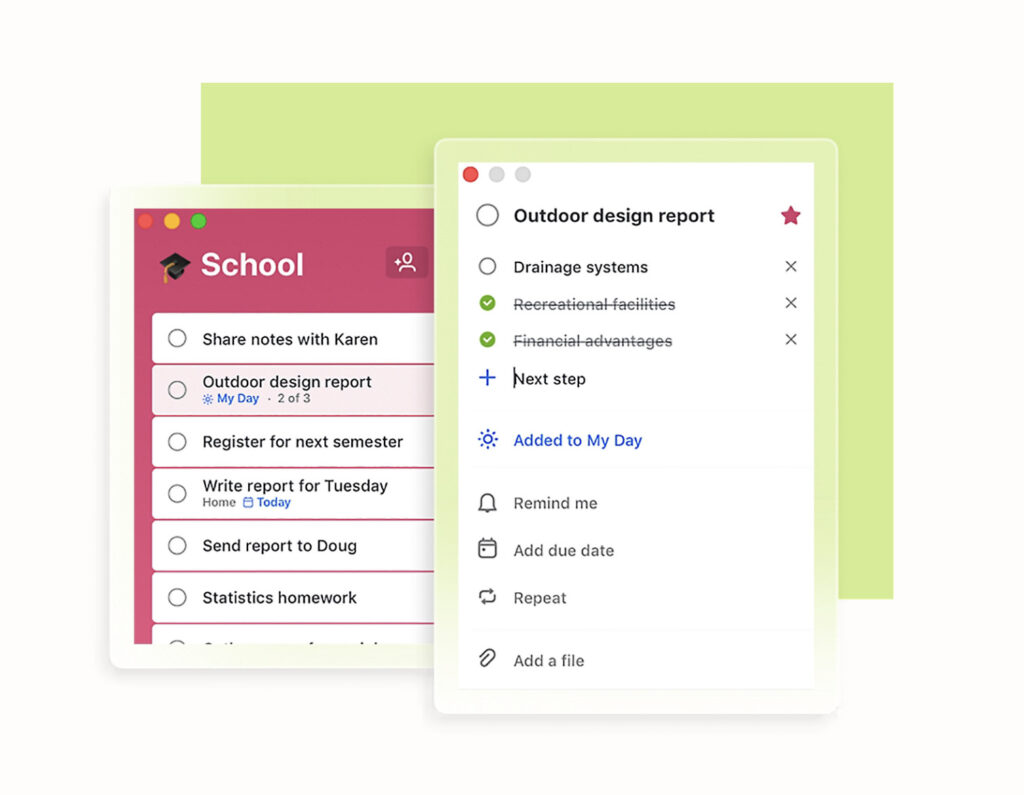
Microsoft To Do is a simple, free task manager that’s surprisingly capable on Mac. It syncs with Outlook Tasks, supports recurring reminders, and integrates neatly with the Microsoft ecosystem.
Pros:
- 100% free
- Syncs with Outlook and Teams
- Simple and reliable
Cons:
- Limited integrations outside Microsoft tools
9. Trello — Best for Visual Task Organization
Price: Free / Paid plans from $5/user/month
Best for: Teams who prefer kanban boards
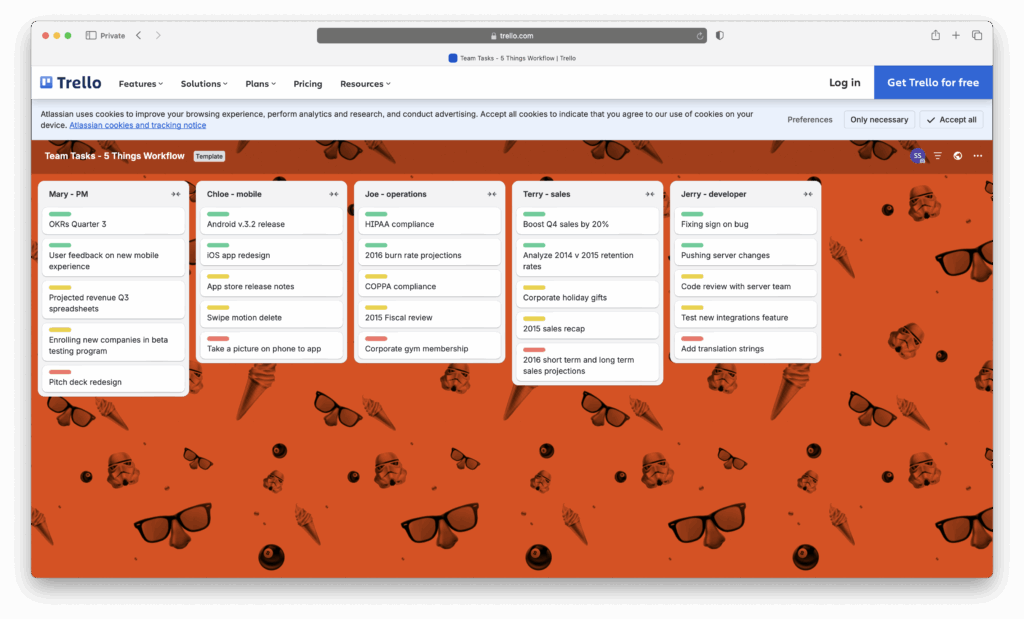
Trello is a classic choice for users who like to visualize tasks as cards and columns. The Mac desktop app runs smoothly and syncs instantly with the web version. Great for visual thinkers or teams who manage tasks by workflow stages.
Pros:
- Simple drag-and-drop interface
- Great for collaborative boards
- Integrates with hundreds of apps
Cons:
- Lacks built-in time tracking
10. Notion — Best for Tasks + Notes in One Place
Price: Free / Plus plan from $8/user/month
Best for: Users who want tasks, docs, and databases together
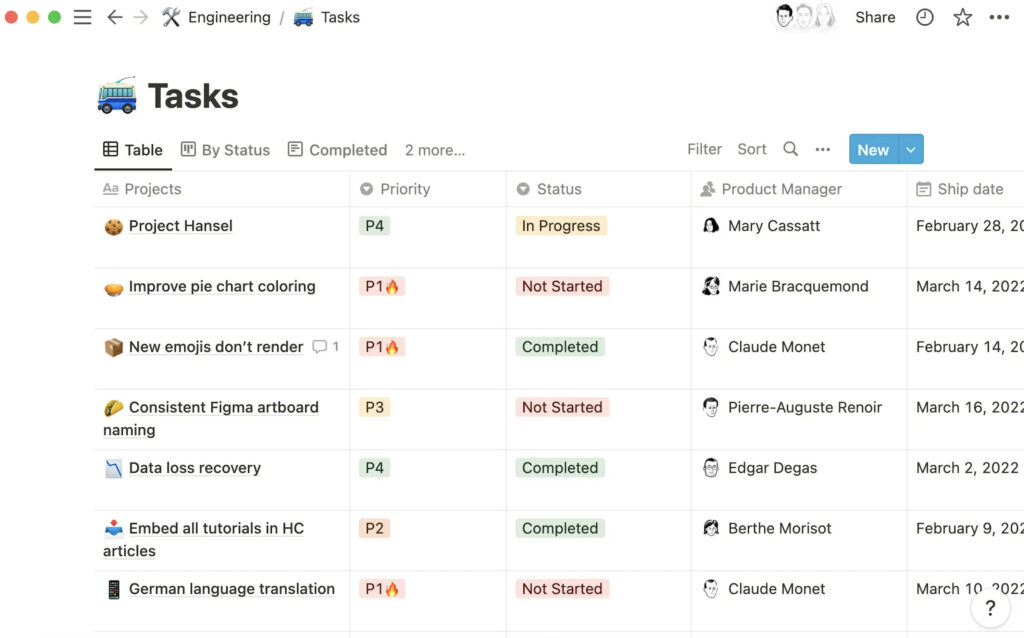
Notion isn’t just a task manager – it’s a customizable workspace for notes, wikis, and databases. On Mac, it runs natively on Apple Silicon and works offline, making it a flexible option for creative professionals.
Pros:
- All-in-one workspace
- Highly customizable
- Excellent Mac performance
Cons:
- Can be overwhelming to set up
11. Apple Reminders — Best for Simplicity and Integration
Price: Free
Best for: Apple users who want built-in task management
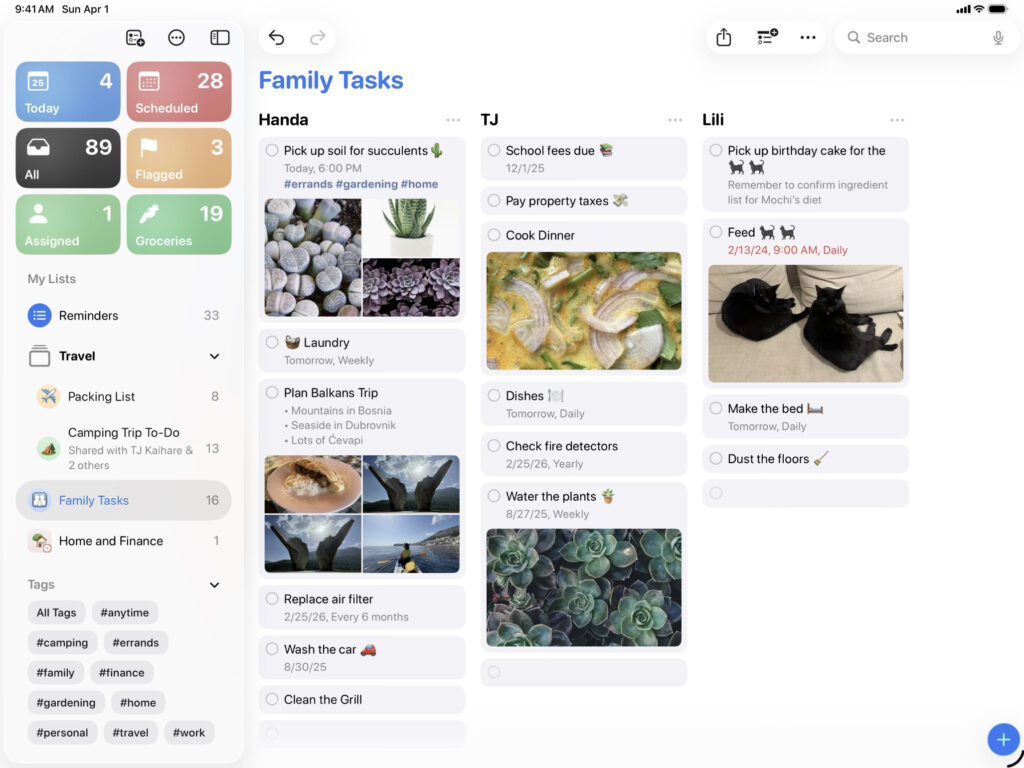
Apple Reminders has improved dramatically in recent macOS releases, adding smart lists, subtasks, and Siri integration. It’s perfect if you want a no-frills task app that syncs automatically with iCloud across all Apple devices.
Pros:
- Built into macOS and iOS
- Free and easy to use
- Excellent Siri and Shortcuts integration
Cons:
- Lacks advanced features like automation or collaboration
How To Choose The Right One For Your Mac
Here are some considerations to help you pick from the list above:
- Team size & collaboration needs: If you’re leading a team or need assign/tasks + track progress, pick Smartsheet or monday.com. If you’re solo or small‑team with minimal structure, TickTick, Things 3 or OmniFocus may fit better.
- Mac integration / native app vs web‑only: If you want deep native Mac experience (shortcuts, widgets, Apple ecosystem) pick Things 3 or OmniFocus. If web + Mac app wrapper is enough, the other tools work.
- Scale & complexity: For simple to‑do lists pick things like TickTick or Todoist. For workflows, boards, automations, views, pick Smartsheet or monday.com.
- Pricing vs features: More features = higher cost. If your needs are simple, don’t over‑invest.
- Growth plans: If you start simple now but might grow to more complex task management (teams, automations), start with a platform that can scale (Smartsheet, monday.com) to avoid switching later.
FAQ
Can I use these tools purely for personal tasks on a Mac?
Yes. Even platforms built for teams (e.g., Smartsheet, monday.com) can be used for personal task lists but may be overkill. The key is choosing a plan and interface that matches your scale.
Do I need Mac‑native apps or is browser OK?
Browser tools work fine, but Mac‑native or desktop‑wrapper apps give better integration (notifications, keyboard shortcuts, offline access, less browser clutter).
What’s the difference between task management and project management?
As explained earlier: task management = organizing tasks; project management = coordinating resources, timelines and dependencies across tasks/projects. If you don’t need full project‑planning features, you can choose a more lightweight task‑tool.
Will these apps work with Apple Silicon Macs?
Check each developer’s site for Apple Silicon support. monday.com’s desktop app is 64‑bit and works on newer Macs for example. When using web‑apps, performance is usually fine on any type of Mac.