

I’ve been mastering keyboard shortcuts on a Mac for well over a decade and found them one of the fastest ways to work smarter and boost my productivity.
Sign-up to our newsletter to get a FREE Mac Keyboard Shortcuts Cheat Sheet PDF!
From taking screenshots and Force Quitting apps to copy pasting and fixing a frozen Mac, macOS has tons of shortcuts that many users remain completely unaware of.
Whether you’re navigating macOS, managing files with Finder, editing text in word processing software, using a web browser, or using advanced system features, finding a keyboard shortcut for the job can save hours every week.
However, even today I’m learning new ones and find myself still going back to my trusty old cheat-sheet to remember old ones.
This guide is designed to be comprehensive, practical, and easy to reference for Mac users of all abilities and also bring together everything I’ve learned over my many years using a Mac.
Rather than listing shortcuts in isolation, I’ve grouped them by real-world tasks to explain when and why you should use them.
If you’ve recently switched to Mac from Windows, you may also find our guide on using familiar Windows commands on a Mac useful too.
Do these keyboard shortcuts work on all versions of macOS?
Yes. The vast majority of Mac keyboard shortcuts in this guide work across all modern versions of macOS, including the latest release (Tahoe) and the forthcoming macOS Golden Gate (in September 2026). Most are core system shortcuts that have remained unchanged for many years. Minor differences may occur depending on keyboard type, regional settings, or specific app version.
Understanding Mac Keyboard Symbols
Before diving into the shortcuts themselves, it’s worth understanding the symbols Apple uses throughout macOS menus, documentation and help guides.
| Symbol | Key | Windows Equivalent |
|---|---|---|
| ⌘ | Command | Ctrl (most shortcuts) |
| ⌥ | Option (Alt) | Alt |
| ⌃ | Control | Ctrl |
| ⇧ | Shift | Shift |
| Fn (🌐) | Function / Globe | Fn |
| ⏎ | Return | Enter |
| ⎋ | Escape | Esc |
| ⌫ | Delete | Backspace |
On most Mac keyboards, you’ll find the Command key on either side of the space bar, while the Option key sits directly beside it. On newer MacBooks, the Fn key also doubles as the Globe key, giving quick access to emojis, Dictation and keyboard switching.
Let’s dive in!
These shortcuts form the backbone of everyday usage of my Mac. If you only memorize one section, make it this one.
Quickly Find Anything on Your Mac
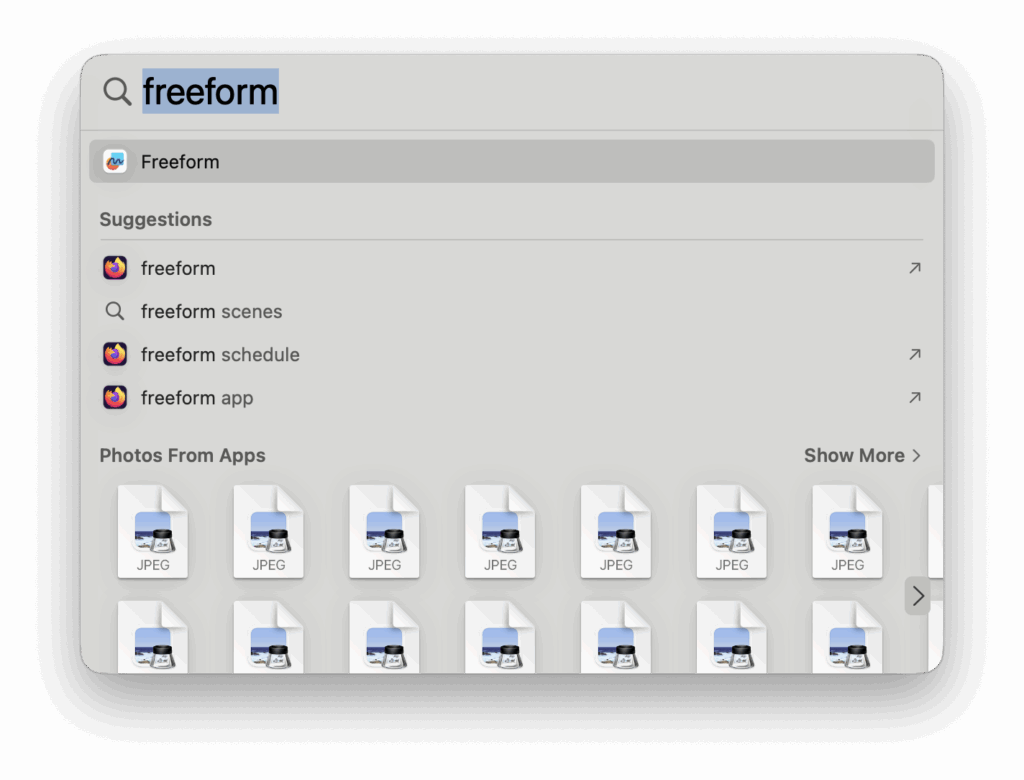
- Command (⌘) + Space – Open Spotlight Search to find apps, files, folders, emails, system settings, calculations, and even conversions.
Spotlight is often faster than navigating Finder or Launchpad and works across macOS.
Switch Between Apps and Windows
- Command (⌘) + Tab – Switch between open applications
- Command (⌘) + ` (backtick) – Cycle through windows within the current app
This distinction is important: Command + Tab switches apps, while Command + ` switches documents or windows inside the same app.
Hide, Minimise, Close or Quit Apps
- Command (⌘) + H – Hide the current app
- Command (⌘) + Option (⌥) + H – Hide all other apps
- Command (⌘) + M – Minimise the current window
- Command (⌘) + Option (⌥) + M – Minimise all windows of the active app
- Command (⌘) + W – Close the current window
- Command (⌘) + Q – Quit the current application
Understanding the difference between closing a window and quitting an app is a key action for those new to Macs.
Dock and App Control
- Command (⌘) + Option (⌥) + D – Show or hide the Dock
- Command (⌘) + Option (⌥) + Esc – Open the Force Quit Applications window
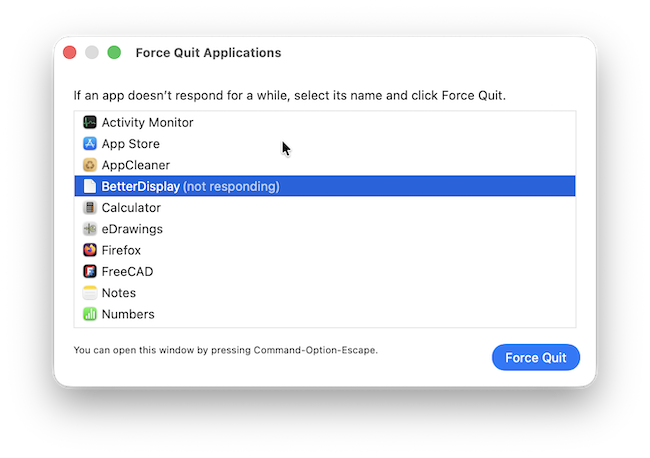
Force Quit is essential if an app becomes unresponsive and can help if your Mac crashes or is frozen.
2. Spotlight Power Tips
Spotlight Search Tips
Most people think Spotlight simply launches apps, but it can replace a surprising number of everyday tasks.
Using Command (⌘) + Space, you can:
- Launch applications
- Find files and folders
- Search emails
- Perform calculations
- Convert currencies
- Convert measurements
- Look up dictionary definitions
- Find contacts
- Start web searches
For example, try typing:
- 250 USD in GBP
- 85 × 16
- 15 miles in km
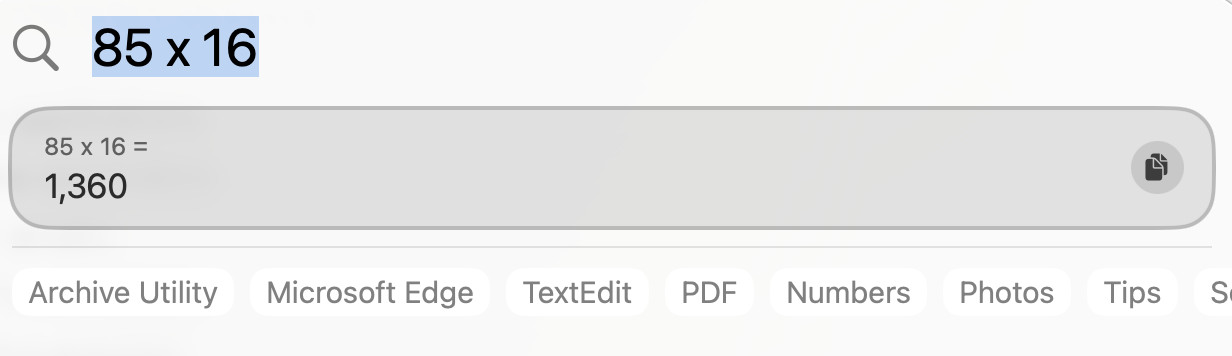
Spotlight performs these calculations instantly without opening another app.
3. Window Management, Mission Control & Desktops
macOS excels at multitasking once you learn its window-management shortcuts.
Mission Control & App Exposé
- F3 or Control + Arrow Up – Open Mission Control (all windows and desktops)
- Control + Arrow Down – Show all windows of the current app
- Command (⌘) + F3 – View all desktops (Spaces)
Mission Control is the fastest way to regain control when your desktop gets cluttered.
Full Screen & Split View
- Command (⌘) + Control + F – Toggle full-screen mode
- Command (⌘) + Option (⌥) + Left / Right Arrow – Switch between apps in Split View
Switching Between Desktops (Spaces)
- Control + Left Arrow – Move to the desktop on the left
- Control + Right Arrow – Move to the desktop on the right
Power users often dedicate separate desktops for work, browsing, communication, and media.
Window Tiling Shortcuts (macOS Sequoia & Later)
Recent versions of macOS include built-in window tiling, making it much easier to organise multiple applications without installing third-party tools.
| Shortcut | Action |
|---|---|
| Fn + Control + Left Arrow | Tile Left |
| Fn + Control + Right Arrow | Tile Right |
| Fn + Control + Up Arrow | Tile Top |
| Fn + Control + Down Arrow | Tile Bottom |
| Fn + Control + F | Fill Screen |
| Fn + Control + C | Centre Window |
These shortcuts work alongside Mission Control and Spaces, making multitasking considerably easier on larger displays.
4. Finder & File Management Shortcuts
These shortcuts make Finder dramatically faster than using a mouse.
Finder Basics
- Command (⌘) + N – Open a new Finder window
- Command (⌘) + Shift + N – Create a new folder
- Command (⌘) + O – Open the selected item
Quickly Navigate Around Finder
Instead of clicking through folders, these shortcuts instantly jump to commonly used locations.
| Shortcut | Action |
|---|---|
| Command (⌘) + Shift + A | Applications folder |
| Command (⌘) + Shift + D | Desktop |
| Command (⌘) + Shift + H | Home folder |
| Command (⌘) + Shift + O | Documents |
| Command (⌘) + Shift + L | Downloads |
| Command (⌘) + Shift + C | Computer |
| Command (⌘) + Shift + G | Go to Folder |
Go to Folder deserves special mention. If you know the path to a folder, simply press ⌘⇧G, type the location (for example ~/Library) and press Return. It’s far quicker than manually navigating through Finder.
Moving, Deleting & Organising Files
- Command (⌘) + C – Copy
- Command (⌘) + X – Cut
- Command (⌘) + V – Paste
- Command (⌘) + Delete – Move selected item to Trash
- Command (⌘) + Shift + Delete – Empty the Trash
Advanced Finder Shortcuts
| Shortcut | Action |
|---|---|
| Command (⌘) + D | Duplicate selected file |
| Command (⌘) + L | Create an Alias |
| Space | Quick Look preview |
| Command (⌘) + T | Open a new Finder tab |
| Command (⌘) + Up Arrow | Parent folder |
| Command (⌘) + Down Arrow | Open selected folder |
| Shift + Command (⌘) + . | Show or hide hidden files |
Quick Look (Space bar) is one of the most underrated Mac features. It lets you preview PDFs, photos, videos, Office documents and many other file types instantly without opening another application.
Undo & Redo
- Command (⌘) + Z – Undo
- Command (⌘) + Shift + Z – Redo
Undo works across Finder, documents, and many system actions.
These shortcuts work in almost every app – Pages, Word, Notes, browsers, and even text fields.
Navigating Text Quickly
- Command (⌘) + Arrow Left – Jump to the beginning of a line
- Command (⌘) + Arrow Right – Jump to the end of a line
- Command (⌘) + Arrow Up – Go to the beginning of the document
- Command (⌘) + Arrow Down – Go to the end of the document
Selecting Text Efficiently
- Shift + Arrow Left / Right – Select character by character
- Shift + Arrow Up / Down – Select line by line
- Command (⌘) + A – Select all
Cursor Movement & Editing
If you regularly write emails or documents, these shortcuts are among the biggest productivity boosts on macOS.
| Shortcut | Action |
|---|---|
| Option (⌥) + Left Arrow | Previous word |
| Option (⌥) + Right Arrow | Next word |
| Option (⌥) + Delete | Delete previous word |
| Fn + Delete | Forward Delete |
| Command (⌘) + Shift + V | Paste and Match Style |
Holding Shift while using any navigation shortcut selects text as you move, making it much faster to edit large documents than dragging with the mouse.
Cut, Copy, Paste & Formatting
- Command (⌘) + C – Copy
- Command (⌘) + X – Cut
- Command (⌘) + V – Paste
- Command (⌘) + B – Bold
- Command (⌘) + I – Italic
- Command (⌘) + U – Underline
6. Searching, Finding & App Preferences
Find Within Apps
- Command (⌘) + F – Open the Find bar to search within documents, webpages, or apps
App Preferences
- Command (⌘) + , – Open preferences or settings for the current app
This shortcut works in most Mac apps, including Safari, Finder, and third-party software.
7. Safari & Web Browsing Shortcuts
These shortcuts apply to Safari and most other Mac browsers.
Tab & Page Management
- Command (⌘) + T – Open a new tab
- Command (⌘) + W – Close the current tab
- Command (⌘) + Shift + T – Reopen the last closed tab
Navigation & Searching
- Command (⌘) + L – Highlight the address bar
- Command (⌘) + F – Find text on a webpage
- Command (⌘) + R – Reload the page
- Command (⌘) + Option (⌥) + Left / Right Arrow – Back or forward in history
More Useful Safari Keyboard Shortcuts
| Shortcut | Action |
|---|---|
| Command (⌘) + D | Bookmark current page |
| Command (⌘) + Shift + N | New Private Window |
| Command (⌘) + Shift + ] | Next tab |
| Command (⌘) + Shift + [ | Previous tab |
| Command (⌘) + Option + L | Downloads |
| Command (⌘) + Y | History |
| Command (⌘) + Plus | Zoom in |
| Command (⌘) + Minus | Zoom out |
Most of these shortcuts also work in alternatives to Safari including Google Chrome, Microsoft Edge and Mozilla Firefox, making them useful regardless of which browser you prefer.
8. Screenshots & Screen Recording
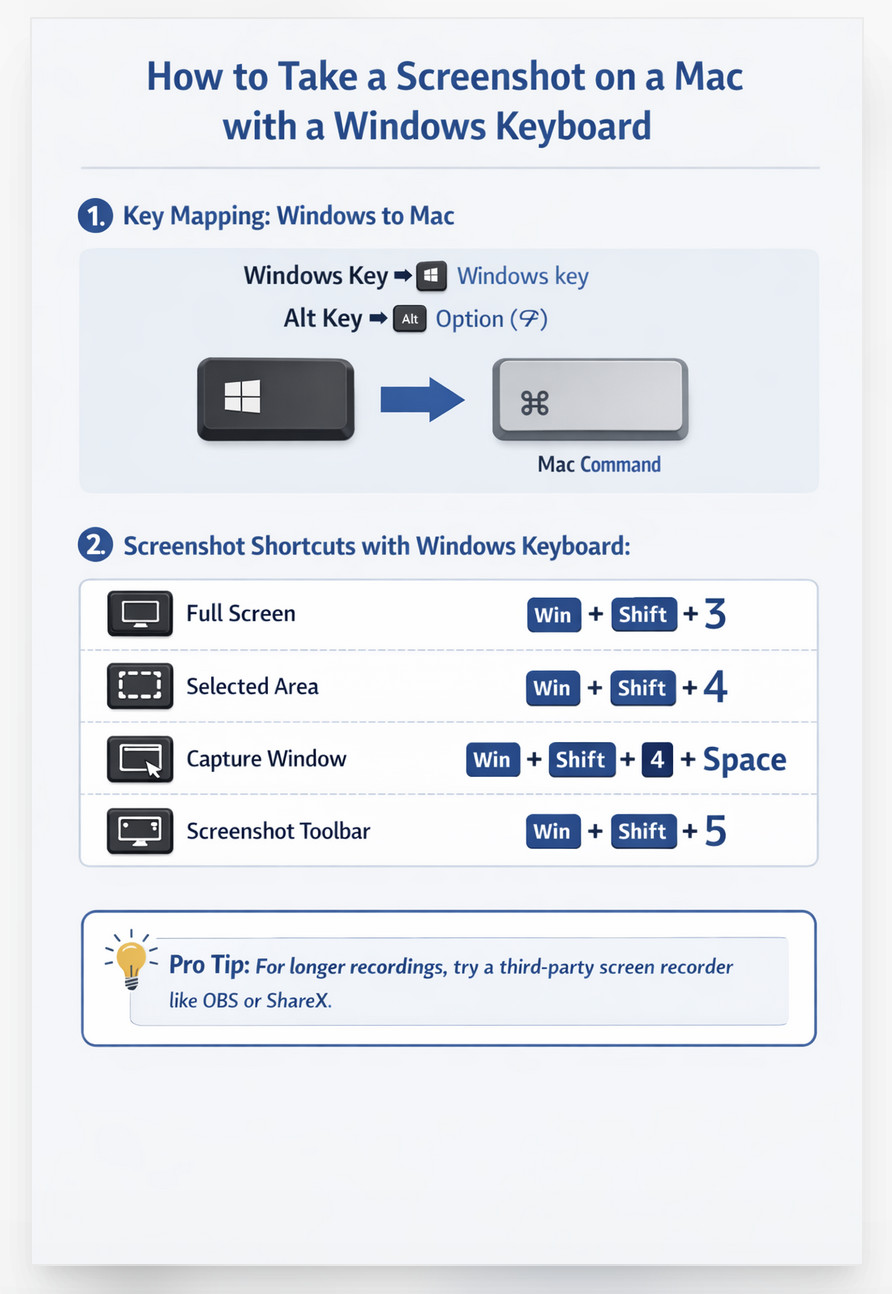
macOS has some of the best built-in screen capture tools available. For an in-depth look at all it can do, check out our ultimate guide to taking screenshots on a Mac.
Here though are the quickest and easiest ways to take a screenshot on Mac:
- Command (⌘) + Shift + 3 – Screenshot entire screen
- Command (⌘) + Shift + 4 – Screenshot selected area
- Command (⌘) + Shift + 5 – Open screenshot and screen recording toolbar
Note that for scrolling screenshots, you’ll need to use third party software as the macOS screenshot tool does not support them.
You can also take screenshots on a Mac using a Windows keyboard by substituting the Command key with the Windows key and the Option key with the Alt key.
9. System Utilities & Power Controls
- Command (⌘) + Shift + U – Open the Utilities folder
- Command (⌘) + Option (⌥) + Esc – Force Quit applications
- Control + Command (⌘) + Power – Force restart (use with caution)
10. Terminal Keyboard Shortcuts
If you occasionally use Terminal, these shortcuts can save a surprising amount of time.
| Shortcut | Action |
|---|---|
| Control + A | Beginning of line |
| Control + E | End of line |
| Control + U | Delete to beginning |
| Control + K | Delete to end |
| Control + R | Search command history |
| Tab | Auto-complete filename |
| Control + C | Cancel current command |
| Control + L | Clear screen |
These shortcuts work in both Terminal and iTerm2 and are inherited from Unix, meaning you’ll also find them on Linux systems.
11. Accessibility & Visual Assistance Shortcuts
macOS includes powerful accessibility tools built directly into the system.
- Command (⌘) + F5 – Toggle VoiceOver
- Option (⌥) + Command (⌘) + F5 – Open Accessibility Options
- Command (⌘) + Option (⌥) + 8 – Toggle Invert Colours
- Command (⌘) + Option (⌥) + Plus (+) – Zoom in
- Command (⌘) + Option (⌥) + Minus (-) – Zoom out
12. Emoji, Symbols & Special Characters
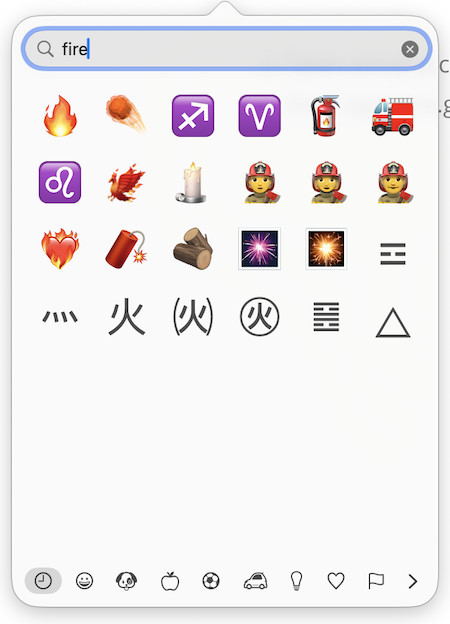
The are various ways to use emojis on a Mac but the easiest way to access them in most applications is:
Emoji Keyboard
- Command (⌘) + Control + Space – Open the Emoji & Symbols viewer
- Alternatively, on newer Mac you can use the Fn (🌐) key in the bottom left corner of your Mac keyboard.
Common Special Characters
Sometimes you can go mad on a Mac just trying to find the simplest shortcut such as @ on a Mac, a checkmark or the Euro symbol.
- Option (⌥) + Shift + 8 – Degree symbol (°)
- Option (⌥) + 3 – Pound (£)
- Option (⌥) + 4 – Dollar ($)
- Option (⌥) + 2 – Trademark (™)
- Option (⌥) + G – Copyright (©)
- Option (⌥) + R – Registered trademark (®)
- Shift + 2 – At symbol (@)
- Option (⌥) + V – Checkmark (✓)
- Option (⌥) + Shift + 2 – Euro symbol (€)
- Shift + 3 – Hashtag (#) (US Mac keyboards)
- Option (⌥) + 3 – Hashtag (#) (UK Mac keyboards)
13. Essential Command (⌘) Shortcuts Every User Should Know
The Command key is one of the most important keys on your Mac keyboard when it comes to keyboard shortcuts and here are some of its most essential combinations.
- Command (⌘) + A – Select all
- Command (⌘) + C – Copy
- Command (⌘) + X – Cut
- Command (⌘) + V – Paste
- Command (⌘) + Z – Undo
- Command (⌘) + Shift + Z – Redo
- Command (⌘) + S – Save
- Command (⌘) + P – Print
- Command (⌘) + Q – Quit app
- Command (⌘) + W – Close window
14. PDF Keyboard Shortcuts (Preview, Adobe Reader & Most PDF Apps)
Working with PDFs is common on macOS, and many shortcuts work across Preview and third‑party PDF readers such as Adobe Acrobat.
- Space – Quick Look a PDF in Finder
- Command (⌘) + O – Open a PDF
- Command (⌘) + P – Print PDF
- Command (⌘) + F – Find text within a PDF
- Command (⌘) + G – Find next instance of text
- Command (⌘) + Plus (+) – Zoom in
- Command (⌘) + Minus (–) – Zoom out
- Command (⌘) + 0 – Actual size
- Command (⌘) + 1 – Single page view
- Command (⌘) + 2 – Two‑page view
- Command (⌘) + Option (⌥) + 2 – Continuous scroll
- Command (⌘) + Shift + A – Show markup toolbar (Preview)
Quick Look alone can eliminate the need to open many PDFs fully.
15. Typing Accents & Diacritics on Mac
macOS makes entering accented characters fast once you know how.
Accent Menu (Universal)
- Press and hold a letter (e.g. e, a, n) – Accent popup appears
- Press number key – Select the accent
Example: Holding e gives é, è, ê, ë.
Common Accent Shortcuts
- Option (⌥) + E, then letter – Acute accent (é)
- Option (⌥) + `, then letter – Grave accent (è)
- Option (⌥) + I, then letter – Circumflex (ê)
- Option (⌥) + U, then letter – Umlaut (ü)
- Option (⌥) + N, then letter – Tilde (ñ)
These work system‑wide in most apps.
16. Microsoft Excel Keyboard Shortcuts for Mac
Excel on Mac supports many powerful shortcuts for navigation and formulas.
Navigation & Selection
- Command (⌘) + Arrow Keys – Jump to edge of data region
- Shift + Arrow Keys – Extend selection
- Command (⌘) + A – Select all
- Command (⌘) + Space – Select entire column
- Shift + Space – Select entire row
Editing & Formulas
- Control + U – Edit active cell
- Command (⌘) + = – Insert formula
- Command (⌘) + ; – Insert current date
- Command (⌘) + Shift + : – Insert current time
- Command (⌘) + Option (⌥) + V – Paste special
Workbook Control
- Command (⌘) + N – New workbook
- Command (⌘) + W – Close workbook
- Command (⌘) + S – Save workbook
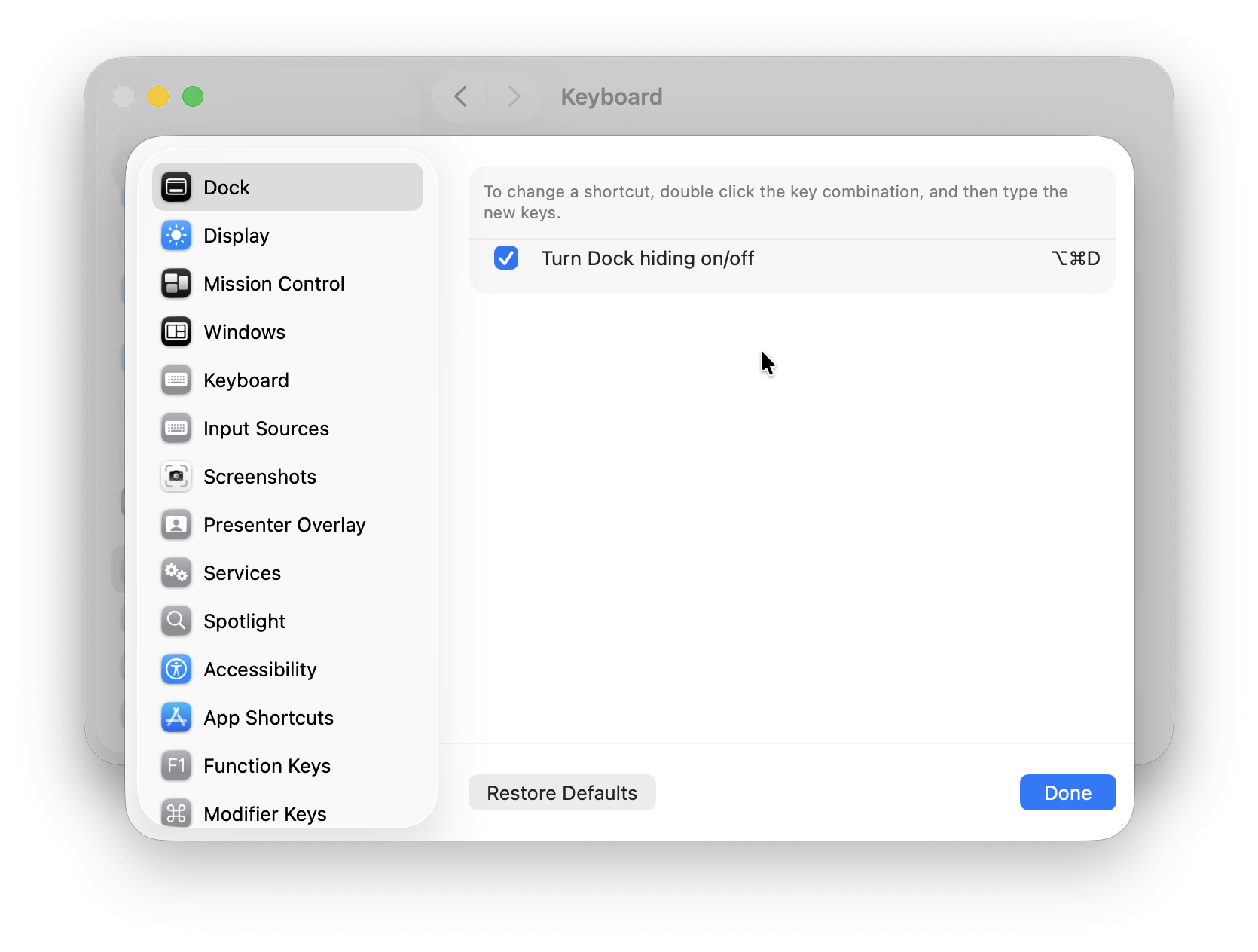
17. Creating Custom Keyboard Shortcuts on macOS
You can create your own shortcuts for menu items in almost any app.
How to Create a Custom Shortcut
- Open System Settings
- Go to Keyboard > Keyboard Shortcuts
- Select App Shortcuts
- Click + to add a new shortcut
- Choose an app (or All Applications)
- Enter the exact menu name
- Assign your shortcut
Custom shortcuts are ideal for repetitive menu actions.
18. Startup Keyboard Shortcuts
If your Mac won’t start normally, these startup shortcuts can help you access recovery tools.
Intel Macs
| Shortcut | Action |
|---|---|
| Command (⌘) + R | Recovery Mode |
| Option (⌥) | Startup Manager |
| Shift | Safe Mode |
| D | Apple Diagnostics |
Apple Silicon Macs
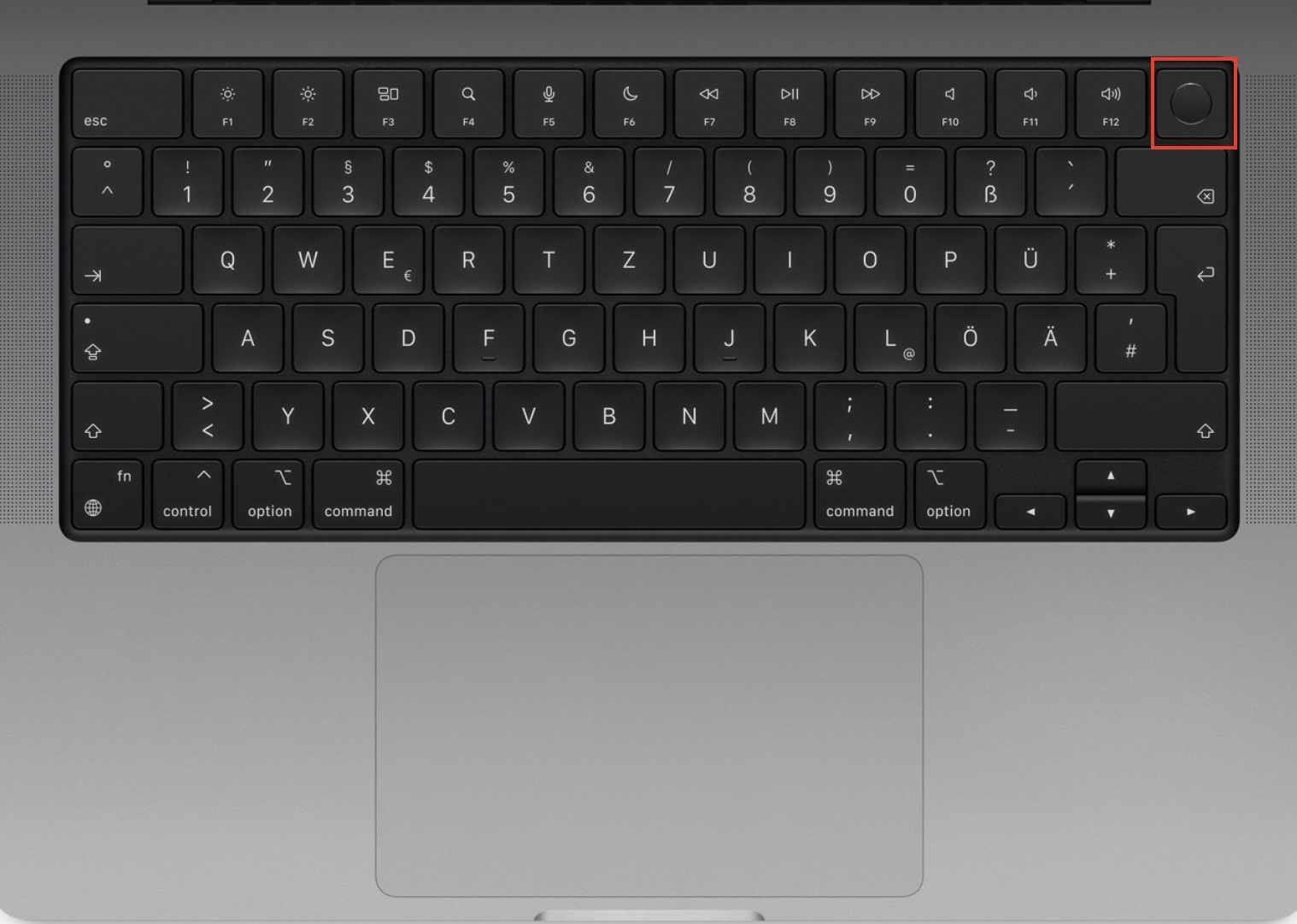
Apple Silicon Macs work slightly differently. Instead of holding key combinations during startup, press and continue holding the power button until Loading Startup Options appears.
From there you can:
- Enter Recovery Mode
- Select another startup disk
- Start in Safe Mode
- Run Apple Diagnostics
If you’re unsure whether your Mac uses Intel or Apple Silicon, choose Apple menu > About This Mac to check.
19. Troubleshooting Mac Keyboard Shortcuts Not Working
If shortcuts stop working, the issue is usually easy to fix. Try the following:
Common Fixes
- Check System Settings > Keyboard > Keyboard Shortcuts for conflicts
- Restart the affected app
- Log out and back in
- Restart your Mac
App‑Specific Issues
- Some apps override system shortcuts
- Menu wording must match exactly for custom shortcuts
- Third‑party keyboard utilities may block shortcuts
Hardware Checks
- Test another keyboard
- Disable keyboard remapping tools temporarily
- Check language and input source settings
20. Hidden & Power User Mac Keyboard Shortcuts
These shortcuts are less well-known but extremely powerful – the kind long-time Mac users swear by.
Finder & File Power Tricks
- Space – Quick Look selected file (works for PDFs, images, videos, text files)
- Command (⌘) + Y – Quick Look slideshow (multiple files)
- Command (⌘) + Option (⌥) + V – Move files instead of copying when pasting
- Command (⌘) + I – Get Info for selected file
- Command (⌘) + Option (⌥) + I – Show Inspector (updates as selection changes)
- Shift + Command (⌘) + . – Show or hide hidden files in Finder
- Return (↩︎) – Rename selected file
- Option (⌥) + Return – Rename file without opening it
- Command (⌘) + Delete – Move to Trash (bypasses confirmation dialogs)
Text, Selection & Editing Power Moves
- Option (⌥) + Arrow Left / Right – Move cursor word by word
- Option (⌥) + Delete – Delete previous word
- Command (⌘) + Delete – Delete to beginning of line
- Fn + Delete – Forward delete (on compact keyboards)
System & App-Level Power Shortcuts
- Control + Command (⌘) + Q – Lock screen instantly
- Option (⌥) + Click menu bar icons – Reveal advanced options (Wi‑Fi, Bluetooth, Sound)
- Command (⌘) + Option (⌥) + Control + Power – Quit all apps and restart
- Shift + Option (⌥) + Control + Power – Sleep display immediately
Finder View & Navigation Shortcuts
- Command (⌘) + 1 – Icon view
- Command (⌘) + 2 – List view
- Command (⌘) + 3 – Column view
- Command (⌘) + 4 – Gallery view
- Command (⌘) + [ / ] – Back / forward in Finder
21. Most Useful Mac Keyboard Shortcuts by App
While many keyboard shortcuts work across macOS, individual apps often include their own shortcuts that can significantly speed up your workflow. Here are some of the most useful categories to explore.
Finder Keyboard Shortcuts
Finder is where you’ll probably use keyboard shortcuts the most. Beyond basic copy and paste commands, Finder includes shortcuts for navigating folders, previewing files with Quick Look, creating new folders, revealing hidden files and jumping directly to common locations such as Downloads, Documents and Applications.
If you spend a lot of time organising files, learning Finder shortcuts can save countless mouse clicks every day.
Safari Keyboard Shortcuts
Safari supports dozens of shortcuts that make browsing much faster. Alongside opening and closing tabs, you can quickly switch between tabs, bookmark pages, access your browsing history, open Downloads and zoom webpages without taking your hands off the keyboard.
Most of these shortcuts also work in alternatives to Safari such as Google Chrome, Microsoft Edge and Mozilla Firefox, making them useful regardless of which browser you use.
Microsoft Excel Keyboard Shortcuts
Excel has one of the largest collections of keyboard shortcuts available on macOS. They make it much faster to navigate large spreadsheets, insert formulas, format cells, select rows and columns, and work with multiple worksheets.
If you regularly analyse data or build spreadsheets, investing a little time learning Excel shortcuts can dramatically improve your productivity.
Microsoft Word Keyboard Shortcuts
Word includes many shortcuts that go beyond basic text formatting. You can quickly apply headings, insert page breaks, navigate long documents, review comments and edit text without constantly reaching for the mouse.
Many of these shortcuts also work in Apple’s Pages app and other word processors.
Preview & PDF Keyboard Shortcuts
Preview is far more powerful than many Mac users realise. Its keyboard shortcuts make it easy to search PDFs, zoom in and out, switch between pages, annotate documents and use Markup tools much more efficiently.
If you regularly work with PDFs, learning these shortcuts can significantly speed up reviewing and editing documents.
Terminal Keyboard Shortcuts
Terminal uses many traditional Unix keyboard shortcuts that have remained unchanged for decades. Commands for moving around a line, searching command history, auto-completing file names and cancelling running processes quickly become second nature once you’ve used them a few times.
Even if you’re only an occasional Terminal user, these shortcuts can make command-line work much less intimidating.
Tip: If you frequently use a particular application, it’s worth checking its menus for additional shortcuts. Nearly every Mac app displays its keyboard shortcuts alongside menu commands, making it easy to discover new ways to work faster.
Printable Mac Keyboard Shortcut Cheat Sheets
Below are quick-reference tables which are ideal for printing, bookmarking, or saving as a PDF on your Mac.
Essential macOS Shortcuts (Cheat Sheet)
| Action | Shortcut |
|---|---|
| Spotlight Search | Command (⌘) + Space |
| Switch Apps | Command (⌘) + Tab |
| Force Quit | Command (⌘) + Option (⌥) + Esc |
| Mission Control | F3 or Control + ↑ |
| Lock Screen | Control + Command (⌘) + Q |
| Screenshot (Full) | Command (⌘) + Shift + 3 |
| Screenshot (Area) | Command (⌘) + Shift + 4 |
Finder & File Management (Cheat Sheet)
| Action | Shortcut |
| New Finder Window | Command (⌘) + N |
| New Folder | Command (⌘) + Shift + N |
| Move to Trash | Command (⌘) + Delete |
| Empty Trash | Command (⌘) + Shift + Delete |
| Move Instead of Copy | Command (⌘) + Option (⌥) + V |
| Show Hidden Files | Shift + Command (⌘) + . |
Text Editing (Universal)
| Action | Shortcut |
| Select All | Command (⌘) + A |
| Copy | Command (⌘) + C |
| Cut | Command (⌘) + X |
| Paste | Command (⌘) + V |
| Undo | Command (⌘) + Z |
| Redo | Command (⌘) + Shift + Z |
Final Tip: Learn in Layers
Don’t try to memorise everything at once. Start with navigation shortcuts, then file management, then text editing, and finally power-user shortcuts.
Once these shortcuts become muscle memory, macOS feels dramatically faster – and you’ll rely on the trackpad and mouse far less!