

There has never been a version of Microsoft Access For Mac but fear not as we’ve independently tested and reviewed the best database software for Macs of 2025.
This guide is independent and not sponsored by any database vendor. Unlike many software companies promoting their own tools at #1, this comparison is 100% impartial and based on years of experience using Macs.
Databases are an essential part of managing business data from handling customer data in CRM software, lead generation via email marketing tools and for tracking in project management.
Using a database app is far more efficient than trying to log data manually with spreadsheets and all the admin that entails.
The good news is that nowadays, there are plenty of database platforms for both relational and non-relational databases which are easy enough for anyone to use on macOS.
Many of the ones we reviewed make Microsoft Access look very dated in comparison.
All of the following data management software allow you to build business app databases for MySQL, PostgreSQL, SQLite and more.
After hours of research, we found the best alternative to MS Access on a Mac is Knack which requires no-code and is so much easier, quicker and powerful than using Microsoft’s product.
Table of Contents
- What We Looked For In These Access Alternatives
- How Is This Guide Independent?
- 1. Knack
- 2. LibreOffice – Base
- 3. Ninox Database
- 4. Access Database Cloud
- 5. Claris FileMaker
- 6. Airtable
- 7. Softr
- 8. Tap Forms
- 9. Sequel Ace
- 10. DBeaver
- 11. iDatabase
- 12. Stackby
- 13. Ragic
- Conclusion
- Pros vs Cons: Mac Alternatives Compared to Microsoft Access
- Importing/Exporting MS-Access Data on Mac: What Works (and What to Watch Out For)
- Migration Tips & Best Practices
- FAQ
What We Looked For In These Access Alternatives
Here are some of the things we looked for in choosing which of these apps were great alternatives to MS Access for creating databases on a Mac.
- Ease of Use: They’re all easier to use than Microsoft Access and support user friendly features such as drag-and-drop, templates and increasingly, AI to help you build databases. Some of them are no-code automation platforms which don’t require any previous experience building databases.
- Price: We looked at apps that offer both subscription and one-off purchase pricing models including some free options too to cater for all budgets.
- File Support: All of the apps we looked at allow you to import and export files to and from Access in CSV, Excel or XML format making them easy to work with Microsoft Office (now Microsoft 365) or alternatives to Office for Mac.
- Features: tables, forms, queries, reporting, and possibly more advanced database functions: Depending on your use case you may need more than simple tables – maybe relational links, forms for data entry, reports, automation or integrations.
- Backups: It’s important that the application automatically backs-up your encrypted databases and provides recovery options in case you lose your precious data.
- Cross Platform: If you’re going to be working in both Mac and Windows environments, then its important the app works across platforms including mobile devices.
- Scalability & Integrations: For businesses or multi-user environments, we looked at apps that allow you to integrate with third party software such as Zapier, MS Office, Jira, Confluence, Trello and other productivity tools.
How Is This Guide Independent?
If you’ve already been looking for an alternative to Microsoft Access for your Mac, you’ve probably noticed the same problem we did – many of the top results in Google are written by software companies promoting their own tool as the “#1 Access replacement.”
This is an independent, non-sponsored review based on:
✔ Real-world testing on Apple Silicon Macs
✔ Hands-on use of MDB and ACCDB files on the latest versions of macOS
✔ Compatibility testing in Safari, Chrome, Firefox and Edge for Mac
✔ Performance tests with large Access databases
✔ Import/export workflows to replace Access functionality
Whether you need to view Access databases on Mac, edit MDB/ACCDB files, or move away from Access entirely, this guide covers the best options that actually work well on macOS.
With this in mind, here then are the best replacements for MS Access on a Mac to create databases.
| App | Best For | Pricing |
|---|---|---|
| Knack | No-code cloud databases & internal business tools | Free trial / From $19/month (usually $59/month) |
| LibreOffice Base | Free desktop database alternative | Free |
| Ninox | Mac-native database builder with offline support | Free trial / From $13/month |
| Access Database Cloud | Running Microsoft Access in the cloud | Demo available / From $48/month |
| Claris FileMaker | Professional relational databases & custom business apps | Free trial / $22/month |
| Airtable | Spreadsheet-style cloud databases & collaboration | Free plan / Paid from $20/user/month |
| Softr | No-code portals & apps built on top of Airtable/data sources | Free / From $49.99/month |
| Tap Forms | Personal Mac & iOS databases with encryption | $5.99/month |
| Sequel Ace | Managing MySQL & MariaDB databases on Mac | Free |
| DBeaver | Universal SQL database tool | Free |
| iDatabase | Simple Mac desktop databases with templates | $39.99 one-off |
| Stackby | Spreadsheet-style collaborative database | Free / From $4.20 per month |
| Ragic | No-code relational database platform | Free plan / Paid from $25/user/month |
1. Knack
Knack is easily the best alternative to MS Access on a Mac and best overall database software we tried by some distance.
It’s also much cheaper than Microsoft’s product without the steep learning curve.
Amazingly, Knack requires absolutely no coding experience at all although for those that know what they’re doing, you can tweak it manually.
Key Features:
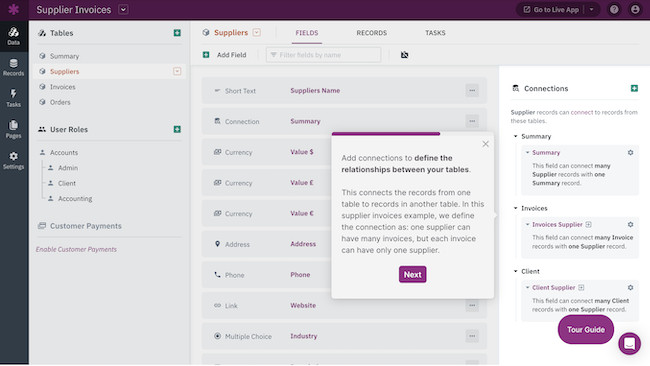
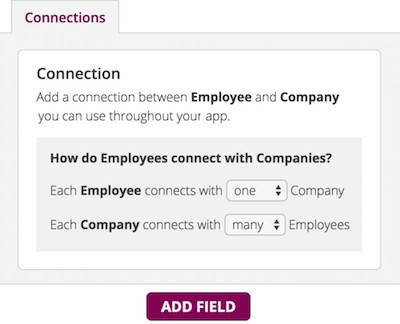
- Drag and drop interface that allows you to to quickly create a database from scratch with database templates. Simply define the data your “app” (Knack lingo for database) will store and use, structure your data with fields and then connect it all together.
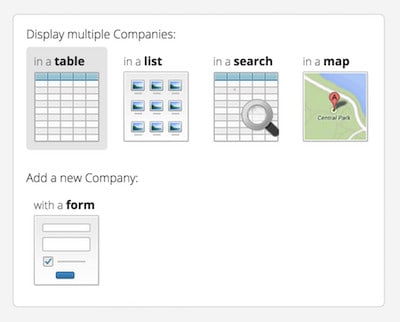
You then simply build an interface by dropping in elements that define how your users view and update your database.
- Lots of interface to choose from including tables, lists, search fields, maps or forms.
- Ability to deploy your app by embedding it in websites, show different pages to different users and display on mobile devices.
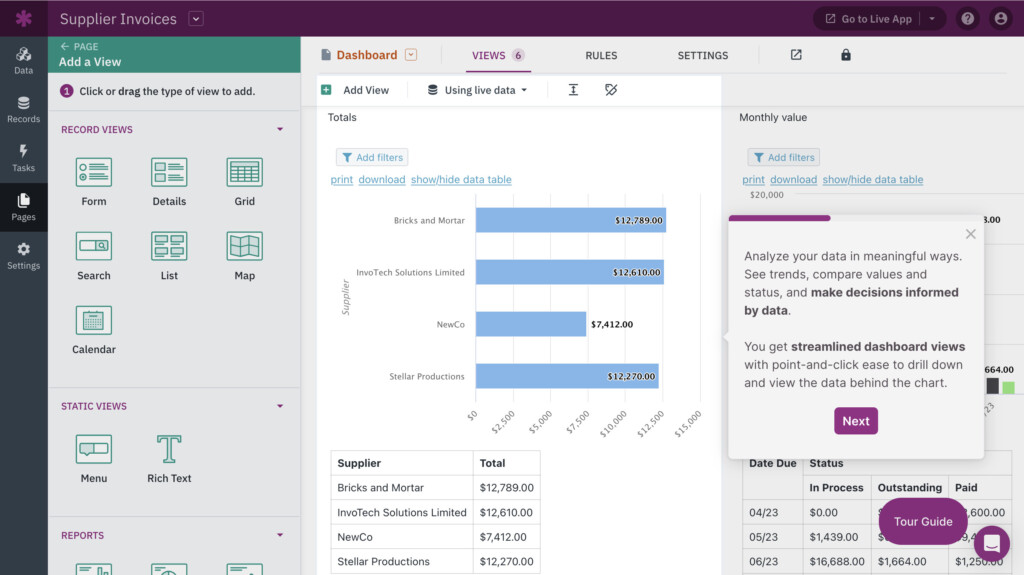
- Monitoring database activity is made clear and easy with data delivered to charts, graphs and pivot tables in real time.
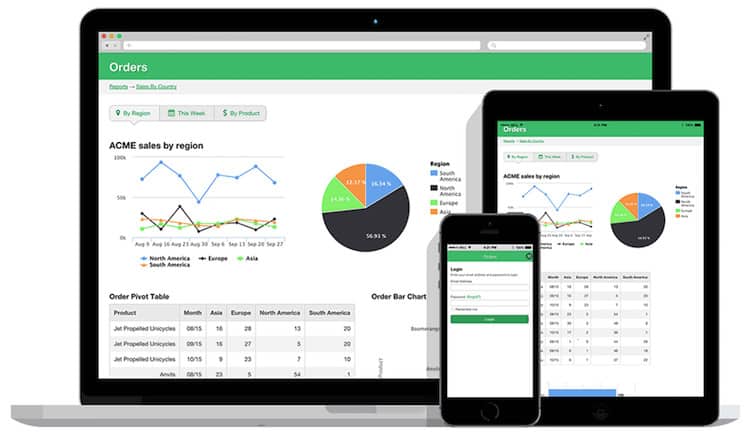
- Third party integration with applications via Zapier such as Mailchimp, Google Docs and Dropbox so that it dynamically updates databases. It also offers its own simpler iPaaS solution called “Knack Flows” which connects to these services for free. Knack Flows can automatically populate Google Sheets for example.
- Integrated with payment solutions such as Visa, PayPal and Stripe if you’re building an e-commerce database.
Although Knack can’t import MS Access files, it can if you convert them to CSV format (Comma Separated Values) format which is the most common way to export databases from Access, Excel and other database tools.
You can start using Knack for FREE with no credit card required to judge it for yourself and you’ll get one hour of free support.
You can also check out our full review of Knack’s database software for more.
Pricing: Free Trial. Starting from $19/month (limited offer normally $59) for up to 20,000 records, 2GB of storage, 3 apps and basic support.
2. LibreOffice – Base
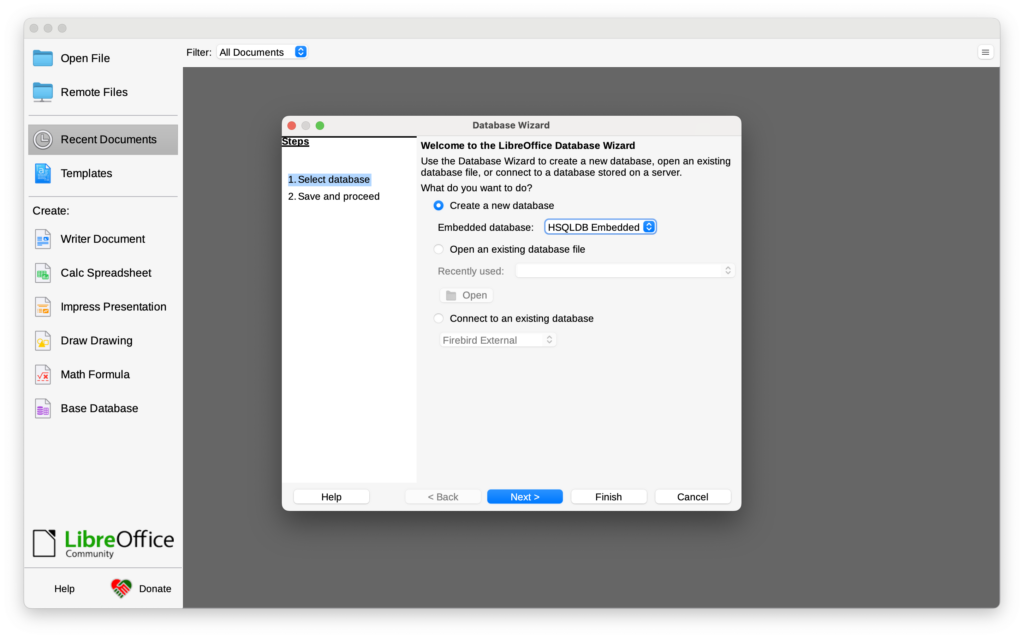
LibreOffice – Base is a free open source database application for Mac and part of the excellent LibreOffice free office suite which is a free alternative to Microsoft Office on Mac.
It’s nowhere near as powerful or as easy to use as Knack but it still packs a lot of features into a free package.
Key Features:
- LibreOffice Base supports opening of Access files although you’ll need an ODBC or JDBC driver to connect it to Access and other databases.
- Support for HSQLDB, MySQL, MariaDB, Adabas D and PostgreSQL files.
- Wizard-driven interface for creating tables, queries, forms, and reports.
- Part of the LibreOffice Suite which is an excellent free alternative to Microsoft Office for Mac.
LibreOffice Base is surprisingly powerful for a free package although it’s not easy to use and there’s very little support if you run into problems.
Check out our full LibreOffice Base review for more.
Pricing: Free
3. Ninox Database
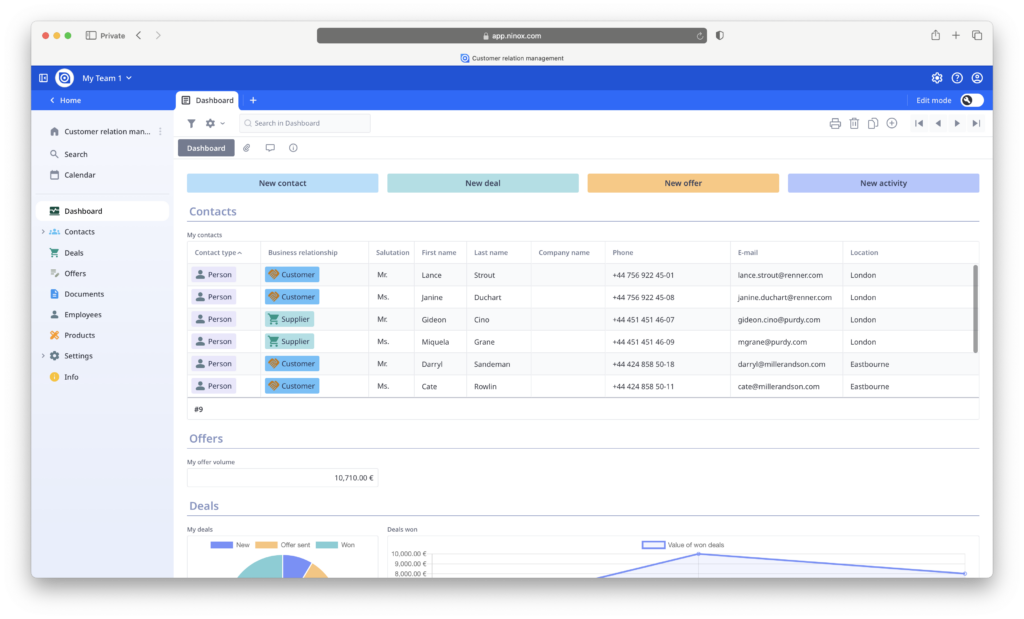
If you’re looking for a native database creation software for Macs that’s powerful, good looking and yet still easy to use, Ninox Database is definitely worth taking a closer look.
Ninox is a slick database creation software for Mac and iOS and although it can’t import Microsoft Access file on macOS, it’s much easier to use.
Key Features:
- Lots of templates for different tasks such as timesheet tracking, real estate databases and even listing recipes.
- It’s very fast – compared to the time it takes Microsoft Access to setup and create databases, Ninox feels very quick indeed even with large datasets.
- Ability to build reports and charts within databases and even generate invoices automatically.
- Syncs with Ninox Cloud so that you can buy one license and use it on up to 5 devices enabling you to work on any device.
Check out our full Ninox Database review for a closer look at what we thought.
Pricing: Free trial, Plans starting from $13/month
4. Access Database Cloud
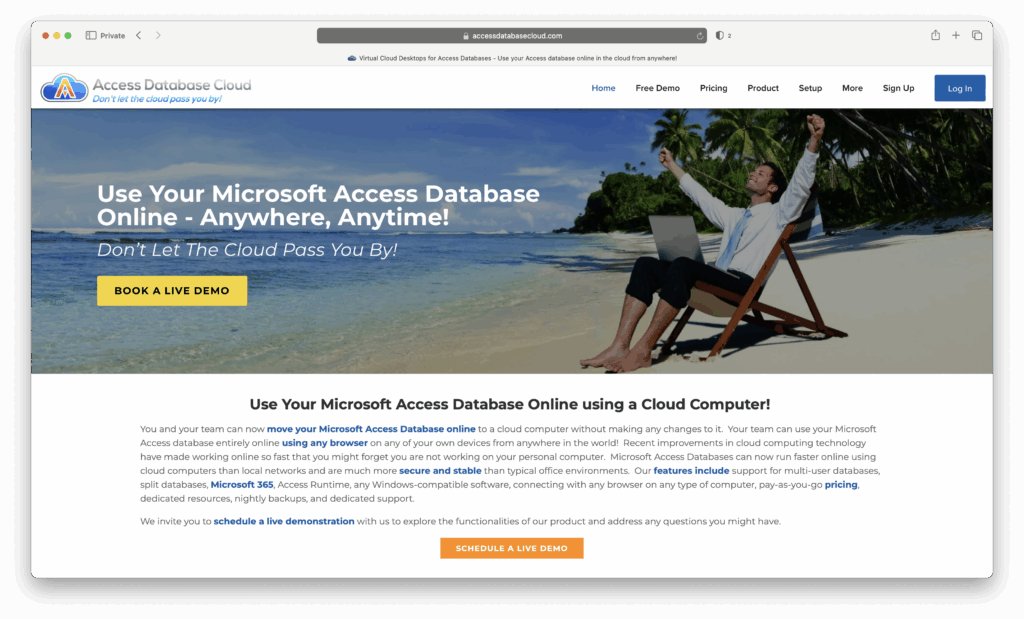
Access Database Cloud allows you to run Microsoft Access databases in the cloud so that you can use them on a Mac without installing Windows or running a virtual machine.
It’s a great solution for those that rely on Access but want to work cross-platform and avoid the hassle of maintaining a Windows environment.
Key Features:
- Runs Microsoft Access databases entirely in the cloud so they can be opened from any Mac or browser.
- No need to install Windows, Parallels, or Boot Camp on your Mac.
- Supports multi-user access with secure remote connections.
- Backups and updates are handled automatically on the server side.
- Works with existing Access files with minimal setup required.
Access Database Cloud is ideal for businesses or individuals who depend on Access but need the flexibility of Mac and cloud use.
Pricing: Plans start at $48/month depending on the number of users and storage required.
5. Claris FileMaker
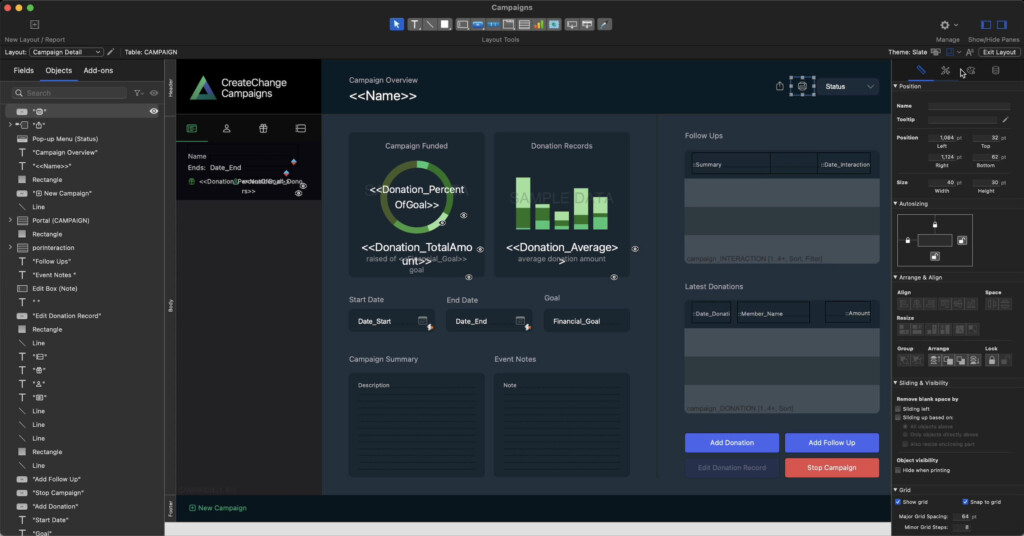
Claris FileMaker (formerly FileMaker Pro) is one of the most established database creation software outside of Microsoft Access.
FileMaker was originally created by Apple but is now owned by Claris International which is an Apple subsidiary so its the closest thing you’ll get to an Apple equivalent to Microsoft Access.
Nowadays Claris FileMaker is designed to create custom business apps by building databases for managing clients, employees, projects, tracking inventory and more.
Key Features:
- Drag-and-drop interface for creating custom apps.
- Integration with various data sources, including SQL, XML, and ODBC.
- Advanced security features and user permissions.
- Cloud hosting options with FileMaker Cloud.
- Mobile compatibility with FileMaker Go for iOS devices.
We found that Claris FileMaker is not as “transparent” as other database solutions in the way it creates databases.
For example, the source files in Claris FileMaker are basically hidden from the user whereas in most database apps including Access, it’s much easier to edit the source file directly.
It’s also one of the most expensive database solutions available on Mac with pricing starting at $21.00 per user per month.
Pricing: Free Trial, $22/month or $625 for a one off purchase single license for individuals
6. Airtable
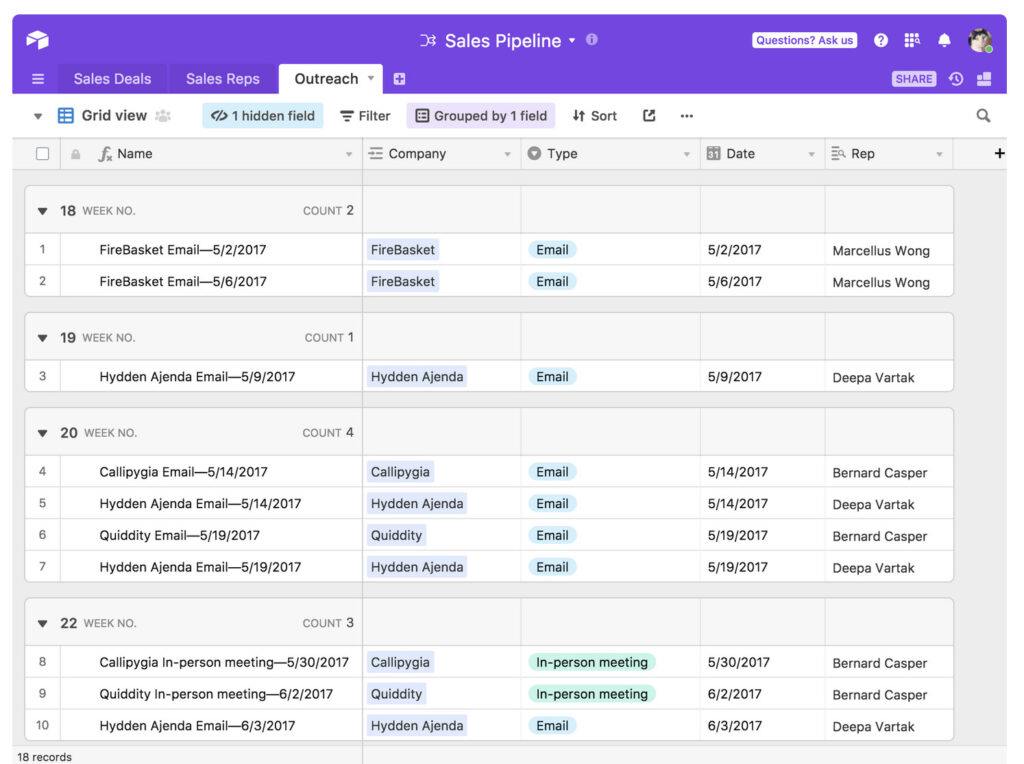
Airtable is one of the most popular cloud-based database tools for Mac users looking for a modern alternative to Microsoft Access.
Airtable combines the familiarity of a spreadsheet with the power of a database, making it easy for teams to organize, share, and automate their data workflows online.
It’s especially popular for project management, content planning, CRM, inventory tracking, and other collaborative tasks where flexibility and ease of use matter.
Key Features:
- Spreadsheet-style interface with database functionality.
- Hundreds of ready-made templates for different workflows.
- Real-time collaboration with comments, permissions, and revision history.
- Powerful automation tools and integrations with apps like Slack, Zapier, and Google Drive.
- Airtable Apps for building dashboards, charts, and custom workflows.
Unlike traditional desktop databases like Access, Airtable runs entirely in your web browser or via its Mac desktop app.
Pricing: Free for individuals and small teams but larger workspaces and advanced features require a paid plan starting at $20 per user per month.
7. Softr
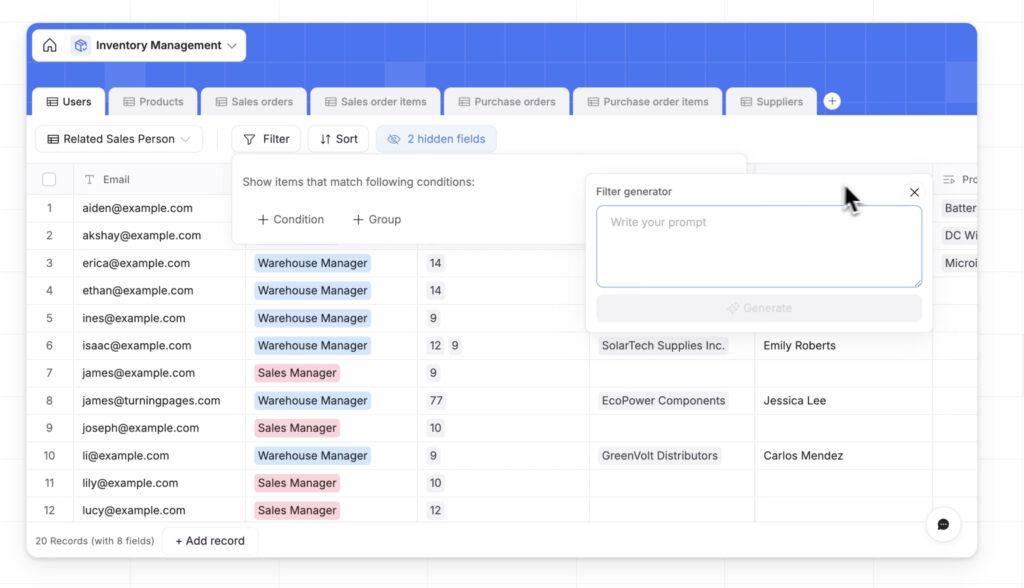
Softr allows you to build fully functional databases and web applications without writing any code, using an intuitive drag-and-drop interface that runs entirely in the cloud.
It’s perfect for individuals or teams who want to create custom data-driven apps, client portals, or internal tools without relying on developers.
Key Features:
- Create and manage relational databases directly within Softr, or connect to external sources such as Airtable or Google Sheets.
- Design front-end web apps, portals, and dashboards using a visual builder with customizable blocks and templates.
- Support for user authentication, roles, and permissions for secure data access.
- Built-in formulas, linked records, and real-time syncing to keep data up to date across all views.
- REST API access for integrations with other services and workflows.
- Enterprise-grade hosting, SSL encryption, and automatic backups included.
Softr is ideal for quickly launching database-driven applications and websites without technical skills while retaining flexibility for complex projects.
Pricing: Free plan for one database with prices starting at $49/month depending on how many records; users and features you need.
8. Tap Forms
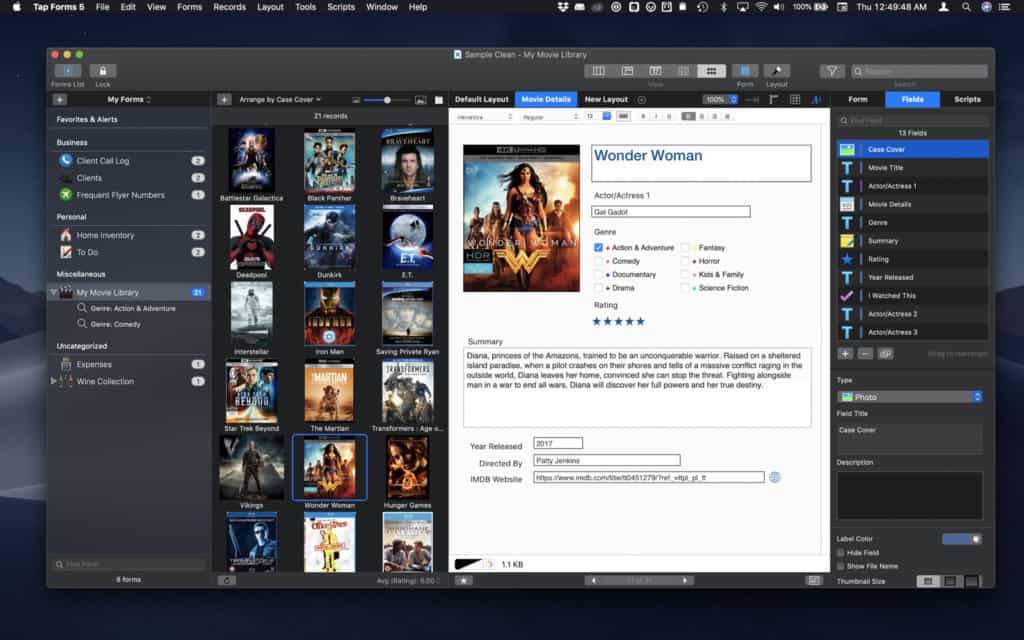
Tap Forms is a user friendly app that’s aimed at those that want to create personal databases on Mac, Mobile and even Apple Watches.
It’s ideal for those that don’t have any database knowledge and just want to build databases of things like accounts, recipes, inventories and more.
Key Features:
- Tap Forms is a particularly good alternative to Bento on Mac which is now discontinued as you can import old Bento files, CSV, text and other formats.
- You can upload multimedia data such as images, audio recordings and links to other database files.
- You can also sync Tap Forms with iCloud, IBM Cloudant, WiFi networks and Apache CouchDB Sync Servers.
If you’re looking for an easy way to create forms and databases on Mac and mobile devices without coding knowledge.
Pricing: $5.99/month
9. Sequel Ace
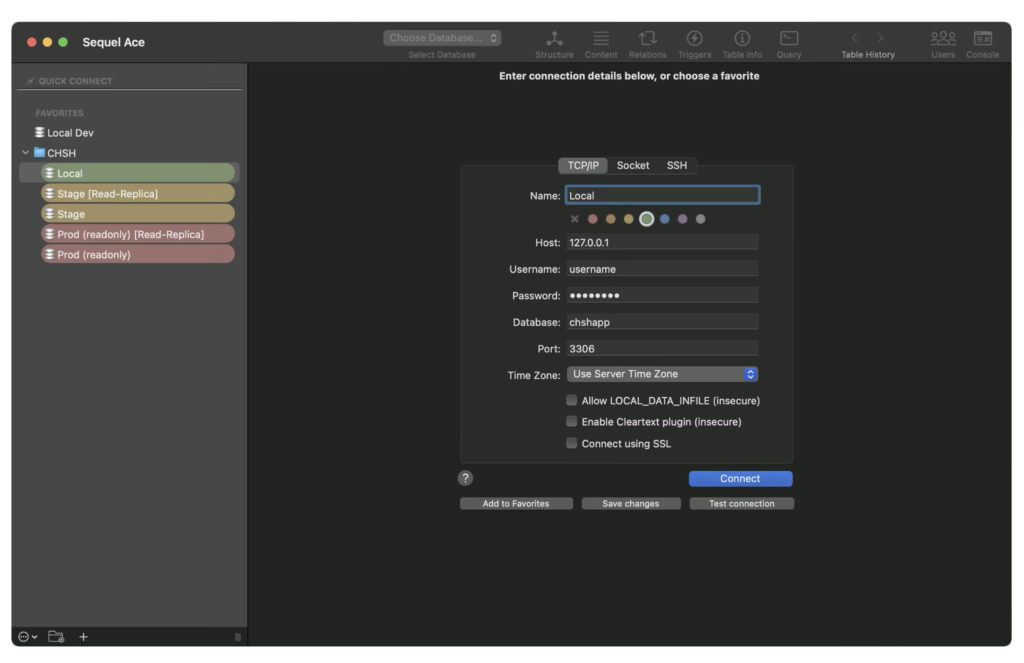
Sequel Ace is a popular, free, open-source Mac app for managing MySQL and MariaDB databases with a modern, Mac-native interface. It’s the spiritual successor to Sequel Pro, updated for the latetst versions of macOS and Apple Silicon.
Key Features:
- Connect easily to local and remote MySQL & MariaDB databases.
- Supports MySQL versions 5.x and later, plus MariaDB.
- Simple, clean interface designed specifically for Mac.
- Query editor with syntax highlighting and auto-complete.
- Export and import databases in multiple formats.
- Native Apple Silicon support for faster performance on M-series Macs.
Sequel Ace is a great choice for developers who want a lightweight, reliable database management tool without the complexity of full database IDEs.
Pricing: Free (open source)
10. DBeaver
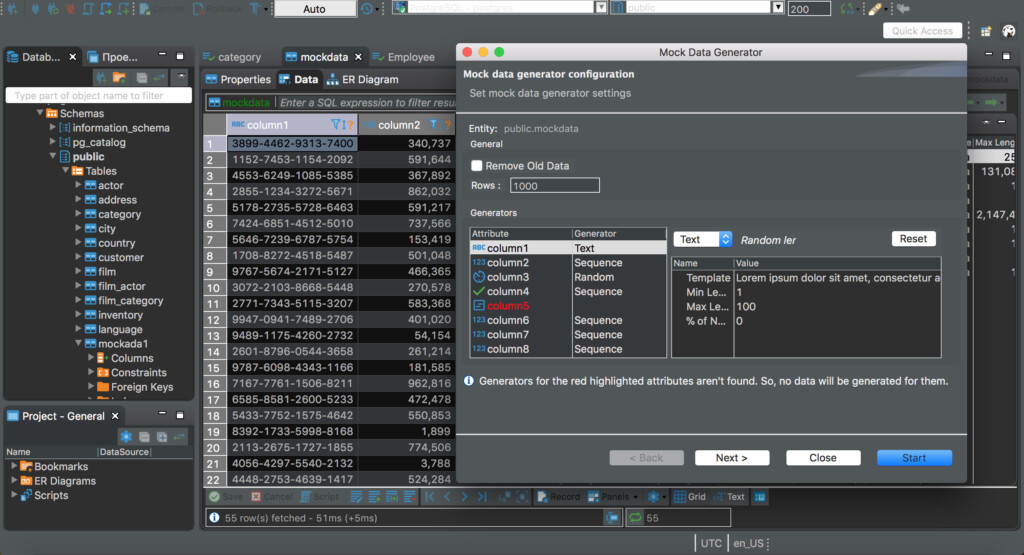
DBeaver is a popular and versatile free open source database management tool that caters to a wide range of users, from beginners to experienced database professionals.
DBeaver offers a plethora of features and capabilities that make it a powerful, if technical database software.
Although you can’t import MS Access files you can connect DBeaver to MS Access databases.
Key Features:
- Extensive support of various database systems, including MySQL, PostgreSQL, Oracle, SQL Server, and many more making it an excellent choice for multi-database environments.
- The user-friendly interface provides an array of tools, such as SQL development, data migration, and ERD modeling, making it a versatile choice for a diverse set of database tasks.
- Highly customizable as you can edit the source code if you know how to.
- There’s an active DBeaver community that contributes to its development and maintains a variety of plugins to extend its functionality.
DBeaver is overall a versatile and powerful free database management tool with excellent database support, data visualization features, and an active open-source community.
Pricing: Free
11. iDatabase
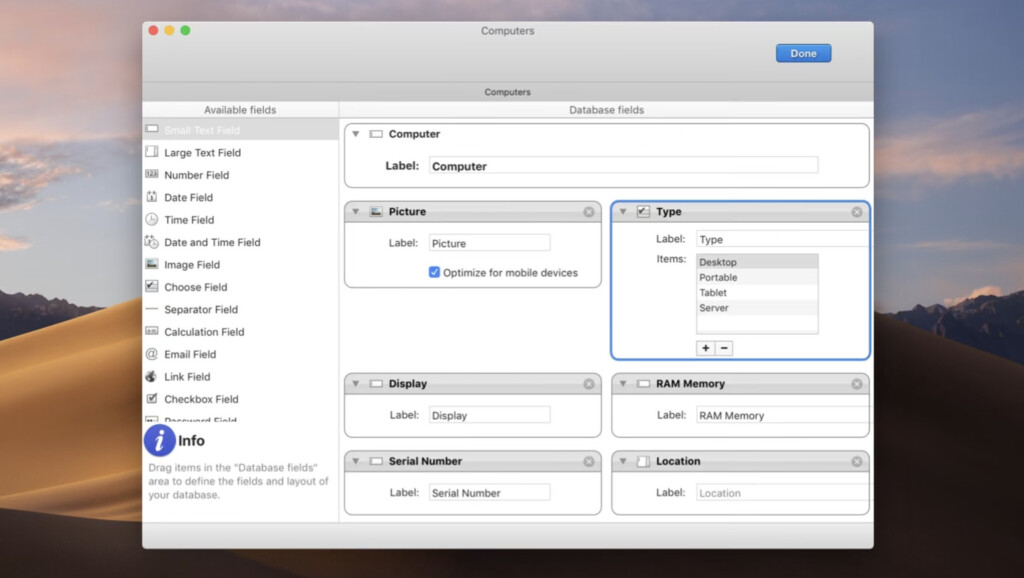
If you want a Mac desktop database software that allows you to build your own personal databases, inventories and list then iDatabase is a cheaper alternative to Tap Forms.
Like Tap Forms, iDatabase is quite similar to the now defunct Bento and is easy enough for anyone to use.
Key Features:
- Lots of ready-made templates such as for Book collections, Customer databases, Expense databases, Recipes and more.
- Easy to filter records by name, category and other variables.
- Includes an iOS app that you can sync with the Mac app via WiFi or alternatively you can sync via DropBox.
Pricing: $39.99
12. Stackby
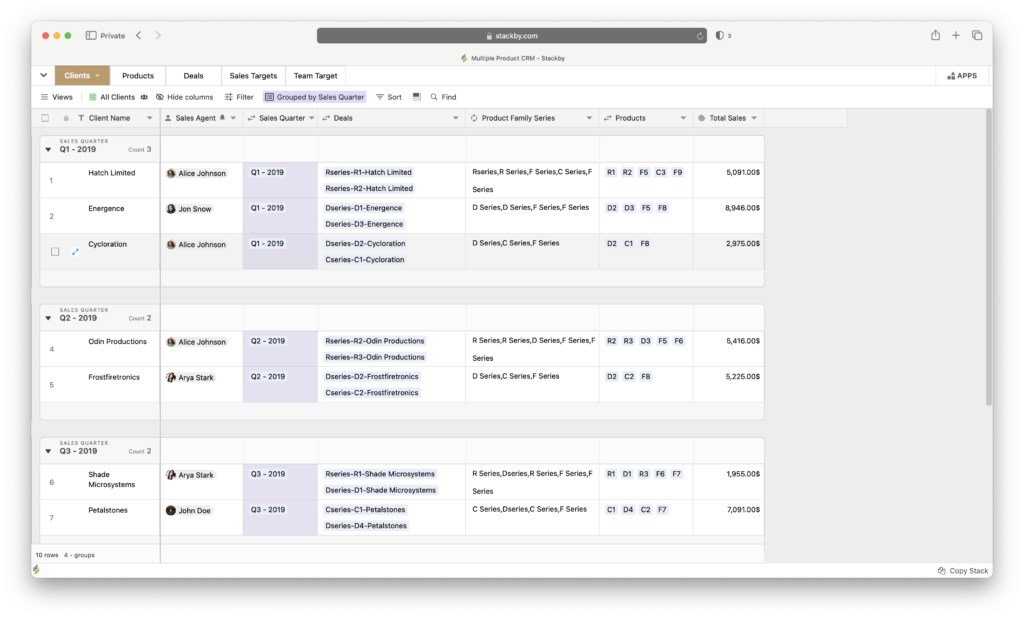
Stackby is a flexible, no-code database software that features a nice blend of spreadsheets with the functionality of databases.
It allows you to organize, collaborate, and automate workflows with customizable tables, templates, and integrations with popular third-party apps like Google Workspace, Zapier, Mailchimp and even YouTube.
Stackby is most commonly used for project management, marketing, CRM databases and product development but there are templates available for almost every conceivable database.
There are over 100 pre-built database templates tailored to specific industries and use cases to help you get started quickly.
The platform is particularly good for those that need to combine various data formats in one place, such as text, numbers, dropdowns, attachments, and links to other tables.
Stackby is very beginner-friendly although advanced users might find the platform lacking in power and customization compared to tools like Knack and Claris Filemaker.
Pricing: Free, personal plans starts at $4.2 per month
13. Ragic
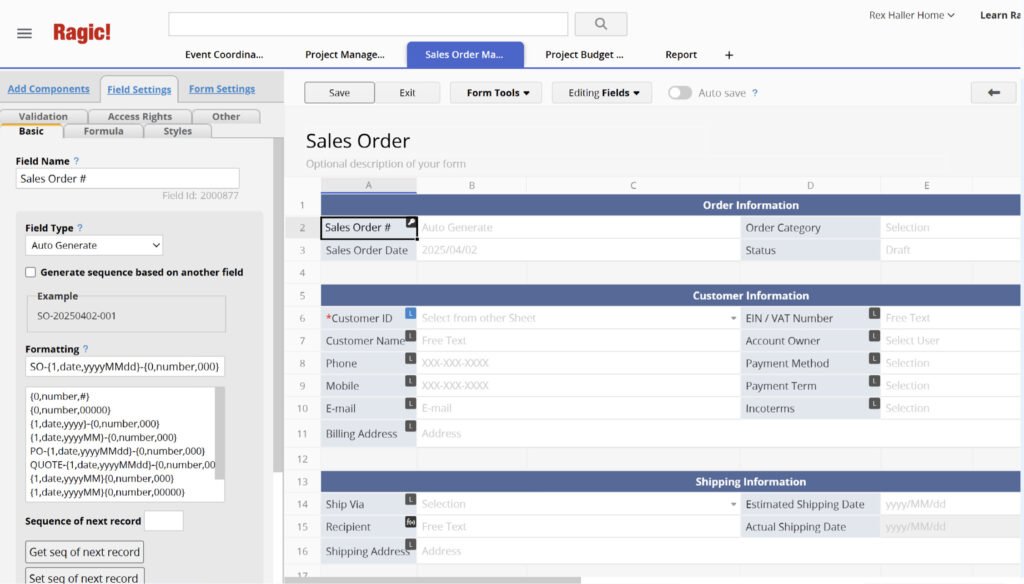
Ragic is a cloud-based database platform designed for users who need the power of a relational database without any coding required.
It provides a flexible, spreadsheet-like interface that lets you build custom business applications – such as CRMs, project trackers, or inventory systems.
Ragic is especially popular among small to medium-sized businesses that outgrow spreadsheets but don’t want the complexity or cost of enterprise systems like Salesforce or Oracle.
Key Features:
- Spreadsheet-style design interface for building databases without coding.
- Relational database functionality with automatic linking between sheets.
- Custom forms, reports, and workflow automation tools.
- Integration with apps like Zapier, Google Workspace, and QuickBooks.
- Role-based permissions and audit trails for secure collaboration.
Ragic runs entirely in your web browser on a Mac but also offers mobile apps for iOS and Android for managing data on the go.
Pricing: Free for individual users with limited features, with paid plans starting at around $25 per user per month for advanced customization, automation, and support.
Conclusion
As you can see, there’s still life after Microsoft Access on macOS.
- Knack is our pick for the best alternative to Access and the best overall database software for Mac users. It’s about as easy as it gets when it comes to creating databases on macOS and yet is incredibly powerful and flexible.
- Base is a great free alternative for those on a budget. It doesn’t cost a thing although it’s not as intuitive or powerful as paid solutions.
- Ninox Database meanwhile is the best on-premise desktop database solution for Mac users. It’s got a great Mac desktop client but the cost per user subscription model gets expensive for large teams.
Pros vs Cons: Mac Alternatives Compared to Microsoft Access
Advantages of these apps over Access on Macs
- Native Mac or cloud support: Unlike Access, which has no native macOS version, many alternatives run directly on Mac or in the cloud – no need for Windows, virtual machines or extra third party software.
- No-code / lower barrier to entry: Tools like the top-rated Knack let users build databases and applications via drag-and-drop, without prior database or coding knowledge – ideal for casual users, small businesses, or teams without dedicated developers.
- Cross-device and collaborative: Many modern alternatives support browser access, cloud sync, mobile access, and collaboration – useful for teams, remote teams or multi-device access.
- Flexible pricing & free/open-source options: There are completely free (or low-cost) options – e.g. LibreOffice Base – or subscription/cloud-based ones – giving users flexibility depending on budget and needs.
- Modern UI & integrations: Many alternatives offer modern UIs, integrations (APIs, other services, automation tools), template databases, and simpler data-entry forms compared to the dated feel of Access.
Trade-offs / Limitations Compared to Access (or Windows-based Access via Virtual Machines)
- Not full Access compatibility: Most Mac MS Access alternatives cannot directly read or write native Access formats (.mdb / .accdb). You often need to export from Access (as CSV, Excel, or XML) and then import into the new tool.
- Some lack advanced features: While many have tables/queries/forms, they may not support complex Access-only features like VBA macros, certain advanced queries, Access-specific forms/reports, or Access’s built-in desktop-database architecture.
- Migration effort required: Moving existing Access databases (especially complex ones with forms, relationships, or logic) will likely involve effort: exporting data, rebuilding schema/forms, reconfiguring relationships in the new tool.
- Potential limitations in scalability or performance (depending on the tool): Some lighter-weight or free tools may struggle with very large databases or enterprise-level multi-user requirements. For example, open-source or free options often trade ease-of-use for lower performance or fewer features.
- Learning curve or adjustments: Even low-code tools still require learning a new interface or rethinking how your data and workflows are structured (especially if moving from Access’s desktop-based relational model).
Importing/Exporting MS-Access Data on Mac: What Works (and What to Watch Out For)
Since there is no native Access on Mac, and many alternatives don’t open Access database files directly, here is how migration or data transfer typically works – and some tips to help make everything smoother.
- Many alternatives rely on importing data via CSV, Excel, or XML. Apps like Knack, Airtable, and others expect you to export tables from Access (or Excel) in CSV/Excel format, then import them into the new system.
- For tools like LibreOffice Base you might be able to connect to external databases (via ODBC/JDBC) or use a driver to open Access-format files – but this isn’t always straightforward.
- If your Access setup uses forms, reports, macros, or complex relationships – exporting data alone (tables) will not transfer that logic. You’ll need to manually recreate forms, queries, and logic in the new tool. Many Microsoft Access alternatives on Mac focus on data and simpler database features rather than full parity with Access’s desktop-database + UI + logic features.
- For simplest migration: export your Access data tables as CSV/Excel, then import into the new tool, rebuild relationships / schema, and re-implement any UI/logic manually (forms, automation). Document everything carefully, and run integrity checks after migration.
Migration Tips & Best Practices
If you decide to move from Access to a Mac-friendly alternative (or cloud-based one), here are recommended steps to make migration smoother:
- Audit your existing Access database: list all tables, relationships, forms, queries, reports, macros, and any custom logic (VBA). Understand what functionality you really need to port.
- Export data carefully: export all tables (and perhaps lookup/reference tables) into CSV or Excel, making sure to preserve data types and relationships where possible (e.g. by using consistent IDs, foreign keys, unique identifiers).
- Choose the right alternative based on your priorities: if you just want data storage and basic UI, a no-code cloud platform (e.g. Knack, Airtable) might suffice. If you need desktop-based, open-source, and offline access – something like LibreOffice Base may be better. For a mix of power + ease + business readiness, a commercial product like Claris FileMaker might make sense.
- Rebuild schema, relationships & UI in the new system: after import, recreate any forms, input screens, relationships, validations, user permissions etc.
- Test thoroughly before switching: verify data integrity, test CRUD operations (create/read/update/delete), test reports or exports, and ensure that performance is acceptable with real-world expected data load.
- Plan for backups and data export/import options: ensure the new platform supports regular backups, and maybe schedule periodic exports if you want to maintain portability or a fallback.
FAQ
What is Microsoft Access?
Microsoft Access is a desktop database management system (DBMS) that lets you build relational databases, create forms and reports, and manage large datasets easily. It’s popular for small business apps, local inventory management, and situations where you don’t need a huge server database.
Why isn’t Microsoft Access available for Mac?
Microsoft has never released a native version of Access for macOS. Unlike Word, Excel, and PowerPoint, Access is still Windows-only. Even with Office for Mac or Microsoft 365, Access is excluded. The main reason for this is probably because most business environments still use Windows and the market for business users on macOS is relatively small.
Can I run Microsoft Access on a Mac anyway?
Yes, you can run Microsoft Access on a Mac by:
- Installing Windows using virtual machines like Parallels Desktop or VMware Fusion.
- Using remote desktop tools to access Access installed on a Windows PC or server.
- Running Windows in the cloud (e.g., using Microsoft’s Azure Virtual Desktop).
You can read more about how to install Microsoft Access on a Mac here.
Is FileMaker the best option for Mac users?
FileMaker (now Claris FileMaker Pro) is arguably the closest full-featured desktop alternative to Access for macOS. It takes some learning compared to products like Knack but it’s powerful enough for business workflows, integrates well with Apple devices, and doesn’t require coding knowledge for basic apps.
Can I open or edit Access databases on a Mac?
You can’t open Access files (.ACCDB, .MDB) directly in macOS without extra help. To open an Access database on a Mac:
- Use a virtual machine or remote desktop to run Access in Windows.
- Export your Access data to CSV, then import it into FileMaker, Airtable, or another tool.
- There are third party Microsoft Access viewers for Mac that allow you to open Microsoft Access databases but they are very limited and don’t let you edit them.
What’s the easiest Access alternative for beginners?
For beginners, Knack and Ninox are very popular because they combine drag-and-drop design with simple templates. They’re cloud-based, so you don’t need to manage servers or install complicated software.
Can I migrate my Access data to an alternative?
Yes, most modern database tools let you import CSV or Excel files exported from Access. Knack, FileMaker Pro, Ninox, and Airtable have import wizards that make it pretty easy to bring over your tables and field structures.
Is there a free option?
Yes, LibreOffice Base is completely free and works on Mac. It’s more technical than Knack or Ninox, but it’s the closest free open-source equivalent to Access’s classic desktop feel.