

ChatGPT can now search, summarise, draft and send messages through Apple Messages on a Mac.
This is useful if you want help finding an old conversation, catching up on a long message thread, writing a reply or sending a routine message without copying everything manually into ChatGPT.
However, it is also one of the more sensitive ChatGPT features you can enable. The Apple Messages plugin can work with iMessage, SMS and RCS conversations stored in Messages on your Mac, so it is important to understand what it can access and keep the default approval settings in place.
I did feel a bit uneasy allowing ChatGPT to personal messages but it’s obviously necessary in order for it to read and respond to them. You can also revoke the permissions very easily.
Here’s how to use ChatGPT with iMessage on a Mac, plus what to know about privacy and how to remove its access again.
For more AI tips, check out our guide to the best AI software for Mac.
What Is the ChatGPT Apple Messages Plugin?
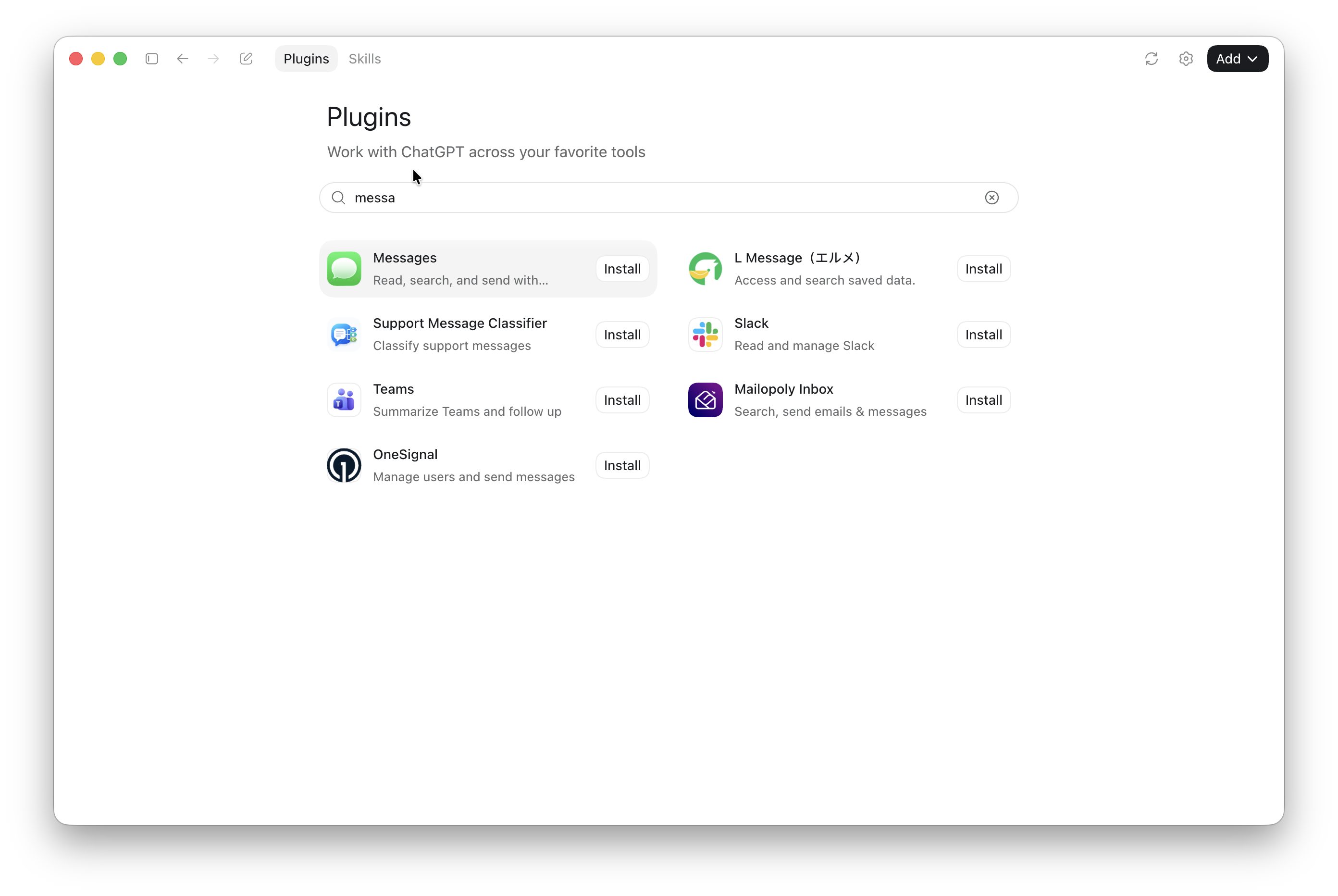
The Apple Messages plugin connects the ChatGPT desktop app to the Messages app on your Mac.
Once enabled, you can ask ChatGPT to do things such as:
- Find a conversation based on something said in it
- Summarise a long iMessage thread
- Identify an unanswered question in a conversation
- Draft a reply in a particular tone
- Prepare and send an iMessage, SMS or RCS message
- Search messages for an address, date, booking reference or other detail
For example, you could ask:
“Find the messages where Sarah mentioned the restaurant in New York and summarise the plan.”
Or:
“Draft a friendly reply to the last message from Dad, saying we can make Sunday lunch.”
ChatGPT can prepare the reply, but you should still check it before sending.
Important: It Doesn’t Work in Normal ChatGPT Chats
At the time of writing, the Apple Messages plugin only works in ChatGPT Work and Codex chats in the ChatGPT desktop app.
It does not work in ordinary ChatGPT chats, in a web browser, on an iPhone or iPad, in the Codex command-line tool or in the Codex IDE extension.
It also does not turn Apple Messages into a way to message ChatGPT. You cannot text ChatGPT through iMessage and receive replies in the Messages app.
What You Need To Use ChatGPT With Messages
To use the Apple Messages plugin, you need:
- An Apple Silicon Mac
- The ChatGPT desktop app for macOS
- A ChatGPT account — OpenAI says the plugin is available on all plans
- Access to either ChatGPT Work or Codex in the desktop app
- The Messages app set up with the iMessage, SMS and/or RCS conversations you want to use
- Permission to allow ChatGPT to access Messages on your Mac
The feature is currently available only in the Apple Silicon version of the ChatGPT desktop app. It will not work on an Intel Mac.
For SMS and RCS messages to appear in Messages on your Mac, your iPhone must already be configured to forward those conversations to the Mac. That is an Apple Messages requirement rather than a special ChatGPT setting.
How To Set Up the Apple Messages Plugin
To connect ChatGPT to Messages:
- Install or update the ChatGPT desktop app on your Mac.
- Open the app and start a new ChatGPT Work or Codex chat.
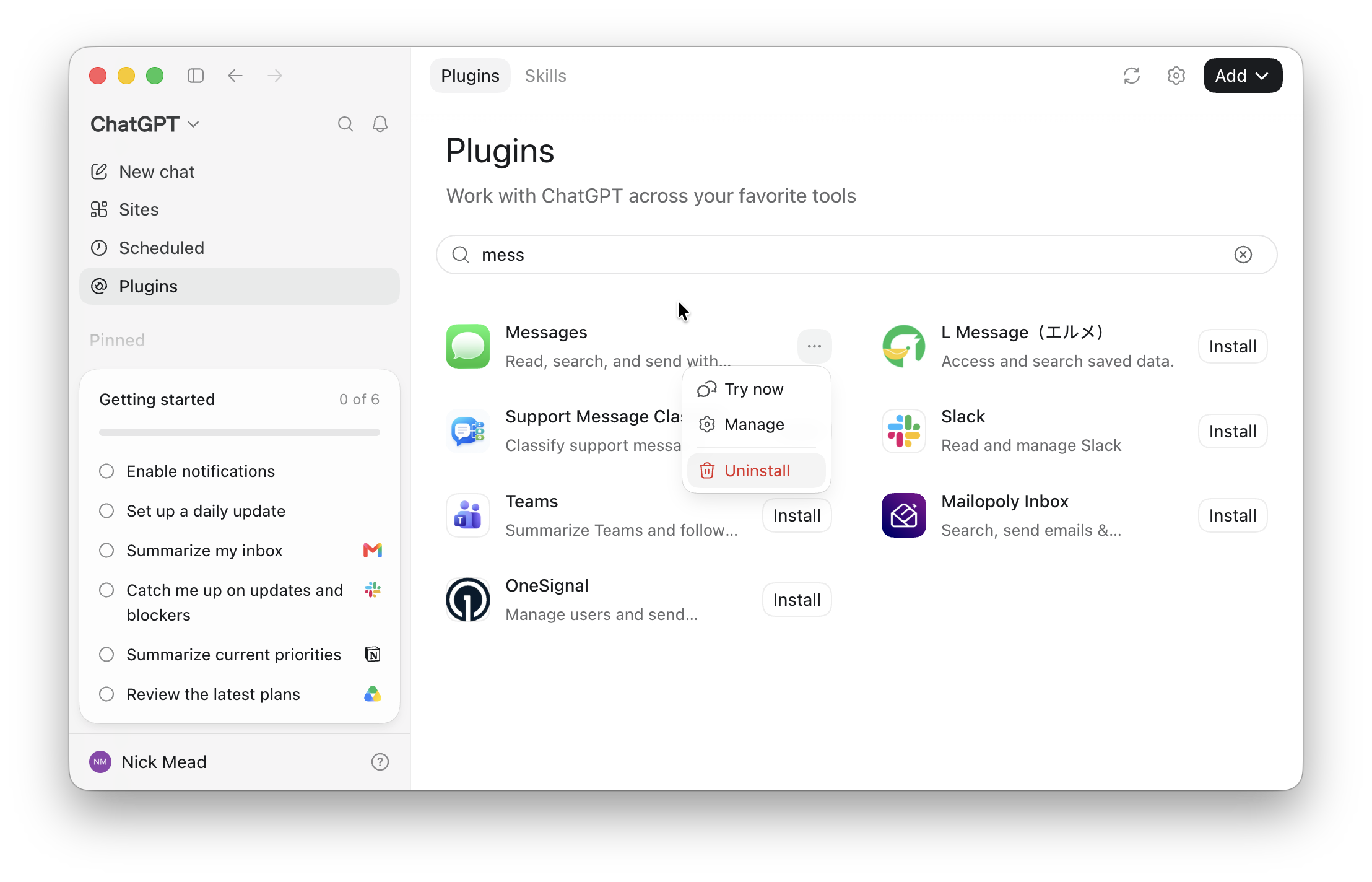
- Open Plugins and search for “messages”
- Find Apple Messages and select the option to install it.
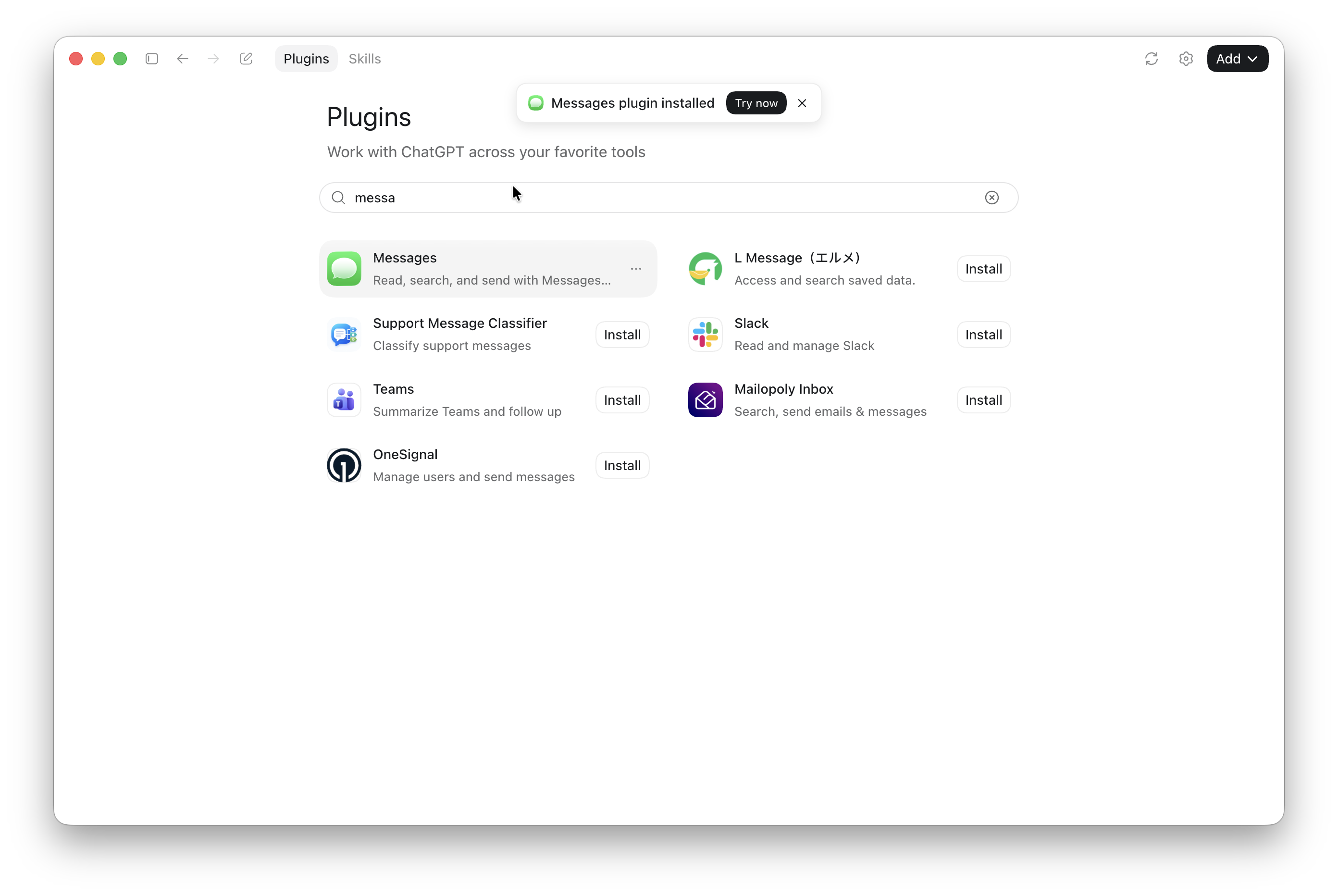
- When prompted, allow the requested macOS permissions for Messages. There are three main requests – Automation, Contacts and Full Disk Access – and you need to select all of them in order for the plugin to work.
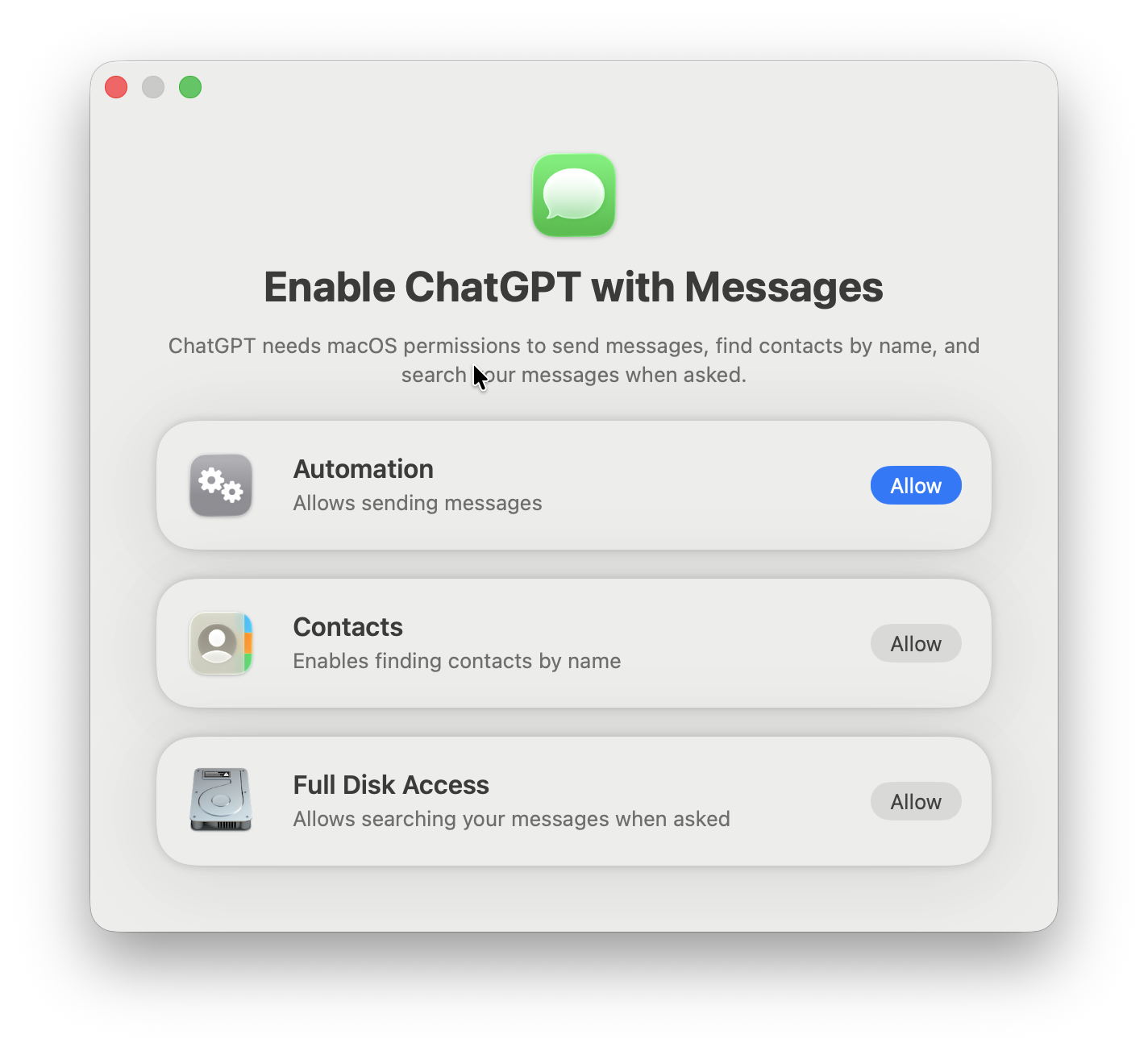
- When you allow Full Disk Access, you’ll receive a warning that Codex wants to access Messages on your Mac.
- You’ll then have to drag and drop this extra Codex permission into your macOS Disk Access settings and activate it along with ChatGPT disk access.
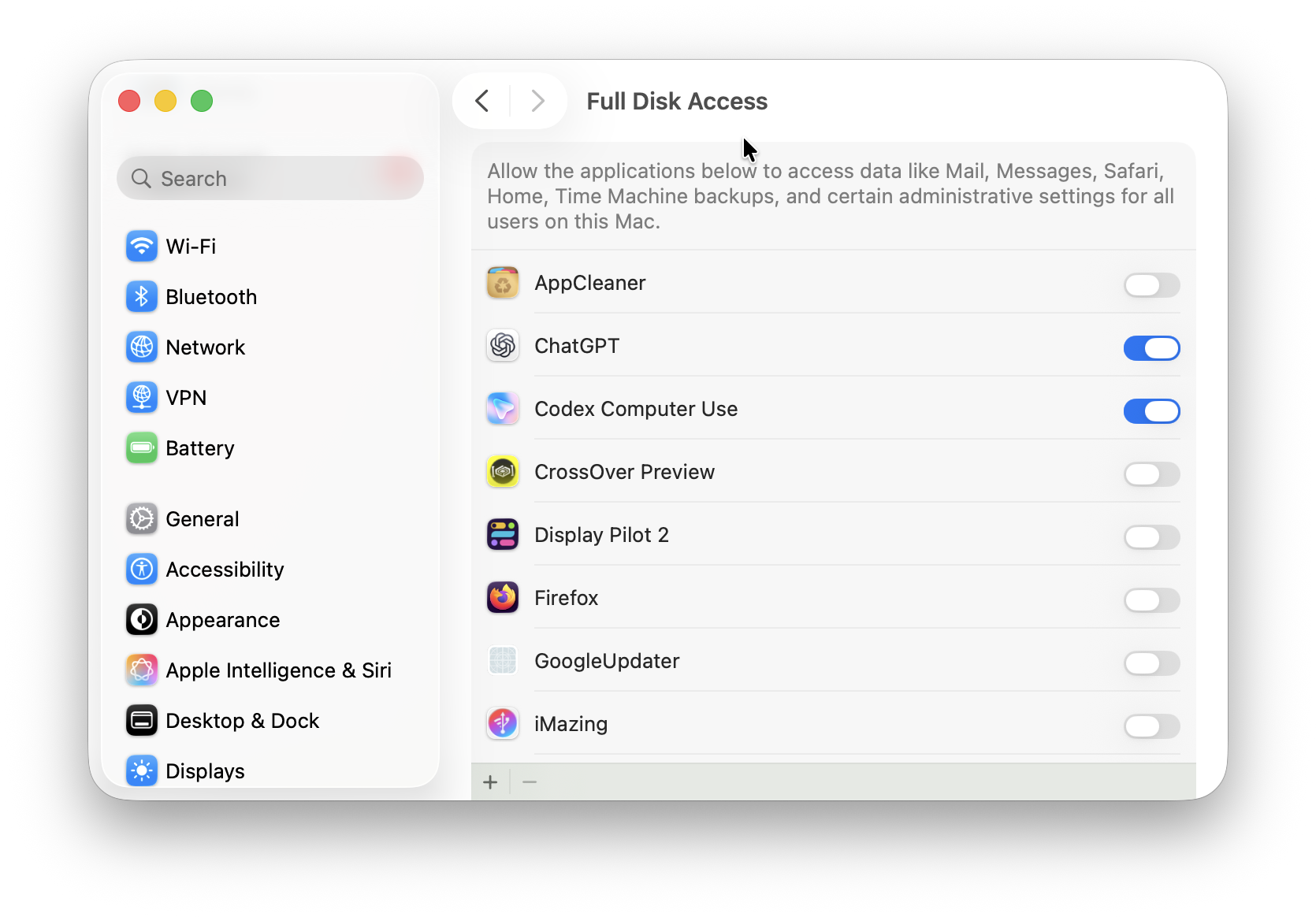
- You can then return to your Work or Codex chat and ask ChatGPT to search, summarise, draft or send a message.
You will also have to shutdown and restart ChatGPT for all these settings to take effect.
If you find that the Messages plugin is simply completely missing when you search for it, make sure you are using the desktop app on an Apple Silicon Mac and that you have opened a Work or Codex chat rather than a standard ChatGPT chat.
How To Search iMessages With ChatGPT
The most practical use for the plugin is finding information that is buried in an old conversation.
Instead of scrolling through years of messages, try prompts such as:
- “Find the conversation where we discussed the children’s swimming lesson times.”
- “Search my Messages for the address that James sent me last week.”
- “What did we agree about meeting on Saturday?”
- “Find the message containing the booking reference for the hotel.”
- “Summarise the most recent messages in my family group.”
Be as specific as possible. Include the person or group name, a date range, distinctive words or the subject you are looking for.
ChatGPT can make finding information much faster, but it can still misunderstand a conversation or omit an important detail. Always open the original message before relying on a date, address, price or other important information.
How To Summarise a Long Message Thread
You can also use the plugin to catch up on an active group chat or a long conversation.
For example, you could ask:
- “Summarise the unread messages in the football parents group.”
- “Give me the decisions and outstanding questions from this conversation.”
- “Summarise this thread in five bullet points.”
- “List anything I need to reply to in the messages from this week.”
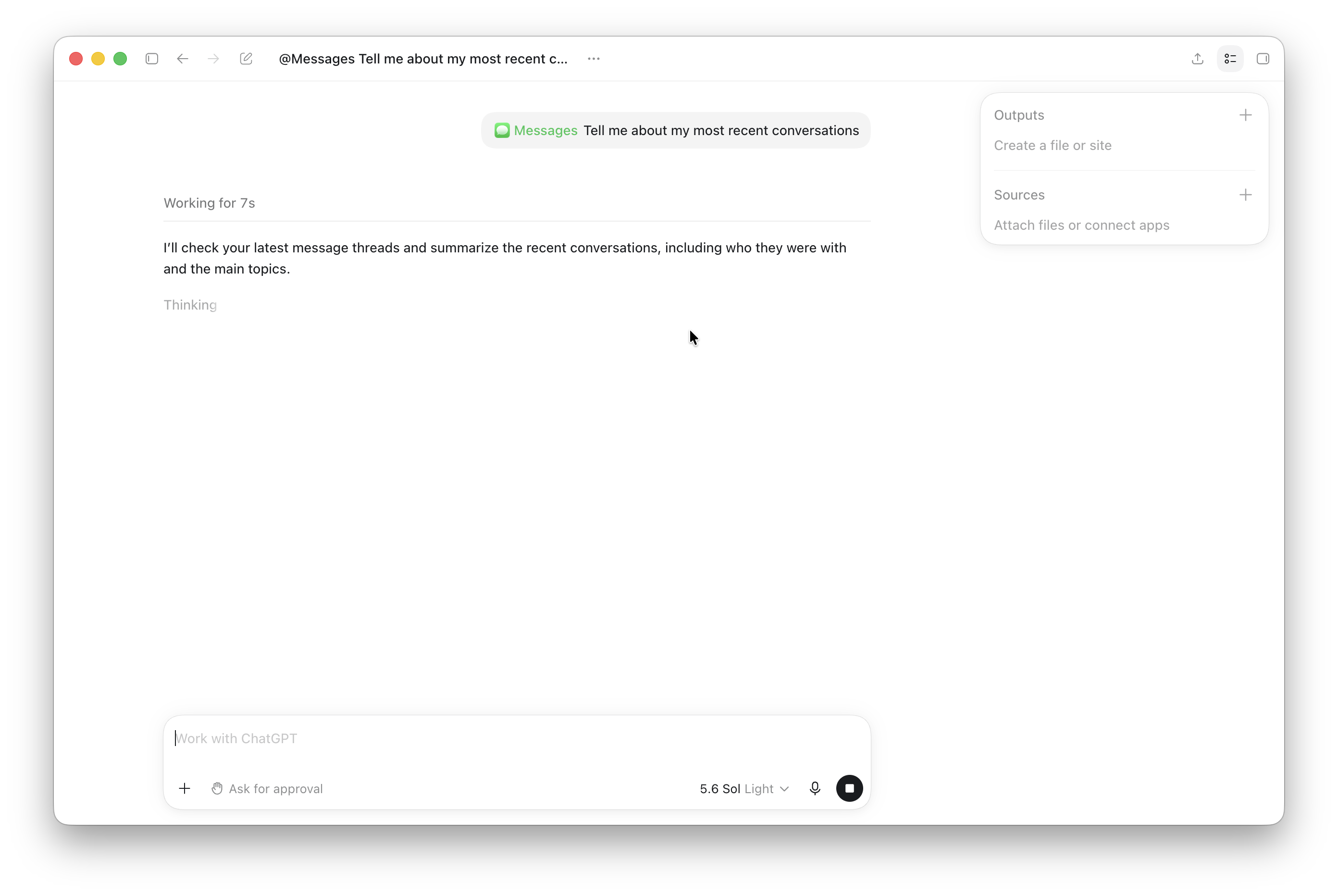
This can be especially useful for group chats where arrangements, dates and links are spread across dozens of messages.
For sensitive chats, it is safer to ask ChatGPT to summarise one named conversation than to give it a broad request such as “summarise all my recent messages”.
How To Draft and Send a Message
ChatGPT can draft a message for you or send it through Apple Messages.
To draft without sending, try a prompt such as:
“Draft a polite reply to (name of contact) last message to say that we don’t have the funding at the moment.”
ChatGPT should prepare text for you to review and edit.
This took a lot longer than I expected – ChatGPT thought about it for almost a 1 minute 45 seconds before finally writing a one sentence response. This may however be because it was reading my responses for the first time and needed time to gauge my tone and likely response (name below edited for privacy).
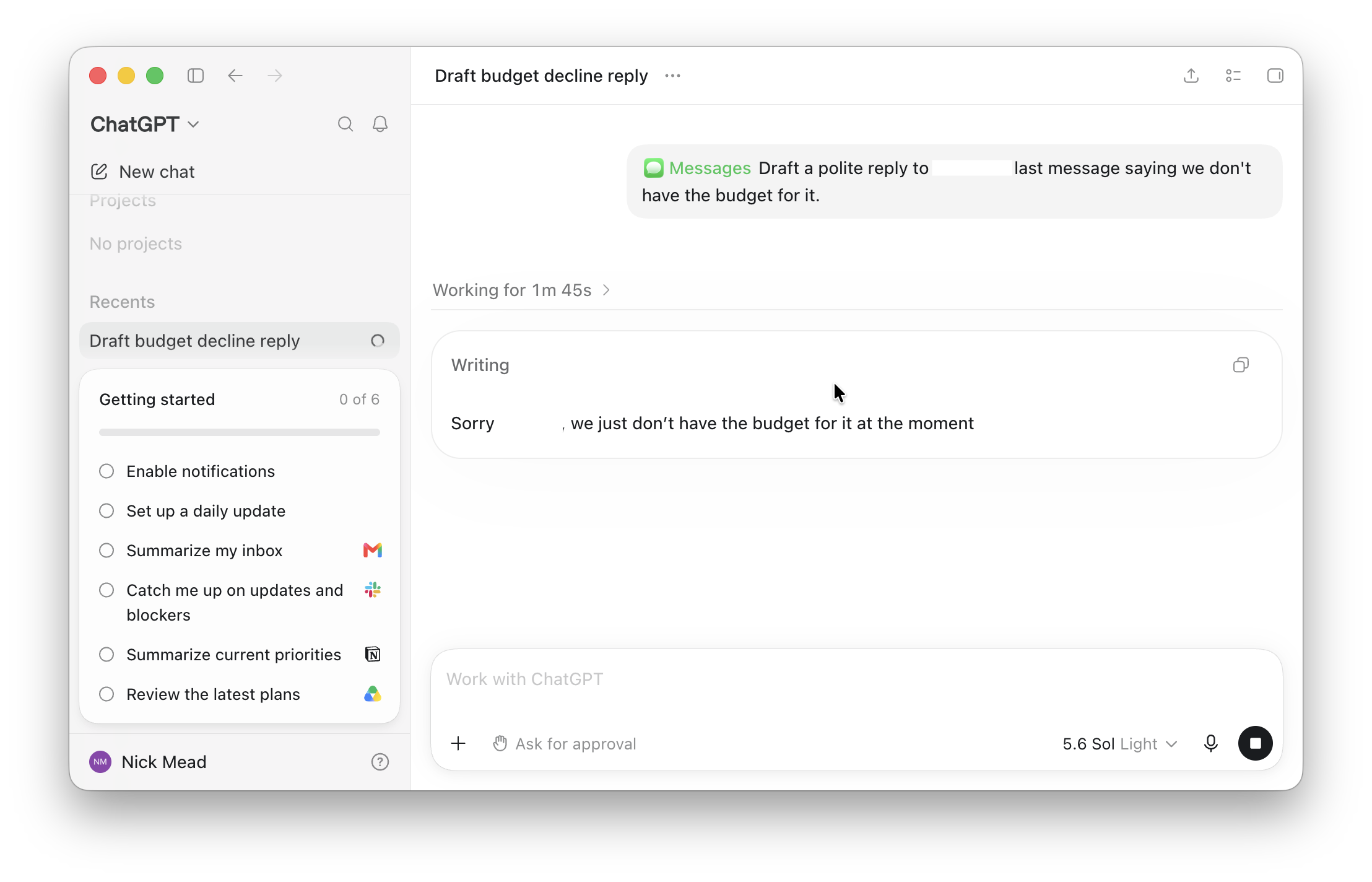
To send a message quickly, you can also use a direct request such as:
“Send Tom a message saying I’ll be there in 10 minutes.”
By default, ChatGPT asks you to approve both the message and the recipient before it sends anything. Check both carefully.
This matters because a message that sounds right in isolation may be sent to the wrong person, use the wrong tone or omit useful context from the ongoing conversation.
Should You Enable ‘Always Allow Sending’?
No, not for everyday personal conversations.
When approving a message, you can choose Allow once, which approves only that send. You may also see an option to always allow sending in that particular chat.
If you choose permanent approval, ChatGPT can send future messages from that Work or Codex chat without asking for a separate confirmation each time.
That removes your final opportunity to catch a wrong recipient, an inaccurate message or an instruction that has been influenced by something misleading in a conversation.
I recommend leaving the default per-message approval enabled for personal, work or family chats.
Permanent approval may be reasonable for a tightly controlled test chat or a simple, low-risk workflow, but it is not something I would enable for a general-purpose ChatGPT conversation.
Privacy Issues & Letting ChatGPT Read Your Messages
You should treat access to Messages as a sensitive permission.
The plugin runs through the ChatGPT desktop app on your Mac and can read and search iMessage, SMS and RCS conversations when you ask it to perform a Messages-related task.
That can include private family chats, personal contacts, verification codes, appointment details, work discussions and other information you would not normally paste into an AI chatbot.
Before enabling it:
- Keep sensitive conversations out of broad searches where possible.
- Use specific prompts that name the conversation you want ChatGPT to search.
- Avoid asking ChatGPT to process banking details, passwords, medical information or confidential client information.
- Keep approval turned on before sending messages.
- Close or avoid unrelated sensitive apps if you are using broader computer-use features at the same time.
- Review ChatGPT’s output against the original messages.
You should also read OpenAI’s current terms and privacy controls before using the feature with confidential information.
OpenAI has not published a separate retention policy for the Apple Messages plugin. However, ChatGPT chats are normally kept until you delete them; deleted chats are scheduled for permanent deletion from OpenAI’s systems within 30 days, subject to limited exceptions. Read OpenAI’s chat-retention policy.
How To Remove ChatGPT’s Permission To Send Messages
If you have enabled permanent approval for a Messages chat, you can restore the normal confirmation prompt.
- Open the ChatGPT desktop app.
- Go to Settings.
- Select Computer Use.
- Select Manage next to Messages.
- Under Always allowed to send, find the relevant chat.
- Select the trash icon next to it.
- Confirm Remove.
ChatGPT should then ask for approval before sending messages in that chat again.
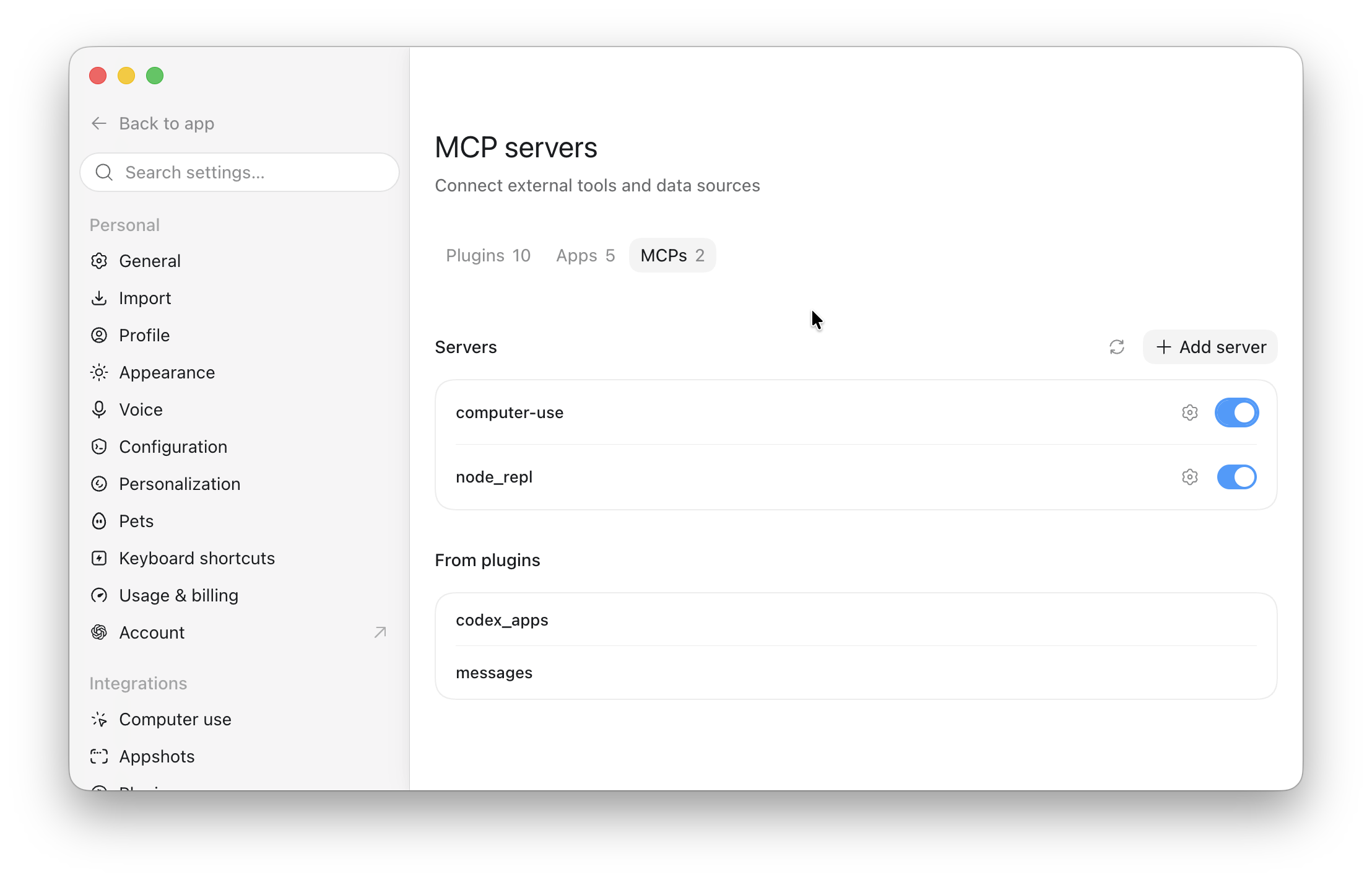
If you no longer want to use the Messages plugin at all, remove or disable it in the plugin settings and review the Messages-related permission in System Settings > Privacy & Security on your Mac.
What To Do If ChatGPT Cannot Send a Message
OpenAI notes a known issue with sending messages when a task is configured with permissions that suppress approval prompts.
If ChatGPT prepares a message but cannot show the final confirmation, switch the task to a setting that asks for approval, then try again.
You should also check that:
- You are using an Apple Silicon Mac.
- You are in a ChatGPT Work or Codex chat.
- The Apple Messages plugin is installed.
- ChatGPT has the necessary macOS permission to access Messages.
- The Messages app can already send messages normally.
- You are signed in to the correct Apple Account in Messages.
- The recipient is clearly identified.
Is ChatGPT’s Apple Messages Plugin Worth Using?
The plugin is genuinely useful for finding information in old conversations, summarising busy group chats and drafting routine replies.
It is less useful as a way to send messages automatically. The time saved is small compared with the risk of sending the wrong thing to the wrong person.
For most Mac users, the sensible setup is:
- Use it for search, summaries and drafting.
- Keep the default per-message send approval enabled.
- Use specific prompts rather than allowing broad searches across your messages.
- Remove permanent approval after testing any automated workflow.
That gives you the practical benefits without giving up the final check before ChatGPT sends a message in your name.
FAQ
Can ChatGPT read my iMessages on a Mac?
Yes, if you install the Apple Messages plugin in the ChatGPT desktop app, grant the required macOS permissions and ask it to perform a Messages-related task. It can search and summarise iMessage, SMS and RCS chats on your Mac.
Does ChatGPT work with SMS and RCS messages?
Yes. OpenAI says the Apple Messages plugin can work with iMessage, SMS and RCS conversations available in the Messages app on your Mac.
Does the Apple Messages plugin work on Intel Macs?
No. It is currently available only in the Apple Silicon version of the ChatGPT desktop app.
Can I use it in normal ChatGPT chats?
No. The plugin currently works only in ChatGPT Work and Codex chats, not regular ChatGPT chats.
Can ChatGPT send an iMessage without asking me?
Normally, no. By default, ChatGPT asks you to approve the message and recipient before sending. You can choose a persistent approval setting for an individual chat, but this removes that final confirmation and is not recommended for normal personal use.
Does ChatGPT store the messages on OpenAI servers?
OpenAI has not published a separate retention policy for content accessed through the Apple Messages plugin. Removing the plugin or revoking its permissions stops future access, but you should not assume it deletes information that was already included in a ChatGPT Work or Codex task. For sensitive conversations, avoid using the plugin until you are comfortable with the applicable ChatGPT data controls and retention terms.
Can I text ChatGPT through Apple Messages?
No. The plugin allows ChatGPT to work with your Apple Messages conversations from the ChatGPT desktop app. It does not make ChatGPT a contact you can message through iMessage.
How do I stop ChatGPT from sending messages automatically?
In the ChatGPT desktop app, go to Settings > Computer Use > Manage next to Messages, then remove the relevant chat from the Always allowed to send list.