

If YouTube, BBC iPlayer or even locally stored videos stop playing after you update to macOS Golden Gate, the cause may not be your browser or internet connection. A number of Apple-silicon Mac users have reported that video playback hangs or starts without sound when their audio is routed through an external monitor connected by HDMI or DisplayPort.
This is not an Apple-confirmed universal Golden Gate bug. However, there are many users reporting this issue on all models of Macs from Mac minis to MacBook Pros. The problem seems to be mainly the external display’s audio output rather than one particular streaming service.
Quick answer: First switch sound output away from the external display and try the video again. If it starts playing, use Audio MIDI Setup to test a different supported audio format for the display, then check the HDMI/DisplayPort cable, adapter, dock and monitor firmware. Do not erase or reinstall macOS to try and fix it!
Is this the Golden Gate external-display playback issue?
The glitch is fairly specific and the table below helps separate it from a normal browser, broadband or streaming-service problem.
| What Happens | To Check |
|---|---|
| YouTube, BBC iPlayer and a local QuickTime file all fail when the monitor is connected | Test the Mac’s audio output, then the display connection and audio format. |
| A video begins when you switch from the monitor speakers to headphones, USB audio or the Mac’s speakers | The external display audio route is a strong suspect. Continue with Audio MIDI Setup below. |
| Only one website or app fails | Treat it as a browser, account, content-rights or service issue first. |
| The monitor is black, flickers or is missing rather than only video playback failing | Follow Apple’s external-display troubleshooting before changing audio settings. |
Here’s the best fixes we’ve found for this sound glitch with macOS Golden Gate.
1. Switch sound output away from the monitor
This is the quickest and least disruptive test.
- Open Apple menu > System Settings > Sound.
- Select Output.
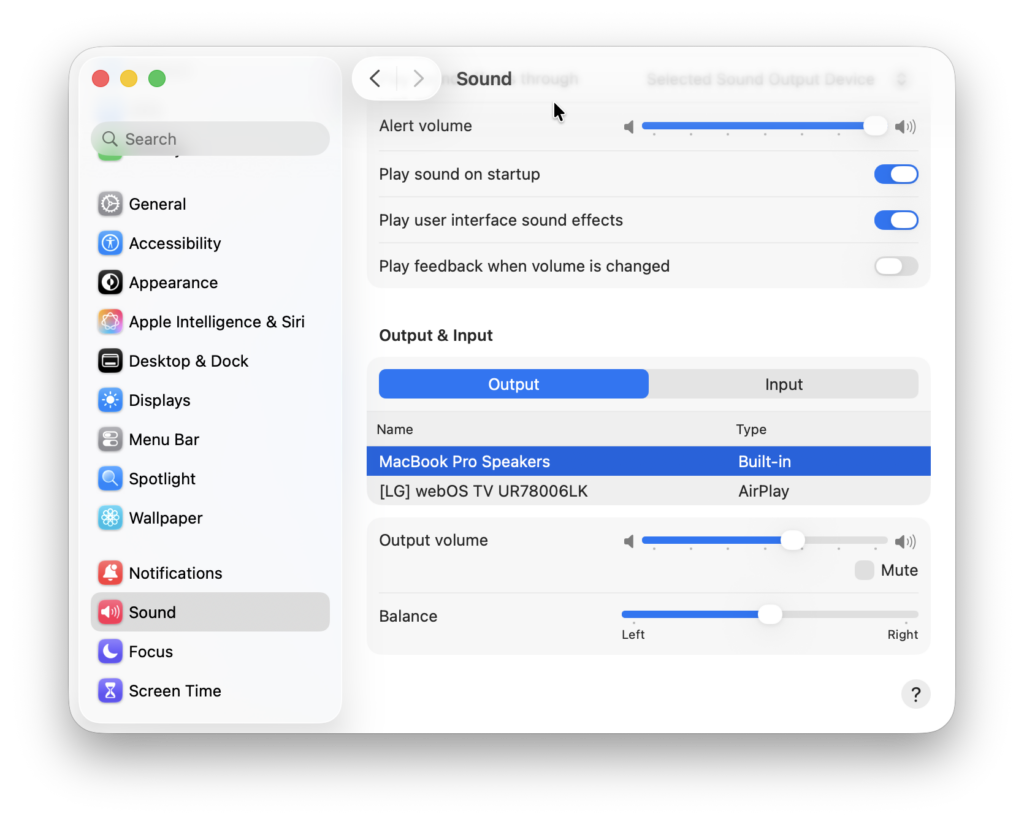
- Choose an output other than the external monitor, such as headphones, USB speakers or the Mac’s internal speakers. On a Mac mini, its built-in speaker can still be useful for this short diagnostic test, even if you would not normally use it for playback.
- Try the same YouTube, BBC iPlayer or local video again.
If video playback immediately resumes, do not assume that the streaming service was at fault. Make a note of the display name, connection type and audio output that triggered the problem; those details make the next tests far more useful.
Apple also states that you can choose an external display, internal speakers, wired audio, USB speakers and AirPlay devices in Sound > Output.
2. Test the monitor’s audio format in Audio MIDI Setup
Several affected users report that changing the external display’s audio format in Audio MIDI Setup makes playback work again. This is a community workaround, not a permanent fix published by Apple, so record the original setting before changing anything.
- Leave the external display connected and powered on.
- Open Audio MIDI Setup from Applications > Utilities, or search for it in Spotlight.
- Select the external monitor or HDMI/DisplayPort audio device in the sidebar.
- Write down or screenshot the current Format setting.
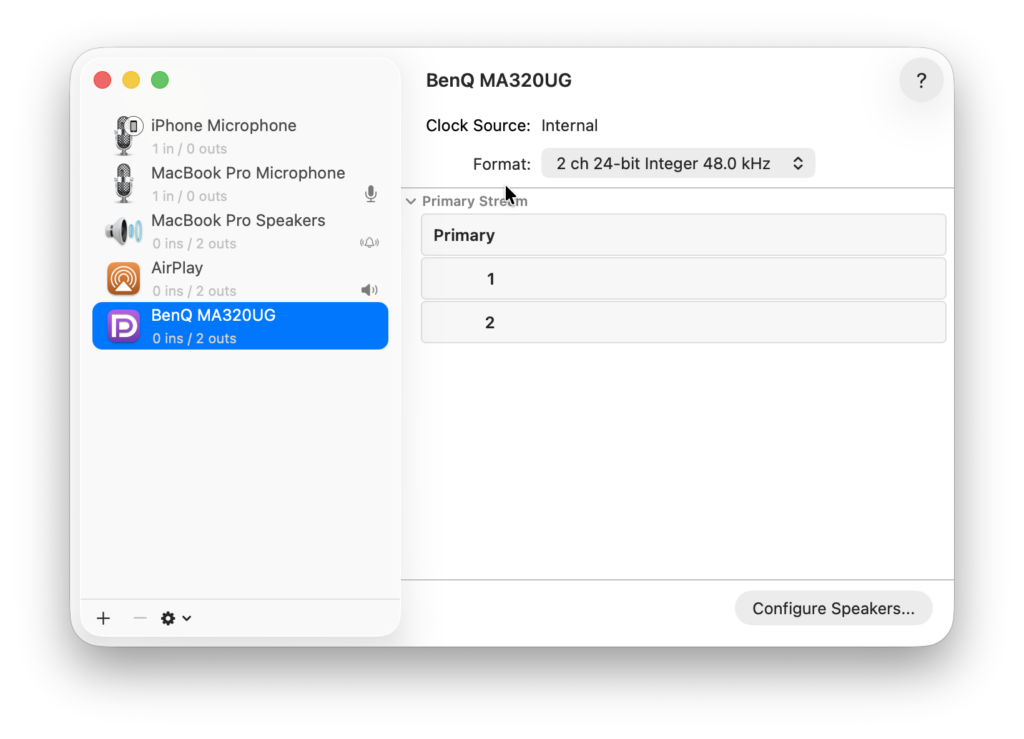
- Choose a different format offered by your display, then test video playback. For example, if the display is set to 24-bit/48 kHz, test another available stereo PCM option such as 16-bit or a different supported sample rate.
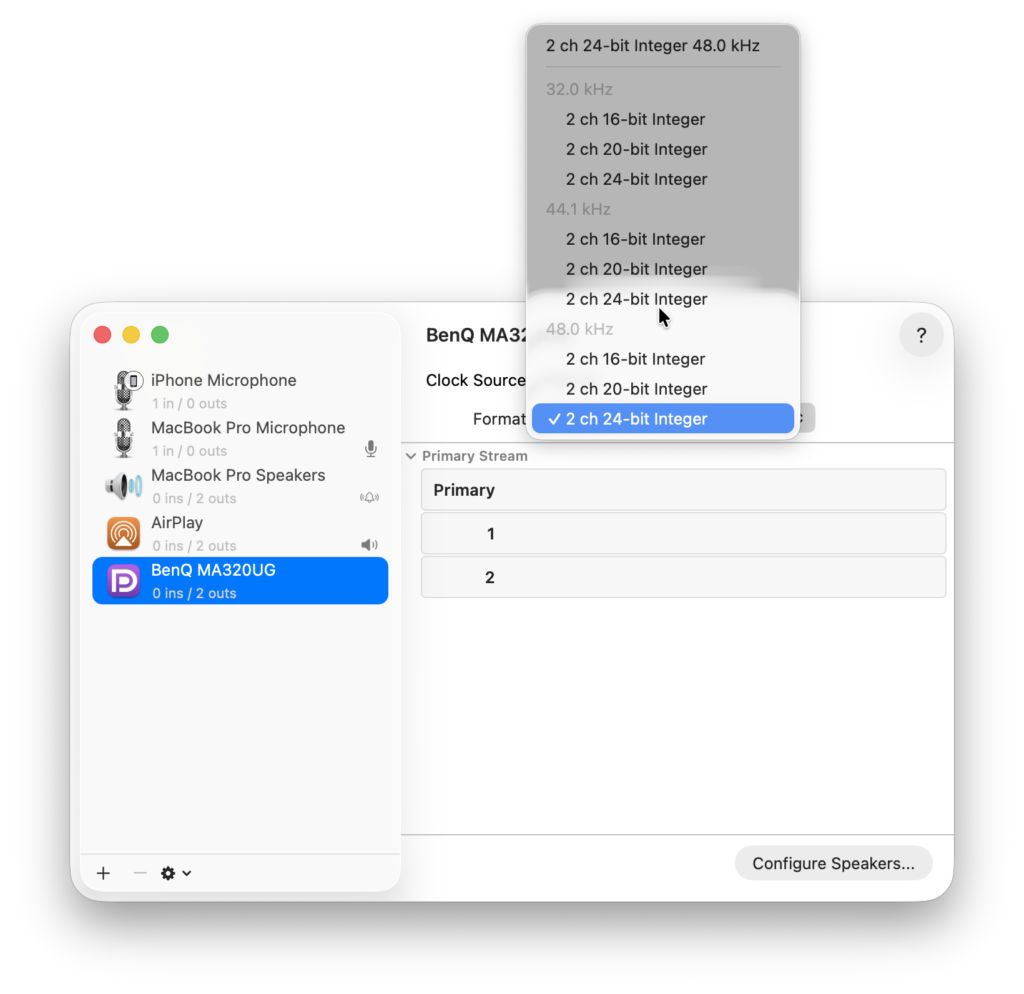
- If playback returns, test it again after putting the Mac to sleep and waking it, and after restarting. That tells you whether the workaround is persistent or only temporary.
Do not force a setting that is not offered by Audio MIDI Setup. If the sound becomes distorted or disappears, return to the note or screenshot you made and restore the original setting.
3. Remove the display connection as a variable
If changing the audio output or format helps, test the connection itself before concluding that the monitor is faulty.
- Connect the monitor directly to the Mac if it is currently connected through a dock, hub or KVM switch.
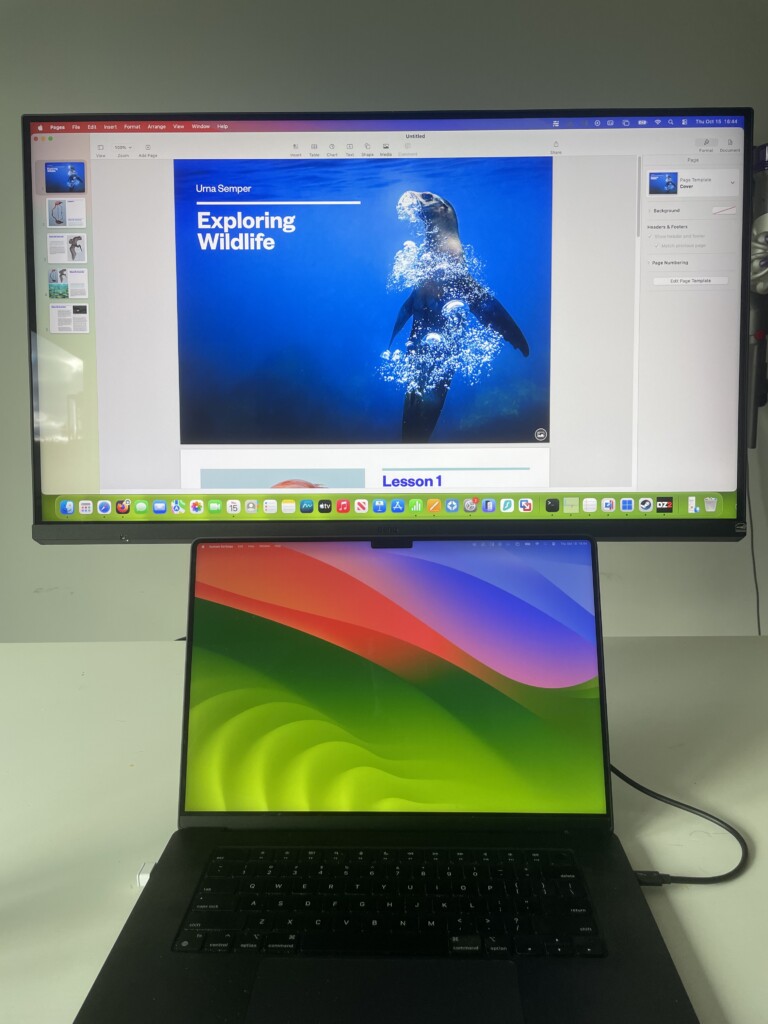
- Try a different HDMI, DisplayPort or USB-C cable that is rated for the monitor’s resolution and refresh rate.
- If you use a USB-C-to-HDMI or Thunderbolt-to-DisplayPort adapter, check that it supports the display’s required video and audio specifications.
- Disconnect any second external display, restart the Mac and test again with only one display connected.
- Power the display off fully, wait 30 seconds, then reconnect it.
- Check the monitor manufacturer’s support page for a firmware update or a current macOS utility.
4. Update macOS, then retest before trying a reinstall
Install the latest public macOS Golden Gate update available for your Mac, then repeat the short test above. The original reports began on macOS 27.0 and continued through some early 27.x builds, but Apple has not published a release note confirming a fix for this precise video-playback problem.
Use the same test each time: one streaming video in Safari, one in another browser if available, and one local file in QuickTime Player. If all three fail only when the monitor is used for sound, the result is more useful than a general claim that “video does not work”.
Do not erase or clean-install macOS as an early troubleshooting step. At least one report says a clean Golden Gate installation did not solve the issue, while others say changing the output device or Audio MIDI format did.
5. If only streaming video is affected, check the browser and protected-playback path
If QuickTime can play a local video normally but one streaming website cannot, the external-display audio issue may not be the cause. Try the service in Safari and one other browser, temporarily disable browser extensions, and sign out and back in to the streaming service if appropriate.
HDMI and some adapters also have to meet the technical requirements of protected video. Apple says protected playback through an HDMI-connected display depends on an HDCP-compatible display and connection. That does not prove a BBC iPlayer or YouTube problem is HDCP-related, but it is a good reason to test a direct cable or another display before blaming macOS.
FAQ
Does macOS Golden Gate break video playback on every external monitor?
No. It seems to affect users randomly and there is no Apple statement that every external display is affected. Many Macs and monitors continue to play video normally, so test the connection and audio route before treating it as a system-wide Golden Gate fault.
Why would changing the sound output make a video play again?
Some playback apps may wait for the audio system before starting a video. If an external display’s HDMI or DisplayPort audio route is not behaving correctly, switching to a different output can identify that link. Apple has not confirmed the underlying cause of the reported Golden Gate issue.
Will switching from Safari to Chrome or Firefox fix it?
Not necessarily. The original reports include failures in multiple browsers and local video playback, which suggests that browser switching alone will not solve every case. If only one browser or service is affected, however, start with that browser or service instead.
Is changing the Audio MIDI Setup format safe?
Yes, provided you choose a setting offered by the connected device and keep a record of the original value. It may change audio quality or stop sound until you choose another supported format, so use it as a reversible test—not as a reason to change settings at random.
Should I reinstall macOS or downgrade to Tahoe?
Not as a first attempt to fix it. Try the reversible audio and connection checks first, update macOS, and gather clear reproduction details. Consider a downgrade only if the fault is repeatable, affects your work and you have a backup plus a recovery plan.