

One of the most frustrating things on a Mac is clipboard management. Until recently, there was no default way in macOS of accessing multiple things you have copied but the latest versions of macOS have improved things considerably.
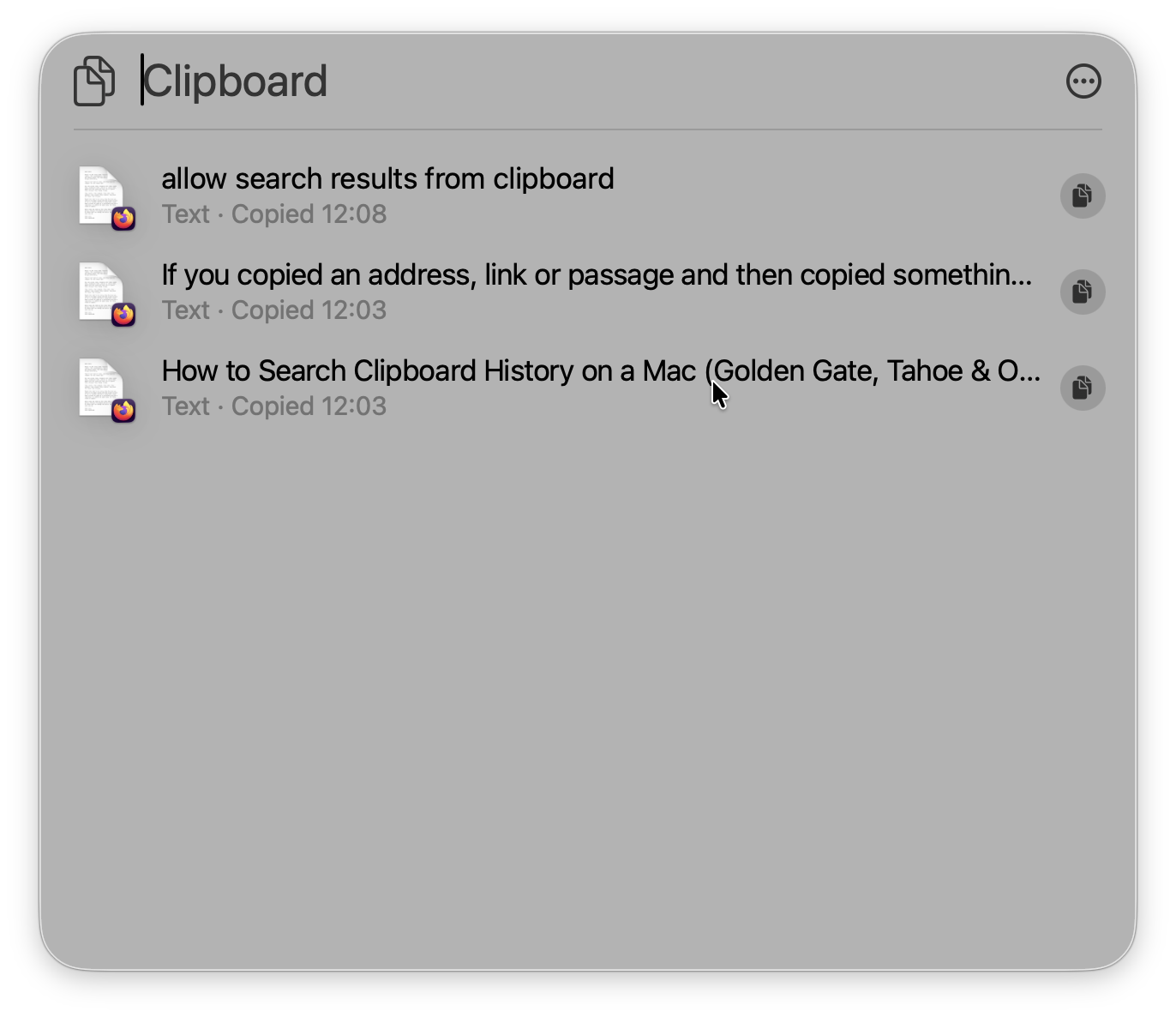
On macOS 26 Tahoe or macOS 27 Golden Gate, simply open Spotlight with Command–Space, press Command–4, and type a word from the item you want. Select a result, press Command–C to copy it again, then press Command–V wherever you need it.
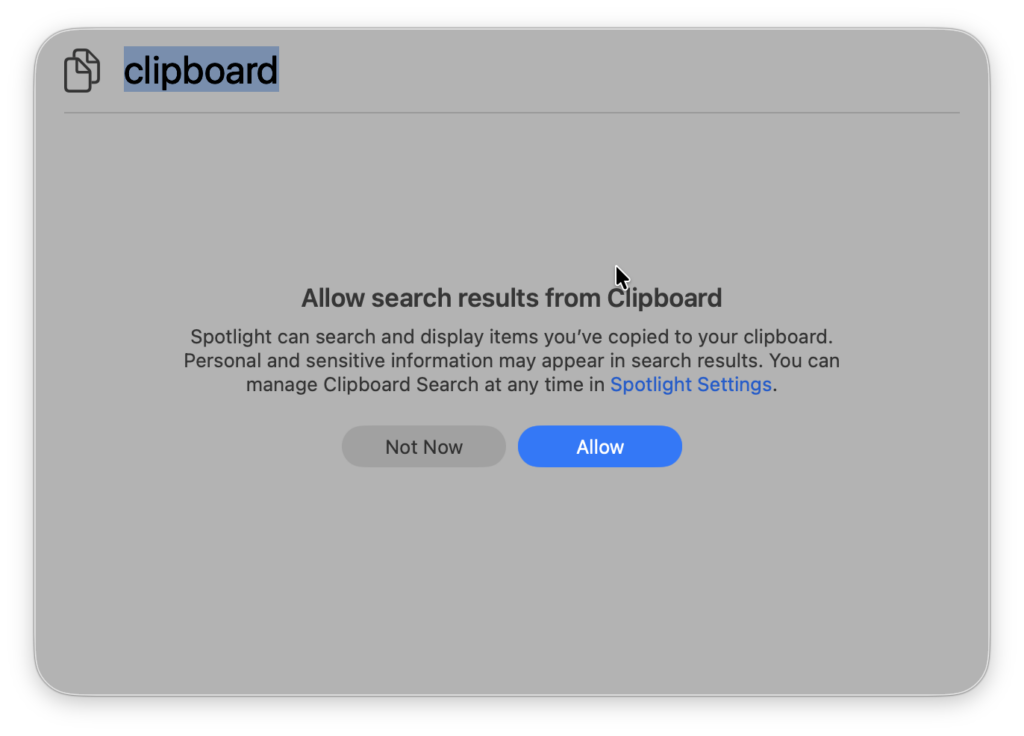
You must allow Clipboard results the first time you use this feature.
On macOS 15 Sequoia and earlier, there is no built-in searchable history; Finder’s Edit > Show Clipboard displays only your current copy.
| Version of macOS | How to find an earlier copy | What to know |
|---|---|---|
| macOS 27 Golden Gate or macOS 26 Tahoe | Command–Space, then Command–4; type to search | Requires permission; items remain visible only within the selected retention period. |
| macOS 15 Sequoia or earlier | Install a third party clipboard manager before copying new items | Finder can show the most recent item, but it cannot search earlier copies. |
Search clipboard history with Spotlight
These steps work on a MacBook Air, MacBook Pro, iMac, Mac mini or Mac Studio running Tahoe or Golden Gate. You do not need to install an app.
- Press Command–Space to open Spotlight. If you prefer, click the Spotlight icon in the menu bar.

- Press Command–4 while Spotlight is open. You can also click the Clipboard button beside its search field. Command–4 is the Clipboard shortcut inside Spotlight; it is not the screenshot shortcut Shift–Command–4.
- Allow Clipboard results if prompted. Depending on your macOS version, the button may say Allow or Enable. Clipboard history starts collecting items after you enable it, so it cannot show things you copied before that point.
- Type a distinctive word, number or part of a link. For example, if you copied
Invoice MH2-482and later copied several other things, search forMH2-482. You can also browse the recent entries without typing. - Select the result and press Command–C, or click the copy button beside it. Return to Mail, Word, Notes or your other app and press Command–V to paste it. You can also read our guide on how to copy and paste on Mac for more help on this.
What can you search?
Apple says Spotlight’s history can hold recently copied text, images, links and files. Search a phrase from copied text, part of a URL or a file name; browse the list to find an image or screenshot by its preview. Do not assume that typing words inside a screenshot will find that image: if you need image text recognition, use a third party clipboard manager that specifically offers it.
For a quick test, copy a short sentence, then copy a different sentence. Open Spotlight’s Clipboard view and search for a word from the first sentence. This also confirms that you enabled history before making the copies. If the item you need is a screenshot, see our guide to copying a screenshot to the Clipboard.
Change how long clipboard history stays searchable
On current macOS 27 versions, open Apple menu > System Settings > Spotlight and find the Clipboard settings.
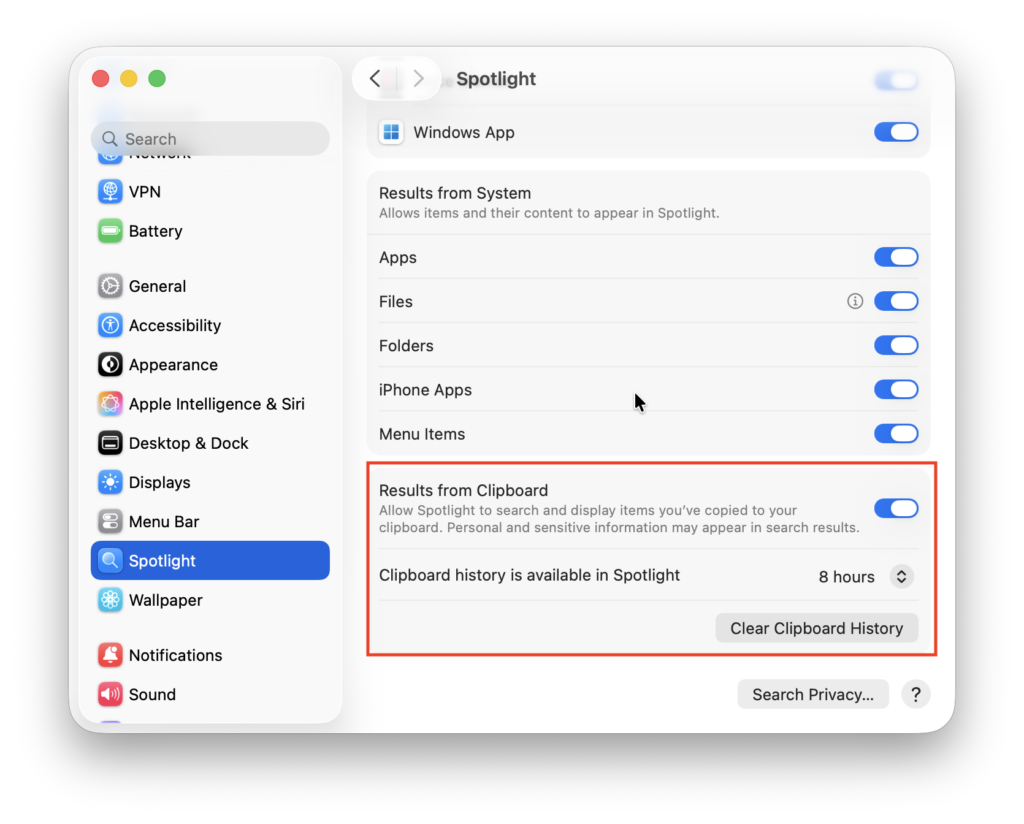
Under Clipboard history is available in Spotlight, choose 30 minutes, 8 hours or 7 days. Apple says entries older than your chosen period will no longer appear in Spotlight. If you want the longest built-in search window, choose 7 days.
In Tahoe, the controls and labels can differ between the initial 26.0 release and later updates. Look for Clipboard Search or Results from Clipboard in Spotlight settings; install available macOS updates if you do not see the retention times listed above. The initial version of Tahoe has an 8-hour history; but later updates allow you to select a period. Changing the setting now is not a reliable way to recover something that has already disappeared.
Privacy: Clipboard history can contain messages, addresses, passwords or other sensitive text. In System Settings > Spotlight, turn off Results from Clipboard if you do not want Clipboard content in Spotlight results. To remove saved results, use Clear Clipboard History in those settings, or open the Clipboard view in Spotlight, click the More button beside its search field and choose Clear History. If you also use a third-party clipboard manager, clear its history separately.
If you have Sequoia, Sonoma or an older macOS version
First, check your version in Apple menu > About This Mac. The Spotlight clipboard features arrived in macOS 26 Tahoe; it is unavailable in macOS 15 Sequoia and earlier.
To inspect what is on the Clipboard right now, click the desktop or open Finder, then choose Edit > Show Clipboard from the menu bar. This window does not show a searchable list of everything you copied. On these older macOS versions, once a different item replaces the current copy, macOS has no built-in history from which to retrieve it.
For a searchable history on an older system, install a clipboard manager before you need to recover another copy:
| App | A practical way to search | When it makes sense |
|---|---|---|
| Maccy | Press Shift–Command–C and type; Return copies the highlighted item, while Option–Return pastes it into the active app. | A focused, free, open-source option for macOS 14 Sonoma or later. |
| Raycast | Open its Clipboard History command, type to search and use Command–P to filter by type. | Useful if you already use Raycast; its optional Text Recognition can also make words in copied images searchable. |
| Paste | Open Paste and start typing, or press Command–F; filter by app, device, type or date. | Useful if you want a visual timeline, pinned items and history across supported Apple devices. |
These apps start recording after you install and enable them; they cannot reconstruct months of copies that were never saved! If you use a password manager or work with private information, review the clipboard app’s exclusions and retention settings too.
Why can’t I find something I copied?
| What you see | What to check |
|---|---|
| Command–4 does nothing | Open Spotlight with Command–Space first, then press Command–4. If Spotlight is open, you can click its Clipboard button instead. |
| There is no Clipboard button | Check Apple menu > About This Mac. macOS 15 or earlier does not have Spotlight Clipboard history. |
| The list is empty | Allow Clipboard results, then copy two harmless test phrases and search for the first one. Earlier copies cannot be added retroactively. |
| An older item has vanished | Check the 30-minute, 8-hour or 7-day limit in System Settings > Spotlight. If it is no longer there, revisit the original document, message, browser page or file. |
| A screenshot is missing | A normal screenshot may have been saved as a file rather than copied. Search for the file in Finder, or use our screeenshot-to-Clipboard instructions to copy the next one directly. |
| Words visible in a copied image return no match | Browse for the image visually. If searching image text is important, enable the documented text recognition feature in Raycast or use another app with that capability. |
If you are copying between a Mac and an iPhone, Universal Clipboard transfers a recent copy between nearby devices; it does not give you a shared searchable history in Spotlight. If the cross-device paste fails, check that both devices use the same Apple Account and have Bluetooth, Wi-Fi and Handoff enabled.
FAQ
What is the shortcut to search Clipboard history on a Mac?
On macOS Tahoe or Golden Gate, press Command–Space, then Command–4, and type a search term. Command–4 works after Spotlight has opened.
Can I search Clipboard history from yesterday?
Yes, if you enabled Spotlight Clipboard results before you copied the item and your retention window still includes yesterday. In current Spotlight settings, choose 7 days if you regularly need to find earlier copies. A clipboard manager may keep items longer.
Can I search text inside a screenshot I copied?
You cannot rely on Spotlight Clipboard search for image text. You can browse copied images, while Raycast’s Text Recognition setting explicitly extracts text from copied images so you can search for it. If you only have an image file, our guide to copying text from screenshots may help.
Can I recover Clipboard history after clearing it?
Do not count on it. Clearing Spotlight history or letting an item fall outside the selected period removes it from the searchable list. Look for the original content in the app, file, message or webpage it came from. Installing a clipboard manager afterwards cannot recover copies it never recorded.
Does Finder’s Show Clipboard show my history?
No. Finder > Edit > Show Clipboard shows the current Clipboard contents. For previous copies, use Spotlight’s Clipboard view on macOS 26 or later, or a clipboard manager on an older Mac.