

macOS 27 Golden Gate marks an important turning point for the Mac because it is the first version of macOS that only works on Apple Silicon.
That means every Intel Mac has been dropped, including the 2019 Mac Pro and 2020 27-inch iMac that were supported by macOS Tahoe.
For those with a compatible Mac, most mainstream software and peripherals should eventually work with Golden Gate. However, compatibility during the beta period is mixed and some developers are still evaluating their apps.
Here we look at which Macs support macOS Golden Gate, which applications are already working and which printers, scanners, displays and other peripherals you should check before updating macOS.
Important: macOS Golden Gate was released on 14th September 2026 but it’s best to wait a few days or weeks to upgrade to allow bugs to be fixed, especially if you depend on specialist software, plug-ins, scanners or other peripherals for work.
macOS Golden Gate Compatibility At a Glance
If you don’t want to read the entire guide, here’s the essentials you need to know:
- macOS Golden Gate only works on Apple Silicon Macs.
- All Macs supported by Golden Gate can run Apple Intelligence.
- No Intel Macs can install it.
- Parallels Desktop’s main virtualisation features already work. No other virtual machines have been confirmed yet.
- Microsoft 365 and Adobe Creative Cloud support Golden Gate but there are some issues with Adobe products listed here.
- DisplayLink has released a Golden Gate-compatible version of DisplayLink Manager.
- ScanSnap Home software for document scanners has now been confirmed as officially compatible with macOS Golden Gate and any searchable-PDF, Spotlight indexing and scanning performance problems have been fixed.
- AirPrint printers should continue working without separate drivers including for all-in-one printers.
- Software such as CrossOver, VPNs, security software, audio plug-ins and specialist drivers should be tested before upgrading – or at least double check with developer websites where possible.
- Rosetta 2 remains available, so most 64-bit Intel applications should still run.
- Old 32-bit Mac apps won’t work although there are still ways to run 32 bit software on a Mac.
Which Macs Support macOS 27 Golden Gate?
Apple has confirmed that macOS Golden Gate supports the following Macs:
| Mac | Compatible Models |
|---|---|
| MacBook Neo | 2026 |
| MacBook Air | Apple Silicon models from 2020 or later |
| MacBook Pro | Apple Silicon models from 2020 or later |
| iMac | Apple Silicon models from 2021 or later |
| Mac mini | Apple Silicon models from 2020 or later |
| Mac Studio | 2022 or later |
| Mac Pro | Apple Silicon model from 2023 |
The easiest way to check is to go to the Apple logo in the top-left corner of your screen and select About This Mac.
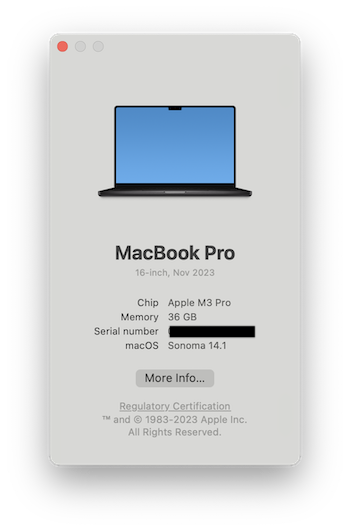
If the chip is listed as Apple M1, M2, M3, M4, M5 or M6, your Mac can install Golden Gate. The A18 Pro-powered MacBook Neo is also supported.
If the processor is described as Intel Core i5, Core i7, Core i9 or Xeon, it cannot be upgraded to macOS Golden Gate unfortunately.
Which Macs Have Been Dropped?
The following Intel Macs can run macOS Tahoe but cannot be upgraded to Golden Gate:
- MacBook Pro 13-inch with four Thunderbolt 3 ports from 2020
- MacBook Pro 16-inch from 2019
- iMac Retina 5K 27-inch from 2020
- Mac Pro from 2019
The 2019 Mac Pro is particularly notable because it was Apple’s most expensive and expandable Mac only a few years ago – and now its already on the road to being obsolete.
Owners of these Macs can remain on macOS Tahoe. Apple says it will continue providing security updates for Intel-based Macs for three years, although this doesn’t mean every Intel model will necessarily receive exactly the same updates for that entire period.
I wouldn’t replace an Intel Mac immediately if it still does everything you need. However, Golden Gate makes it clear that new macOS features and application updates will increasingly be designed exclusively for Apple Silicon.
Will Apple Intelligence Work On Every Supported Mac?
Yes. Unlike macOS Tahoe, there are no supported Macs that lack the hardware needed for Apple Intelligence.
Apple Intelligence in Golden Gate supports:
- Macs with an M1 chip or later
- The A18 Pro-powered MacBook Neo
This includes Siri AI, Visual Intelligence, new Writing Tools, smarter features in Photos and Safari and the updated Image Playground.
However, not every Apple Intelligence feature will be available everywhere at launch.
Apple has stated that Siri AI is rolling out in beta in English, with French, Japanese, Korean, Portuguese and Spanish following in October. Availability in other languages and regions has not been confirmed.
Apple says Mac and Vision Pro users in the EU can use Siri AI when their device is set to a supported language. The initial EU restriction applies to iPhone, iPad and Apple Watch—not Mac.
Some server-based image-generation features will have daily usage limits, with increased access available through selected iCloud+ plans.
macOS Golden Gate App Compatibility
The fact that an app runs on Apple Silicon doesn’t automatically mean it is fully compatible with Golden Gate.
Major macOS updates can affect:
- System extensions
- File and folder permissions
- Local network access
- Screen recording permissions
- External display control
- Audio plug-ins
- Background services
- Finder extensions
- Printer and scanner drivers
Simple self-contained apps from the Mac App Store are generally less likely to encounter problems than utilities that modify macOS or interact directly with hardware.
The current compatibility picture looks like this:
| App or Service | Current Golden Gate Status |
|---|---|
| Apple apps | Included and supported on compatible Apple-silicon Macs. Keep macOS updated, but no special compatibility caveat is needed. |
| Parallels Desktop | Officially compatible in Parallels Desktop 27. Version 26 is listed as compatible but is not fully optimised, so recommend updating to version 27 or later. |
| DisplayLink Manager | Officially supported in DisplayLink Manager 17.0 or later. Update DisplayLink Manager before upgrading to Golden Gate. |
| Microsoft 365 | Officially supported. Golden Gate is one of Microsoft’s three supported macOS releases; install the latest Word, Excel, PowerPoint, Outlook and OneNote updates. |
| OneDrive | Use the latest OneDrive sync client. The beta warning can be removed, but advise readers to check Files On-Demand and Desktop/Documents syncing after upgrading. |
| Adobe Creative Cloud | Major apps are supported at specific versions: Photoshop 27.x; Premiere Pro, After Effects, Audition and Media Encoder 26.5+; InDesign/InCopy 20.0+; and Bridge 16.0.7+. Acrobat DC 26.002.21901 has a minor update-dialogue mouse/trackpad issue. Adobe’s compatibility table should remain the reference point. |
| BetterDisplay | Supported in the current BetterDisplay v5.x release. Update before upgrading, then retest custom HiDPI modes, EDID overrides, HDR, refresh rate and saved display layouts. |
| CrossOver | No blanket compatibility promise is useful here: use the latest release and check the specific Windows app or game. Compatibility remains bottle- and app-dependent. |
| Pixel Port | No platform-wide Golden Gate certification. Pixel Port grades games individually as verified, playable, needing attention or unsupported, so we advise testing the exact game before relying on it. |
| VMware Fusion | There are reports of Fusion 26H1 installation or update failures on Golden Gate, so advise readers not to remove a working installation and to wait for Broadcom confirmation or a fix. (community.broadcom.com) |
| ScanSnap Home | Officially supported in ScanSnap Home 4.1.0 or later. Update before upgrading; this version resolves known Golden Gate scanning and image-processing issues. |
| AirPrint printers | AirPrint-compatible printers should work using macOS’s built-in support without separate drivers. Printer-specific scanning tools, utilities and firmware should still be checked with the manufacturer. |
| VPN and antivirus apps | No blanket status. Update to a Golden Gate-compatible release and test VPN connections, filtering and endpoint-security extensions before upgrading a work-critical Mac. |
| Music production plug-ins | No blanket status. Confirm the DAW, audio-interface driver, plug-ins and licence manager individually; wait if you cannot test a production workflow first. |
Does Parallels Desktop Work With macOS Golden Gate?
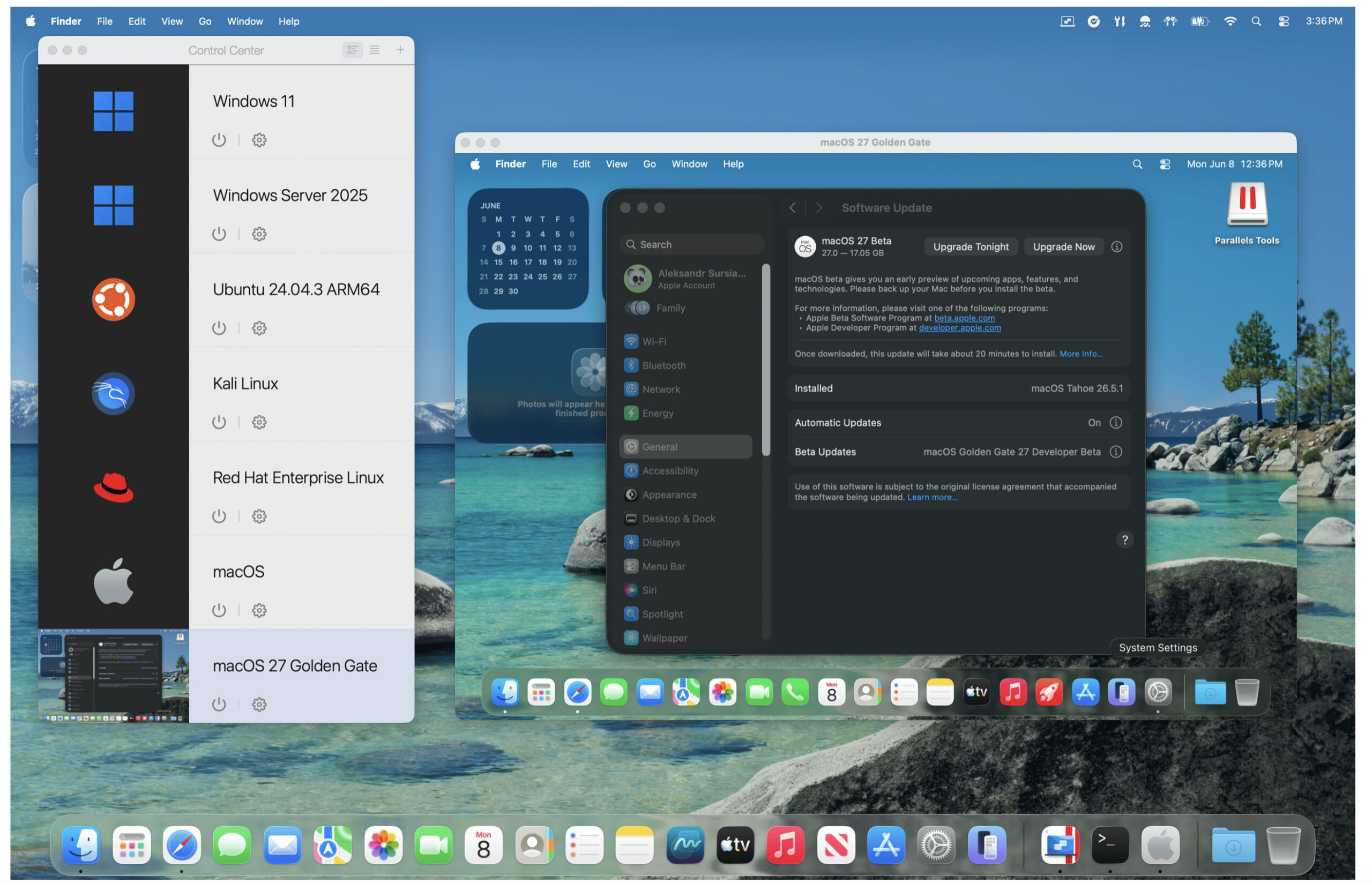
Parallels Desktop is one of the first major Mac applications to confirm that its basic features work in Golden Gate.
According to Parallels’ Golden Gate compatibility report, testing shows that you can:
- Run existing Windows, Linux and macOS virtual machines on a Mac running Golden Gate.
- Upgrade a macOS Tahoe virtual machine to the Golden Gate beta.
- Create a new Golden Gate virtual machine using an IPSW image.
There is currently a known problem where creating a macOS virtual machine may become stuck at around 70–80% if Xcode 27 is installed on certain earlier versions of macOS Tahoe.
This relates to beta software and may be fixed before the final Golden Gate release.
Parallels is continuing to test the operating system, so I recommend installing the latest available Parallels Desktop update before upgrading your Mac.
I would also back up any important virtual machines separately. A Time Machine backup of your Mac is useful, but it’s safer to have another copy of a critical Windows virtual machine on an external drive.
Does CrossOver Work With Golden Gate?
CrossOver for Mac can still run many Windows applications and games on an Apple Silicon Mac without installing Windows. However, Golden Gate compatibility is not a blanket guarantee: it depends on the specific Windows app or game, its bottle, graphics requirements, game services and any anti-cheat or DRM it uses.
CodeWeavers includes macOS Golden Gate in its current CrossOver system-requirements table, but it directs users to its compatibility database for the software they actually want to run. Use the latest public version of CrossOver, then check the exact app or game before upgrading a Mac you rely on for it.
Be particularly cautious with:
- Competitive games that use kernel-level anti-cheat
- Games that need a particular DirectX, Metal or Game Porting Toolkit feature
- Older 32-bit Windows software
- Software with hardware drivers, USB dongles or specialist licence managers
- Important work applications that have not been tested in your existing bottle
If CrossOver is essential to you, make a backup of your bottles and test Golden Gate with the exact application or game first. Do not rely on a successful launch of one Windows program as proof that every CrossOver bottle will work.
Does VMware Fusion Work With Golden Gate?
Broadcom has not yet published a clear, general confirmation that VMware Fusion is fully supported as a Golden Gate host application.
There are community reports that a Fusion 26H1 installation already present before the macOS upgrade can continue to work, while installing or updating Fusion after Golden Gate is installed can fail during InstallHelper validation. This is not evidence that every installation fails, but it is enough to avoid describing Fusion as confirmed compatible or recommending unsupported command-line workarounds.
If you depend on VMware Fusion for an important Windows or Linux virtual machine:
- Back up the virtual machine before upgrading macOS
- Do not remove a working Fusion installation before testing Golden Gate
- Test shared folders, USB passthrough, networking, multiple displays and 3D acceleration
- Wait for a Broadcom update or support statement before upgrading a production Mac
These deeper system integrations are more likely to be affected by a major macOS release than simply opening the Fusion application.
Does Microsoft Office Work With macOS Golden Gate?
Yes. Microsoft officially supports macOS Golden Gate 27 for Microsoft 365 for Mac, Office 2024 for Mac and supported Office 2021 installations. Golden Gate is now one of the three current macOS versions covered by Microsoft’s support policy, so the old beta-only warning can be removed.
Before upgrading, install the latest Word, Excel, PowerPoint, Outlook and OneNote updates by opening an Office app and choosing:
Help > Check for Updates
You should also update OneDrive and allow it to finish synchronising before installing Golden Gate. After upgrading, check that Files On-Demand and any backed-up Desktop and Documents folders are behaving as expected. Do not assume a green OneDrive status icon means every important file is stored locally.
Legacy Outlook for Mac is now a separate reason to plan the change carefully. As of October 2026, legacy Outlook no longer works with Exchange Online mailboxes. If you use Exchange Online, switch to the new Outlook for Mac before or alongside the macOS upgrade, rather than changing both in the middle of an urgent workday.
Do Adobe Creative Cloud Apps Work?
Adobe now publishes a Golden Gate compatibility table, but it does not say that every Creative Cloud app, plug-in or professional workflow is supported.
At the time of writing, Adobe lists the following versions as compatible with Golden Gate:
- Acrobat DC 26.002.21901
- Acrobat Classic 24.001.30429
- After Effects, Audition and Media Encoder 26.5 or later
- Bridge 16.0.7 or later
- Character Animator 26.0 or later
- Creative Cloud desktop app 6.8 or later
- InCopy and InDesign 20.0 or later
- Photoshop 27.x
- Premiere Pro 26.5 or later
- Adobe Express 2026
- Dreamweaver 21.8 or later
Check Adobe’s current macOS compatibility page before upgrading. Adobe does not list every Creative Cloud app in its Golden Gate table, so do not assume that an unlisted app, such as Illustrator, Lightroom or Lightroom Classic, has been officially confirmed.
Adobe also notes one known issue with Acrobat DC 26.002.21901: the buttons in the Check for Updates dialogue may not respond to mouse or trackpad clicks. You can use the Tab key to select an option and Return or Space to activate it.
Professional users should still test their complete workflow before upgrading, especially if it includes:
- Third-party Photoshop, Lightroom, Premiere Pro or After Effects plug-ins
- Capture cards, colour-calibration hardware or audio interfaces
- Font-management software
- Shared storage or media servers
- Older Creative Cloud applications
If you earn your living with an Adobe workflow, test it on another Mac first, as Adobe recommends, rather than assuming that an app opening successfully proves that all plug-ins and hardware will work.
Does BetterDisplay Work With Golden Gate?
BetterDisplay is supported on Golden Gate in the current BetterDisplay 5.x release. Update BetterDisplay before upgrading macOS; the earlier “it may work” beta wording is no longer appropriate.
Because BetterDisplay interacts closely with macOS display management, still test the features you actually rely on, including:
- HiDPI resolutions and UI scaling
- Virtual displays
- Display mirroring and arrangement
- Brightness and volume controls
- DDC control
- HDR and high refresh rates
- Custom display overrides, EDID settings and colour profiles
If BetterDisplay makes a 4K or ultrawide monitor usable for your workflow, note your working configuration before upgrading and test Golden Gate on a second Mac or volume where possible. A display can show an image while a specific scaling, brightness or virtual-display feature does not work as expected.
Do DisplayLink Docks Work?
Yes. DisplayLink Manager 17.0, released in September 2026, officially supports macOS Golden Gate 27. Use version 17.0 or later before upgrading.
If you use a DisplayLink dock to connect extra monitors to a MacBook, update DisplayLink Manager first. If the displays do not appear after the macOS upgrade, reopen DisplayLink Manager and check that its required Screen Recording permission is still enabled in System Settings.
Standard USB-C and Thunderbolt docks that do not use DisplayLink normally do not need a graphics driver. Their Ethernet, audio, webcam, storage or dock-management features can still depend on firmware or additional software, so check those separately.
Will External Monitors Work?
Most monitors connected directly by HDMI, DisplayPort, USB-C or Thunderbolt should work with Golden Gate because macOS handles the basic display connection without a manufacturer-specific driver.
However, a working picture does not guarantee that every advanced feature or companion utility will work. Test:
- Sleep and wake behaviour
- Display arrangement and window restoration
- HiDPI scaling and custom resolutions
- HDR, colour profiles and calibration
- High refresh rates and variable refresh rate
- USB-C charging and KVM switching
- Firmware-update and monitor-control utilities
If your monitor includes software such as BenQ Display Pilot, Dell Display and Peripheral Manager or LG Calibration Studio, check that software separately. The monitor itself may work while its brightness controls, KVM tools, calibration or firmware updater do not.
Do Printers Work With macOS Golden Gate?
Most modern AirPrint printers should work with Golden Gate because AirPrint uses macOS’s built-in printing and scanning support rather than a traditional printer driver.
Apple maintains a large list of AirPrint-compatible printers, including models from Brother, Canon, Epson, HP and many other manufacturers. Check the manufacturer’s site for firmware updates if a previously working printer has a problem after upgrading.
Compatibility with the manufacturer’s extra software is a separate question. Updated software may be needed for:
- Printer maintenance and ink-level monitoring
- Advanced colour or borderless-printing controls
- Label, CD or fax functions
- Firmware updates
- Scanning and OCR from an all-in-one printer
If the manufacturer’s software is unavailable or stops working, try adding the printer through AirPrint:
- Open System Settings.
- Select Printers & Scanners.
- Click Add Printer, Scanner or Fax.
- Select your printer.
- Make sure AirPrint is selected in the Use menu.
- Click Add.
Be more cautious with old USB-only printers that rely on discontinued manufacturer drivers.
Do Scanners Work With macOS Golden Gate?
Scanner compatibility is less predictable than basic printer compatibility because many document scanners rely on dedicated apps and drivers.
For basic scanning, try:
- Image Capture
- Preview
- Printers & Scanners in System Settings
- The manufacturer’s current scanning app
Advanced functions such as OCR, document separation, automatic naming, cloud uploads, receipt processing and scanner-specific profiles usually require the manufacturer’s software. Check the exact model and app before upgrading a Mac that you use for document processing.
Do ScanSnap Scanners Work?
Yes, with an important version requirement. Ricoh officially supports Golden Gate with ScanSnap Home 4.1.0 or later.
Update ScanSnap Home before upgrading. Version 4.1.0 resolves known Golden Gate problems in which image processing could remain on screen after scanning, or certain SV600 crop and book-image views would not open.
Ricoh’s current Golden Gate table also lists:
- ScanSnap Online Update 3.2L11 or later
- Tungsten/Kofax Power PDF Standard 5 or later
- No Golden Gate support for the discontinued ScanSnap Manager
- No Golden Gate support for ABBYY FineReader for ScanSnap
Modern ScanSnap models are therefore a much safer upgrade path than older setups that still depend on ScanSnap Manager or ABBYY FineReader.
Do External Drives Work?
Normal external SSDs, Thunderbolt SSDs, hard drives and USB flash drives formatted in APFS, Mac OS Extended or exFAT should work with Golden Gate.
The greater risk is a storage device that depends on separate software for:
- Hardware encryption or password protection
- NTFS write access
- RAID management
- Automatic backups
- Drive-health monitoring
- Firmware updates
Before upgrading, unlock any encrypted drive, check that you can access its important files and update the drive-maker’s utility if one is installed. Complete a fresh Time Machine backup before installing Golden Gate, then verify that the first backup completes afterwards.
Where possible, keep a second copy of irreplaceable files on another drive or cloud service that does not depend on the same storage utility.
Do Intel Mac Apps Still Work?
Many 64-bit Intel applications should continue to work through Rosetta 2.
Apple says Rosetta will remain available as a general-purpose translation tool in macOS Golden Gate. This allows Apple Silicon Macs to run applications originally developed for Intel processors.
However, Apple has also warned that future versions of Rosetta will provide more limited support, mainly for older games that depend on Intel frameworks.
Golden Gate is therefore a good time to identify any apps that still require Rosetta and look for native Apple Silicon replacements.
To check whether an application is native:
- Open Finder.
- Go to the Applications folder.
- Select the application.
- Press Command-I.
- Look at the information next to Kind.
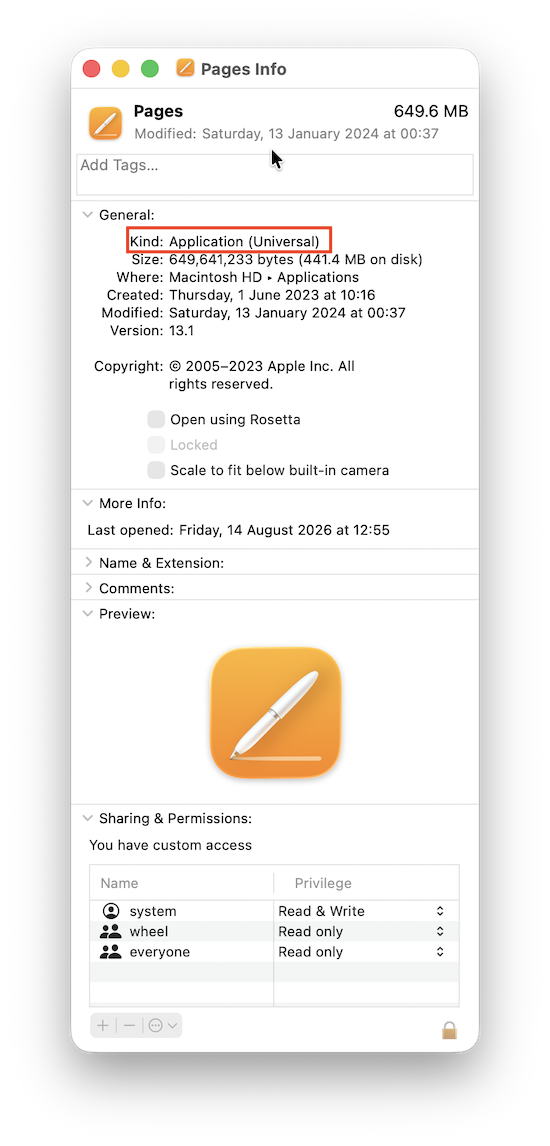
The result will usually be:
- Application (Apple Silicon): Runs natively.
- Application (Universal): Includes both Apple Silicon and Intel code.
- Application (Intel): Requires Rosetta.
Applications that require old Intel kernel extensions or discontinued hardware drivers may still fail even if the main app can open through Rosetta.
For more, check our in-depth look at for how long Intel apps will work on Macs.
Do 32-Bit Apps Work?
No. Golden Gate doesn’t restore support for 32-bit Mac applications.
Apple removed 32-bit app support in macOS Catalina, and those apps still won’t run in Golden Gate.
Rosetta 2 only helps with compatible 64-bit Intel applications. It cannot make old 32-bit Mac software work.
If you need an old 32-bit app, your main options are to:
- Keep an older Mac.
- Run an older compatible version of macOS in a virtual machine.
- Find a newer replacement.
- Export your files before upgrading.
- Use one of these methods to run 32 bit applications on a Mac.
Be Careful With VPNs, Antivirus And System Utilities
Apps that install system extensions or network filters are among the most likely to encounter problems after a major macOS update.
This includes:
- VPN clients
- Antivirus software
- Firewalls
- Network monitors
- NTFS drivers
- Disk utilities
- Menu bar customisation tools
- Keyboard and mouse utilities
- Fan-control tools
- System cleaners
An ordinary application failure is inconvenient. A broken VPN, security tool or storage driver can prevent network access or make a disk inaccessible.
Check the developer’s website for explicit Golden Gate support rather than relying solely on the fact that the application launches.
Music Production And Audio Plug-in Compatibility
If you use your Mac for music production, I recommend waiting before upgrading.
Digital audio workstations may work while individual components don’t, including:
- Audio Unit plug-ins
- VST plug-ins
- Audio interfaces
- MIDI drivers
- Licence-management software
- Control surfaces
- Sample-library managers
One incompatible plug-in can prevent a project from opening correctly.
Check your DAW, audio-interface manufacturer and every essential plug-in developer before upgrading. Music production users are often better off waiting for macOS 27.1 or 27.2.
How To Check Your Apps Before Upgrading
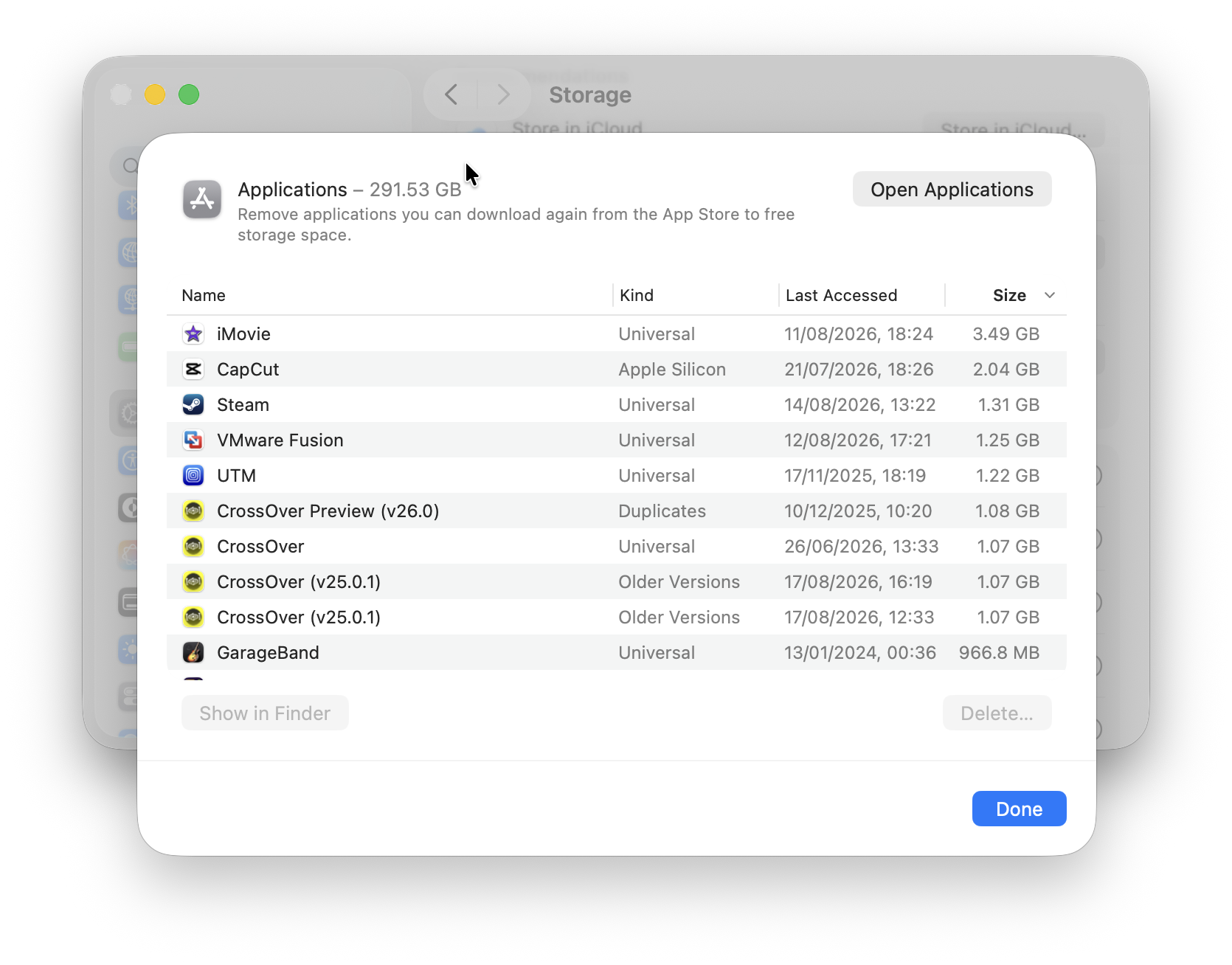
Before installing Golden Gate:
- Open System Settings.
- Select General > Storage.
- Open Applications to review what is installed.
- Identify the apps and drivers you depend on.
- Visit each developer’s website and search for Golden Gate compatibility.
- Update all supported apps.
- Remove software you no longer use.
- Complete a Time Machine backup.
- Make a separate copy of important files.
- Check that cloud services such as iCloud, OneDrive and Dropbox have finished synchronising.
Pay particular attention to software that hasn’t been updated for several years.
FAQ
Does macOS Golden Gate support Intel Macs?
No. macOS Golden Gate can be installed only on Apple silicon Macs, including MacBook Neo with its A18 Pro chip. Intel Mac owners must use the newest earlier macOS release that their exact model supports, such as Tahoe, Sequoia, Sonoma or an older version.
Is macOS Golden Gate available now?
Yes. Apple released Golden Gate to the public on 14 September 2026. The beta programme has ended, so most users should install the public release and later updates through System Settings > General > Software Update.
Will M1 Macs run Golden Gate?
Yes. Every M1 MacBook Air, 13-inch MacBook Pro, 24-inch iMac and Mac mini is on Apple’s official Golden Gate compatibility list.
Will every compatible Mac get Apple Intelligence?
Yes. Apple Intelligence is available on MacBook Neo with A18 Pro and Macs with M1 or later, covering every Mac currently compatible with Golden Gate.
That does not mean every feature is available to every reader. Individual features can depend on language, region, available storage and daily server-side usage limits. Siri AI is currently available in English only.
Does Parallels work with Golden Gate?
Yes. Parallels Desktop 27 supports Golden Gate on Apple silicon Macs. Update Parallels before upgrading macOS; older versions are not fully optimised for the current release.
If you rely on a particular Windows, Linux or macOS virtual machine for work, test its shared folders, USB devices, external displays and networking after upgrading.
Does Microsoft Office work with Golden Gate?
Yes. Microsoft officially supports Golden Gate for current Microsoft 365 and Office for Mac releases. Install the latest updates for Word, Excel, PowerPoint, Outlook, OneNote and OneDrive before upgrading.
If you use Exchange Online, move from legacy Outlook to the new Outlook for Mac. Legacy Outlook no longer works with Exchange Online mailboxes.
Will my printer work with Golden Gate?
Most modern AirPrint printers should work without a separate driver. Manufacturer utilities, older USB-only printers and advanced features such as maintenance, label printing, scanning or colour controls may still require updated software.
Will ScanSnap work with Golden Gate?
Yes, provided you use ScanSnap Home 4.1.0 or later. Ricoh added official Golden Gate support in that release, so update ScanSnap Home before upgrading your Mac.
Older ScanSnap setups that depend on the discontinued ScanSnap Manager or ABBYY FineReader for ScanSnap are not supported on Golden Gate.
Does Rosetta 2 work in Golden Gate?
Yes. Rosetta remains a general-purpose translation tool in Golden Gate, allowing many 64-bit Intel apps to run on Apple silicon Macs. It may need to be installed again after upgrading; opening an Intel app will offer to install it if necessary.
Apple has said that macOS 28 will restrict Rosetta to certain older, unmaintained games. Use Golden Gate to identify Intel-only apps and replace them with Universal or Apple silicon versions where possible.
Can I downgrade from Golden Gate to Tahoe?
Sometimes, but do not treat it as a quick undo. Downgrading normally requires erasing the Mac and reinstalling an earlier macOS version that Apple supports on that exact model. A newer Mac that shipped with Golden Gate may not be able to run Tahoe at all.
Make a complete Time Machine backup before upgrading, confirm that Tahoe supports your Mac model and keep a separate copy of irreplaceable files.