

If Wi-Fi has suddenly stopped working on your Mac, the fix is usually much simpler than resetting your Mac or changing obscure system files. First work out whether the problem is your Mac, the Wi-Fi network or the broadband connection, then try the relevant fixes below.
This guide is current for Apple Silicon Macs and current versions of macOS, including macOS 26 and macOS 27. It also works for older Macs, although those use System Preferences rather than System Settings.
Start by identifying the problem
The right fix depends on what your Mac is actually doing:
| What happens | Most likely cause | Start with |
|---|---|---|
| No device in the house can get online | Router, broadband line or ISP outage | Restart the router, then check the ISP |
| Your Mac cannot see any Wi-Fi networks | Wi-Fi is off, poor range or a Mac hardware/software issue | Turn Wi-Fi on, move closer and check Wi-Fi settings |
| Your Mac sees the network but cannot join | Wrong saved password, access rule or network configuration | Forget the network and join it again |
| Your Mac joins Wi-Fi but websites will not load | DHCP, DNS, VPN, proxy, security software or the router’s internet connection | Restart, renew DHCP and check VPN/DNS settings |
| Wi-Fi drops out or is very slow | Weak signal, interference, a busy channel or router problem | Check Wi-Fi Recommendations, move closer and reduce interference |
Before changing any settings, test the same network with an iPhone, iPad or another computer. Also try your Mac on a different trusted Wi-Fi network or your iPhone’s Personal Hotspot. That quick comparison tells you whether the fault follows the Mac or stays with one network.
1. Turn Wi-Fi off and back on
Click the Wi-Fi icon in the menu bar or Control Centre, turn Wi-Fi off, wait a few seconds, then turn it back on. Rejoin your usual network if necessary.
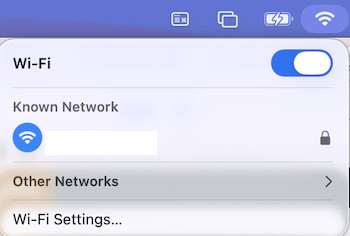
You can also go to Apple menu > System Settings > Wi-Fi and check that Wi-Fi is enabled. If your Mac is connected to the wrong saved network, disconnect from it and choose the correct one.
If the network is not shown, click Other Networks to see nearby networks. For a hidden network, choose Other, then enter its exact network name, security type and password.
2. Restart your Mac and restart the router — not its factory settings
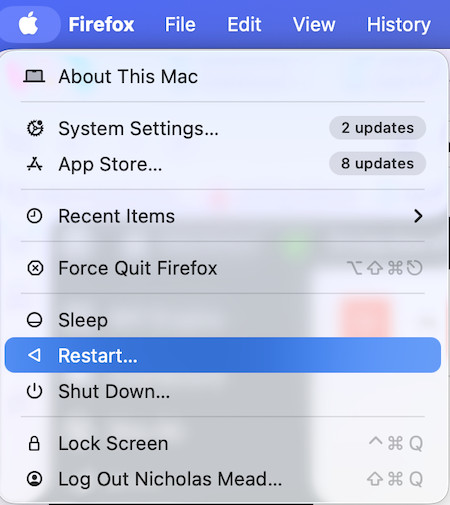
Choose Apple menu > Restart. A restart can clear a temporary networking process and renew the IP address assigned to your Mac.
If other devices also have trouble, restart the router using its app, web interface or power button. Do not press its recessed factory-reset button unless you are prepared to reconfigure the whole network.
If your broadband modem or fibre ONT is separate from the router, follow your provider’s restart order. Give the equipment time to reconnect before testing again.
3. Forget the Wi-Fi network and join it again
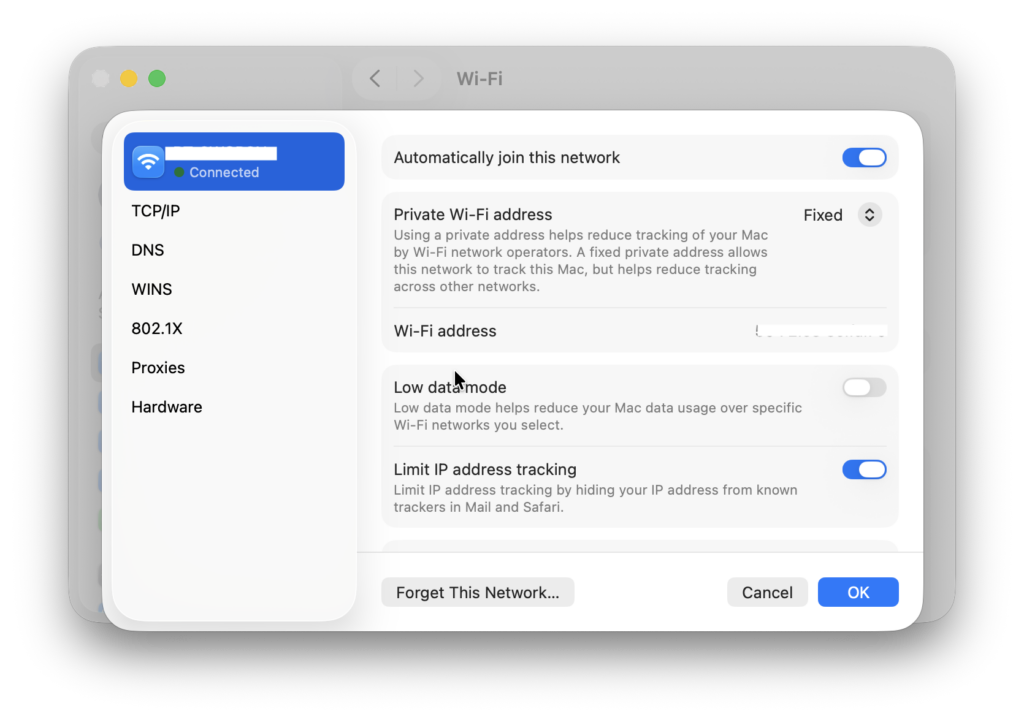
This is the best first fix when the network password has changed, your Mac repeatedly says it cannot join, or the connection works for everyone else.
- Go to Apple menu > System Settings > Wi-Fi.
- If you are connected, click Details beside the network, then click Forget This Network.
- If you are not connected, click Advanced, find the network under Known Networks, click the More button beside it and choose Remove From List.
- Return to Wi-Fi, select the network and enter its password again.
Forgetting a network removes its saved password from that Mac. If you need it, see our guide on how to find a Wi-Fi password on a Mac.
4. Check for a public Wi-Fi sign-in page
Hotel, train, airport, café and guest Wi-Fi often let your Mac join the network before asking you to accept terms or sign in. In that situation, the Wi-Fi symbol may look normal but no website will load.
Open Safari and try to visit a regular website. The sign-in page should appear. If it does not, forget the network, join it again and make sure the venue has not reached its device limit. Some public networks also block VPNs until you have completed the sign-in step.
5. Check Wi-Fi Recommendations and run Wireless Diagnostics
Current macOS versions can flag some common network problems for you.
Click the Wi-Fi icon in the menu bar or Control Centre and look for Wi-Fi Recommendations. If it appears, open it and address the specific warning. It can flag issues such as weak security or a router setting that needs attention.
For a deeper check:
- Connect to the Wi-Fi network that is giving you trouble, if possible.
- Hold down the Option key and click the Wi-Fi icon in the menu bar.
- Choose Open Wireless Diagnostics and follow the prompts.
Wireless Diagnostics does not change your settings. It analyses the connection and can create a report that is useful for an ISP, network administrator or IT support person. Apple also has a useful overview of Wireless Diagnostics.
6. Turn off a VPN, filter or third-party security app temporarily
If your Mac is connected to Wi-Fi but cannot browse, send email, use AirDrop or reach a particular service, temporarily disconnect any VPN. Then test again.
Also check for network-filtering apps, antivirus suites, parental-control software, firewall utilities, content blockers and work profiles. These can interfere with a connection even when Wi-Fi itself is working. Search System Settings for VPN, profile, firewall and filter, and check General > Login Items & Extensions for network-related background items.
Do not disable the built-in macOS firewall as a routine Wi-Fi fix. It normally does not stop your Mac from joining a network or using the internet. If a third-party app is the cause, update it, remove its network filter or contact its developer rather than leaving your Mac unprotected. Apple has current guidance on VPN and third-party security software.
7. Renew your Mac’s DHCP lease
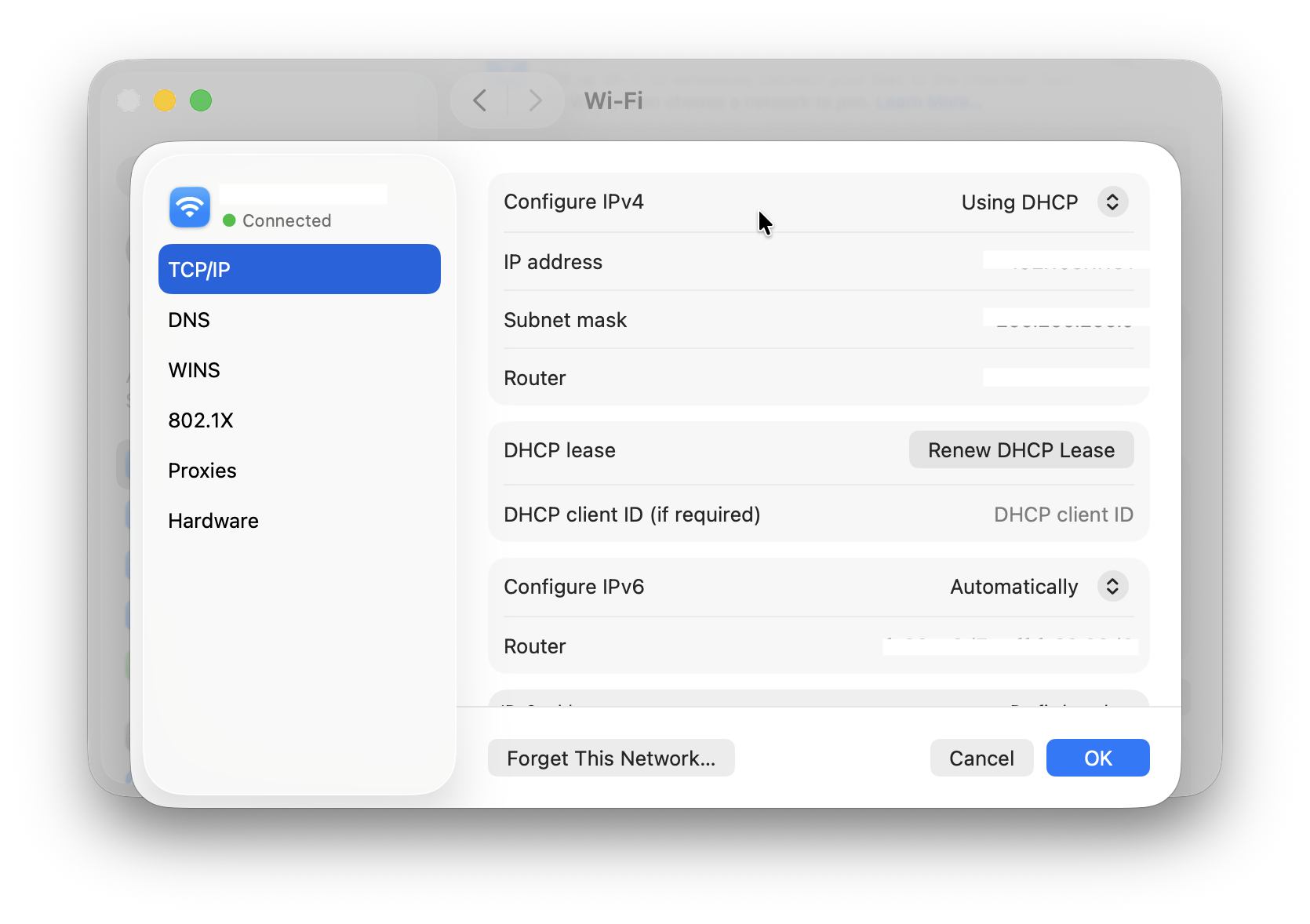
Your router normally gives your Mac an IP address automatically. If the address has expired, conflicts with another device or is otherwise invalid, your Mac can show as connected but have no usable internet connection.
- Go to Apple menu > System Settings > Network.
- Select Wi-Fi, then click Details beside the affected network.
- Select TCP/IP.
- Click Renew DHCP Lease, then click OK.
Reconnect and try a website again. This is a safe, targeted reset: it does not erase your Wi-Fi password or other files.
8. Check DNS and proxy settings
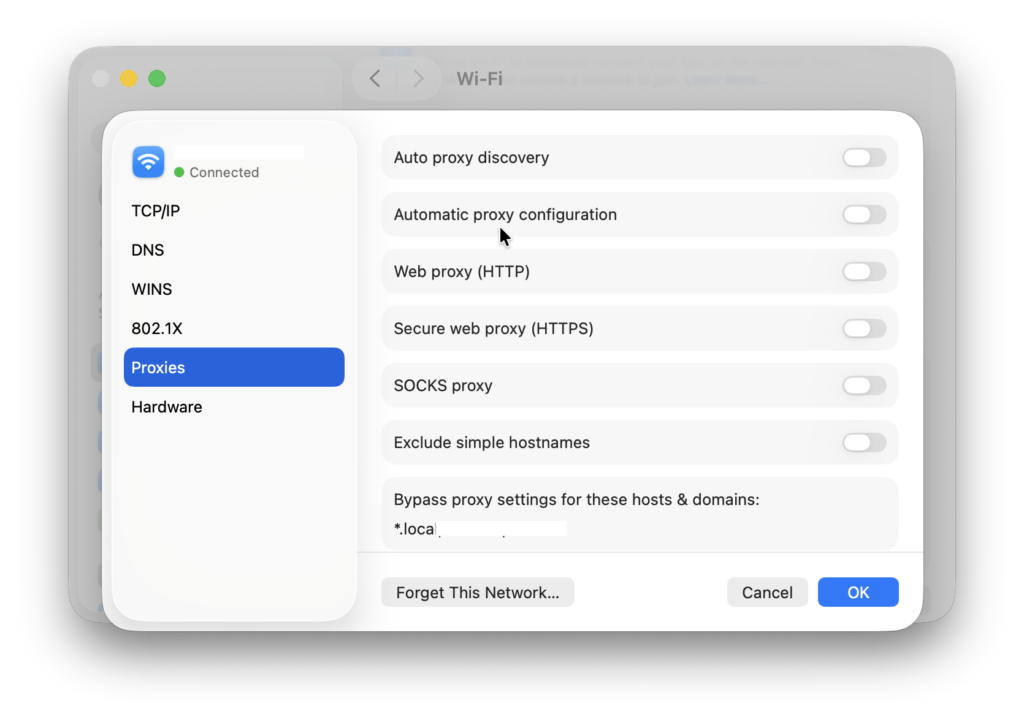
Custom DNS servers and proxies are useful in some workplaces, schools and privacy setups, but a stale or incorrect entry can prevent sites from loading.
Go to System Settings > Network > Wi-Fi > Details and check these sections:
- DNS: If you do not deliberately use a custom DNS service, remove unfamiliar manually added DNS servers and search domains so the router can supply the correct ones automatically.
- Proxies: Turn off any proxy you do not recognise or no longer need. Do not change a work or school proxy without checking with its administrator.
- TCP/IP: Check that the Mac has an IP address and router address. An address beginning
169.254usually means the Mac has not received a usable address from the router, so renew the DHCP lease and restart the router.
Avoid copying DNS settings from another device unless you know that the network is meant to use them. A working iPhone may be using different privacy, VPN or mobile-data settings.
9. Check your Private Wi-Fi Address only on managed or restricted networks
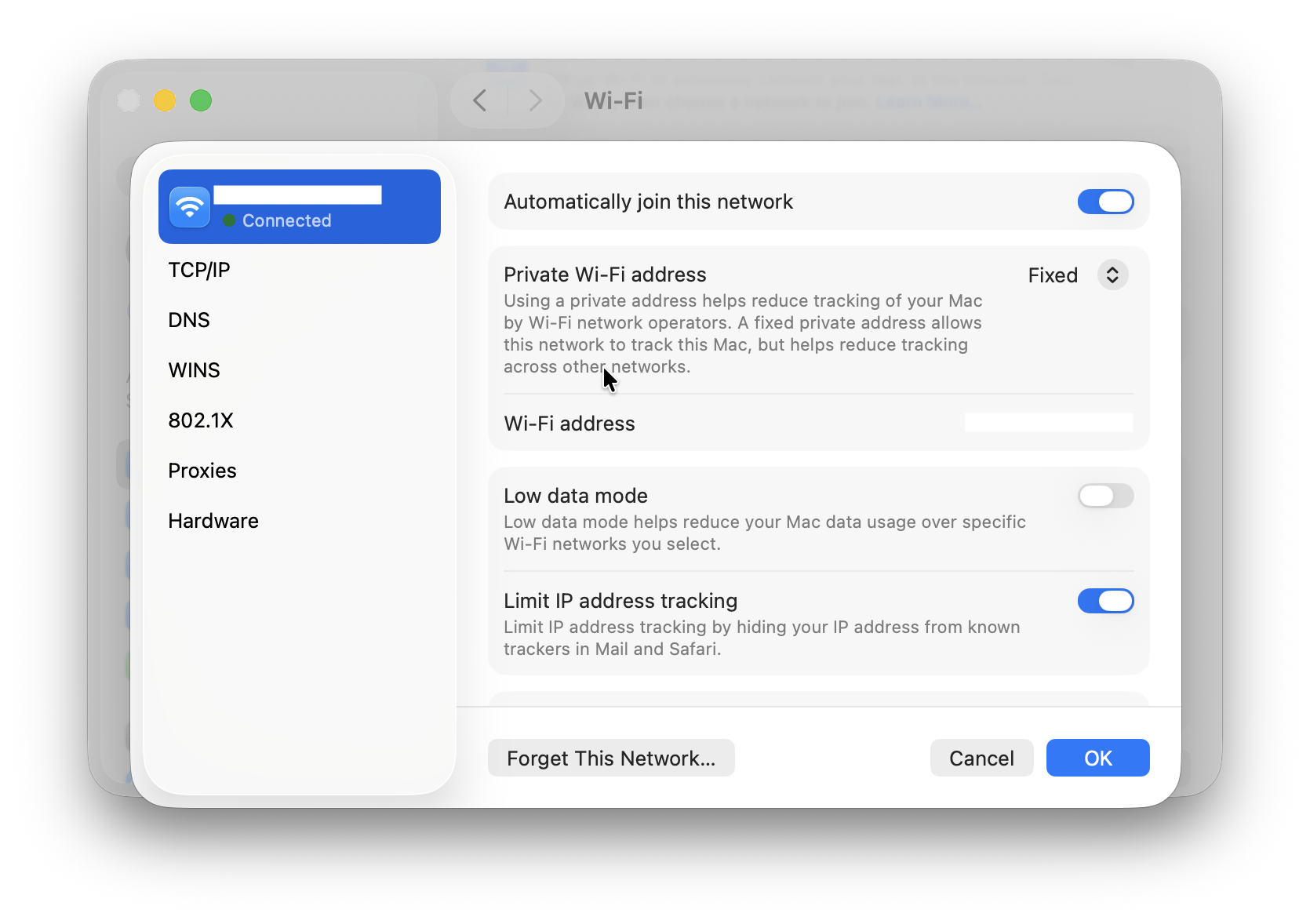
Modern versions of macOS use a private Wi-Fi address to reduce tracking across networks. Leave this enabled for normal home, public and trusted networks.
However, a network that identifies allowed devices by their Wi-Fi hardware address — for example, one with MAC-address filtering, parental controls, a device allowance or an enterprise access rule — may treat your Mac as a new device. In that specific case:
- Go to System Settings > Wi-Fi.
- Click Details beside the affected network.
- Check the Private Wi-Fi Address setting and change to Fixed or Rotating.
- Ask the network administrator whether the network should authorise the private address, or whether it requires a fixed address for that one network.
Do not turn private addressing off simply to troubleshoot a normal home network. It is a privacy setting, not a general repair tool.
10. Improve the signal and reduce interference
If Wi-Fi works near the router but is slow or unstable elsewhere, it is usually a coverage or interference issue rather than a problem with macOS.
Try the following:
- Move closer to the router and test again.
- Keep the router in an open, elevated position rather than inside a cupboard or behind a television.
- Keep USB 3 or Thunderbolt hubs, cables and drives away from the Mac and router where possible. They can interfere with wireless signals at close range.
- Avoid placing the router beside a microwave, cordless-phone base, baby monitor or large metal object.
- If the router has 2.4 GHz, 5 GHz and 6 GHz bands, let it manage the bands automatically where possible. Use 5 GHz or 6 GHz for faster nearby connections, and 2.4 GHz where range matters more.
- Restart the router so it can choose a clearer channel, or use its app to select an automatic/less congested channel.
Bluetooth does share the 2.4 GHz band, but it is rarely necessary to turn Bluetooth off permanently. Treat it as an interference issue: improve spacing, remove nearby USB 3 accessories and use a less congested Wi-Fi band instead. Apple’s interference guidance is useful here.
11. Update macOS and your router firmware
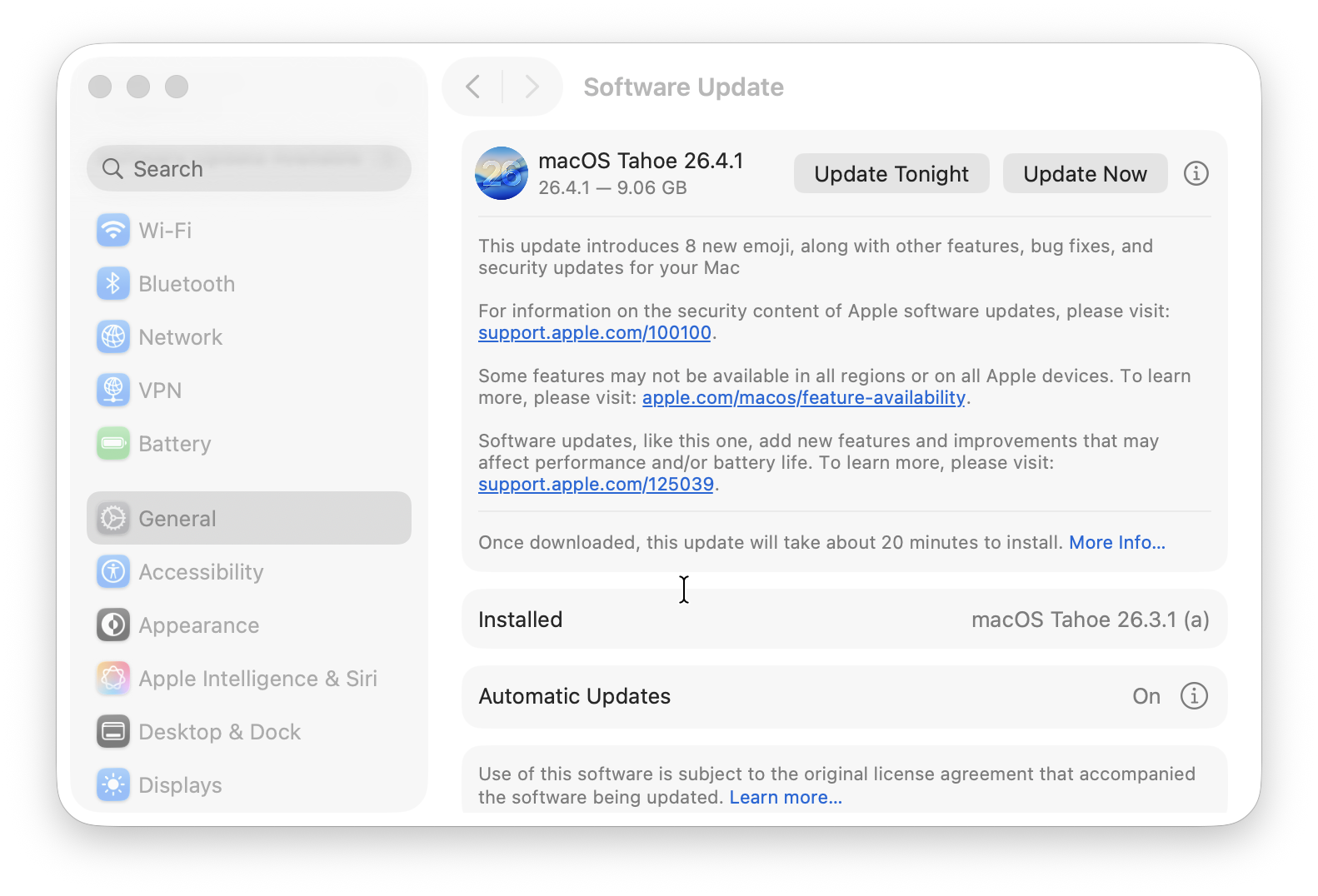
Install current macOS updates when you can. Go to Apple menu > System Settings > General > Software Update. If your Wi-Fi will not stay connected long enough, use Ethernet through a compatible adapter or a trusted Personal Hotspot temporarily.
Also check your router manufacturer’s app or support page for firmware updates. Do not guess at advanced router settings, especially on an ISP-supplied router. The useful fixes are usually a firmware update, current WPA2/WPA3 security, automatic channel selection and one consistent network name across its bands.
Never change a router to an open network or disable encryption just to get a Mac connected. That makes every device on the network less secure.
12. Isolate a software or Mac-specific problem
If the Mac connects to other networks but not yours, the issue is usually a saved network setting, access rule or router configuration. If it fails on every network, test whether software loading at startup is involved.
Start in Safe Mode, then test Wi-Fi. On an Apple Silicon Mac, shut down, hold the power button until Loading startup options appears, select your startup disk, hold Shift, then choose Continue in Safe Mode. On an Intel Mac, restart and immediately hold Shift until the login screen appears.
If Wi-Fi works in Safe Mode, restart normally and review recently installed VPNs, security tools, network filters, menu-bar utilities and login items. Do not delete random files from the Library folders to “reset Wi-Fi”.
For a persistent configuration problem, you can also create a new Network Location from System Settings > Network > More > Locations > Edit Locations. This is safer and easier to reverse than deleting the whole SystemConfiguration folder.
If Wi-Fi is missing entirely from your Mac
Open System Settings > Wi-Fi. If there is no Wi-Fi option at all, restart the Mac and install any available macOS updates. Disconnect non-essential USB hubs, docks and adapters, then try again.
If Wi-Fi still does not appear, or it fails on every network after the steps above, run Apple Diagnostics. It can check internal wireless hardware. If it reports a Wi-Fi hardware issue, contact Apple or an Apple Authorised Service Provider.
What not to do
Older Wi-Fi troubleshooting articles often recommend steps that are either obsolete or far too broad for a connection problem. You should not need to:
- delete the entire
SystemConfigurationfolder; - use the removed Keychain First Aid feature;
- reset the SMC or NVRAM on an Apple Silicon Mac;
- lower your router’s security or turn your network into an open network; or
- disable your Mac’s built-in firewall permanently.
Work through the targeted steps above first. They preserve your settings and make it much clearer whether the fault is with the Mac, router or internet service.
FAQ
Why does my Mac say it is connected to Wi-Fi but there is no internet?
The Mac has joined the local wireless network, but the router may not have an internet connection, or the Mac may have an IP, DNS, VPN or proxy problem. Restart the Mac and router, then renew the DHCP lease and check VPN, DNS and proxy settings.
How do I reset Wi-Fi on a Mac?
The safest reset is to forget the affected network and join it again: go to System Settings > Wi-Fi > Details > Forget This Network, then reconnect with the password. You usually do not need to delete system files or reset the Mac.
Why does my Mac keep dropping Wi-Fi?
Interference, weak coverage, a crowded Wi-Fi channel, an ageing router or a third-party VPN/security app are more common causes than a faulty Mac. Test close to the router, check Wi-Fi Recommendations and Wireless Diagnostics, and see whether the issue happens on another network.
Why can my iPhone connect but my Mac cannot?
Your iPhone may have a different saved password, use mobile data, have a different private Wi-Fi address or simply be closer to the router. Forget and rejoin the network on the Mac, then check its VPN, DHCP and DNS settings.
Will forgetting a Wi-Fi network delete anything important?
No. It removes only that network’s saved password and settings from your Mac. You will need the password to join it again.
If none of these steps help, note whether the fault happens on every network or only one, then share the result of Wireless Diagnostics with your ISP, network administrator or Apple Support. That is far more useful than trying repeated factory resets.