

One of the most common reasons people use OCR software is simply to copy text from an image or screenshot.
Apple’s Live Text feature is a free OCR software for Macs that lets you extract text from photos, screenshots, scanned documents, and even videos. Built directly into all the latest versions of macOS (Monterey onwards) , it’s one of the fastest and easiest ways to perform OCR on a Mac for free.
If you need to extract text from hundreds of images or scanned PDFs, you may be better served by dedicated OCR software.
However, for occasional use, Live Text is often all you need.
Contents
How To Copy Text From an Image or Screenshot on a Mac
Just follow these instructions or watch the video above to see how its done:
- Open the image in Photos, Preview, Safari, or another supported app.
- Move your cursor over the text until it becomes selectable, then click and drag to highlight the words you want to copy. If you can’t select the text in Preview, choose Tools > Text Selection from the menu bar to switch out of Markup mode.
- Press Command + C or Ctrl-click on the highlighted text and select “Copy Text”
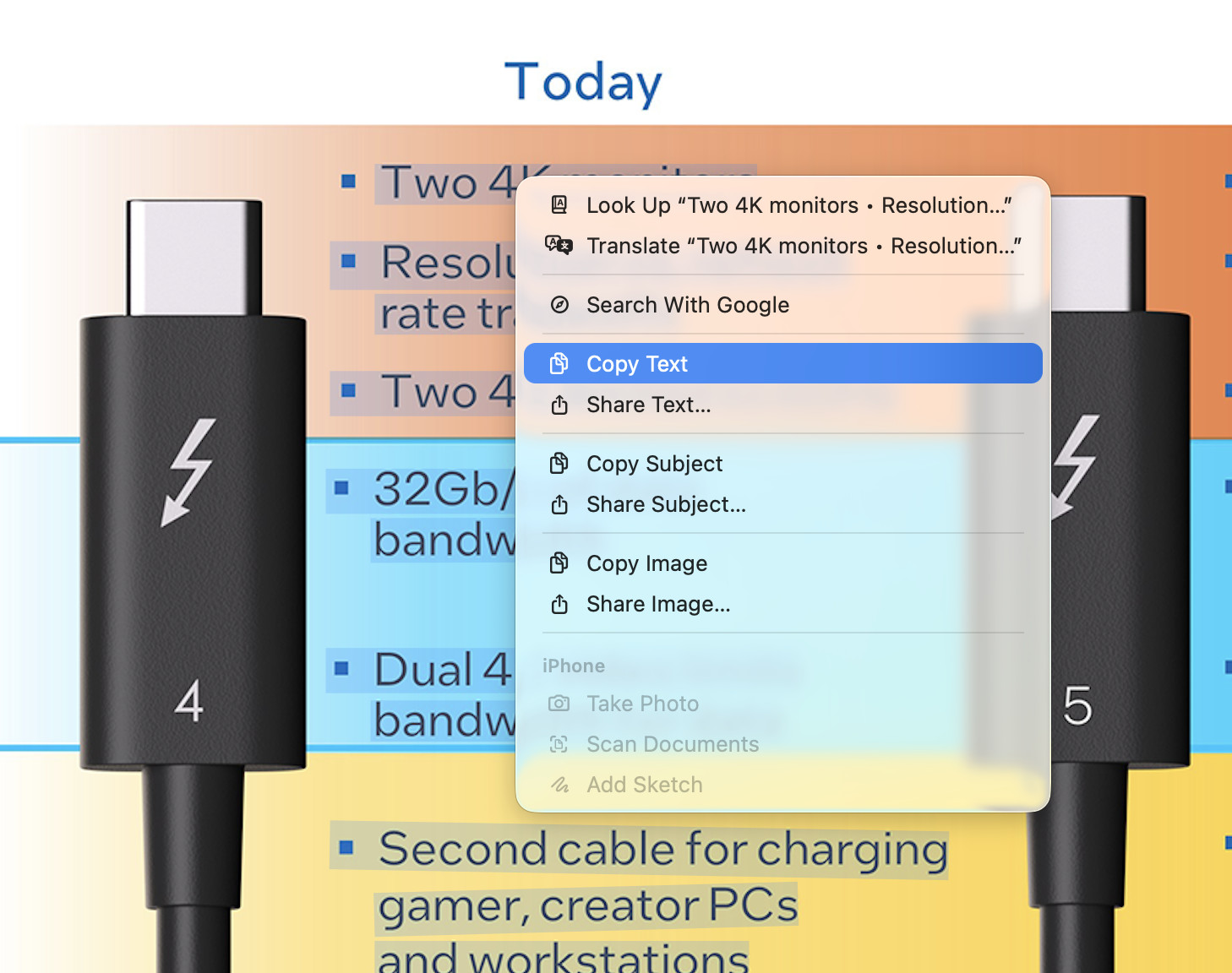
- Paste the text into any app using Command + V or Ctrl-click and select “Paste”.
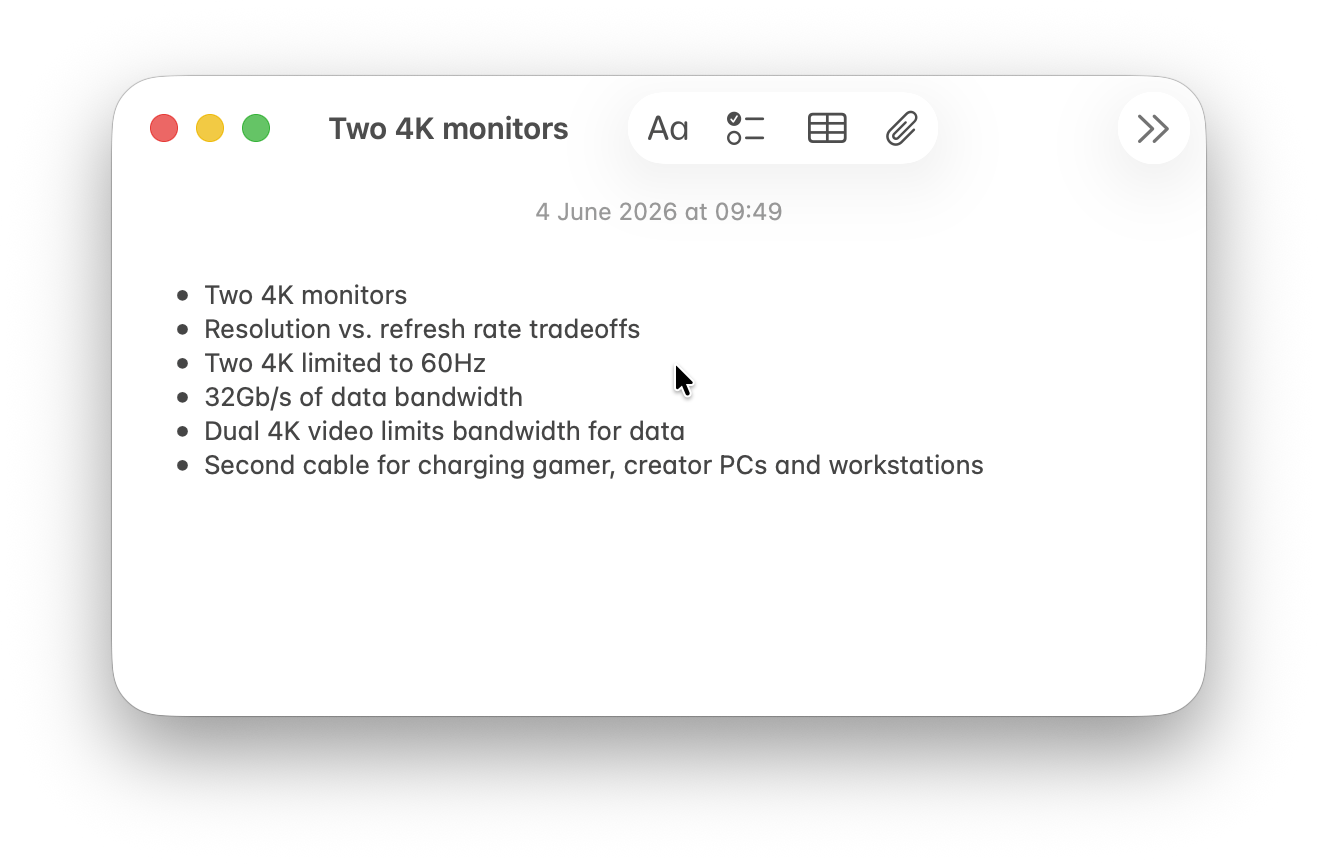
Unlike traditional OCR software, there’s no need to upload the image, run a scan, or wait for processing. Live Text automatically recognizes text as soon as the image is opened.
This makes it one of the fastest ways to copy text from screenshots, photos, receipts, business cards, and scanned documents on a Mac.
This is particularly useful for:
- Copying text from apps that don’t allow text selection
- Extracting information from PDFs
- Saving text from presentations or webinars
- Capturing error messages for troubleshooting
- Copying text from social media posts and images
Simply open the screenshot in Preview, Photos, or Quick Look and select the text using Live Text.
Many Mac users don’t realize that screenshots effectively become searchable and editable documents thanks to Live Text’s built-in OCR capabilities.
Other Useful Live Text Features
There are a few other nifty things that Live Text can do.
You can select “Look Up” from the context menu which will give you a handy explanation of the text you have selected:

You can get instant translations of text in multiple languages:
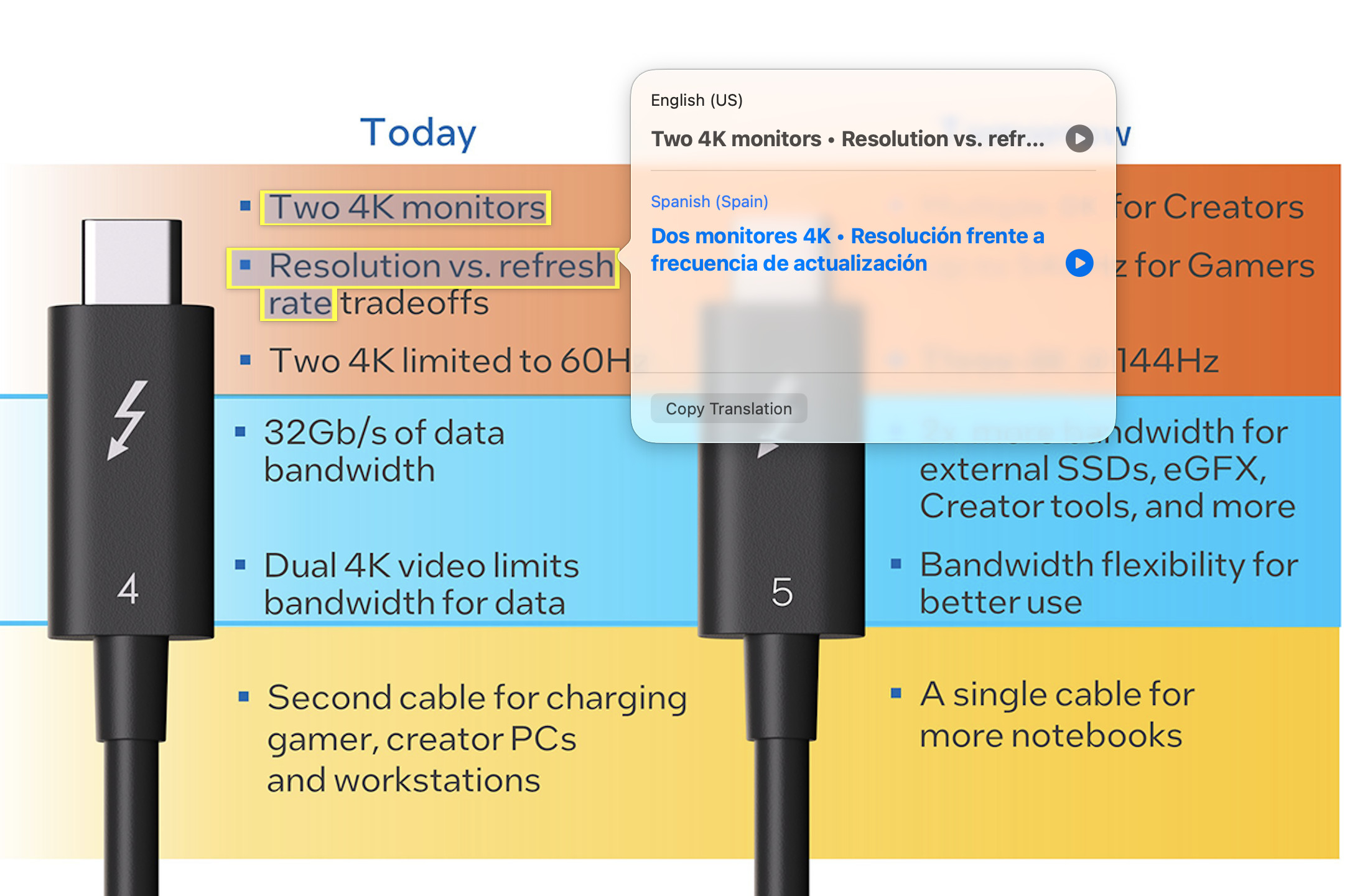
You can also perform a web search for the selected text directly from the contextual menu using your default search engine.
If the text has a phone number in it, Live Text will also automatically recognize it and give you several options including calling it on your iPhone, FaceTime, Messaging it and adding it to your Contacts.

If Live Text detects a website URL or email address in an image, you can also click it directly to open the website or compose a new email without copying and pasting.
Live Text vs Google Lens vs OCR Software
Live Text isn’t the only free OCR tool for Macs available, but it is often the most convenient option for Mac users.
Here’s how to compares to another popular free alternative Google Lens and professional OCR software.
| Feature | Live Text | Google Lens | Dedicated OCR Software |
|---|---|---|---|
| Built into Mac | Yes | No | No |
| Works offline | Yes | Limited | Usually |
| Copy text from images | Yes | Yes | Yes |
| Translate text | Yes | Yes | Some |
| Extract text from videos | Yes | No | Rarely |
| Batch processing | No | No | Yes |
| Searchable PDF creation | No | No | Yes |
| Document management tools | No | No | Yes |
Live Text is ideal for quick everyday OCR tasks, especially if you’re already working on a Mac.
Google Lens can be useful when working across multiple devices or when you want Google’s translation and image-recognition features.
Summary
For occasional OCR tasks, Live Text is one of the quickest and easiest tools available on a Mac. However, if you need to process batches of documents, create searchable PDFs, or scan large archives, you’ll probably want dedicated OCR software instead.
You can compare the best free options in our guide to the best free OCR software for Mac, or see our roundup of the best OCR software for Mac for more advanced solutions.
FAQ
Can you copy text from a screenshot on a Mac?
Yes. Using Apple’s Live Text feature, you can select and copy text from any screenshot, photo, or scanned image.
Does Live Text work with PDFs?
Yes. If you open an image-based PDF in Preview, Live Text can often recognize and extract the text.
Is Live Text free?
Yes. Live Text is built into macOS and does not require any additional software or subscription.
Can Live Text recognize handwriting?
Yes. Live Text can recognize many types of neat handwritten notes as well as printed text. However, for better results we recommend using dedicated handwriting OCR software for Mac.