

If you need to run Windows on your Mac without paying for Parallels Desktop, one of the most well known free solutions is using Oracle’s, VirtualBox.
VirtualBox is a completely free virtualization tool that allows you to create a virtual Windows PC inside macOS. This means you can run Windows apps, use Windows-only software, test programs, or even play some lighter Windows games without rebooting your Mac.
Firstly, it’s important to be aware that nowadays, there are far better virtual machines available and I strongly recommend checking out our guide to the best virtual machines for Mac for a lowdown.
In my opinion, VMware Fusion (which is also free) is both easier to setup and use than VirtualBox.
VirtualBox requires a lot more tinkering and adjusting and I also found that some features simply wouldn’t work on Apple Silicon Macs.
However, for those that are comfortable with manual configuration, it’s still a viable, free way to run Windows on your Mac or simply to run an EXE file on a Mac.
In this guide, I’ll show you exactly how to install Windows for free on a Mac using VirtualBox.
Watch The Full Video Tutorial
If you don’t have time to read the full instructions, check out our tutorial video where we install Windows on a Mac with VirtualBox.
What You Need Before Starting
Before installing Windows in VirtualBox on your Mac, you’ll need:
- A Mac with an Intel or Apple Silicon chip
- At least 8GB of RAM (16GB recommended)
- Around 80GB of free storage space
- A free copy of VirtualBox
- A Windows ISO file
Important Note: Apple Silicon Mac Compatibility
VirtualBox works best on Intel Macs.
While VirtualBox does now offer limited Apple Silicon support, it’s still experimental compared to alternatives like Parallels Desktop or VMware Fusion.
If you have an M-series Mac, performance and compatibility may vary significantly.
I ran it on an M3 Apple Silicon Mac and with plenty of RAM and CPUs to dedicate to VirtualBox and performance was acceptable.
However, I still couldn’t get the Guest Additions add-on to work which basically allows macOS and Windows to communicate with each other meaning the overall functionality was limited.
Bear this in mind before starting, if you’re using an M-series Apple Silicon Mac.
Who VirtualBox Is For
VirtualBox is ideal if you:
- need occasional access to Windows on a Mac
- want to run Windows software without rebooting
- don’t want to pay for Parallels Desktop
- want a free virtual machine solution
- need to test Windows apps on macOS
Follow these instructions to download and install VirtualBox on a Mac.
Step 1: Download VirtualBox

First, download VirtualBox from the official website.
You want the macOS version for either:
- Intel Macs
- Apple Silicon Macs
Install VirtualBox like any other Mac app. You’ll have to run an installer rather than just drag it into your Applications folder like some apps.
I didn’t experience any problems at this stage but you may find that macOS blocks some system extensions depending on your macOS security settings. If this happens:
- Open System Settings
- Go to Privacy & Security
- Scroll down
- Click Allow for Oracle system software
- Restart your Mac if prompted
Once installed, launch VirtualBox.
Step 2: Download A Windows ISO File
Next, you need a Windows installation image (ISO).
Microsoft allows anyone to download Windows 11 ISO files for free directly from its website.
Important Note: If you’re using an Apple Silicon Mac, you’ll need to download Windows 11 ARM which is the only version of Windows that works on M-series Macs.

Intel Macs can use the standard version of Windows.
You can use Windows without activation although you’ll see a watermark and some personalization features will be disabled.
Download the Windows ISO and save it somewhere easy to find like your Downloads folder.
Step 3: Create A New Virtual Machine
Open VirtualBox and click: New

You’ll now create your Windows virtual machine.
Configure The VM

Enter:
- VM Name: Windows 11
- VM Folder: Choose where you want to save the Virtual Machine on your Mac
- ISO Image: Browse to where you downloaded the Windows 11 ISO image
- OS: Microsoft Windows
- OSVersion: Windows 11 (64-bit)
- Uncheck “Proceed with Unattended Installation”
Choose where you want the virtual machine stored.
Step 4: Allocate Memory (RAM)

Next, choose how much RAM and how many CPUs to give Windows.
- Select Specify Virtual Hardware
Recommended:
- Minimum: 4GB (4096MB)
- Better performance: 8GB (8192MB)
- CPUS: Minimum 2, Recommended 4. The amount of CPUs available will depend on the spec of your Mac – more powerful Macs will have more CPUs available.
Avoid assigning more than half your Mac’s total memory or macOS performance may suffer.
Click Finish.
Step 5: Create A Virtual Hard Disk
Choose:
- Specify a virtual hard disk
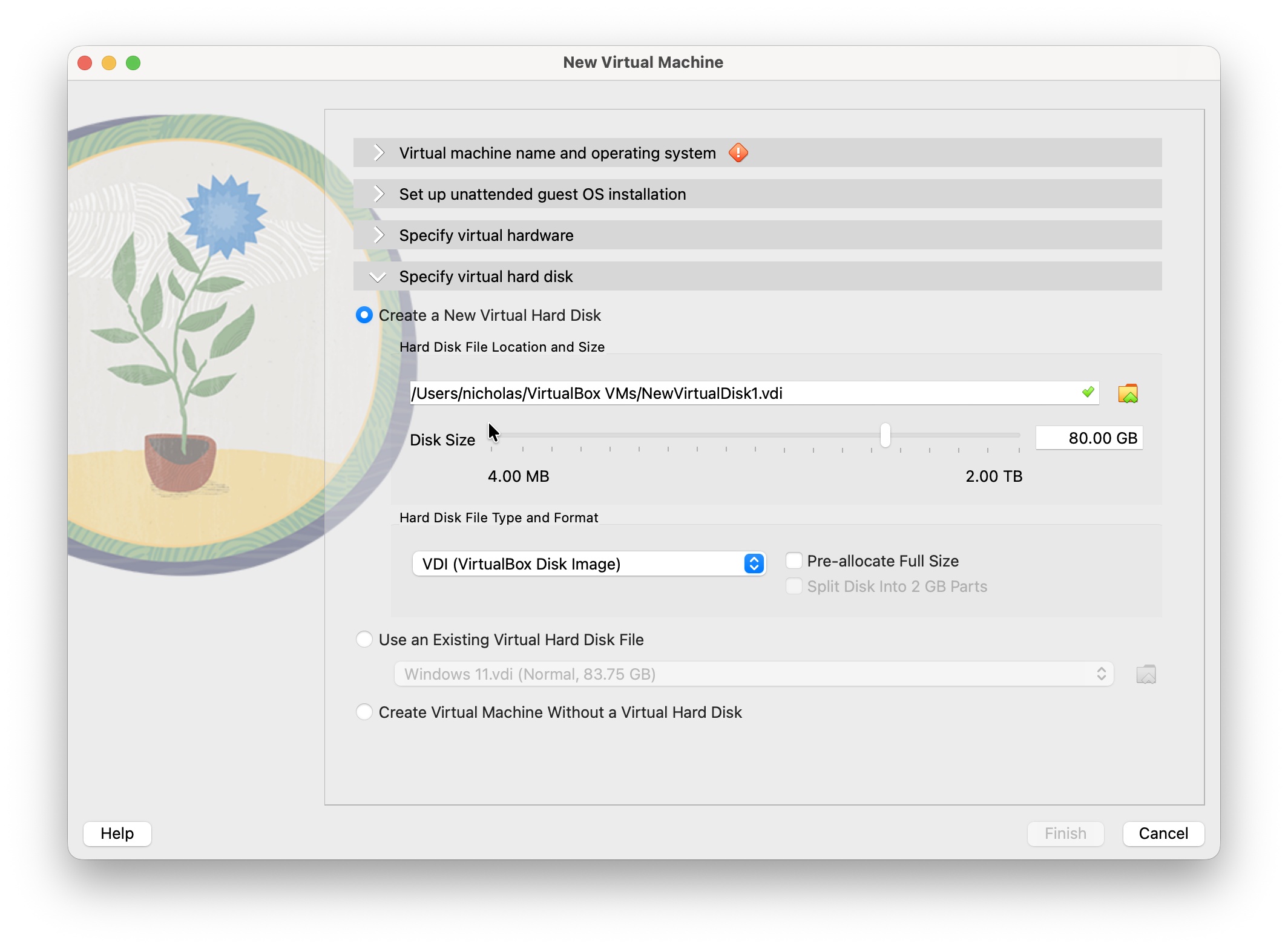
Then select:
- VDI (VirtualBox Disk Image)
Storage type:
- Dynamically Allocated (on Intel Macs)
- On Apple Silicon Macs running newer versions of VirtualBox, simply leave ‘Pre-allocate full size’ unchecked to create a dynamically allocated virtual disk
Disk size:
- Minimum: 64GB
- Recommended: 80GB or more
Click Finish.
Step 7: Install Windows

Start the VM and the Windows installer should boot.
Now simply follow the normal Windows installation process:
- Choose language
- Select keyboard layout
- Click Install
- Choose “I don’t have a product key”
- Select Windows edition
- Accept the license agreement
- Choose Custom Install
Windows will then install inside VirtualBox.
When the installer started, I found the VirtualBox window for the Windows installer was ridiculously small but if you go into Settings > Display, you can increase the Scale Factor up to 300% to enlarge it.

You’ll also have to enter your Microsoft account details (or create a new one) in order to complete the Windows setup.
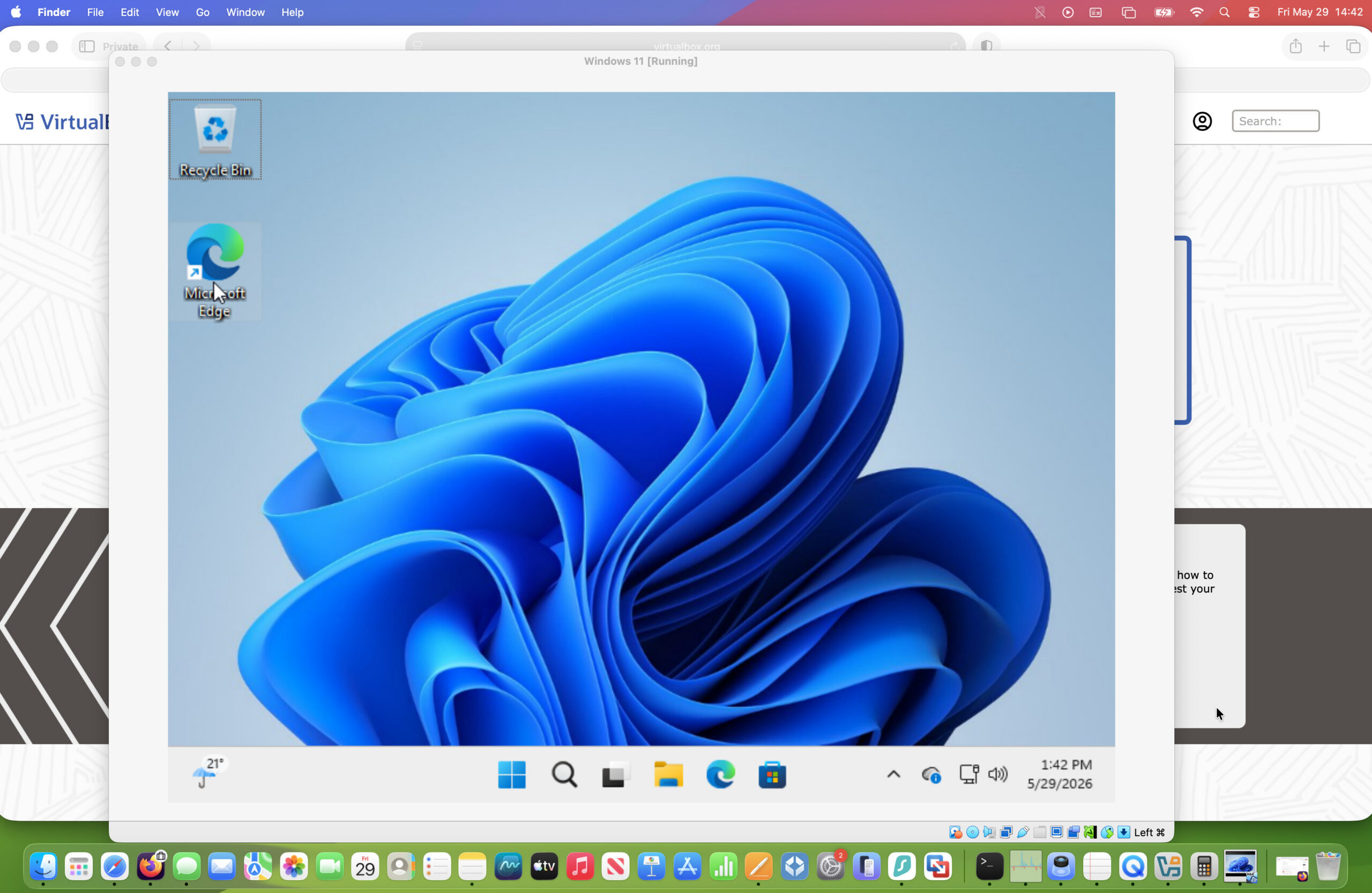
The whole process will take anywhere from 10 to 45 minutes depending on your Mac but once Windows has restarted a few times, you will have a fully functioning version of Windows 11 running in macOS.
Optional: Configure TPM & Secure Boot (Windows 11)
Windows 11 normally requires TPM 2.0 and Secure Boot and when I installed it, VirtualBox emulated it automatically. However, older versions of VirtualBox or older Macs may trigger “unsupported hardware” issues and you may need to bypass the checks.
The easiest method to do this is:
- Start Windows setup
- Press Shift + F10
- Type:
regeditThen navigate to:
HKEY_LOCAL_MACHINE\SYSTEM\SetupCreate a new key called:
LabConfigInside it, create DWORD values:
BypassTPMCheck = 1
BypassSecureBootCheck = 1
BypassRAMCheck = 1
Close Registry Editor and continue installation.
Step 8: Install VirtualBox Guest Additions
Once Windows is running, install Guest Additions for much better performance and usability.
Guest Additions improve:
- Screen resolution
- Mouse integration
- Clipboard sharing
- Dragging and dropping
- Performance
- Shared folders
To install it:
- In the VirtualBox menu click:
Devices > Insert Guest Additions CD Image - Open the installer inside Windows
- Run setup
- Restart Windows
While this works on Intel Macs, unfortunately I found that on my Apple Silicon Mac that this didn’t work. Basically nothing happens. I also tried going into Settings > Storage and selecting the Guest Additions ISO but still no joy.
This means that macOS and Windows don’t play well together. For example, when I tried to drag and drop and image from my Mac into Windows running in VirtualBox, I simply got a “Can’t drop data to guest” error message.

This is a good example of why VirtualBox falls short compared to other virtual machines like Parallels and VMware Fusion.
Optional: Install The VirtualBox Extension Pack
Oracle also offers a free Extension Pack which adds support for:
- USB 2.0 and USB 3.0 devices
- webcam passthrough
- disk encryption
- remote desktop features
This can be downloaded from the Oracle website and can improve compatibility with some peripherals.
While the Extension Pack installs on Apple Silicon Macs, some advanced features may still not function correctly due to VirtualBox’s current ARM limitations.
Step 9: Optimize Performance
If Windows feels slow running on your Mac in VirtualBox, try these tweaks:
Increase CPU Cores
- Shut down the VM
- Open Settings > System > Processor
- Increase CPU cores to 2 or 4
Avoid allocating all your CPU cores.
Increase Video Memory
Go to: Settings > Display
Increase video memory to:
- 128MB if available
Enable 3D Acceleration
Still in Display settings:
- Enable 3D Acceleration
This can improve graphics performance for some apps.
What Doesn’t Work Well In VirtualBox
In my testing on Apple Silicon Macs, the following limitations still exist:
- Guest Additions support is unreliable
- drag-and-drop often fails
- clipboard sharing may not work
- graphics acceleration is limited
- some Windows ARM apps can feel sluggish
This isn’t necessarily caused by incorrect setup – VirtualBox’s ARM support is still evolving.
FAQ
Is VirtualBox really free on Mac?
Yes. VirtualBox is completely free and open-source virtualization software developed by Oracle. You can use it to run Windows, Linux and other operating systems on a Mac without paying for a license.
However, while VirtualBox itself is free, you may still need a valid Windows license if you want to fully activate Windows.
Can I use Windows for free without activating it?
Yes. Microsoft allows you to install and use Windows without activation.
The main limitations are:
- A watermark appears on the desktop
- Some personalization settings are disabled
- Occasional activation reminders
For general testing and occasional use, many users run Windows unactivated without issues.
Does VirtualBox work on Apple Silicon Macs?
Yes, but support is still experimental.
VirtualBox now supports Apple Silicon Macs including M1, M2, M3 and M4 Macs, but compatibility and performance are not as good as on Intel Macs.
Some features such as:
- Guest Additions
- graphics acceleration
- USB support
may not work properly yet on Apple Silicon hardware.
Is VirtualBox better than Parallels Desktop?
It depends on what you need.
VirtualBox is:
- completely free
- good for basic Windows usage
- useful for testing software
Parallels Desktop is:
- much faster
- easier to set up
- better optimized for Apple Silicon Macs
- better for gaming and demanding apps
If you only need Windows occasionally, VirtualBox is usually enough. For daily use, Parallels Desktop is generally the better experience.
Can I play games in VirtualBox?
Only lightweight or older games.
VirtualBox has limited graphics acceleration, especially on Apple Silicon Macs. Most modern AAA Windows games will not run well.
VirtualBox is better suited for:
- office apps
- browsers
- utilities
- business software
- development tools
Why is Windows running slowly in VirtualBox?
The most common reasons are:
- not enough RAM assigned
- too few CPU cores allocated
- Guest Additions not installed
- low available Mac storage space
Increasing RAM and processor allocation in VirtualBox settings can often improve performance significantly.
Why can’t I install Guest Additions on Apple Silicon?
Guest Additions support for Windows ARM virtual machines is currently limited in VirtualBox.
This is a known limitation of VirtualBox’s Apple Silicon support and not necessarily something you’ve done wrong.
Some integration features may simply not work yet on M-series Macs.
Can I install Windows 11 in VirtualBox?
Yes.
However, Windows 11 may complain about missing TPM 2.0 or Secure Boot support during installation.
In many cases you can bypass these requirements using a simple Registry Editor workaround shown earlier in this guide.
Can I use USB devices in VirtualBox?
Yes, although support can vary depending on the device and your Mac.
Some USB drives, printers and accessories work fine, while others may not be detected correctly, particularly on Apple Silicon Macs.
Installing the VirtualBox Extension Pack can improve USB compatibility.
How much storage space does a Windows VM need?
Microsoft recommends at least 64GB for Windows 11.
In practice, it’s usually better to allocate:
- 80GB minimum
- 100GB+ for long-term use
If using dynamically allocated storage, the VM will only use the space it actually needs.
Can I delete the virtual machine later?
Yes.
Virtual machines are self-contained files stored on your Mac.
To remove Windows completely:
- Shut down the VM
- Delete the VM from VirtualBox
- Choose “Delete All Files”
This removes the Windows installation and frees the storage space on your Mac.
Are VMware Fusion and UTM better than VirtualBox on Apple Silicon Macs?
In many cases, yes.
VMware Fusion and UTM are currently one of the best free virtualization solutions for Apple Silicon Macs and often provides:
- better compatibility
- smoother Windows ARM support
- easier setup
However, VirtualBox still works well for many Intel Mac users and remains one of the most popular free virtualization tools available.