

Apple’s PROLED MacBook Pro is the first Mac with a touchscreen, but that does not mean every Mac application has suddenly become a touch-first app.
Most existing applications will respond when you tap the screen because macOS automatically converts a touch into an ordinary mouse click. That is enough for selecting a button, placing the cursor or dragging an item. It does not automatically make small menus easier to tap, add two-finger gestures or turn a desktop interface into something designed for your fingers.
The genuinely useful applications are those that have been updated to recognise direct touch, Multi-Touch gestures or larger touch-friendly controls. At launch, that list is still relatively short.
However, because it’s such a new addition to the Mac lineup, there’s a lot of confusion about which apps and software support PROLED touch screens.
Here is the current state of touch support on the PROLED MacBook Pro, including Final Cut Pro, Logic Pro, DaVinci Resolve, Adobe apps, Microsoft Office, Blender, Cinema 4D, ZBrush, Shapr3D and Procreate.
Important: Apple says the third-party applications named in its PROLED announcement will become available later in 2026. That does not mean every app on Apple’s list had already released its touch-optimised update when the MacBook Pro went on sale on 6 November.
PROLED Touch Compatibility at a Glance
| App | Current touch status | What that means |
|---|---|---|
| macOS and Apple apps | Optimised | Apple says its apps are optimised for the touchscreen and common system gestures work throughout macOS. |
| Final Cut Pro | Optimised | Touch can be used for timeline navigation, clip placement and other editing interactions. |
| Logic Pro | Optimised | Onscreen instruments, pads and controls can be operated directly with your fingers. |
| Pixelmator Pro | Optimised | Drawing, painting, selecting and manipulating the canvas work directly onscreen. |
| DaVinci Resolve 21.2 | Confirmed support | Blackmagic has released a PROLED-compatible update, although it has not documented every supported gesture. |
| Blender | Touch demonstrated by Apple | Apple shows direct manipulation of 3D objects, but some tools and small controls may still be easier with a mouse or tablet. |
| Cinema 4D and ZBrush | Compatible now; touch update pending | The apps run on PROLED models, but Maxon says their dedicated Touch support arrives in late November. |
| Microsoft Word, Excel, PowerPoint and Outlook | Announced for 2026 | Basic taps should work now; do not assume the current Mac versions have their complete touch interfaces yet. |
| Adobe Lightroom | Announced for 2026 | Named by Apple, but Adobe has not yet published detailed PROLED gesture documentation. |
| Adobe Photoshop and Illustrator | Basic touch only unless Adobe confirms otherwise | They run normally and taps become clicks, but Apple did not include them in its initial list of forthcoming touch-enhanced apps. |
| Notion, Canva and Zoom | Announced for 2026 | Basic touch works; dedicated enhancements are expected but their scope may differ between apps. |
| Shapr3D | Announced for 2026 | A promising CAD option, but finger support should not be confused with Apple Pencil support. |
| djay Pro | Announced for 2026 | Direct control of decks and performance controls is expected in an updated version. |
| Procreate | Not available for Mac | The Procreate App Store listing remains iPad-only. A touchscreen does not make the iPad app installable on a Mac. |
Note that these statuses are based on Apple’s PROLED announcement, current developer announcements and release notes. They will change as developers release their promised updates.
The Difference Between Basic Touch and a Touch-Optimised App
Apple has made existing Mac software broadly usable from day one by translating screen touches into mouse clicks.
This basic compatibility means you can normally:
- Tap a button or menu item.
- Select a file or object.
- Place the insertion point in a document.
- Drag a window, slider or item.
- Scroll and zoom where macOS supplies standard gestures.
However, an application designed for a mouse can still be awkward on a touchscreen. Its buttons may be too small, important controls may appear only when you hover the pointer, and right-click or precision-drag operations may not translate naturally to a finger.
A properly optimised application can use the direct-touch and gesture APIs in macOS 27 to distinguish taps, swipes, pinches, rotations and other interactions. The developer can also enlarge controls or create workflows that make sense when your hand is on the display.
This gives PROLED apps three practical levels of support:
- Basic compatibility: A touch is treated like a click.
- Gesture-aware: The app recognises movements such as pinch, rotate or direct object manipulation.
- Touch-optimised: The interface and workflow have been deliberately adapted for fingers rather than merely accepting them.
When checking an app, we recommend looking for explicit PROLED or Touch-on-Mac support in the release notes rather than relying on the fact that its buttons respond when tapped.
Which Apple Apps Are Optimised for Touch?
Apple says its own apps are optimised for the new MacBook Pro. Everyday macOS interactions include scrolling, pinching to zoom, dragging between apps, filling or tiling windows and interacting with the Dynamic Island.
Apple’s professional creative apps make the most interesting use of the display.
Final Cut Pro
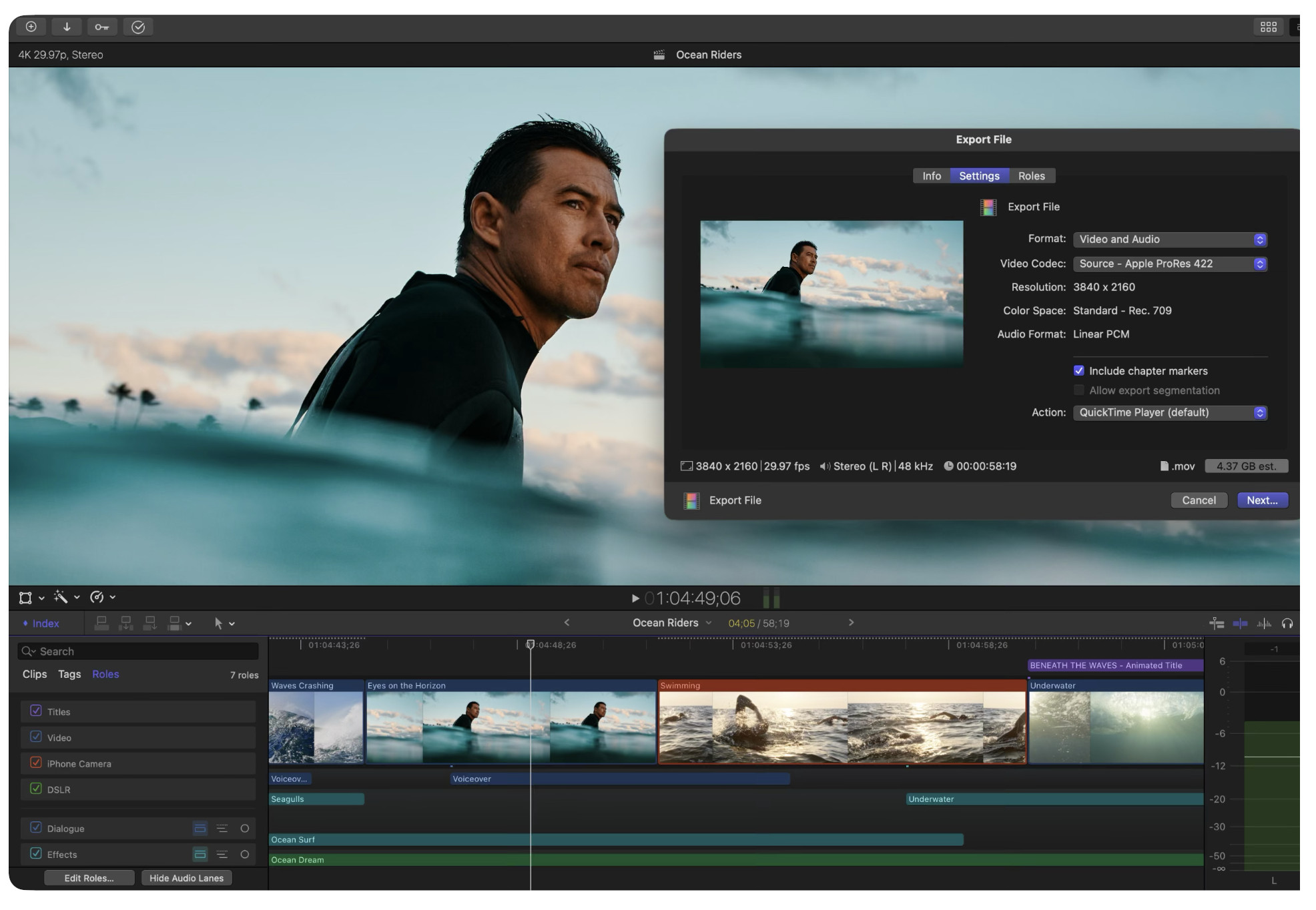
Final Cut Pro can use direct touch for actions such as navigating a project, selecting ranges, positioning clips and zooming the timeline.
Touch will be convenient for reviewing footage or making quick adjustments, but it does not replace the keyboard, trackpad or an editing control surface. Frame-accurate trimming, keyboard shortcuts and extended editing sessions will usually remain faster with conventional controls.
If you use Final Cut Pro professionally, test the following before changing anything:
- Scrubbing and skimming accuracy.
- Pinch-to-zoom on a busy timeline.
- Selecting and moving short clips.
- Adjusting keyframes and audio levels.
- Using third-party effects and plug-in interfaces.
Plug-ins have their own interfaces and may not be as touch-friendly as Final Cut Pro itself.
Logic Pro and MainStage
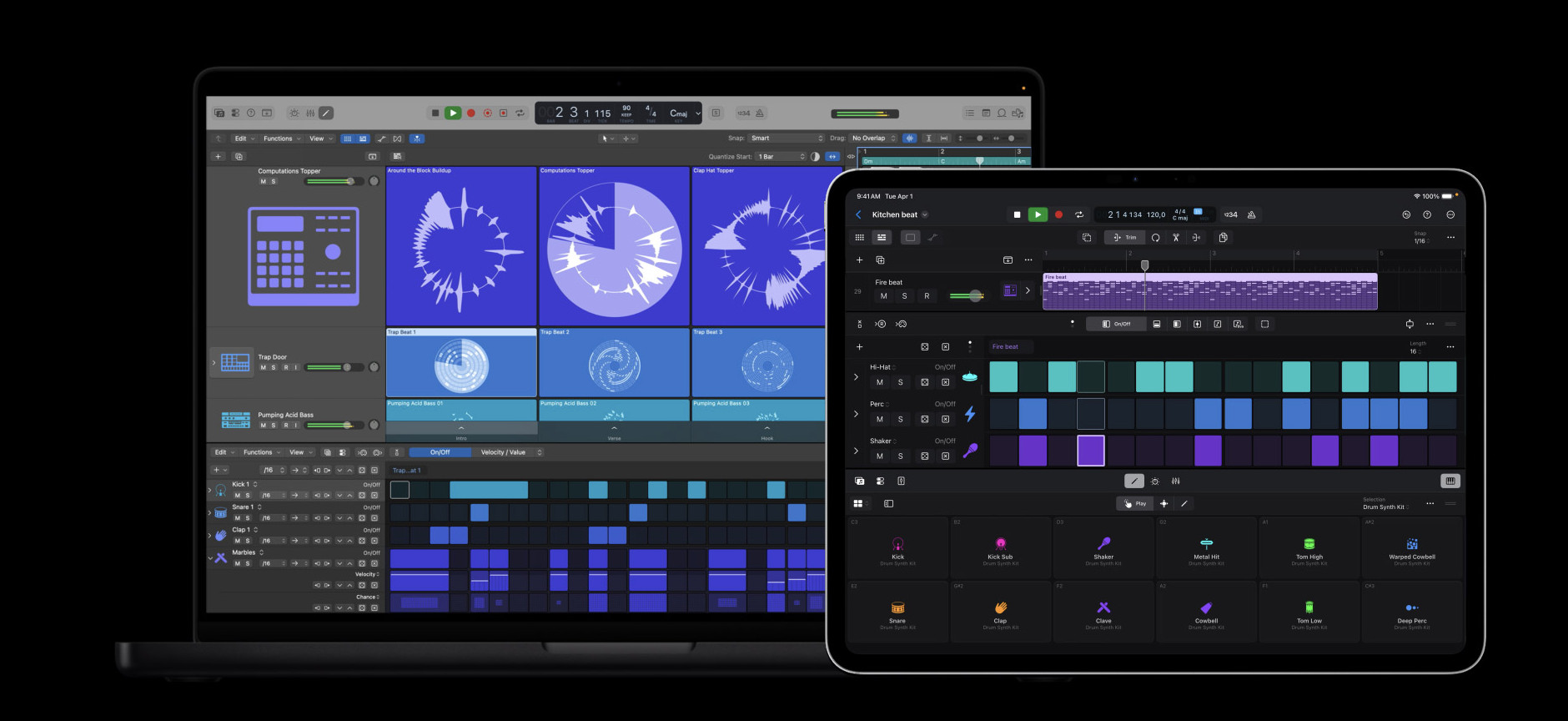
Logic Pro is one of the clearest use cases for a Mac touchscreen. You can interact with faders and software instruments, including onscreen keyboards and drum or chord pads.
This could be useful when recording away from a MIDI keyboard or making a quick adjustment while performing. It is less likely to replace a dedicated keyboard, pad controller or mixing surface, because the display does not provide the physical feedback of real controls.
Check third-party Audio Unit plug-ins individually. A plug-in can run correctly in Logic while retaining a small, mouse-oriented interface that is difficult to operate accurately with a finger.
Pixelmator Pro
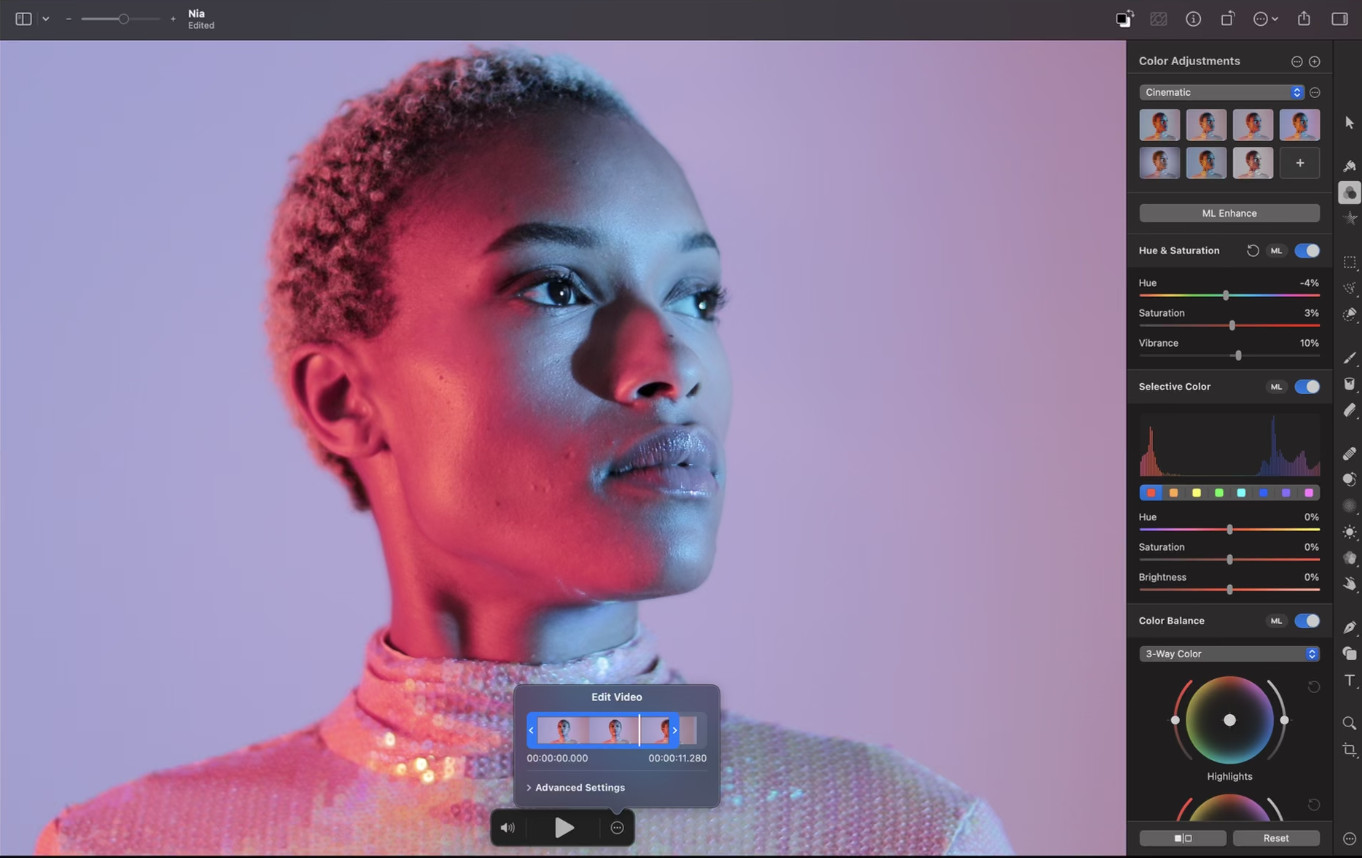
Apple presents Pixelmator Pro as supporting direct drawing, painting and selection on the PROLED display. Its existing iPad version already has a touch-first interface, so it is better placed than many traditional desktop editors to adopt similar interactions on the Mac.
There is an important limitation, however: drawing with a finger is not the same as using a pressure-sensitive pen. For detailed illustration or retouching, a drawing tablet or an iPad with Apple Pencil will still provide substantially more control.
Pages, Keynote, Numbers, Freeform, Preview and Photos
Apple’s productivity and built-in apps should provide the most consistent everyday experience because Apple controls both the operating system and the applications.
Touch is particularly useful for:
- Pinching and moving around images or documents.
- Reordering slides in Keynote.
- Moving objects on a Freeform board.
- Marking up an image or PDF in Preview.
- Browsing and zooming in Photos.
- Scrolling and selecting content in Pages and Numbers.
These remain desktop applications, though. The presence of touch does not necessarily give every Mac app the same interface or feature set as its iPad equivalent.
Does DaVinci Resolve Support the PROLED Touchscreen?
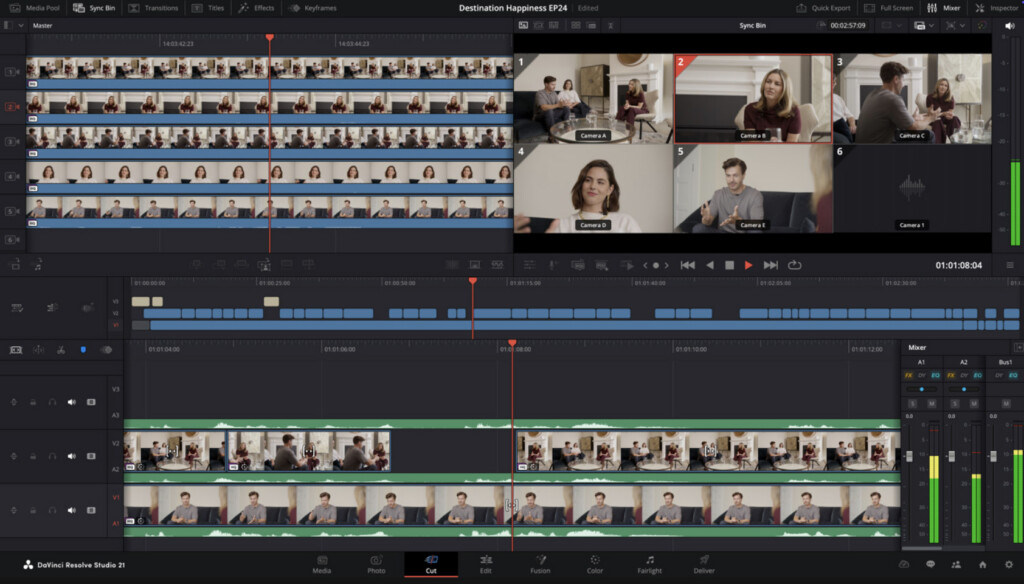
Yes. Blackmagic Design released DaVinci Resolve and DaVinci Resolve Studio 21.2 with support for MacBook Pro models with a PROLED XDR touchscreen. The update is available through Blackmagic Design’s support page.
Blackmagic’s release notes confirm compatibility but do not provide a complete list of gestures or identify which pages have received touch-specific layouts. It is therefore worth testing the Cut, Edit, Color and Fairlight pages separately.
You should particularly check:
- Timeline scrolling and zooming.
- Selecting, trimming and moving clips.
- Moving colour wheels and other grading controls.
- Dragging nodes on the Color page.
- Operating Fairlight faders.
- Third-party OpenFX plug-ins.
DaVinci Resolve contains many dense panels and small controls, so mouse, keyboard and dedicated editing hardware are still likely to be more efficient for sustained professional work.
Do Adobe Lightroom and Photoshop Support Touch?
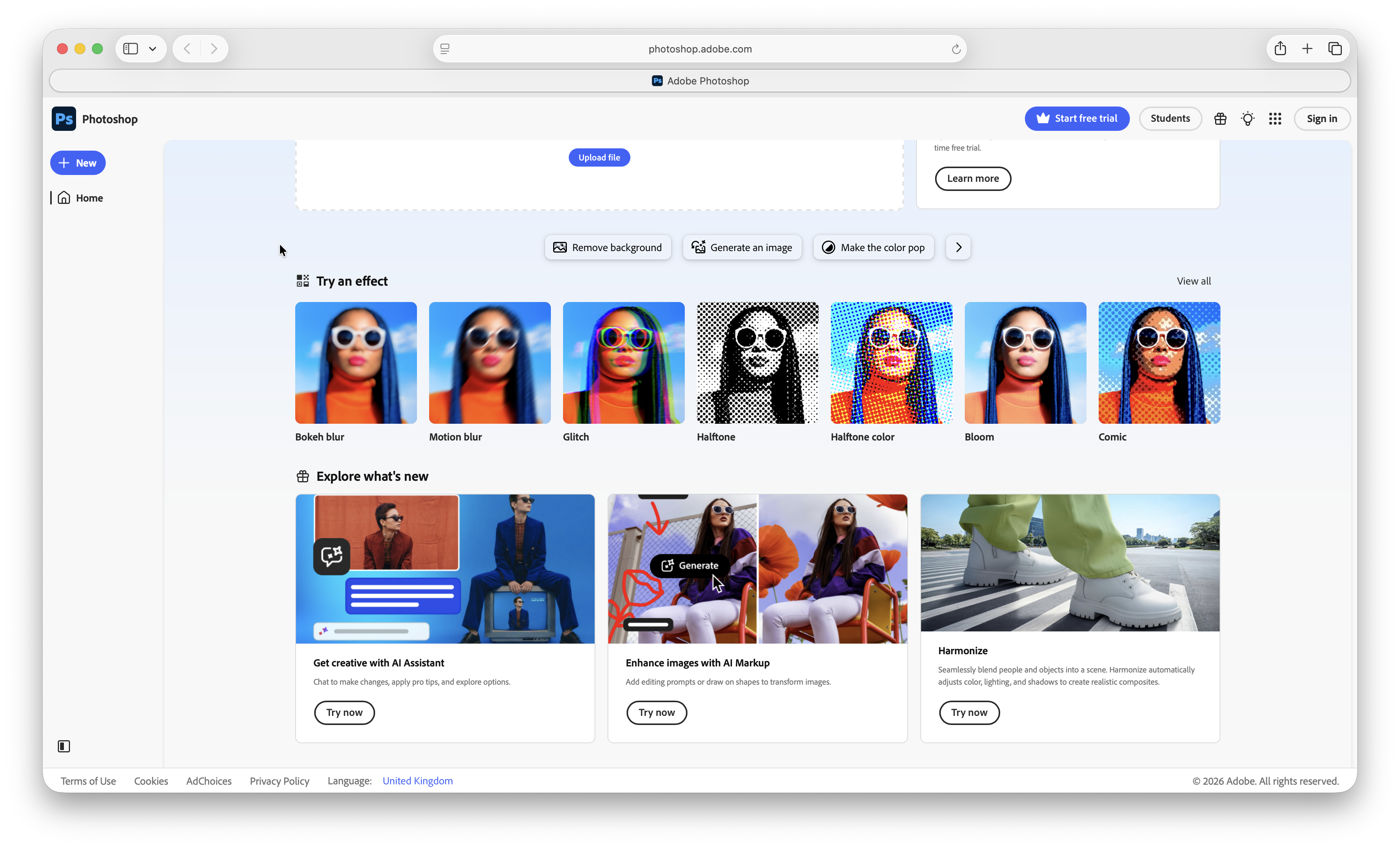
Apple has named Adobe Lightroom as one of the applications that will take advantage of Touch on the PROLED MacBook Pro. However, Apple’s announcement also says the listed third-party app updates will be available later in 2026.
Until Adobe publishes detailed PROLED release notes, Lightroom touch screen support is not official.
The most useful Lightroom interactions are likely to include:
- Swiping through photographs.
- Pinching to zoom.
- Panning around a magnified image.
- Adjusting sliders.
- Tapping selections, ratings or presets.
Photoshop and Illustrator were not included in Apple’s initial third-party list. Their current Mac versions should still respond to basic taps because macOS maps touches to clicks, but that is not the same as Adobe confirming a touch-optimised interface.
Adobe’s older documentation about the discontinued MacBook Pro Touch Bar should not be treated as evidence of PROLED touchscreen support. The Touch Bar was a separate strip above the keyboard and used a completely different interface.
For accurate painting, masking and retouching in Adobe software, you should opt for a pressure-sensitive drawing tablet until Adobe or Apple confirms active-stylus support on the MacBook display.
Does Microsoft Office Support Touch on a Mac?
Apple lists Microsoft Word, Excel, PowerPoint and Outlook among the apps that will take advantage of Touch later in 2026.
The current applications should accept basic taps immediately. Microsoft also has a longstanding Touch/Mouse Mode that increases the spacing between buttons in the ribbon on supported versions of Office. However, Microsoft’s current Touch Mode instructions are not a detailed statement about PROLED support on macOS.
Before describing Office for Mac as fully optimised, check the current Mac builds for:
- A Touch/Mouse Mode control.
- Wider ribbon-button spacing.
- Touch-friendly context menus.
- Pinch and scroll behaviour in documents and spreadsheets.
- Dragging cells, chart elements and slide objects.
- Inking or annotation tools.
PowerPoint may benefit most because presenting, moving objects and reordering slides suit direct manipulation. Excel is a harder test: selecting a small cell, formula handle or chart point requires much more precision than scrolling through a document.
Do Blender, Cinema 4D and ZBrush Support Touch?
Support is developing quickly, but it is not yet across the board.
Blender
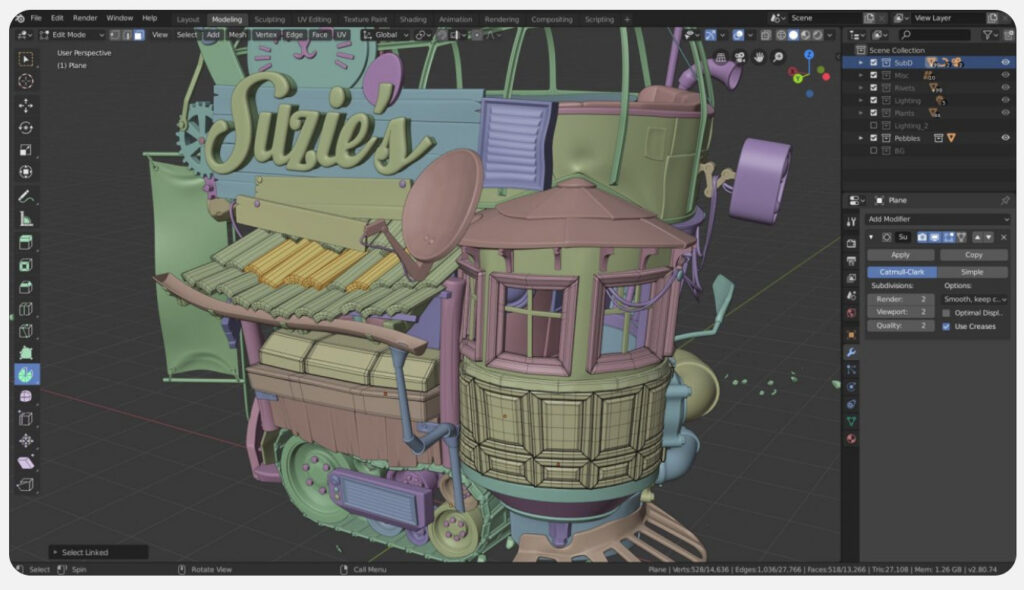
Apple specifically shows Blender using gestures to manipulate 3D objects directly onscreen. That indicates more than simple click translation, although Blender’s extensive collection of small controls, shortcuts and multi-button mouse operations means touch will complement rather than replace its conventional interface.
The most useful touch screen features are:
- Orbiting, panning and zooming a scene.
- Selecting and moving objects.
- Rotating and scaling an object.
- Sculpting with a finger.
- Opening context menus.
- Combining touch with keyboard modifiers.
Cinema 4D and ZBrush
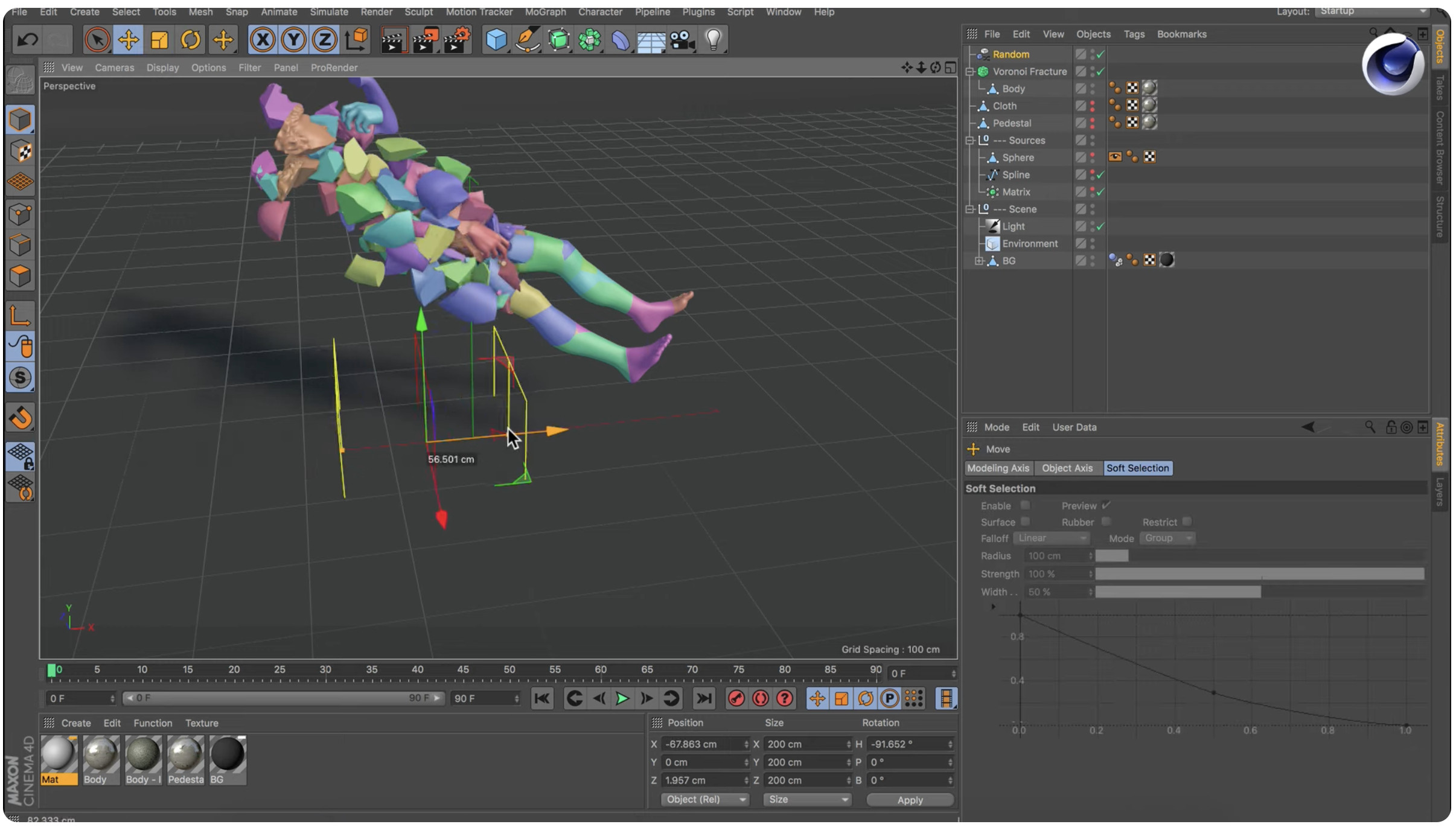
Cinema 4D and ZBrush are compatible with the new MacBook Pro now, but Maxon says their dedicated Touch experiences will ship in late November 2026.
That distinction matters. Opening Cinema 4D or ZBrush successfully does not mean the current version already contains Maxon’s promised direct-touch workflow.
The update is particularly interesting for ZBrush because sculpting is naturally suited to direct input. Without pressure sensitivity, however, finger sculpting still will not offer the same control as ZBrush for iPad with Apple Pencil or a professional pen display.
Does Shapr3D Support Touch on the MacBook Pro?
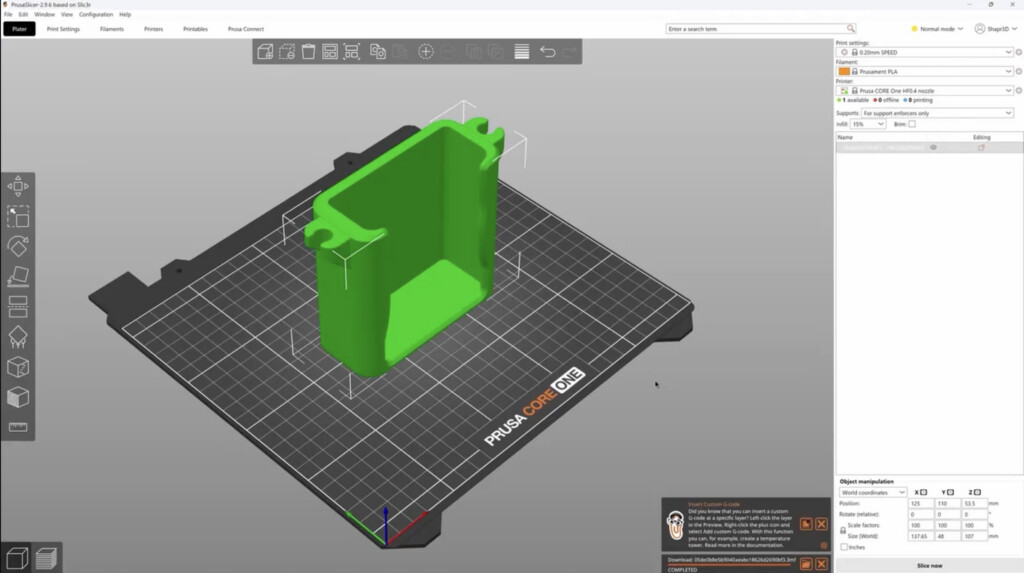
Apple has named Shapr3D as a forthcoming touch-enhanced app for the PROLED MacBook Pro.
Shapr3D already has extensive experience with touch and Apple Pencil on iPad, making it one of the most promising CAD applications for the new hardware. However, you should not assume that the MacBook version will reproduce every iPad interaction or Pencil feature.
Other Mac CAD applications—including AutoCAD, Fusion, Vectorworks, SketchUp, Rhino and FreeCAD—should receive basic taps as clicks. Unless their developers explicitly announce direct-touch support, you should still consider them as mouse, trackpad, SpaceMouse or drawing-tablet applications.
Do Notion, Canva and Zoom Support Touch?
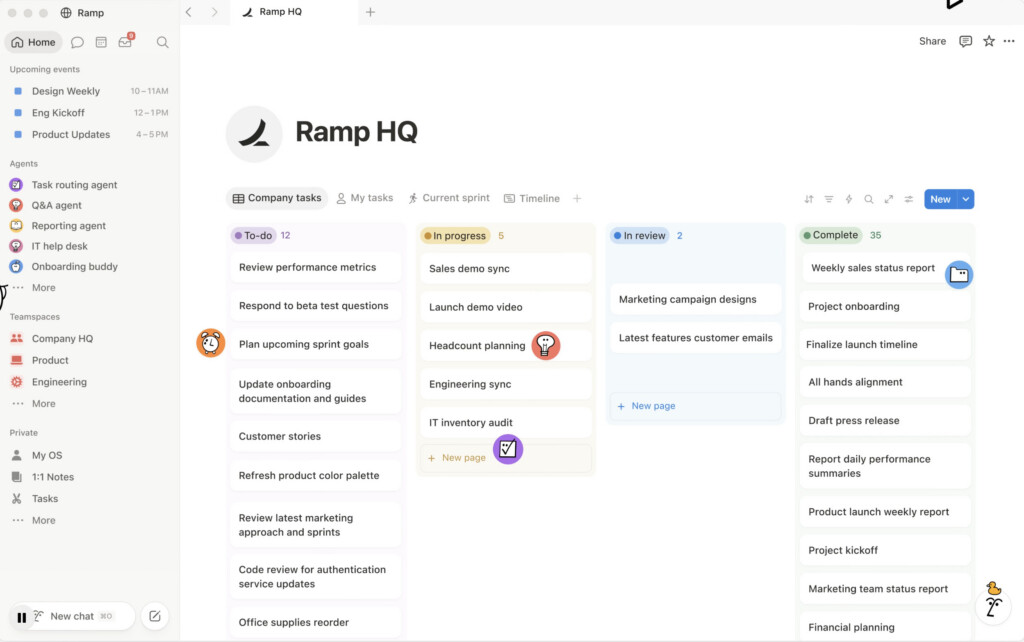
Apple has included Notion, Canva and Zoom in its list of applications that will take advantage of Touch.
These apps should already be usable at a basic level because their main controls respond to clicks. Their eventual touch enhancements are likely to be more about convenience than entirely new capabilities.
Potential uses include:
- Moving blocks and navigating pages in Notion.
- Positioning design elements in Canva.
- Pinching and moving around a Canva project.
- Tapping call controls or reactions in Zoom.
- Using an onscreen whiteboard during a call.
Zoom is also a good example of why touch support is not purely a software issue. Repeatedly pressing the display can cause camera shake, although Apple says the new MacBook Pro uses video stabilisation to reduce this effect.
Does djay Pro Support Touch?
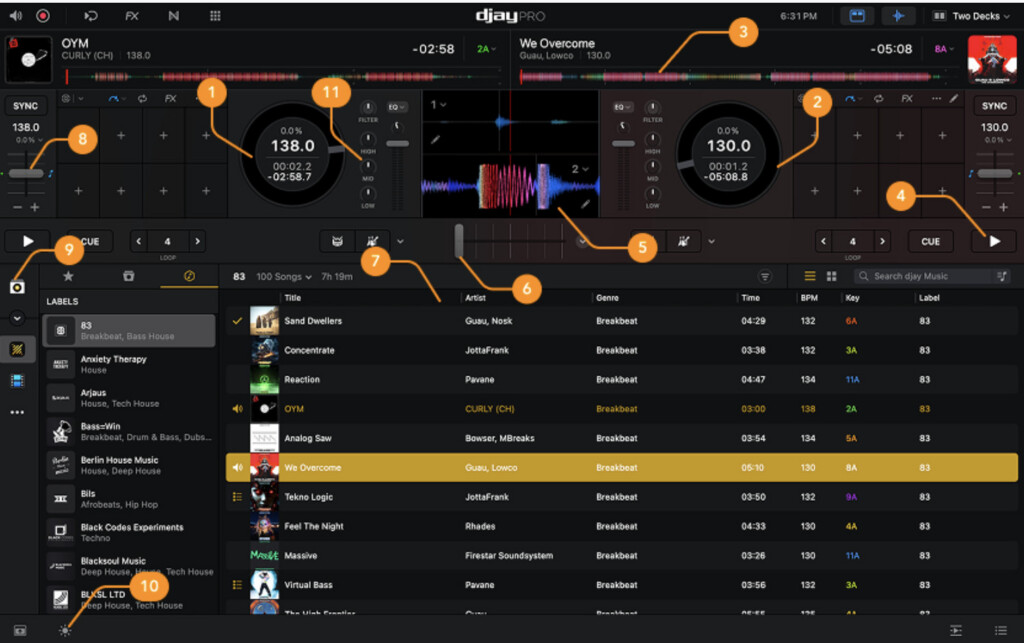
Apple has named Algoriddim’s djay Pro as one of the applications that will receive enhanced Touch support later in 2026.
DJ software is a natural fit for direct interaction because users can operate decks, pads, faders and effects onscreen. Even so, professional DJs will normally prefer a physical controller for tactile feedback, more accurate simultaneous adjustments and dependable performance in a live environment.
Touch could be most useful for preparing sets, cueing tracks or providing a portable backup when a controller is not available.
Can You Install Procreate on the PROLED MacBook Pro?
No. The touchscreen does not turn the MacBook Pro into an iPad, and Procreate’s current App Store listing remains iPad-only.
Apple Silicon Macs can run iPhone and iPad applications only when those apps are made available for Mac through the App Store. Apple allows developers to choose whether their iPad apps appear on Apple Silicon Macs. Procreate has not made its app available for macOS.
This means you still cannot install Procreate directly on a PROLED MacBook Pro, even though it now has a touchscreen.
The practical alternatives are to:
- Use Procreate on an iPad and transfer the finished file to the Mac.
- Use an iPad and Apple Pencil alongside the Mac.
- Use Sidecar to control a compatible Mac drawing app with Apple Pencil.
- Choose a native Mac alternative such as Pixelmator Pro, Krita, Clip Studio Paint, Photoshop or Affinity.
- Connect a Wacom, Huion or XP-Pen drawing tablet to the Mac.
For other options, check our guide to using Procreate on a Mac.
Does Apple Pencil Work With the PROLED MacBook Pro?
No Apple Pencil model is officially compatible with the PROLED MacBook Pro.
Apple’s Apple Pencil compatibility list contains iPads only, while the MacBook Pro’s technical specifications list Multi-Touch gesture support but do not claim Apple Pencil, pressure sensitivity, tilt sensitivity, hover or palm rejection.
A basic capacitive stylus may behave like a finger, but that is not equivalent to Apple Pencil or a drawing-tablet pen. It will not automatically provide:
- Pressure-sensitive strokes.
- Tilt detection.
- Pencil hover.
- Palm rejection.
- Programmable pen buttons.
- The precision expected from a professional pen display.
If you need these features, use an iPad with Apple Pencil through Sidecar or connect a dedicated drawing tablet. Apple confirms that Sidecar can use Apple Pencil to draw, edit photographs and manipulate objects in compatible Mac apps.
Are Drawing Tablets Still Necessary?
For professional illustration, retouching, sculpting and handwritten annotation, yes.
PROLED Touch is useful for navigation, rough sketching, moving objects and making quick adjustments. A drawing tablet remains better when the work depends on pressure, tilt, accuracy, palm rejection or hours of comfortable pen input.
The best way of summarizing this is:
| Input method | Best for | Main limitation |
|---|---|---|
| PROLED finger input | Navigation, gestures, rough drawing and quick adjustments | No official pressure-sensitive pen support |
| iPad with Apple Pencil | Mobile drawing, Procreate and Sidecar | Requires a separate device |
| Screenless drawing tablet | Accurate, affordable pen input | You draw on the tablet while looking at the Mac display |
| Pen display | Professional drawing directly on a dedicated screen | Adds cost, cables and desk space |
The PROLED display therefore reduces how often some users need to reach for a mouse, but it does not make the best drawing tablets for Mac obsolete.
How To Check Whether a Mac App Is Really Touch-Optimised
If an application is not listed above, use this checklist:
- Update macOS and the application to their latest production versions.
- Check the developer’s release notes for the words PROLED, Touch on Mac, direct touch or Multi-Touch.
- Test whether a tap merely places the mouse pointer or triggers a genuinely touch-specific response.
- Try pinch-to-zoom, two-finger scrolling, rotation and direct object manipulation.
- Check whether buttons, menus and selection handles become larger in a touch mode.
- Test right-click, hover-dependent controls and keyboard-modifier combinations.
- Open any essential plug-ins and test their interfaces separately.
- Do not assume that an application’s iPad features are automatically included in its Mac version.
For creative software, create a disposable test project before using touch on important work. An app may support simple navigation while still behaving unpredictably with precise edits, plug-ins or unusual interface layouts.
Is the PROLED MacBook Pro Worth Buying for Touch?
I would not buy it solely because you want to run ordinary Mac apps with your fingers.
Basic tapping and scrolling are convenient, but macOS and most desktop applications are still faster with a keyboard and trackpad. The PROLED models make more sense for users who also value their OLED display, wider colour coverage, lower weight and M5 Pro or M5 Max performance.
Touch is currently most compelling for:
- Video editors who want direct timeline navigation.
- Music producers using onscreen instruments and controls.
- 3D artists manipulating models or sculpting.
- Presenters and collaborators working beside the screen.
- Photographers reviewing and zooming into images.
- Developers testing touch behaviour in their own apps.
If your main requirement is pressure-sensitive drawing or Procreate, buy an iPad and Apple Pencil or a drawing tablet instead. If your main requirement is conventional Mac productivity, the less expensive non-touch MacBook Pro remains the better-value choice.
FAQ
Will every Mac app work with the PROLED touchscreen?
Most normal Mac applications should respond to basic taps because macOS translates touch input into mouse clicks. That does not mean every interface or gesture is optimised for touch.
Which third-party app has confirmed PROLED support now?
DaVinci Resolve 21.2 is the clearest confirmed launch-period example. Blackmagic explicitly added support for MacBook Pro models with the PROLED XDR touchscreen.
Do Cinema 4D and ZBrush support Touch now?
The applications run on the new MacBook Pro, but Maxon says its dedicated Touch experiences will be released in late November 2026.
Can I use Procreate on a touchscreen MacBook Pro?
No. Procreate remains an iPad-only application and is not currently available through the Mac App Store. The presence of a touchscreen does not change that.
Does Apple Pencil work on the PROLED display?
No. Apple has not listed any Mac as compatible with Apple Pencil. Use an iPad with Sidecar or a compatible drawing tablet if you need pressure-sensitive pen input.
Does Microsoft Office for Mac support Touch?
Basic tapping should work, and Apple has announced touch-enhanced versions of Word, Excel, PowerPoint and Outlook for later in 2026. Check Microsoft’s current Mac release notes before describing the installed version as fully optimised.
Does Photoshop support the PROLED touchscreen?
The Mac version should receive basic touch-to-click input, but Adobe has not yet published detailed PROLED-specific Photoshop support. Lightroom was the Adobe application named in Apple’s initial announcement.
Will an iPad app automatically work on the touchscreen Mac?
No. The developer must make the iPhone or iPad app available through the Mac App Store, and the app may still use a different interface from a native Mac application.