

Final Cut Pro remains our pick as the best professional video editing software for Mac in 2026. While competitors like Adobe Premiere Pro and DaVinci Resolve have continued to add impressive AI features over the past year, Apple’s own editor still offers something they can’t match: unrivaled optimisation for macOS and Apple Silicon.
After using Final Cut Pro extensively on Apple Silicon Macs, it’s still the smoothest and fastest video editor we’ve tested. Whether editing 4K YouTube videos, multicam interviews, drone footage or professional documentaries, everything from timeline playback to exporting feels incredibly responsive on modern Macs.
Since the launch of Final Cut Pro 11, Apple has also accelerated development with regular feature updates. Automatic AI-generated captions, improved object masking, Apple Intelligence integration, Spatial Video editing for Apple Vision Pro and continued performance improvements have made Final Cut Pro a far more capable application than it was only a few years ago.
Unlike Adobe Premiere Pro and many other professional editors, Final Cut Pro also remains available as a single one-time purchase, making it particularly attractive for freelancers, YouTubers and small production companies that don’t want another monthly subscription.
That doesn’t mean it’s perfect. Its Mac-only approach makes collaboration with Windows users difficult, and experienced Premiere editors may never fully embrace Final Cut Pro’s Magnetic Timeline. Apple’s AI tools also remain more conservative than Adobe’s rapidly expanding Firefly-powered features.
However, if you edit primarily on a Mac, Final Cut Pro continues to deliver the best balance of speed, stability and professional editing tools available today.
After testing the latest version across a variety of real-world projects, here’s our full review of Final Cut Pro in 2026.
What’s New In Final Cut Pro (2026)
One of the biggest criticisms of Final Cut Pro used to be Apple’s relatively slow update cycle. That has changed considerably over the past two years.
Rather than receiving occasional major updates, Final Cut Pro is now evolving through regular feature releases that continue to expand both its AI capabilities and professional editing tools.
The result is a much more modern editing suite that feels increasingly competitive with Adobe Premiere Pro while retaining the exceptional performance that has always made it popular with Mac users.
Some of the most significant additions include:
AI-powered automatic captions
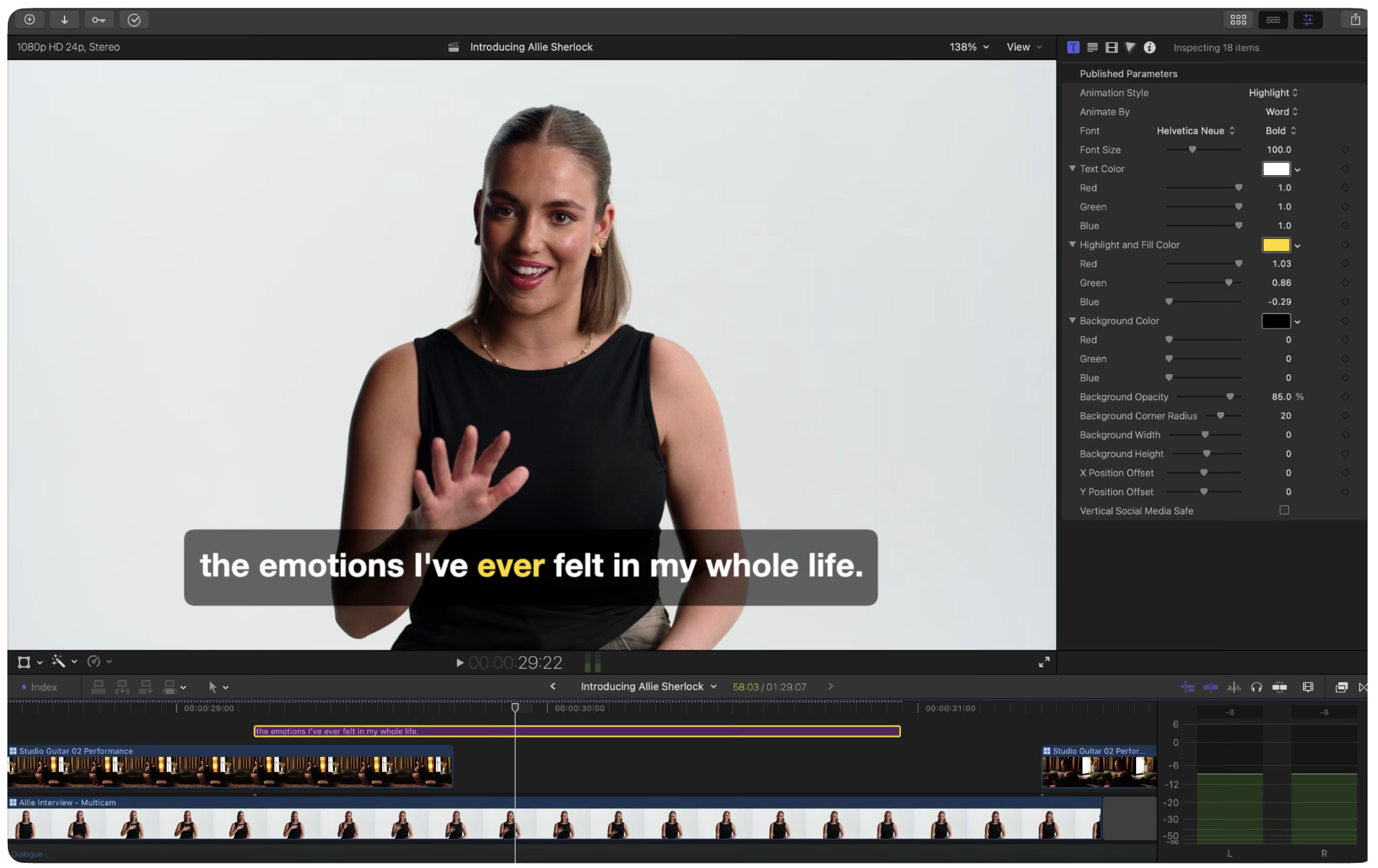
One of the biggest time-saving additions is Transcribe to Captions.
Instead of manually typing subtitles, Final Cut Pro can now automatically generate editable captions from spoken dialogue.
In our testing, transcription accuracy was impressively high with clear speech, requiring only minor corrections before publishing.
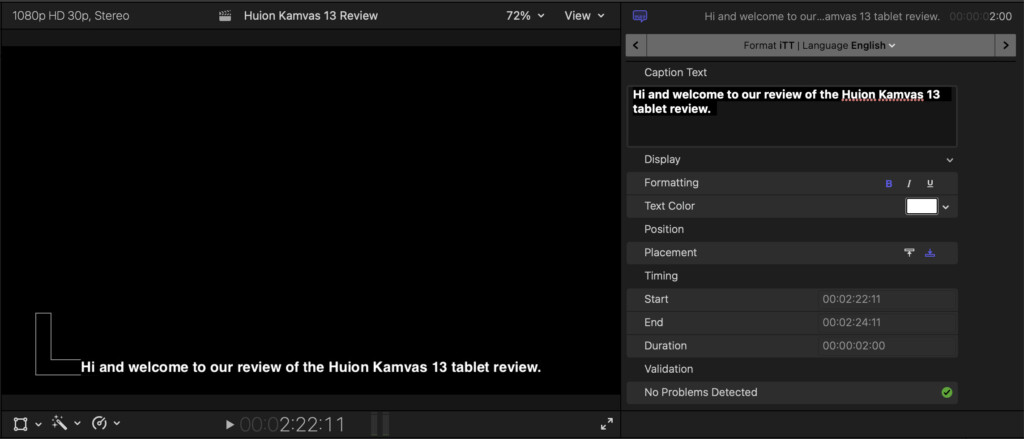
For YouTubers and online creators producing frequent content, this feature alone can save hours every month (although YouTube now provides automatic transcriptions too).
Unlike third-party caption generators, everything happens directly inside Final Cut Pro without exporting your project to another service.
Improved AI object masking
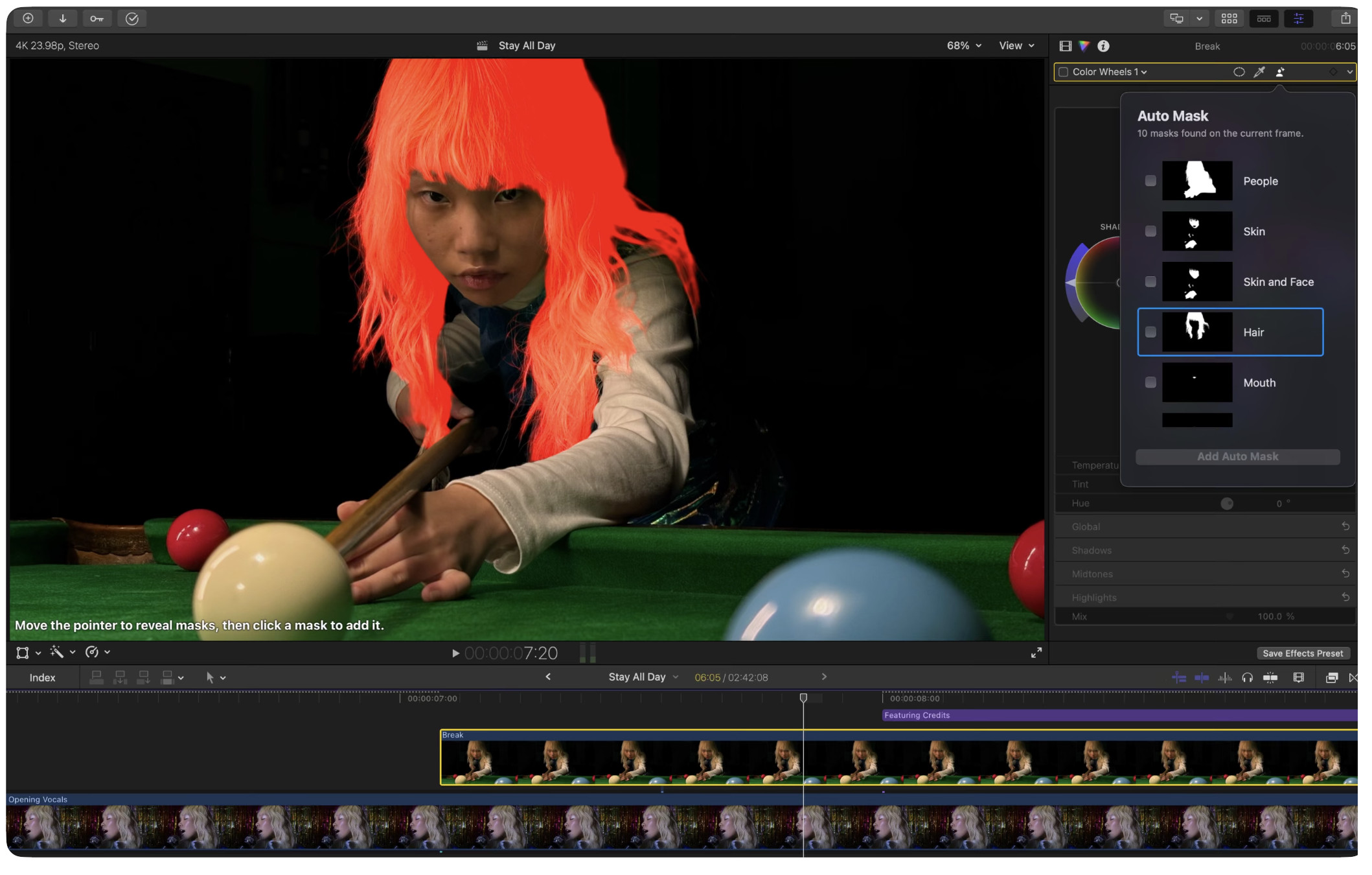
Apple’s Magnetic Mask continues to improve and is now one of Final Cut Pro’s most useful AI tools.
Instead of painstakingly drawing masks frame-by-frame, it can automatically isolate people, vehicles and many common objects from the background.
We found it particularly useful for:
- replacing backgrounds
- applying colour corrections to individual subjects
- adding effects behind presenters
- creating social media content
Although Adobe Premiere Pro still offers more advanced AI-assisted editing, Final Cut Pro’s masking tools are fast, accurate and incredibly easy to use.
Apple Intelligence integration
Apple has gradually begun integrating Apple Intelligence into Final Cut Pro.
One of the more interesting additions is Image Playground, allowing editors to generate original graphics without leaving FCP.
While this isn’t intended to replace dedicated AI image generators, it can be useful for creating placeholder artwork, simple illustrations and visual assets without leaving your editing space.
As Apple Intelligence expands across macOS, it’s likely we’ll see more AI-assisted editing features arrive in future releases.
Better support for Apple Vision Pro
As spatial video becomes increasingly popular, Final Cut Pro has become one of the easiest ways to edit footage for the Apple Vision Pro VR headset.
Editors can import, preview and edit Spatial Video captured on supported iPhones and compatible cameras while previewing footage in multiple viewing modes.
Although spatial video remains a relatively niche feature, it’s another example of Apple’s advantage when developing software alongside its own hardware.
Continued Apple Silicon optimisation
Perhaps the biggest improvement isn’t a headline feature at all.
Every release continues to squeeze even more performance from Apple’s M-series processors.
Background rendering feels faster than ever, timeline playback remains exceptionally smooth and exporting large 4K projects is noticeably quicker than on older Intel Macs.
If you’re editing on an M3 or M4 Mac, Final Cut Pro simply feels like software designed specifically for your hardware – because it is.
Improved support for modern camera formats
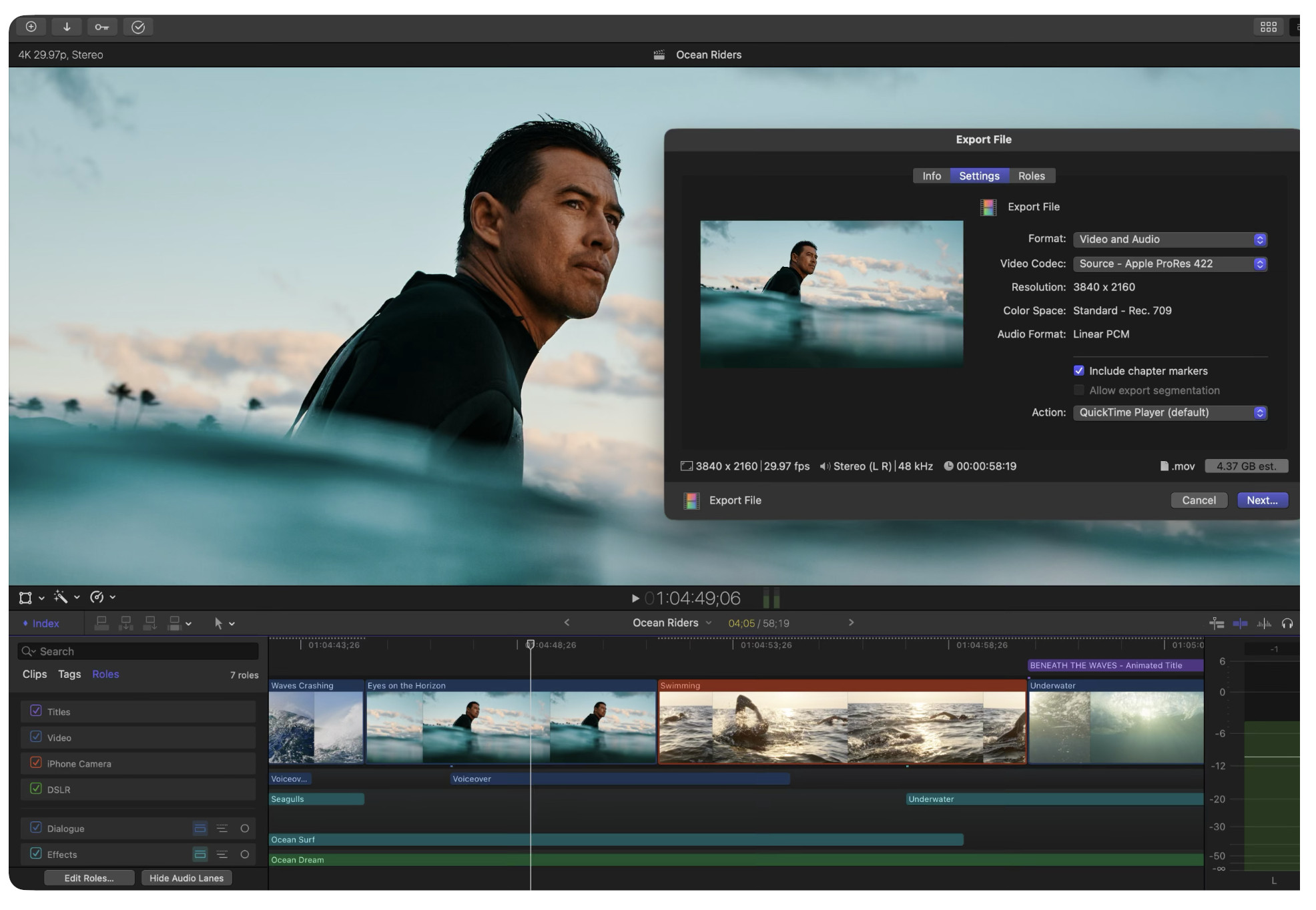
Final Cut Pro continues expanding support for the latest professional cameras and codecs.
Recent updates have improved compatibility with:
- Apple Log workflows
- ProRes RAW recording
- HEVC footage
- Spatial Video
- High-frame-rate iPhone footage
For creators who regularly move between iPhone, mirrorless cameras and drones, importing footage remains refreshingly straightforward.
Installation & Setup
Getting started with Final Cut Pro is refreshingly simple.
Apple offers a generous 90-day free trial, giving you far longer to evaluate the software than most professional editing suites.
One thing worth noting is that the trial is downloaded directly from Apple’s website rather than through the Mac App Store. If you install Final Cut Pro from the App Store, you’ll be prompted to purchase it immediately.
Installation takes only a few minutes on a fast internet connection, although you’ll want considerably more free storage than the installer itself requires (which is about 6GB).

Video editing projects can quickly consume hundreds of gigabytes, especially when working with 4K, 6K or ProRes footage.
For serious editing, we strongly recommend storing projects on a fast Thunderbolt SSD rather than your Mac’s internal drive. This not only keeps macOS responsive but also makes it easier to archive completed projects.
System Requirements
Final Cut Pro now fully embraces Apple’s transition to Apple Silicon.
Although it still supports compatible Intel Macs running supported versions of macOS, there’s no question where Apple’s development focus now lies.
Many of the newest AI-powered features either perform significantly better on Apple Silicon or require Apple’s Neural Engine to function efficiently.
For the best experience, we’d recommend:
- Apple Silicon Mac (M1, M2, M3, M4 or M5)
- At least 16GB unified memory
- Fast SSD storage
- External Thunderbolt SSD for larger projects
- A colour-accurate monitor if performing professional colour grading
While the software will run on lower specifications, larger multicam projects and high-resolution footage benefit enormously from additional memory and storage bandwidth.
Setting Up Your First Project
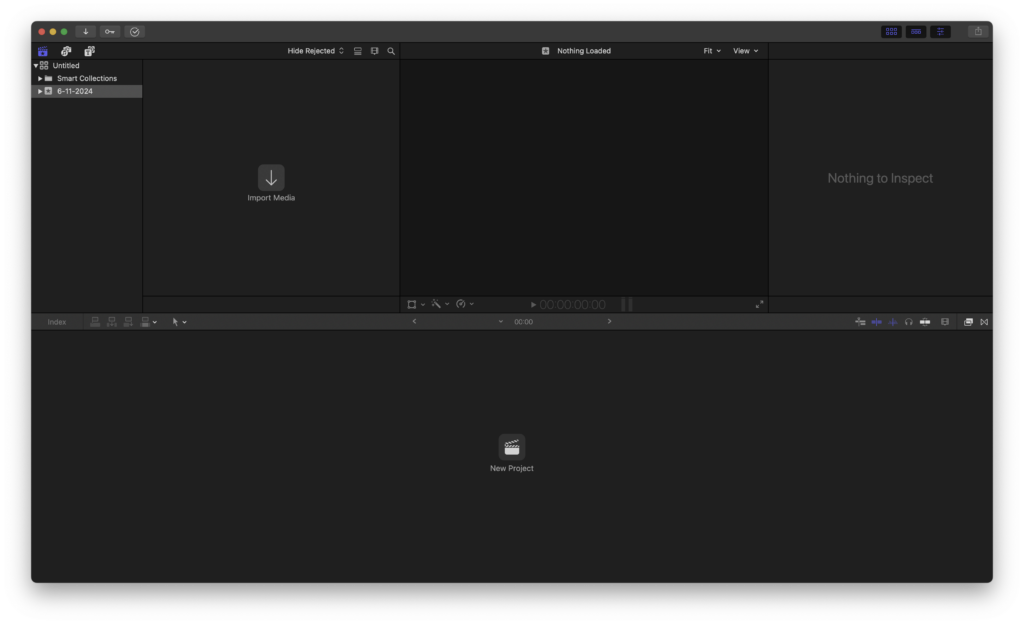
One area where Final Cut Pro continues to shine is its straightforward setup process.
After launching the application, you’re guided through creating a Library, Event and Project, which together form the organisational structure for your media.
Although this terminology may initially seem unfamiliar to editors coming from Premiere Pro, it quickly becomes second nature and helps keep large productions organised.
Importing footage is equally painless.
Final Cut Pro supports virtually every common video format used today, including footage from iPhones, mirrorless cameras, cinema cameras, drones and action cameras.
Once your media is imported, you’re ready to begin editing immediately using Final Cut Pro’s signature Magnetic Timeline, which remains one of its most distinctive – and occasionally divisive – features.
First Impressions
Final Cut Pro has always looked unmistakably like a Mac application, and that’s one of its biggest strengths.
The interface is clean, responsive and free from unnecessary clutter. Unlike some professional editors that overwhelm new users with dozens of floating windows and technical controls, Final Cut Pro presents a surprisingly approachable workspace while still offering the depth professionals expect.
Anyone who’s previously used iMovie will immediately recognise the overall layout. Although Final Cut Pro is vastly more powerful, Apple has deliberately maintained a familiar design language that makes the transition much less intimidating than moving to Adobe Premiere Pro or DaVinci Resolve.
The default workspace is divided into four primary areas:
- Browser – where your imported footage, music, photos and effects are stored.
- Viewer – displays a live preview of your edits.
- Timeline – where the actual editing takes place.
- Inspector – contains detailed controls for video, audio, colour correction and effects.
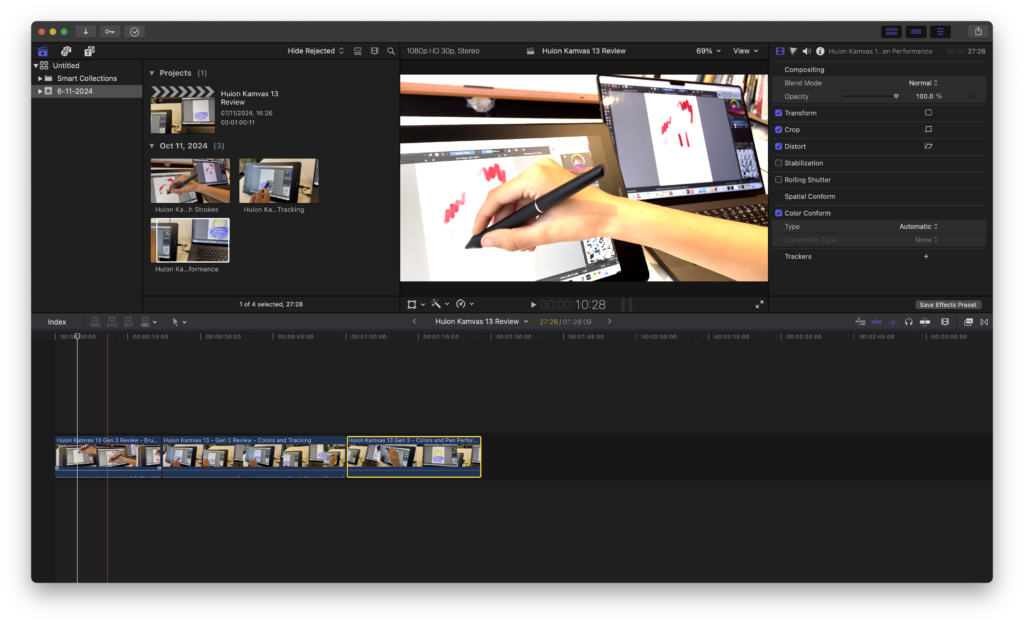
Everything feels thoughtfully arranged and, importantly, remains highly customisable. Panels can be resized, hidden or rearranged depending on what you prefer, allowing you to maximise screen space on both MacBooks and larger external displays.
Even on a 14-inch MacBook Pro, we found the workspace comfortable to use thanks to Apple’s efficient use of screen real estate.
The Magnetic Timeline
The Magnetic Timeline continues to divide opinion among professional editors.
If you’ve spent years editing in Adobe Premiere Pro, Avid or DaVinci Resolve, your first reaction will probably be confusion.
Instead of placing clips onto fixed tracks, Final Cut Pro uses a dynamic timeline that automatically keeps clips connected together.
Move one clip and the surrounding clips intelligently shift to prevent unwanted gaps.
At first this feels almost as though Final Cut Pro is trying to edit for you.
After a few projects, however, its advantages become much clearer.
For many editing tasks – particularly YouTube videos, interviews, tutorials and social media content – it dramatically speeds up editing because you’re no longer constantly zooming in to close tiny gaps or worrying about accidentally throwing audio out of sync.
For example, when shortening a talking-head section, removing pauses or rearranging scenes, everything automatically remains connected.
This saves an enormous amount of time compared to traditional timeline editing.
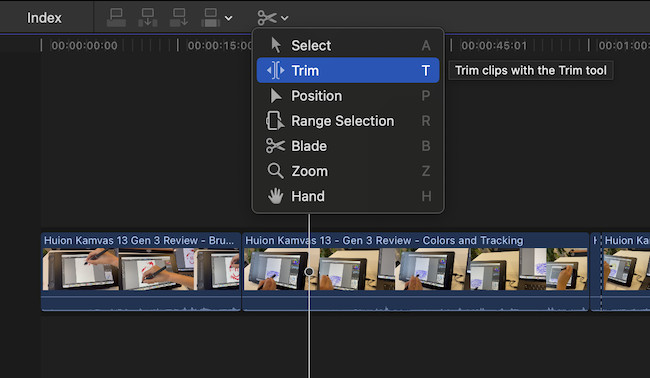
That said, the Magnetic Timeline isn’t perfect.
Editors working on complex broadcast productions or feature films sometimes prefer traditional track-based editing because it offers more manual control over complicated timelines.
Fortunately, Final Cut Pro now includes enough organisational tools – including Roles, Storylines and Compound Clips – that even very large productions remain manageable once you’ve learned Apple’s way of working.
It’s certainly different – but after spending considerable time with it, we found ourselves editing noticeably faster than we expected.
Organising Your Projects
One of Final Cut Pro’s underrated strengths is project organisation.
Rather than scattering media across folders, Apple organises everything using three simple components:
- Libraries
- Events
- Projects
Think of a Library as the overall production.
Within each Library you create Events, which organise footage into logical groups.
Projects then contain the finished edits that reference media stored within those Events.
This structure initially feels unfamiliar but becomes extremely useful once projects begin growing.
For example, a YouTube creator could organise content like this:
Library: YouTube Channel
- Event: Camera Footage
- Event: Screen Recordings
- Event: Music
- Event: Graphics
- Event: B-Roll
Each week’s video simply becomes a separate Project inside the same Library.
For larger production companies, Libraries can represent individual clients while Events separate filming days, interviews or shooting locations.
The result is a remarkably tidy editing workspace that scales far better than manually organising folders on your desktop.
Editing
Once footage has been imported, editing is remarkably fluid.
Dragging clips into the timeline feels instant, trimming is exceptionally responsive and playback remains smooth even with multiple layers of video.
One thing we particularly appreciate is how little Final Cut Pro interrupts the creative process.
Many professional editors require constant rendering before effects can be previewed properly.
Final Cut Pro instead performs much of this work quietly in the background.
This means you’re rarely waiting for progress bars before continuing your edit.
Apple has also refined dozens of smaller improvements that collectively make editing feel faster.
Some examples include:
- Drag-and-drop transitions
- One-click title editing
- Instant clip trimming
- Real-time audio waveform updates
- Fast keyword searching
- Automatic background rendering
- Skimming footage without opening clips
None of these features are revolutionary on their own.
Combined, however, they create an editing experience that simply feels smoother than many competitors.
Editing YouTube Videos
If your primary goal is creating YouTube content, Final Cut Pro remains one of the easiest professional editors to recommend.
It naturally suits the style of editing most creators perform such as:
- talking-head videos
- tutorials
- reviews
- reaction videos
- product demonstrations
- educational content
Creating these videos rarely requires Hollywood-level visual effects.
Instead, speed matters.
During testing, we found ourselves moving from importing footage to publishing videos remarkably quickly thanks to Final Cut Pro’s responsive timeline and efficient export options.
Features such as automatic captions, object masking and built-in motion graphics significantly reduce the amount of time spent jumping between different applications.
For solo creators, that’s a major advantage.
Editing Vertical Video
Another welcome improvement over recent releases is how well Final Cut Pro now handles vertical content.
Short-form platforms such as:
- YouTube Shorts
- Instagram Reels
- TikTok
- Facebook Reels
have become an essential part of content creation.
Final Cut Pro makes switching between landscape and portrait projects extremely straightforward.
Projects can be created specifically for vertical video, while intelligent cropping tools help reposition existing footage without constantly adjusting every clip manually.
For creators publishing across multiple platforms, this considerably speeds up repurposing long-form content into shorter clips.
Multicam Editing

Multicam editing continues to be one of Final Cut Pro’s standout professional features.
Instead of manually synchronising footage from multiple cameras, Final Cut Pro can automatically match clips using timecode, audio or camera metadata.
Once synchronised, switching between camera angles becomes incredibly intuitive.
This makes it ideal for:
- podcasts
- interviews
- weddings
- conferences
- live performances
- YouTube discussions
During testing, synchronisation proved extremely accurate even when cameras lacked matching timecode.
Apple’s optimisation means playback remains impressively smooth, even when switching between multiple 4K camera angles on Apple Silicon Macs.
AI Features
Artificial intelligence has rapidly become one of the biggest battlegrounds in professional video editing.
Adobe continues to push aggressively with Firefly-powered editing tools, while DaVinci Resolve has introduced its own growing collection of AI-assisted features.
Apple’s approach has been more measured.
Rather than filling Final Cut Pro with experimental AI tools, Apple has focused on automating repetitive editing tasks that genuinely save time.
Although its AI toolkit isn’t as extensive as Adobe’s, the features that are included are polished, reliable and well integrated into everyday editing.
Automatic Captions
Creating subtitles used to be one of the most tedious parts of video production.
Final Cut Pro’s Transcribe to Captions feature changes that dramatically.
With a few clicks, spoken dialogue is converted into editable captions directly inside your timeline.
In our testing, transcription accuracy was consistently impressive for clear English speech, requiring only minor corrections before export.
For YouTubers producing regular content, this can save hours of manual work every month.
Unlike many online transcription services, captions remain fully editable within your project, making it easy to correct names, technical terminology or punctuation before publishing.
Magnetic Mask
Magnetic Mask has quietly become one of Final Cut Pro’s most useful AI tools.
Rather than manually drawing masks around people or objects frame by frame, Final Cut Pro analyses the footage and automatically isolates the selected subject.
We found it particularly useful for:
- replacing backgrounds
- colour correcting individual subjects
- adding effects behind presenters
- highlighting products during demonstrations
While complex scenes can still require manual refinement, the amount of work saved compared with traditional masking is substantial.
AI Slow Motion
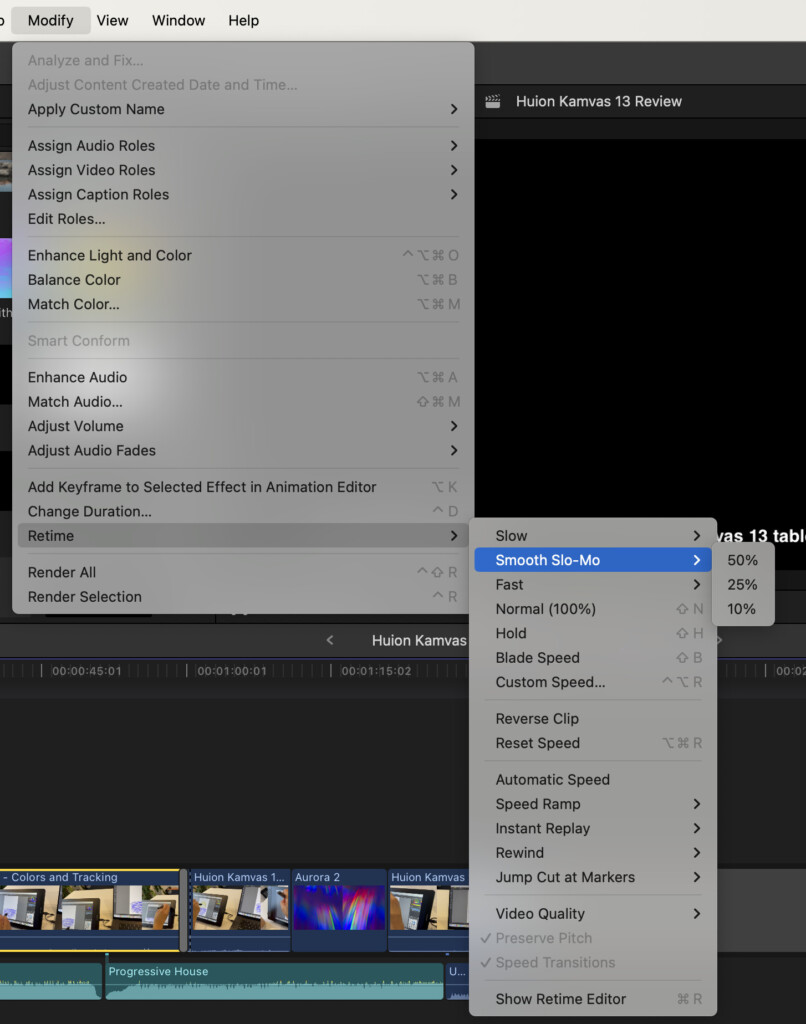
Another feature we found surprisingly effective is AI-powered Smooth Slow Motion.
Instead of requiring high frame-rate footage, Final Cut Pro intelligently generates intermediate frames to create much smoother slow-motion sequences.
The quality naturally depends on the source footage, but for action shots, sports clips and B-roll it often produces results that would previously have required specialist software.
It’s also incredibly easy to apply directly from the timeline without complicated settings.
Image Playground
Apple has also begun integrating Apple Intelligence through Image Playground.
This allows editors to generate original illustrations and graphics without leaving Final Cut Pro.
At present, this feels more like a useful bonus than a core editing tool.
We found it helpful for quickly creating placeholder artwork and simple visual elements, although creators producing highly customised graphics will still prefer dedicated AI image generators.
As Apple Intelligence continues to evolve across macOS, this is clearly an area likely to expand in future updates.
Object Tracking
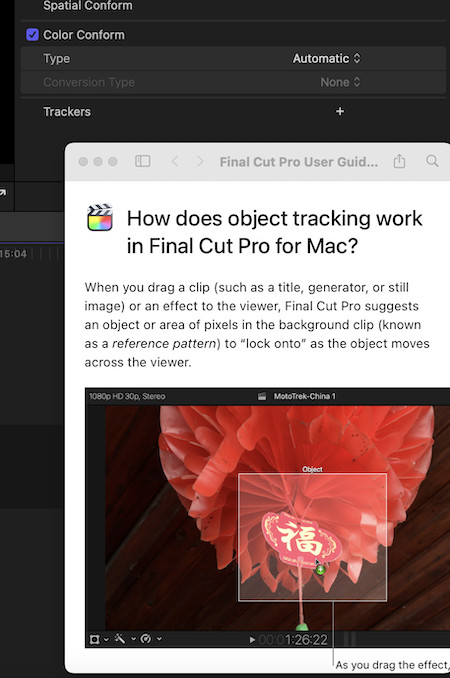
Object Tracking has steadily improved over recent releases.
Once you’ve selected a subject, Final Cut Pro can automatically follow its movement throughout a clip, making it much easier to attach effects, graphics or text.
For YouTube creators producing tutorials or product reviews, this is particularly useful for drawing attention to products or interface elements without manually keyframing every movement.
Tracking accuracy proved consistently reliable during our testing, particularly on modern Apple Silicon Macs.
AI That Doesn’t Get In Your Way
Perhaps Apple’s biggest success is knowing when not to use AI.
Rather than replacing creative decisions, Final Cut Pro uses machine learning to remove repetitive work mainly for:
- Captions
- Masking
- Tracking
- Background analysis
- Slow motion
These are all tasks editors perform repeatedly.
Automating them allows creators to spend more time focusing on storytelling rather than technical editing.
That restrained approach makes Final Cut Pro feel less like an AI showcase and more like a genuinely faster editing application.
Professional Editing Features
Final Cut Pro has evolved into one of the most complete professional editing suites available for macOS. While its clean interface makes it approachable for beginners, beneath the surface are tools capable of handling everything from YouTube videos to commercial productions and feature-length documentaries.
What impressed us most during testing wasn’t any single feature – it was how seamlessly everything fits together. Most professional tasks can be completed without constantly switching between different applications.
Colour Grading
Colour grading has become one of Final Cut Pro’s strongest areas over the past few years.
Earlier versions felt limited compared to DaVinci Resolve, but Apple has steadily expanded its colour correction tools into something that will satisfy all but the most demanding professional colourists.
Final Cut Pro now includes:
- Colour Wheels
- Colour Curves
- Hue/Saturation Curves
- Colour Masks
- Shape Masks
- Video Scopes
- HDR colour grading
- LUT support
For most creators, the built-in Colour Wheels provide everything needed to quickly balance exposure, shadows, highlights and colour temperature.
Those looking for more cinematic grading can move on to Curves and HSL controls, which offer much finer adjustments without feeling overly complicated.
The built-in Waveform, RGB Parade and Vectorscope are also excellent for ensuring colour consistency across an entire project.
Unless you’re working on high-end cinema productions, it’s unlikely you’ll feel limited by Final Cut Pro’s native colour tools.
HDR Editing
High Dynamic Range content is becoming increasingly common thanks to the latest iPhones, mirrorless cameras and drones.
Fortunately, Final Cut Pro handles HDR exceptionally well.
The software supports:
- HDR10
- HLG
- Dolby Vision
- Apple Log
- ProRes RAW
- Wide colour
Apple’s integration with macOS means HDR footage displays beautifully on compatible MacBook Pro and Studio Display panels without requiring complicated configuration.
For creators shooting with an iPhone Pro, editing Apple Log footage feels particularly seamless.
Audio Editing
Video quality often gets the attention, but audio is just as important.
Final Cut Pro includes a surprisingly capable collection of audio editing tools.
These include:
- Noise reduction
- Equalisation
- Compression
- Audio enhancement
- Voice isolation
- Loudness adjustment
- Channel mapping
Recording voiceovers is also extremely straightforward.
Simply choose Window > Record Voiceover, select your microphone and begin recording directly into your timeline.

For YouTubers and tutorial creators, this removes the need to use separate recording software.
That said, Final Cut Pro still isn’t a replacement for dedicated audio applications.
If you’re producing podcasts, films or music projects requiring advanced mixing, Adobe Audition, Logic Pro or Pro Tools still provide significantly greater control.
For the majority of content creators, however, the built-in tools are more than adequate.
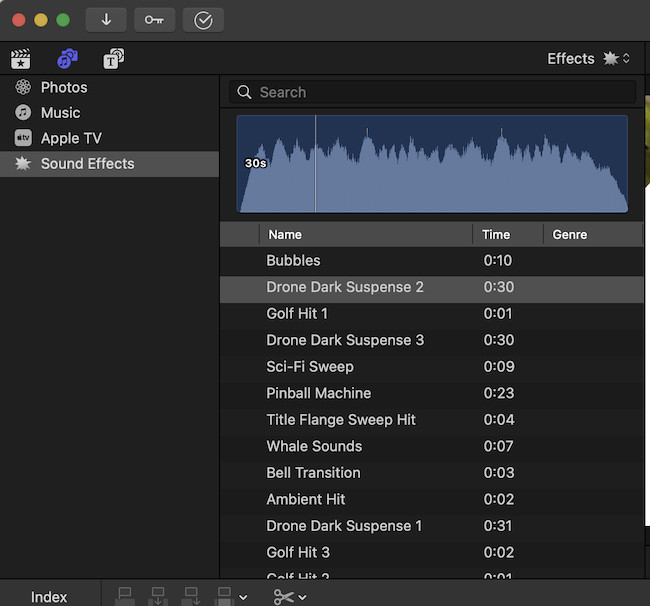
There are also a range of sound effects that you can add to your edits.
Titles & Motion Graphics
Apple has always done an excellent job with titles.
Unlike many editing packages where text feels like an afterthought, Final Cut Pro includes an extensive collection of polished animated titles that can dramatically improve production quality.
Adding titles is as simple as dragging them onto the timeline before editing the text directly.
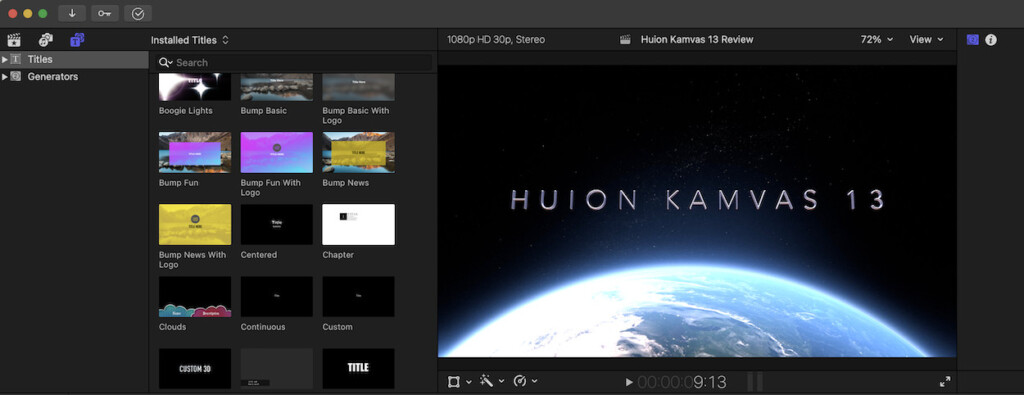
Categories include:
- Lower thirds
- Broadcast graphics
- 3D titles
- Kinetic typography
- Social media graphics
- Credits
- Callouts
Every title can be customised with different fonts, colours, shadows and animations.
Those wanting even greater creative control can integrate Final Cut Pro with Apple Motion, allowing completely custom motion graphics and animations.
Motion remains one of the best-value professional applications Apple sells and is well worth considering if you regularly create branded content.
Effects & Transitions
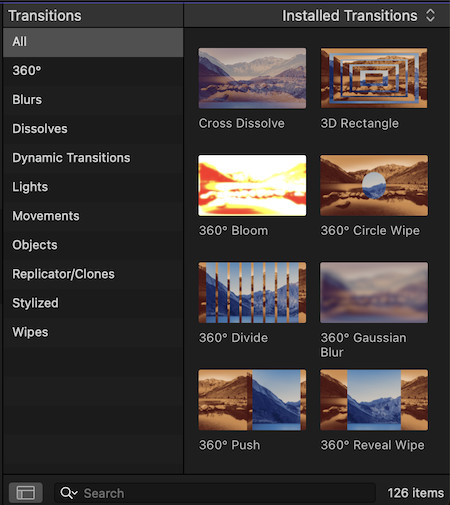
Final Cut Pro includes hundreds of built-in effects.
Rather than overwhelming users with thousands of mediocre presets, Apple has focused on quality over quantity.
You’ll find effects covering:
- Blur
- Sharpen
- Vintage film
- Stylisation
- Distortion
- Keying
- Colour correction
- Lighting
- Focus effects
- Perspective correction
Each effect previews instantly as you hover over it, making experimentation much quicker than constantly applying and removing filters.

Transitions are equally polished.
Popular options include:
- Cross Dissolve
- Fade
- Zoom
- Slide
- Whip Pan
- Light Leak
- 3D transitions
Although some third-party packages offer larger libraries, Apple’s built-in collection will be sufficient for most editors.

Green Screen Editing
One feature that continues to impress is Final Cut Pro’s Keyer effect.
Green screen footage can often be cleaned up with little more than dragging the Keyer effect onto a clip.
For well-lit footage, results are remarkably clean without extensive tweaking.
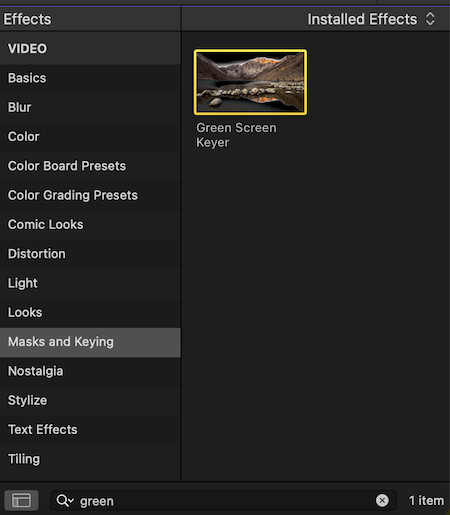
Advanced controls are available for refining edges, spill suppression and transparency, but many users won’t need to touch them.
Combined with Magnetic Mask, replacing backgrounds has become significantly easier than it was only a few years ago.
Object Tracking
Object Tracking deserves special mention because of how much it has improved.
Tracking text, graphics or effects to moving people or products now takes only a few clicks.
We found it particularly useful when:
- highlighting software menus
- following products during demonstrations
- attaching graphics to moving subjects
- creating YouTube tutorials
Although Premiere Pro still offers more advanced tracking options, Final Cut Pro now performs well enough for the majority of creators.
Exporting Projects
Exporting has always been one of Final Cut Pro’s strengths.
Thanks to Apple’s optimisation, exports remain consistently fast without requiring complicated settings.
Common export formats include:
- H.264
- HEVC (H.265)
- Apple ProRes
- Apple ProRes RAW
- MOV
- MP4
Projects can also be exported specifically for:
- YouTube
- Vimeo
- Apple devices
- Master archive files
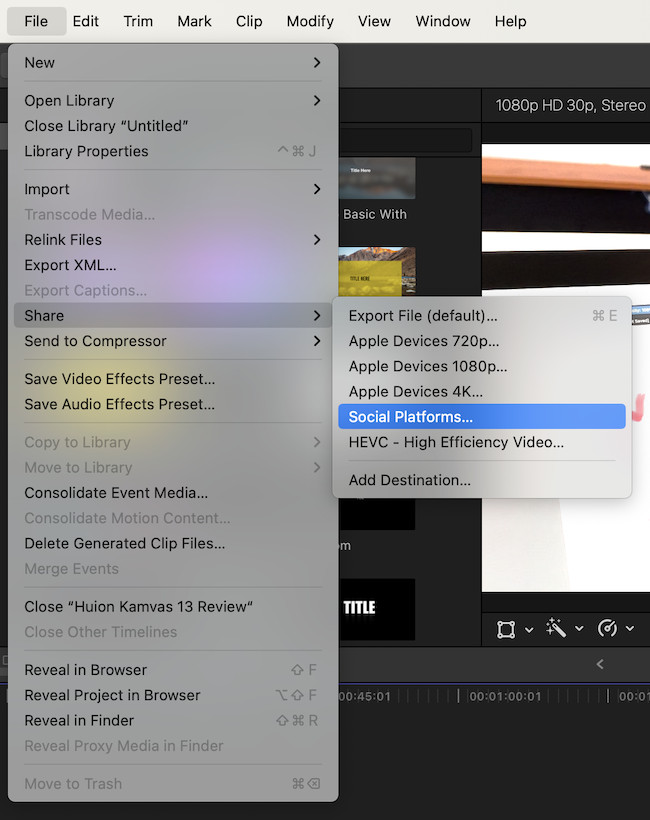
One particularly welcome feature is background exporting.
Large projects continue exporting while you work on other edits, making much better use of Apple Silicon’s processing power.
Camera & Format Support
Compatibility has expanded considerably in recent years.
Final Cut Pro now supports footage from virtually every major camera manufacturer, including:
- Canon
- Sony
- Nikon
- Panasonic
- Fujifilm
- RED
- Blackmagic Design
- DJI
- GoPro
- Insta360
- Apple iPhone
Supported codecs include:
- ProRes
- ProRes RAW
- Apple Log
- H.264
- H.265 (HEVC)
- AVC-Intra
- XAVC
- MXF
- MOV
- MP4
This broad compatibility means most creators can begin editing immediately without converting footage beforehand.
Plugins
Although Final Cut Pro’s plugin range isn’t quite as large as Adobe Premiere Pro’s, it’s significantly stronger than many people realise.
Several excellent developers produce professional-grade extensions that integrate seamlessly with Apple’s editor.
Here are the ones we recommend most.
MotionVFX
MotionVFX is arguably the gold standard for Final Cut Pro plugins.
Its collection includes:
- cinematic titles
- transitions
- callouts
- broadcast graphics
- HUD animations
- YouTube templates
- colour grading tools
The quality is consistently excellent and particularly well suited to professional YouTube creators.
FXFactory
FXFactory acts as both a marketplace and plugin manager.
It gives access to hundreds of extensions covering:
- effects
- generators
- transitions
- audio tools
- workflow improvements
Many of the industry’s most respected Final Cut plugins are distributed through FXFactory.
Color Finale
Although Final Cut Pro’s colour tools are excellent, Color Finale takes grading even further.
Professional features include:
- advanced colour wheels
- LUT management
- film emulation
- masking
- shot matching
It’s particularly popular among documentary filmmakers and commercial editors.
Neat Video
Noise reduction remains one of the biggest challenges in video editing.
Neat Video continues to be one of the best plugins available for cleaning noisy footage without sacrificing detail.
For anyone regularly filming in low light, it’s an excellent investment.
CoreMelt
CoreMelt specialises in advanced tracking, stabilisation and visual effects.
Its tools significantly expand Final Cut Pro’s built-in capabilities, especially for editors producing motion-heavy content.
Performance
Performance has always been Final Cut Pro’s biggest competitive advantage.
Simply put, no other professional editor feels as well integrated with macOS.
Because Apple develops both the hardware and software, Final Cut Pro makes exceptional use of Apple Silicon.
Throughout our testing, timeline responsiveness remained consistently smooth, even when editing multiple streams of 4K footage with colour corrections, titles and effects applied.
Playback rarely required rendering, and background processing meant editing could continue uninterrupted while Final Cut quietly handled more demanding tasks.
Performance on Apple Silicon
Modern M-series Macs transform the editing experience.
On M1, M2, M3 and M4 systems, we consistently experienced:
- smooth 4K playback
- fast background rendering
- near-instant timeline scrubbing
- responsive multicam editing
- significantly faster exports than Intel Macs
Even larger projects containing dozens of effects remained surprisingly fluid.
Memory management has also improved substantially over recent versions, allowing Final Cut Pro to keep far more footage readily available without slowing the system.
Performance on Intel Macs
Although Final Cut Pro still runs on supported Intel Macs, the experience is increasingly compromised.
Many of Apple’s newest machine-learning features perform considerably better on Apple Silicon, while export speeds and timeline responsiveness are noticeably slower.
If you’re editing professionally every day, upgrading to Apple Silicon remains one of the biggest performance improvements you can make.
Stability
Perhaps more impressive than outright speed is Final Cut Pro’s reliability.
Across weeks of testing, crashes were extremely rare.
Automatic background saving also provides welcome peace of mind, ensuring that even unexpected interruptions rarely result in lost work.
For professionals working to deadlines, that reliability is every bit as valuable as fast rendering.
Final Cut Pro vs Adobe Premiere Pro
This remains the comparison most professional editors care about.
Both are exceptional video editors, but they take very different approaches.
Adobe Premiere Pro is built around collaboration, cross-platform editing and integration with the wider Adobe Creative Cloud suite.
Final Cut Pro is designed around one goal: making video editing on a Mac as fast and efficient as possible.
After using both extensively, here’s where each stands in 2026.
| Feature | Final Cut Pro | Adobe Premiere Pro |
|---|---|---|
| Platform | macOS only | macOS & Windows |
| Pricing | One-time purchase | Monthly subscription |
| Performance | ★★★★★ | ★★★★☆ |
| Ease of learning | ★★★★☆ | ★★★☆☆ |
| Collaboration | ★★★☆☆ | ★★★★★ |
| AI tools | ★★★★☆ | ★★★★★ |
| Motion graphics | ★★★★☆ | ★★★★★ (After Effects) |
| Colour grading | ★★★★☆ | ★★★★★ |
| Audio tools | ★★★☆☆ | ★★★★★ |
| Apple Silicon optimisation | ★★★★★ | ★★★★☆ |
If you work entirely on a Mac, Final Cut Pro simply feels faster.
Timeline playback is smoother, exports are generally quicker and background rendering is less intrusive.
Premiere Pro, however, still has the edge for:
- agencies
- television production
- cross-platform teams
- editors already using Photoshop, Illustrator and After Effects.
Winner for Mac users: Final Cut Pro
Final Cut Pro vs DaVinci Resolve
DaVinci Resolve has become Final Cut Pro’s strongest competitor over the past few years.
Its free version is remarkably capable and its Studio edition offers perhaps the best colour grading tools available today.
Resolve also includes:
- advanced VFX
- Fairlight audio production
- Fusion motion graphics
- collaborative editing
However, that power comes with increased complexity.
During testing we consistently found Final Cut Pro easier to learn and noticeably quicker for everyday editing.
Resolve shines for:
- feature films
- commercial productions
- colour-critical work
- visual effects
Final Cut Pro excels at:
- YouTube
- documentaries
- corporate video
- content creation
- fast turnaround projects
If colour grading is your profession, Resolve remains the better choice.
For most Mac users, Final Cut Pro offers the more enjoyable editing experience.
Final Cut Pro vs CapCut
CapCut has exploded in popularity thanks to TikTok and short-form video.
It’s quick.
Simple.
Packed with AI features.
But it isn’t really competing for the same audience.
CapCut is designed primarily for:
- creators
- influencers
- social media
- mobile editing
Final Cut Pro targets professional production.
The difference becomes obvious as projects become larger.
Final Cut Pro handles:
- multicam editing
- documentaries
- feature-length videos
- advanced colour grading
- broadcast production
far more comfortably.
If your work evolves around TikTok or Instagram Reels, CapCut may be sufficient.
If you’re building a YouTube channel or running a production business, Final Cut Pro is in an entirely different league.
Final Cut Pro vs iMovie
This comparison is perhaps the easiest.
If you’re currently using iMovie and wondering whether it’s worth upgrading, the answer is almost certainly yes.
Final Cut Pro expands virtually every aspect of editing.
You gain:
- Multicam editing
- AI captions
- Professional colour grading
- HDR
- Advanced audio controls
- Object tracking
- Motion graphics
- Plugins
- Magnetic Mask
- ProRes
The interface will also feel comfortably familiar because Final Cut Pro evolved directly from iMovie.
For anyone beginning to outgrow Apple’s free editor, Final Cut Pro is the obvious next step.
Pricing
One of Final Cut Pro’s biggest strengths remains its pricing model.
Unlike most professional editors, Apple still sells Final Cut Pro as a one-time purchase of $299.99.
That means no recurring subscription fees.
For freelancers and independent creators, this alone can save hundreds of pounds or dollars over several years.
Apple also offers one of the most generous free trials in professional creative software.
The 90-day trial provides plenty of time to determine whether Final Cut Pro fits your needs before spending any money.
The iPad version follows a different model.
Final Cut Pro for iPad is available via a monthly or annual subscription and is aimed primarily at creators who edit while travelling.
Although impressive, it still lacks the depth and flexibility of the desktop version.
For serious editing, the Mac edition remains the one we’d recommend.
Is Final Cut Pro Worth Buying?
For Mac users, yes.
In fact, it’s arguably better value today than it has ever been.
The software has matured considerably over recent releases.
Apple’s AI tools are genuinely useful rather than gimmicky, Apple Silicon performance remains exceptional and the one-time purchase model has become increasingly attractive as competitors continue moving towards subscriptions.
When you consider how many years most editors keep Final Cut Pro before feeling the need to upgrade, its long-term cost can be significantly lower than subscription-based alternatives.