

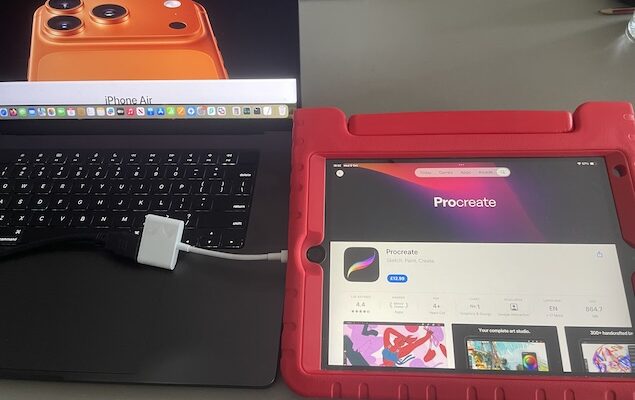
If you are looking for Procreate for Mac, the short answer is still no: you cannot install or run the real Procreate app natively on macOS.
Procreate remains an iPad app, built around touch and Apple Pencil. It is not listed as a Mac app, even on Apple Silicon Macs, and there is no announced Mac version to wait for.
You can, however, use Procreate alongside a Mac. The best method depends on whether you want to show your iPad canvas on a Mac screen, record a tutorial, work on a larger display, or move an illustration onto your Mac.
The Best Way to Use Procreate With a Mac
| What you want to do | Best method | What it does | Important limitation |
|---|---|---|---|
| See Procreate on your Mac wirelessly | AirPlay to Mac | Mirrors your iPad screen on the Mac | Some delay is normal; Procreate still runs on the iPad |
| Record Procreate or use it in a tutorial | QuickTime Player + USB cable | Shows and records the iPad screen on your Mac | You still draw on the iPad |
| Draw on a bigger physical screen | Connect the iPad directly to a monitor or TV | Lets the iPad output to an external display | This does not use the Mac as a monitor |
| Use Apple Pencil with a Mac drawing app | Sidecar | Turns the iPad into a display/input device for Mac apps | It cannot send an open Procreate canvas back to the Mac |
| Continue the artwork on your Mac | Export from Procreate as PSD, PNG, TIFF or PDF | Moves your artwork into Mac software | A native .procreate file needs Procreate to edit it |
Can You Get Procreate on a Mac?
No. Procreate is for iPad, while Procreate Pocket is the separate iPhone version. Neither is a macOS app.
Apple Silicon does not change this. Some iPhone and iPad apps can be made available in the Mac App Store, but that is a choice made by each developer. Procreate has not been made available for Mac.
Avoid sites promising a “Procreate for Mac download”, an unofficial IPA installer or an emulator workaround. They are not supported by Procreate, can be unreliable after an update, and may expose your Mac to unsafe downloads.
If what you actually need is a native desktop painting app, jump to our guide to the best Procreate alternatives for Mac. This article is for people who already use Procreate on an iPad and want to work with it more effectively from a Mac.
1. Mirror Procreate to Your Mac With AirPlay
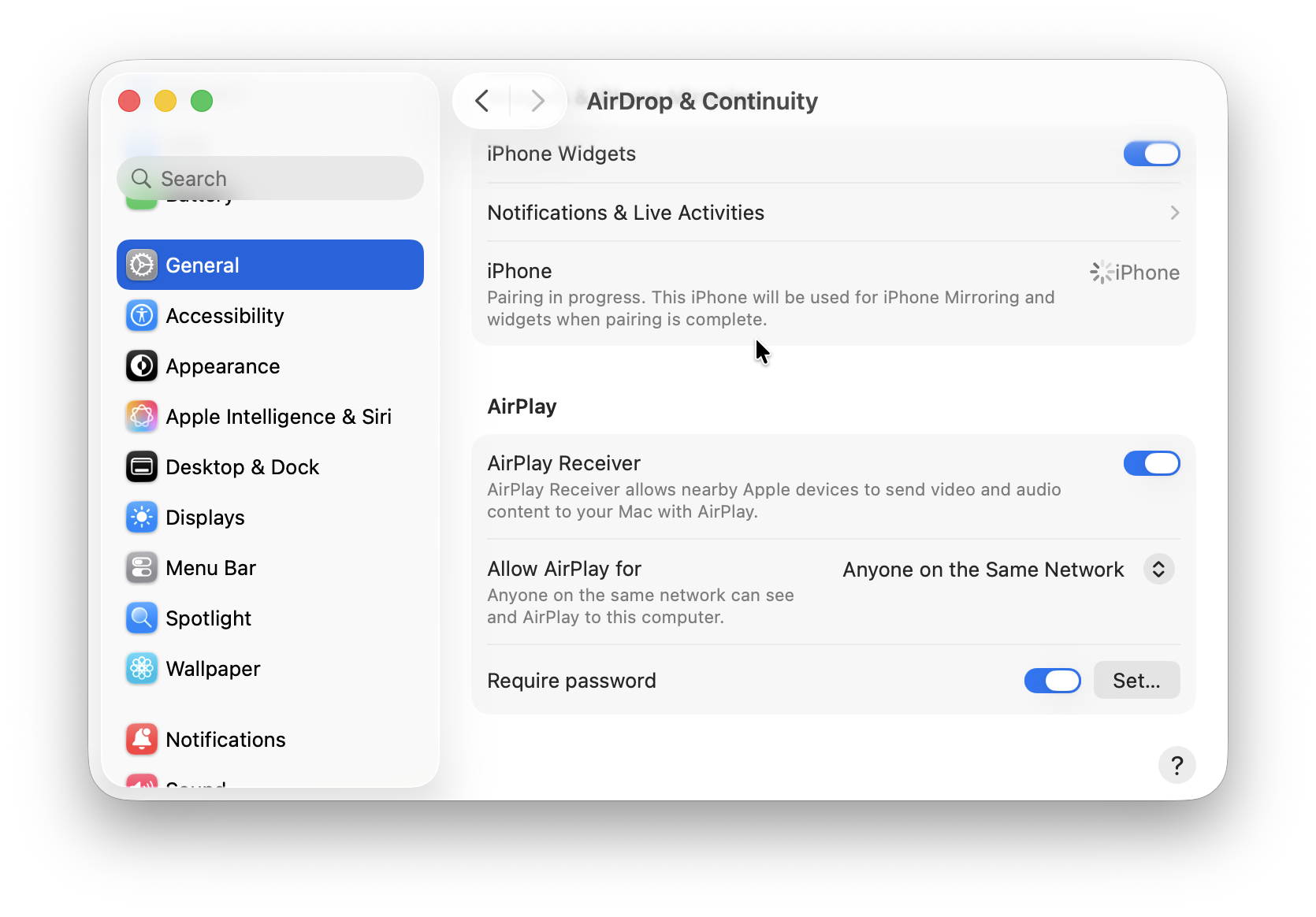
AirPlay to Mac is the simplest way to show a live Procreate canvas on your Mac without buying software or a capture device. Your iPad remains the device running Procreate; the Mac simply receives a mirrored view of its screen.
It is a useful choice for showing somebody your work, following a reference on a larger Mac display, presenting to a small group, or checking a composition away from the iPad.
What You Need
- A Mac that supports AirPlay to Mac, running macOS Monterey 12 or later
- A compatible iPad running iPadOS 14 or later
- Both devices on the same Wi-Fi network
- AirPlay Receiver enabled on the Mac
Apple lists AirPlay to Mac support for a Mac mini introduced in 2020 or later, iMac Pro, and most other Macs introduced in 2018 or later. Older compatible combinations may work at a lower video resolution, so check Apple’s current AirPlay to Mac requirements if your Mac is older.
How to Mirror Procreate to a Mac
- On your Mac, open System Settings → General → AirDrop & Continuity (called AirDrop & Handoff on some macOS versions).
- Turn on AirPlay Receiver.
- On your iPad, open Control Centre and tap Screen Mirroring.
- Choose your Mac and enter the passcode if one appears.
- Open Procreate on the iPad.
Your iPad screen, including Procreate, should now appear on the Mac. To stop it, open Control Centre on the iPad, tap Screen Mirroring, then choose Stop Mirroring.
Is AirPlay Good Enough for Drawing?
It is good for viewing, demonstrations and casual presentation, but do not expect a completely latency-free professional display link. Draw with Apple Pencil on the iPad itself rather than trying to react to the Mac image.
If you need a cleaner or more dependable feed for a tutorial, use the USB method below instead.
2. View or Record Procreate on a Mac With QuickTime Player
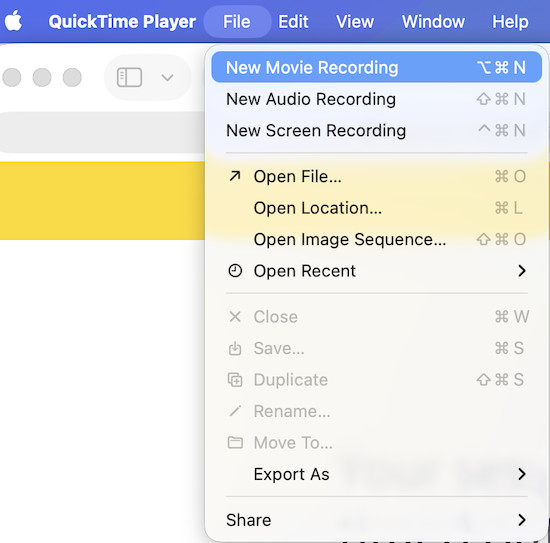
For screen recording, streaming preparation or a more stable wired view, connect the iPad directly to your Mac and use QuickTime Player. This is the best no-cost option for most creators.
QuickTime can display a connected iPad as a video source and save the result as a movie file on your Mac. It is ideal for recording Procreate lessons, portfolio process clips and client demonstrations.
How to Show Procreate in QuickTime
- Connect your unlocked iPad to the Mac with a data-capable USB-C or Lightning cable.
- Tap Trust on the iPad if asked.
- Open QuickTime Player on your Mac.
- Choose File → New Movie Recording.
- Click the recording options button, then choose your connected iPad under Camera.
- Open Procreate on the iPad. Its screen will appear in the QuickTime window.
- Click the Record button if you want to save the video, or simply leave the window open to view the canvas on your Mac.
QuickTime is particularly useful when you want to record your Mac screen at the same time as a Procreate tutorial. For a live stream, capture the QuickTime window in your streaming software and test the picture and audio before going live.
Use Procreate’s Time-lapse Replay When You Only Need the Artwork Process
If you do not need to show taps, menus or spoken instruction, Procreate’s own Time-lapse Replay is often the cleaner option. It records the creation of the artwork inside the app, so you can export a compact process video after you finish drawing rather than recording the whole iPad screen.
3. Use Procreate on a Larger External Display
If your real aim is simply a larger screen, connect the iPad directly to a monitor, television or projector rather than trying to route the picture through the Mac.
USB-C iPads can connect to compatible USB-C displays or, with the right adaptor, an HDMI display. Many Lightning iPads can use a suitable Lightning Digital AV adaptor with HDMI. Depending on the iPad model and the app, the external screen may mirror the iPad or offer an extended workspace.
This is the better choice for an in-person demonstration, a studio monitor or working at a desk where you want the iPad in your hand and the artwork visible at a larger size.
Important: An HDMI Cable Does Not Turn Your Mac Into an iPad Monitor
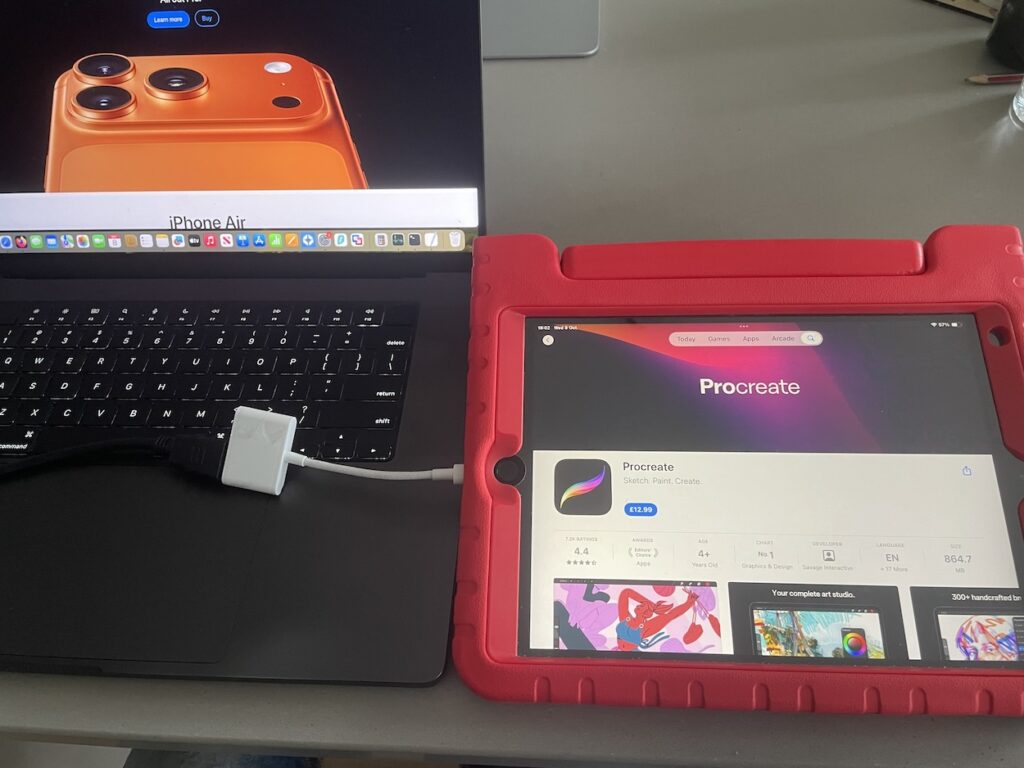
Do not plug an iPad HDMI adaptor straight into your Mac and expect its screen to appear. A current Mac’s HDMI port is for sending video out to a display, not accepting video in from an iPad.
If a professional video project needs an HDMI feed on the Mac, connect the iPad to a USB capture card via HDMI, then select that capture card in your recording or streaming software. For most people, QuickTime over USB is simpler, cheaper and more reliable.
What About Sidecar, Astropad, Duet Display and EasyCanvas?
This is where many older guides become confusing.
Sidecar does not mirror Procreate from the iPad to the Mac. It does the reverse: it extends or mirrors the Mac desktop on the iPad. You can use Apple Pencil with compatible Mac apps while Sidecar is active, but Procreate itself remains an iPad app.
The same distinction applies to drawing-tablet apps such as Astropad Studio, Duet Display and EasyCanvas. They are useful if you want to turn the iPad into a pen display for a Mac application such as Affinity, Photoshop or Clip Studio Paint. They are not the right tool for displaying a running copy of Procreate on your Mac.
When you switch from Sidecar back to the iPad Home Screen to open Procreate, the Sidecar session pauses. That is why it cannot be used as a genuine Procreate-on-Mac solution.
If you want to use your iPad and Apple Pencil as a drawing tablet for Mac apps, see our guide to using an iPad as a drawing tablet for Mac.
4. Move Procreate Artwork From Your iPad to Your Mac
For most artists, the most practical Mac-and-Procreate setup is simple: create on the iPad, then use the Mac for file management, retouching, design, layout, print preparation or delivery.
Procreate stores editable projects in its own .procreate format. Keep an exported copy of that file if you want to preserve every layer, mask, effect and Time-lapse Replay for later editing in Procreate.
When you need to continue working on the Mac, export the artwork in a format suited to the job:
- PSD: Best when you want to retain layers for further work in Photoshop or another compatible Mac app.
- PNG: Best for a finished image with transparency, such as an illustration, logo treatment or web graphic.
- TIFF: A strong choice for high-quality print-oriented image files.
- JPEG: Best for a small, flattened image when you do not need transparency or editable layers.
- PDF: Useful for sharing a finished illustration or proof.
In Procreate, open the canvas, tap Actions → Share, choose the format, then send it using AirDrop, Save to Files, iCloud Drive or another sharing option. AirDrop is quickest for one-off files; iCloud Drive or Files is more convenient for an ongoing project folder.
For broader creative tasks after export, see our guides to drawing on a Mac and the best graphic design software for Mac.
Do You Need a Native Procreate Alternative Instead?
Use Procreate on an iPad if you want a touch-first application, Apple Pencil feel and portability. But if you need to draw directly in a Mac application, a mirrored iPad screen is only a companion setup—not a replacement for native macOS software.
Our full Procreate alternatives for Mac guide compares the current best options. In brief:
- Affinity is the strongest free all-round choice for illustration, vector design, photo work and layout.
- Clip Studio Paint is the better fit for serious illustration, comics, manga and 2D animation.
- Krita is the best completely free, open-source option for digital painting.
Pair one of those with a dedicated drawing tablet, or use Sidecar with an iPad you already own, and you can draw in a real Mac app with Apple Pencil-style input.
FAQ
Can I download Procreate on a MacBook or iMac?
No. Procreate is not currently available as a macOS app. This applies to Apple Silicon and Intel Macs.
Can I use Procreate on my Mac through Sidecar?
No. Sidecar sends the Mac desktop to the iPad; it does not send an iPad app such as Procreate to the Mac. It is useful for drawing in Mac apps with Apple Pencil, not for running Procreate on macOS.
Can I mirror Procreate from my iPad to my Mac?
Yes. Use AirPlay to Mac for a wireless mirrored view, or connect the iPad by USB and select it as a camera in QuickTime Player for a wired view and recording.
Does AirPlay make Procreate run on the Mac?
No. AirPlay only displays the iPad screen on the Mac. Procreate, its files and Apple Pencil input remain on the iPad.
Can I use iPhone Mirroring for Procreate?
No. iPhone Mirroring is for controlling a compatible iPhone from a Mac. It does not mirror an iPad or make Procreate available on macOS.
What is the best format for moving a Procreate drawing to a Mac?
Export a PSD when you need editable layers in a compatible Mac app. Export a PNG for a finished image with transparency, and keep the original .procreate file as your editable Procreate master.
Bottom Line
There is still no native Procreate for Mac, but you have several good ways to use it with a Mac.
- Use AirPlay to Mac when you want a quick wireless view of your iPad canvas.
- Use QuickTime Player and a USB cable when you want to record or reliably display Procreate on the Mac.
- Connect the iPad directly to an external monitor when you want a larger physical display.
- Use Sidecar only for Mac-native drawing apps—not for Procreate itself.
That distinction matters. Once you separate Procreate’s from a true Mac drawing application, it is much easier to choose the right setup without buying the wrong adaptor or subscription.