

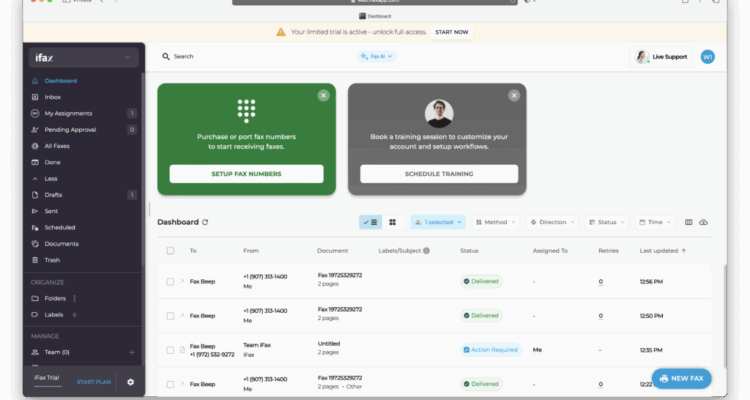
If you need to send a fax from a Mac in 2026, the process is very different from how it used to work.
Apple removed support for fax modems years ago, and modern versions of macOS no longer include any built-in fax utility. That means you can’t fax directly from a Mac using a USB modem or traditional phone-line setup anymore.
The good news is that faxing from a Mac is now easier, faster, and more flexible thanks to online fax services and email-to-fax features.
Below are the 3 easiest and most reliable ways to fax from a Mac today.
Contents
Quick Summary: Best Way to Fax From a Mac
- Best overall: Online fax software (no hardware required)
- Fastest method: Email-to-fax
- Alternative: Fax-enabled printer (requires landline)
- Not recommended: USB fax modems
1. Send a Fax From a Mac Using Online Fax Software (Best Method)
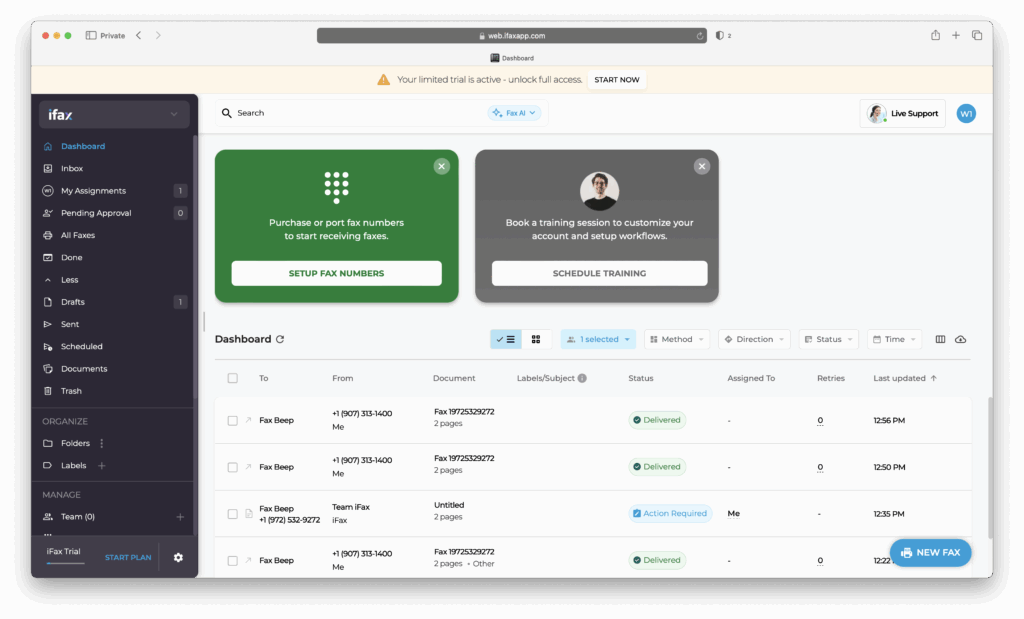
The easiest way to fax from a Mac in 2026 is by using a Mac compatible fax software.
These services let you send and receive faxes over the internet without needing a phone line, modem, or special hardware.
There are several fax services available and for a recommendation of the best ones, check out our guide to the best fax software and apps for Macs.
There are also some online services that allow you to fax for free from a Mac although these come with strict limitations that don’t make them suitable for business or regular faxing.
How to fax from a Mac online
- Sign up for a fax service
- Upload your document (PDF, Word, JPG, etc.)
- Enter the recipient’s fax number (include country code)
- Click Send
You’ll usually receive a confirmation email when the fax is delivered.
Why this is the best option
- Works on all Macs (Intel + Apple Silicon)
- No landline required
- Send faxes from anywhere
- Supports PDF, Word, images, etc.
- Often integrates with email and cloud storage
Most services offer a free trial or a small number of free pages to fax for free from a Mac, but regular use typically requires a subscription.
For reviews of these services and their compatibility with macOS, check our guide to the best fax apps and software for Mac.
2. Send a Fax From a Mac Using Email (Email-to-Fax)
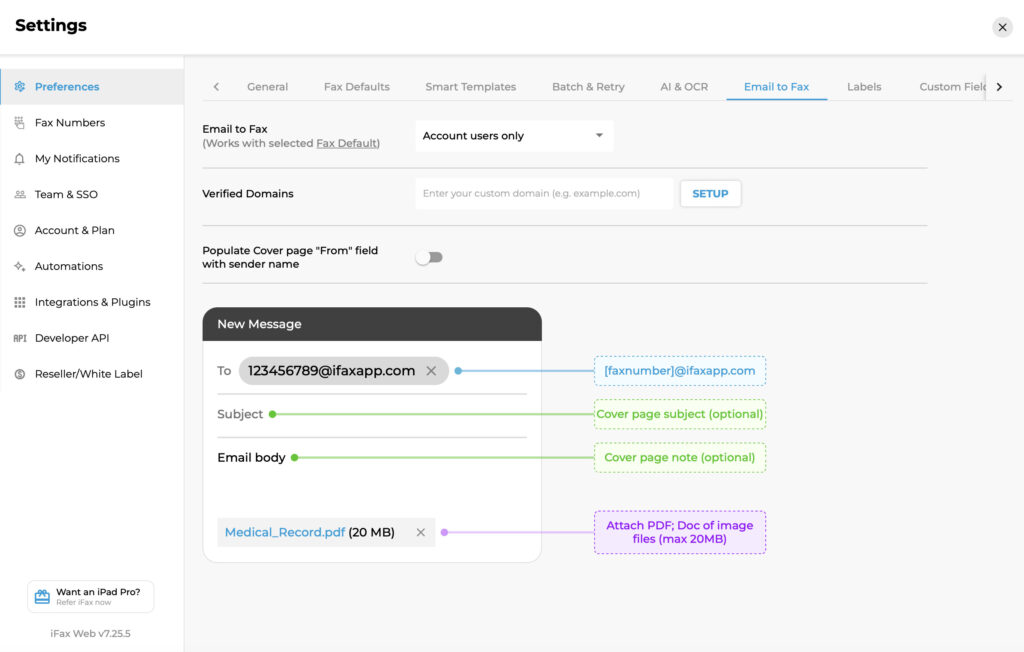
Many online fax services also allow you to send faxes directly from your email account.
This is one of the fastest and simplest methods once it’s set up.
How email-to-fax works
- Open your email app (Apple Mail, Gmail, Outlook)
- In the To field, enter:
faxnumber@service-domain.com(format depends on your provider) - Attach your document
- Click Send
The service converts your email into a fax and delivers it to the recipient.
Pros
- No need to log into a separate app
- Works from any device
- Extremely fast
Cons
- Requires a fax service subscription
- Formatting depends on provider
3. Fax From a Mac Using a Multifunction Printer
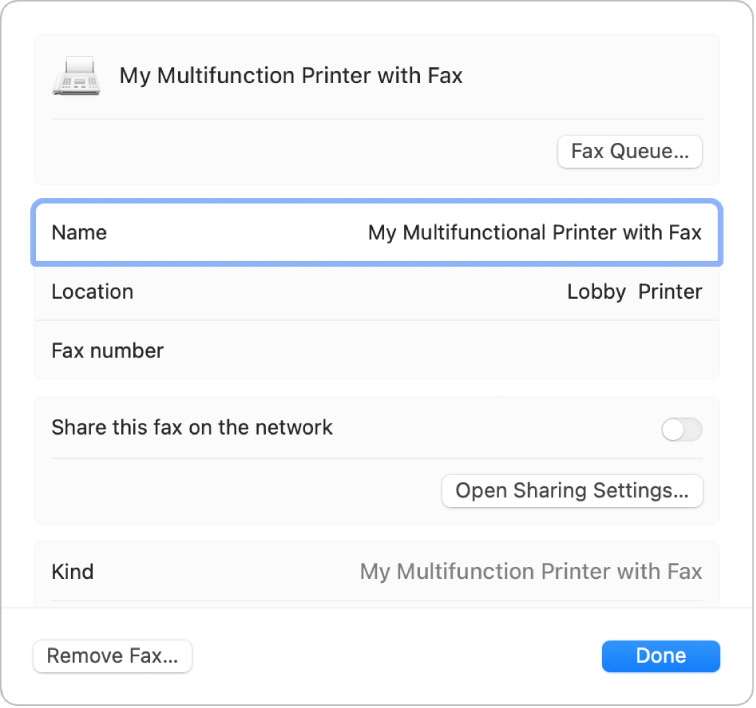
If you have an all-in-one printer with built-in fax capability, you can still send faxes from your Mac using the print menu.
However, this method is now far less common because it requires a landline phone connection.
What you need
- Fax-enabled printer (e.g. Brother, HP, Canon)
- Active phone line
- Printer connected via Wi-Fi or USB
How to send a fax from a Mac using a printer
- Open the document on your Mac
- Go to File > Print
- Select your printer’s Fax option
- Enter the recipient’s fax number
- Click Fax
Limitations
- Requires a physical landline
- Not all printers support Mac faxing anymore
- Less convenient than online services
For most users, this method is only useful in office environments where fax machines are already set up.
Can You Fax From a Mac Using a Modem?
In practical terms, no.
While it was once possible to fax using a USB modem and older versions of macOS (such as OS X El Capitan), this is no longer a viable option for most users.
Modern Macs:
- Do not support fax modems
- Do not include fax software
- Cannot reliably run legacy fax workflows
Unless you’re using very old hardware, this method is no longer recommended.
Can You Receive Faxes on a Mac?
Yes – but only via online fax services.
When someone sends you a fax:
- You’ll receive it as a PDF via email or in the service dashboard
- You can view, download, or forward it from your Mac
This is far more convenient than traditional fax machines.
FAQs
Can you fax directly from a Mac?
No. macOS does not include built-in fax functionality. You need a Mac compatible fax software or a fax-enabled printer.
Can you fax from a Mac without a phone line?
Yes. Online fax services allow you to send and receive faxes over the internet without a landline.
Is there a free way to fax from a Mac?
Some services offer free faxing from Macs, but most require a subscription for regular use.
What’s the easiest way to fax from a Mac?
Using online fax apps on a Mac is the simplest and most reliable method.
Conclusion
Faxing from a Mac has changed significantly in recent years.
With Apple removing modem support, the traditional way of faxing is no longer practical. However, modern solutions have made the process much easier.
For most users, online fax services are now the best option, offering:
- No hardware setup
- Faster delivery
- Greater flexibility
If you only send occasional faxes, look for a service with a free tier. For regular use, a paid plan will provide better reliability and features.