

Although Sierra Chart doesn’t offer a native macOS version, you can run it extremely well on both Intel and Apple Silicon Macs using CrossOver.
Since CrossOver translates Windows applications rather than virtualizing Windows itself, it’s much lighter on CPU, memory and battery life than running a full Windows virtual machine.
Sierra Chart itself also acknowledges that it can be run using Wine/CrossOver, although it doesn’t officially support macOS.
Watch the installation video below or follow these steps to get up and running.
1. Install CrossOver
Download and install CrossOver on your Mac. There’s a free trial that you can test before deciding whether to subscribe and if you do, you can get 15% off a subscription. Make sure you drag CrossOver to your applications folder and grant it the necessary permissions it needs to run.
2. Search For Sierra Chart In Crossover
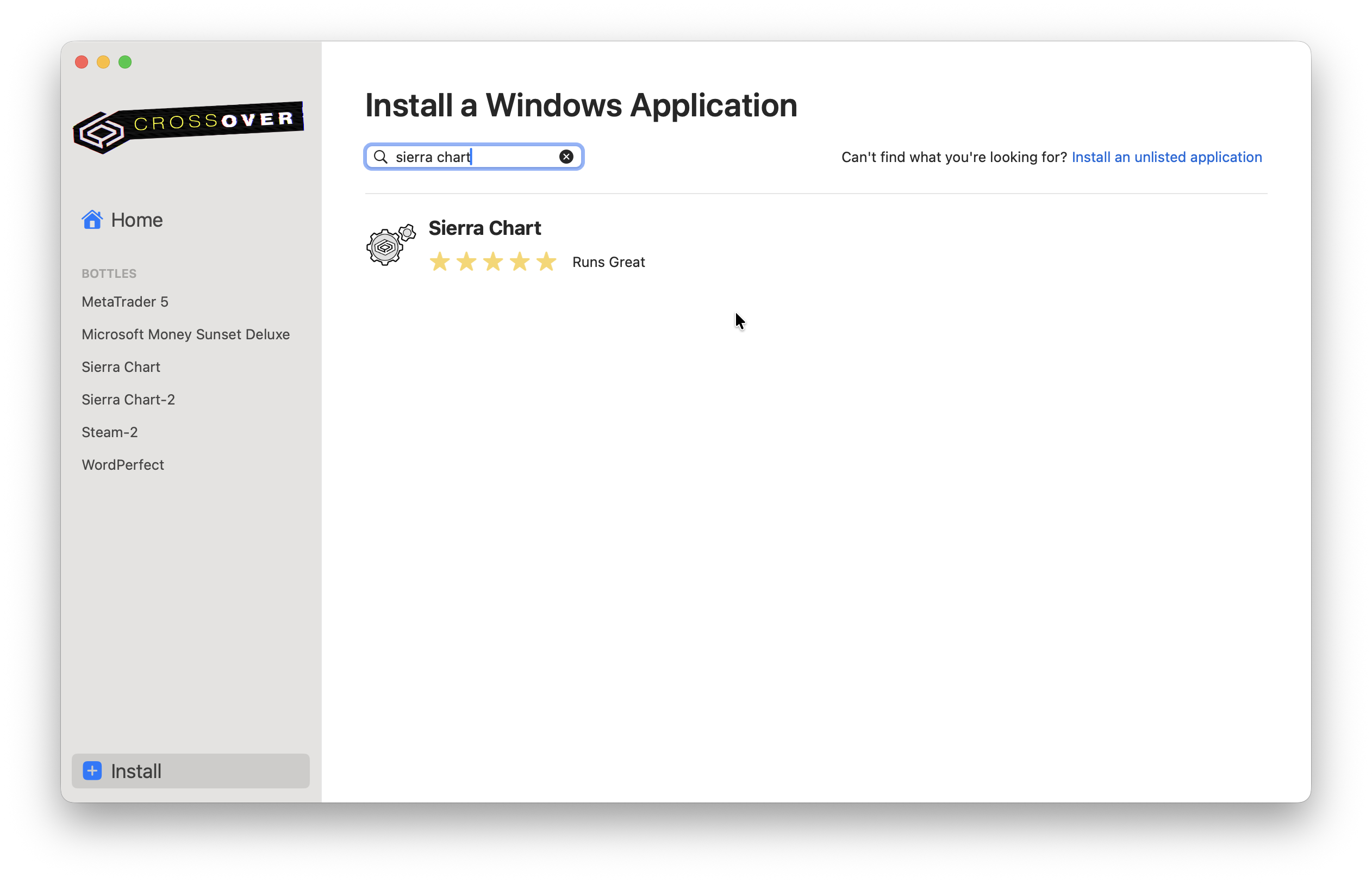
Because many other users have installed Sierra Chart using Crossover, its already in the database. Simply search for it and you’ll see the installer page showing that it runs well.

There is however an installation note that states that some functionality is missing compared to the full Windows version so bear this in mind when using it:
Crossover can only install the Non-CLR version of Sierra Chart. This version does not use the Microsoft .NET framework. Limitations: Does not work with OEC, T4, or Barchart services. Spreadsheet studies are not supported. In this version Spreadsheet and Simple Alert functionality is still under development.
Click Install in the top right corner and Crossover will then automatically download and install the components needed to run Sierra Chart. This takes no more than a few minutes.
The installation normally only takes a minute or two.
3. Launch Sierra Chart

Once installation is complete, Sierra Chart will then launch on your Mac and you’ll need to log into your account.
You can also pin Sierra Chart to your Dock or launch it directly from CrossOver in the future.
3. Configure Your Data Feed
After logging in you may also want to:
- Connect to your preferred market data provider.
- Restore any backed-up Chartbooks if you’re moving from another computer.
- Configure your trading service and workspace as normal.
I did notice that some charts took a long time to populate but overall the functionality is excellent. I’m not an expert in using Sierra Chart but could see that all of the menus and tools that are available in the Windows version are there. However, bear in mind that as stated during installation, some features may not work using Crossover.