

If you regularly work with scanned PDFs, receipts, contracts, invoices, textbooks, or old paper documents, good OCR software can save hours of manual typing.
While macOS now includes built-in OCR through Apple Live Text and Preview, these tools are designed primarily for occasional text extraction. They work well for copying a paragraph from a screenshot or photo, but quickly show their limitations when dealing with large documents, complex layouts, tables, or batch scanning.
Dedicated OCR (Optical Character Recognition) software goes much further. The best apps can convert entire PDFs and scanned documents into fully searchable and editable files while preserving fonts, tables, images, and page layouts. Many also work entirely offline, making them suitable for sensitive business or legal documents.
In 2026, OCR software has also become smarter thanks to AI-assisted recognition engines that improve accuracy on poor-quality scans, photocopies, and multilingual documents. However, the underlying goal remains the same: turning static images into editable text.
How We Tested
Rather than relying on what the developers claimed, we tested each OCR application using a range of real-world documents, including:
- Scanned PDFs
- Receipts and invoices
- Multi-column documents
- Contracts and forms
- Low-quality photocopies
- Screenshot text
- Multi-page files exceeding 100 pages
- Handwritten notes (where supported although for this we recommend our guide to the best handwriting OCR software for Mac.)
We evaluated each app based on:
- OCR accuracy
- Formatting and layout preservation
- Batch processing
- Offline capability
- Processing speed
- Ease of use
- Overall value for Mac users
Quick Recommendations
If you just want the short answer, here are our top picks:
- Best overall OCR software: ABBYY FineReader PDF
- Best for PDF editing: Adobe Acrobat Pro DC
- Best for going paperless: DEVONthink Pro
- Best one-time purchase: OCRKit
- Best for screenshots and videos: TextSniper
- Best free OCR option: Apple Live Text
Full OCR Suites vs Text Capture Apps
It’s important to be aware that there are now two distinct categories of OCR software for Mac.
Full Document OCR Suites
These are designed for scanning paperwork, converting PDFs, preserving formatting, creating searchable archives and going paperless.
These are ideal for:
- Contracts
- Receipts
- Invoices
- Books
- Research papers
- Large PDF collections
Examples include ABBYY FineReader PDF, Adobe Acrobat Pro DC, DEVONthink Pro, Readiris Pro, OCRKit, and Prizmo.
Lightweight Text Capture Tools
These focus on quickly copying text from screenshots, images, presentations, websites, and videos.
These are ideal for:
- Screenshot text
- YouTube subtitles
- Presentation slides
- Photos
- Small snippets of text
Examples include TextSniper, OwlOCR, Textify, and Apple Live Text.
Best OCR Software For Mac Compared
| Software | Price | Offline OCR | Batch OCR | PDF Editing | Best For |
|---|---|---|---|---|---|
| ABBYY FineReader PDF | $69/year | Yes | Yes | Basic | Best overall OCR accuracy |
| Adobe Acrobat Pro DC | $19.99/month | Partial | Yes | Excellent | Professional PDF editing |
| DEVONthink Pro | From $99 | Yes | Automatic | Limited | Going paperless |
| Readiris Pro | $99 one-time | Yes | Limited | No | Exporting to multiple formats |
| OCRKit | $49.99 one-time | Yes | Yes | No | Bulk OCR jobs |
| Prizmo | $79.99 one-time | Yes | Basic | Limited | OCR on Mac and iPhone |
| TextSniper | $7.99 one-time | Yes | No | No | Screenshot text capture |
| OwlOCR | Free / In-app purchases | Yes | No | No | Menu bar OCR |
| Textify | Free | Yes | No | No | Basic text extraction |
| Apple Live Text | Free | Yes | No | No | Built-in macOS OCR |
Note: These ratings focus on OCR functionality rather than document management or PDF editing features.
Who Should Skip Paid OCR Software?
Not everyone needs a dedicated OCR suite.
You can probably stick with Apple’s built-in tools if:
- You only occasionally need to copy text from an image.
- Your documents are already editable PDFs or Word files.
- You don’t need to preserve tables or layouts.
- You rarely scan more than one document at a time.
For occasional OCR, Apple Live Text and Preview are surprisingly capable and completely free.
Local OCR vs Cloud OCR
Another factor worth considering is privacy.
Many OCR apps now offer cloud storage and online collaboration features, but some also upload documents for processing or syncing. If you’re working with sensitive contracts, financial records, legal documents, or confidential paperwork, an offline OCR solution may be preferable.
Apps such as ABBYY FineReader PDF, DEVONthink Pro, OCRKit, TextSniper, and Apple Live Text can all perform OCR locally on your Mac without requiring your documents to be uploaded to external servers.
With this in mind, here’s a look at these tools in more detail.
1. FineReader PDF For Mac (Best For Overall Accuracy)
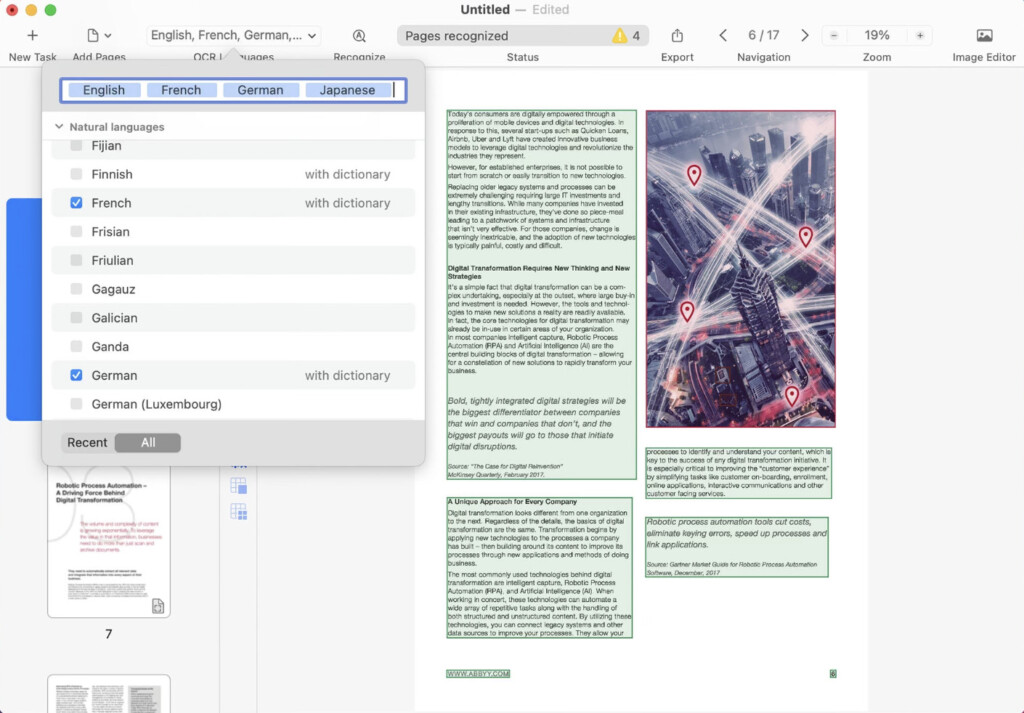
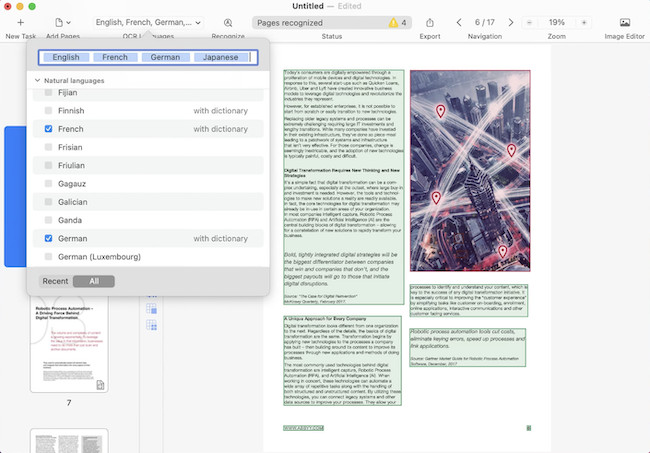
In our testing, ABBYY FineReader PDF for Mac remains the most accurate and reliable desktop OCR software available for macOS in 2026. Formerly known as ABBYY FineReader Pro, it has been through nearly two decades of refinement and continues to set the standards for professional OCR on a Mac.
In real-world testing, FineReader PDF consistently delivered the best balance of OCR accuracy, speed, and layout preservation. It excelled at recognizing complex documents such as contracts, invoices, textbooks, and scanned PDFs, while accurately preserving fonts, images, tables, columns, and overall page structure.
ABBYY’s AI-assisted OCR engine is particularly strong with low-quality scans, uneven lighting, and documents that have been copied multiple times. Text recognition accuracy remains among the highest available on macOS, with ABBYY quoting up to 99.8% accuracy on clean documents, and minimal manual correction required even on more challenging scans.
Unlike many OCR tools that now rely heavily on cloud processing, FineReader PDF runs primarily on your Mac, making it suitable for users who need offline OCR or prefer not to upload sensitive documents. Support for over 200 languages also makes it a good choice for international or multilingual scanning.
Another advantage is ABBYY’s customer support, which still includes phone support in addition to online resources – something that’s increasingly rare among OCR software providers.
At $69 per year, FineReader PDF offers strong value compared to subscription-only alternatives such as Adobe Acrobat Pro, especially if your priority is OCR accuracy rather than full PDF editing.
For a deeper look, you can also read our full ABBYY FineReader PDF for Mac review.
Pricing: Free Trial / $69 per year
Pros:
- Excellent OCR accuracy and fast processing
- Outstanding layout, table, and formatting preservation
- Performs well on low-quality or poorly scanned documents
- Supports over 200 languages
- Works offline and doesn’t require cloud processing
Cons:
- Major macOS updates can take time to be fully supported
- No support for legacy TWAIN scanners
2. Adobe Acrobat Pro DC (Best For Pros & Editing)
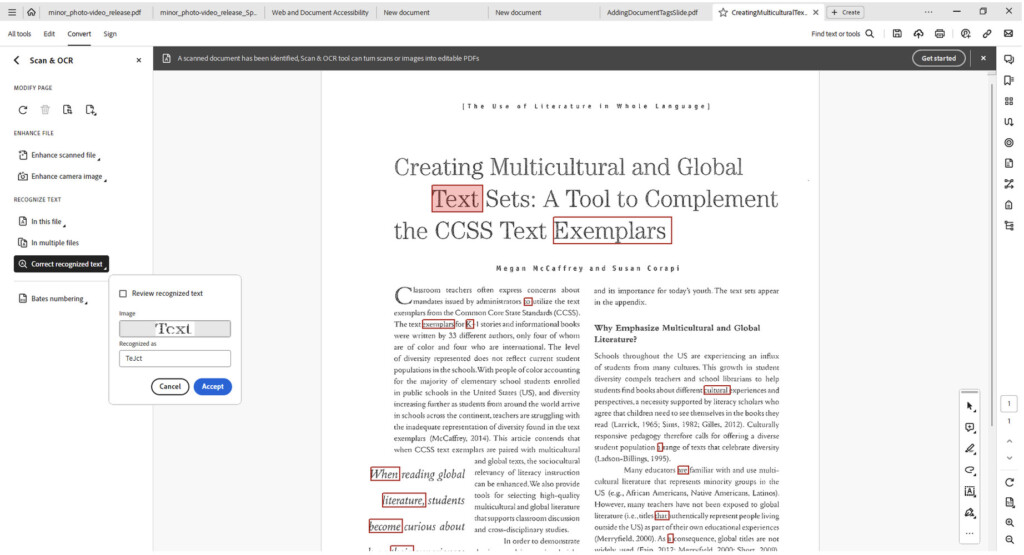
Adobe Acrobat Pro DC remains one of the most powerful PDF tools available for Mac, and its OCR capabilities are still among the most accurate on macOS in 2026. As the creator of the PDF format, Adobe continues to offer excellent text recognition, particularly for clean, high-resolution documents and standard business files.
In testing, Acrobat Pro DC performed very well when converting scanned PDFs into searchable and editable documents. OCR accuracy is high, and results are generally reliable for contracts, reports, forms, and office paperwork. However, while Adobe’s OCR engine is strong, it prioritizes PDF editing rather than pure OCR performance and layout reconstruction.
Where Acrobat Pro DC really excels is what happens after OCR. Once text has been recognized, you gain access to one of the most comprehensive PDF editing environments available, including advanced text editing, form creation, annotations, redaction tools, and digital signatures. This makes it a good choice for users who regularly edit and manage PDFs, not just scan them.
Adobe Acrobat Pro DC is available as a desktop Mac app but is increasingly tied to Adobe Document Cloud. While OCR can be performed locally, many features are designed around cloud storage, syncing, and collaboration, which may not suit users who prefer fully offline apps or are scanning sensitive documents.
It’s also worth noting that Adobe now offers Acrobat Pro 2024, a one-time purchase version that works offline but does not receive ongoing feature updates or cloud integration. This can appeal to users who want to avoid subscriptions, but it lacks the long-term flexibility of the DC version and also, is not available in all regions.
At $19.99 per month (paid annually), Acrobat Pro DC is significantly more expensive than dedicated OCR tools like ABBYY FineReader PDF. For users whose primary goal is OCR accuracy and document digitization, ABBYY offers better value. However, for those who already rely on Adobe’s products or need advanced PDF editing alongside OCR, Acrobat Pro DC remains a reliable, if costly, option.
You can check out our full review of Adobe Acrobat Pro DC for more.
Pricing: Free Trial / $19.99/m (paid annually)
Pros:
- Very accurate OCR on clean, high-quality documents
- Industry-leading PDF editing and form creation tools
- Excellent compatibility with PDF standards
- Integrates with Adobe Creative Cloud and Document Cloud
Cons:
- Expensive subscription compared to dedicated OCR software
- OCR is secondary to PDF editing, not the core focus
- Increasing reliance on cloud features
3. DEVONthink Pro (Best For Going Paperless)
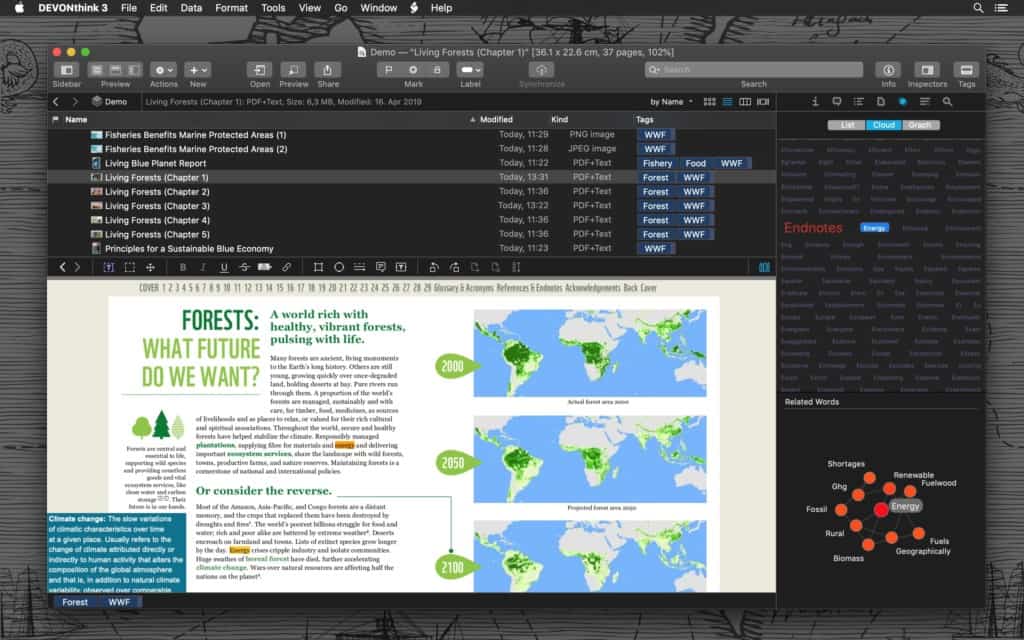
DEVONthink Pro is best described as a paperless document management system with built-in OCR, rather than a dedicated OCR scanning tool. In 2026, it remains one of the most powerful solutions available for Mac users who want to store, organize, search, and retrieve large volumes of documents intelligently.
Unlike most OCR apps that focus purely on converting scans into editable files, DEVONthink Pro automatically OCR-scans documents as they’re imported and then applies AI-assisted indexing to make them searchable, taggable, and easy to retrieve later. PDFs, images, and scanned documents become fully searchable without any manual OCR steps, making it ideal for long-term document archiving.
OCR accuracy in DEVONthink Pro is very good and comparable to leading dedicated OCR tools, as it uses the same OCR engine found in ABBYY FineReader PDF for Mac. In testing, text recognition was reliable across invoices, contracts, and multi-page scanned PDFs, although formatting preservation is not its primary focus.
Where DEVONthink Pro really stands out is its AI-driven organisation tools. The app can automatically classify documents, suggest related files, apply tags, and create smart groups based on content rather than filenames or folders. This makes it particularly well suited to professionals, researchers, and home offices aiming to go fully paperless.
DEVONthink Pro is built exclusively for Apple platforms and integrates deeply with macOS and iOS. Documents can be synced across Macs, iPhones, and iPads using iCloud, WebDAV, or local network syncing, with OCR applied consistently across devices.
Pricing starts at $99 as a one-time purchase, which makes it good value for users who want long-term document management without a subscription. However, users looking purely for OCR conversion or document editing may find dedicated OCR software simpler and more cost-effective.
Pricing: Free Trial / From $99 (one-time purchase)
Pros:
- Automatic OCR on imported documents
- Excellent AI-assisted organization, tagging, and search
- Uses the same OCR engine as ABBYY FineReader PDF
- Deep integration with macOS and iOS
- One-time purchase, no subscription required
Cons:
- Not designed for OCR-only work
- Limited document layout and formatting controls
- Steeper learning curve than basic OCR apps
4. Readiris Pro (Best For OCR Export Formats)
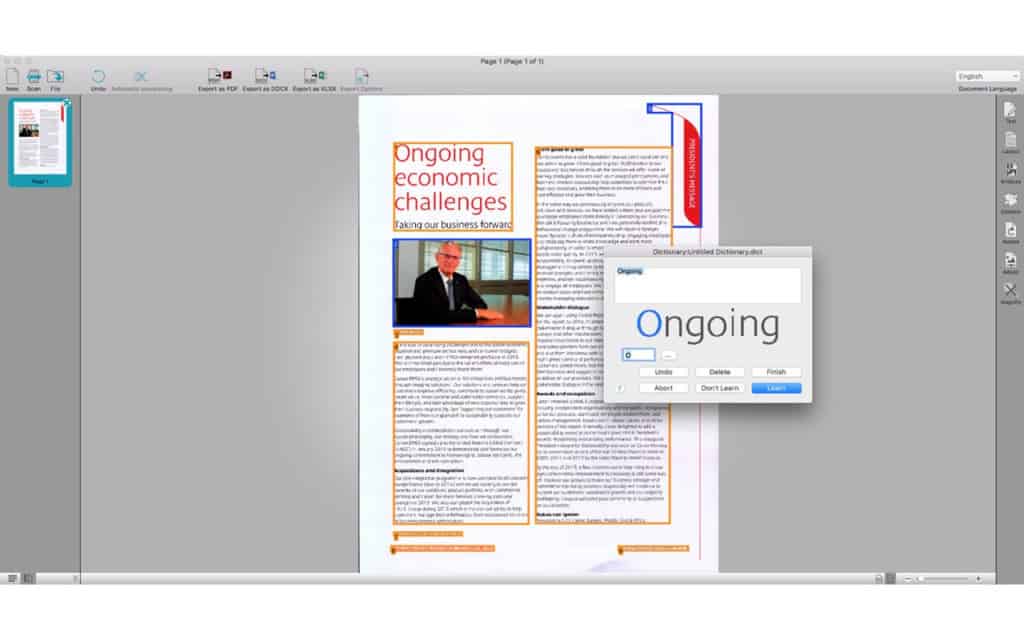
Readiris Pro is a long-established OCR application that focuses on accurate text recognition and broad export options, rather than document editing or long-term document management. In 2026, it remains a capable OCR tool, but its appeal is more niche than it once was.
In testing, Readiris Pro delivered very good OCR accuracy on clean, high-resolution scans and standard business documents. Text recognition is reliable, and the software handles multiple languages well, making it suitable for international documents or mixed-language environmemts.
Where Readiris Pro stands out is its export flexibility. OCR results can be sent directly to formats such as Word, Excel, Pages, Numbers, PDFs, eBooks, and even audio formats, which is something many newer OCR tools don’t prioritize.
However, Readiris Pro feels dated in places. The interface is less intuitive than newer Mac-first apps, and the page limits in the Pro version can be frustrating for users scanning larger documents. To unlock unrestricted batch processing, users must upgrade to the significantly more expensive Corporate edition.
Unlike ABBYY FineReader PDF, Readiris Pro is not designed to preserve complex layouts or formatting in detail, and it does not offer built-in PDF editing. For users who want precise layout retention or a modern paperless document management system, other tools are better suited.
Pricing: Free Trial / $99 one-time (Pro) / $199 (Corporate)
Pros:
- Very good OCR accuracy on clean documents
- Excellent range of export formats
- Strong multi-language support
Cons:
- Page limits in the Pro version
- Interface feels dated on macOS
- Requires Corporate edition for unrestricted batch OCR
5. OCRKit (Best For Batch OCR)
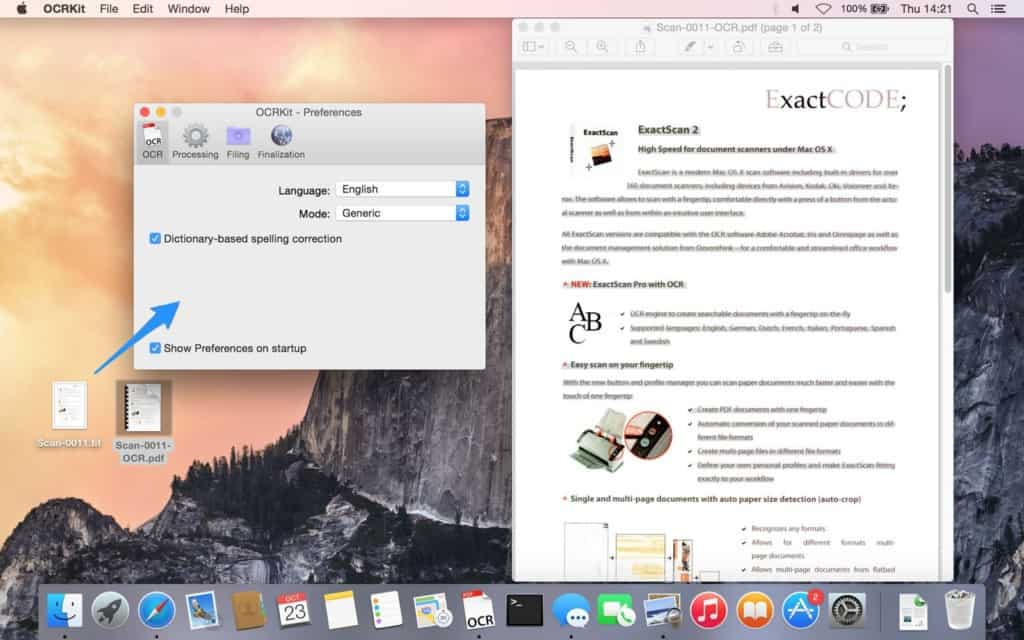
OCRKit is a focused, no-frills OCR application designed specifically to convert PDFs and images into searchable documents quickly and efficiently. Built on open-source OCR technology and packaged as a native Mac app, it prioritizes speed, simplicity, and batch processing over advanced editing features.
In testing, OCRKit performed reliably on standard scanned PDFs and long documents, including batch OCR jobs exceeding 100 pages. Accuracy is good for clean scans, and the app handles large files quickly without requiring cloud processing or subscriptions.
OCRKit is particularly useful for users who want to bulk OCR scanned PDFs and archive them as searchable documents without worrying about layout editing or complex exporting. Integration with macOS Automator also makes it attractive for power users who want to automate OCR tasks.
However, OCRKit is intentionally minimal. The interface is basic, there’s no direct Microsoft Word export, and formatting preservation is limited compared to premium OCR tools like ABBYY FineReader PDF.
Pricing: Free Trial / $49.99 one-time
Pros:
- Fast batch OCR for large PDF files
- Works entirely offline
- Simple drag-and-drop interface
- Automator support for automation
Cons:
- Basic interface and limited controls
- No direct Word export
- Weaker layout preservation than premium OCR tools
6. Prizmo (Best For macOS & iOS Integration)
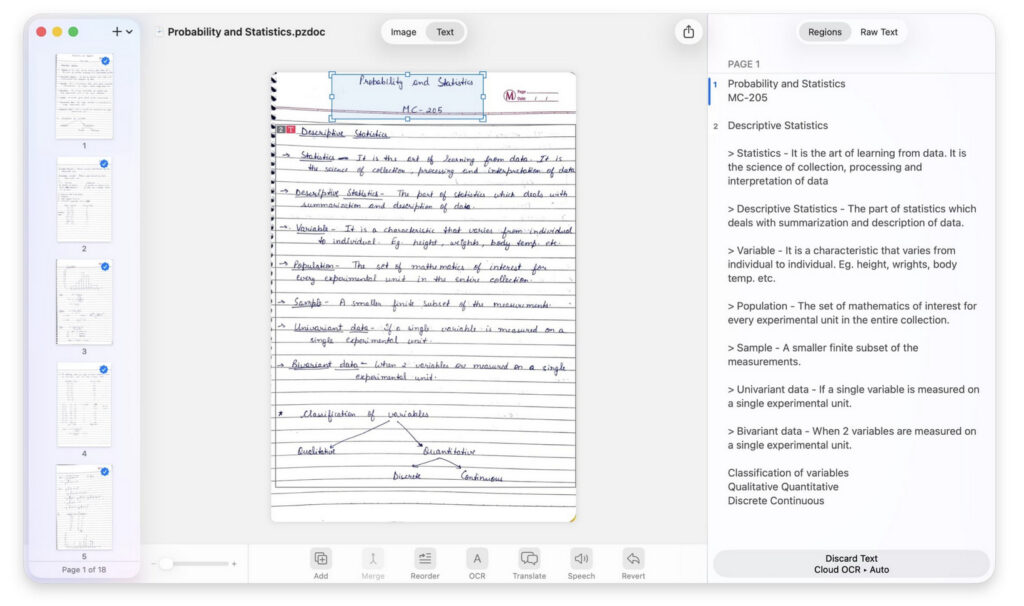
Prizmo is a versatile OCR app for Mac and iOS that focuses on convenience and accessibility rather than enterprise-level accuracy. It’s particularly useful for scanning documents or images captured with your iPhone or iPad, thanks to Handoff support and cloud syncing via iCloud.
In testing, Prizmo performed well on high-resolution, clean documents. OCR accuracy is excellent for printed text, but less reliable for complex layouts, low-contrast scans, or handwritten notes. While Prizmo can export to PDF or Word, formatting preservation is basic compared to ABBYY FineReader PDF.
Prizmo also includes useful accessibility features, such as voice reading of scanned text, and a simple macOS extension that allows OCR directly from Finder. This makes it ideal for occasional users who want a fast, integrated solution without a steep learning curve.
The app is available in both Standard ($79.99) and Pro ($99.99) versions. The free demo has no time limit, but exported files may include watermarks, making the paid upgrade necessary for professional use.
Check our Prizmo review for more.
Pricing: Free demo / $79.99 Standard / $99.99 Pro
Pros:
- Works well with iOS devices via Handoff
- Simple, easy-to-use interface
- Built-in accessibility features (voice reading, Finder integration)
Cons:
- OCR less accurate on complex layouts or low-quality scans
- Formatting preservation is limited
- Watermarks on free demo exports
Lightweight OCR Tools for Mac
Not everyone needs full document scanning, batch OCR, or layout preservation. If you just want to quickly extract text from images, screenshots, videos, or on-screen content, these lightweight OCR tools are often faster, cheaper, and easier to use than full OCR suites.
These apps are best suited to one-off text capture, not long-term document digitization or paperless needs.
7. TextSniper (Best For Quick Text Captures)
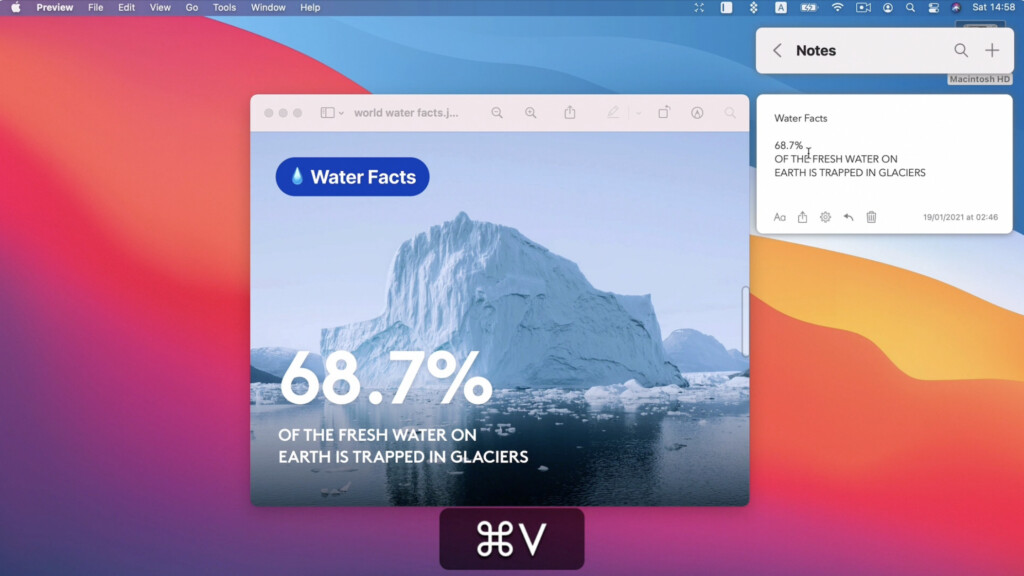
TextSniper remains the most polished and reliable lightweight OCR tool for macOS in 2026. It works like a screenshot utility specifically designed to capture text from anywhere on your screen – including PDFs, images, presentations, websites, and even paused video frames.
In testing, TextSniper delivered consistently good OCR accuracy for short text selections and worked entirely offline, making it ideal for quick tasks or privacy-sensitive use. Any captured text is instantly copied to the clipboard, allowing you to paste it straight into emails, documents, or notes.
TextSniper also includes useful extras such as text-to-speech and history tracking, which are rare in lightweight OCR tools.
Pricing: Free Trial / $7.99 one-time
Pros:
- Simple and easy to grab text like taking a screenshot
- Can be used without an internet connection
- Text-to-Speech: Converts captured text to speech for accessibility
- Clipboard Integration: Integrates with the clipboard for easy pasting
Cons:
- Lacks advanced editing and document management features
- No Batch Processing
8. OwlOCR (Best For Menu Bar Integration)
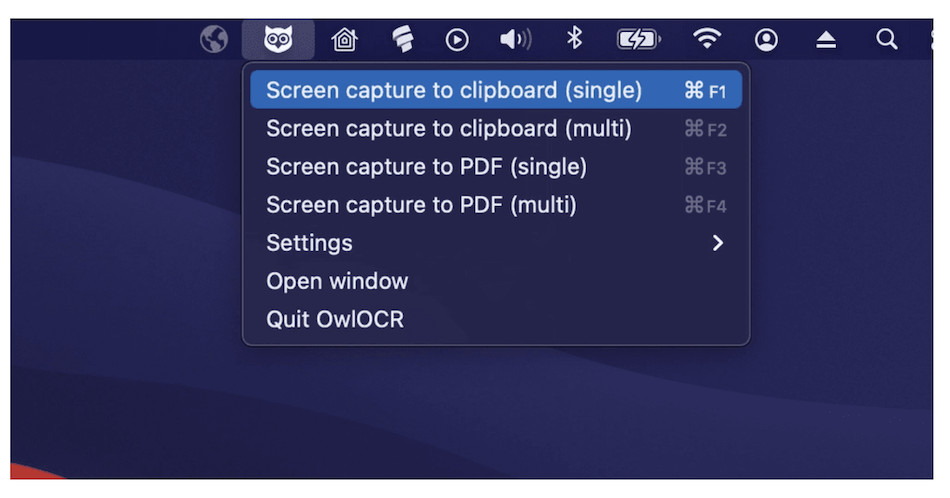
OwlOCR is a simple menu bar OCR app that focuses on convenience rather than power. It allows you to extract text from screenshots or images with minimal setup and is easy to use for occasional OCR tasks.
While accuracy is acceptable for clear text, OwlOCR struggles more than TextSniper with complex layouts, smaller fonts, or lower-quality images. It’s best viewed as a casual utility rather than a dependable OCR solution for regular use.
Pricing: Free / In-app purchases
Pros:
- Very easy to use via a menu-bar interface
- Quick text extraction from screenshots
- Minimal setup – ideal for occasional OCR
Cons:
- Accuracy drops on smaller text and complex layouts
- Limited formatting and export control
- Not suitable for heavy or professional OCR use
9. Textify (Best For Extracting Image Text)
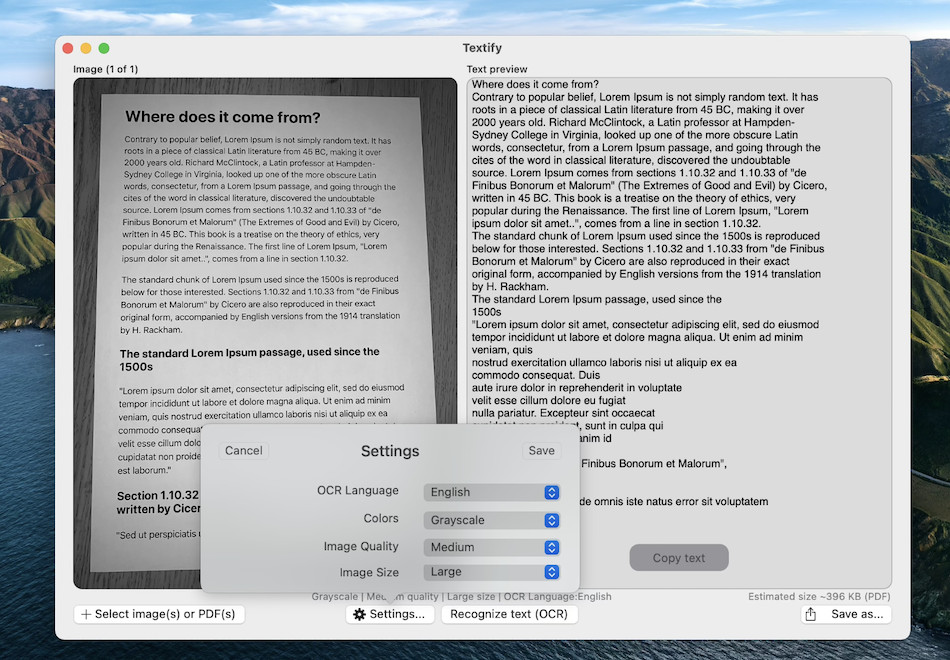
Textify is a free, open-source OCR utility that integrates directly into macOS via a keyboard shortcut. It allows you to select an area of the screen and instantly extract text, making it one of the quickest ways to grab text without installing larger software.
However, OCR accuracy is basic, and there’s no control over formatting, language selection, or output. It’s best used as a convenience tool rather than a serious OCR app.
Pricing: Free
Pros:
- Completely free and lightweight
- Instant OCR via a keyboard shortcut
- Great for quick, ad-hoc text grabs
Cons:
- Basic accuracy compared to dedicated OCR tools
- No formatting or language options
- Not designed for larger documents or batch OCR
10. Apple Live Text / Preview (Best Built-In macOS OCR)
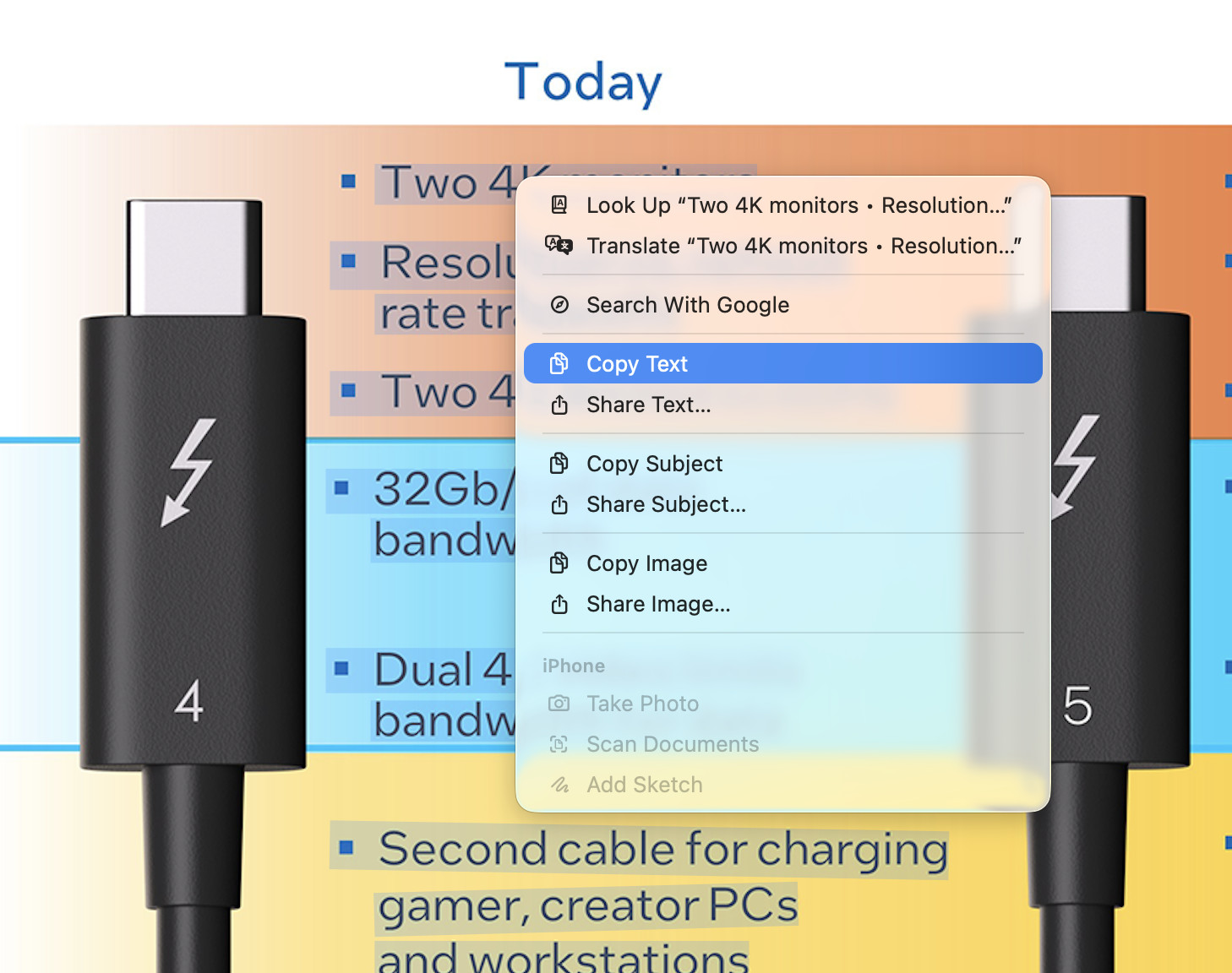
macOS includes built-in OCR via Live Text in Photos, Preview, and Finder. For occasional use, Live Text is surprisingly capable and works well on clean images and documents.
That said, Live Text is manual and limited. There’s no batch processing, no formatting control, and no export options beyond copy and paste. It’s useful in a pinch but not suitable for regular document scanning or professional work.
How to use Apple Live Text on a Mac
- Open an image or screenshot in Photos, Quick Look (press Space), or Safari
- Hover your cursor over any text in the image
- When the text becomes selectable, click and drag to highlight it
- Copy and paste the text into another app
Live Text works automatically on supported Macs and requires no setup. It’s ideal for copying text from screenshots, photos, scanned receipts, and web images.
How to use OCR in Preview
- Open a scanned PDF or image in Preview
- Click and drag over the text you want to extract
- If the scan is clear, Preview will recognise and select the text automatically
- Copy and paste the text into another application
Preview’s OCR works best on clean scans and short documents. It does not retain formatting, tables, or layout, and there’s no option to batch process files or create searchable PDFs.
Check our guide on how to use Live Text to extract text from images and screenshots for more.
Pricing: Free (built into macOS)
FAQ
Here are a few key things to consider when deciding which OCR app is best for your needs.
What is OCR software?
OCR (Optical Character Recognition) software converts scanned paper documents, PDFs, and images into editable and searchable text. It allows you to digitize printed documents, extract text from images, search PDFs, and reduce reliance on physical paperwork.
On macOS, OCR can be provided either by dedicated OCR software (such as ABBYY FineReader or Adobe Acrobat) or lightweight tools like Apple Live Text and screenshot-based OCR apps.
What should I look for in the best OCR software?
Based on our testing, several factors clearly separate good OCR tools from poor ones:
Accuracy and speed
Not all OCR software performs equally well. Accuracy varies significantly depending on the engine used, and OCR is a specialized technology. In general, you get what you pay for. Poor OCR accuracy leads to time-consuming manual correction, especially with PDFs.
Formatting retention
High-quality OCR software preserves layouts, fonts, tables, and images. Cheaper or free tools usually output plain text only, which may be fine for short excerpts but not for professional documents.
Document handling
Some OCR tools struggle with:
- Low-quality scans
- Handwriting
- Tables and columns
- Small fonts
- Faxed or photocopied documents
Premium OCR tools handle these scenarios far more reliably.
Workflow features
Advanced tools support batch processing, searchable PDFs, export to Word or ePub, and PDF editing. Lightweight OCR tools focus on quick text capture rather than full document conversion.
Why use OCR software on a Mac?
OCR software makes working with documents faster and more flexible:
Save time
OCR eliminates the need to retype text from PDFs, scans, receipts, or images. Modern OCR tools can extract text in seconds while preserving formatting, fonts, and layouts.
Edit, update, and extract text
OCR “unlocks” text in scanned documents, allowing you to edit, search, copy, and reuse content that would otherwise be static.
Reduce paperwork
OCR enables searchable digital archives, helping you go paperless and retrieve documents instantly.
Create eBooks
Many OCR tools export to ePub or eBook formats for use on Kindle and other readers.
Accessibility and text-to-speech
Once OCR’d, documents can be read aloud using macOS accessibility tools or searched using system-wide features.
How much does OCR software typically cost?
Pricing varies widely depending on the type of tool:
- Subscription software: Adobe Acrobat Pro (~$20/month)
- Annual licenses: ABBYY FineReader PDF (around $69/year)
- One-time purchases: Prizmo, OCRKit
- Free built-in OCR: Apple Live Text & Preview (included with macOS)
- Low-cost utilities: OwlOCR, Textify (one-off or low-cost purchases)
The right choice depends on whether you need full document OCR or occasional text extraction.
What are the main factors to consider when choosing an OCR app?
- Accuracy – especially with PDFs and scanned documents
- Features – batch processing, PDF editing, export formats
- Ease of use – interface and workflow
- Price model – subscription vs one-off purchase
- Performance – speed with large or complex documents
Is there any free OCR software available for Mac?
Yes, but with limitations:
- Apple Live Text & Preview – built into macOS and excellent for copying text from images and simple PDFs, but no formatting or batch support
- Tesseract OCR – powerful open-source engine, but requires technical setup
- Online OCR services – convenient, but often limited by file size, privacy concerns, and usage caps
Free tools are best for occasional use, not document-heavy tasks.
How accurate is OCR software?
Accuracy depends on both the software and the quality of the source document.
- Top-tier tools like ABBYY FineReader PDF and Adobe Acrobat Pro offer excellent accuracy on clean scans and complex layouts.
- Lightweight tools like Apple Live Text, OwlOCR, and Textify are accurate for short text snippets but are not designed for full document conversion.
- Poor image quality, skewed scans, or handwriting will reduce accuracy across all tools.
Can OCR software handle handwritten documents?
Most OCR software is optimized for printed text. Handwriting recognition is improving but remains inconsistent.
ABBYY FineReader PDF performs reasonably well with neat handwriting, but accuracy is lower than with typed text. For this reason, handwriting OCR should be treated as a bonus feature rather than a primary use case.
We have a full list of the best OCR Software for Handwriting if you want to read more.
Do I need an internet connection to use OCR software?
Most Mac OCR apps work offline, including:
- ABBYY FineReader PDF
- Prizmo
- Apple Live Text & Preview
- OwlOCR and Textify
Some features (cloud storage, syncing, online OCR services) may require an internet connection.
For a closer look, check out our look at the best free OCR software for Mac.
Can OCR software convert documents in multiple languages?
Yes. Most full OCR suites support multiple languages.
ABBYY FineReader PDF supports 200+ languages, making it one of the best choices for multilingual documents. Lightweight OCR tools usually support fewer languages and should be checked individually.
Is AI replacing OCR software?
Modern OCR applications increasingly use AI to improve text recognition and understand document structures, but OCR remains the core technology that converts images into editable text. AI enhances OCR rather than replacing it.
Can ChatGPT perform OCR?
ChatGPT can read text from uploaded images and PDFs, making it useful for occasional text extraction. However, dedicated OCR software is still better for converting large batches of documents, preserving formatting, creating searchable PDFs, and working entirely offline.
Does OmniPage Ultimate for Mac exist?
No. There is no macOS version of Tungsten (formerly Kofax) OmniPage Ultimate. It remains Windows-only.