

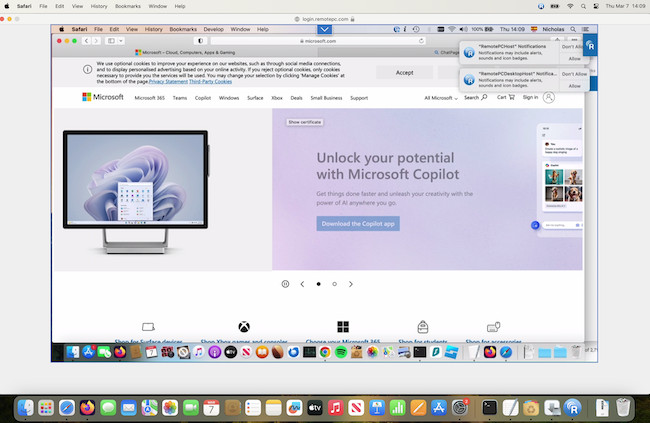
If you need to control, fix or access another computer from your Mac, we’ve put to the test, the very best remote desktop software for Mac of 2026.
Taking control or accessing another Mac, PC or mobile device remotely can be useful in a variety of situations such as for screen sharing, accessing an office computer while working from home, troubleshooting a computer, system administration, network monitoring of computers and even gaming remotely.
We decided to try a wide range of options for connecting from Mac to Mac as well as Mac to PC or from mobile devices such as iPad, iPhone and Android devices to Macs.
What We Looked For
We looked for the following criteria when deciding which remote desktop software worked best on Mac:
- Does it have a Mac desktop client or is it web only?
- Does it provide fast, stable connections?
- Can it connect to all devices including Macs, PCs and mobile?
- Is it secure?
- Does it offer a free trial to test it first?
All the apps we tested are compatible with the latest versions of macOS including Tahoe and Apple Silicon Macs with M-series chips.
Here then are the best apps to remotely access other computers from a Mac in 2026.
| Software | Pricing | Best For |
|---|---|---|
| RemotePC | From $22/year | Low-cost all-round remote access for Macs and PCs |
| Windows App (formerly Microsoft Remote Desktop) | Free | Connecting from Mac to Windows PCs and servers |
| macOS Screen Sharing | Free (built into macOS) | Quick, native Mac-to-Mac remote access with zero setup |
| AnyViewer | Free plan; paid from $3.50/month | Simple Mac-to-Windows remote access on a budget |
| Zoho Assist | Free tier; paid from $10/month | Remote IT support and unattended access for small teams |
| TeamViewer | Free for personal use; from $24.90/month | Popular cross-platform remote support and access |
| Splashtop | Free (local); paid from $5/month | High-performance streaming and creative workflows |
| Jump Desktop | One-time purchase ($35) | Mac-native remote desktop with excellent performance |
| AnyDesk | Free personal; paid from $22.90/month | Lightweight, low-latency remote desktop sessions |
| Royal TSX | One-time license ($50+) | Power users and sysadmins managing many connections |
| NoMachine | Free or $84.50/year | Fast LAN-based and personal remote access. Also now offers web remote access. |
| Parsec | Free; Warp from $8.33/month | Ultra-low-latency remote access for gaming and creative use |
| ManageEngine Remote Access Plus | Free tier / paid plans (quote-based) | Enterprise-grade remote support and IT administration |
1. RemotePC
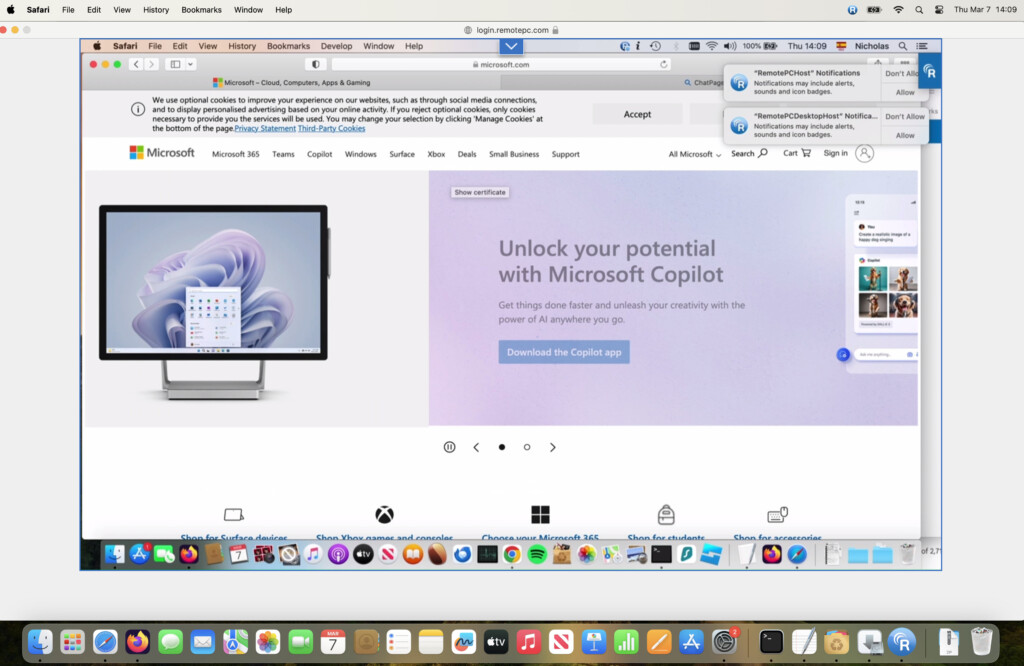
Despite the name RemotePC isn’t just for Windows PCs – it also has an excellent Mac desktop client which allows you to easily connect to other PCs, Macs and mobile devices instantly.
It’s easily the best Mac remote desktop solution we’ve seen in terms of value for money when it comes to remotely administering computers.
You can choose to connect to other computers either via the desktop app or via the web app and establishing a connection is simply a case of selecting the one you want and clicking “Connect”.
You can chat online during remote sessions, print to remote printers and even record your remote sessions.
In our testing, RemotePC was extremely stable with fast connections and very little lag when connecting to both Macs, PCs and mobile devices.
All connections with RemotePC are also secured with TLS v1.2 and AES 256 bit encryption.
We recommend checking-out out our full RemotePC review for more on why we ranked it so highly.
Pricing: Free Trial / Plans start at $22.12/year currently with 50% off.
2. Windows App
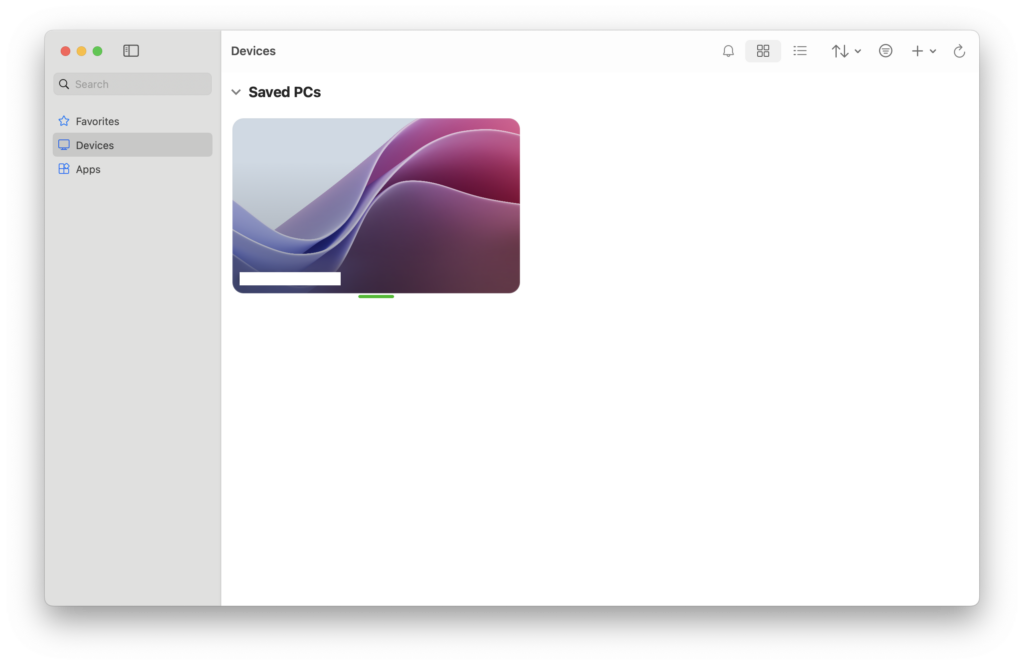
Windows App (formerly Microsoft Remote Desktop for Mac) is Microsoft’s official free remote desktop software for connecting to Windows PCs remotely.
If you need to connect to several PCs, or just need occasional access to files and folders, then Windows App provides a secure, Microsoft backed solution.
As a bonus for Apple Silicon Macs which can only run Windows ARM with a Virtual Machine, Windows App also provides a way to connect to and use the x86 standard version of Windows remotely.
Windows App is easy to setup and if you’ve got a Microsoft Work or School account with PCs connected to it, it simply requires you to login into your Microsoft account in order to access them.
You can also connect to PCs via IP address and workspace URLs or email addresses.
In our review, we found that performance can sometimes be glitchy and connections unreliable at times but it’s a convenient free way to access Windows PCs.
Check out more in our full Windows App for Mac review.
Pricing: Free
3. macOS Screen Sharing
Unlike most tools in this list, macOS Screen Sharing isn’t a commercial product – but it still earns a place here because it’s often the most practical option for Mac users who don’t need advanced features.
macOS Screen Sharing is built directly into macOS and is ideal for quick, no-cost remote access between Macs, especially within the same home, office, or Apple-centric environment.
There’s no account creation, subscription, or third-party software required, and it integrates seamlessly with Finder, Spotlight, and System Settings.
Where it falls short compared to paid tools is scalability and control. It’s not designed for managing large numbers of machines, providing formal IT support, or connecting to Windows PCs in a business environment. There are also fewer session controls and automation features than you’d expect from dedicated commercial solutions.
That said, for occasional remote work, helping colleagues or family members, or accessing another Mac while traveling, macOS Screen Sharing remains one of the most reliable and easy options available – and it’s already installed on every Mac.
Pricing: Free (built into macOS)
4. AnyViewer
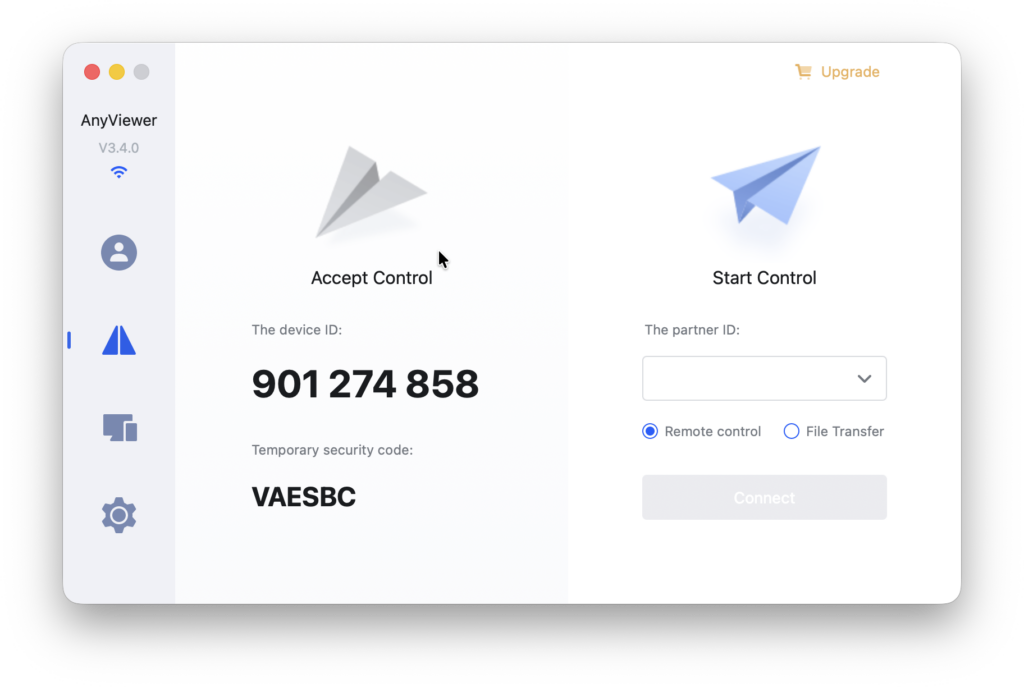
If you’re looking for an easy-to-use remote desktop solution for your Mac, AnyViewer is one of the most straightforward and affordable remote access tools available for both macOS and Windows.
AnyViewer is designed for a wide range of uses from helping someone troubleshoot issues, to accessing your home or office computer while away or managing multiple devices across different locations.
Some genuinely helpful features in AnyViewer include fast file transfer, one-click device access when logged into the same account, and useful extras such as Privacy Mode, which blacks out the remote screen and blocks input so no one else can see what you’re doing.
Security is also taken seriously through ECC 256-bit end-to-end encryption, optional two-factor authentication, and a peer-to-peer connections that avoids routing your data through unnecessary servers.
Note however that while AnyViewer does support file transfers on Mac, drag-and-drop file transfer is only available between Windows PCs, so Mac users will need to rely on the built-in file manager instead.
Overall, AnyViewer is one of the best-value remote access tools for Mac users thanks to its generous free plan and low-cost Pro options, which start at just a few dollars per month depending on billing cycle.
Check out our full AnyViewer review for more.
Pricing: Free plan available / Paid plans start from around US $3.89 per month
5. Zoho Assist
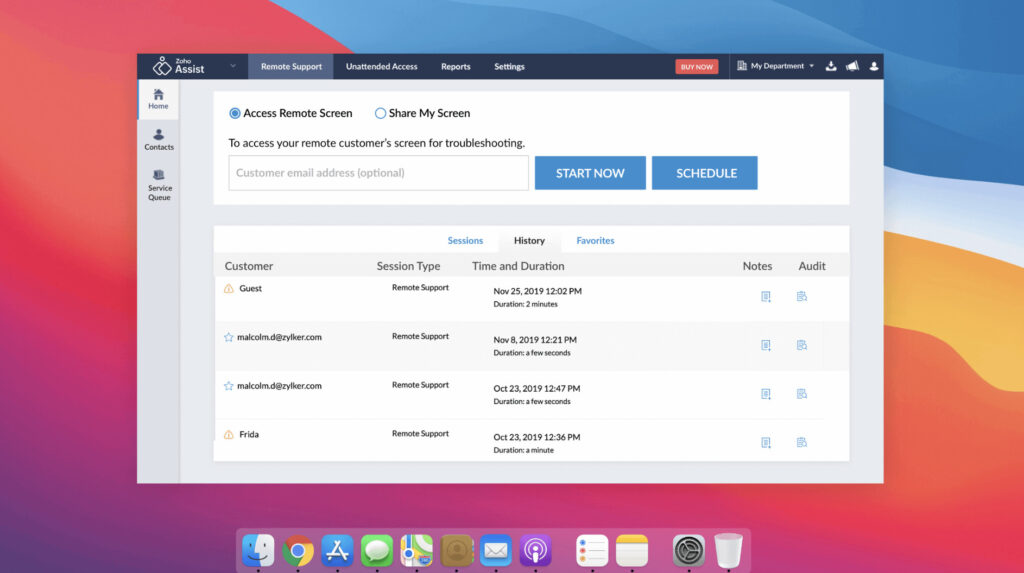
If you’re looking for a remote support solution for your Mac, Zoho Assist is the one of the best remote helpdesk and unattended remote access solution for both Macs and PCs.
Zoho Assist is a popular all round remote access software that’s mainly focused on customer support and makes it easy to share screens, access and control another computer or mobile device.
It’s ideal for Customer Support and IT Professionals, IT Help Desks, Outsourced IT and MSP Support.
Some of the nice advanced touches in Zoho Assist include remote printing and custom branding of your company or organization.
There are a range of extra security measures taken by Zoho Assist such as two factor authentication, SSL and 256-bit encryption and action log viewer to see who’s accessing your network in real time.
Zoho Assist is probably the best deal on the market for remote support software on this level with a limited Free Forever plan and paid plans starting at just $10 per month.
You can also read our full review of Zoho Assist for more.
Pricing: Limited Free Forever plan / Paid plans start at $10 per month
6. TeamViewer
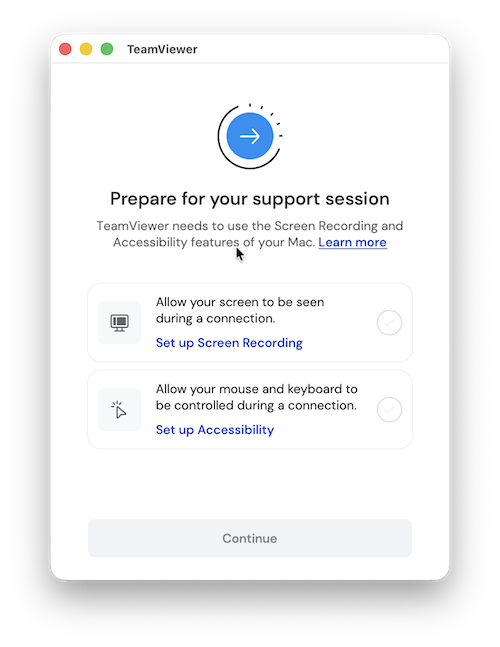
TeamViewer is easily one of the most popular remote desktop tools in the World users making it simple enough for anyone to connect to another PC or Mac.
One of the best things about TeamViewer is that for home users it’s free to use although for small businesses and corporations, there are enterprise features.
TeamViewer Enterprise plans also include TeamViewer Monitoring & Asset Management which not only provides remote access to Macs or PCs, but also monitors system critical aspects and provides easy IT inventory tracking.
Although it was previously popular with gamers, TeamViewer is now aimed more at providing remote support and also offers free “QuickSupport” app for those that need help with their Mac or PC.
Simply install the TeamViewer client on both machines, grant access permissions, enter the ID of the computer you want to connect to and that’s it. Alternatively, you can give someone your partner ID and password to allow them to connect to you.
There’s very little configuration of ports or firewalls as everything is handled automatically by the setup wizard.
TeamViewer is extremely secure offering 2048-bit RSA keys and 256-bit AES encoding.
If TeamViewer appeals to you but you’re put off by the pricing, you may also find our look at the best TeamViewer for Mac alternatives useful too.
Pricing: Free for personal use, Plans start at $24.90/month
7. Splashtop
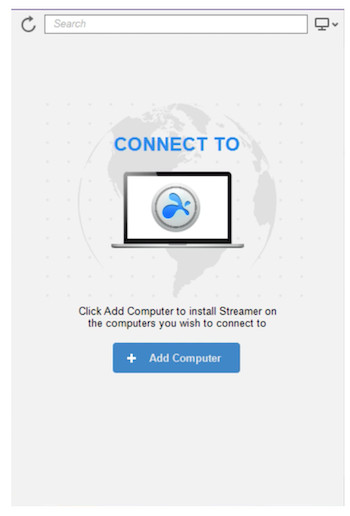
Splashtop is a user-friendly way to connect to another computer or device.
Splashtop is particularly good for gaming needs as it streams 3D graphics, sounds and video across local devices extremely well.
For example, if you need to play a 3D game from your iPhone or iPad (Splashtop for iPad is also available), Splashtop enables you to play it on your Mac using touch controls with almost no noticeable lag.
There’s a limited version for personal use starting at just $5 per month and also Enterprise and Business plans.
On the downside, Splashtop is also a little tricky to set up with restrictions on port forwarding but overall, it’s generally very reliable and effective at remote networking.
Pricing: Free trial / Plans start from $5/month
8. Jump Desktop
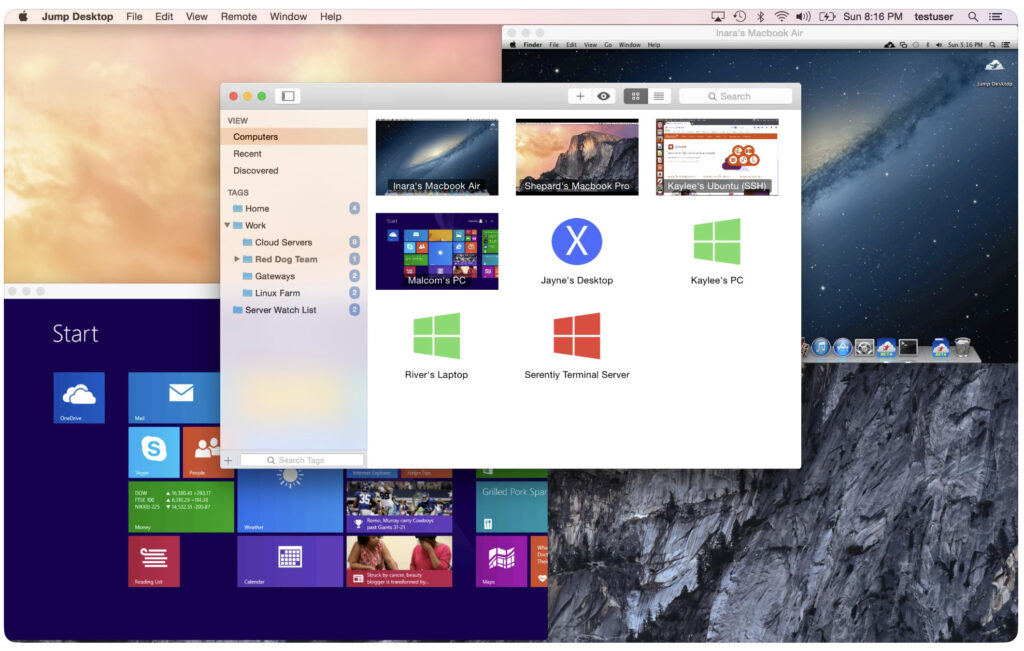
Jump Desktop is one of the few one-time purchase remote desktop apps for Mac users with no subscription required.
It’s also unique in using your Gmail account to automatically setup and configure a remote connection without any further effort on your part.
Jump Desktop for Mac is multi platform supporting iPad, iPhone, iPod and even Android and can be used for connecting from Mac to Mac too.
Jump Desktop is extremely easy to use and doesn’t require networking knowledge making it ideal for beginners to Remote Desktop software. All you need is a Gmail account to get started:
Alternatively, Manual setup is also available for those that know what they’re doing when it comes to Remote Desktop connections.
One of the smartest things about Jump Desktop is that it can map Mac keyboard shortcuts to make them work on Windows.
Jump Desktop can also stream audio from your Mac to another device using Jump Desktop Audio.
You can also copy and paste between macOS and Windows and vice versa which is really helpful if you work on both Mac and Windows constantly.
Jump Desktop also has a Live Previews feature which allows you to keep an eye on all connected computers in real time.
Collaborative Screen Sharing allows many users to connect to the same computer, where each user gets their own mouse cursor. This feature makes it easier than ever to co-editing documents, change design or prepare presentations with remote team members.
Pricing: Free Trial. One off purchase of $34.99
9. AnyDesk
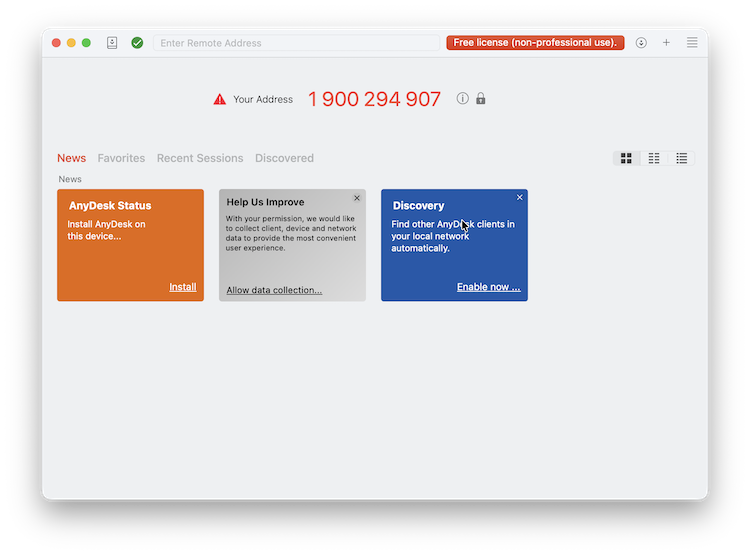
AnyDesk for Mac is a slick cross platform remote desktop software with flexible pricing models and an easy to use interface.
AnyDesk is particularly good for those with slow internet connection as it still manages to maintain a responsive and lag-free connection.
There’s a desktop AnyDesk app for Mac, Windows, Linux and mobile so it’s easy to connect to different devices wherever they are.
Setting up a remote connection with AnyDesk is easy with an intuitive setup wizard that even beginners to remote desktops can quickly grasp.
AnyDesk uses a combination of two-factor authentication and whitelisting to ensure that connections are secure.
You can also drag and drop files for quick file sharing or use the built-in file transfer manager for more control.
Other useful features include customization of the quality of the remote display, configure access permissions and the ability to record sessions for reviewing later.
On the downside, the free version of AnyDesk has a cap of three devices you can connect to and for professional use you’ll definitely need to subscribe to a plan.
Pricing: Limited free version. Plans start at $22.90/month
10. Royal TSX
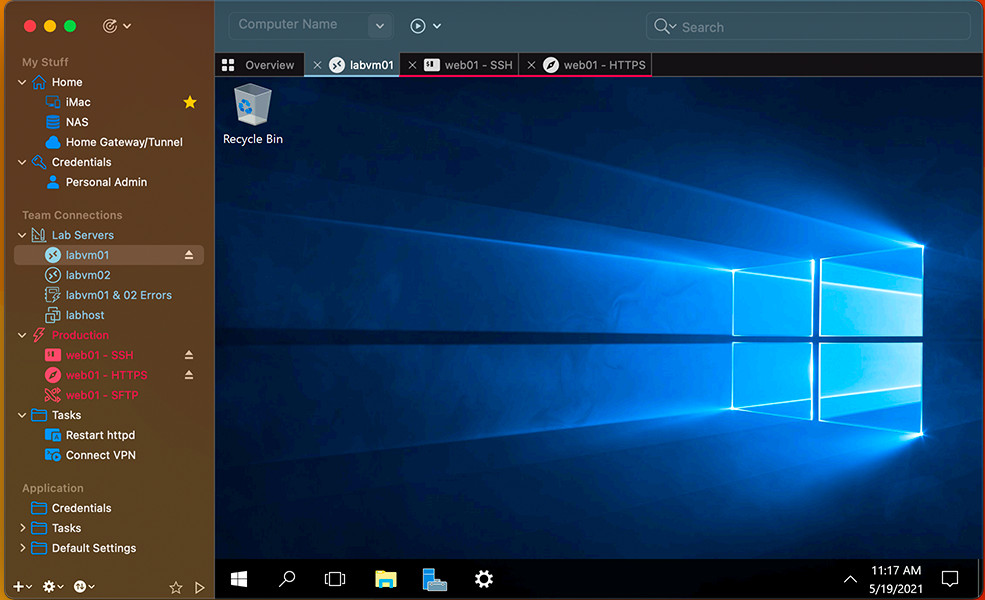
Royal TSX for Mac is focused firmly on system administrators or professionals that need a remote desktop solutions with a very high level of security.
Royal TSX is very well designed and makes it straightforward to manage connections in the left-hand sidebar with convenient tabs to control sessions.
Royal TSX is very versatile supporting RDP, VNC, SSH based terminals or web-based interfaces.
Security is a big selling part of Royal TSX for Mac as it uses using the highly secure 256 AES encryption standard.
Other enhanced secure features include built-in credential management, safe team-sharing features and the ability to share a list of connections without sharing your personal credentials.
Royal TSX is also one of the few RDP servers for Mac which supports PIV or CAC Smart Card Redirection.
There are various pricing plans for those that need more than this with the Individual License starting at $51 for multiple devices including Macs.
Volume licensing for unlimited users on a particular site start at $874 for a site wide license with a Global license for multiple users on multiple sites costing $1694.
Enterprise licenses are available on request
Pricing: Starts at $52.84
11. NoMachine
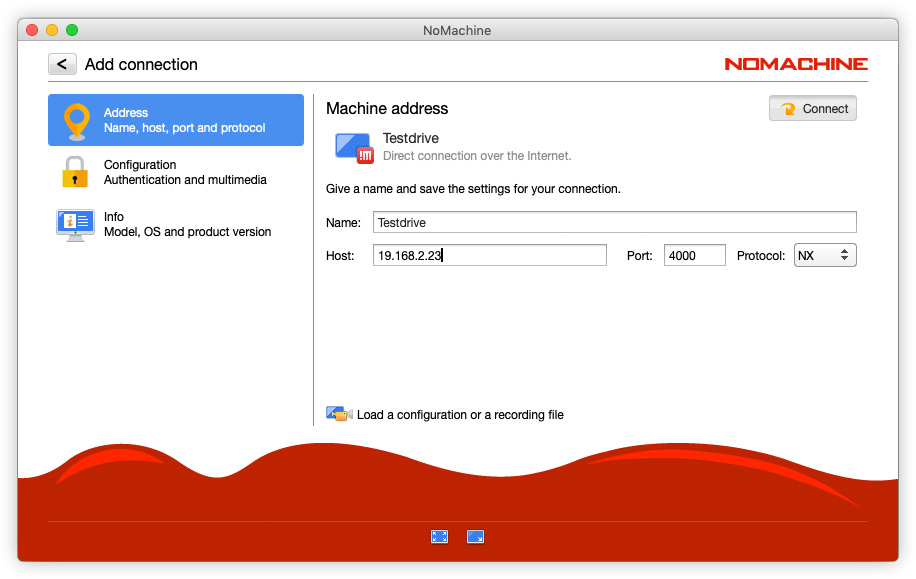
NoMachine is a slick Remote Desktop Client which tends to go under the radar when Mac users are looking for remote desktop software but is definitely worth a look.
NoMachine looks great on macOS, is very easy to set up and use and there’s an unlimited free version available.
The good thing about NoMachine is all you need to connect to another machine over the internet is its IP address and port number.
It’s incredibly easy to use and setup with no manual configuration required.
If you don’t have the IP address and port number you can also use NoMachine’s Network service although this requires a subscription.
A setup wizard clearly takes you step-by-step through the connection process. Connections are stable and fast and there’s a NoMachine forum where you’ll get help with any problems you might have with the client.
There’s also an extensive knowledge base for those with more technical needs but generally, you shouldn’t have many problems if you just need NoMachine for basic remote connections.
NoMachine for Mac is free for personal use but there are paid Enterprise and Cloud editions available.
Check out our full NoMachine review for more.
Pricing: Free / Plans starting from $84.50/year or $8.50/month
12. Parsec

If you want to connect to a remote PC for gaming, then take a look at Parsec.
Although Parsec can be used for connecting to business apps remotely on a PC, it’s very popular with gamers that want to play PC only games that are not available for Mac.
Parsec also has it’s own catalog of games Parsec Arcade which provides a ready-made selection of games that you can play on Mac or PC remotely.
Parsec supports HD and up to 60fps for gaming.
Parsec is also used by developers, designers, architects and engineers to collaborate on projects on both Windows and macOS.
Pricing: Starts at $8.33/m
13. ManageEngine Remote Access Plus
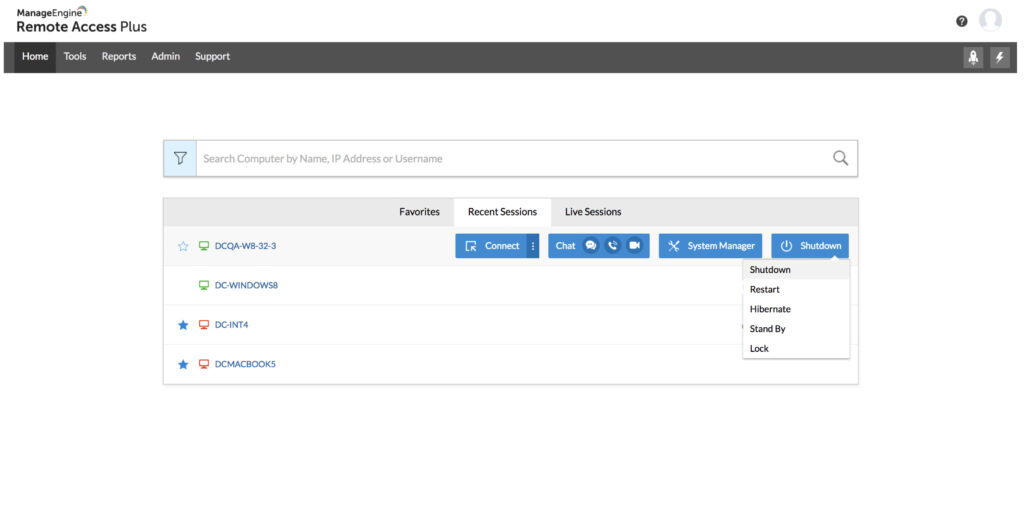
If you need a powerful solution for business environments then ManageEngine Remote Access Plus is an easy to use enterprise remote desktop software that’s packed with features and highly scalable.
ManageEngine Remote Access Plus allows IT help desk technicians and system administrators to remotely manage and troubleshoot Mac, Windows, and Linux computers anywhere in the world.
Some of the best tools in MangeEngine Remote Access Plus include advanced remote access control, system manager, Wake on LAN, remote shutdown and remote file transfer.
ME Remote Access Plus is suitable for those that need to offer high level remote support and reduce troubleshooting times.
You can install ManageEngine Remote Access Plus on premises or in the Cloud.
For more on what it can do, check out our closer look at ManageEngine for Mac.
Pricing: Free Trial / Pricing on request
Free Remote Desktop Software For Mac
If you just need to access one Mac or PC remotely, then many of the apps we’ve reviewed here offer a free plan for personal or non commercial use.
There are also other Mac compatible remote desktop apps that offer a limited number of connections, often just one Mac, PC or mobile device.
For more check out our guide to the best free remote desktop software for Mac.
FAQ
What is the best remote desktop software for Mac?
For most users, RemotePC offers the best balance of price, performance, and cross-platform support. It works reliably on macOS, Windows, and mobile devices, includes features such as file transfer and session recording, and is significantly cheaper than many enterprise-focused competitors.
Is there a built-in remote desktop tool on Mac?
Yes. macOS Screen Sharing is built into macOS and allows you to remotely access another Mac at no cost. However, it’s best suited to occasional Mac-to-Mac access and lacks many advanced features found in commercial remote desktop software.
Can I remote into a Windows PC from a Mac?
Yes. Several tools allow this, including RemotePC, Windows App (Microsoft Remote Desktop), TeamViewer, AnyDesk, AnyViewer, and Zoho Assist. Windows App is free and ideal for Microsoft environments, while paid tools offer better performance and management features.
What is the best remote desktop software for business use on Mac?
For businesses and IT teams, Zoho Assist and ManageEngine Remote Access Plus are strong choices. They provide unattended access, role-based permissions, audit logs, and additional security controls required for commercial environments.
Which remote desktop software is best for Apple Silicon Macs?
All the tools listed in this guide are compatible with Apple Silicon (M-series) Macs. Performance varies, but RemotePC, Jump Desktop, Splashtop, and Parsec tend to perform particularly well on M-chip Macs.
Is remote desktop software secure on macOS?
Yes, reputable remote desktop apps use strong encryption such as TLS, AES-256, or RSA, along with optional two-factor authentication. For commercial use, it’s important to choose software that includes session logging, access controls, and account-level security features.
Do I need a subscription or can I buy remote desktop software outright?
Most commercial remote desktop tools use a subscription model. However, Jump Desktop and Royal TSX are notable exceptions, offering one-time purchase licenses rather than recurring monthly fees.
Which remote desktop software is best for gaming or creative work?
For low-latency performance, Parsec and Splashtop are the best options. Parsec is particularly popular with gamers and creative professionals who need smooth, high-frame-rate streaming from a remote PC to a Mac.
Can I use remote desktop software to access my Mac while travelling?
Yes. Tools like RemotePC, TeamViewer, AnyDesk, and Zoho Assist are designed specifically for remote access over the internet and work well when travelling, provided you have a stable internet connection.
Why not just use a free remote desktop app?
Free remote desktop apps are fine for occasional personal use, but they often limit features, performance, or commercial usage. Paid remote desktop software typically offers better reliability, stronger security, priority support, and unattended access, which are essential for professional and business environments.
Does Parallels Access for Mac still exist?
Parallels Access has been discontinued by the developer Parallels.
The tool was a companion application to the Parallels virtual machine which allows you to run Windows on a Mac.
Parallels Access allowed you to access Macs and Windows PCs remotely from Android and iOS devices but it was discontinued in October 2024.