

If you’re switching from Windows and wondering where File Explorer is on a Mac, it’s called Finder. Finder is the built-in file manager in macOS and works in a very similar way and here we’ll show you how it works and how to open Finder on Mac with keyboard shortcuts.
The Finder on Mac computers is the core file management system in macOS. Whether you want to learn how to find a file on Mac, organize folders, or fix issues like Mac Finder search not working, this guide covers everything you need – from beginner basics to advanced features.
What Is Finder on Mac?
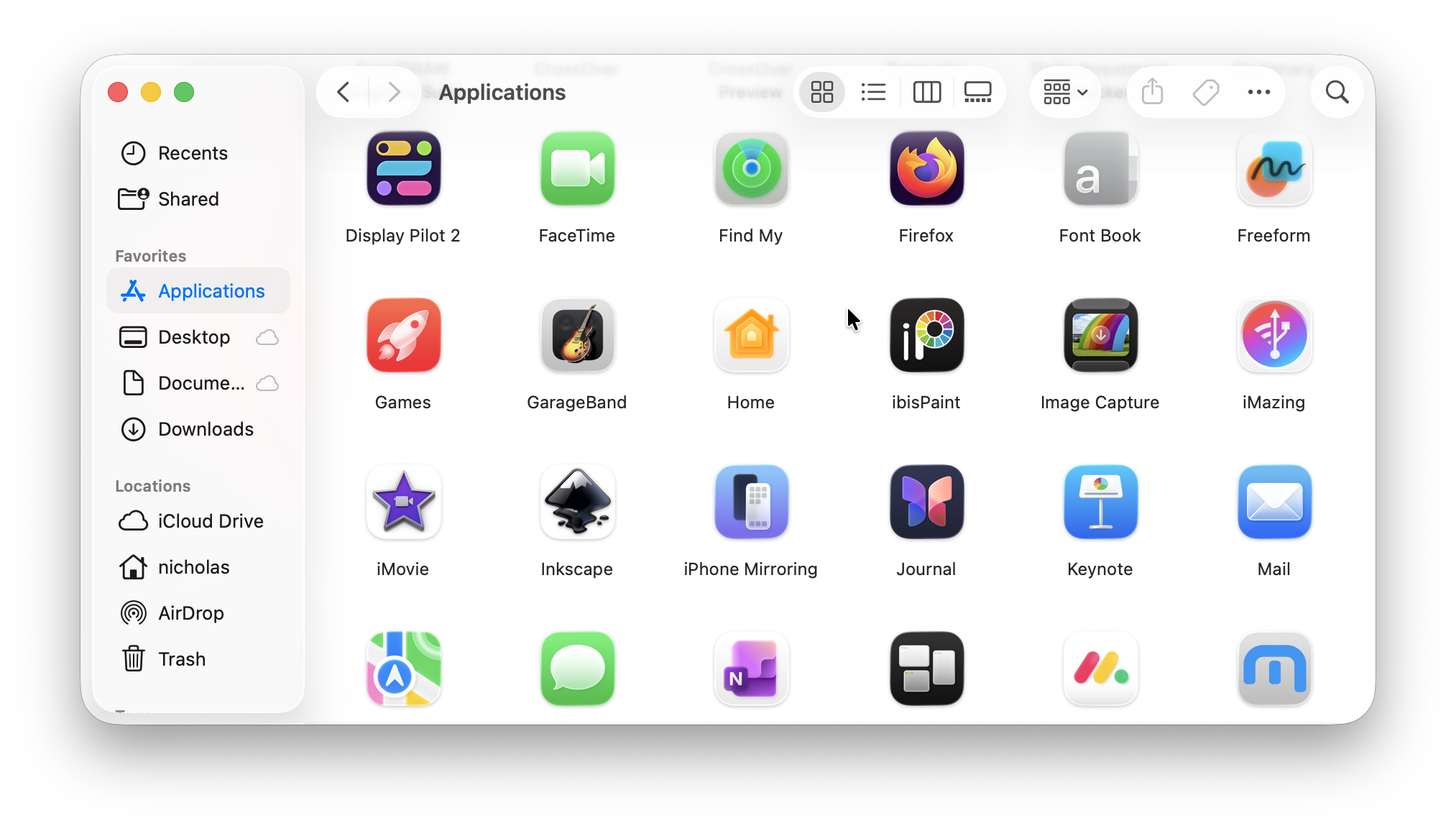
The file Finder on Mac (often just called Finder) is the default file manager in macOS – the equivalent of File Explorer in Windows.
It allows you to:
- Browse files and folders
- Open apps and documents
- Search your Mac
- Organize files using folders and tags
Finder is always running in the background and is essential for navigating your MacBook Finder system.
Where Is Finder on Mac?
If you’re asking where is Finder on MacBook, it’s always visible:
- 📍 Dock (bottom of screen) → Blue smiling face icon
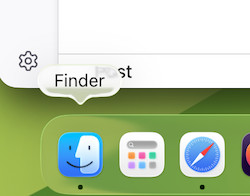
📍 Top menu bar → Appears when Finder is active
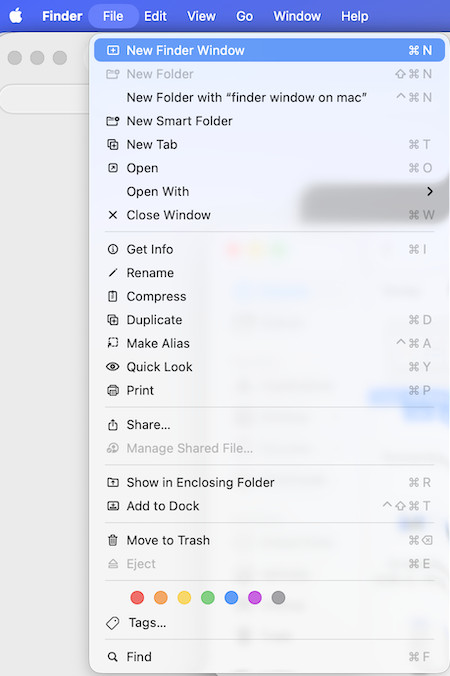
Note that Finder cannot be removed – it’s a permanent part of macOS Finder.
How To Open Finder on Mac
Here are all the ways to open Finder:
Click the Dock Icon
Click the blue Finder face icon in the Dock.
Click the Desktop
Click anywhere on the desktop to activate Finder.
How to Open Finder on Mac With Keyboard Shortcuts
If you prefer shortcuts:
- Command (⌘) + Tab → Switch to Finder
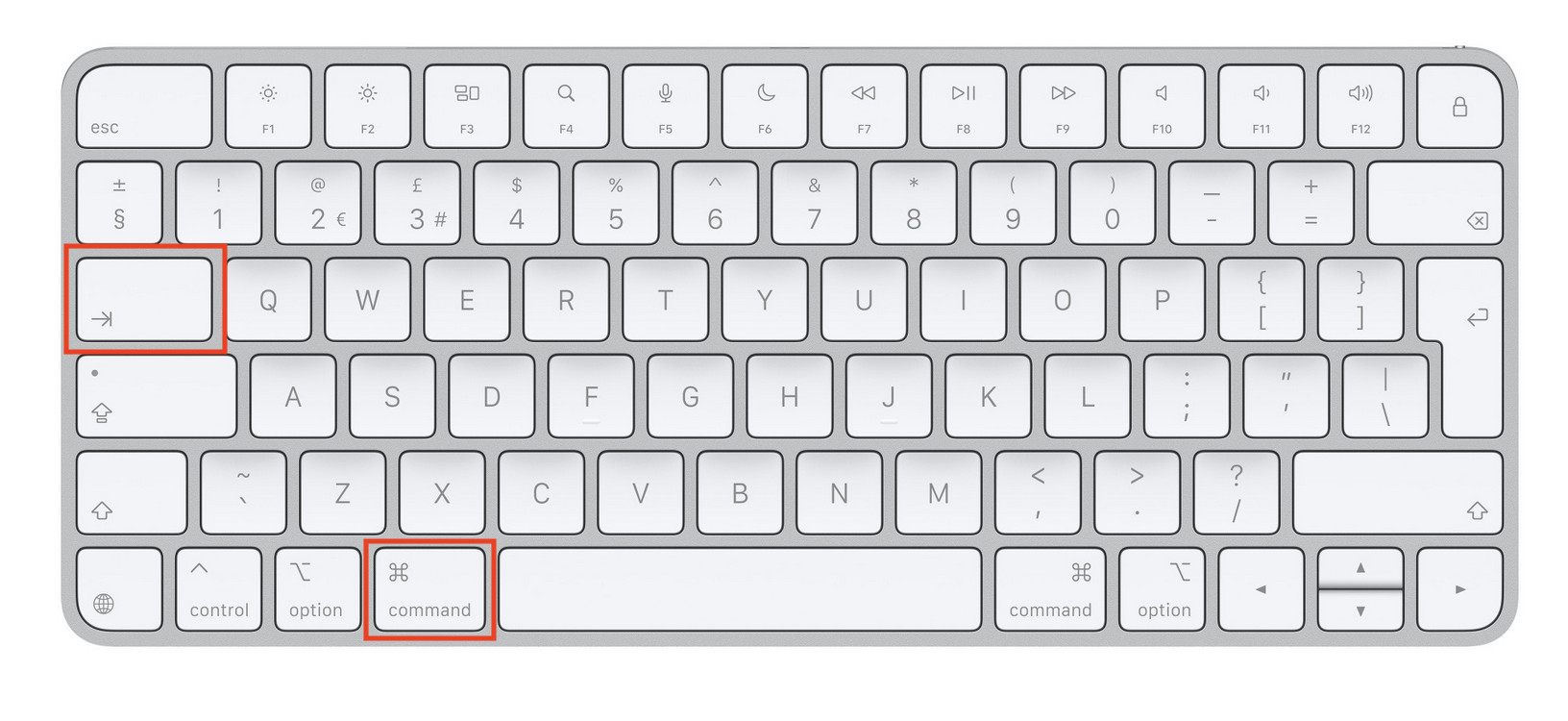
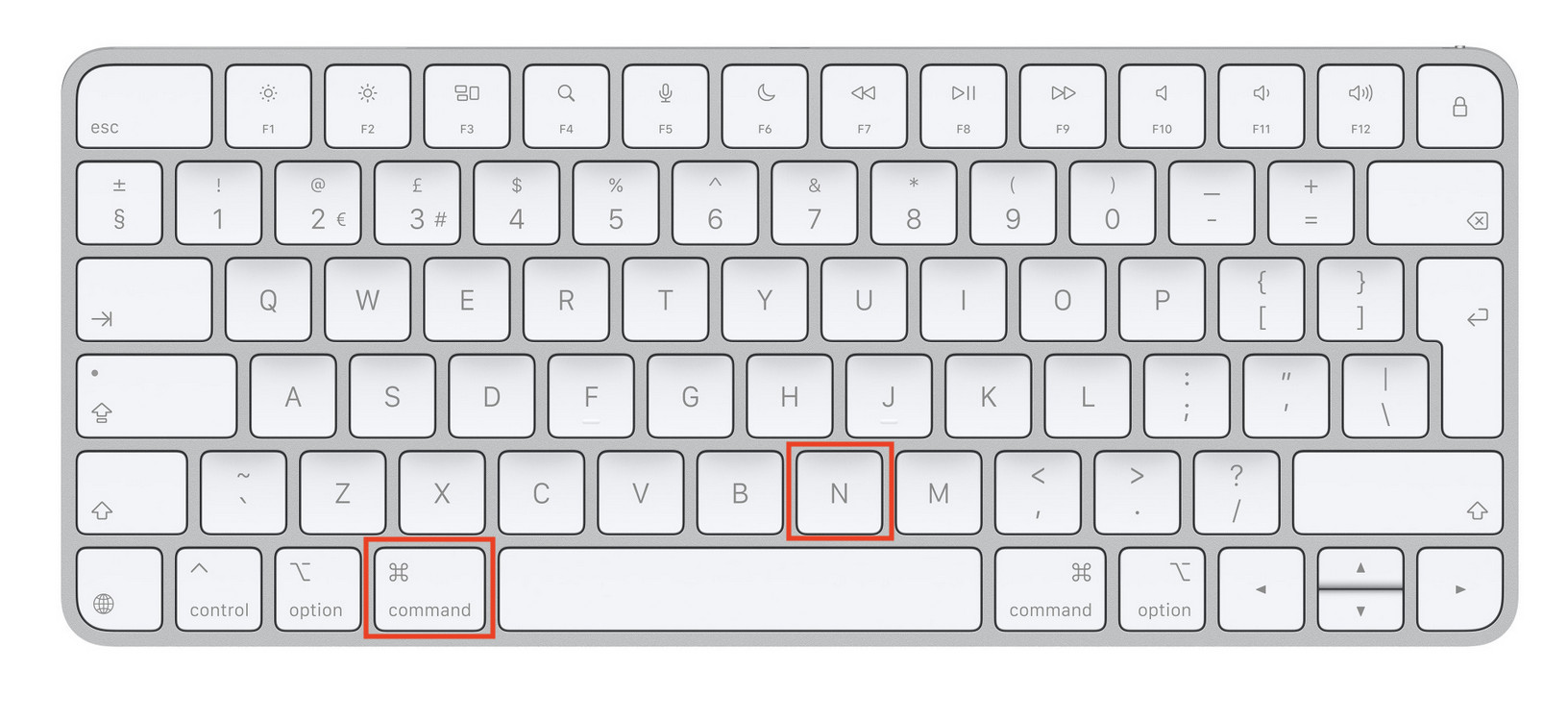
- Command (⌘) + N → New Finder window
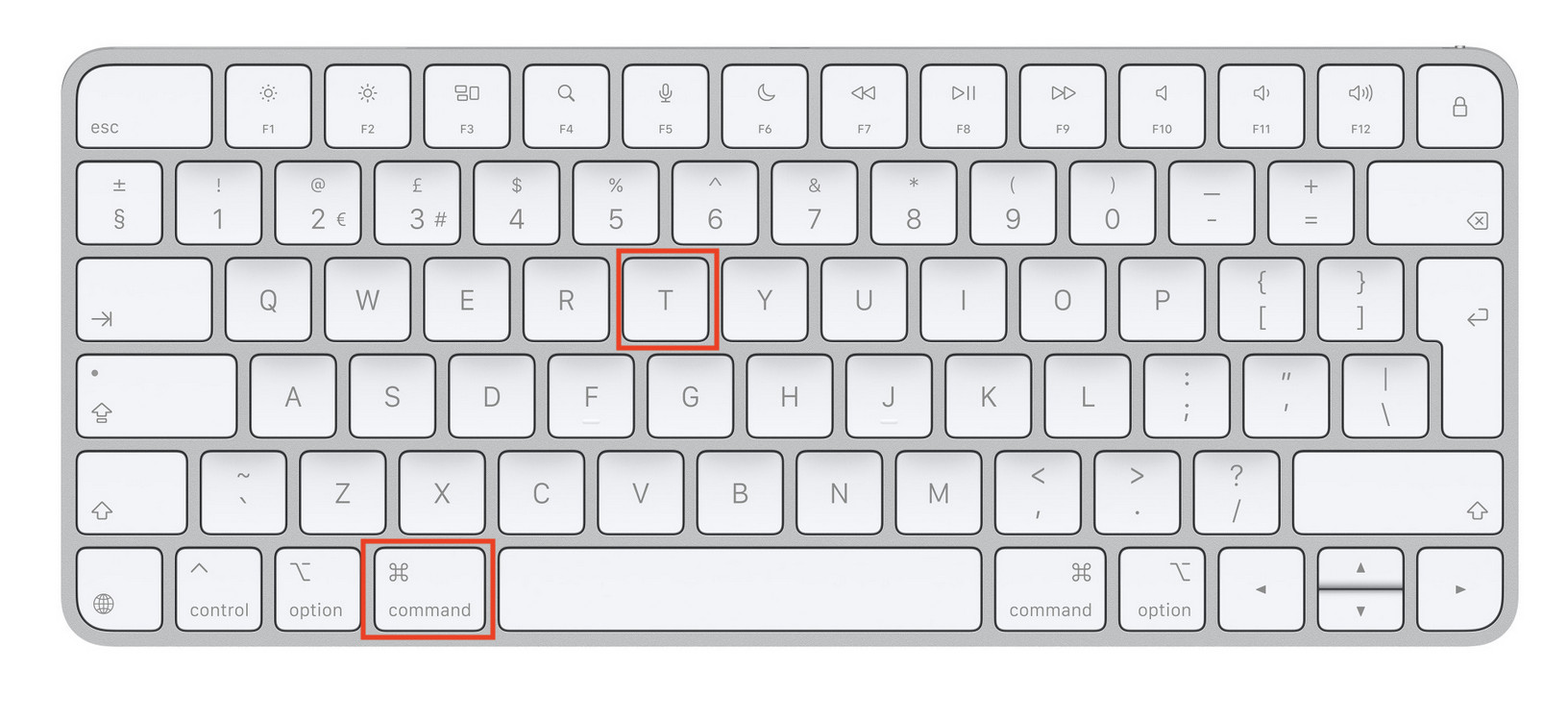
- Command (⌘) + T → New tab
Understanding the Finder Window on Mac
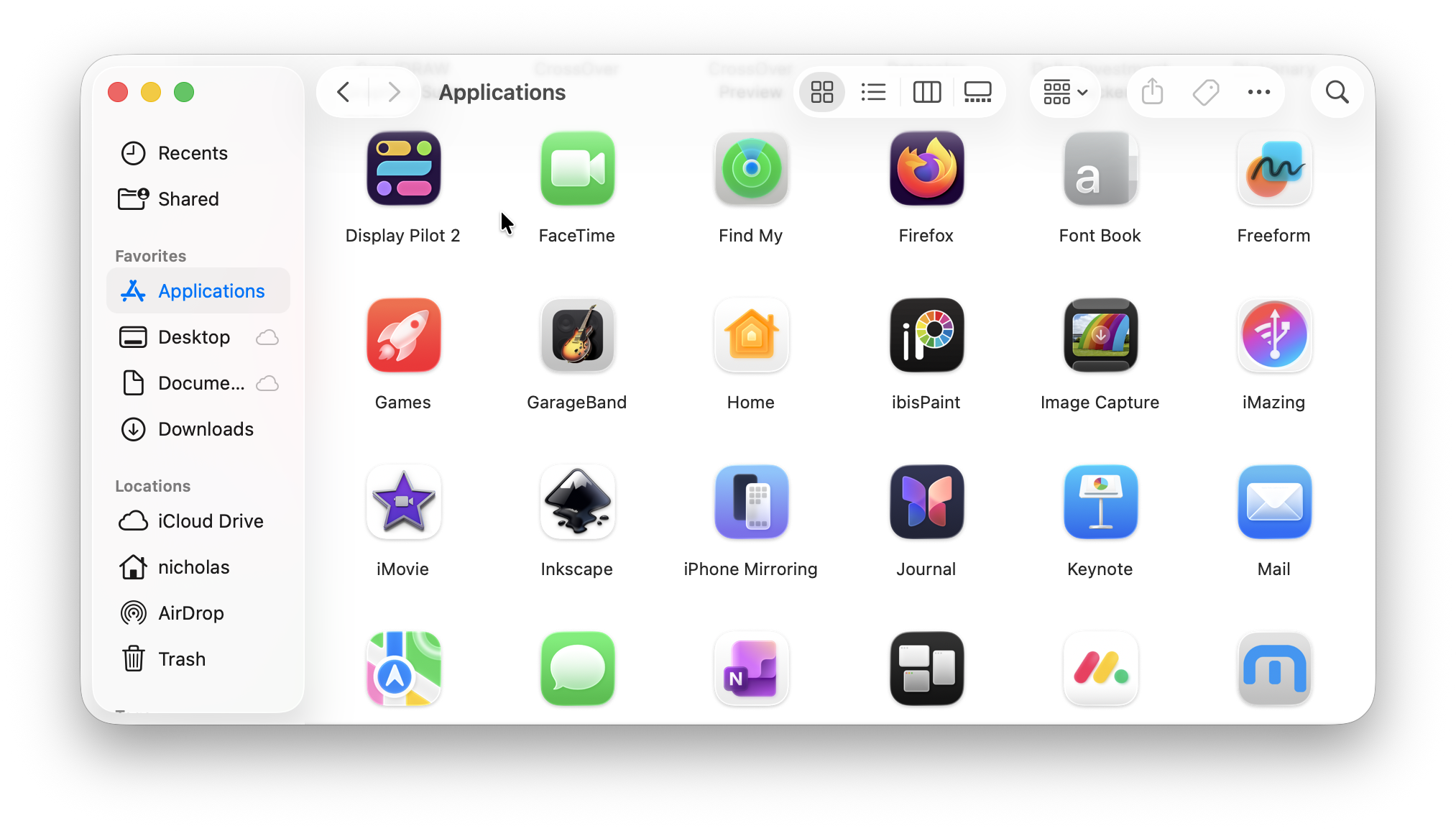
A typical Finder window on Mac includes:
- Sidebar → Quick access to folders
- Toolbar → Navigation and view controls
- Main panel → Files and folders
- Search bar → Find files instantly
Use the Sidebar
The sidebar gives quick access to:
- Applications
- Desktop
- Documents
- Downloads
- External drives
You can drag any folder into the sidebar to add it to Favorites.
Finder Views Explained
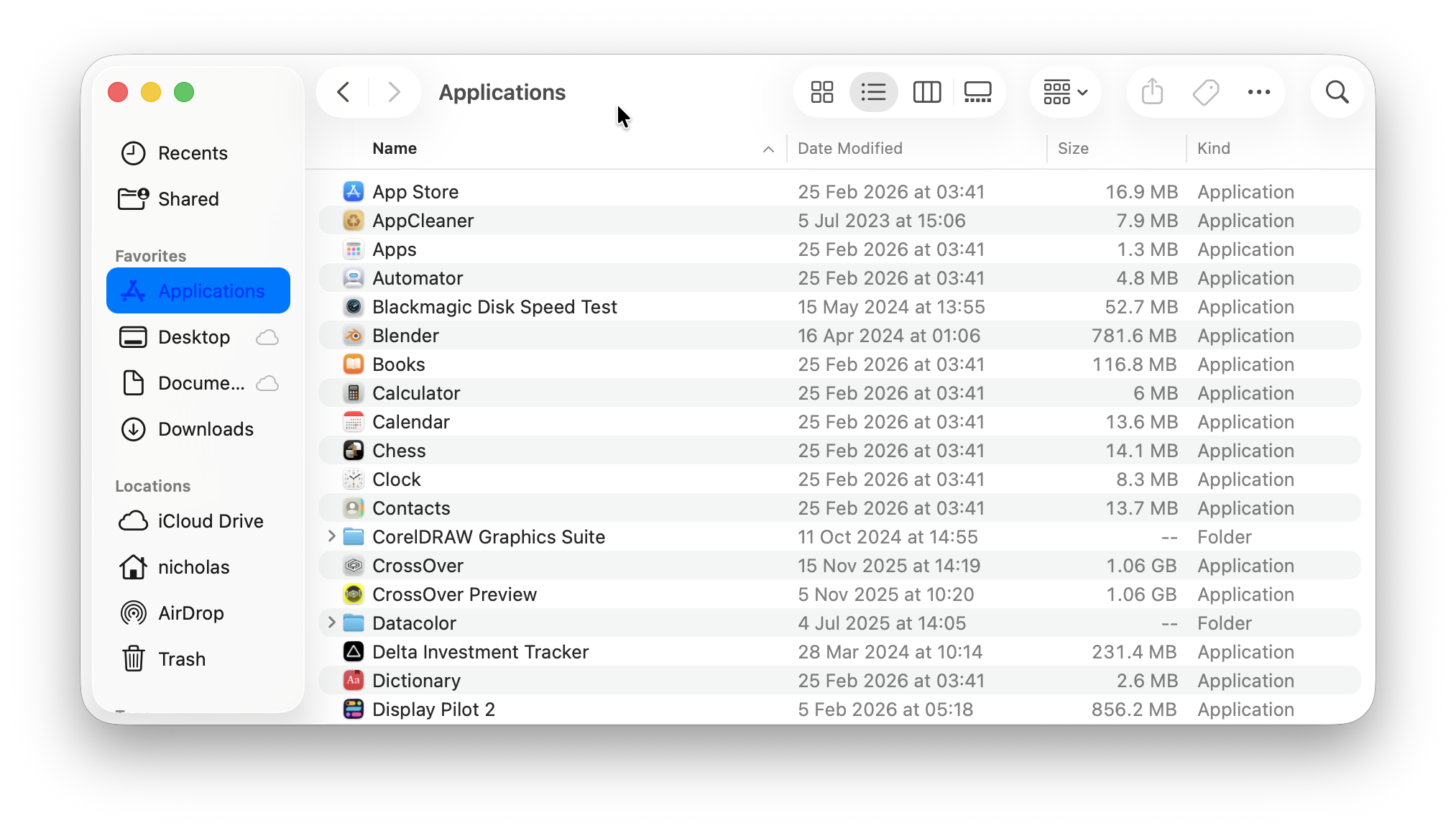
You can switch between views using either the toolbar buttons across the top or shortcuts:
- Command + 1 → Icon view
- Command + 2 → List view
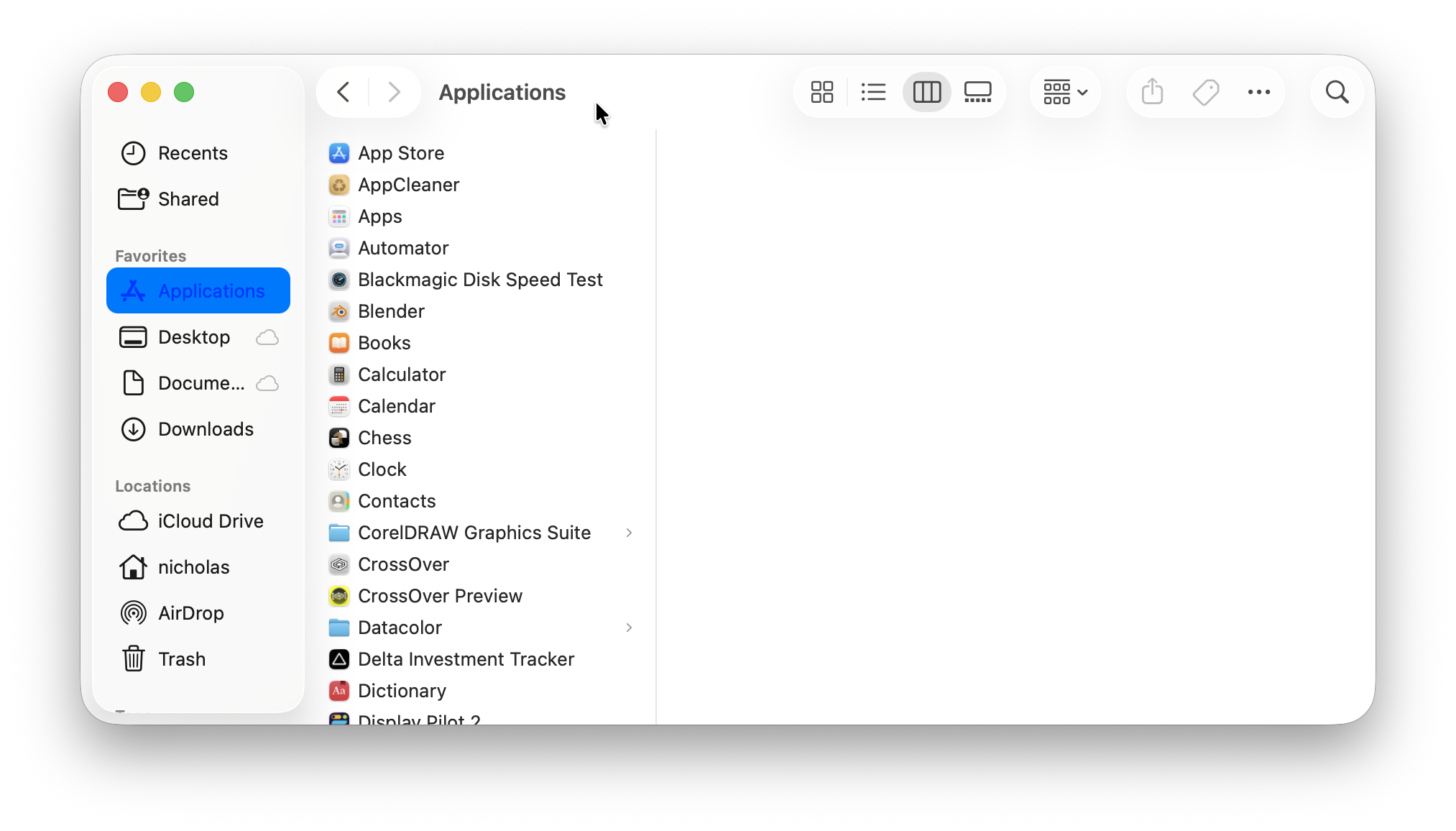
- Command + 3 → Column view
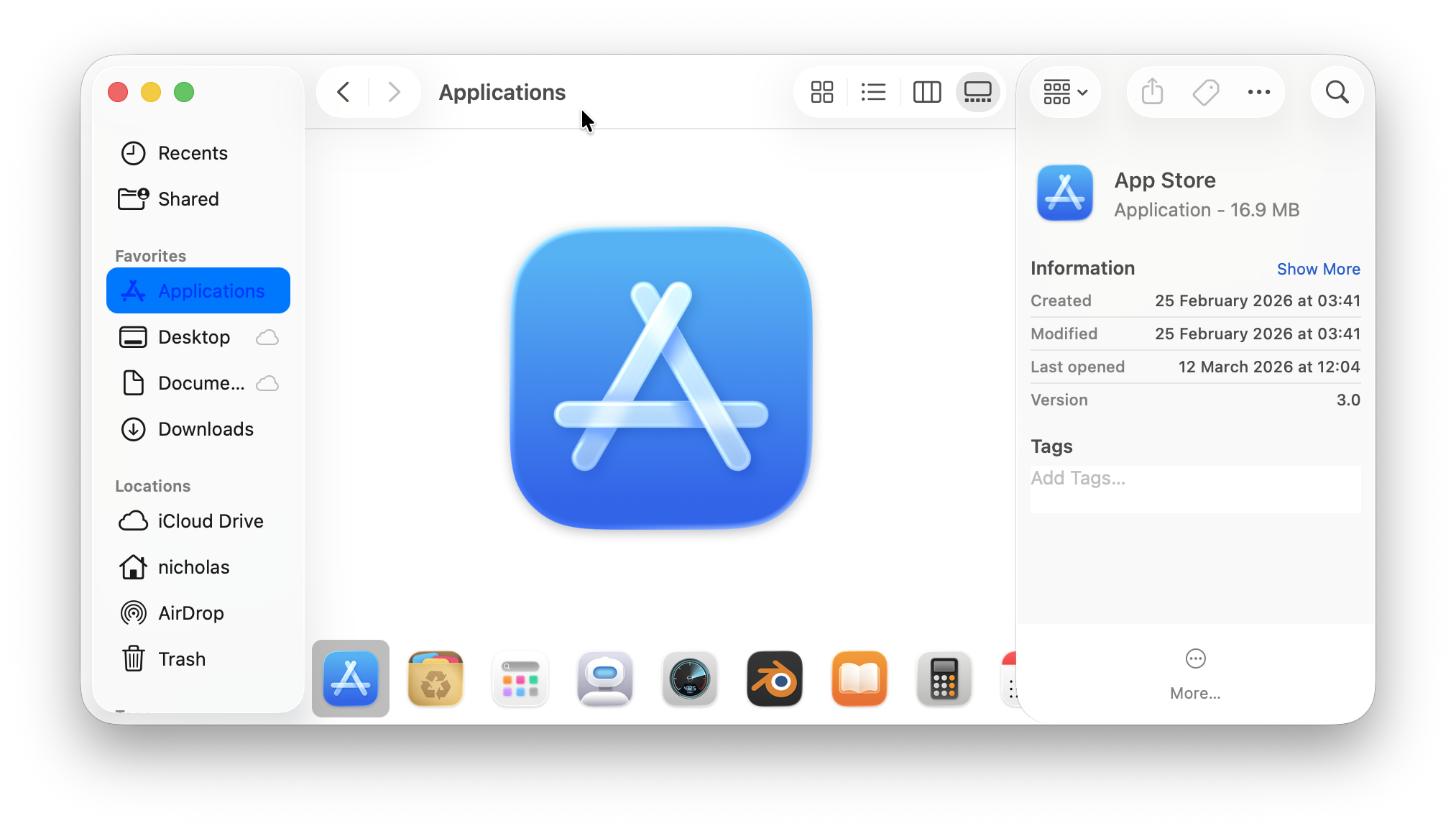
- Command + 4 → Gallery view
Why Column View Is Best
Column view is ideal for navigation:
- Click a folder → contents appear in the next column
- Use arrow keys:
- ➡ Right → open folder
- ⬅ Left → go back
How To Find a File or Application on Mac
If you want to know how to find a file or application on Mac, Finder makes it easy:
Method 1: Search Bar
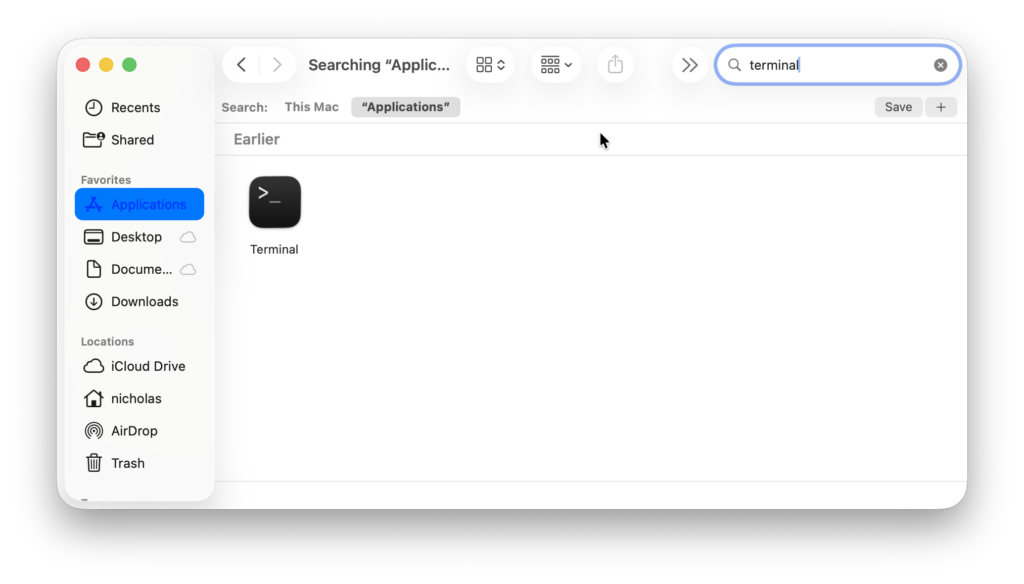
- Click the search icon (top-right)
- Enter your query
Method 2: Keyboard Shortcut
- Press Command (⌘) + F which is the equivalent of Ctrl + F on Windows.
Use Advanced Finder Search Filters
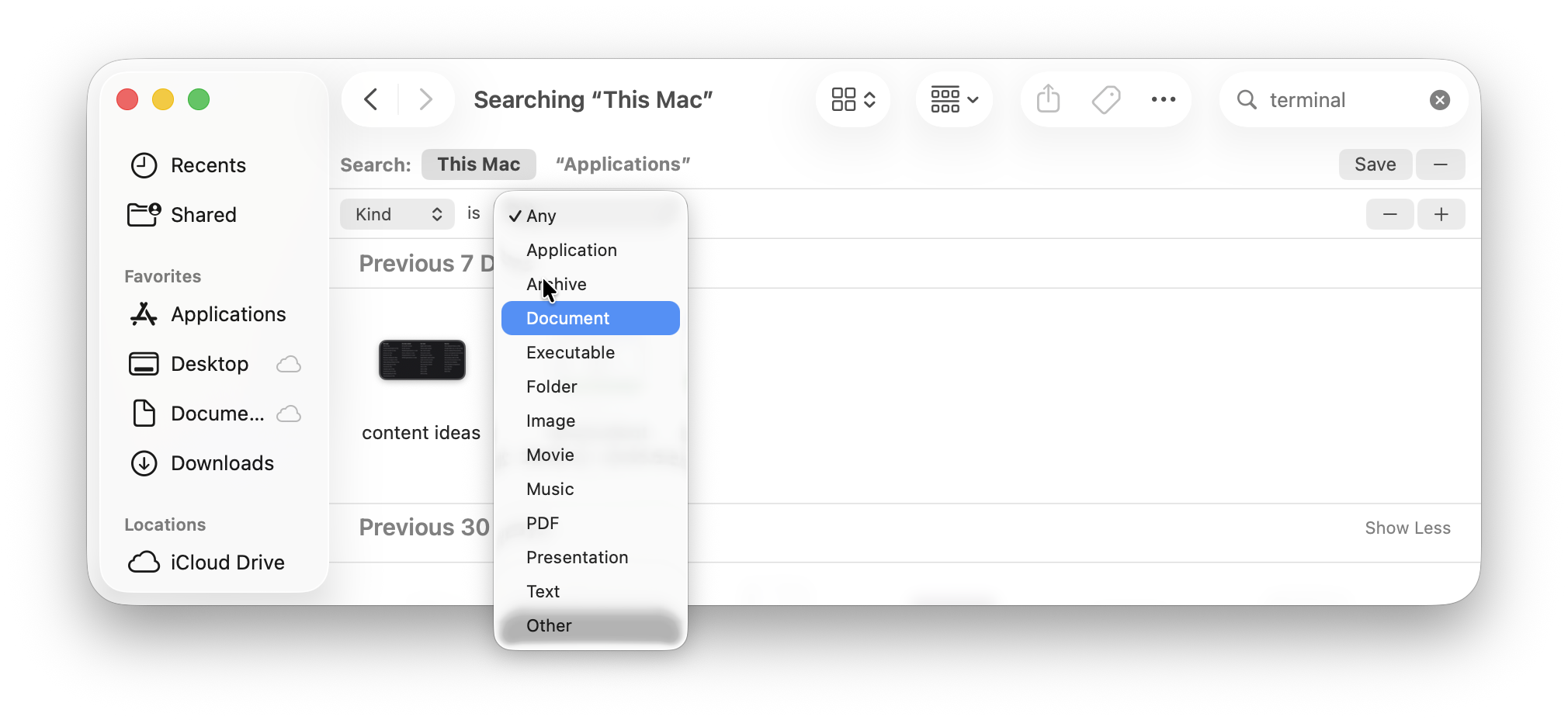
To refine results:
- Search for a file or application
- Click the + button on the right
- Add filters such as:
- File type
- Date modified
- Name
- Tags
This is essential if you have lots of files.
What To Do If Mac Finder Search Is Not Working
If you’re experiencing Mac Finder search not working, try:
1. Relaunch Finder
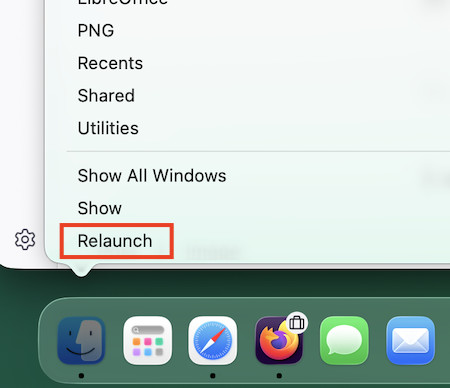
- Right-click Finder icon
- Hold Option → Click Relaunch
2. Rebuild Spotlight Index
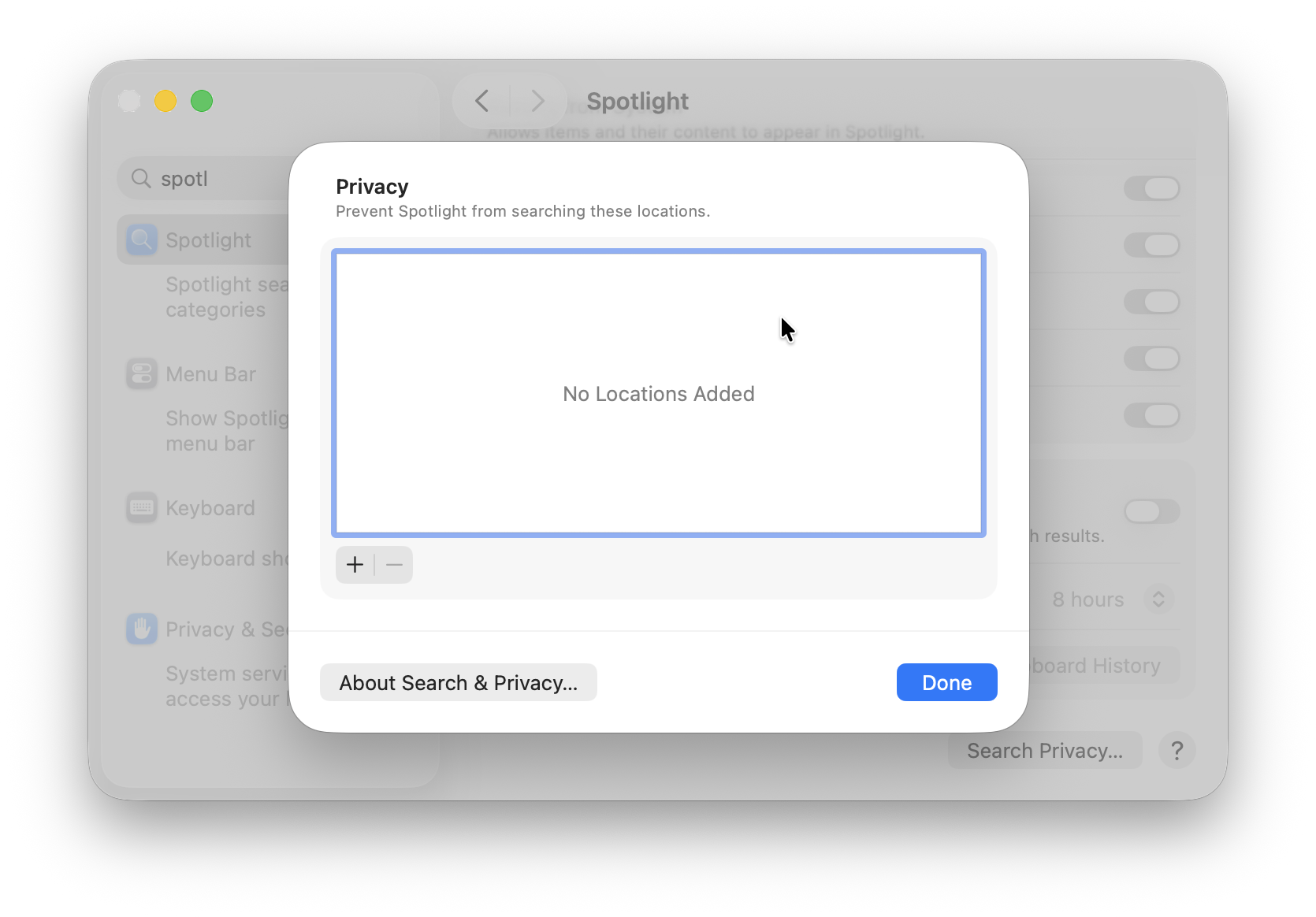
- System Settings > Spotlight > Privacy
- Add and remove your drive
3. Restart Your Mac
4. Check search filters
How To Use the Preview Pane
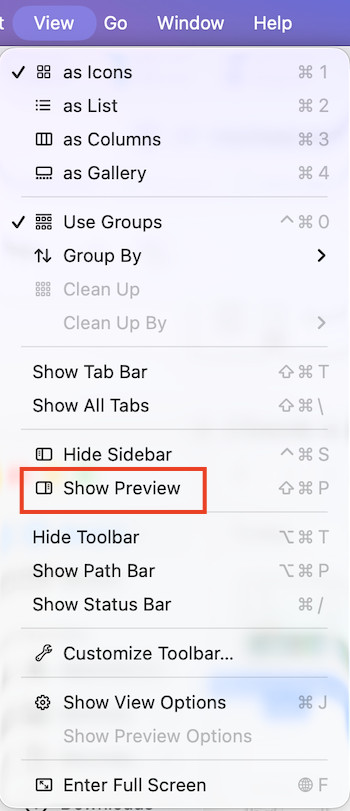
The Preview Pane lets you see files without opening them.
Enable it:
- Go to View > Show Preview
You can preview:
- Images
- PDFs
- Videos
- Documents
- Applications
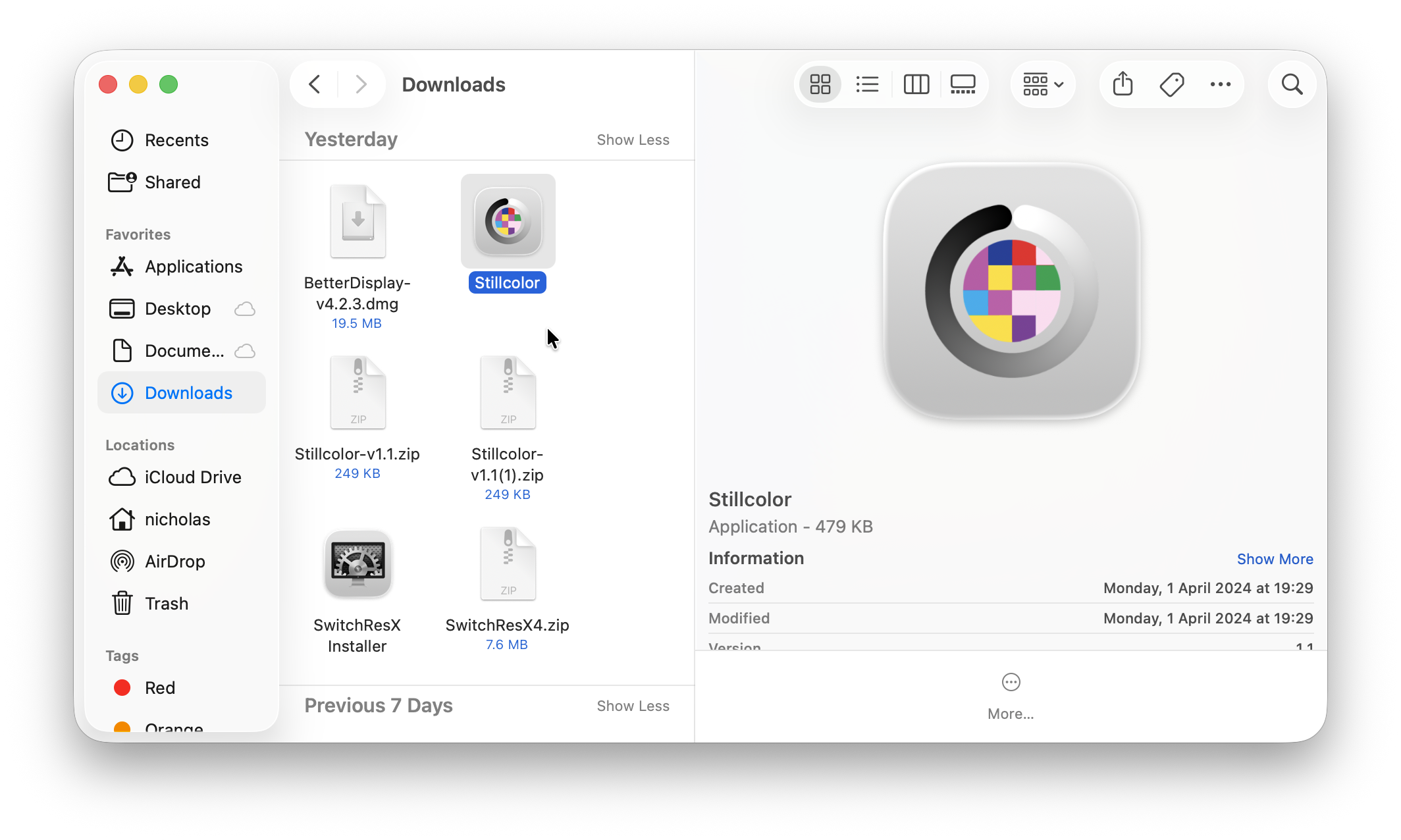
This is a huge time saver when browsing files.
File Management in Finder
Create a New Folder
- Shift + Command + N
Move Files
- Drag and drop
Delete Files
- Command + Delete
Copy Files
- Hold Option while dragging
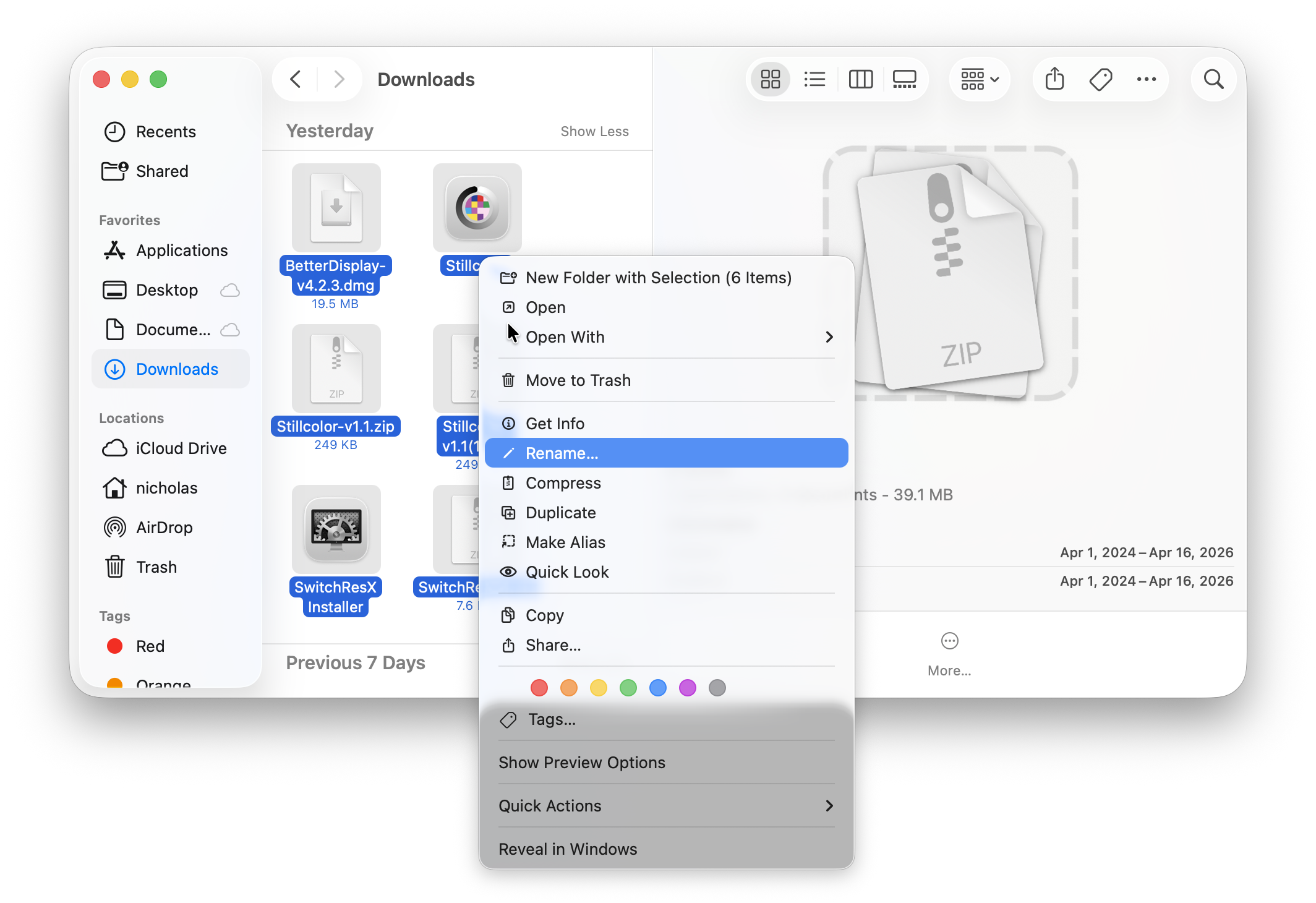
How To Rename Multiple Files in Finder
- Select multiple files
- Right-click → Rename
- Choose:
- Replace text
- Add text
- Format (e.g. name + number)
Undo with Command + Z
Tabs & Windows in Finder
- New tab → Command + T
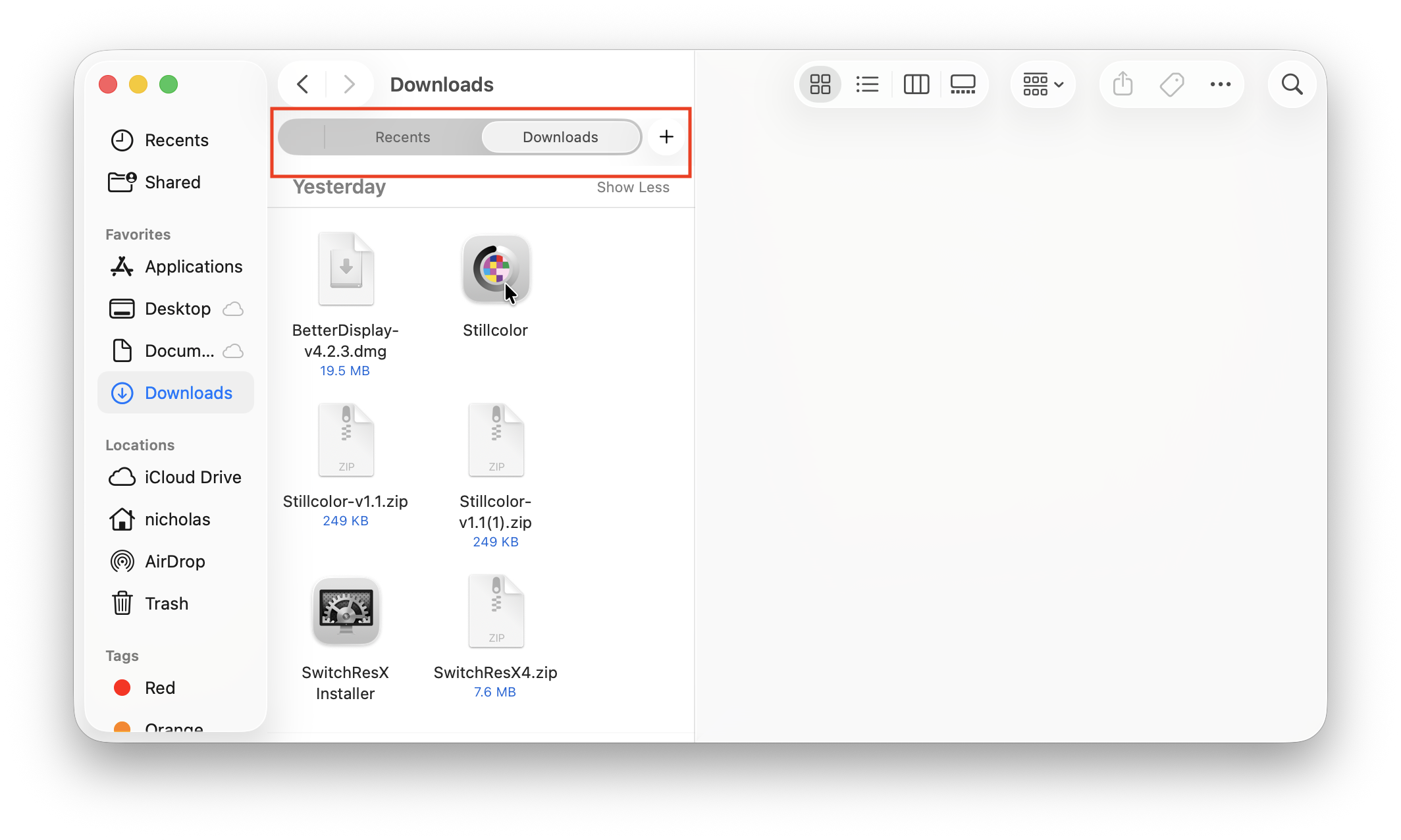
- New window → Command + N
Tabs help keep Finder organized.
Using Tags in Finder
Tags help you organize files across folders.
To add a tag:
- Right-click file → select color tag
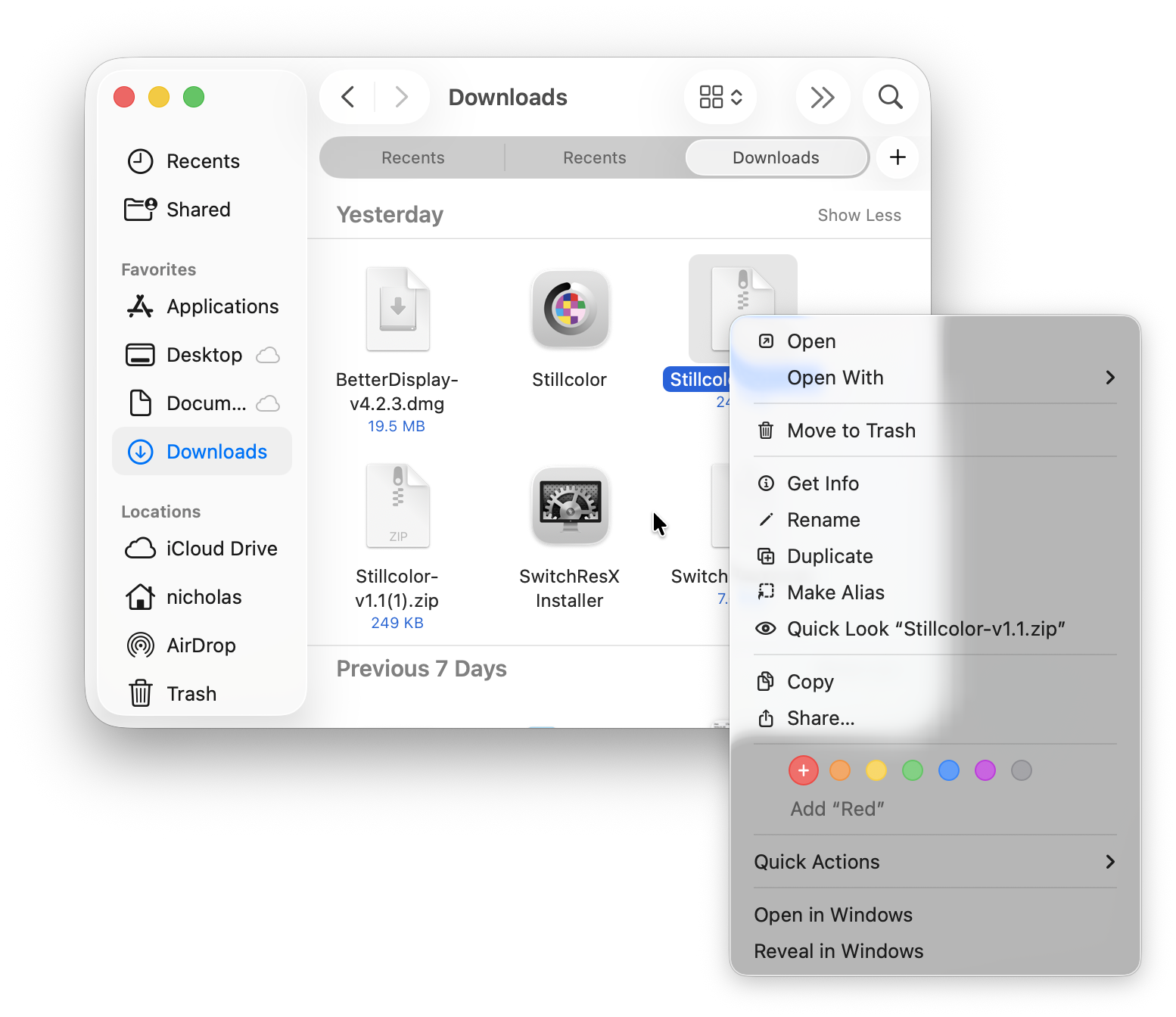
You can search by tags later.
How To Use “Go To Folder” on Mac
This is a powerful feature many users miss.
Open it:
- Press Command + Shift + G

Examples:
~/Downloads~/Documents~/Library
Great for accessing hidden or deep system folders.
Finder Menu on Mac Explained
The Mac Finder menu includes:
- File → New windows, folders
- Edit → Copy, paste
- View → Change layout
- Go → Jump to locations
- Finder → Settings
Customizing Finder
Customize Sidebar
- Drag folders in or out
Change Finder Settings
Go to:
Finder > Settings
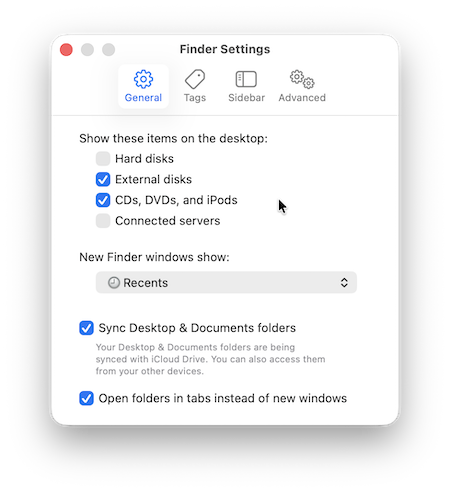
You can:
- Choose default folder
- Show drives or disks
- Customize sidebar
How To Change the Default Finder Folder
- Go to Finder > Settings
- Click General
- Change:
- “New Finder windows show”

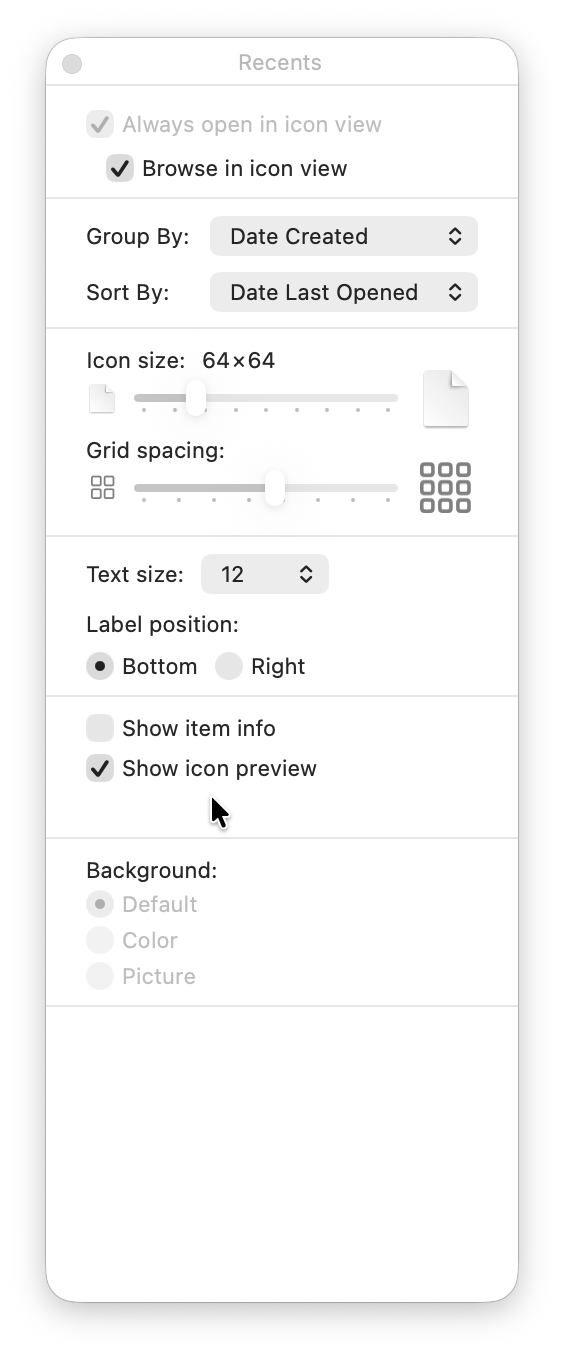
Adjust View Options
Press:
- Command + J
Change:
- Icon size
- Grid spacing
- Layout preferences
How To Organize Files in Finder
Use built-in tools:
- Sort by → Name, Date, Type
- View > Clean Up By → Automatically arrange files
Advanced Finder Keyboard Shortcuts
| Action | Shortcut |
|---|---|
| Get Info | Command + I |
| Show/hide sidebar | Command + Option + S |
| Desktop | Command + Shift + D |
| Documents | Command + Shift + O |
| Downloads | Command + Shift + L |
| iCloud Drive | Command + Shift + I |
| Recents | Command + Shift + F |
Fix Finder Not Responding or Slow
If Finder is slow or frozen:
Quick Fixes
- Relaunch Finder
- Restart your Mac
- Free up storage
Advanced Fix
- Open Activity Monitor → Restart Finder
Terminal (Optional)
- Run:
killall Finder
Summary
Learning how to use Finder properly is one of the most important steps in mastering macOS.
Whether you’re trying to:
- Learn how to open Finder Mac
- Understand where Finder is on MacBook
- Fix Mac Finder search not working
…this guide gives you everything you need to use Finder efficiently in 2026.
FAQ
How do I open Finder on Mac with keyboard?
Use Command + Tab to switch to Finder or Command + N to open a new window.
Is Finder the equivalent of File Explorer on Mac?
Yes, Finder is the Mac version of Windows File Explorer.
Where is Finder on Mac?
It’s in the Dock (blue face icon) and always running.
How do I find a file on Mac?
Open Finder and press Command + F (the equivalent of Ctrl + F on Mac) or use the search bar.
What is Finder used for?
It’s the main tool for browsing, searching, and organizing files on macOS.