

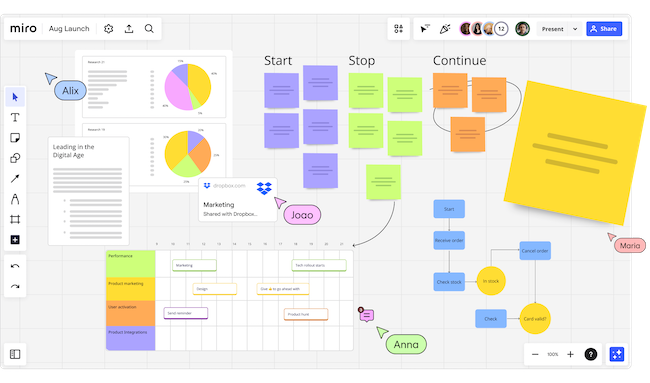
As more teams work remotely or combine office and home working, digital whiteboards have become increasingly useful for brainstorming, planning projects, productivity and explaining ideas visually.
We tested a selection of whiteboard tools to find the best options for Mac users in 2026.
At MacHow2, we’ve worked remotely for years and regularly use whiteboards for planning articles, mapping technical processes, creating flowcharts and organizing ideas.
The best whiteboard software now goes far beyond drawing and sticky notes. Many tools can generate diagrams with AI, summarize brainstorming sessions, group related ideas and turn a board into a presentation or project plan.
What We Looked For
You can use almost any drawing app as a basic whiteboard on a Mac, but that does not necessarily make it suitable for meetings, workshops or collaborative planning.
Many video-conferencing platforms now include their own whiteboards, including Microsoft Whiteboard in Teams, Zoom Whiteboard and Webex Whiteboard.
Although these work on Macs, they are closely tied to their respective meeting platforms. We therefore focused mainly on dedicated whiteboard and visual-workspace tools that can be used independently.
Here are the most important things we considered.
Infinite Canvas
A major advantage of a digital whiteboard is that you are not restricted by the size of a physical board. Most of our recommendations provide a practically unlimited canvas that can expand as you add content.
Collaboration
For remote teams, real-time collaboration is essential. We looked for tools that allow multiple people to edit, comment, react and vote on ideas simultaneously.
File and Media Support
Modern whiteboards should allow you to add more than drawings and sticky notes. We looked for support for images, PDFs, videos, documents, web links and other attachments.
Presentation Tools
Some whiteboards can divide a canvas into frames or sections and turn them into a presentation. This is useful when you want to present your ideas without rebuilding everything in PowerPoint or Keynote.
Mobile Access
We considered whether each service offered an iPhone or iPad app, particularly because drawing and handwriting are often easier with an Apple Pencil than a mouse or trackpad.
Mac Compatibility
We gave preference to tools with a dedicated Mac desktop app. However, we also included browser-based whiteboards that work well in Safari, Chrome and Firefox.
AI Features
AI has become much more useful in whiteboard software since we first reviewed these tools.
The best implementations can now:
- Generate diagrams, mind maps and sticky notes from a prompt
- Group ideas by topic, keyword or sentiment
- Summarize a board or brainstorming session
- Extract action points
- Rewrite and expand text
- Turn ideas into presentations, documents or prototypes
We still would not choose a whiteboard solely because it has AI, but these features can save considerable time after a brainstorming session.
Value
We looked for apps with a genuinely useful free version or a reasonably priced plan for individuals and small teams.
Is Microsoft Whiteboard Available For Mac?
There is still no dedicated Microsoft Whiteboard desktop app for macOS. The only way to get the desktop download version of Microsoft Whiteboard on a Mac would be to run Windows on your Mac.
However, you can use the web version of Microsoft Whiteboard in a browser on a Mac. Whiteboard is also integrated into Microsoft Teams, allowing participants to create or open a board during a meeting without sharing their entire screen.
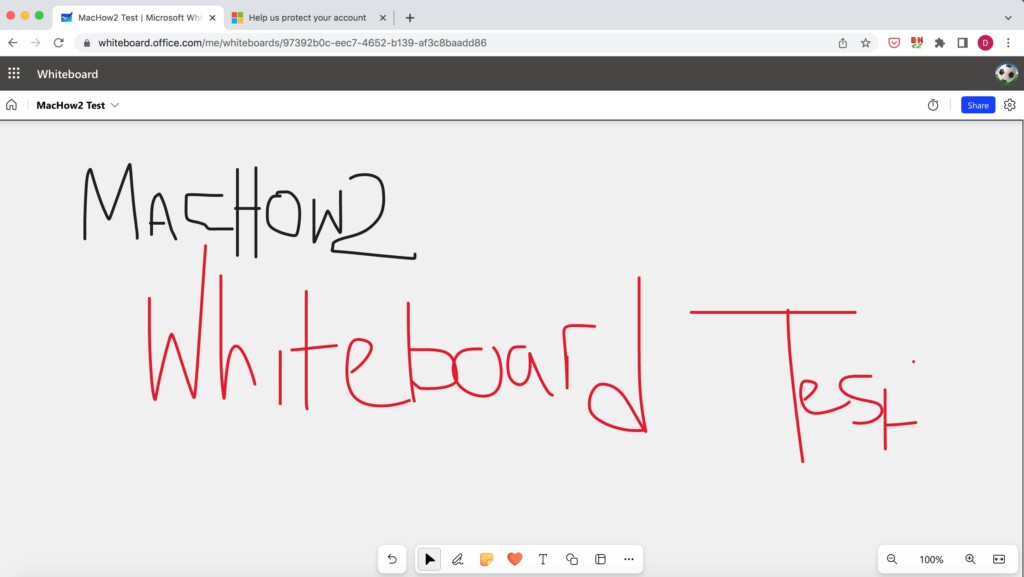
The web and Teams versions support templates, sticky notes, reactions, images, documents and real-time collaboration. Microsoft states that the Whiteboard experience in Teams includes the same core features as its web version.
If your company already uses Microsoft 365 and Teams, Microsoft Whiteboard may therefore be sufficient. However, Miro, FigJam and Lucidspark offer more advanced visual-planning and facilitation tools.
There is no need to install Windows on a Mac simply to use Microsoft Whiteboard.
Is Google Jamboard Still Available?
Google Jamboard is no longer available.
Google discontinued the Jamboard app across the web, iOS, Android and Google Meet on December 31, 2024. The company recommends using third-party alternatives such as FigJam, Lucidspark and Miro with Google Workspace instead.
Canva Whiteboards is another good alternative, particularly for users who already create documents, graphics or presentations in Canva.
Best Whiteboard Software For Mac Compared
| Software | Pricing | AI Features | Best For |
|---|---|---|---|
| Apple Freeform | Free with macOS | Limited | Apple users wanting a simple native whiteboard |
| Miro | Free; Starter from $8/user/month billed annually | Extensive | Remote teams, workshops and project planning |
| SmartDraw | From $8.99/user/month for teams or $9.99/month individuals | AI diagram generation | Whiteboarding combined with technical diagrams |
| FigJam | Free; Professional Collab seat from $3/month | Generate, sort and summarize | UX, product and design teams |
| Lucidspark | Free; paid plans available | Generate, organize and summarize ideas | Structured team brainstorming |
| Canva Whiteboards | Free; premium AI features require a paid plan | Canva AI, Magic Write and AI summaries | Visual content, presentations and marketing |
| Explain Everything | Free; Advanced around $69/year | Education-focused AI integrations | Teachers, tutorials and recorded lessons |
| Milanote | Free; Personal from $9.99/month billed annually | No major native AI assistant | Mood boards and creative project planning |
Prices were checked in August 2026 and may vary according to billing cycle, country and tax.
1. Freeform — Best Free Whiteboard For Mac
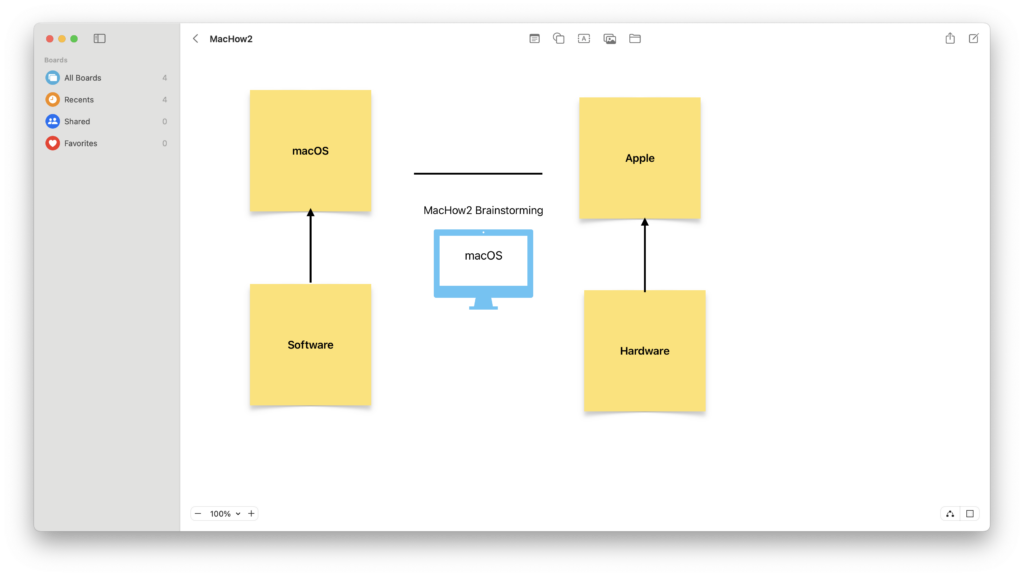
Apple Freeform is the closest thing to a built-in whiteboard for Mac and is our top choice if you want something simple, free and tightly integrated with Apple devices.
Freeform is included with macOS Ventura 13.1 and later, as well as compatible versions of iOS and iPadOS.
It provides a flexible canvas onto which you can add:
- Sticky notes
- Text boxes
- Shapes and connectors
- Photos and videos
- PDFs and documents
- Web links
- Scanned documents
- Handwriting and sketches
Freeform now includes improved diagramming tools, including connectors that remain attached when you move shapes around the canvas.
Boards synchronize through iCloud, so you can begin planning on your Mac and continue on an iPad or iPhone. Apple supports real-time collaboration with up to 100 people on the same board.
You can also open the associated Messages conversation or start a FaceTime call while collaborating.
Drawing is much better on an iPad with an Apple Pencil than on a Mac with a mouse or trackpad. The main limitation is that everyone collaborating needs an Apple Account and must have Freeform enabled in iCloud.
Freeform also lacks the advanced templates, workshop controls and AI-powered summaries found in Miro, FigJam and Lucidspark.
Despite this, it is easily the best free native whiteboard for individual Mac users and small groups already using Apple devices.
You can check out more on Apple Freeform for Mac here.
Pricing: Free with macOS Ventura 13.1 or later.
2. Miro — Best Whiteboard For Remote Teams
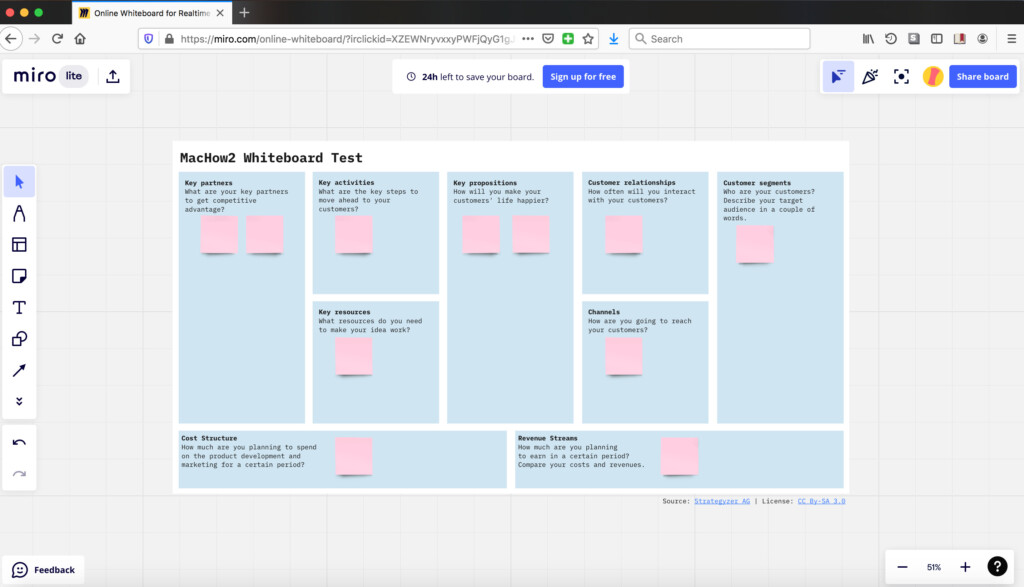
Miro remains the most complete dedicated whiteboard platform we have used.
Its infinite canvas is particularly good at handling large boards containing multiple diagrams, planning areas, documents and sets of sticky notes.
Miro offers thousands of templates covering:
- Brainstorming
- Flowcharts
- Customer journey maps
- Agile projects
- Retrospectives
- Mind maps
- Product roadmaps
- UX research
- Project planning
You can add several templates and working areas to the same board rather than creating a separate board for each part of a project.
Miro also has an extensive marketplace containing integrations with services including Jira, Asana, Slack, Microsoft Teams and Google Workspace.
Its collaboration features include comments, reactions, voting, timers, private working areas, presentations and activity tracking.
Miro AI
AI has become a much more important part of Miro.
Miro AI can now:
- Generate diagrams, mind maps, documents and sticky notes
- Group sticky notes by keyword or sentiment
- Summarize comments and brainstorming sessions
- Identify common themes
- Suggest action points
- Convert board content into project documents
- Digitize physical sticky notes from a photograph
The free plan includes 10 AI credits per team each month. Paid plans include larger allowances, while the newer Business plan places more emphasis on AI tools and AI agents.
Miro also offers an MCP server that can connect board content to supported AI assistants and development tools, although this is more relevant to advanced teams than casual users.
The main disadvantage is complexity. Miro can feel excessive if you only need somewhere to sketch a few ideas. Costs can also increase quickly because paid plans are priced per member.
Check out our full Miro review for more.
Pricing: Free for up to three editable boards. Starter costs $8 per member per month when billed annually with Jira and Asana integration.
3. SmartDraw — Best For Whiteboarding And Diagrams
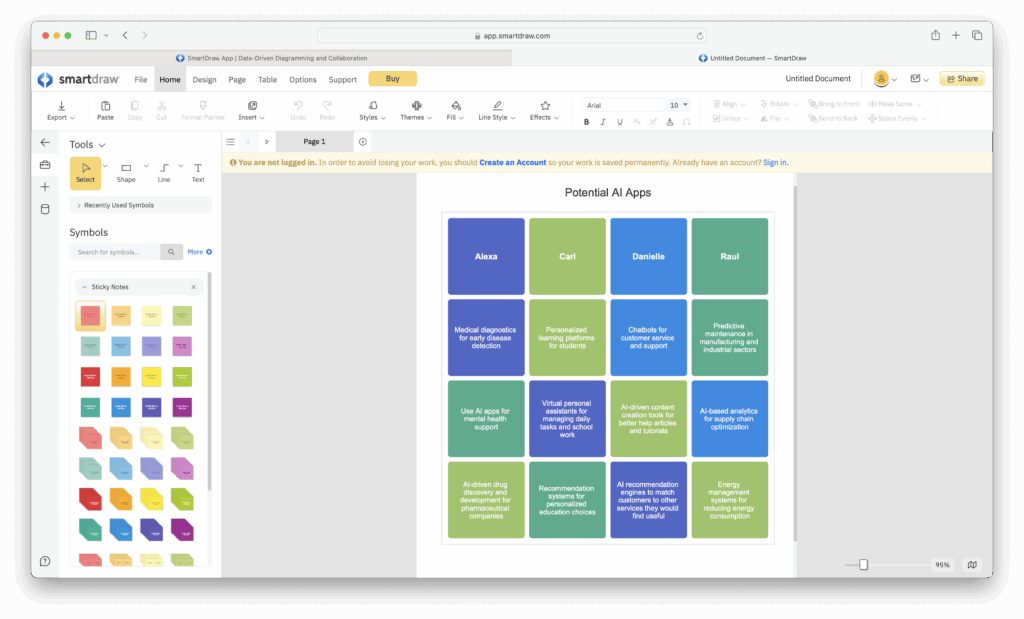
SmartDraw is our top choice if you need to combine freeform brainstorming with accurate, professionally formatted diagrams.
Unlike most whiteboard tools, SmartDraw includes powerful diagramming features for creating:
- Flowcharts
- Organizational charts
- Network diagrams
- Floor plans
- Gantt charts
- UML diagrams
- Entity-relationship diagrams
- Decision trees
- Cloud architecture diagrams
You can place several different diagram types on the same whiteboard. For example, a project board could contain a customer journey map, decision tree and technical network diagram alongside notes and images.
SmartDraw automatically aligns, spaces and reorganizes diagram elements as you add them. This makes it considerably faster than arranging every shape manually.
It also integrates with Jira and can import data to generate diagrams. Its enterprise tools can visualize information from platforms such as AWS and Microsoft Azure.
SmartDraw has also started incorporating AI-assisted diagram generation, allowing you to use natural-language prompts to create or develop diagrams. Its AI features are not as focused on summarizing workshops as those in Miro or Lucidspark, but they are useful for producing a structured starting point.
SmartDraw is browser-based on a Mac rather than a conventional offline Mac desktop application. It is therefore best viewed as a diagramming platform with strong whiteboarding features rather than a casual sketching app.
You can also check out our full SmartDraw review for more.
Pricing: Free to start / $6.95 per month for teams of 3+ / $7.95 per month individuals / Enterprise plans on request
4. FigJam — Best For UX And Product Teams
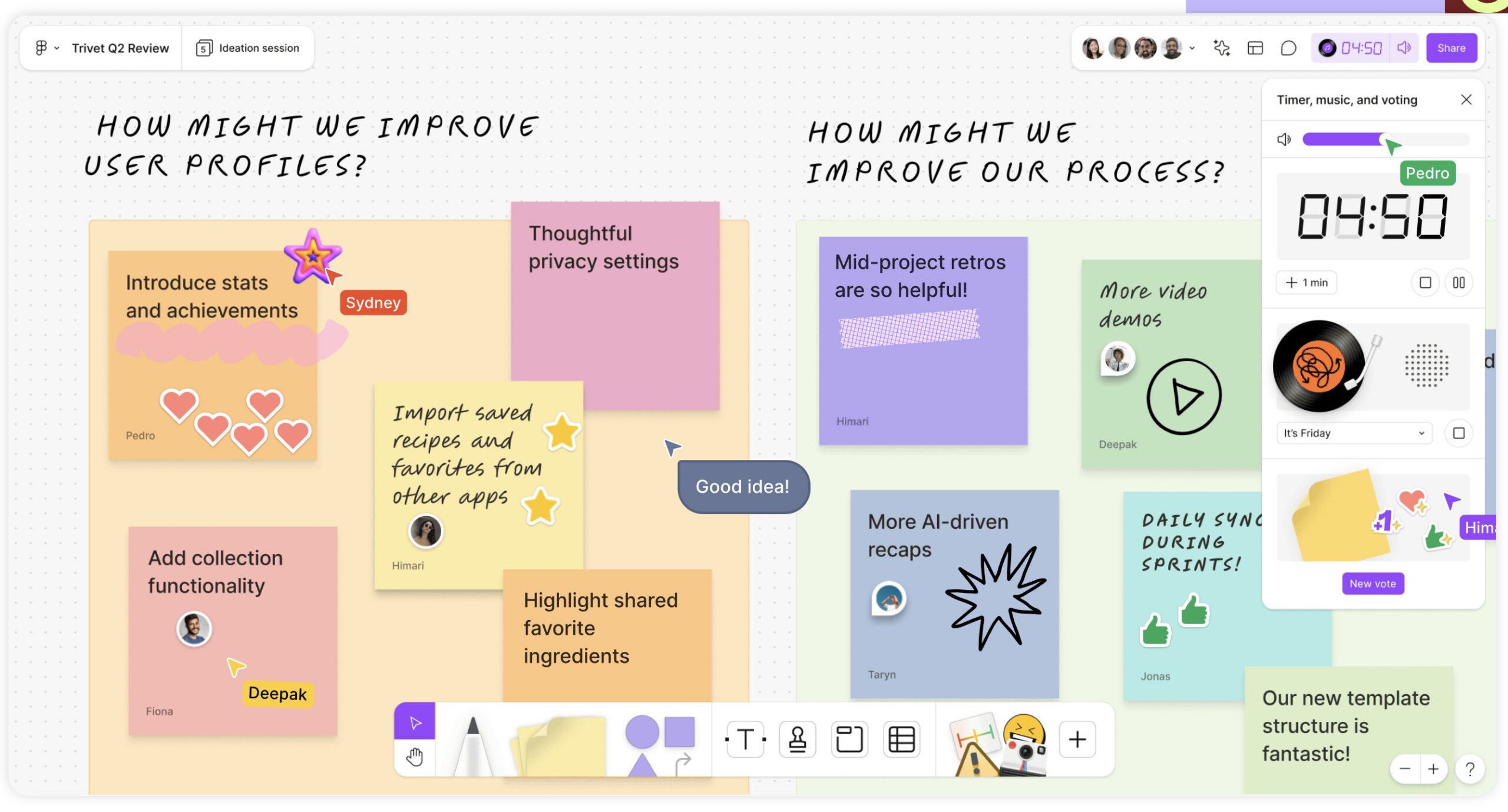
FigJam is Figma’s collaborative whiteboard and remains one of the best options for designers, product managers and UX teams.
There is a Figma desktop app for Mac, although FigJam also works in a browser.
FigJam is especially useful when ideas developed during a brainstorming session will eventually become wireframes, prototypes or finished interface designs in Figma.
Its whiteboarding tools include:
- Sticky notes
- Shapes and connectors
- Diagrams
- Tables
- Code blocks
- Voting
- Timers
- Comments and reactions
- Audio conversations
- Presentation and spotlight tools
FigJam is also more playful than many corporate whiteboards, with stamps, stickers, emotes and built-in music designed to keep workshop participants engaged.
FigJam AI
FigJam AI can generate a board or template from a prompt, organize and sort sticky notes and summarize the results of a brainstorming session.
For example, you can ask it to create a retrospective, customer journey or weekly meeting board and then customize the result.
Figma introduced an AI credit system across its products in 2026. The free Starter plan includes a limited allowance, while paid seats receive monthly credits. Some FigJam AI features or higher usage levels require a paid plan.
For whiteboarding alone, you do not need Figma’s more expensive Full seat. A Professional Collab seat includes full access to FigJam and starts at $3 per month.
FigJam is less compelling for users who have no interest in design, product development or prototyping, but it is an excellent fit for teams already using Figma.
Pricing: Free Starter plan available. Professional Collab seats start at $3 per month.
5. Lucidspark — Best For Structured Brainstorming
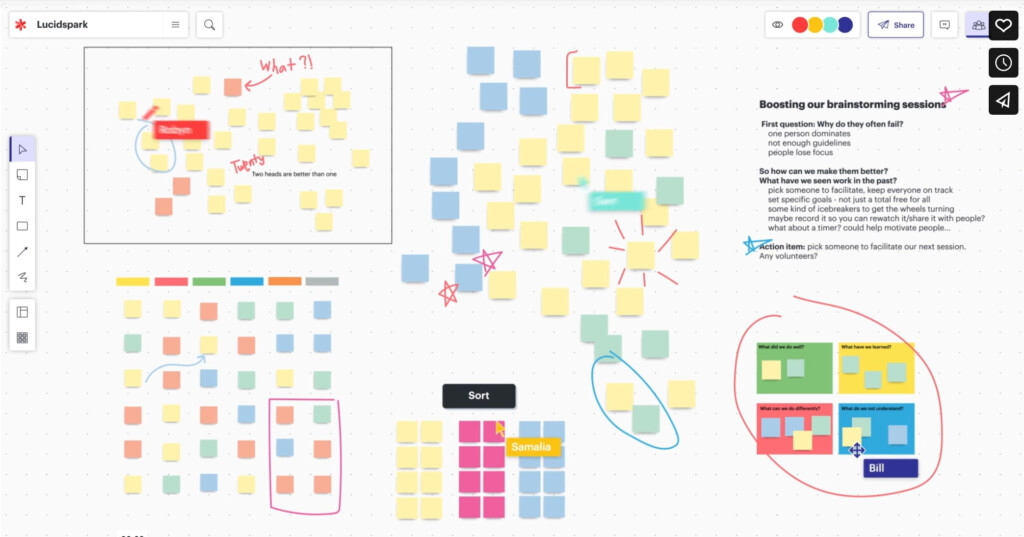
Lucidspark is a dedicated collaborative whiteboard made by Lucid, the company behind Lucidchart.
It combines an infinite canvas with structured facilitation tools, making it particularly useful for meetings, retrospectives and corporate brainstorming.
Templates cover areas such as:
- Agile development
- Brainstorming and ideation
- Customer insights
- Strategic analysis
- Project planning
- Process improvement
Lucidspark supports freehand drawing, sticky notes, comments, voting and Breakout Boards. Breakout Boards allow groups to work separately during a workshop and then bring their results back to the main board.
Lucid AI can generate diagrams and boards from conversational prompts. It can also generate and group ideas, summarize boards and identify themes or actions.
This is a substantial improvement over the earlier Collaborative AI feature and makes Lucidspark much better at turning an unstructured brainstorming session into something usable.
Lucidspark works in a browser on a Mac and has mobile apps, but there is no full offline Mac desktop version.
It is less flexible and playful than Miro or FigJam, but its structured approach works well for business workshops.
Pricing: Limited free plan available. Individual, Team and Enterprise plans are available, with prices varying by package and billing region.
6. Canva Whiteboards — Best For Visual Content
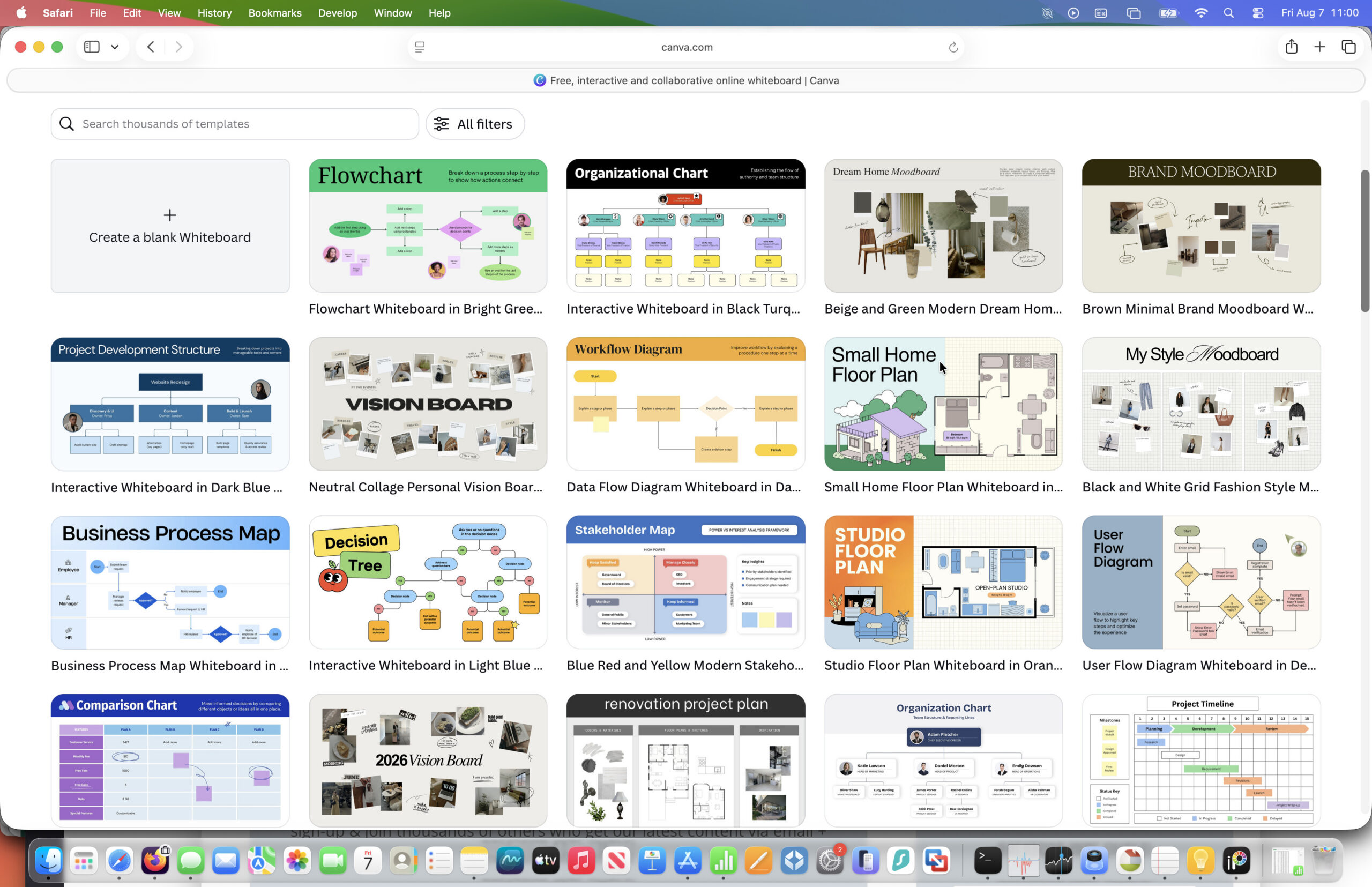
Canva Whiteboards is the most important addition to our 2026 shortlist.
It provides a free infinite canvas with sticky notes, drawing tools, diagrams, charts, images, video and a large collection of customizable templates.
Canva is particularly useful when a whiteboard is only the beginning of a project. You can turn ideas into a presentation, social-media graphic, document or other Canva design without moving the content to another platform.
Collaboration features include comments, reactions, voting and real-time editing.
Canva’s AI tools can help generate and rewrite text, create images, visualize ideas, sort sticky notes and summarize the contents of a board. You can also convert a presentation into a whiteboard or summarize a whiteboard into a Canva Doc.
The free plan is surprisingly capable and allows unlimited whiteboards. However, AI usage is limited and some Magic Studio tools, premium templates and brand controls require Canva Pro or Canva Business.
Canva is not as strong as SmartDraw for technical diagrams or Miro for complex workshops. However, it is one of the best choices for marketing teams, content creators and anyone already using Canva.
Pricing: Free plan available. Canva Pro and Canva Business pricing varies by country and billing cycle.
7. Explain Everything — Best For Education
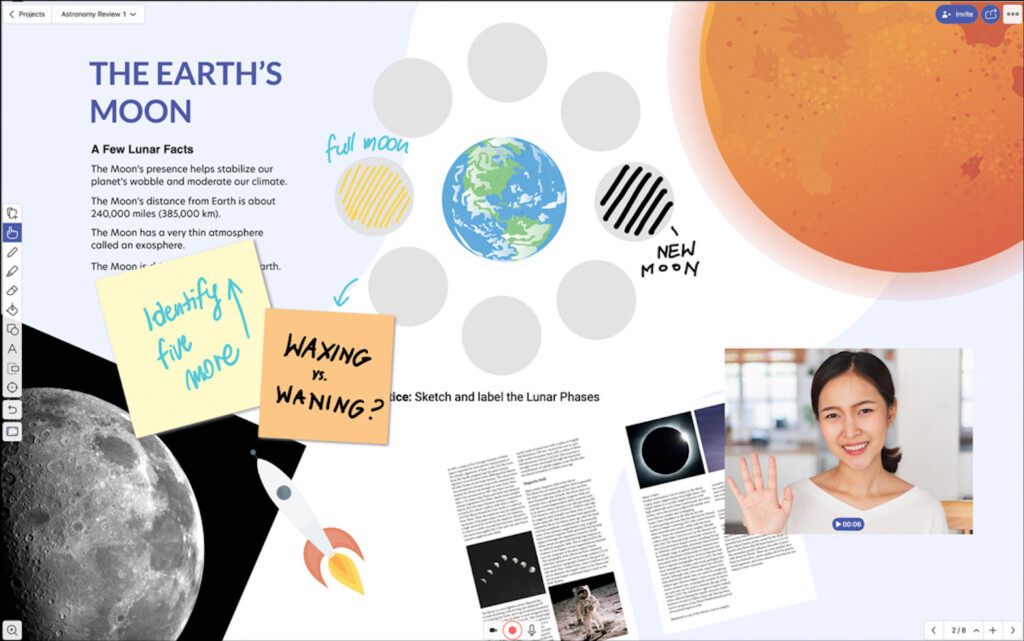
Explain Everything is aimed primarily at teachers and students who need an interactive whiteboard for lessons, tutorials and recorded explanations.
It combines drawing and handwriting with multimedia support. You can import PDFs, presentations, images, video and documents and then annotate them on the canvas.
Its standout feature is recording. Explain Everything can record activity, narration and movement on the board and turn the result into an instructional video.
Teachers can use it to:
- Create interactive lessons
- Record tutorials
- Provide visual feedback
- Present documents and slides
- Collaborate with students
- Create asynchronous learning materials
Explain Everything works online and offline and is available on macOS, iPadOS and other platforms.
The service is now owned by Promethean and has introduced AI-related education integrations, including tools designed to provide insights into student engagement. However, its core strength remains interactive teaching and recording rather than general-purpose generative AI.
The free version is suitable for testing but limits the number and length of projects.
Pricing: Free plan available. Explain Everything Advanced costs approximately $69 per year, with regional pricing available. Can also be downloaded from the Mac App Store.
8. Milanote — Best For Mood Boards
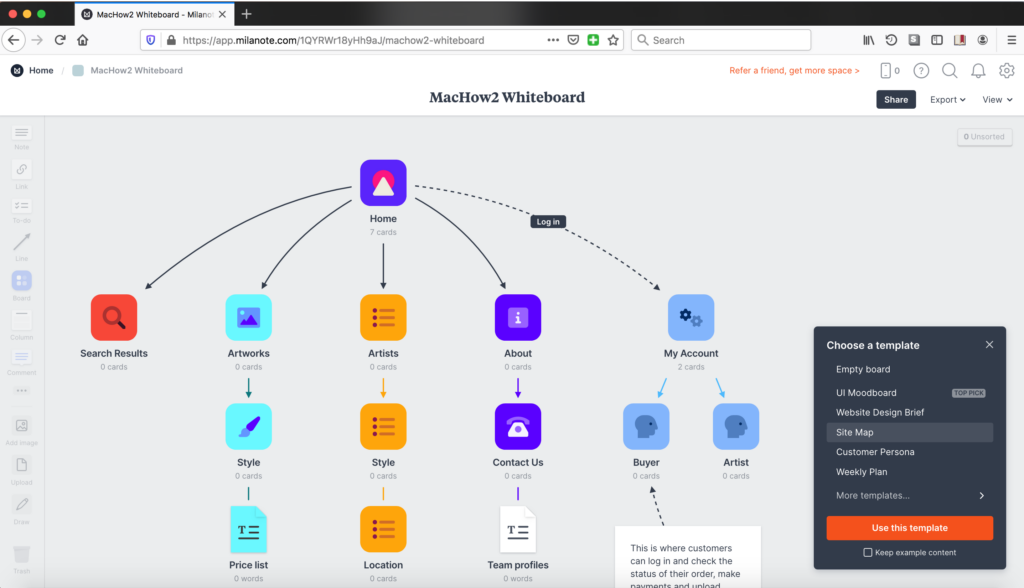
Milanote is more of a visual organizer than a traditional meeting whiteboard, but it remains an excellent choice for creative planning.
It is particularly well suited to:
- Mood boards
- Content planning
- Interior-design projects
- Film and photography planning
- Character development
- UX research
- Creative briefs
You can combine images, notes, tasks, links, files, videos and sketches on visual boards. Boards can also be nested inside one another, which helps keep complex creative projects organized.
Milanote provides templates for creative projects and includes a web clipper for collecting inspiration from websites.
Collaboration is supported through editors, commenters and read-only links. Viewers no longer need to create a Milanote account simply to see a shared read-only board.
Milanote does not currently have the extensive native AI assistant found in Miro, FigJam, Lucidspark or Canva. This may actually appeal to users who want a straightforward visual workspace without AI constantly appearing in the interface.
The free plan is limited to 100 notes, images or links and 10 uploaded files.
Pricing: Free for up to 100 notes, images or links. Personal plans start at $9.99 per month when billed annually. Also available on the Mac App Store.
Which Whiteboard App Is Best For Mac?
Our recommendations are:
- Best free native Mac whiteboard: Apple Freeform
- Best overall for remote teams: Miro
- Best for diagrams: SmartDraw
- Best for UX and product teams: FigJam
- Best for structured workshops: Lucidspark
- Best for visual content: Canva Whiteboards
- Best for teachers: Explain Everything
- Best for mood boards: Milanote
For most individual Mac users, we recommend starting with Freeform because it is already included with macOS.
For serious remote collaboration, Miro remains the most capable overall choice. FigJam is better value for design teams, while Canva Whiteboards offers an excellent free alternative for visual and marketing projects.
FAQ
What Is Whiteboard Software Used For?
Whiteboard software allows you to sketch, plan and brainstorm ideas digitally. It is commonly used for team workshops, mind maps, wireframes, lessons, flowcharts, retrospectives and project planning.
Unlike a physical whiteboard, a digital board can include documents, images, video, comments and links and can be edited remotely by several people.
Does macOS Have A Built-In Whiteboard?
Yes. Apple Freeform is included with macOS Ventura 13.1 and later.
It supports sticky notes, shapes, diagrams, images, documents, videos and real-time collaboration through iCloud.
Which Whiteboard Has The Best AI Features?
Miro currently has the most comprehensive AI features for general whiteboarding. It can generate diagrams and content, organize sticky notes, summarize boards and suggest actions.
FigJam and Lucidspark also offer strong AI-assisted brainstorming tools. Canva is particularly useful if you want to turn ideas into presentations, documents or visual content.
What Happened To Google Jamboard?
Google discontinued Jamboard on December 31, 2024. It is no longer available on the web, iOS, Android or Google Meet devices.
Google recommends FigJam, Lucidspark and Miro as alternatives that integrate with Google Workspace.
Which Whiteboard Is Best For Designers?
FigJam is our top choice for UX and product-design teams because ideas can move directly into Figma for wireframing and prototyping.
Milanote is better for mood boards and creative inspiration, while Canva is ideal for marketing and visual-content.
Can Whiteboard Apps Be Used Offline On A Mac?
Apple Freeform works offline and synchronizes through iCloud when you reconnect.
Explain Everything also provides strong offline functionality. Some desktop apps from cloud-based services can open or cache existing work, but Miro, FigJam and Lucidspark work best with an internet connection.
Can You Use An Apple Pencil With These Apps?
You cannot connect an Apple Pencil directly to a Mac, but you can use it with the iPad versions of Freeform, Miro, FigJam and other supported whiteboard apps.
For regular handwriting and sketching, an iPad and Apple Pencil generally provide a much better experience than using a mouse or Mac trackpad.
Are There Any Completely Free Whiteboard Apps For Mac?
Apple Freeform is completely free with compatible versions of macOS.
Canva Whiteboards also provides unlimited whiteboards on its free plan, although premium content and some AI features are restricted. Miro, FigJam, Lucidspark and Milanote offer free plans with various usage limits.