

If you’ve just setup your new Mac, or recently switched from Windows, you might be going crazy trying to work out where the @ key or “at” sign is.
The reason is simple: Mac keyboard shortcuts for the @ symbol depend on the keyboard layout and region your Mac is set to.
Contents
How to Type the @ Symbol on a Mac Keyboard
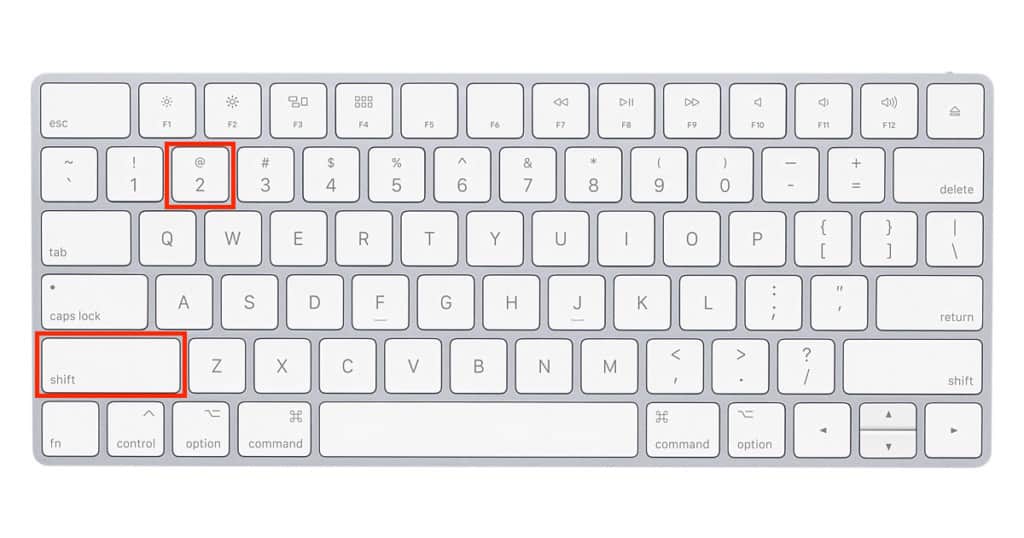
On US Keyboards:
- Simply hold down the Shift key and press the 2 key to type the @ sign:
On UK and most other European keyboards:
- Hold down the Option (⌥) key (or “AltGr key”) and press the 2 key.
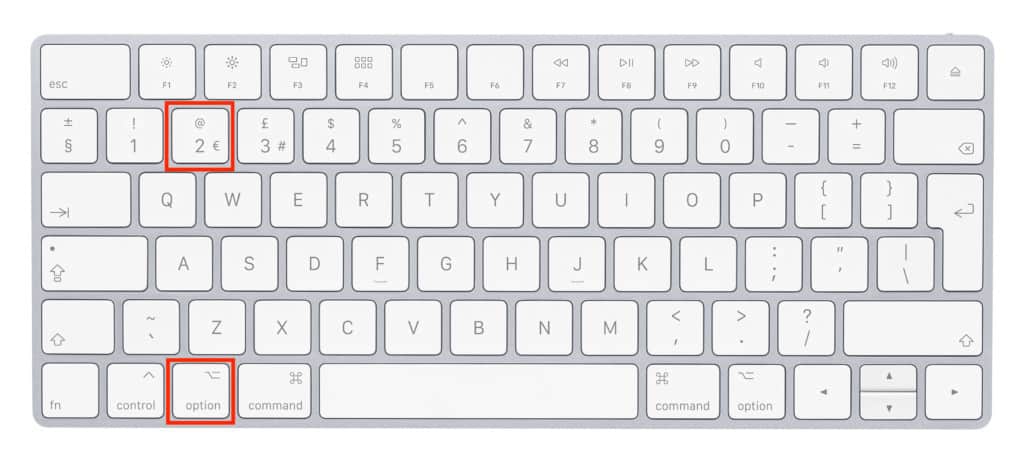
If the shortcut doesn’t work, it usually means your keyboard layout in macOS doesn’t match your physical keyboard.
Check Your Keyboard Layout in macOS
If the @ symbol isn’t appearing correctly, your keyboard layout settings may need adjusting.
To check them:
- Click the Apple menu in the top left of your screen
- Open System Settings
- Select Keyboard
- Click “Edit” next to Input Sources
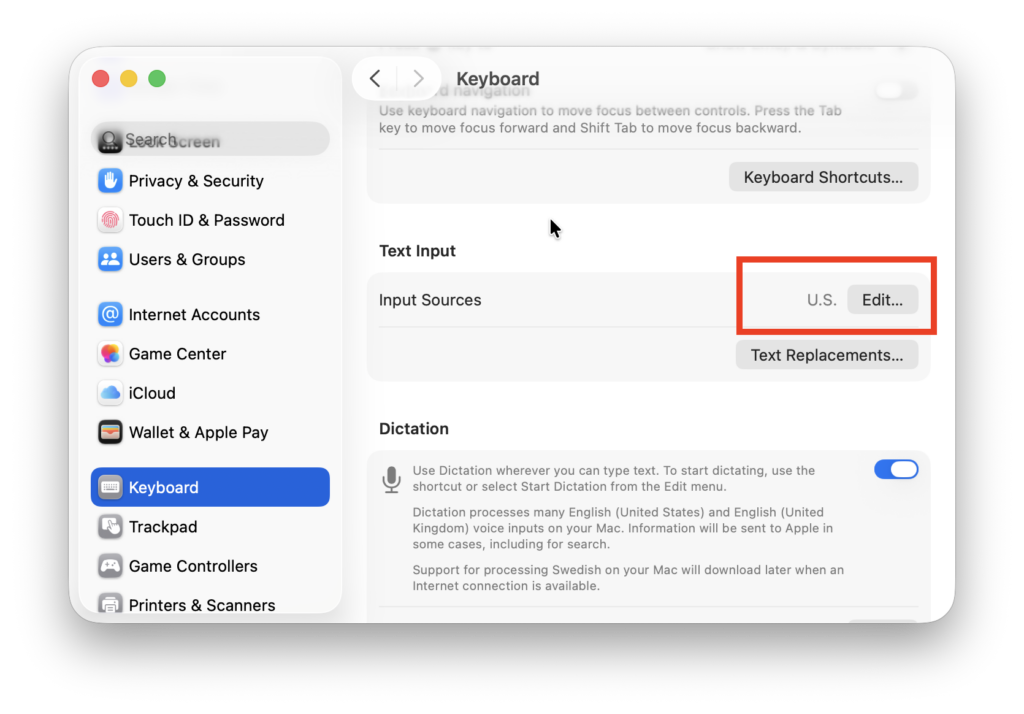
Here you’ll see the keyboard layouts currently enabled on your Mac.
If your keyboard layout doesn’t match your physical keyboard (for example, using US instead of British), symbols like @, £, and “ may appear in the wrong place.
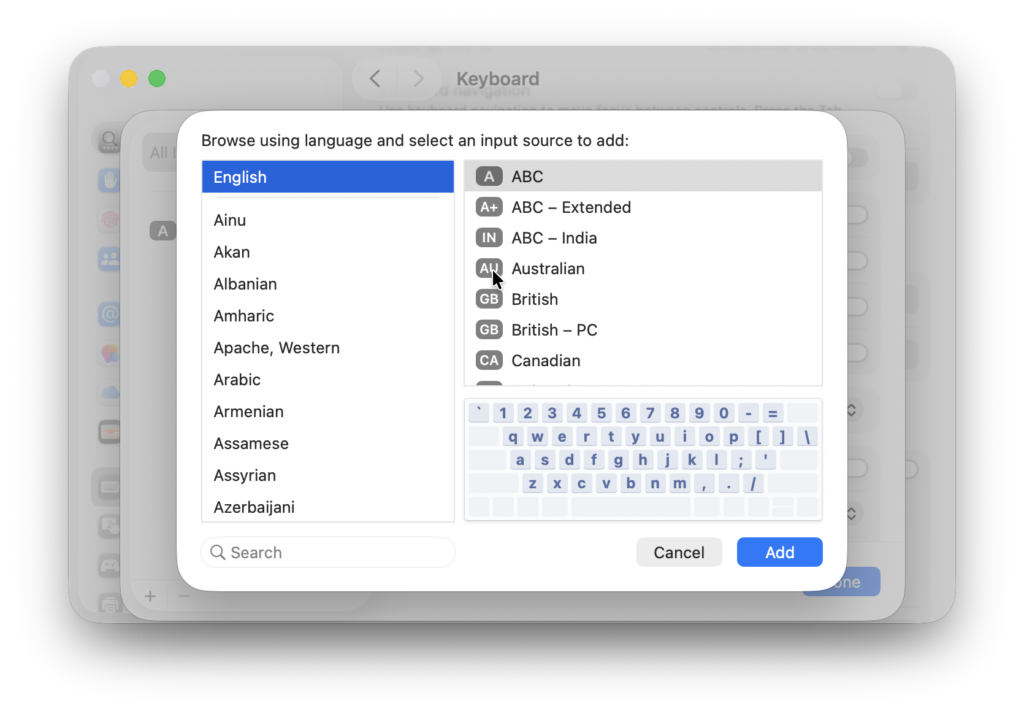
You can add or change layouts using the “+” symbol which is the Add Input Source button:
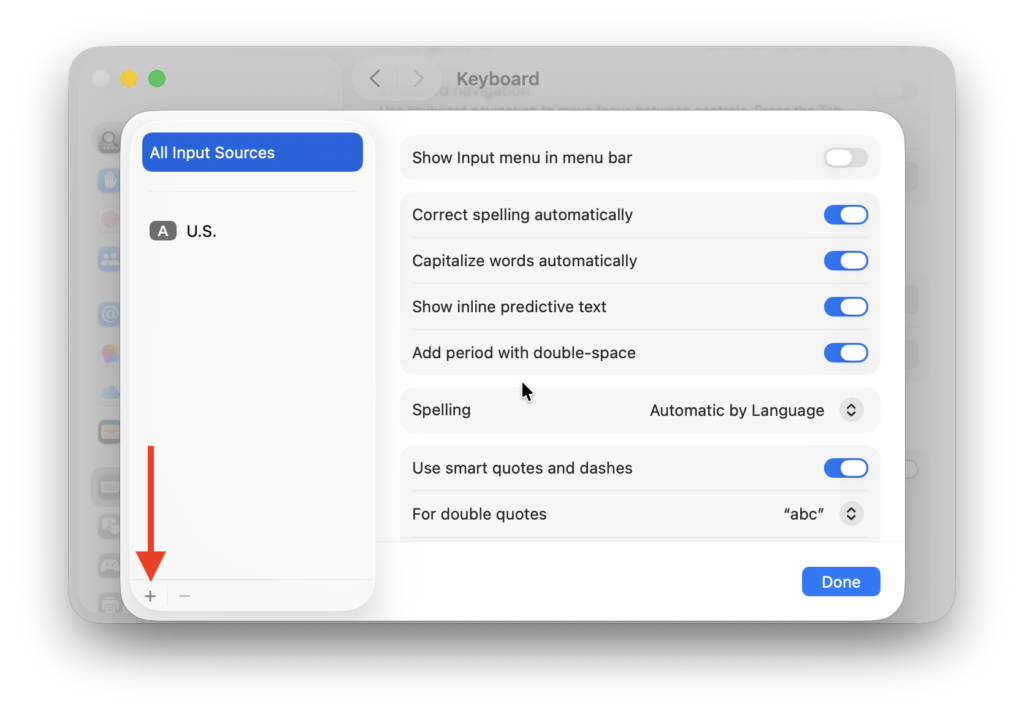
You can then add your country keyboard layout from the list of input sources:
Use the Keyboard Viewer to Find the @ Symbol
If you’re unsure where the @ symbol is on your keyboard layout, macOS includes a tool called Keyboard Viewer that shows you exactly where every symbol is located.
To enable it:
- Go to Apple > Menu > System Settings > Keyboard
- Click on “Edit” to view available languages
- Enable Show Input menu in menu bar
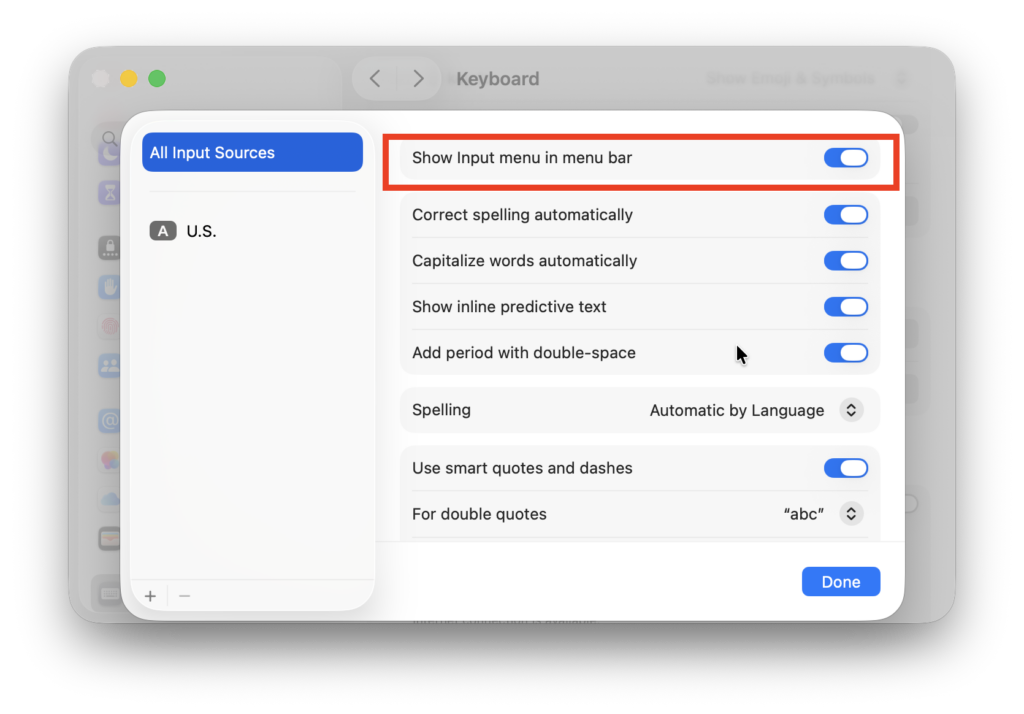
- Click the Input menu icon in the menu bar and select Show Keyboard Viewer:
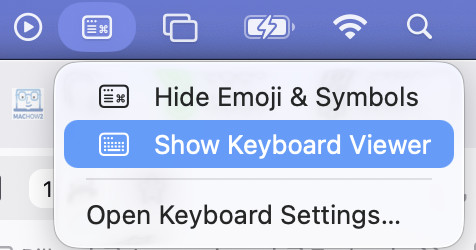
- The viewer then displays a visual keyboard.

When you press keys like Shift or Option (⌥), the keyboard updates to show which symbols will appear – including the @ sign.
This is particularly useful if you’re using a non-standard keyboard layout.
Using a PC Keyboard With a Mac
If you’re using a Windows or PC keyboard connected to your Mac, some keys have different names.
For example:
- Alt = Option (⌥)
- Windows key = Command (⌘)
So if a shortcut says Option + 2, simply press Alt + 2
What to Do If the @ Symbol Suddenly Stops Working
If you suddenly can’t type the @ symbol after a macOS update or settings change, your language or keyboard layout may have been reset.
To fix this:
- Open Apple Menu > System Settings
- Select General
- Click Language & Region
- Confirm your region and language settings
Then check:
System Settings > Keyboard > Input Sources
Make sure the keyboard layout matches the region your keyboard was designed for.
Why the @ Symbol Is Different on Some Macs
Apple sells Macs with many different keyboard layouts worldwide, especially with MacBooks that ship to different regions.
Because of this, symbols like @, £, €, and quotation marks can appear in different places depending on the keyboard layout.
If the layout selected in macOS doesn’t match your keyboard, some symbols may appear in unexpected locations.
If you’re still having trouble finding the @ symbol on your Mac, feel free to let us know in the comments and we’ll try to help.