

If you want the best Mac for video editing in 2026, our top choice is the 16-inch MacBook Pro with an M5 Pro chip, 48GB of unified memory and a 1TB SSD.
It offers more than enough performance for most 4K and 8K projects, a superb Liquid Retina XDR display for HDR work, an SD card slot and the freedom to edit away from a desk.
If you only work in a studio, however, the Mac Studio with M4 Max gives you more sustained performance and connectivity for the money. At the other end of the scale, the M4 Pro Mac mini is the best-value desktop Mac for video editing.
All current Macs use Apple silicon and include dedicated media engines for accelerating H.264, HEVC, ProRes and ProRes RAW video. This means even Apple’s less expensive models are surprisingly capable, although the right choice depends on the resolution, codec, number of camera angles and effects you work with.
You May Also Like:
Best Macs for Video Editing: Quick Comparison
| Mac | Best For | Recommended Starting Configuration | Main Limitation |
|---|---|---|---|
| 16-inch MacBook Pro (M5 Pro) | Best overall | M5 Pro, 48GB memory, 1TB SSD | Expensive |
| Mac Studio (M4 Max) | Best desktop | M4 Max, 36GB memory, 1TB SSD | Display and accessories cost extra |
| Mac mini (M4 Pro) | Best-value desktop | M4 Pro, 24GB memory, 1TB SSD | Less GPU and media-engine power than Mac Studio |
| 14-inch MacBook Pro (M5) | Best compact pro Mac | M5, 24GB memory, 1TB SSD | Smaller screen and single media-engine configuration |
| 15-inch MacBook Air (M5) | Best budget laptop | M5, 24GB memory, 1TB SSD | Fanless design limits sustained performance |
| 24-inch iMac (M4) | Best all-in-one | 10-core M4, 24GB memory, 512GB or 1TB SSD | 24-inch SDR display and no Pro or Max chip |
1. 16-inch MacBook Pro With M5 Pro (Best Overall)
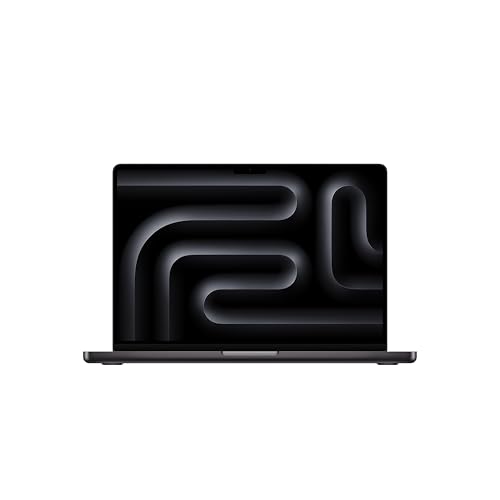
The 16-inch MacBook Pro with M5 Pro is the Mac we recommend to most serious video editors.
It combines workstation-class performance with a built-in 16.2-inch Liquid Retina XDR display, long battery life and all the ports most editors actually need. You can edit on location, connect it to several displays in a studio and take the same projects with you without copying them between computers.
The M5 Pro includes hardware acceleration for H.264, HEVC, ProRes and ProRes RAW, plus AV1 decoding. It is more than powerful enough for multicamera 4K projects, color grading and most 8K workflows in Final Cut Pro, Adobe Premiere Pro and DaVinci Resolve.
The display is one of the biggest reasons to choose it over a MacBook Air. It supports P3 wide color, adaptive refresh rates up to 120Hz and up to 1,600 nits of peak HDR brightness. It is therefore much better suited to HDR previewing and color work than the standard 500-nit displays in the MacBook Air and iMac.
You also get three Thunderbolt 5 ports, HDMI, an SDXC card slot, MagSafe and a high-impedance headphone jack. The SD card slot is particularly convenient for importing footage without carrying a separate reader.
The M5 Pro model can drive up to three external displays, while the M5 Max can support up to four. Both are available with up to 128GB of unified memory at the top end, although only the most demanding editors will need that much.
For most professional 4K editing, we would choose the standard 16-inch M5 Pro configuration with 48GB of unified memory and a 1TB SSD. Move up to the M5 Max if you regularly use intensive effects, noise reduction, AI video tools, complex DaVinci Resolve Fusion compositions or multiple streams of high-resolution footage.
The M5 Max also has two video-encode engines and two ProRes encode/decode engines, compared with one of each in the M5 Pro. That can make a meaningful difference when time spent exporting video directly affects how much work you can complete.
Pros:
- Excellent performance for 4K and 8K editing
- Outstanding 16.2-inch Liquid Retina XDR display
- M5 Pro is powerful enough for most professional editors
- SDXC, HDMI and three Thunderbolt 5 ports
- Supports up to three external displays with M5 Pro
- Up to 24 hours of video-streaming battery life
- Can be configured with up to 128GB of unified memory
Cons:
- Expensive
- Heavy compared with a MacBook Air
- Memory and internal storage cannot be upgraded after purchase
- M5 Max configurations become very expensive
2. Mac Studio With M4 Max (Best Desktop Mac)
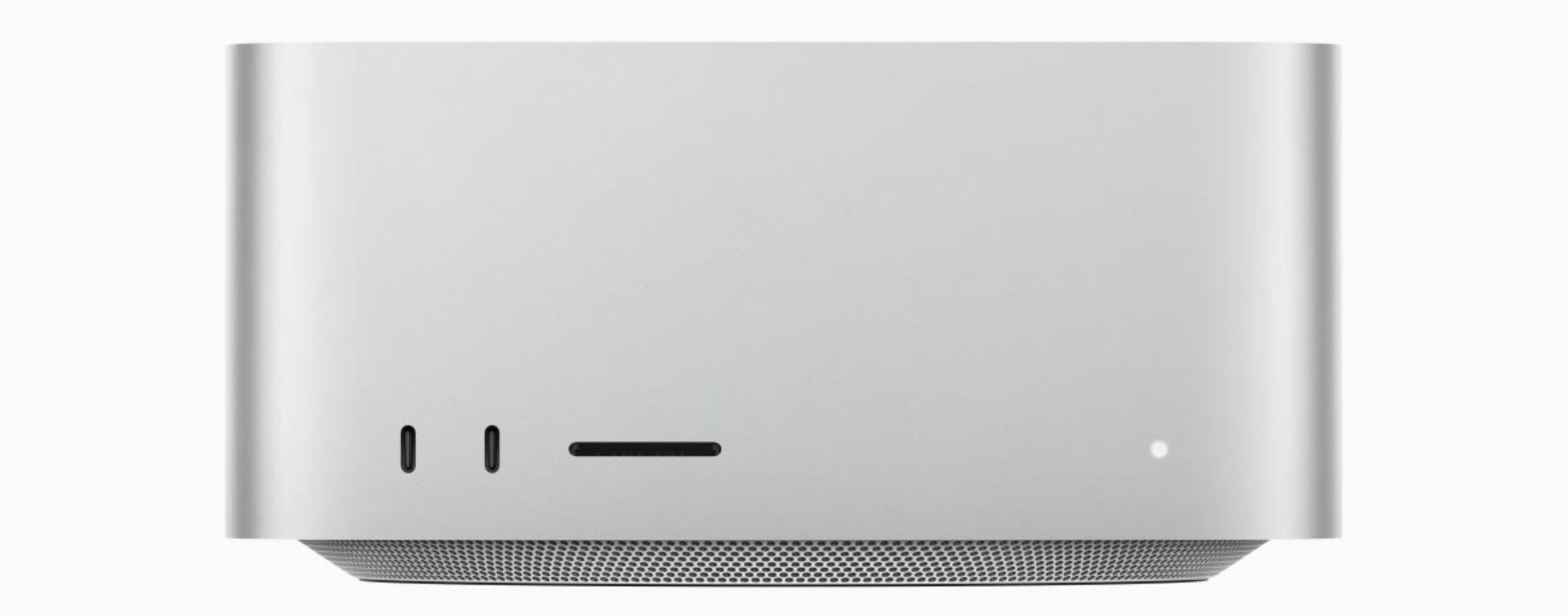
If you always edit at a desk, the Mac Studio with M4 Max is the best desktop Mac for video editing.
It starts at $1,999 and provides more graphics power, more cooling and more connectivity than the Mac mini. Because it does not include a display, keyboard or mouse, it makes most sense if you already have studio equipment or want to choose your own color-accurate monitor.
The base M4 Max model has a 14-core CPU, 32-core GPU, 36GB of unified memory and two video-encode engines plus two ProRes encode/decode engines. It can be configured with a 16-core CPU, 40-core GPU and 64GB of unified memory.
This is the configuration family we would choose for regular professional work in Final Cut Pro, Premiere Pro or DaVinci Resolve. The M4 Max is exceptionally fast with ProRes and other supported codecs, but also has the GPU performance needed for effects, grading and rendering.
For very high-end work, the M3 Ultra Mac Studio offers up to an 80-core GPU, four video-encode engines, four ProRes encode/decode engines and as much as 512GB of unified memory. It can also be configured with up to 16TB of internal storage.
The M3 Ultra is aimed at facilities working with complex 8K timelines, large multicamera projects, demanding visual effects or unusually large AI and 3D workloads. Most independent video editors will get better value from the M4 Max.
Connectivity is excellent. The Mac Studio has four Thunderbolt 5 ports, two front ports, two USB-A ports, HDMI 2.1, 10Gb Ethernet, a headphone socket and a front-facing UHS-II SDXC card slot. The M4 Max model supports up to five displays, while the M3 Ultra supports up to eight.
We recommend upgrading the base 512GB SSD to at least 1TB. Video media can live on fast external storage, but applications, plug-ins, render files and caches can fill a 512GB internal drive surprisingly quickly.
Pros:
- Superb sustained performance for long edits and exports
- M4 Max is the best choice for most professional editors
- M3 Ultra available for extreme workflows
- Multiple dedicated video and ProRes engines
- Excellent selection of front and rear ports
- UHS-II SDXC slot and 10Gb Ethernet as standard
- Supports up to five displays with M4 Max
- Compact and quiet
Cons:
- Display, keyboard and mouse are not included
- Base model only has a 512GB SSD
- Internal components are not user-upgradeable
- M3 Ultra is unnecessary for most editors
3. Mac mini With M4 Pro (Best-Value Desktop)

The M4 Pro Mac mini is the best-value desktop Mac for video editing in 2026.
Starting at $1,399, it gives you a 12-core CPU, 16-core GPU, 24GB of unified memory and a 512GB SSD in a case measuring just five inches square. The chip can be upgraded to a 14-core CPU and 20-core GPU, while memory can be increased to 48GB.
It has the same hardware support for H.264, HEVC, ProRes and ProRes RAW as Apple’s more expensive Macs, although it has one video-encode engine and one ProRes encode/decode engine rather than the multiple engines in Max and Ultra chips.
For editing YouTube videos, documentaries, interviews and regular single- or multicamera 4K projects, the M4 Pro Mac mini offers an excellent balance of performance and price. It is also a major step up from the standard M4 Mac mini when using effects, rendering or working with several streams of high-resolution footage.
If your budget is much tighter, the standard M4 Mac mini starts at $599 and can handle 1080p and lighter 4K projects. Its 256GB base SSD is too small for video editing, though, and once you add more memory and storage the M4 Pro model becomes the better long-term buy.
The M4 Pro model includes three Thunderbolt 5 ports on the rear, two front USB-C ports, HDMI, Gigabit Ethernet and a headphone jack. It can run up to three 6K displays, which is impressive for a desktop of this size.
There is no built-in SD card slot, however, so most video editors will need a card reader or Thunderbolt dock. You must also supply your own display, keyboard and mouse.
We would choose 24GB of unified memory and upgrade the SSD to 1TB for regular 4K work. Consider 48GB if you use After Effects, DaVinci Resolve Fusion, heavy noise reduction or several demanding creative applications at once.
Bear in mind that a heavily upgraded M4 Pro Mac mini can get close to the price of the M4 Max Mac Studio. If you need 48GB of memory, lots of fast ports or faster exports every day, compare the final prices carefully before ordering.
Pros:
- Excellent performance for the price
- Handles most 4K editing workflows comfortably
- Very compact and easy to move between workspaces
- Three Thunderbolt 5 ports
- Supports up to three 6K displays
- Configurable with up to 48GB of unified memory and an 8TB SSD
Cons:
- No monitor, keyboard or mouse included
- No built-in SD card reader
- Only one video-encode and one ProRes encode/decode engine
- Memory and internal storage are not officially user-upgradeable
- Upgraded configurations can approach Mac Studio pricing
4. 14-inch MacBook Pro With M5 (Best Compact Pro Mac)
The 14-inch MacBook Pro with the standard M5 chip is a good choice if you want something more compact than the 16-inch model but more suitable for sustained editing than a MacBook Air.
It starts at $1,699 with a 1TB SSD and includes the same excellent Liquid Retina XDR display technology as the larger MacBook Pro. You also get active cooling, three Thunderbolt 4 ports, HDMI and an SDXC card slot.
The standard M5 chip has a 10-core CPU, 10-core GPU and dedicated media engine. It can handle 4K video well, especially in Final Cut Pro, and its fan allows it to maintain performance for longer exports more effectively than the fanless MacBook Air.
We recommend increasing the memory from 16GB to 24GB if video editing will be one of its main uses. The standard 1TB of storage is a welcome improvement and is enough for applications and active project files when paired with an external media drive.
The main trade-off is the smaller display. A 14-inch screen is usable on location, but timelines and effect panels can feel cramped. It works best if you connect it to a larger external monitor for the MacBook Pro when you return to your desk.
If you edit multicamera projects or use demanding effects every day, the 14-inch model is also available with M5 Pro and M5 Max chips. At that point, the decision is mainly whether you value the 14-inch model’s portability more than the larger workspace and better battery life of the 16-inch version.
Pros:
- Compact but powerful
- Excellent Liquid Retina XDR display
- Active cooling for sustained performance
- 1TB SSD as standard
- SDXC card slot and HDMI
- Supports up to two external displays with the standard M5
Cons:
- 14-inch display can feel cramped for complex timelines
- 16GB base memory is less than we recommend for regular 4K editing
- Standard M5 has fewer GPU resources and media engines than M5 Pro or Max
- Memory and storage cannot be upgraded after purchase
5. 15-inch MacBook Air With M5 (Best Budget Laptop)
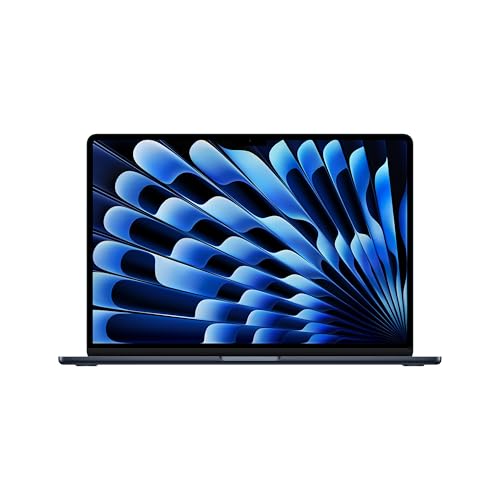
The 15-inch MacBook Air with M5 is the best affordable MacBook for occasional and intermediate video editing.
Starting at $1,299, it has a 10-core CPU, up to a 10-core GPU and a dedicated media engine for H.264, HEVC, ProRes and ProRes RAW. It now starts with a more practical 512GB SSD, can be configured with up to 32GB of unified memory and supports up to two external displays while its built-in screen remains active.
The 15.3-inch display gives you noticeably more timeline space than the 13-inch MacBook Air, while the whole machine remains thin, light and completely silent.
It is a good fit for iMovie, CapCut, Final Cut Pro and lighter Premiere Pro or DaVinci Resolve projects. It can edit 4K footage, especially if you use optimized media or proxies, but it is not the right choice for long multicamera timelines, complex Fusion or After Effects compositions, or frequent 8K exports.
The main reason is cooling. The MacBook Air has no fan, so performance can fall during long exports or sustained effects rendering as the chip reduces speed to control heat. A MacBook Pro or Mac Studio will complete repeated heavy jobs faster and more consistently.
It also lacks the MacBook Pro’s SD card slot, HDMI port and XDR display. Its 500-nit Liquid Retina screen supports P3 wide color, but it is not designed for critical HDR grading.
We recommend 24GB of unified memory and a 1TB SSD if you expect to edit video regularly. If those upgrades push the price close to a 14-inch MacBook Pro, the Pro is the better long-term purchase unless low weight and silent operation are your priorities.
Pros:
- Good value for a 15-inch MacBook
- Capable of editing 4K footage
- Thin, light and completely silent
- Starts with a 512GB SSD
- Configurable with up to 32GB of unified memory and 4TB of storage
- Supports two external displays with the internal display active
- Up to 18 hours of video-streaming battery life
Cons:
- Fanless design limits performance during long exports
- Only two Thunderbolt 4 ports
- No SD card slot or HDMI
- Display is not suitable for critical HDR work
- Memory and storage cannot be upgraded later
6. 24-inch iMac With M4 (Best All-in-One)

The 24-inch M4 iMac is the simplest all-in-one setup for home video editing.
It starts at $1,299 and includes a sharp 24-inch 4.5K Retina display, keyboard, mouse, speakers, camera and microphone. If you do not already own any desktop equipment, that can make it better value than a Mac mini or Mac Studio once the price of a comparable display and accessories is included.
The 4.5K display has a Mac-friendly 218 pixels per inch, P3 wide color and 500 nits of brightness. It is very sharp for timeline text and general editing, although it is an SDR display and is not intended for mastering HDR content.
We would avoid the entry-level 8-core version for video editing. The 10-core CPU and 10-core GPU model gives you more graphics performance, up to four Thunderbolt 4 ports and support for up to two external 6K displays. Configure it with at least 24GB of unified memory and a 512GB or 1TB SSD.
The M4 media engine makes the iMac capable of editing 4K H.264, HEVC and ProRes footage smoothly. However, there is no M4 Pro or M4 Max option, so a Mac mini or Mac Studio is a better choice for demanding professional work.
The other limitation is the fixed 24-inch display. Apple no longer makes a larger iMac, and you cannot reuse the iMac as a standalone monitor when you eventually replace the computer.
Pros:
- Complete all-in-one setup
- Sharp 24-inch 4.5K Retina display
- Good performance for general 4K editing
- Quiet and compact
- Excellent built-in speakers, camera and microphones
- 10-core model supports up to two external displays
Cons:
- No Pro or Max chip option
- 24-inch display may be too small for professional editing
- Built-in display is SDR rather than XDR
- Base 256GB SSD is far too small for video work
- Cannot be upgraded or used as a standalone display later
Is the MacBook Neo Good for Video Editing?
We do not recommend the $599 MacBook Neo as a main video-editing Mac.
Its A18 Pro chip and 5-core GPU should cope with short 1080p projects in apps such as iMovie or CapCut, but the entry configuration has only 8GB of unified memory and a 256GB SSD. It is also fanless, has a small 13-inch display and only one of its two USB-C ports supports USB 3 and an external display.
The MacBook Neo is an impressive low-cost Mac for everyday use, but the M5 MacBook Air is a much better starting point for regular video editing. It has a faster chip, twice the base storage, at least 16GB of memory and support for up to two external displays.
How Much Unified Memory Do You Need for Video Editing?
Unified memory is shared by the CPU and GPU in Apple silicon Macs, so it is particularly important for effects, color grading, large timelines and running several creative applications at once.
Our recommendations for 2026 are:
- 16GB: Acceptable for iMovie, CapCut and occasional 1080p or light 4K editing.
- 24GB to 32GB: The best range for most YouTube creators and regular single-camera 4K editing.
- 36GB to 48GB: Recommended for professional 4K work, multicamera editing, After Effects, Resolve Fusion and more complex color grading.
- 64GB or more: Useful for demanding 8K projects, heavy visual effects, large multicamera productions, 3D work and intensive AI video processing.
Buying more memory will not make every export proportionally faster. The chip, GPU, media engines, codec and effects also matter. However, too little memory can cause macOS to rely more heavily on its SSD, which can make demanding projects feel less responsive.
Because unified memory cannot be upgraded after purchase, it is worth buying enough for the work you expect to be doing in several years, not just the projects you edit today.
Which Apple Chip Is Best for Video Editing?
The standard M5 and M4 chips are capable of 4K video editing, but Apple’s Pro, Max and Ultra chips add more CPU and GPU performance, greater memory bandwidth and, in some cases, additional media engines.
- M5: Best for light to moderate 4K editing in the MacBook Air or 14-inch MacBook Pro.
- M4 Pro: The value choice for regular 4K desktop editing in the Mac mini.
- M5 Pro: The best all-round professional laptop chip for 4K, multicamera and many 8K workflows.
- M4 Max or M5 Max: Better for demanding effects, large timelines and frequent exports because Max chips include two video-encode and two ProRes encode/decode engines.
- M3 Ultra: Intended for the heaviest 8K, multicamera, VFX, 3D and AI workloads. Its four video-encode and four ProRes engines are excessive for most independent editors.
Do not choose purely by generation number. An M4 Max can be considerably faster for video production than a standard M5 because the Max chip has a much larger GPU, more memory bandwidth and additional media engines.
What Is the Best Mac for 4K Video Editing?
For most people, the best Mac for 4K video editing is the 16-inch MacBook Pro with M5 Pro. It provides enough performance for demanding timelines while also including an excellent XDR display, SD card reader and battery.
If you do not need a laptop, the M4 Pro Mac mini is the best-value 4K editing Mac. Choose the M4 Max Mac Studio if video editing is your full-time work, you use effects heavily or faster exports will save you money.
A standard M5 MacBook Air or M4 iMac can also edit 4K video. The difference is not whether they can open a 4K project, but how well they maintain performance when the timeline becomes longer, effects are added and exports are repeated.
What Is the Best Mac for 8K Video Editing?
For mobile 8K editing, choose a 16-inch MacBook Pro with M5 Max and at least 64GB of unified memory.
For a permanent studio, the Mac Studio with M4 Max is sufficient for many 8K workflows. The M3 Ultra model is the better choice for multiple 8K streams, high-end finishing, complex visual effects or workloads that can use its additional media engines and much larger memory capacity.
Proxy and optimized-media workflows still matter at 8K. Even the fastest Mac can feel more responsive when highly compressed camera originals are transcoded into an editing-friendly codec.
Video Editing Software on Apple Silicon Macs
Apple silicon compatibility is no longer the concern it was when the first M1 Macs appeared.
The leading Mac editors—including Final Cut Pro, Adobe Premiere Pro, DaVinci Resolve, iMovie and CapCut—now run natively on Apple silicon.
Rosetta 2 may still be required for some old plug-ins, utilities and discontinued applications. Before replacing an Intel Mac, check any specialist capture hardware, audio plug-ins, codecs and workflow extensions you depend on rather than checking only the main editing application.
Apple’s media engines are most effective with supported formats such as H.264, HEVC, ProRes and ProRes RAW. Performance with other formats depends more heavily on the editing application, decoder and GPU.
External Monitors for Mac Video Editing
A larger display makes it much easier to see your timeline, bins, scopes, effects and full-resolution preview at the same time.
For general SDR editing, a sharp 4K or 5K monitor with good P3 or Rec. 709 coverage is usually enough. Apple’s 2026 Studio Display is a particularly clean Mac setup with a 27-inch 5K panel, 600 nits of brightness and Thunderbolt 5 connectivity.
For serious HDR grading, you need a display that can sustain appropriate brightness and control dark areas accurately. Apple’s 2026 Studio Display XDR has a 27-inch 5K mini-LED panel, 2,304 dimming zones, up to 2,000 nits of peak HDR brightness and reference modes for professional workflows.
The Liquid Retina XDR display in the MacBook Pro is also useful for HDR work, whereas the 500-nit displays in the MacBook Air and iMac are better treated as SDR editing screens.
You can find alternatives in our guides to the best monitors for Mac Studio and best monitors for the MacBook Pro.
External Storage for Video Editing
You do not need to buy all your storage from Apple. Internal SSD upgrades are expensive, and a fast external SSD is often the most economical place to keep media and archived projects.
However, we recommend at least a 1TB internal SSD for a Mac that will be used mainly for video editing. This leaves more room for macOS, applications, plug-ins, caches, render files and current project libraries.
A good 10Gb/s USB-C SSD is fast enough for many compressed 4K workflows. Thunderbolt storage becomes more valuable for multicamera editing, high-bitrate ProRes or RAW footage, 8K projects and RAID arrays.
The old assumption that video editing always requires a Thunderbolt drive is no longer accurate. What matters is the sustained read and write speed required by your footage, not simply the connector name.
Whichever drive you choose, do not treat a working media SSD as your only copy. Keep project files and original footage backed up to a separate drive, NAS or cloud service.
See our guides to the best external SSDs for Mac and best Thunderbolt drives for Mac for current recommendations.
Can You Upgrade a Mac for Video Editing Later?
You cannot upgrade the unified memory in any current Mac after purchase, and Apple’s internal SSDs are not officially user-upgradeable either.
You can easily add external storage, displays, docks, card readers and audio or video interfaces, but these accessories cannot compensate for buying too little memory or processing power.
This is why we recommend prioritizing unified memory when ordering. Storage is much easier and cheaper to add externally later.
Apple silicon Macs also do not support external GPUs. Buying an old Intel Mac for eGPU support is no longer a sensible video-editing strategy in 2026 because current applications and macOS releases are increasingly focused on Apple silicon.
What Happened to the Mac Pro?
Apple no longer sells the Mac Pro as part of its current 2026 Mac range, so we have removed it from our recommendations.
The final M2 Ultra Mac Pro offered PCIe slots for specialist expansion cards, but those slots could not be used to upgrade its Apple-silicon GPU. For most editors, the Mac Studio provided essentially the same processing platform at a much lower price.
If you need PCIe audio, storage, networking or capture cards with a current Mac, a Thunderbolt expansion chassis may be an option. Check compatibility with both Apple silicon and your version of macOS before buying.
Which Mac Should You Buy for Video Editing?
The 16-inch MacBook Pro with M5 Pro is the best Mac for video editing overall because it combines professional performance, a superb HDR-capable display and genuine portability.
Choose the M4 Max Mac Studio if you want the best desktop, or the M4 Pro Mac mini if value is more important than maximum export speed. The 15-inch M5 MacBook Air is a good budget choice for lighter projects, while the M4 iMac is the simplest all-in-one option.
For most 4K editors, the sensible target is at least 24GB of unified memory and a 1TB SSD. Professional multicamera, effects and 8K workflows justify 48GB or more and a Pro, Max or Ultra chip.
The most expensive Mac is not automatically the right one. The best choice is the least expensive model that can handle your typical timelines smoothly, finish exports in an acceptable time and still meet your needs several years from now.