


If you’ve just switched from Windows to Mac and discovered there’s no Microsoft Paint for macOS, don’t worry – you’re not alone.
Mac users have been asking “Where’s Paint?” for years, and while Microsoft never released Paint for Mac, there are plenty of great alternatives to draw on a Mac – from simple doodling tools to full-featured art apps.
In this updated 2025 guide, we’ll show you the best Paint-style apps for Mac, including free, built-in, browser-based, and even a few retro MS Paint and Mac Paint style classic you can try.
Table of Contents
- What Makes a Good “MS Paint for Mac”?
- 1. Preview (Built-in)
- 2. Whiteboard
- 3. Paint S (formerly Paint 2)
- 4. Paintbrush
- 5. JS Paint
- 6. Patina
- 7. Pixelmator Pro
- 8. MacPaint (Archive Classic)
- Other Notable Options
- Which Paint App Is Right for You?
- How To Run Microsoft Paint or Paint 3D On A Mac
- Was There Ever A Mac Version Of Paint?
- Can You Draw With Freeform for Mac?
What Makes a Good “MS Paint for Mac”?
When choosing a Paint alternative, look for:
- Simplicity: A clean interface without unnecessary menus.
- Basic Tools: Pencil, brush, shapes, fill, crop, and text.
- File Support: PNG, JPG, BMP – and maybe layers if you want to get fancy.
- Compatibility: Native Apple Silicon support and macOS Tahoe or later.
- Bonus Features: Transparency, effects, or vector tools for those who want more than just doodling.
1. Preview (Built-in)

Although Preview is often used to edit PDFs on a Mac, many Mac users don’t realize is that it also has a basic drawing tool which is similar to MS Paint.
To access it, either click on Preview in your Dock or search for “Preview” in Spotlight on your Mac.
What it is: macOS’s default image viewer doubles as a basic paint tool.
Why it’s great:
- Already installed on every Mac.
- Perfect for quick annotations and casual doodling.
- The Markup Toolbar lets you draw, add shapes, text, highlights and even signatures.
Drawbacks: - Limited brush controls and no layers.
Best for: Quick edits and markups without downloading anything.
Pricing: Free in macOS
2. Whiteboard
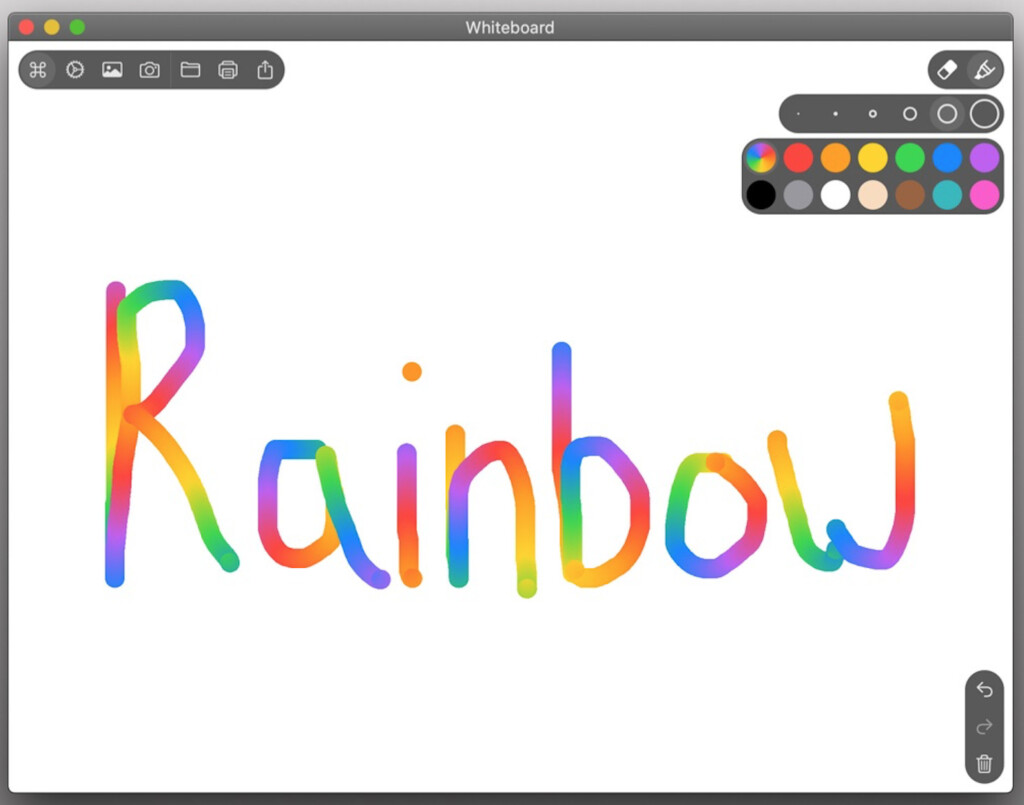
Whiteboard is exactly what it says it is – a clean drawing Whiteboard with some simple colors and drawing tools.
It is mainly aimed at kids so if you’re looking to keep your toddler occupied offline with no intrusive ads or in-app purchases, then this is the drawing app for you.
What it is: A lightweight drawing app ideal for quick sketches and fun doodles.
Why you’ll like it:
- Super easy to use with minimal tools.
- Great for kids or anyone wanting a digital sketchpad.
- Supports simple color palettes and importing images.
Drawbacks: - Too limited for serious artwork or photo editing.
Best for: Quick drawings and casual creativity.
Pricing: You can start using Whiteboard in your browser for free instantly now or download the app from Mac App Store.
3. Paint S (formerly Paint 2)
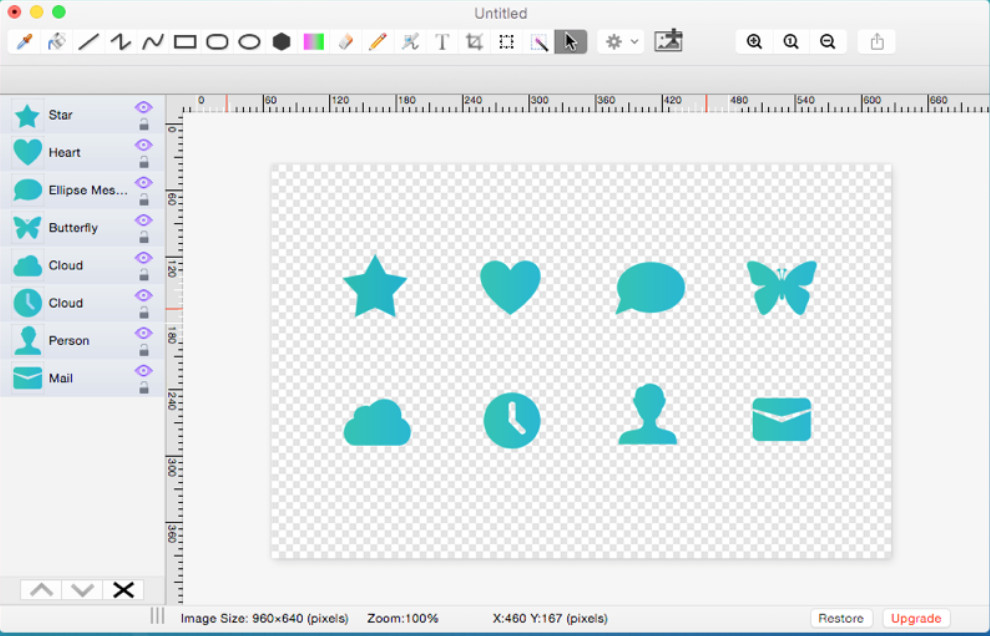
Although not very advanced, Paint S allows you to draw simple pictures or edit your existing photos.
Paint S can open and save images in TIFF, JPEG, PNG and BMP and features all the standard tools you get in Microsoft Paint such as sketch, crop, rotate and scale images.
What it is: One of the most popular free Paint clones for Mac.
Why it’s great:
- Familiar interface that feels just like MS Paint.
- Includes tools like fill bucket, shapes, color picker, text, crop, and effects.
- Supports common image formats (PNG, JPEG, BMP, TIFF).
Upgrades: The paid “Paint Pro” version adds layers, gradients, and filters.
Best for: Users who want a nearly identical MS Paint experience on macOS.
Pricing: Free but many features only available in Paint Pro.
4. Paintbrush
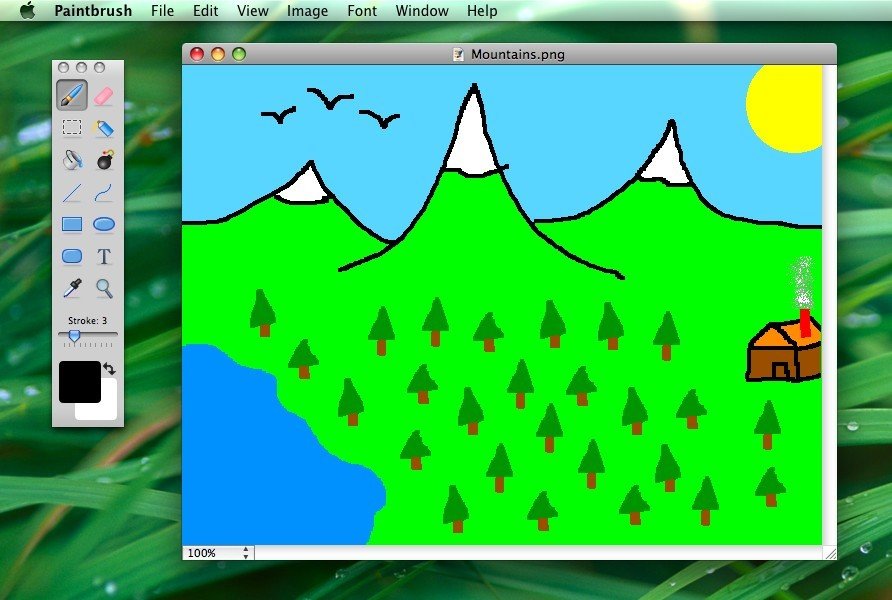
Paintbrush has a very similar interface to the classic version of MS Paint with the same kind of color palette and paintbrush tools.
However, it hasn’t been updated for years and only officially works on Intel Macs running OS X 10.10 Yosemite or lower.
What it is: A long-standing free Paint-style editor for macOS.
Why it’s great:
- One of the earliest true MS Paint alternatives for Mac.
- Lightweight, fast, and open-source.
Drawbacks: - Updates are infrequent, so check compatibility with Apple Silicon and macOS Sequoia.
Best for: Nostalgic users or older Mac systems.
Pricing: Free
5. JS Paint

If you want to get up and running instantly with proper MS Paint retro app, then look no further than JS Paint.
What it is: A web-based re-creation of classic MS Paint that runs entirely in your browser.
👉 Try it here: https://jspaint.app/#local:ed81bb46b519c
Why you’ll like it:
- Faithful to the original Paint interface and behavior.
- Runs instantly – no install required.
- Works offline once loaded and can save to PNG or BMP.
- Open-source and actively maintained.
Drawbacks: - No layers or advanced image editing.
Best for: Anyone who misses the exact feel of old-school MS Paint but wants a modern, cross-platform solution.
Pricing: Free
6. Patina
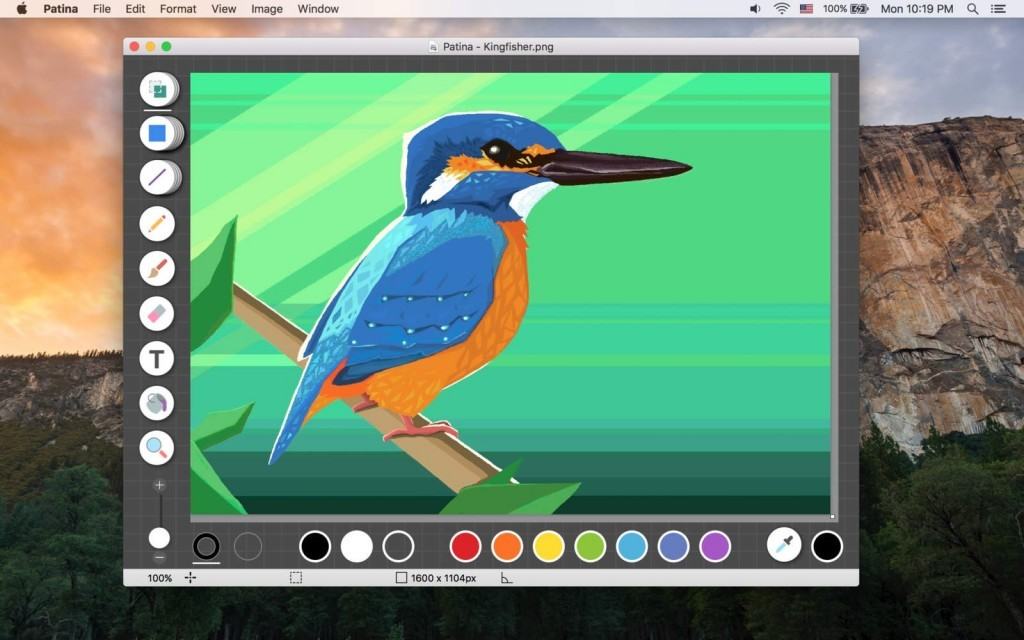
Patina is a bitmap editor and drawing tool built specifically for Mac users.
Patina is an elegant equivalent to Microsoft Paint which is aimed at those that want something stylish, powerful but simple.
What it is: A modern, Mac-native drawing app that improves on the Paint formula.
Why it’s great:
- Clean interface designed specifically for macOS.
- Better precision and smoother brush strokes than Paint.
- Supports transparency, drag-and-drop, and PSD/AI import.
Drawbacks: - No free version – but inexpensive and regularly updated.
Best for: Users who want a refined, Mac-optimized Paint alternative.
Pricing: $2.99
7. Pixelmator Pro
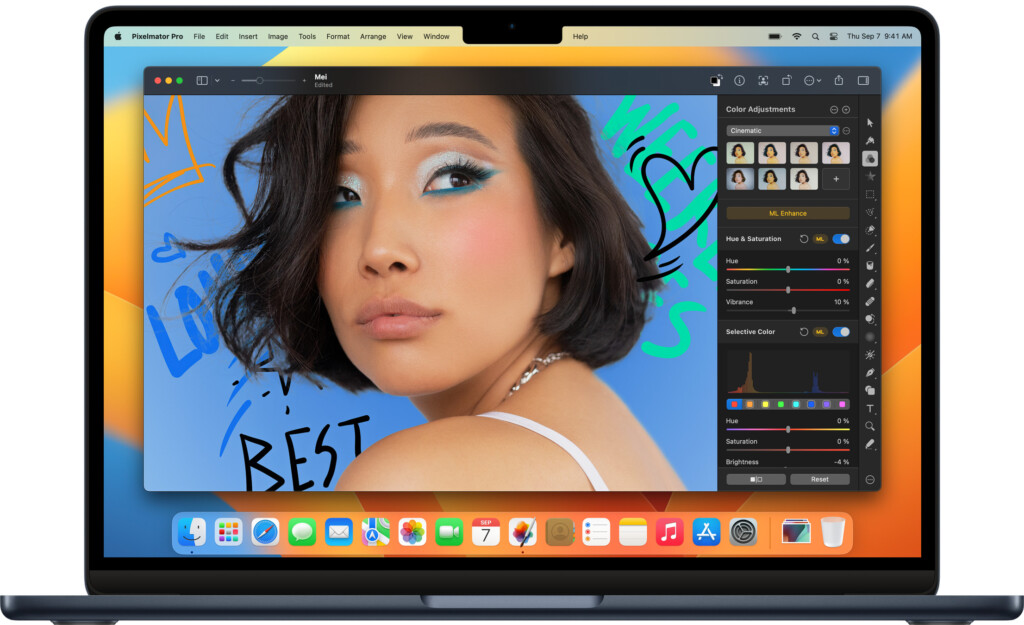
If you want something really fancy, check out Pixelmator Pro.
Pixelmator is aimed at those that want a powerful image editing and graphic design tool but it can also be easily used like MS Paint for doodling and simple drawings.
What it is: A professional-grade image editor that’s still beginner-friendly.
Why it’s great:
- Uses Metal for incredible speed on Apple Silicon Macs.
- Layers, blending, vector tools, and powerful retouching, yet not too intimidating.
- Gorgeous macOS-native interface.
Drawbacks: - Paid app, and overkill for simple sketches.
Best for: Hobbyists and pros who occasionally need Paint-style editing but want room to grow.
Pricing: $49.99
8. MacPaint (Archive Classic)

Want to use the original MacPaint? You can with this cool retro emulated version.
What it is: The original bitmap paint app for the 1984 Macintosh – preserved online at the Internet Archive
Why it’s cool:
- The ancestor of every modern Paint program.
- You can emulate it in your browser via Mini vMac – no old hardware required.
- A nostalgic look at early Mac creativity.
Best for: Retro fans or anyone curious about Mac history.
Pricing: Free
Other Notable Options
- Krita: A powerful open-source painting app for digital artists – free and optimized for Apple Silicon and one of our picks as the best graphic design software for Mac.
- Tayasui Sketches: A natural-feeling sketch app for drawing tablets, Mac and iPad, great with the Apple Pencil.
- Mischief (Legacy): Discontinued but still downloadable – known for infinite canvas sketching.
Which Paint App Is Right for You?
| Task | Best App |
|---|---|
| Quick markups, no install | Preview |
| Fun doodling or kids | Whiteboard |
| Closest to classic MS Paint | Paint S or JS Paint |
| Lightweight, polished Mac app | Patina |
| Full creative graphic design power | Pixelmator Pro |
| Retro nostalgia | MacPaint (Archive) |
How To Run Microsoft Paint or Paint 3D On A Mac
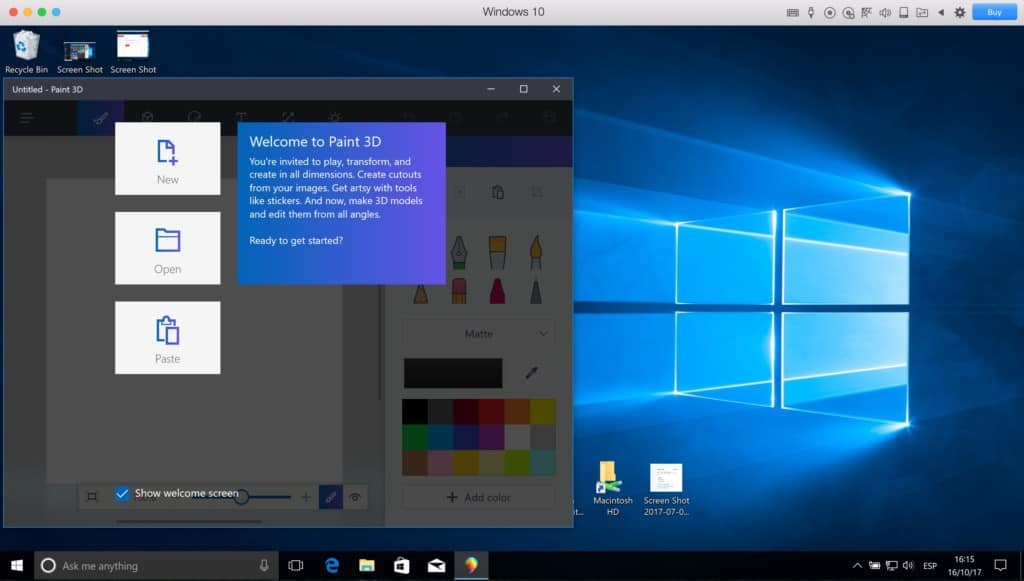
If you’re determined to use the original Microsoft Paint or Paint 3D on your Mac, unfortunately there’s no longer a simple way to do it.
Microsoft has now discontinued both Paint 3D and the classic MS Paint app on modern versions of Windows. While older Windows builds still include them, they’re no longer available through the Microsoft Store or supported on current Windows 11 updates.
That means even if you install Windows on your Mac – which you can still do using virtualization software such as Parallels Desktop, VMware Fusion, or UTM – you won’t find Paint 3D preinstalled or easily downloadable.
You can however run Microsoft Paint in Windows ARM on Apple Silicon Macs using the free UTM virtual machine (see below).
Was There Ever A Mac Version Of Paint?
There has never been a version of Microsoft Paint for Mac. When Macs were first released in 1984, they did include an app called MacPaint which was actually released just before Microsoft launched MS Paint in 1985.
However, Apple quietly dropped MacPaint from later versions of OS X and macOS, leaving Mac users with no way to easily doodle anymore.
Can You Draw With Freeform for Mac?
On Mac (macOS 13 Ventura or later) the Freeform app is available, but the dedicated free-hand drawing tool (pen/pencil) found in the iPhone and iPad versions is not supported in the Mac version.
You can add shapes, text, images, sticky notes and more to a Freeform board on the Mac – but you cannot directly scribble or draw free-hand with a trackpad, mouse or drawing tablet the same way you do on iPad/iPhone.