


For years, Apple’s built-in Photos app (and before it, iPhoto) has been the default choice for Mac users to organize and edit photos.
While it’s convenient and easy to use, it’s far from the most powerful option available – especially if you want more control, advanced tools, or creative flexibility without paying for premium graphic design software like Photoshop.
The good news is there are plenty of free photo editing apps for Mac that go far beyond what Apple Photos can do. Some even include advanced features like RAW editing, layers, and AI-powered tools.
In this guide, we’ve tested and ranked the best free photo editing software for Mac in 2026, including tools for beginners, photographers, and designers.
Whether you’re touching up selfies, editing high-resolution images, or creating social media graphics, these free tools offer something for everyone.
Quick Picks (Best Free Photo Editors for Mac)
- Best overall: GIMP
- Best for beginners: Photoscape X
- Best for RAW editing: Darktable
- Best online editor: Pixlr
- Best for social media/design: Canva
Free Mac Photo Editors Comparison Table
| App | Best For | RAW Support | AI Tools |
|---|---|---|---|
| GIMP | Advanced editing | Limited | No |
| Photoscape X | All-round use | Yes | Limited |
| Darktable | RAW photography | Yes | No |
| RawTherapee | RAW processing | Yes | No |
| Fotor | Beginners | No | Yes |
| Seashore | Lightweight editing | No | No |
| Pinta | Basic edits | No | No |
| Pixlr | Browser editing | Limited | Yes |
| Photopea | Photoshop-style editing | Limited | No |
| Adobe Express | Quick designs | No | Yes |
| Canva | Social media/design | No | Yes |
| Google Photos | Backup + editing | No | Yes |
Apple Photos: Is It Enough?
Apple Photos comes pre-installed on every Mac and is designed primarily for organizing and syncing your photo library via iCloud. However, it’s very limited as a photo editor.
👍 Best for:
- Casual users
- iPhone photo syncing
- Quick edits
👎 Limitations:
- No layers or advanced editing tools
- Limited RAW editing
- No batch processing
For basic adjustments like cropping, filters, and lighting tweaks, it’s perfectly fine. But if you want more creative control or professional-level tools, you’ll quickly hit its limits.
Best Free All-Round Photo Editors
Here then are the best apps to edit photos on your Mac for free.
1. GIMP
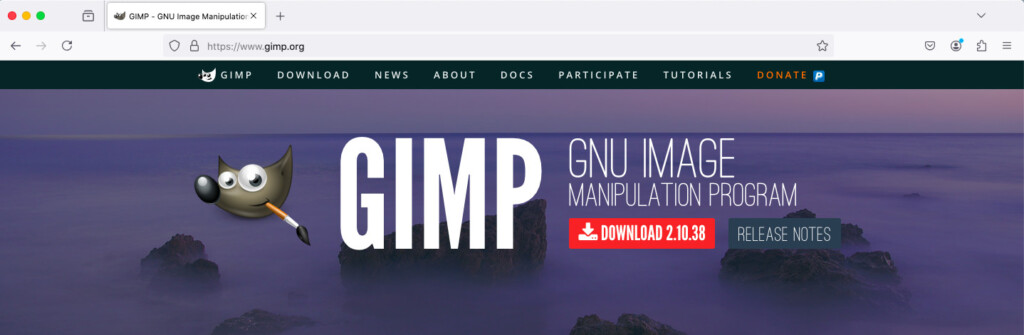
GIMP (GNU Image Manipulation Program) is often dubbed the “best free alternative to Photoshop” because of its extensive set of professional-level editing tools.
It supports layers, masks, color adjustments, and even photo retouching.
GIMP certainly requires a bit of learning before you can fully take advantage of it but once mastered, it’s an incredibly powerful tool for users who want advanced control over their images for free.
For photographers and designers who need sophisticated editing capabilities, GIMP is hands down one of the best free photo editing apps available on macOS.
Pros:
- Professional-grade features
- Support for layers and masks
- Customizable with plugins
Cons:
- Steeper learning curve
- Interface can be intimidating for beginners
2. Photoscape X
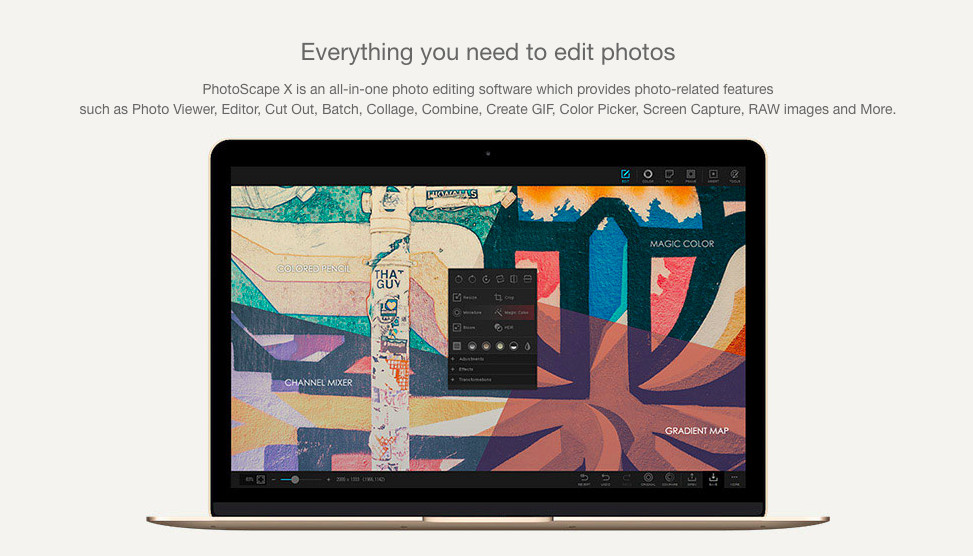
Photoscape X is an example of a great combination of powerful editing features while still maintaining ease of use.
It offers filters, color adjustments, and even a batch editing tool that allows you to edit multiple photos at once.
The free version of Photoscape X provides plenty of functionality, although some advanced features, such as creative effects and tools, require a paid upgrade.
Still, for most users, the free version is more than enough to create snazzy edits quickly.
Pros:
- Intuitive interface
- Wide variety of editing tools
- Batch editing feature
Cons:
- Some features behind a paywall
- Not as customizable as GIMP
3. Darktable
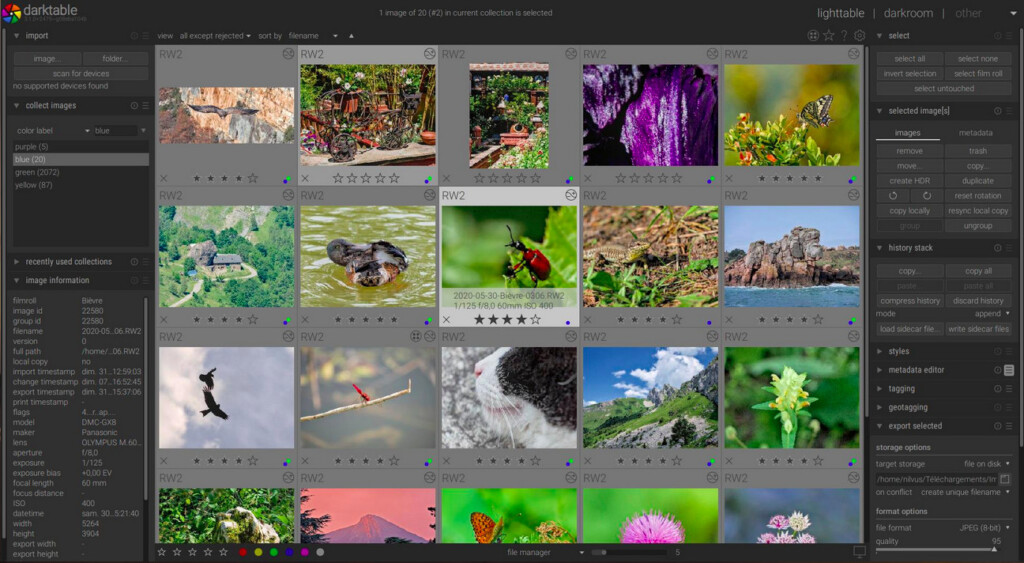
Darktable is an open-source photo editor specifically designed for RAW image editing, making it a good choice for photographers who want precise control over their images.
It offers non-destructive editing, allowing you to make adjustments without permanently altering the original file.
Darktable’s feature set includes color correction, exposure adjustments and sharpening tools and doesn’t cost a cent.
Pros:
- Excellent RAW editing capabilities
- Non-destructive editing
- Comprehensive toolset for photographers
Cons:
- Overwhelming for beginners
- Slower performance with large files
4. RawTherapee (Alternative RAW Editor)
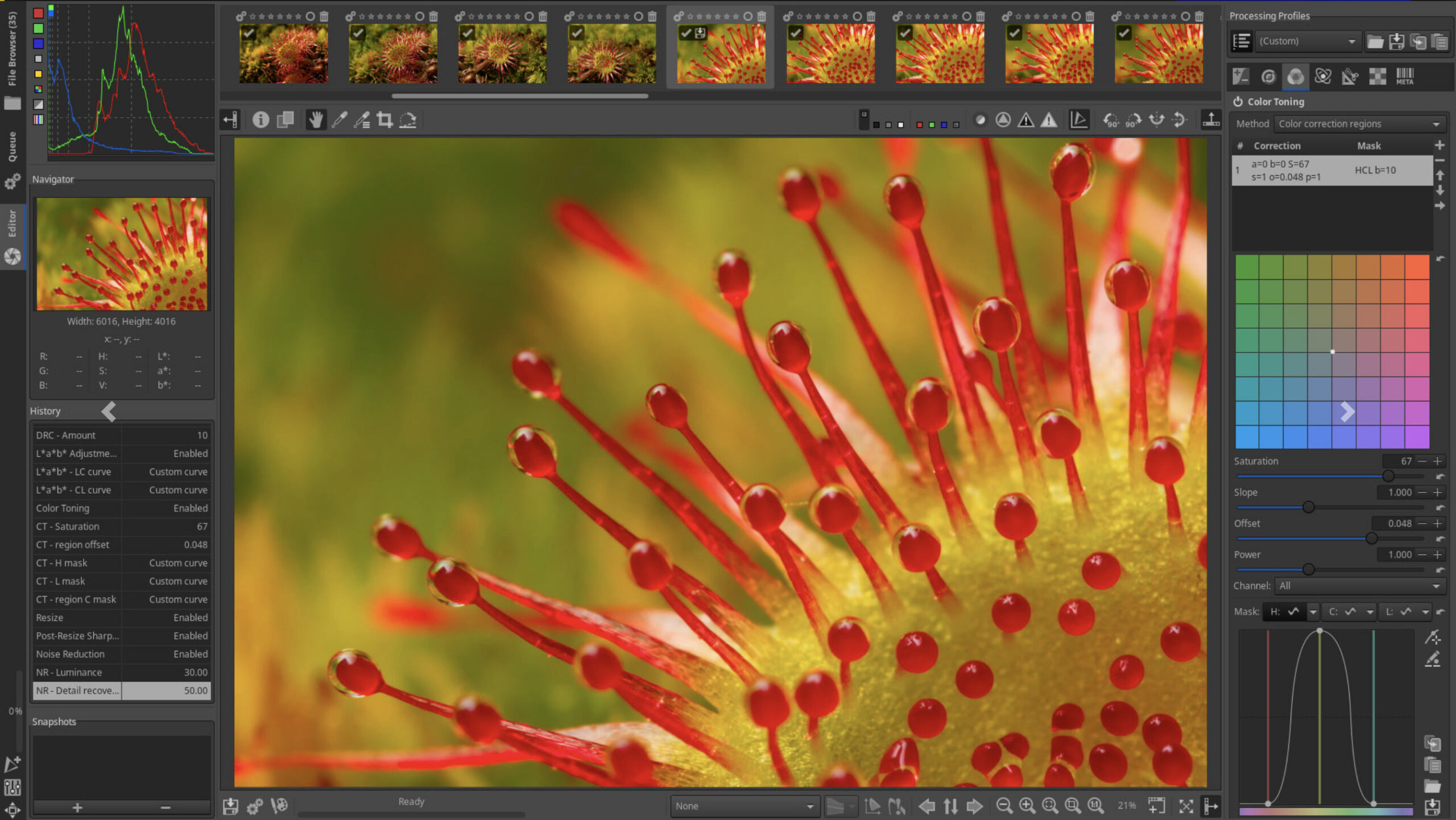
RawTherapee is a powerful, open-source photo editor designed specifically for processing RAW images with maximum quality.
It offers a highly detailed set of tools for fine-tuning photos, including advanced exposure controls, color correction, sharpening, and noise reduction. It’s particularly well-regarded for the level of control it gives over image processing, making it a strong alternative to Darktable.
However, the interface can feel technical and less intuitive for beginners, so it’s better suited to users who are comfortable working with more complex editing tools.
Pros:
- Excellent RAW image processing quality
- Highly detailed editing controls
- Completely free and open-source
Cons:
- Interface isn’t very beginner-friendly
- Steeper learning curve
Easiest Photo Editors for Beginners
If you just want quick, simple edits, start here.
5. Fotor
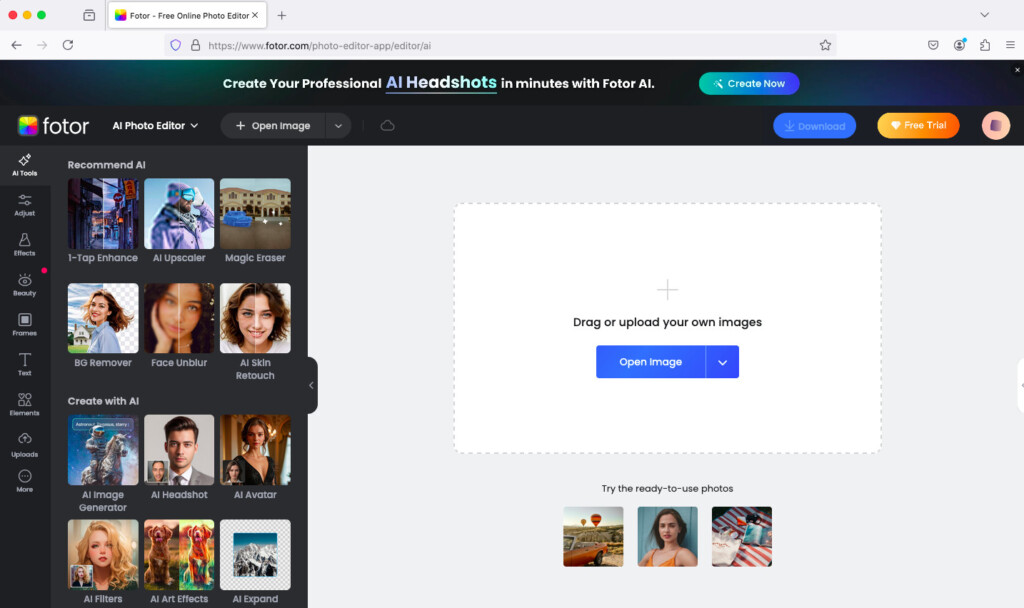
Fotor is a great photo editing app for Mac users looking for a simplistic, no frills approach.
It offers a large selection of filters, frames, and basic editing tools and while it doesn’t have the professional-grade tools that apps like GIMP or Darktable offer, it’s an excellent choice for those who are looking for an app for basic editing.
Fotor also offers a free AI image generator that allows you to create text to image photos in seconds.
Note that the free version includes ads, but they’re not overly intrusive and don’t hinder the editing experience.
Pros:
- Beginner-friendly
- Wide range of filters and effects
- Fast processing
- AI art generator tools
Cons:
- Limited advanced editing options
- Free version includes ads
6. Seashore
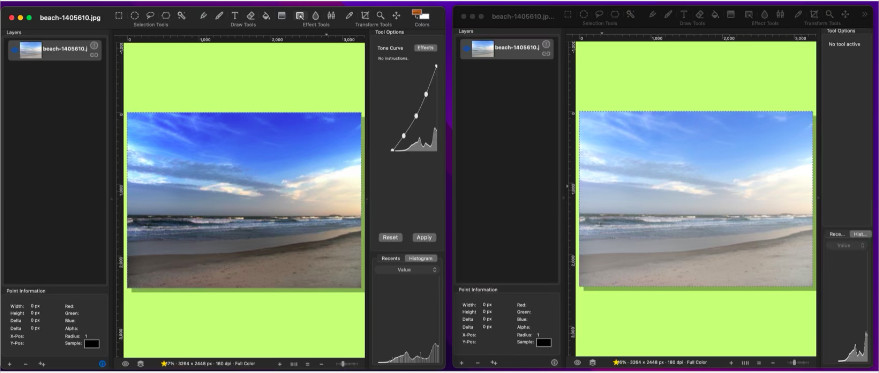
Seashore is a free, open-source image editor specifically built for macOS.
It offers a simple interface with basic tools for editing photos, such as layers, gradients, and brushes.
Seashore is ideal for users who want a Mac-native app that doesn’t require a lot of technical knowledge to operate.
While it may not have the power of apps like GIMP or Photoscape X, Seashore is a good choice for Mac users who need a lightweight, easy-to-use photo editor with a native macOS app.
Pros:
- Native macOS app
- Supports layers, gradients, and transparency
- Easy to use
Cons:
- Not as feature-rich as other editors
- Limited advanced functionality
7. Pinta
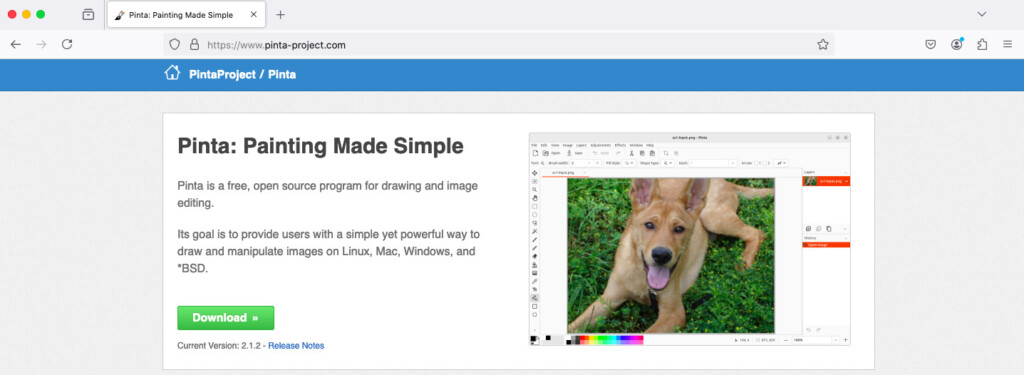
Pinta is a free, open-source photo editor designed to be simple and easy to use.
Pinta’s interface is similar to that of MS Paint (which doesn’t exist for Macs although there are some great alternatives to it), but it supports layers, unlimited undo, and a handful of essential editing tools such as cropping, resizing, and color adjustments.
While it may not offer the advanced capabilities of apps like GIMP or Darktable, Pinta is a great option for those who need quick, straightforward edits.
Pros:
- Lightweight and fast
- Supports layers and basic editing tools
Cons:
- Limited advanced features
- Development updates are infrequent
Best Browser-Based Photo Editors (No Install)
Perfect if you don’t want to install software.
8. Pixlr
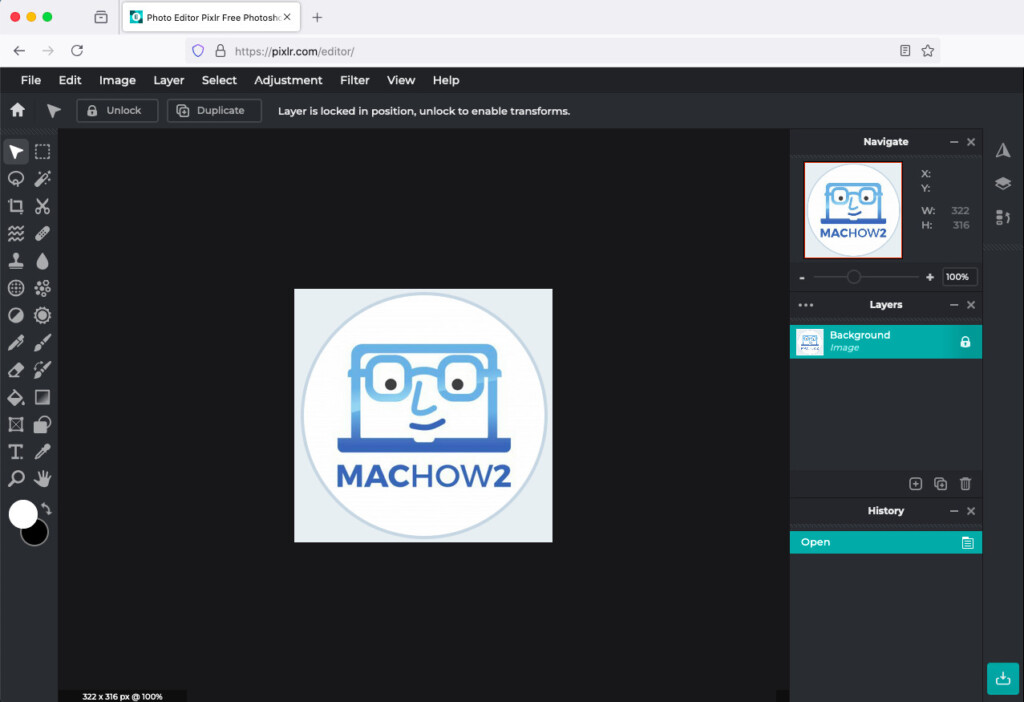
Pixlr is a cloud-based photo editor that’s perfect for users who don’t want to install software on their Mac.
It offers a surprising range of tools for a browser-based app, including layers, effects, and filters.
Most recently it has been enhanced with an AI image generator and AI editing tools.
While the free version is feature-rich, certain tools, such as high-level retouching and premium effects, require a subscription.
Pros:
- No installation required
- Easy to use
- Wide range of editing tools
- AI image generator
Cons:
- Requires internet connection
- Advanced features locked behind a subscription
9. Photopea
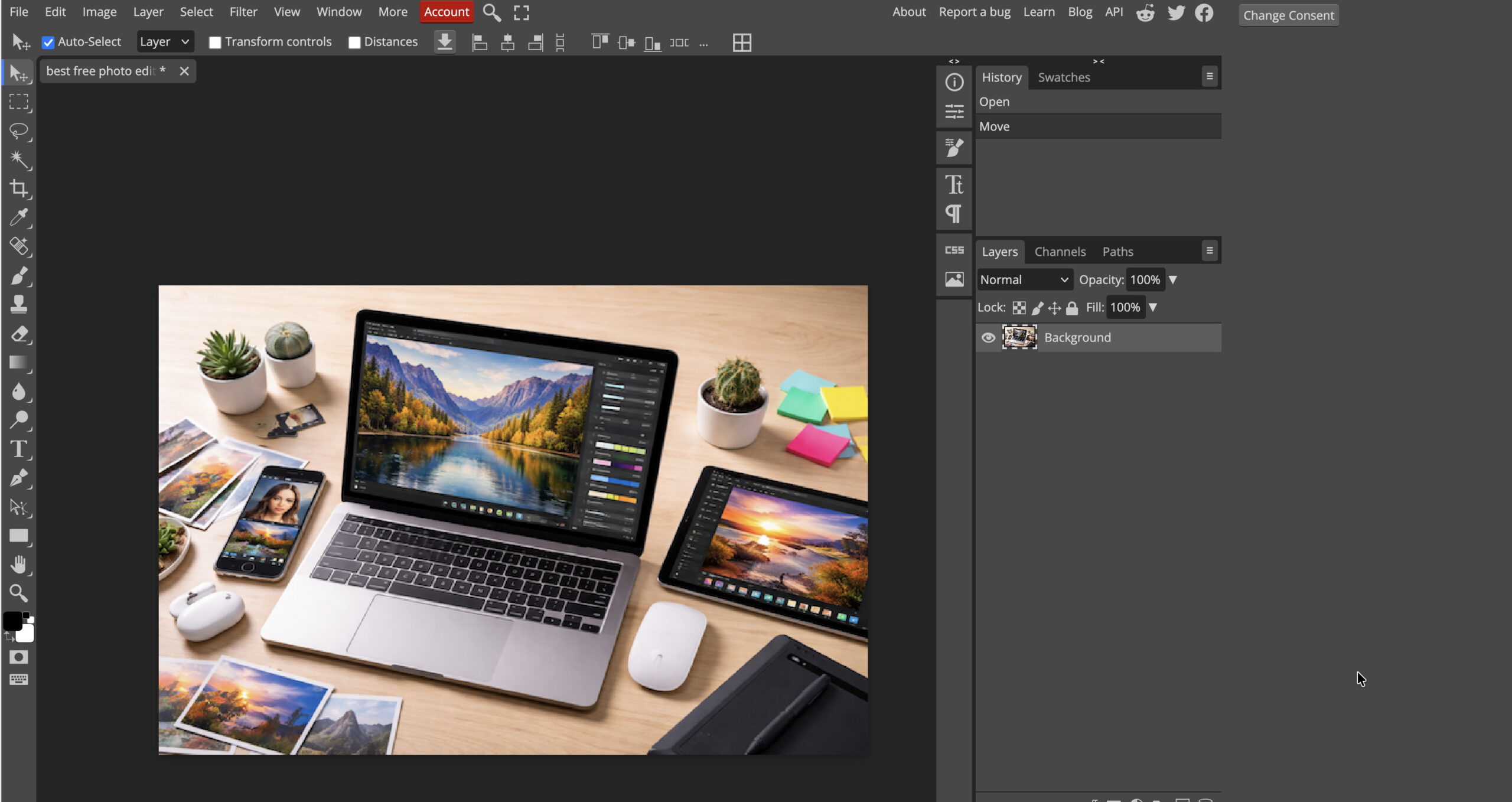
Photopea is a surprisingly powerful browser-based photo editor that closely resembles Photoshop in both design and functionality.
It supports advanced features like layers, masks, blending modes, and even PSD files, making it an excellent option for users who want a familiar Photoshop-style experience without installing any software.
Despite running in a browser, it performs impressively well and includes many tools typically found in desktop applications. However, the free version is ad-supported, and performance can depend on your internet connection.
Pros:
- Very similar to Photoshop
- Supports PSD and other file formats
- No installation required
Cons:
- Requires an internet connection.
- Ads in the free version
10. Adobe Express
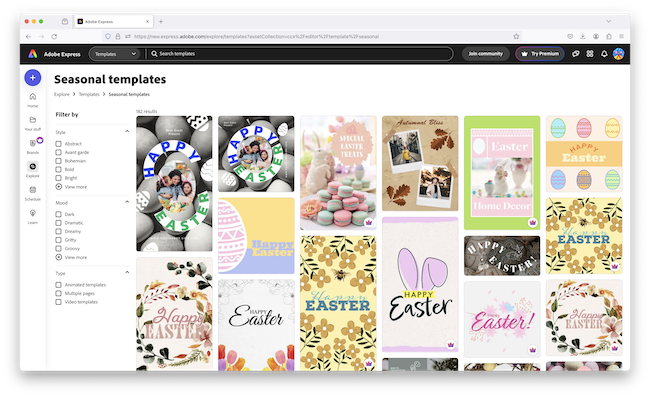
Formerly known as Adobe Spark, Adobe Express is a free, browser-based photo editor that allows users to quickly improve images and create stunning visual content.
It’s particularly well-suited for social media posts, as it includes a library of templates, fonts, and design elements that can help make your photos stand out.
While Adobe Express doesn’t have the same level of advanced tools as Adobe Photoshop, it’s great for those who want to make fast edits like resizing, adding filters, or overlaying text on images.
With Adobe’s well-known ease of use, it’s an excellent option for anyone looking for a free yet powerful tool for basic photo editing and graphic design.
Check out our full Adobe Express review for more.
Pros:
- Simple and intuitive interface
- Great for social media content
- Free access to Adobe’s basic editing tools
Cons:
- Limited advanced photo editing features
- Some premium content behind a paywall
11. Canva
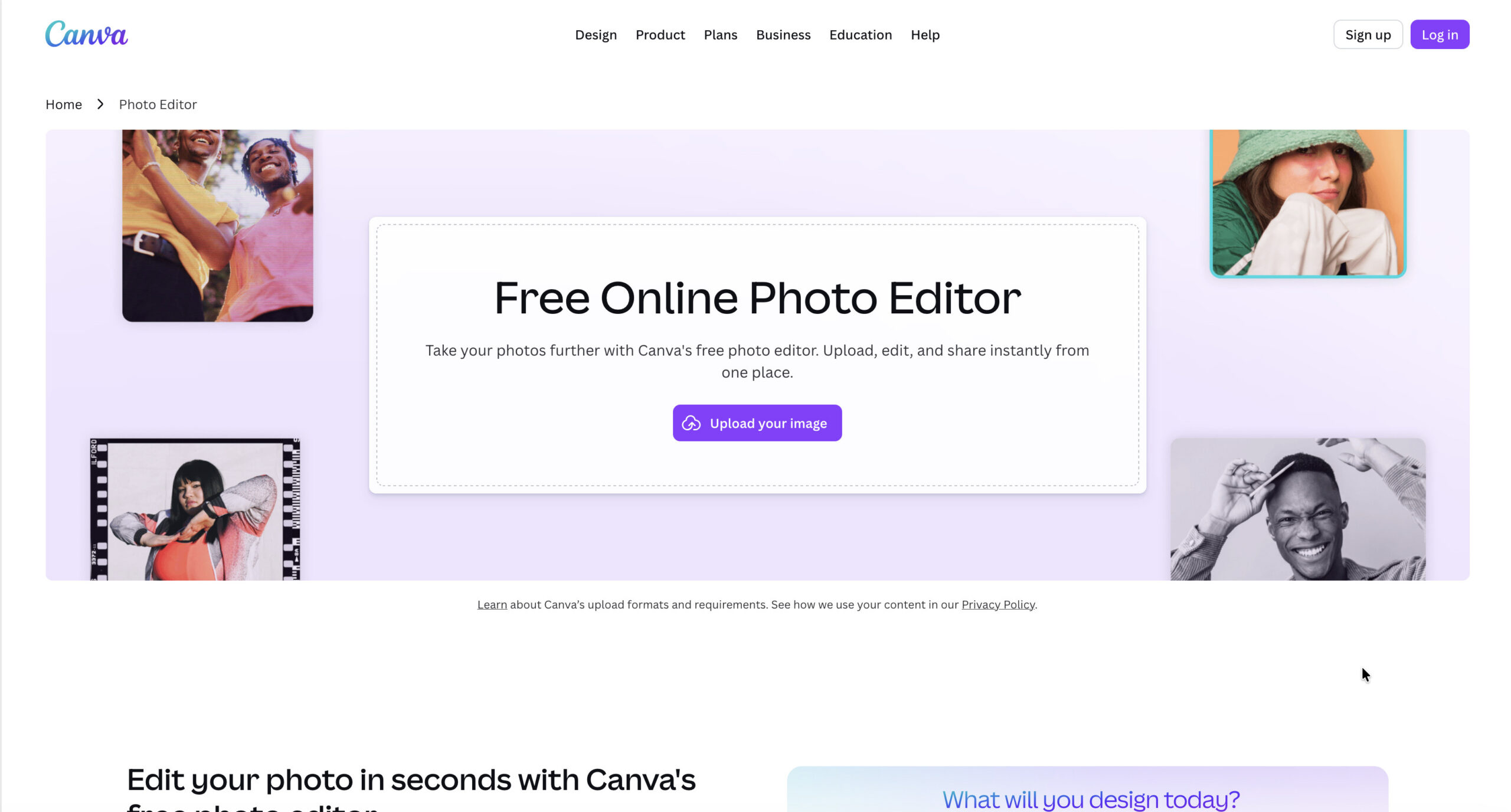
Canva is one of the most popular free design tools available and is ideal for creating social media graphics, presentations, and marketing visuals.
It features a simple drag-and-drop interface, along with thousands of templates, fonts, and design elements that make it incredibly easy to produce professional-looking content quickly.
While Canva does include basic photo editing tools and AI features, it’s not designed for detailed photo retouching or advanced editing like GIMP or Darktable.
Pros:
- Extremely easy to use
- Huge library of templates and assets
- Great for social media and visual content
Cons:
- Many assets and features require a paid plan
- Limited advanced photo editing tools
Cloud-Based Editing & Storage
12. Google Photos
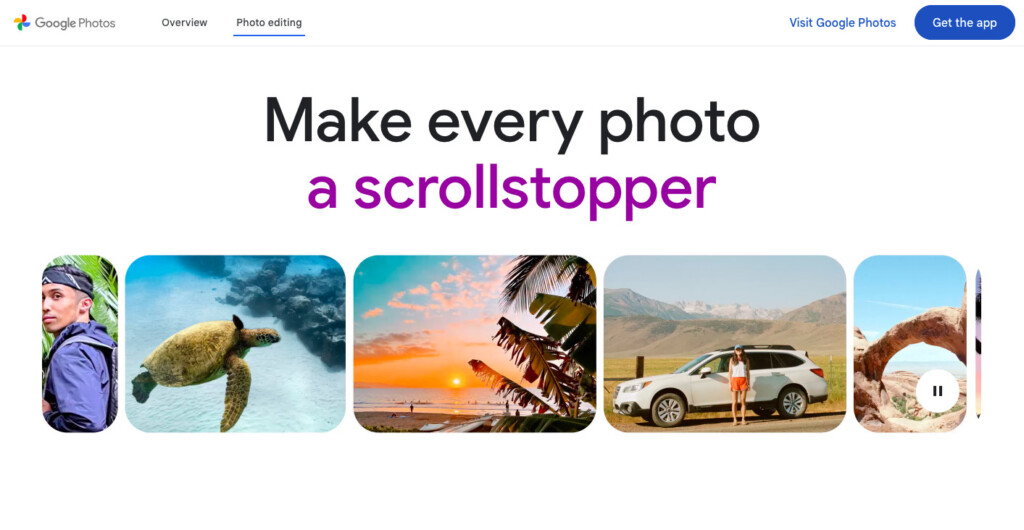
Google Photos is primarily known as a cloud storage solution for your images, but it also includes a variety of basic editing tools.
With Google Photos, you can adjust lighting, add filters, crop, and rotate images with ease.
Although its editing capabilities aren’t as developed as other photo editing apps we’ve looked at, the convenience of having everything backed-up and accessible from any device makes Google Photos a great choice for someone who works between Macs and Windows PCs.
For users who don’t require advanced tools, Google Photos offers a free option with the added benefit of Google’s cloud storage.
Pros:
- Cloud storage and automatic backups
- Easy-to-use editing tools
- Seamless syncing across devices
Cons:
- Limited advanced editing features
- Requires an internet connection for full functionality
Which Photo Editor Is Right For You?
- Beginners: Fotor, Photoscape X
- Photographers: Darktable, RawTherapee
- Designers: GIMP, Photopea
- Social media creators: Canva, Adobe Express
- No installs: Pixlr, Photopea
Free vs Paid Limitations
Some “free” apps include restrictions:
- Ads: Fotor
- Paywalled features: Photoscape X, Pixlr, Canva
- Fully free: GIMP, Darktable, RawTherapee
Always check what’s included before committing.
Summary
While Apple Photos is fine for basic edits, it simply can’t compete with the flexibility and power of dedicated photo editors.
If you want the best free option:
- Go with GIMP for advanced editing
- Choose Photoscape X for ease of use
- Use Darktable or RawTherapee for photography
- Try Canva or Pixlr for quick, modern workflows
With so many high-quality free tools available, there’s no need to pay for expensive software unless you truly need professional-grade features.
FAQs
What is the best free photo editor for Mac?
The best free photo editor for Mac overall is GIMP, thanks to its powerful features like layers, masks, and advanced editing tools.
However, the best choice depends on your needs:
- Photoscape X is better for beginners
- Darktable or RawTherapee are ideal for RAW photo editing
- Canva is best for social media and design
Is Apple Photos good enough for editing photos?
Apple Photos is fine for basic edits like cropping, filters, and adjusting lighting.
However, it lacks advanced tools such as layers, masking, and detailed retouching, making it unsuitable for more complex editing tasks.
If you need more control, apps like GIMP or Photoscape X are much better alternatives.
What is the easiest free photo editor for Mac?
Photoscape X is one of the easiest free photo editors for Mac, offering a simple interface with powerful tools.
Other beginner-friendly options include:
- Fotor for quick edits and AI tools
- Canva for drag-and-drop design
- Seashore for a lightweight Mac app
What is the best free RAW photo editor for Mac?
The best free RAW photo editors for Mac are Darktable and RawTherapee.
Both offer advanced, non-destructive editing tools designed specifically for photographers working with RAW images.
Darktable is generally more user-friendly, while RawTherapee offers more detailed control.
Are there any free Photoshop alternatives for Mac?
Yes, GIMP is widely considered the best free alternative to Photoshop on Mac.
If you prefer something that works in your browser, Photopea is another excellent option that closely mimics Photoshop’s interface and supports PSD files.
For more options, check out our guide to the best Photoshop alternatives for Mac.
What is the best free online photo editor for Mac?
The best free online photo editors for Mac include:
- Pixlr – great all-round browser editor
- Photopea – best for Photoshop-style editing
- Canva – best for social media and design
These tools don’t require installation and work directly in your browser.
Are free photo editing apps safe to use on Mac?
Most well-known free photo editors like GIMP, Darktable, and Photoscape X are safe to use.
However, you should always:
- Download apps from official websites or the Mac App Store
- Avoid unknown or poorly reviewed software
- Be cautious of apps that require excessive permissions
Do free photo editors have limitations?
Yes, many free photo editors have some limitations.
- Fully free (no restrictions): GIMP, Darktable, RawTherapee
- Freemium (features locked): Canva, Pixlr, Photoscape X
- Ad-supported: Fotor
Despite this, most free tools offer more than enough features for everyday editing.
Do I need Photoshop on a Mac?
Most users don’t need Photoshop on a Mac.
Free tools like GIMP, Photoscape X, and Photopea can handle the majority of photo editing tasks without the cost of a subscription.
Photoshop is only necessary for professional work or advanced design work.