

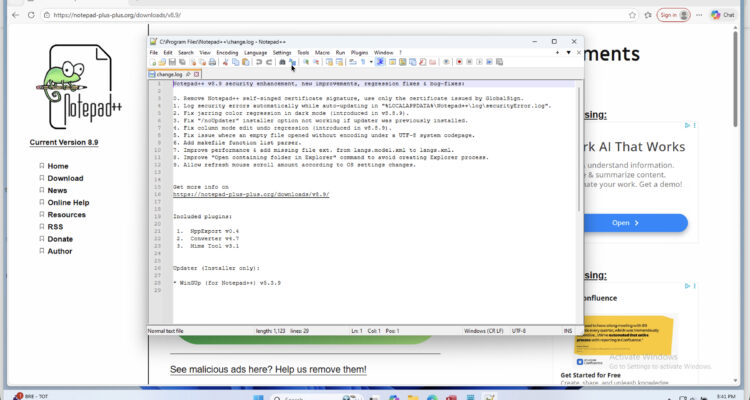
April 28th 2026 Update: Notepad++ for Mac has now been released! The information below is purely for legacy purposes and is no longer necessary unless you want to run the Windows version of Notepad++ on a Mac.
If you’re not impressed by the Mac version of Notepad++ or want a specific feature that is only available in the Windows version, the good news is you can run the Windows version of Notepad++ on a Mac.
In this guide, we’ll show you:
- The easiest way to run Notepad++ on Mac
- Alternative methods (without installing Windows)
- The best Mac alternatives
Can You Run The Windows Version of Notepad++ on Mac?
Yes – but only by running Windows on your Mac.
The Windows version of Notepad++ depends on Microsoft’s Win32 API so if you want the real Notepad++ experience, you’ll need to choose one of the following:
- Run Windows in a virtual machine (easiest method)
- Use compatibility tools like Porting Kit or Wine (more advanced)
- Use Boot Camp (Intel Macs only)
| Method | Difficulty | Works on M1/M2/M3 |
|---|---|---|
| Virtual Machine | Easy | ✅ |
| Porting Kit | Medium | ✅ |
| Wine | Advanced | ⚠️ |
| Boot Camp | Medium | ❌ |
How to Run Notepad++ on Mac (Step-by-Step)
The easiest way to use the Windows version of Notepad++ on a Mac is by installing Windows using a virtual machine.
1. Use a Virtual Machine (Best Method)
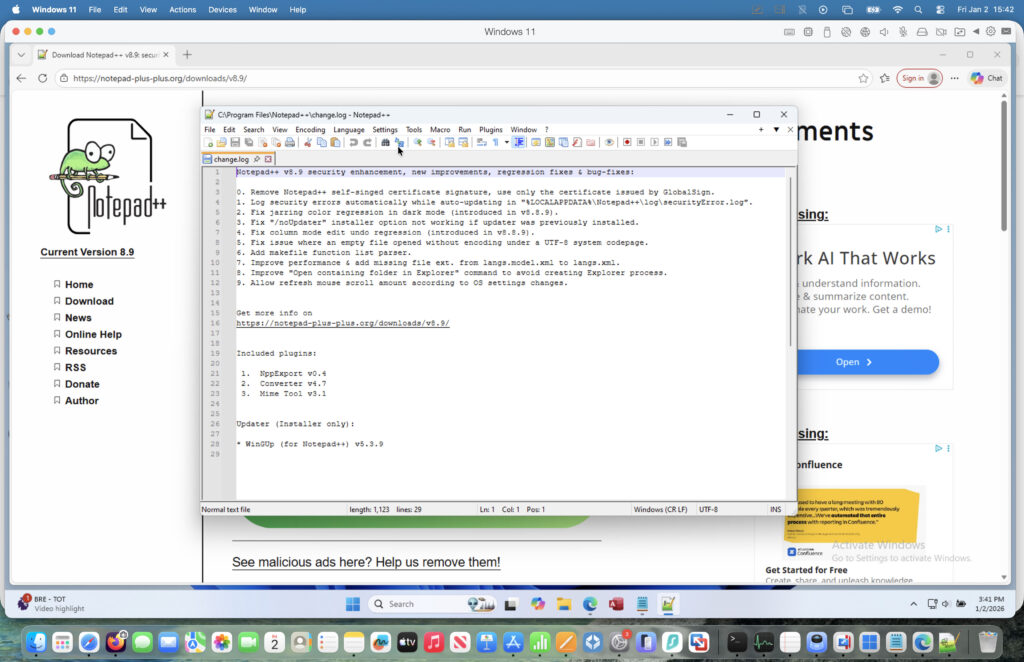
A virtual machine lets you run Windows alongside macOS – no reboot required.
The best options are:
- Parallels Desktop (paid, easiest to use)
- VMware Fusion (free for personal use)
I ran the PC version of Notepad++ on my Mac with Parallels as it’s the better of the two but it also works fine with VMware Fusion.
Steps:
1. Install Parallels Desktop
Download and install Parallels Desktop. It offers a 14-day free trial and works on both Intel and Apple Silicon Macs.
2. Install Windows 11
Parallels will guide you through installing Windows 11 automatically. You don’t need a product key to use Windows for basic tasks.
3. Open Windows on Your Mac
Once installed, launch Windows directly inside macOS.
4. Download Notepad++
- Open a browser in Windows and download Notepad++ from the official website.
- Install it just like you would on a PC.
- You can now run Notepad++ seamlessly on your Mac.
If you want to see exactly how this works, here’s a demo of Notepad++ (and Notepad) running on a Mac:
2. Alternative Ways to Run The Windows Version of Notepad++ on Mac (Without Windows)
If you don’t want to install Windows, there are a couple of unofficial methods. These can work—but they’re generally less reliable and may require troubleshooting.
1. Porting Kit (Best No-Windows Option)
Porting Kit is a free tool that lets you run some Windows apps on macOS by creating a compatibility “wrapper”.
Note: This is a third-party app called Porting Kit, not Apple’s Game Porting Toolkit for developers.”
How it works:
- Install Porting Kit
- Search for Notepad++
- Follow the setup instructions
Pros:
- No need to install Windows
- Easier than using Wine manually
Cons:
- May not support all Notepad++ features
- Plugin compatibility can be inconsistent
- Performance may vary
👉 Best for: users who want a simple, free workaround without installing Windows.
2. Wine (Advanced Users Only)
Wine is an open-source compatibility layer that allows Windows apps to run on macOS.
Basic process:
- Install Wine
- Configure it via Terminal
- Run the Notepad++ installer (.exe)
Pros:
- Free and flexible
- No full Windows install required
Cons:
- More complex setup
- Can be unstable, especially on Apple Silicon Macs
- Requires troubleshooting
👉 Best for: advanced users comfortable using Terminal and fixing compatibility issues.
3. Using Boot Camp (Intel Macs Only)
If you have an older Intel Mac, you can also use Boot Camp to install Windows:
- Boot Camp is built into macOS and allows you to dual-boot into Windows or macOS.
- Once Windows is installed, you can run Notepad and Notepad++ natively.
- Note: Boot Camp does not work on M-series Macs, so a virtual machine such as Parallels is your only option for Apple Silicon devices.
If you do still have an Intel Mac, you can find full instructions on how to install Windows 11 on a Mac.
What About Windows Notepad?
If you’re wondering about the basic Windows Notepad app – the same method above works for that too.
However, most Mac users don’t need it.
macOS already includes TextEdit, which offers similar functionality, making Windows Notepad largely unnecessary unless you specifically need it.
Best Notepad++ Alternatives for Mac
If you don’t want to install Windows, there are some excellent native alternatives to Notepad++ on Mac.
Unlike Notepad++, most of these apps are actively developed for macOS and support plugins and integrations.
Some of the best options are:
- BBEdit – A powerful text editor for coders, free with advanced paid features.
- Visual Studio Code – Free, feature-rich, supports multiple languages and plugins.
- CotEditor – Lightweight and fast, native Mac app.
While these don’t replicate Windows Notepad or Notepad++ exactly, they are fully optimized for macOS and often include additional features for coding.
Should You Run The Windows Version of Notepad++ on Mac?
It depends on your needs:
✅ Use Notepad++ via Windows if:
- You rely on specific plugins
- You’re used to its interface
- You need exact compatibility
✅ Use a Mac alternative if:
- You don’t want to install Windows
- There are some features missing that you need
Conclusion
If you specifically need the PC version of Notepad++, running Windows on your Mac via a virtual machine remains the most reliable solution in 2026. However, for most users, using the native Mac version is faster, simpler, and better integrated with macOS.
FAQ
Can I install Notepad++ directly on macOS?
Yes, an official Mac version of Notepad++ has now been released.
What’s the easiest way to run the PC version of Notepad++ on a Mac?
Using a virtual machine like Parallels Desktop is the simplest and most reliable method.
Do I need to pay for Windows 11?
No. You can use Windows 11 without activation for basic use.
Is there a way to run the Windows version of Notepad++ on Mac without Windows?
Yes, using Porting Kit or Wine, but these methods are less reliable.
Are there good alternatives to Notepad++ on Mac?
Yes. Visual Studio Code, BBEdit, and CotEditor are among the best options.
Is running the Windows version of Notepad++ on Mac worth it?
Only if you specifically need it. Otherwise, the native Mac app is usually faster and more convenient.